

Create a Meta app
A Meta app holds the App ID and App secret StackOne uses to connect to WhatsApp through Facebook Login for Business.
Sign in to Meta for Developers
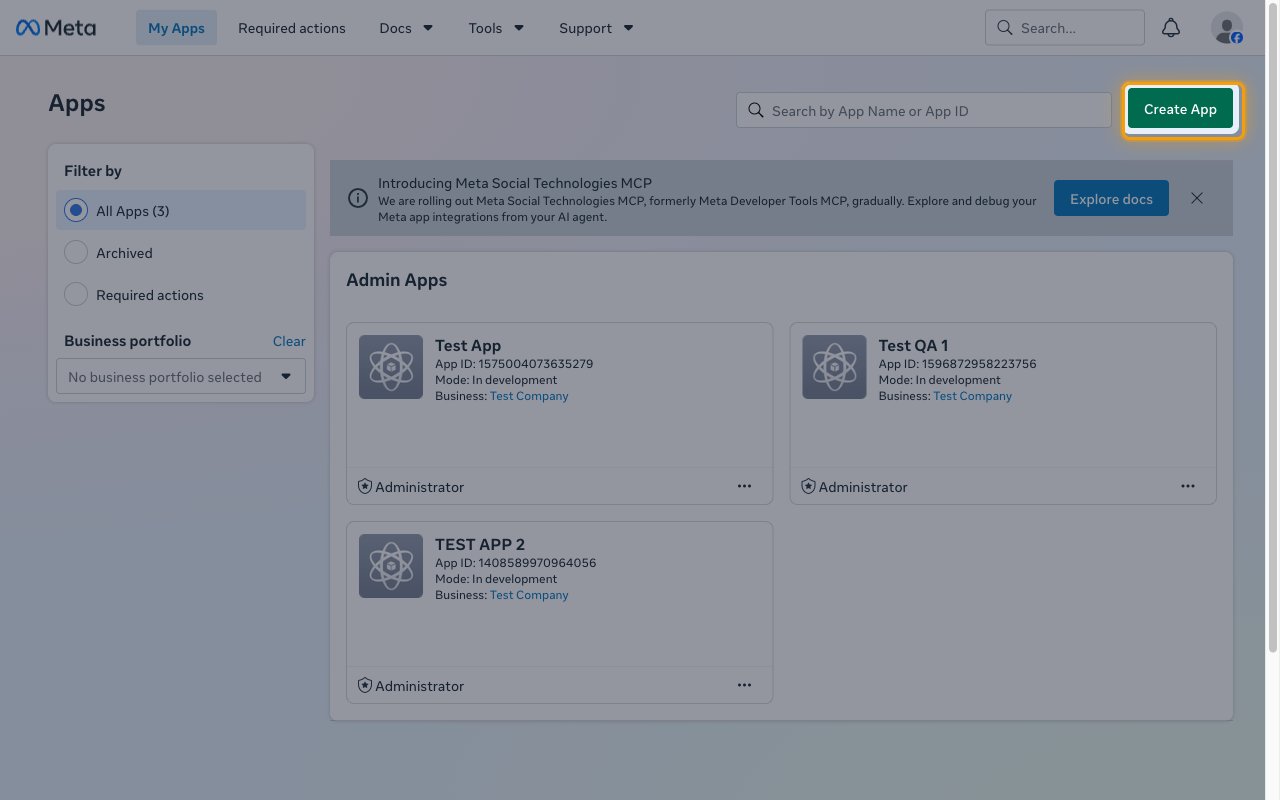
Enter the app details
On the App details step, name the app and check the contact email.
- App name:
StackOne Integration - Check that App contact email is an address you monitor.
- Click Next.
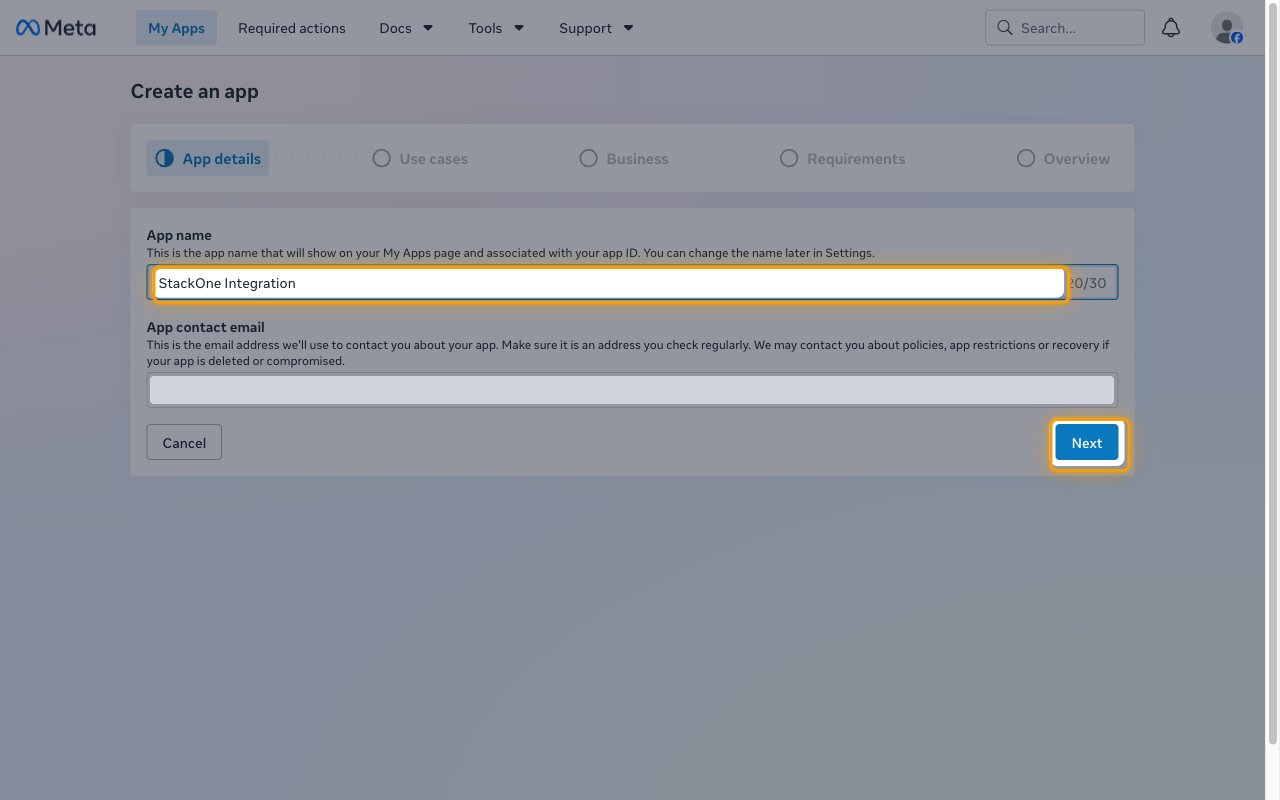
Add the use case
On the Add use cases step, select Connect with customers through WhatsApp, then click Next.
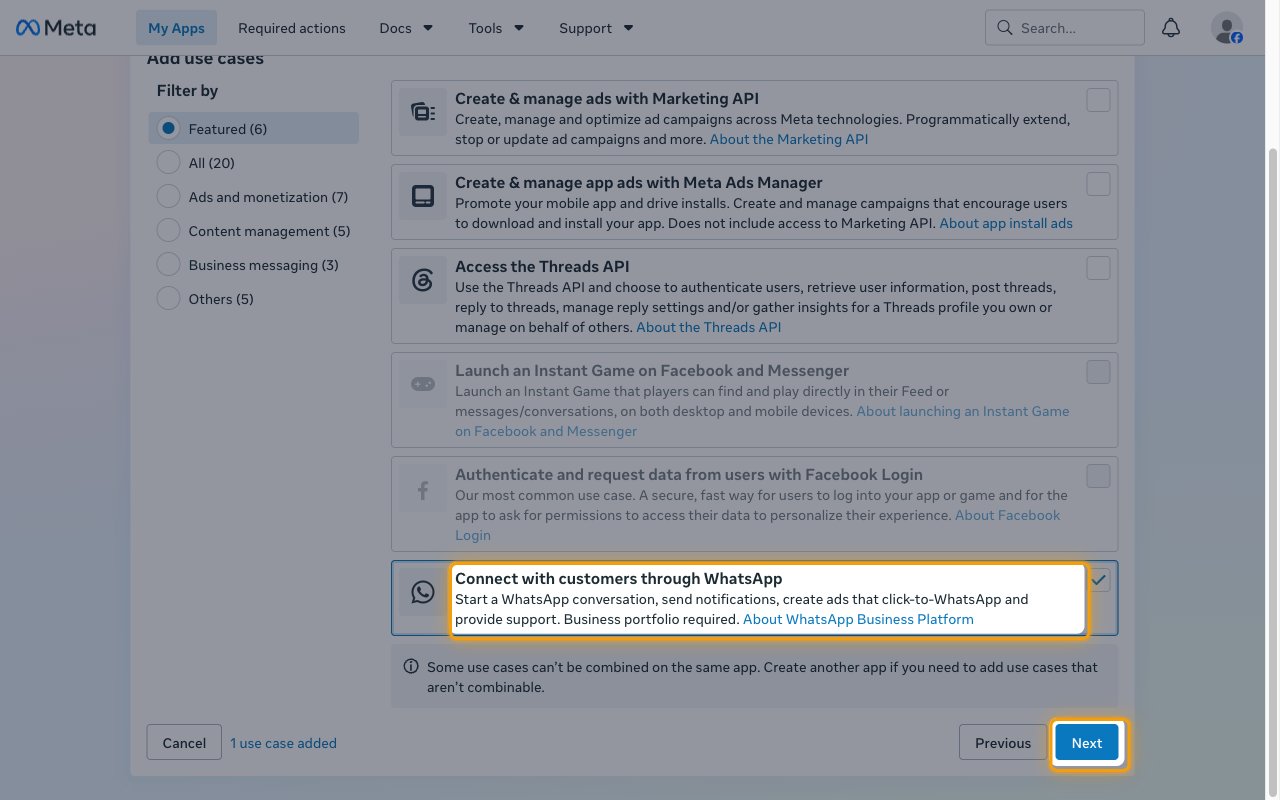
Select the business portfolio
Select the business portfolio that owns your WhatsApp Business Account and click Next.
- If the portfolio isn’t listed, click Create a business portfolio. to create one first.
- On the Requirements step that follows, click Next.
Create the app
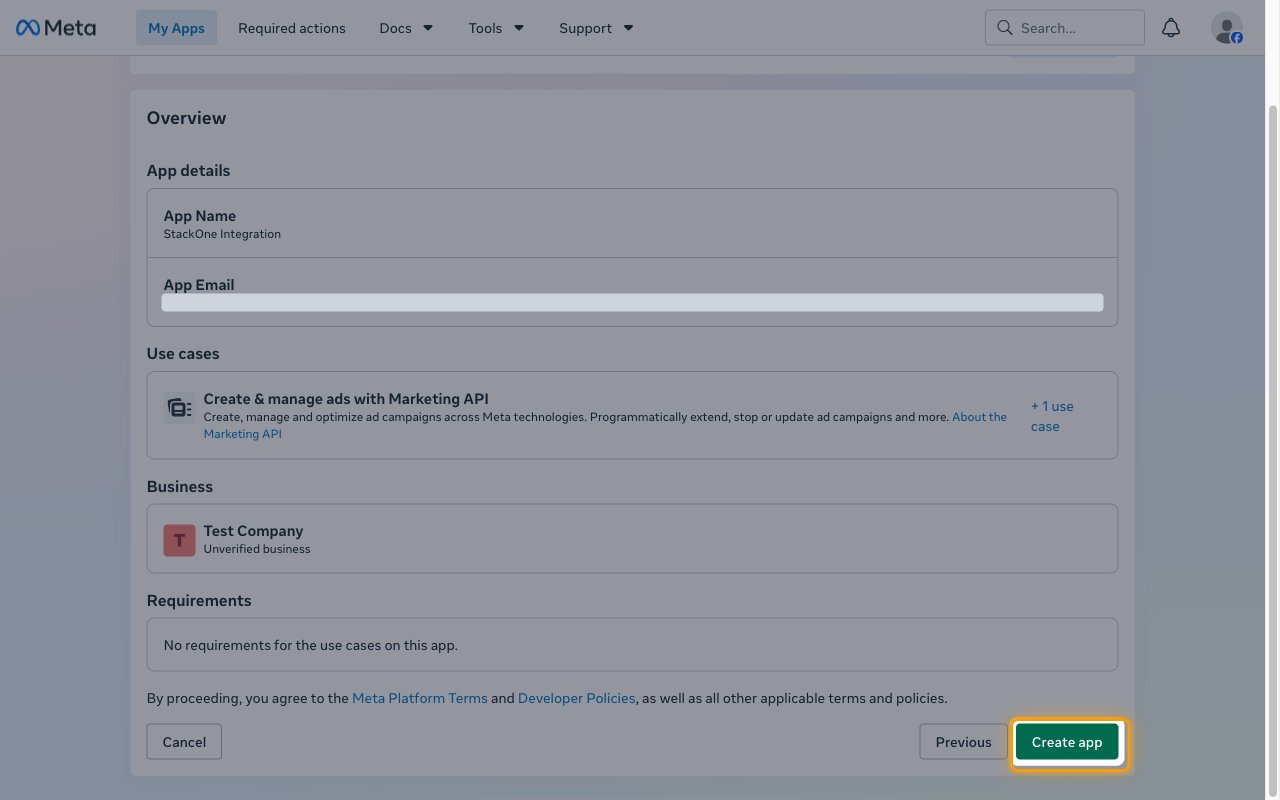
On the Overview step, review the app details, use cases, and business, then click Create app.
Add the app permissions
The app can only request permissions that are added to it, so check them before anyone connects.
Check the permissions
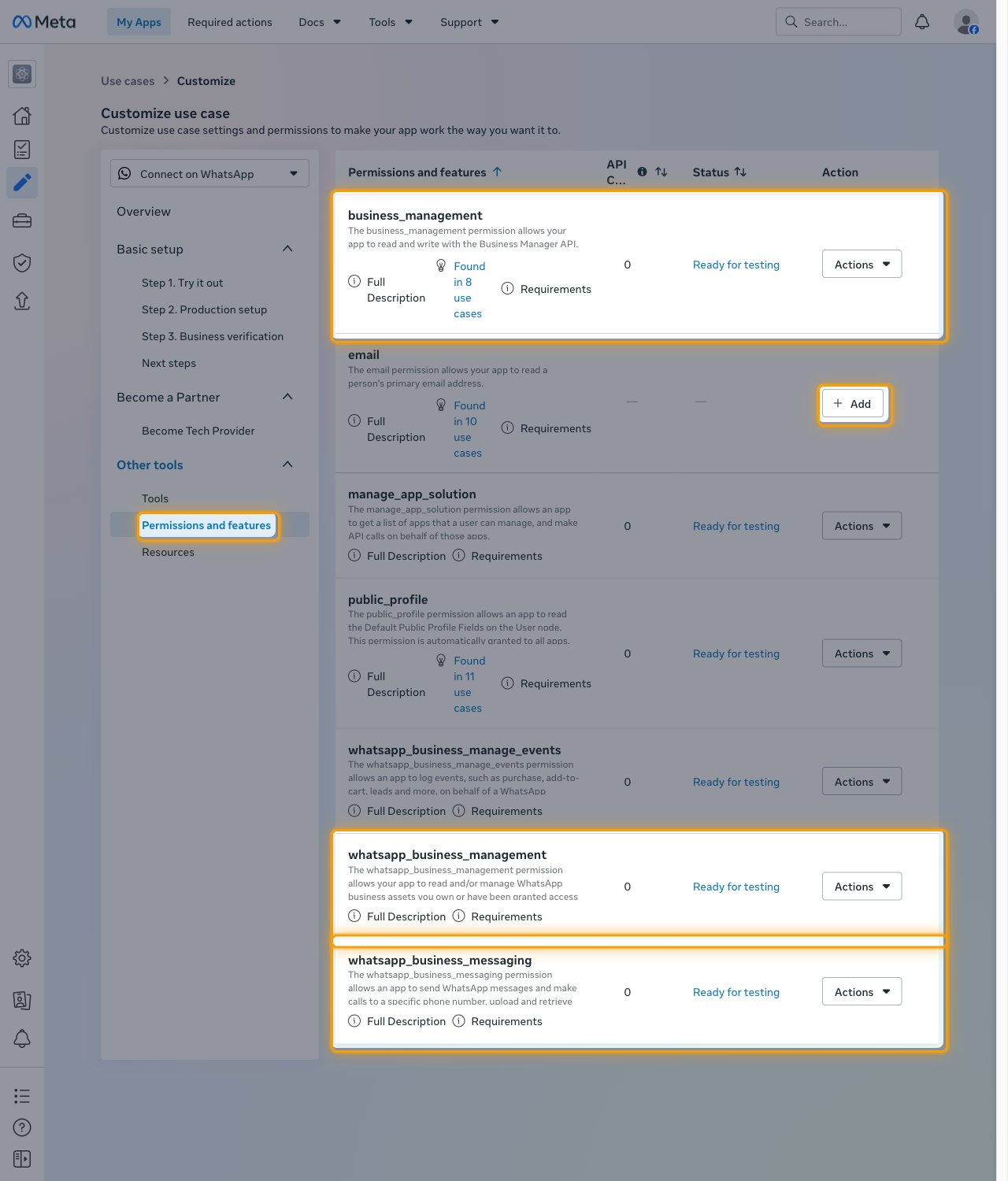
In the app, open Use cases, customize Connect on WhatsApp, and under Other tools select Permissions and features.
- Check that
business_management,whatsapp_business_management, andwhatsapp_business_messagingshow Ready for testing. - For any of them that shows Add instead, click Add.
Configure Facebook Login for Business
Register the StackOne redirect URI so Meta returns users to StackOne after they authorize the connection.
Open the login settings
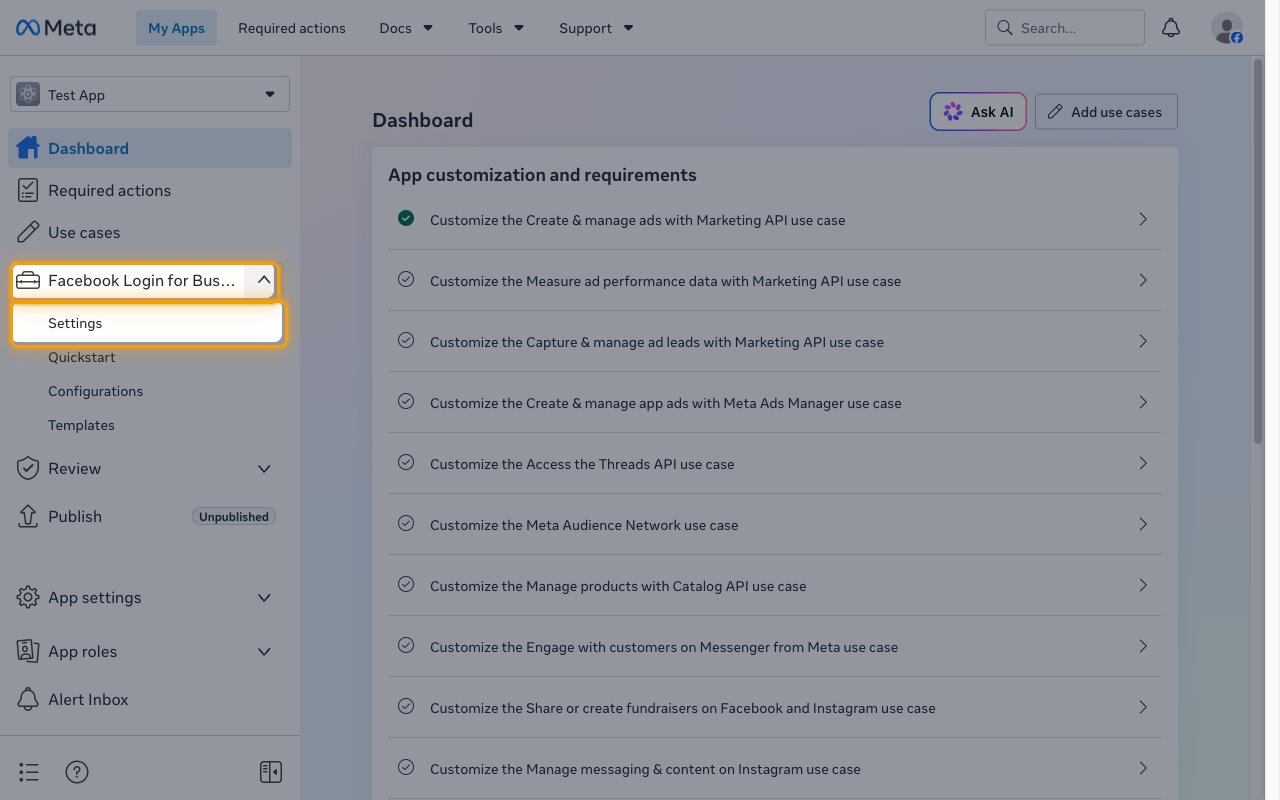
In the app’s left sidebar, expand Facebook Login for Business and click Settings.
Add the redirect URI
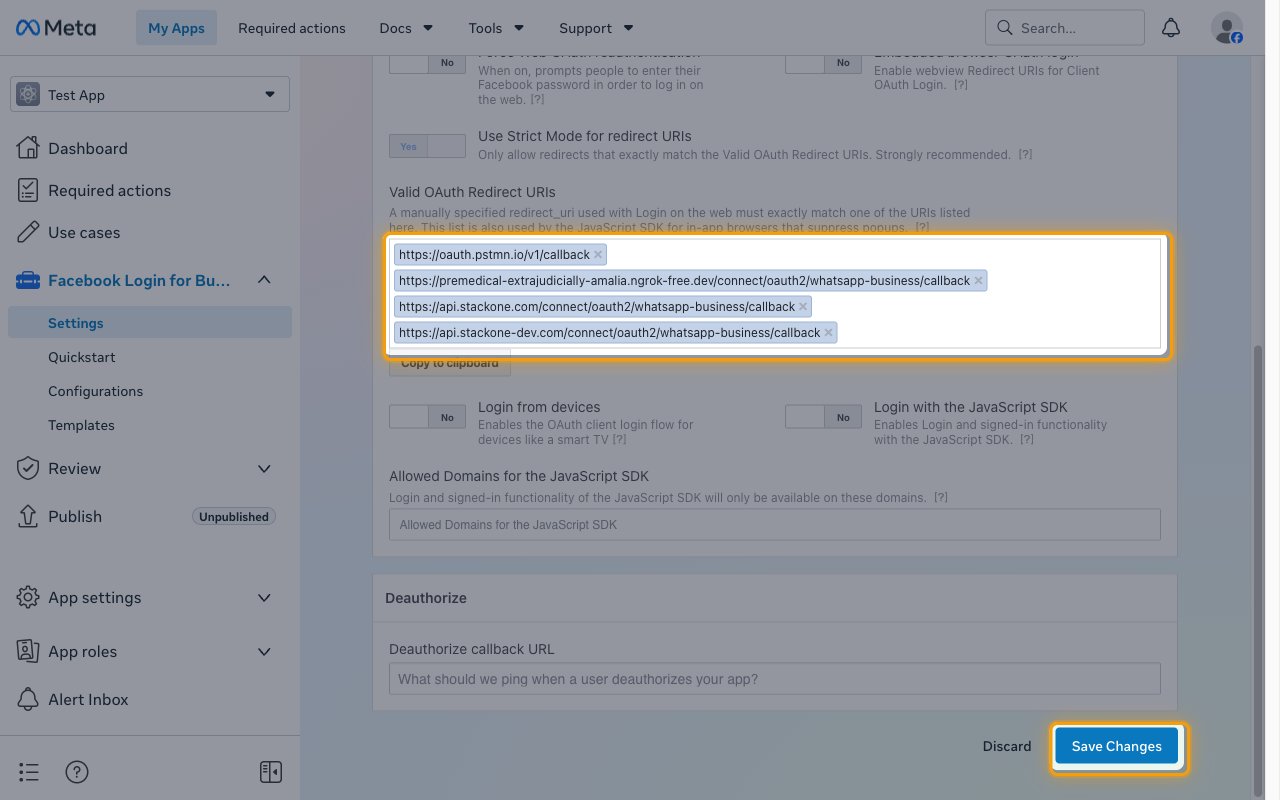
Under Valid OAuth Redirect URIs, add the StackOne redirect URI, then click Save Changes.
- Redirect URI:
https://api.stackone.com/connect/oauth2/whatsapp-business/callback
Copy the app credentials
The App ID and App secret identify your Meta app to StackOne.
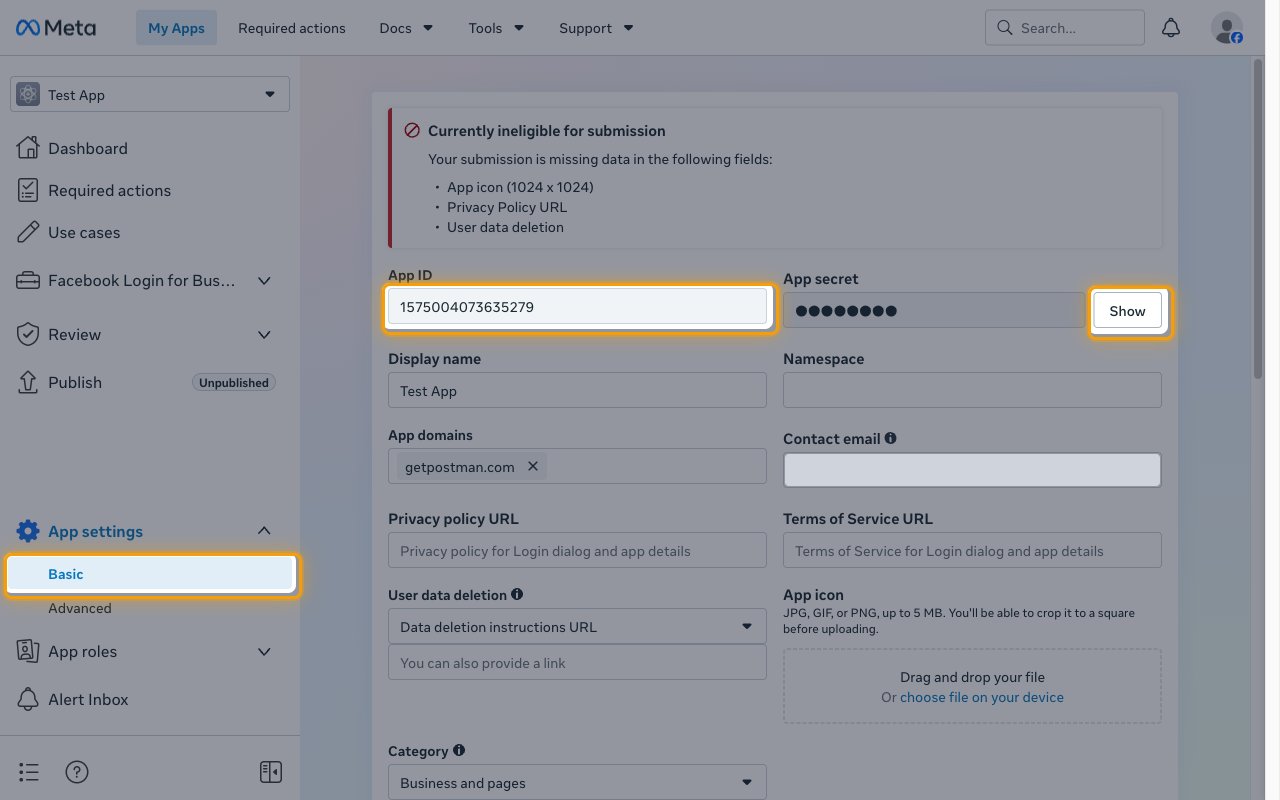
Copy the App ID and App secret
In the left sidebar, expand App settings and click Basic.
- Copy the App ID and paste it into the App ID field in the StackOne Connector profile.
- Click Show next to App secret, confirm your identity if prompted, and paste the value into the App Secret field in the StackOne Connector profile.
- Store the App secret securely for use later.
Choose the permissions
The Scopes field in the StackOne Connector profile sets the permissions requested when an account connects. Leave it empty to request all three permissions below, or enter a comma-separated list such as business_management,whatsapp_business_management,whatsapp_business_messaging.
Review the required permissions
These are the permissions the WhatsApp Business actions use. The person connecting the account approves them on the Meta consent screen.
Creating the StackOne Connector Profile
To create the Connector Profile in StackOne for WhatsApp Business:Navigate to Connector Profiles
Create New Connector Profile
- Click + Connector Profile
- Search for and select WhatsApp Business
- Select Type as OAuth 2.0
- Fill out the fields using details retrieved from your provider:
- App ID
- App Secret
- Scopes (Optional)
- (Optional) Select Actions to be enabled for this Connector Profile
- Click Create profile