

Registering an application
Register an application in Microsoft Entra ID so StackOne can sign users in with OAuth 2.0 and call the Microsoft Graph security API.
Sign in to Microsoft Entra
Sign in to your Microsoft Entra account.
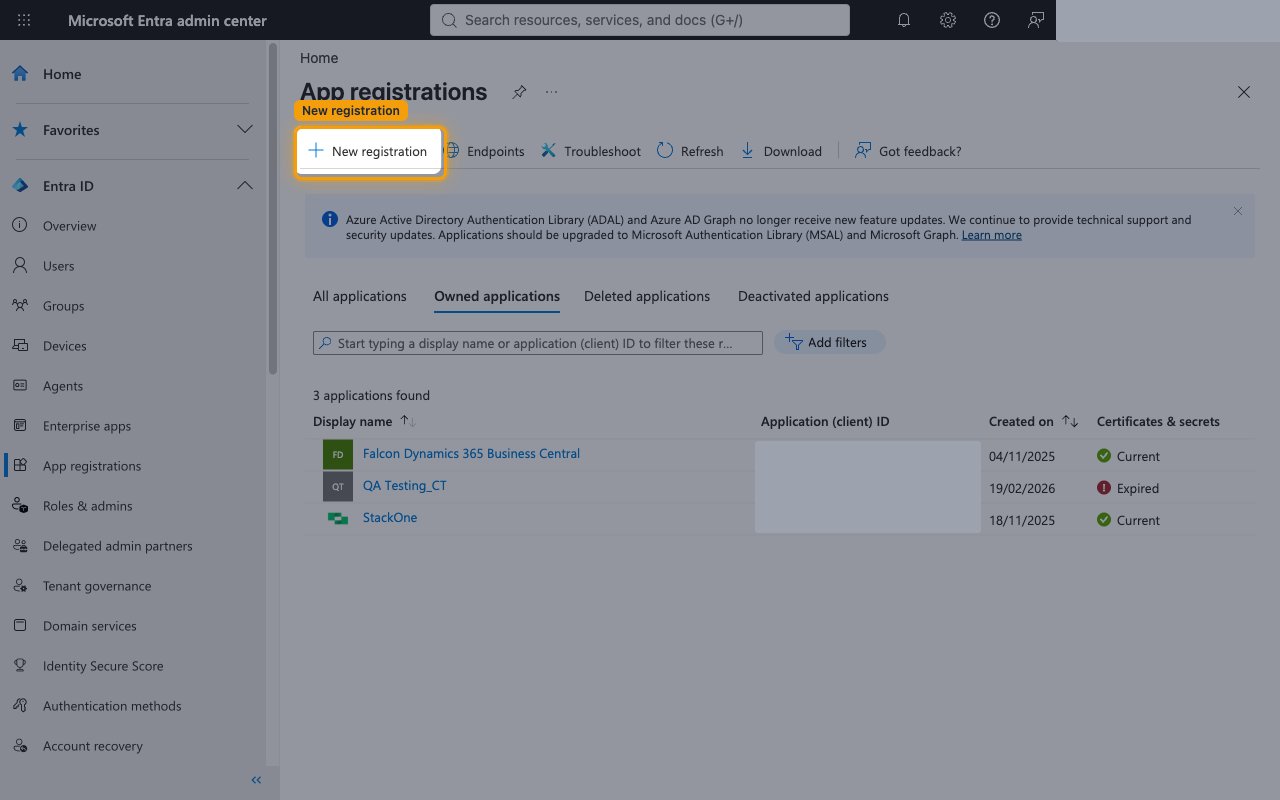
- Navigate to Entra ID > App registrations.
- Click New registration.
Register the application
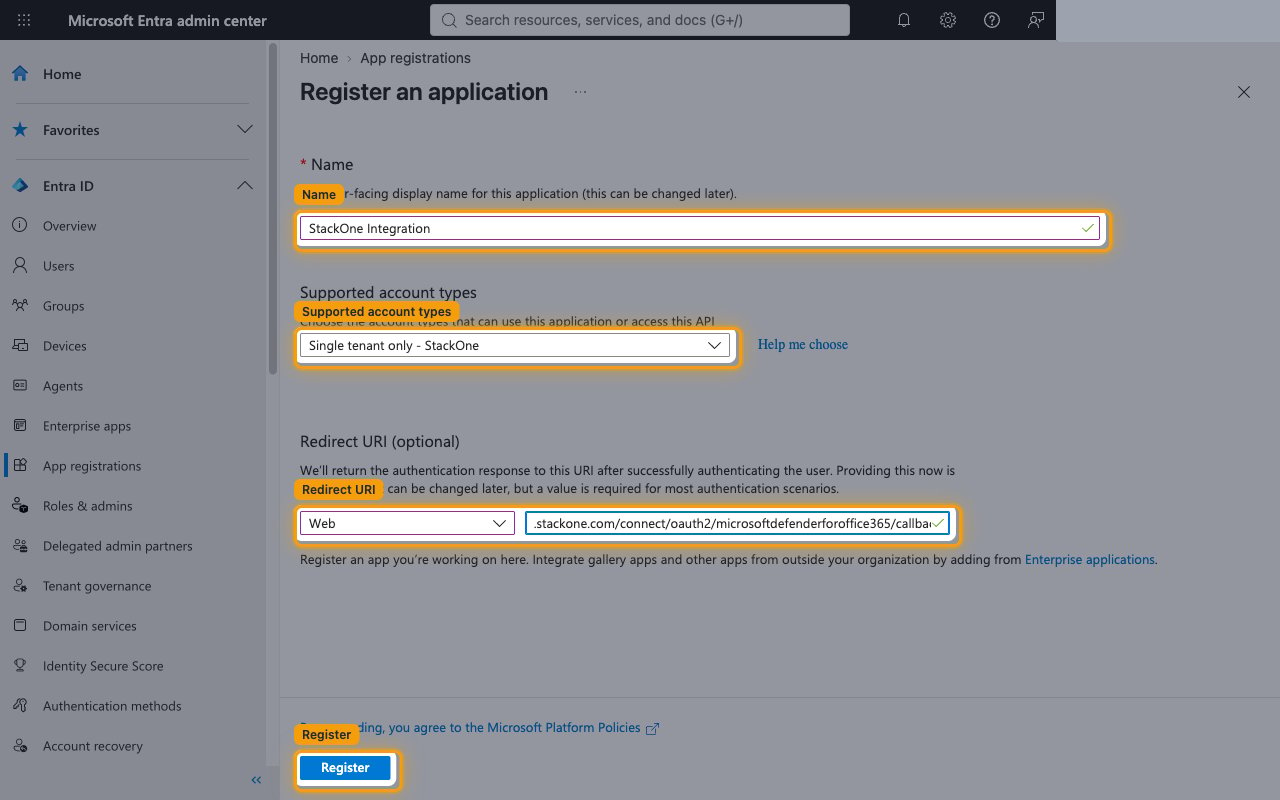
Complete the Register an application form.
- Name:
StackOne Integration - Under Supported account types, keep Single tenant only.
- Under Redirect URI (optional), select Web and enter
https://api.stackone.com/connect/oauth2/microsoftdefender/callback. - Click Register.
Copy the client ID
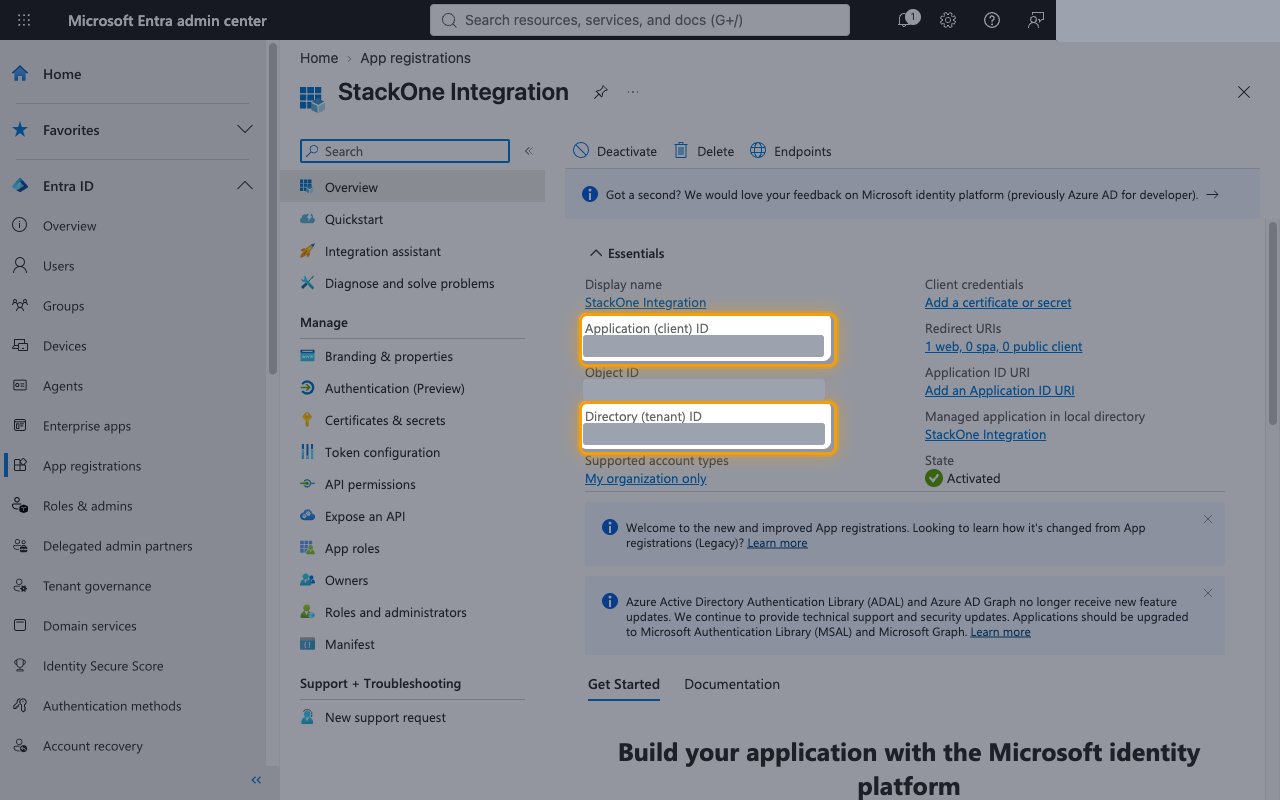
On the app’s Overview page, copy the Application (client) ID. This is the public identifier of your app.
- Paste it into the Client ID field in the StackOne Connector profile.
Creating a client secret
The client secret is the password StackOne uses to exchange authorization codes for tokens.
Open certificates and secrets
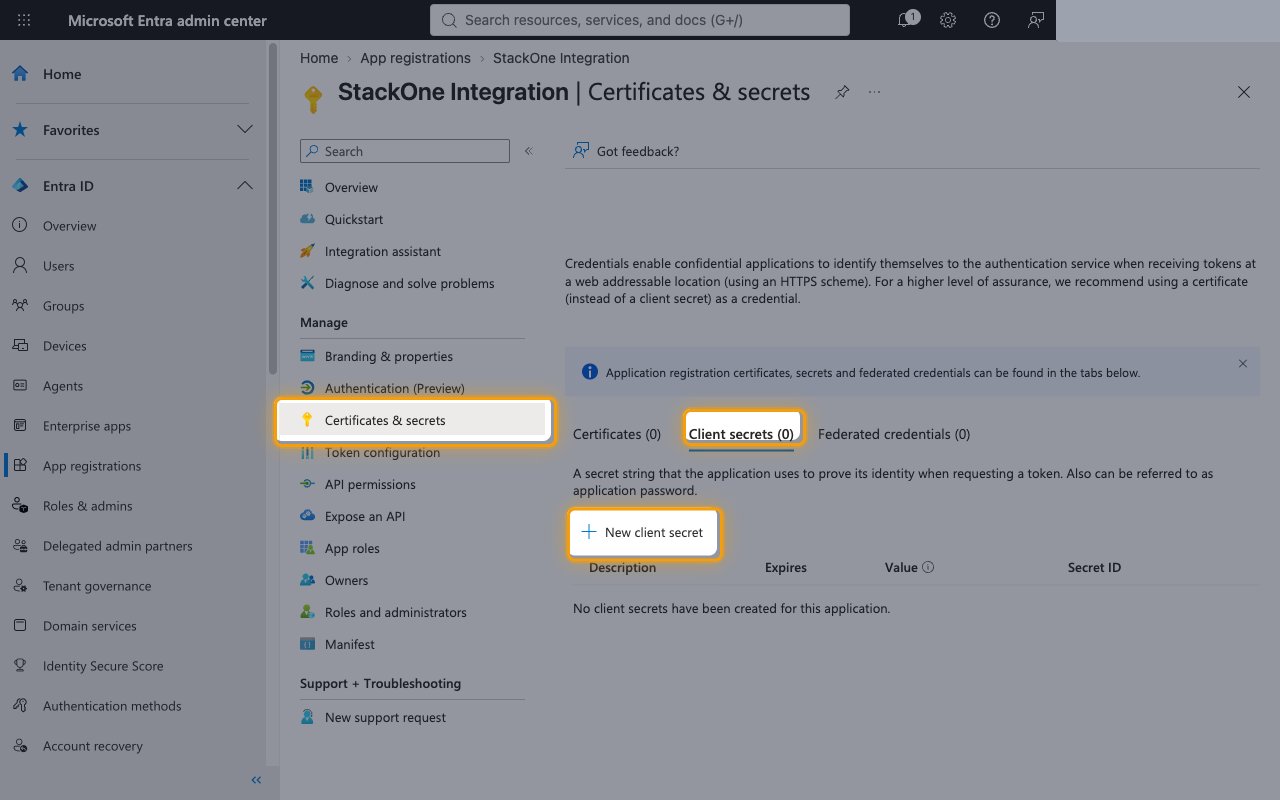
In the app’s left menu, click Certificates & secrets.
- Open the Client secrets tab.
- Click New client secret.
Add the client secret
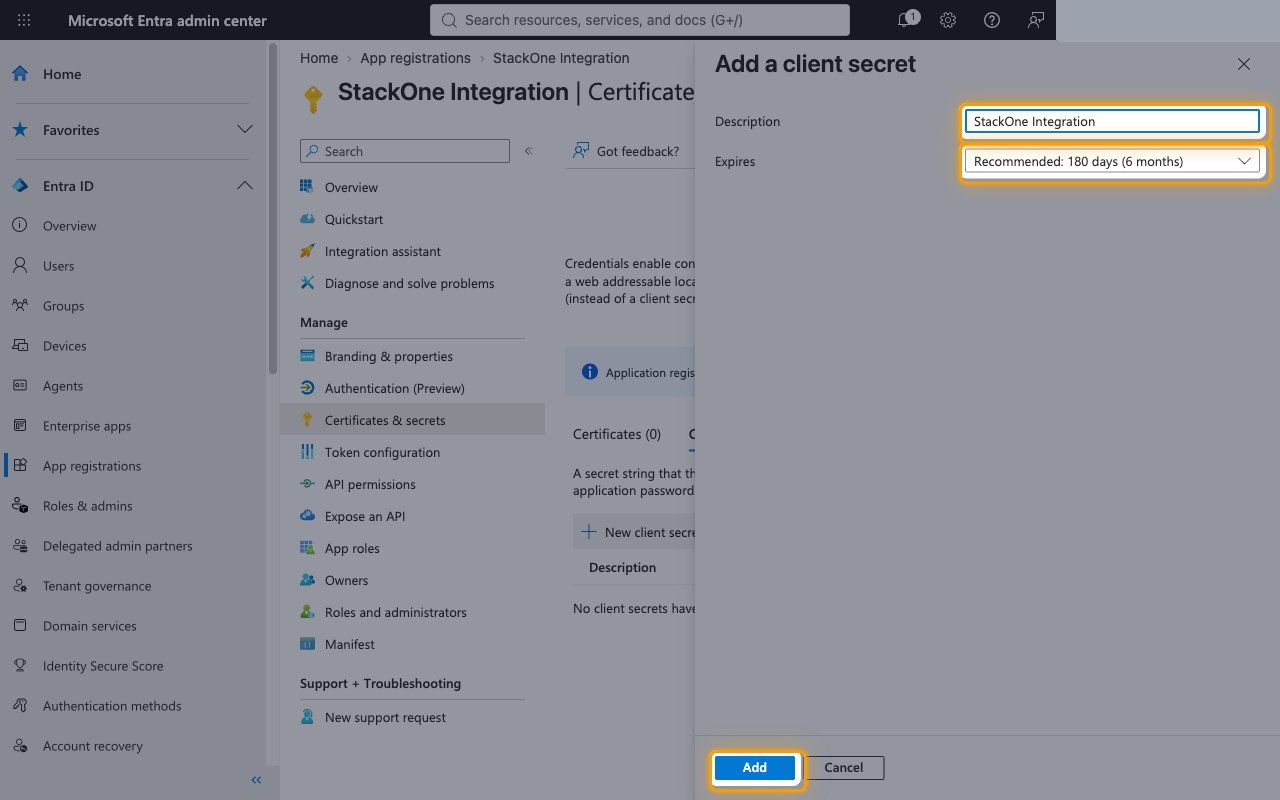
In the Add a client secret panel, enter a Description such as StackOne Integration.
- Choose an Expires period. You will need to create a new secret before it expires.
- Click Add.
Copy the secret value
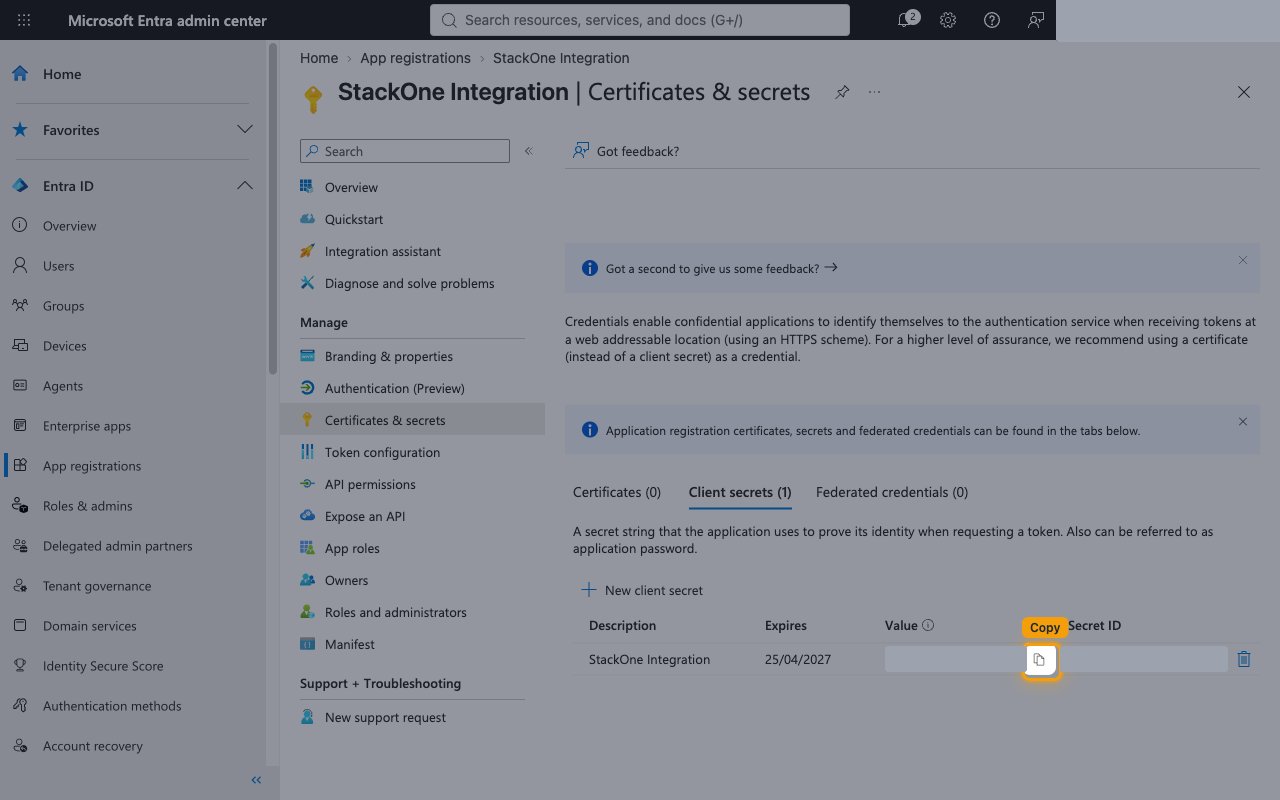
In the Value column, click the copy icon to copy the secret, and store it securely for use later.
- The secret Value is only displayed once and cannot be retrieved later. Copy the Value, not the Secret ID.
- Paste it into the Client Secret field in the StackOne Connector profile.
Configuring API permissions
Grant the Microsoft Graph delegated permissions that the connector’s actions use.
Open API permissions
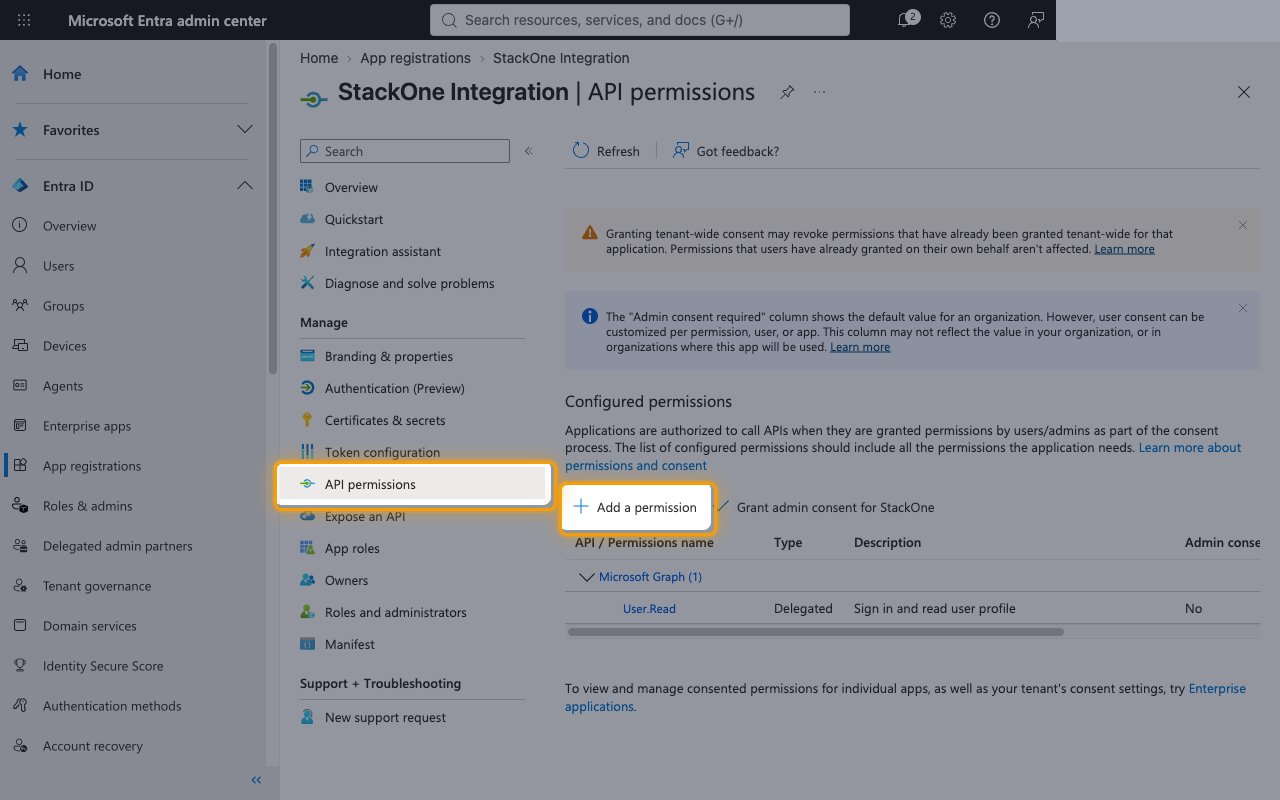
In the app’s left menu, click API permissions, then click Add a permission.
Select Microsoft Graph
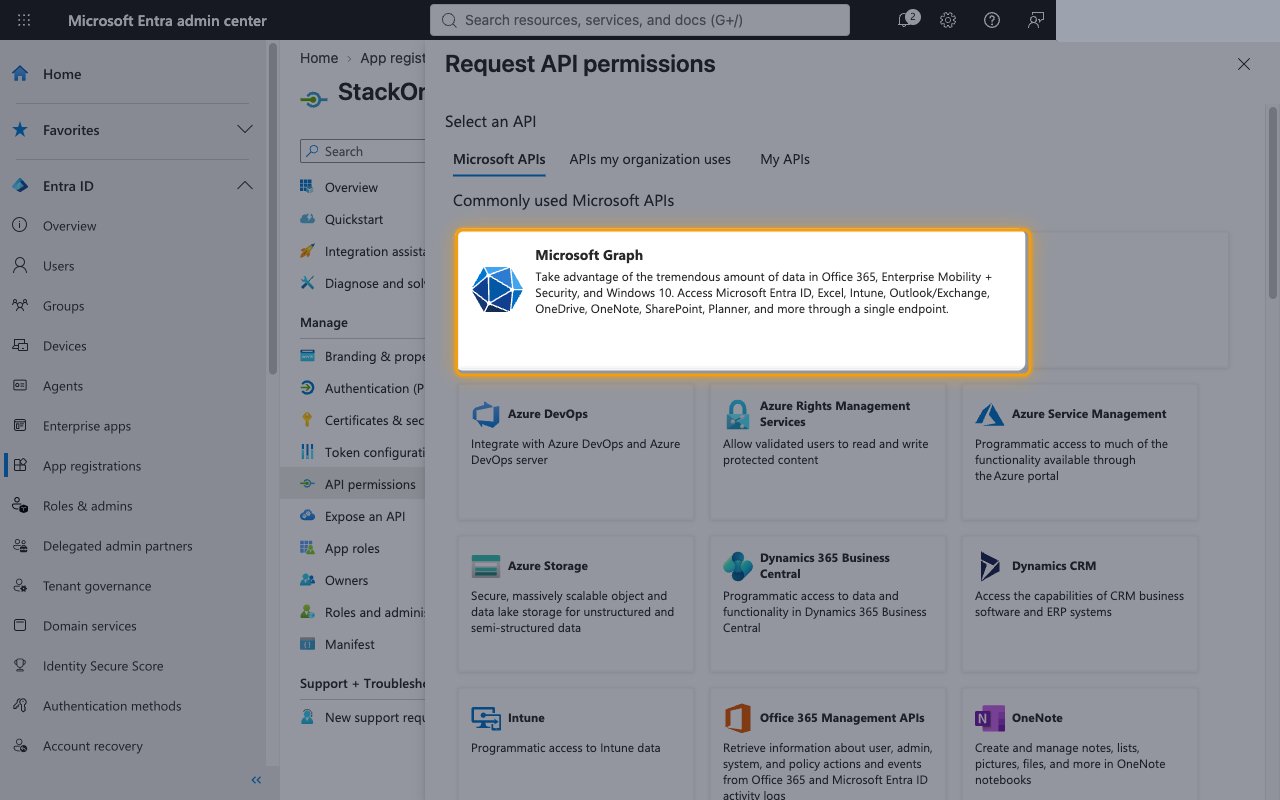
In the Request API permissions panel, under Commonly used Microsoft APIs, click Microsoft Graph.
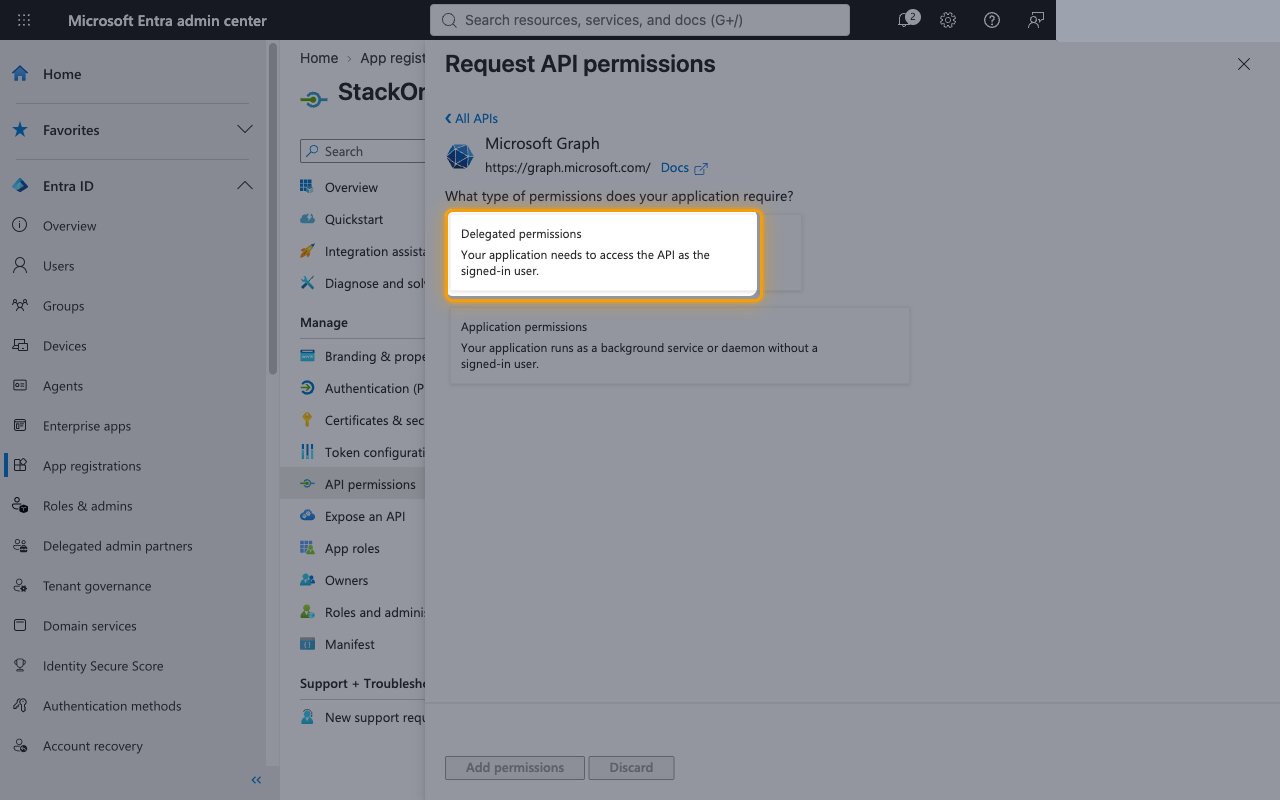
Choose delegated permissions
Click Delegated permissions. StackOne calls Microsoft Graph on behalf of the signed-in user.
Select the permissions
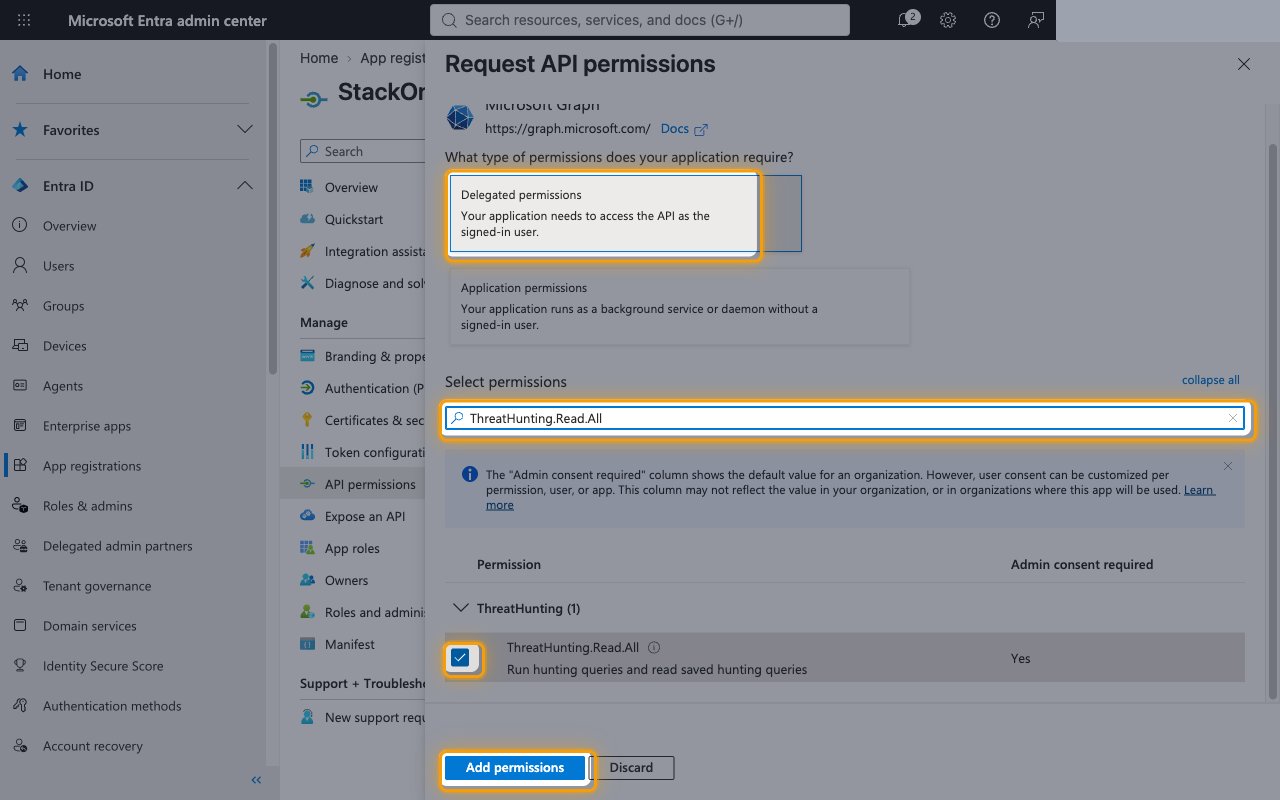
Use Search permissions to find and check each permission your integration needs, then click Add permissions. Also add offline_access so StackOne can refresh tokens.
Grant admin consent
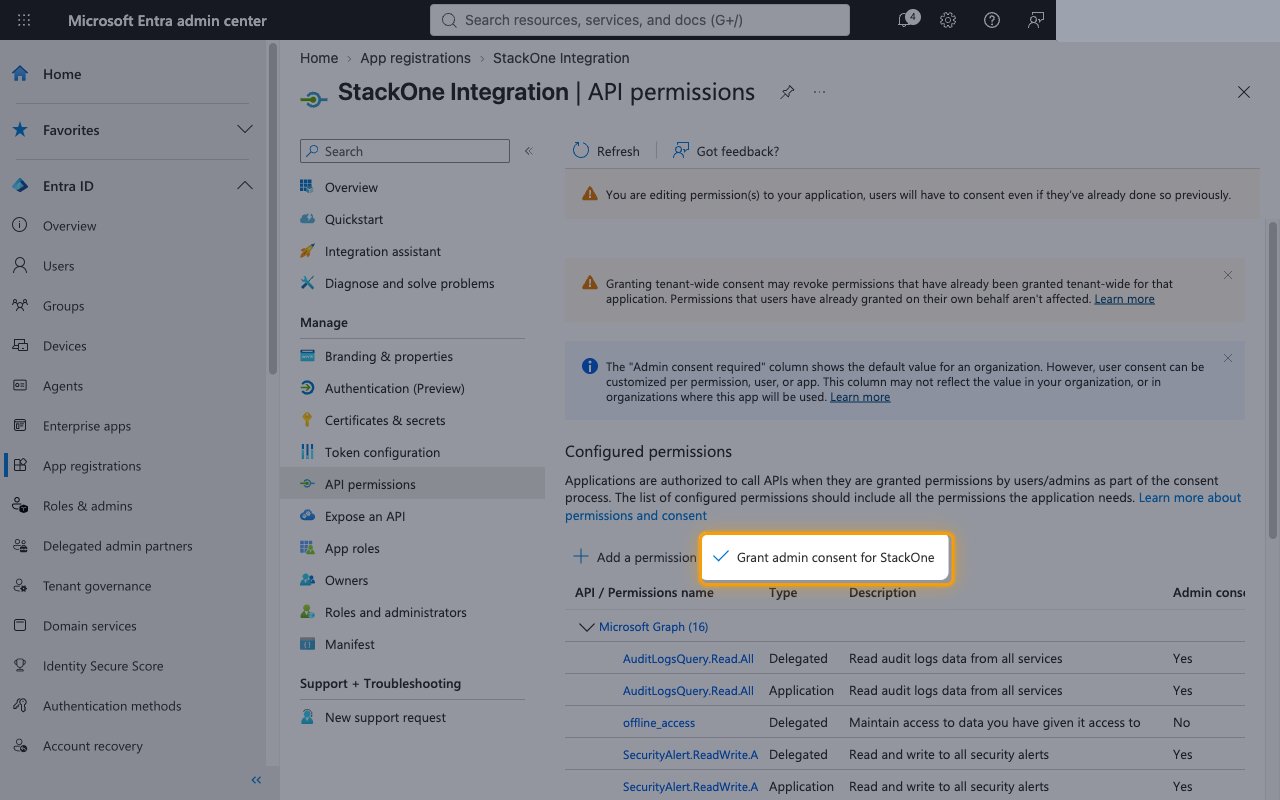
On the API permissions page, click Grant admin consent for your organization, then click Yes to confirm.
- Every permission’s Status should show Granted for your organization.
- Optionally, enter the scopes you granted, separated by spaces and including
offline_access, in the Scopes field in the StackOne Connector profile. Leave it empty to usehttps://graph.microsoft.com/.default offline_access. - Users who connect also need a Microsoft Entra role such as Security Reader for read actions, or Security Operator for updates and comments.
Creating the StackOne Connector Profile
To create the Connector Profile in StackOne for Microsoft Defender:Open the connector
Choose actions and events
- Click Add Profile.
- If the connector offers more than one authentication method, set the Auth Method filter to OAuth 2.0.
- Select the actions, and any events, to enable for this Connector Profile.
- Click Continue.
Set up authentication
- Select Authentication Type as OAuth 2.0.
- Fill out the fields using details retrieved from your provider:
- Client ID
- Client Secret
- Scopes (Optional)
- Click Create Profile.