

Register an OAuth application
Create an application in the FreshBooks Developer portal to obtain the Client ID and
Client Secret that StackOne uses to connect.
Sign in to FreshBooks
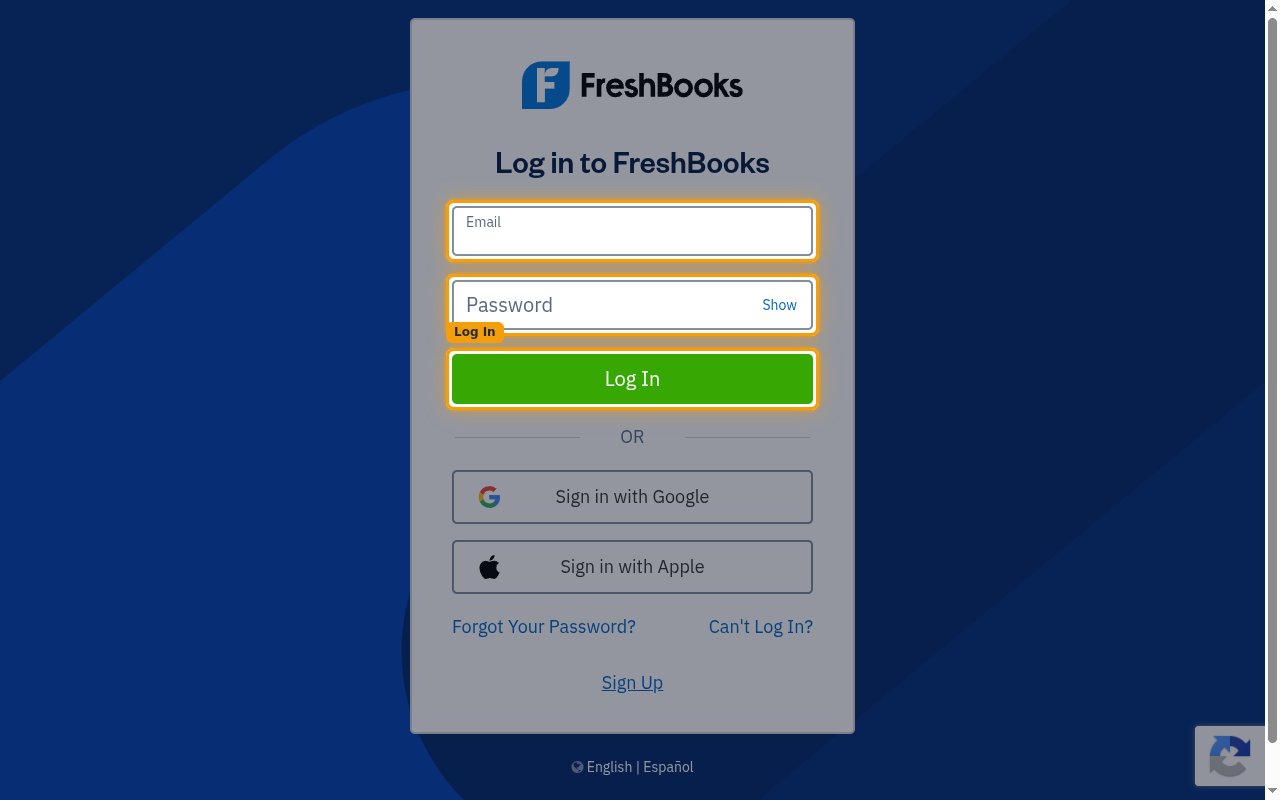
Create a new app
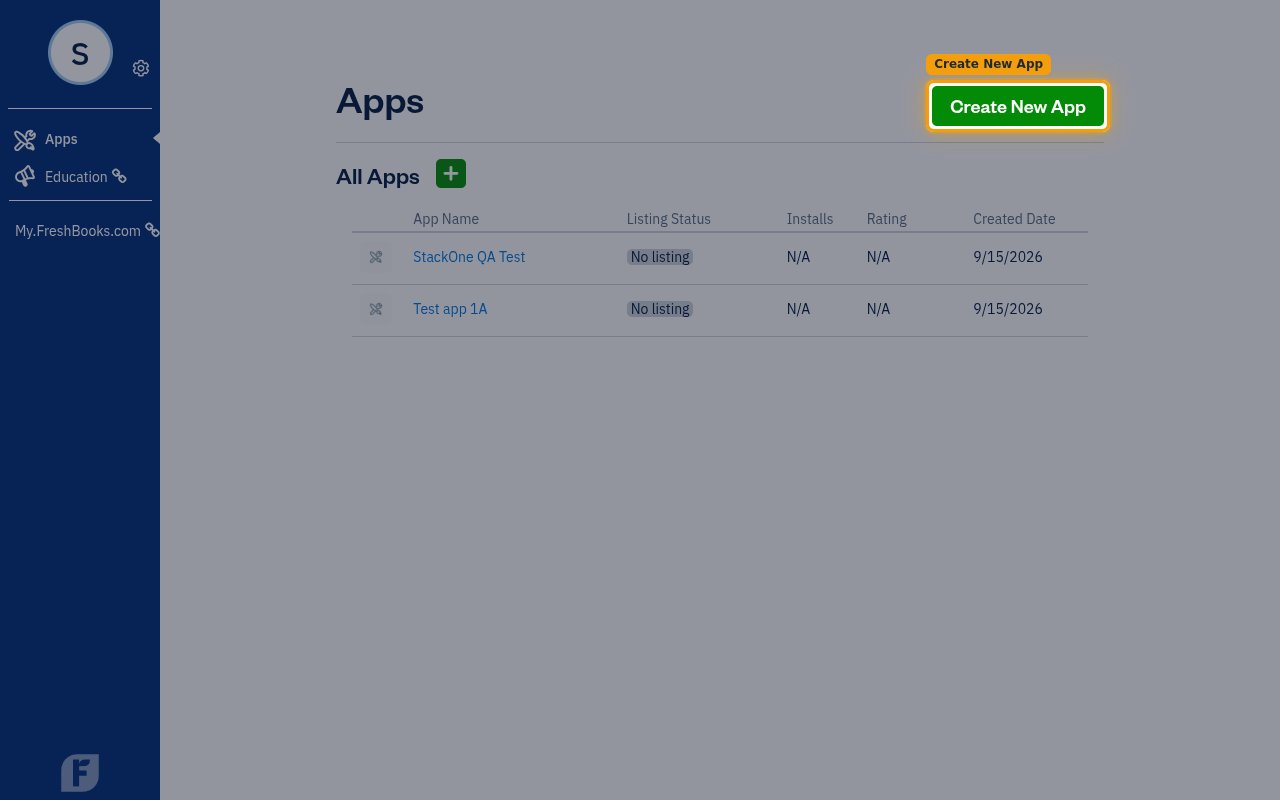
On the Apps page, click Create New App.
- Existing applications are listed under All Apps.
Fill in the application details
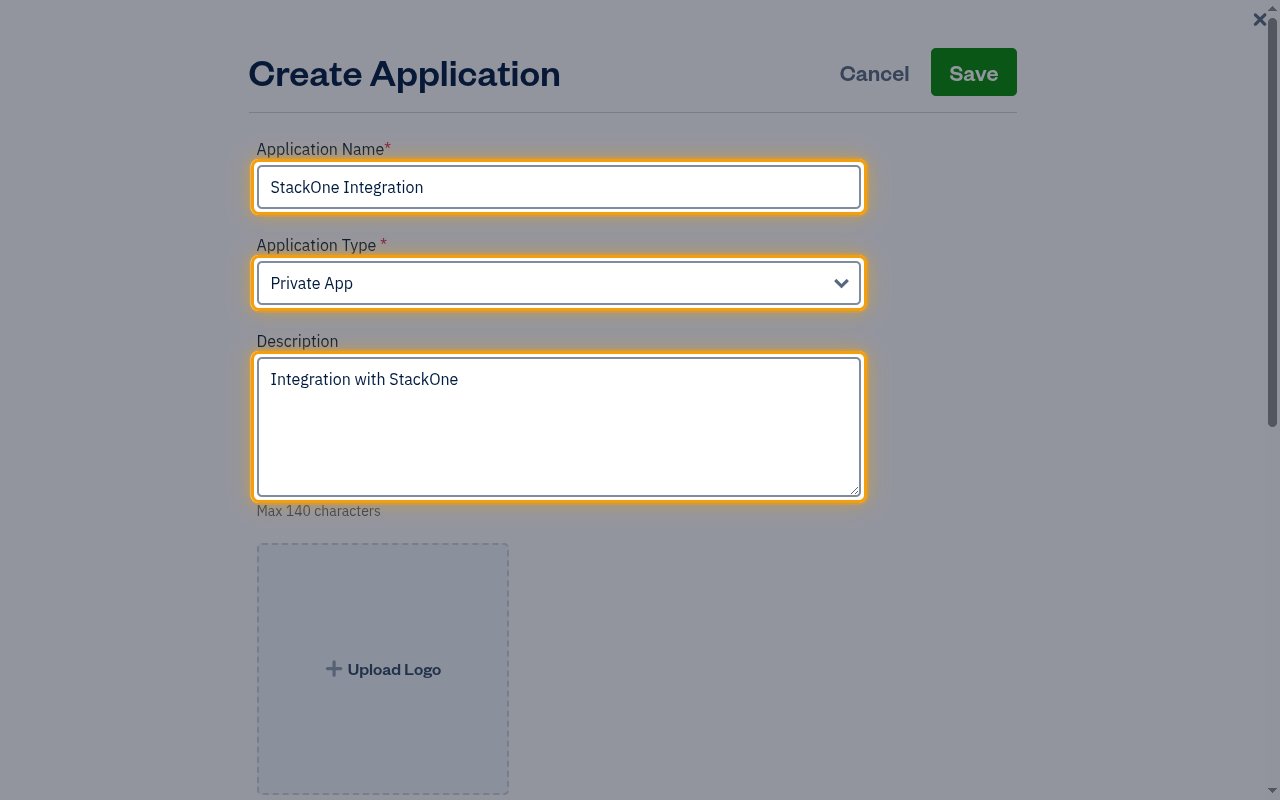
Complete the Create Application form.
- Application Name — a descriptive name of your choice, for example
StackOne Integration - Application Type — select Private App, described as Not listed in the app store
- Description — a short summary of the integration, up to the Max 140 characters limit
Add the application URLs
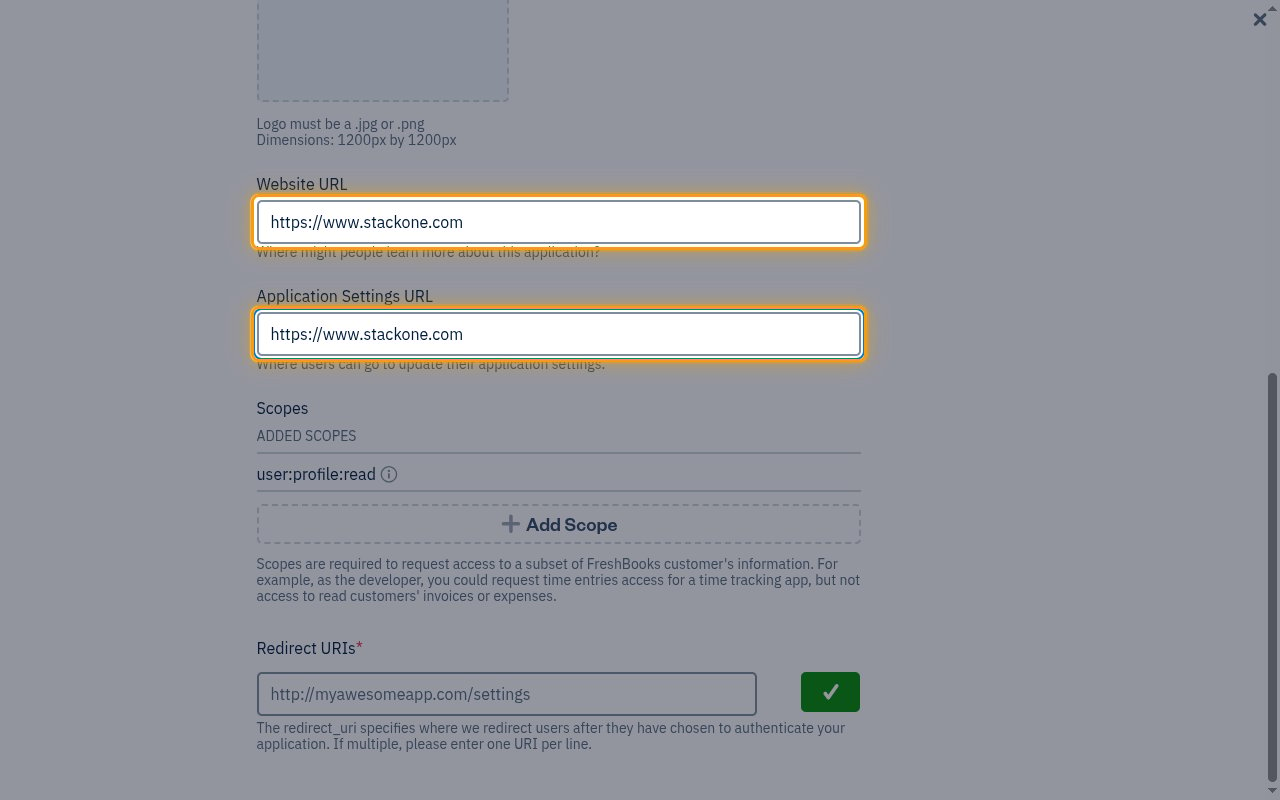
Both URL fields are optional for StackOne and are shown to FreshBooks users rather than
used by the integration.
- Website URL — where people can learn more about the application
- Application Settings URL — where users can go to update their application settings
Configure permissions
Scopes control which parts of a FreshBooks account the application can reach.
Add the required scopes
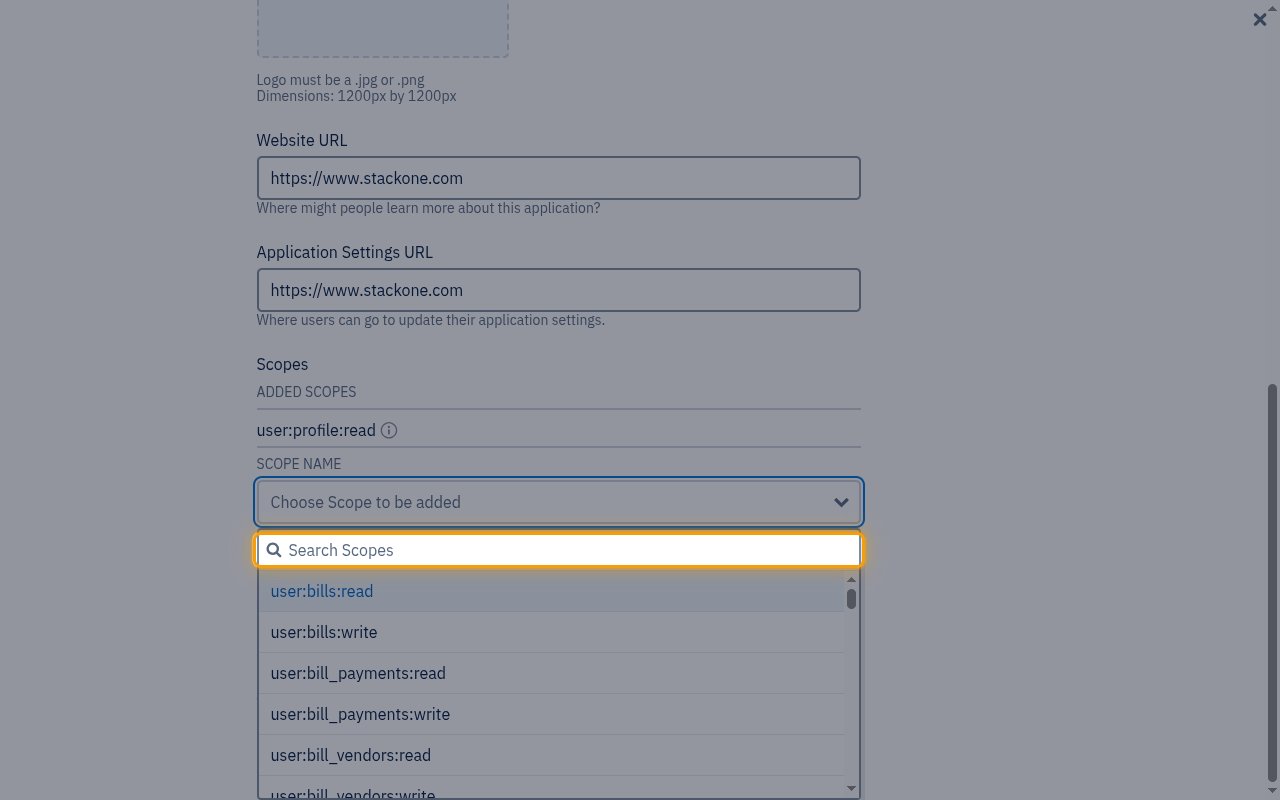
Under Scopes, click Add Scope, then use Choose Scope to be added to select each scope below; the picker reopens after each selection. user:profile:read is the scope required for the account connection — StackOne calls the FreshBooks identity endpoint with it to resolve the account and business identifiers every action needs — and FreshBooks adds it to every new application with no Remove button. Calling an endpoint without its scope fails that request, so grant every scope the actions you plan to use require.
Review the added scopes
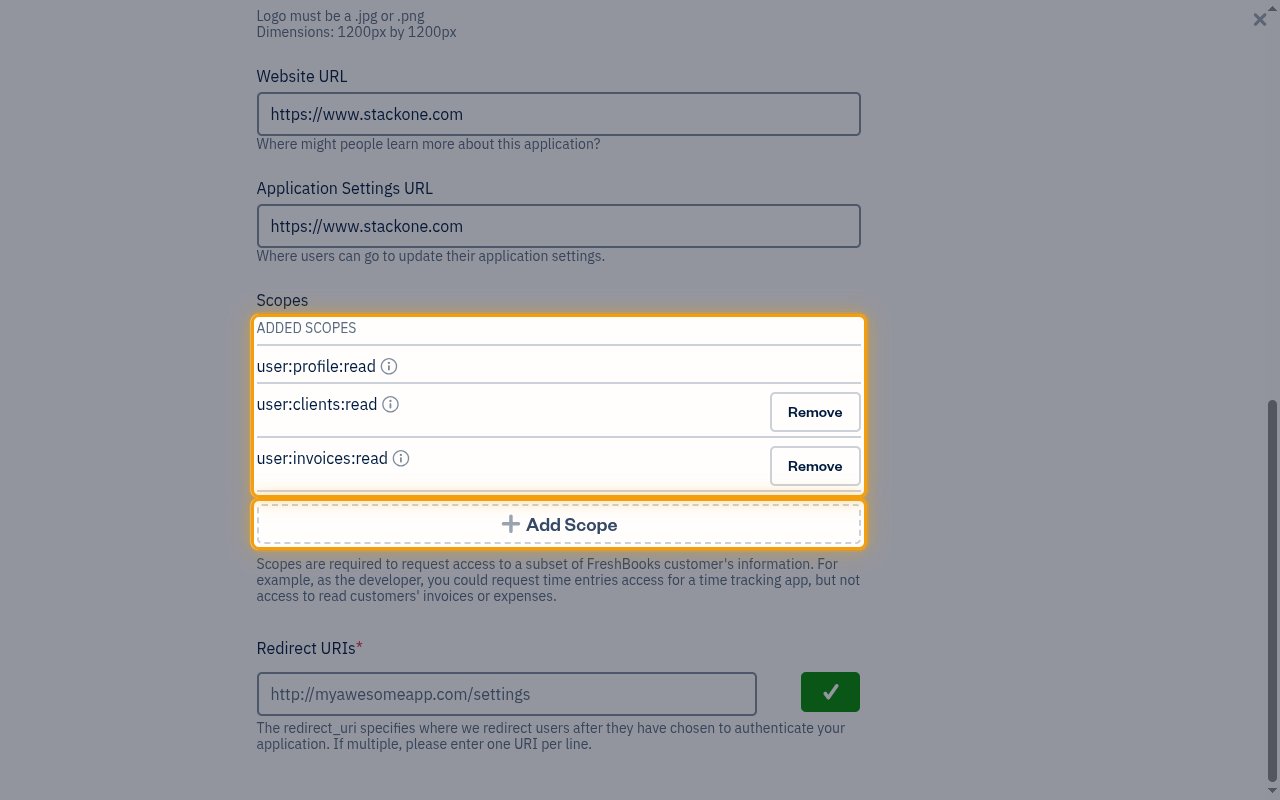
Each scope you pick appears under ADDED SCOPES with a Remove button. The scopes
below are the full set this connector’s actions use — add the ones your integration needs.
- Required for the connection —
user:profile:read, already listed under ADDED SCOPES with no Remove button because FreshBooks adds it to every application - Clients and invoicing —
user:clients:read,user:clients:write,user:invoices:read,user:invoices:write,user:estimates:read,user:estimates:write,user:credit_notes:read,user:credit_notes:write - Payments and expenses —
user:payments:read,user:payments:write,user:expenses:read,user:expenses:write,user:bills:read,user:bill_payments:read - Projects and time tracking —
user:projects:read,user:projects:write,user:time_entries:read,user:time_entries:write,user:billable_items:read,user:billable_items:write - Accounting —
user:account:read,user:account:write,user:journal_entries:read,user:journal_entries:write,user:other_income:read,user:other_income:write,user:taxes:read,user:taxes:write,user:reports:read - Team —
user:teams:read
Add the redirect URI and save
The redirect URI is where FreshBooks returns the user after they authorize the application.
It must match StackOne’s callback exactly.
Add the redirect URI
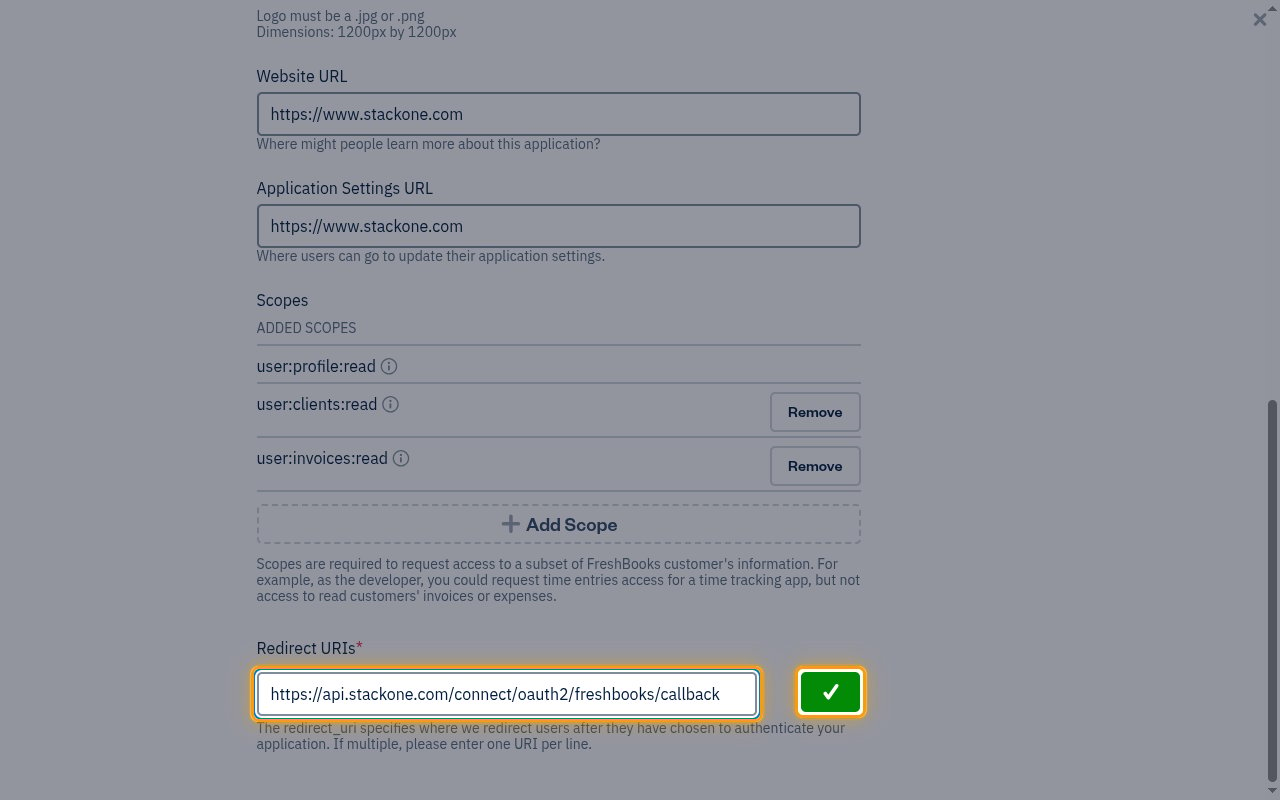
Under Redirect URIs, enter StackOne’s callback URL and click the green check button to
add it to the list.
- Redirect URI:
https://api.stackone.com/connect/oauth2/freshbooks/callback - Once added, the URI is listed with Edit and Remove buttons.
Save the application
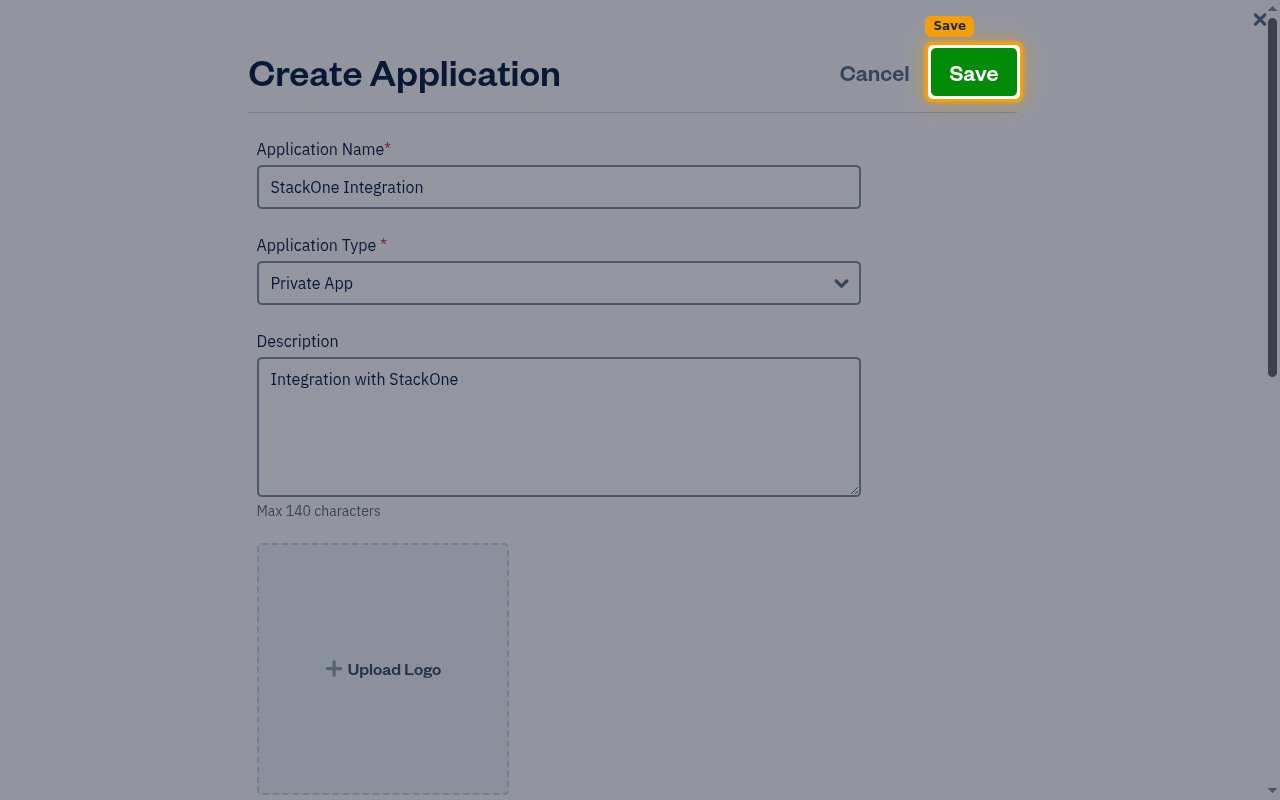
Click Save at the top of the Create Application form.
Copy the client credentials
The Client ID and Client Secret are shown on the application’s own page, not on the
apps list.
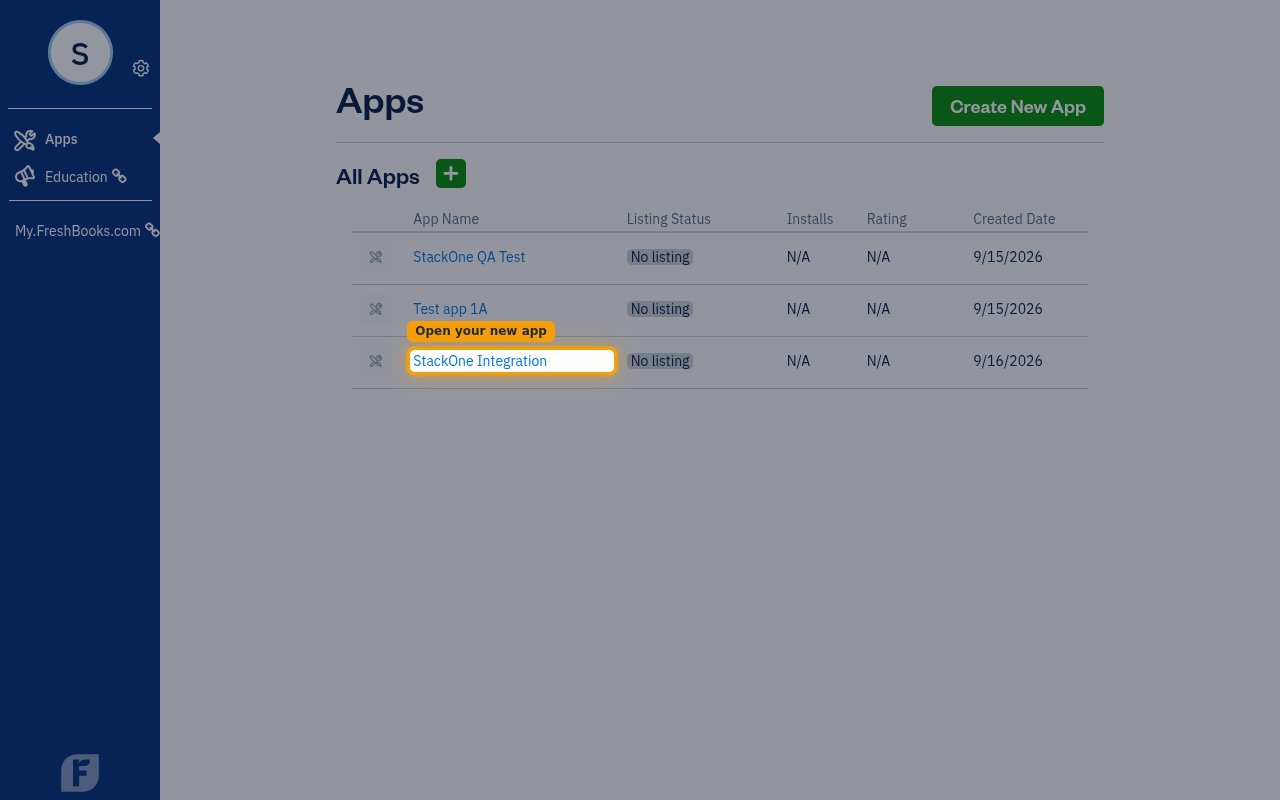
Open the app from the apps list
You are returned to the All Apps list after saving. Click the name of the application
you just created to open it.
Copy the client credentials
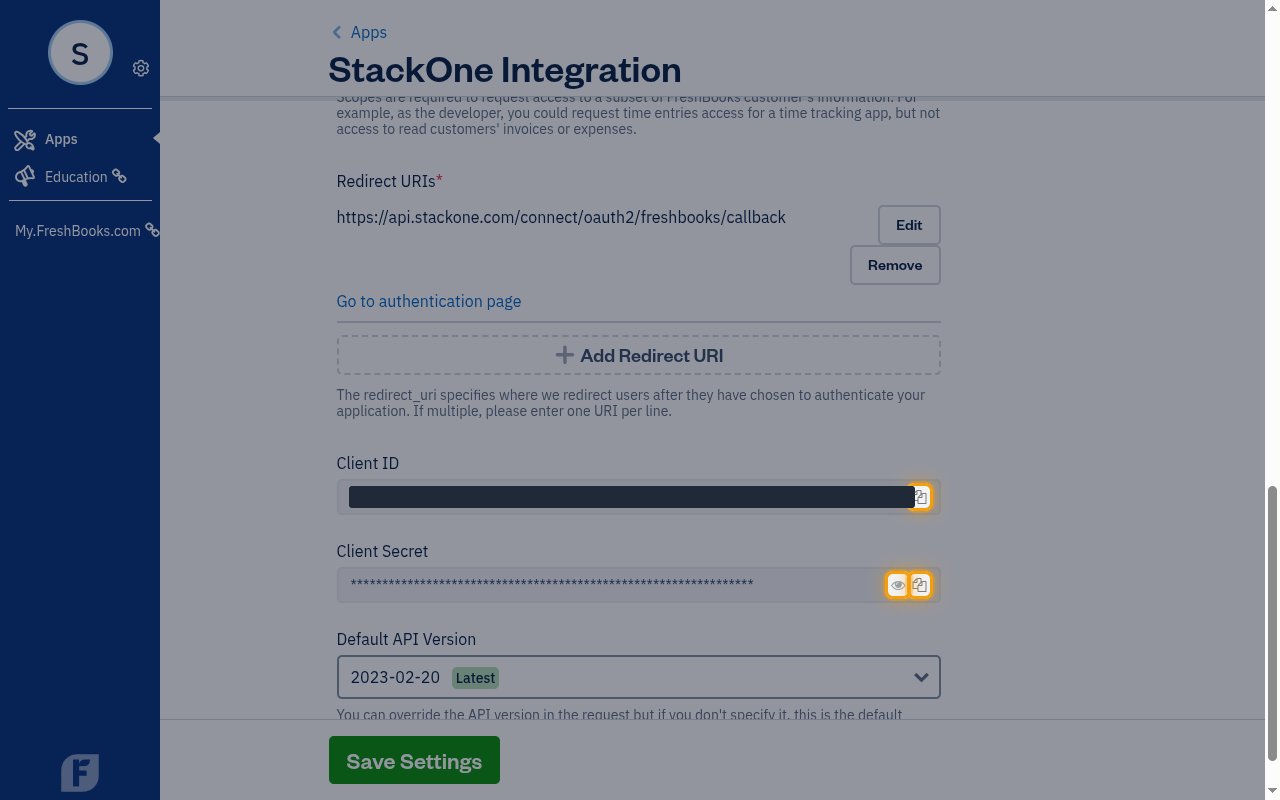
Scroll to the bottom of the application page and copy both values using the copy buttons
beside them. Store them securely for use later.
- Client ID — the public identifier of your application; click the copy button beside it, then paste it into the Client ID field in the StackOne Connector profile.
- Client Secret — the private key of your application; click the eye button to reveal it and the copy button to copy it, then paste it into the Client Secret field in the StackOne Connector profile.
- Scopes — optionally paste the same space-separated scope list you added above into the Scopes field in the StackOne Connector profile; leave it empty to use the connector’s default scopes. StackOne always requests
user:profile:readas well, because the connection reads your account and business IDs with it. - Treat the Client Secret like a password and never commit it to source control or share it publicly.
Creating the StackOne Connector Profile
To create the Connector Profile in StackOne for FreshBooks:Open the connector
Choose actions and events
- Click Add Profile.
- If the connector offers more than one authentication method, set the Auth Method filter to OAuth 2.0.
- Select the actions, and any events, to enable for this Connector Profile.
- Click Continue.
Set up authentication
- Select Authentication Type as OAuth 2.0.
- Fill out the fields using details retrieved from your provider:
- Client ID
- Client Secret
- Scopes (Optional)
- Click Create Profile.