

Generate API Key and Client Secret
Create OAuth credentials for your integration. Eventbrite calls the OAuth client ID the API key, so the API key goes in the API Key field and the client secret goes in the Client Secret field.
Sign in to Eventbrite
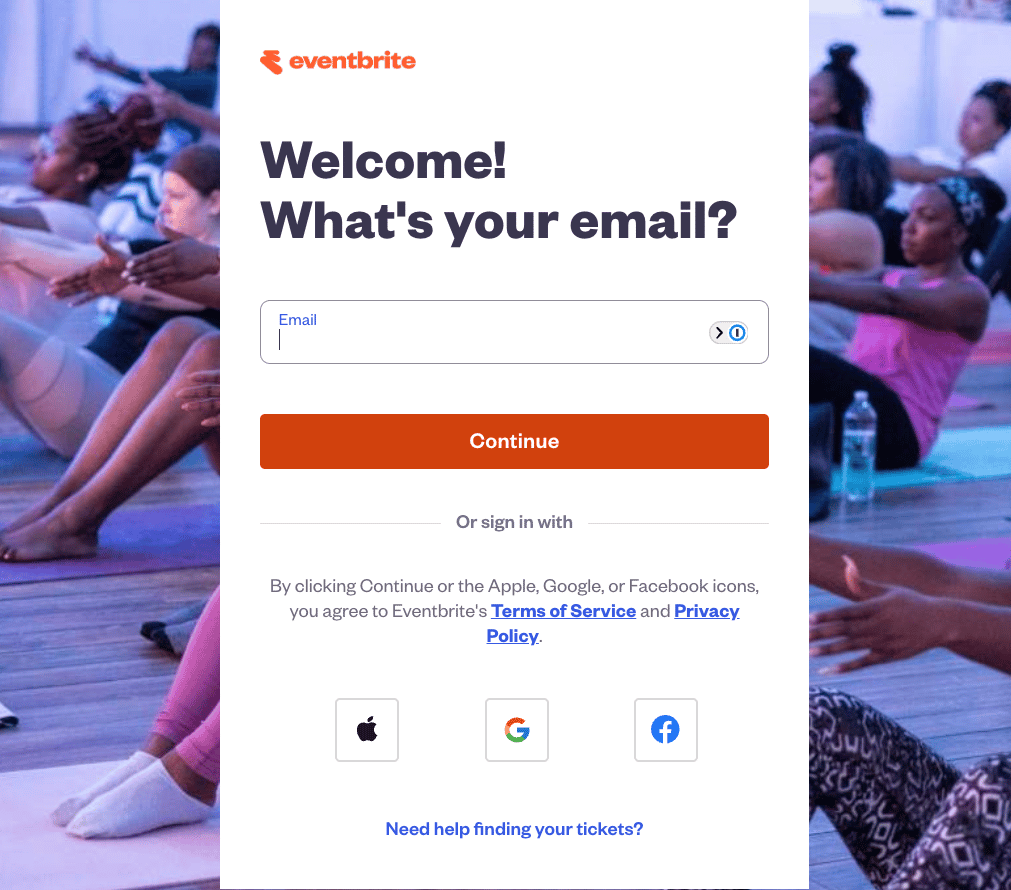
Go to the Eventbrite login page and sign in with your account credentials.
Navigate to Account Settings
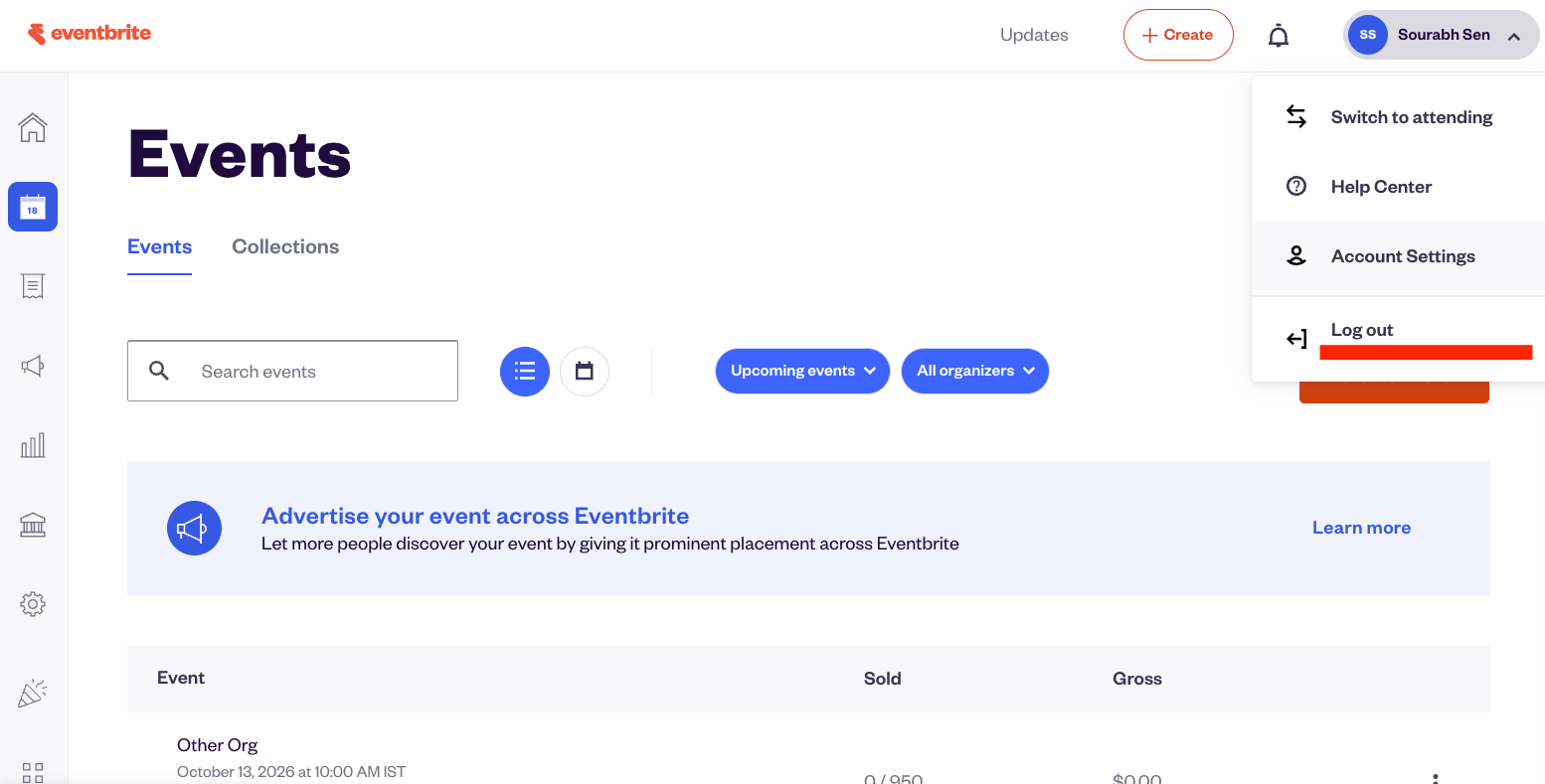
Click your profile name in the top-right corner and select Account Settings from the dropdown menu.
Open API Keys
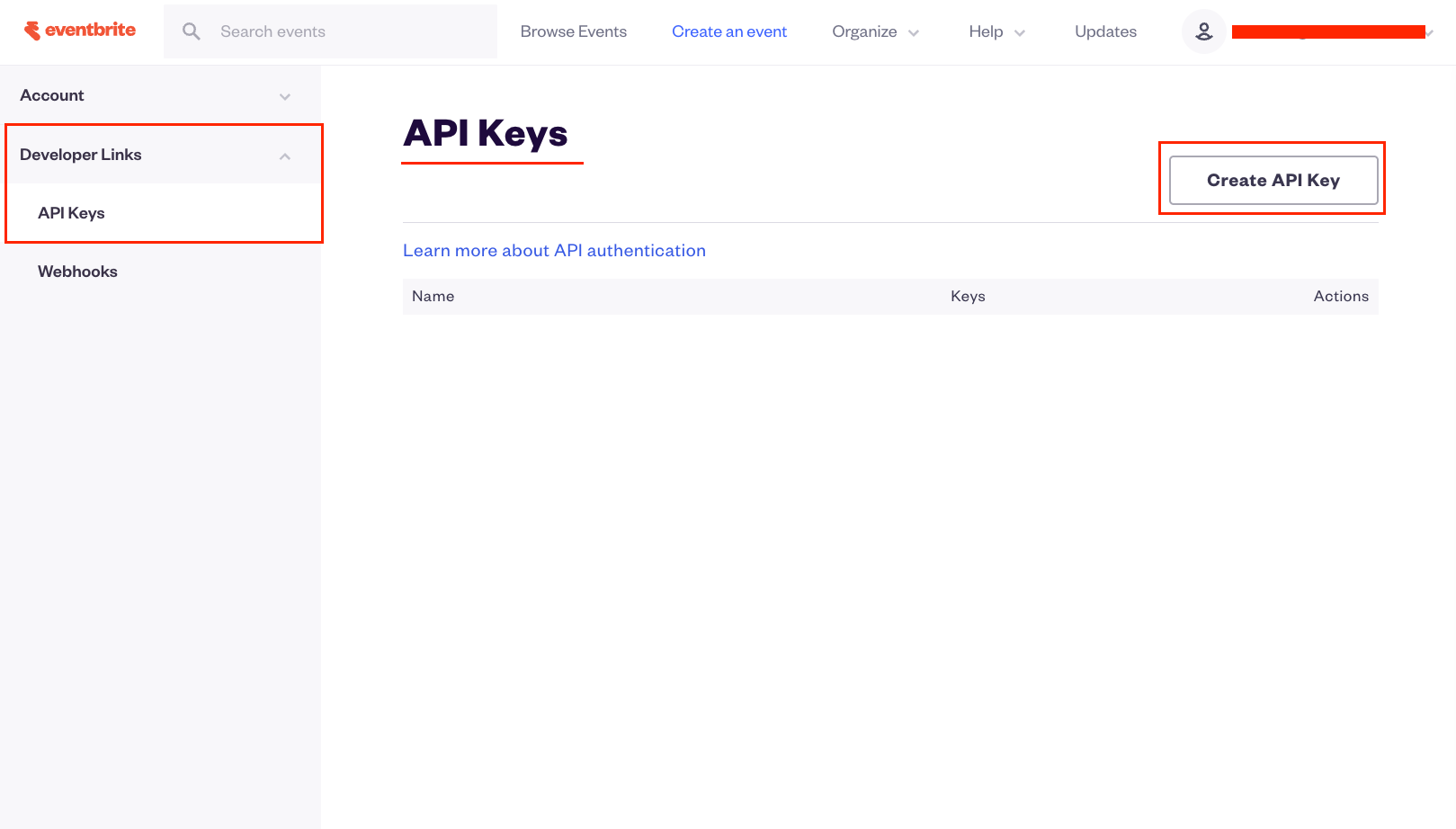
In the left sidebar, expand Developer Links and click API Keys.
Request a new key
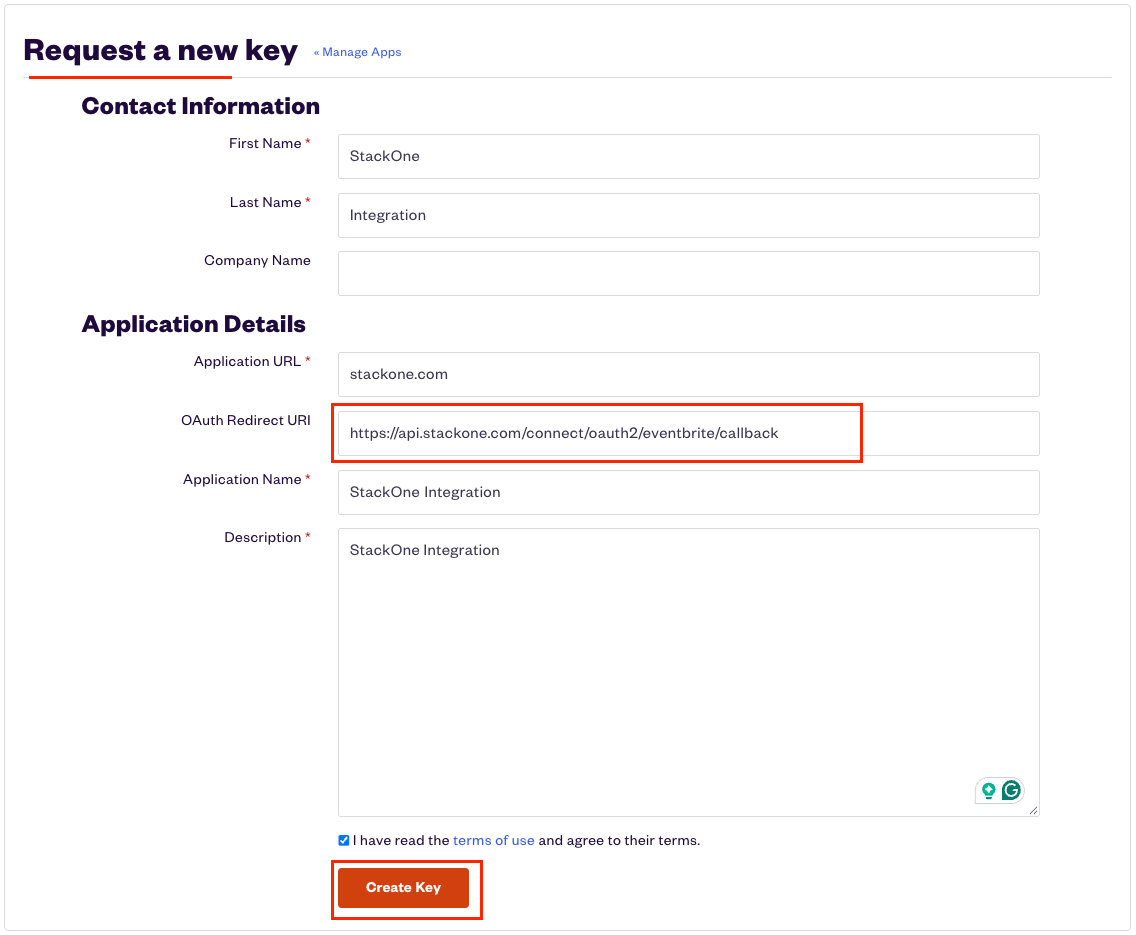
Click the Create API Key button. In the Contact Information section of the form, fill in these fields.
- First Name (required)
- Last Name (required)
- Company Name
Fill in the application details
In the Application Details section of the same form, fill in these fields.
- Application URL (required) — enter your application’s website URL
- OAuth Redirect URI — enter the Callback URL from your Connector Profile
- Application Name (required) — choose a name for your integration
- Description (required) — briefly describe your integration’s purpose
- Check the I have read the terms of use checkbox and click Create Key.
Copy your credentials
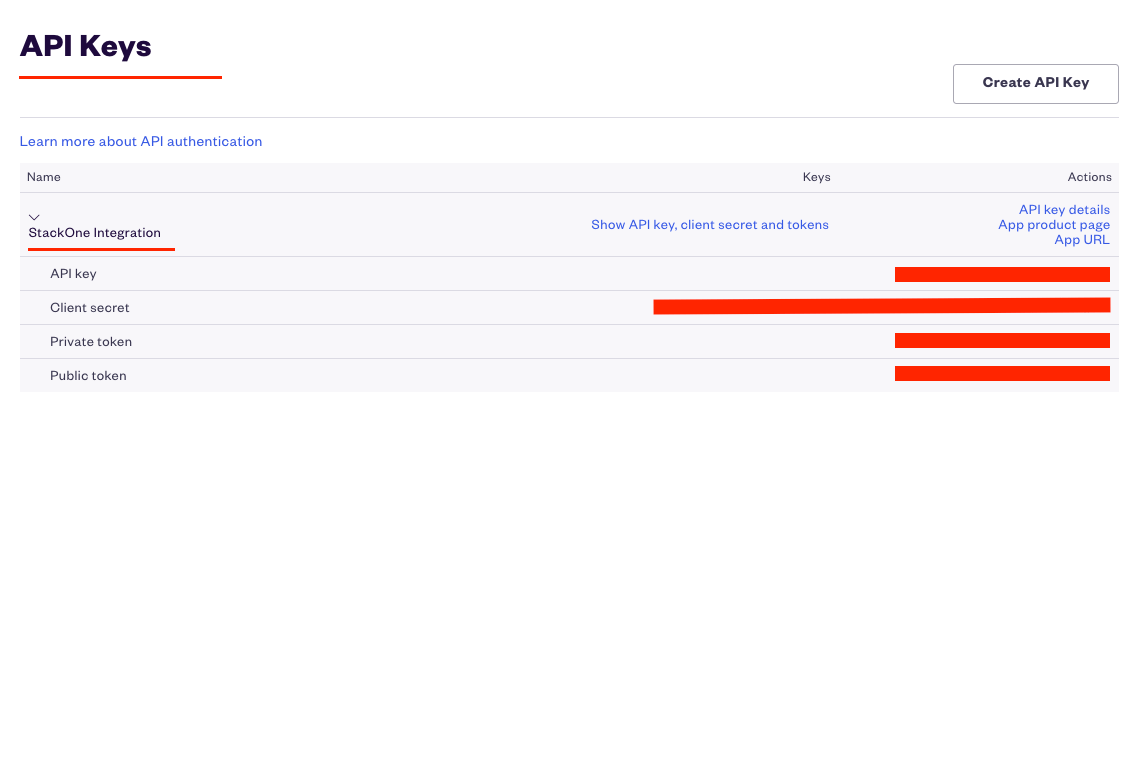
On the API Keys page, find your newly created key and click Show API key, client secret and tokens to reveal the credentials.
- Copy the API key and Client secret into your Connector Profile.
Create the StackOne Connector Profile
Create a Connector Profile
Link an Account