

Creating an OAuth app
An Adyen OAuth app lets StackOne call Adyen on behalf of the merchant accounts that approve it. Register it once; each customer then signs in to Adyen and grants access.
Sign in to Adyen
Sign in to the Customer Area for the environment you are connecting:
- Test — Adyen test Customer Area
- Production — Adyen live Customer Area
- In the sidebar, click Settings, then click OAuth apps under Developers.
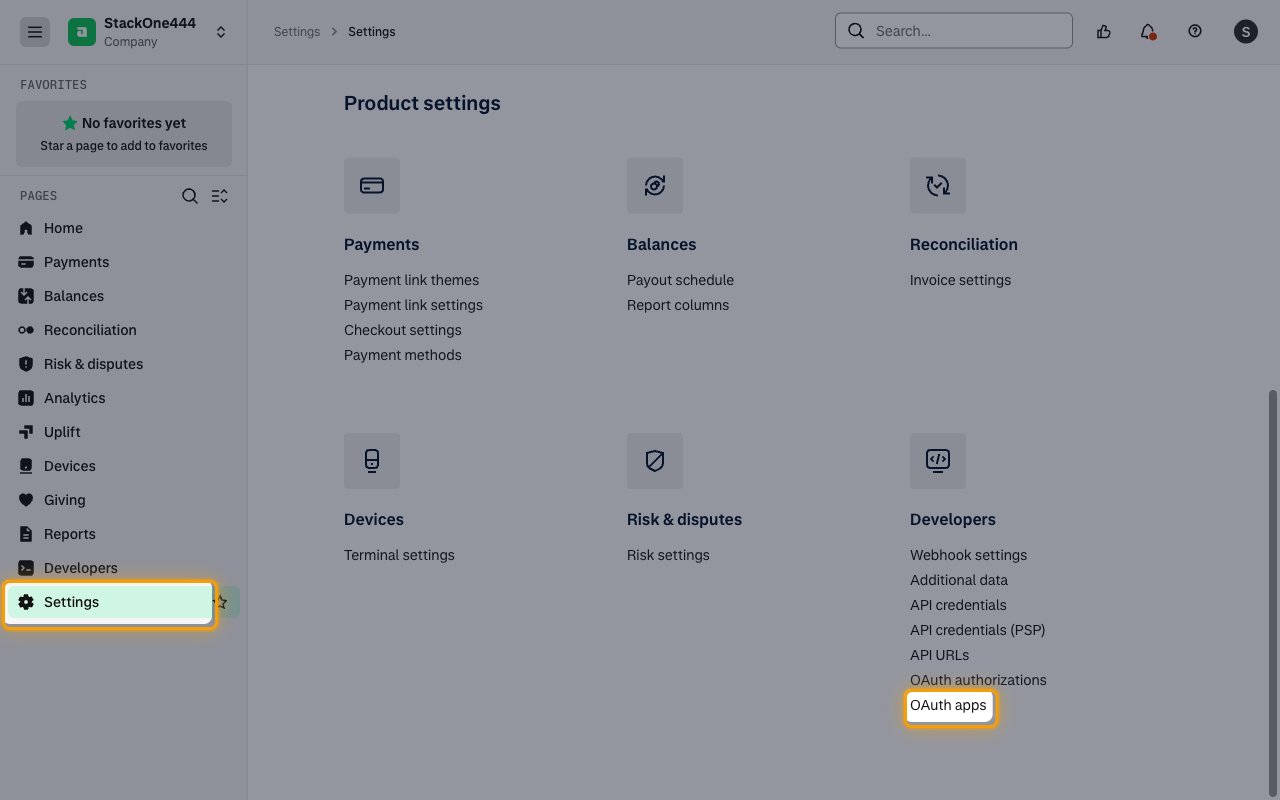
Start a new app
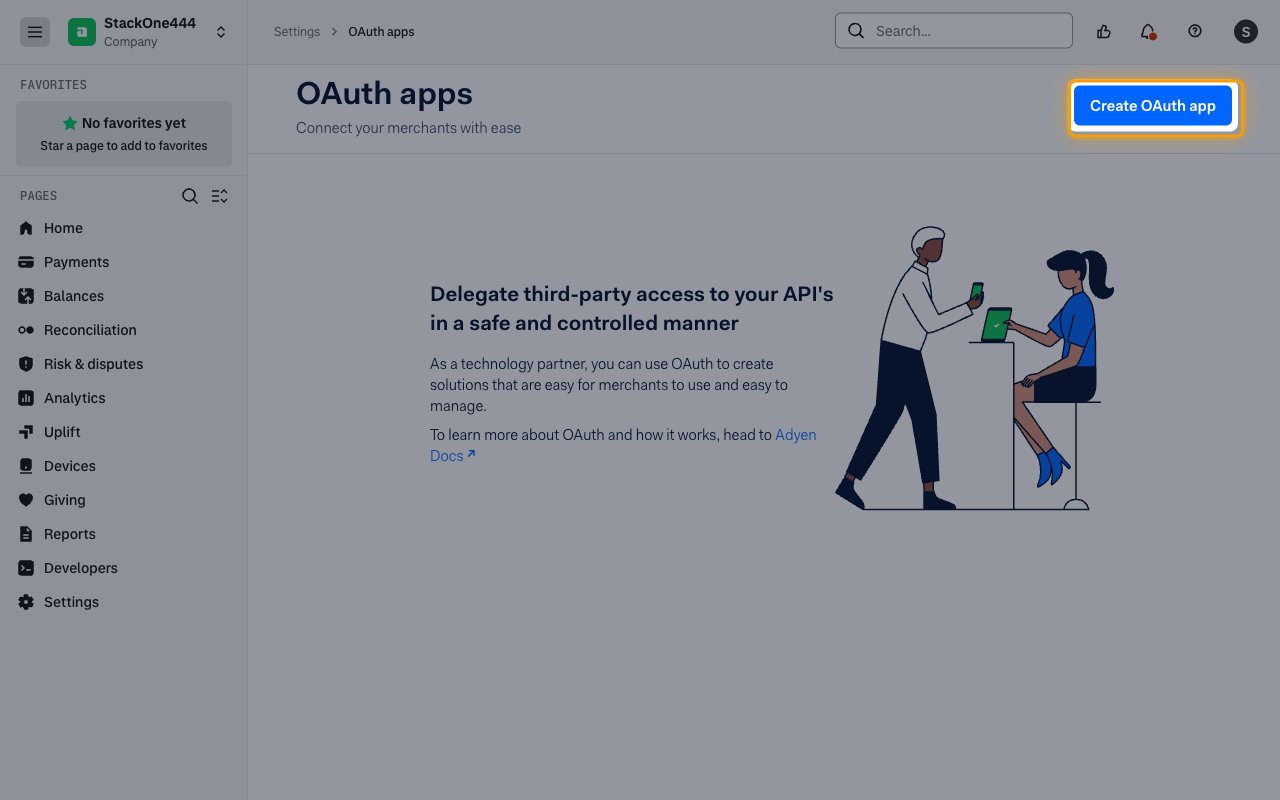
On the OAuth apps page, click Create OAuth app.
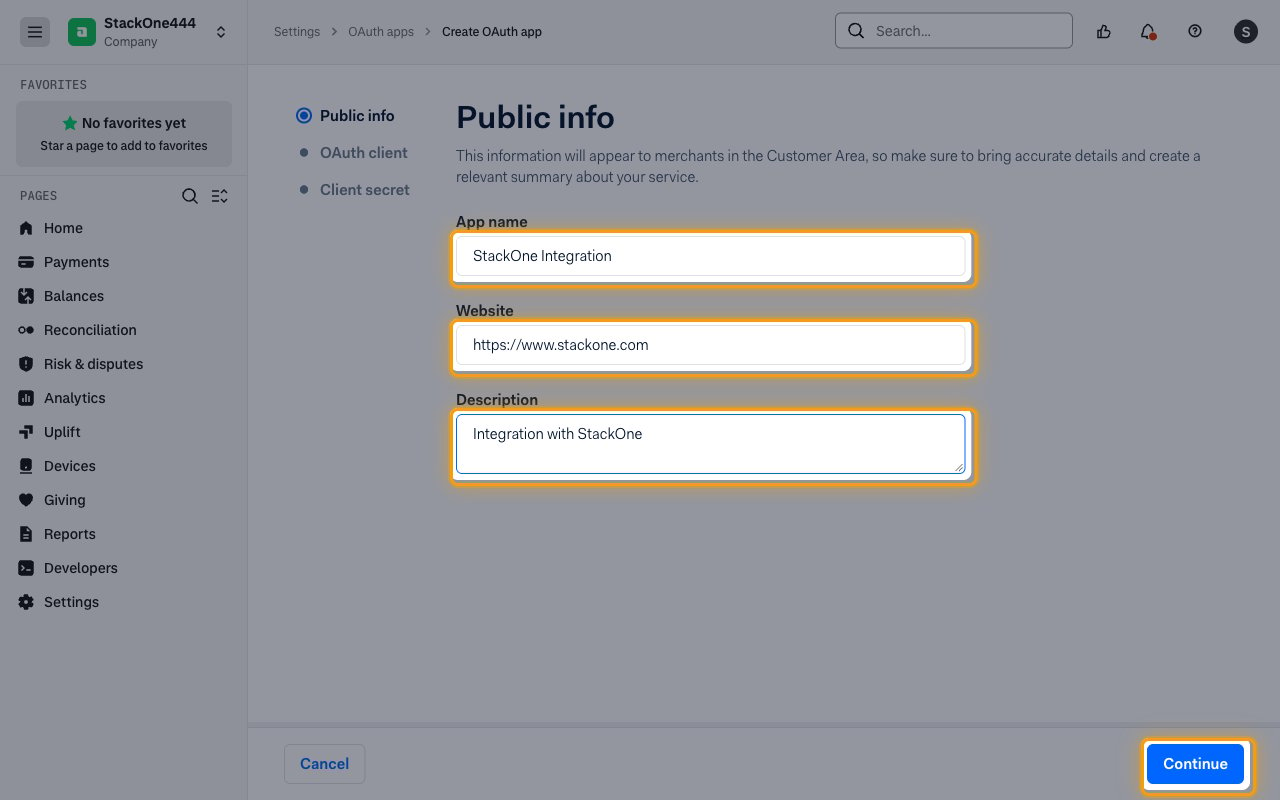
Fill in public info
Merchants see these details when they approve access.
- App name:
StackOne Integration - Website:
https://www.stackone.com - Description:
Integration with StackOne - Click Continue.
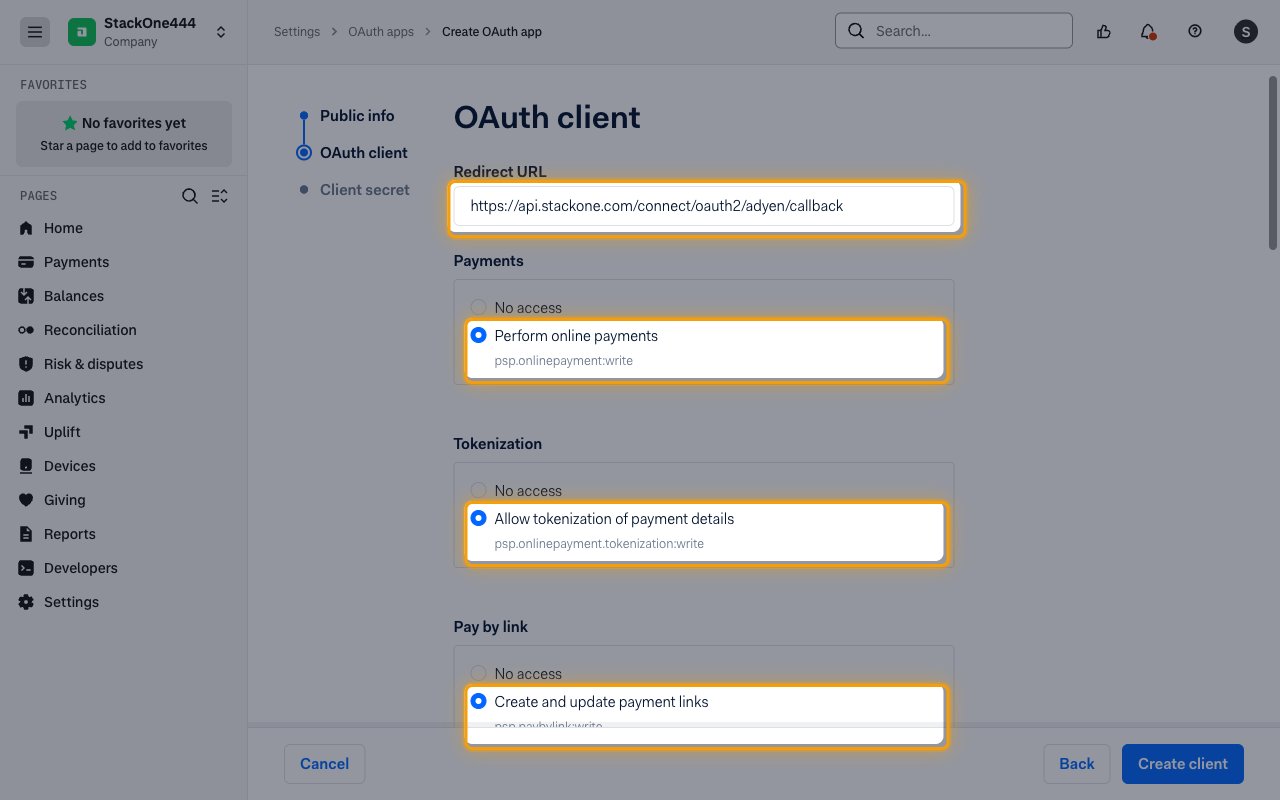
Enter the redirect URL
On the OAuth client step, enter the StackOne callback URL and start choosing scopes.
- Redirect URL:
https://api.stackone.com/connect/oauth2/adyen/callback - Under Payments, select Perform online payments.
- Under Tokenization, select Allow tokenization of payment details.
Select the remaining scopes
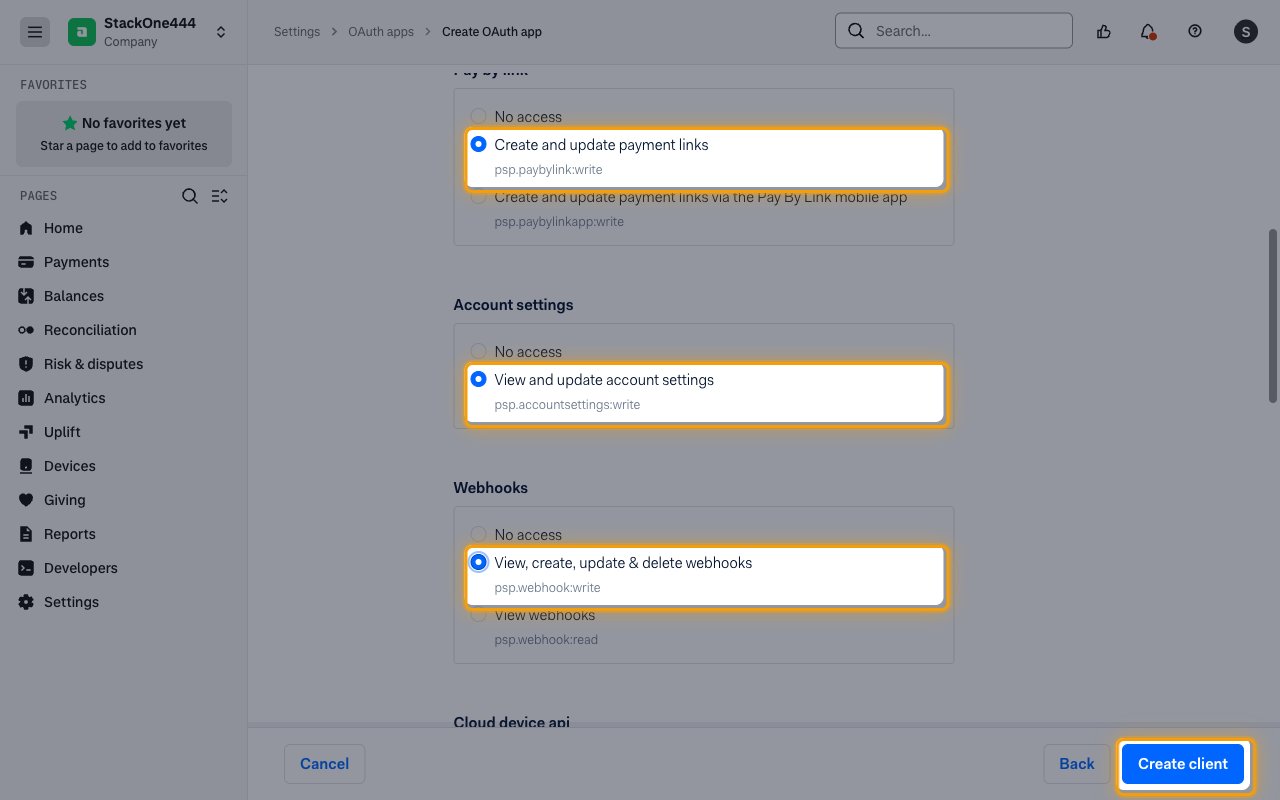
In every remaining group (Pay by link, Account settings, Webhooks, Cloud device api, Terminals, Terminal settings, Terminal actions and Android files), select the option for the scopes below, then click Create client.
- If you selected exactly these scopes, leave the Scopes field in the StackOne Connector profile empty.
- If you chose a different option in any group, or left a group at No access, enter the app’s scopes in the Scopes field, separated by spaces. Adyen rejects the authorization with invalid_scope unless they match the app exactly.
- Scopes cannot be changed after the app is created.
Copy the client credentials
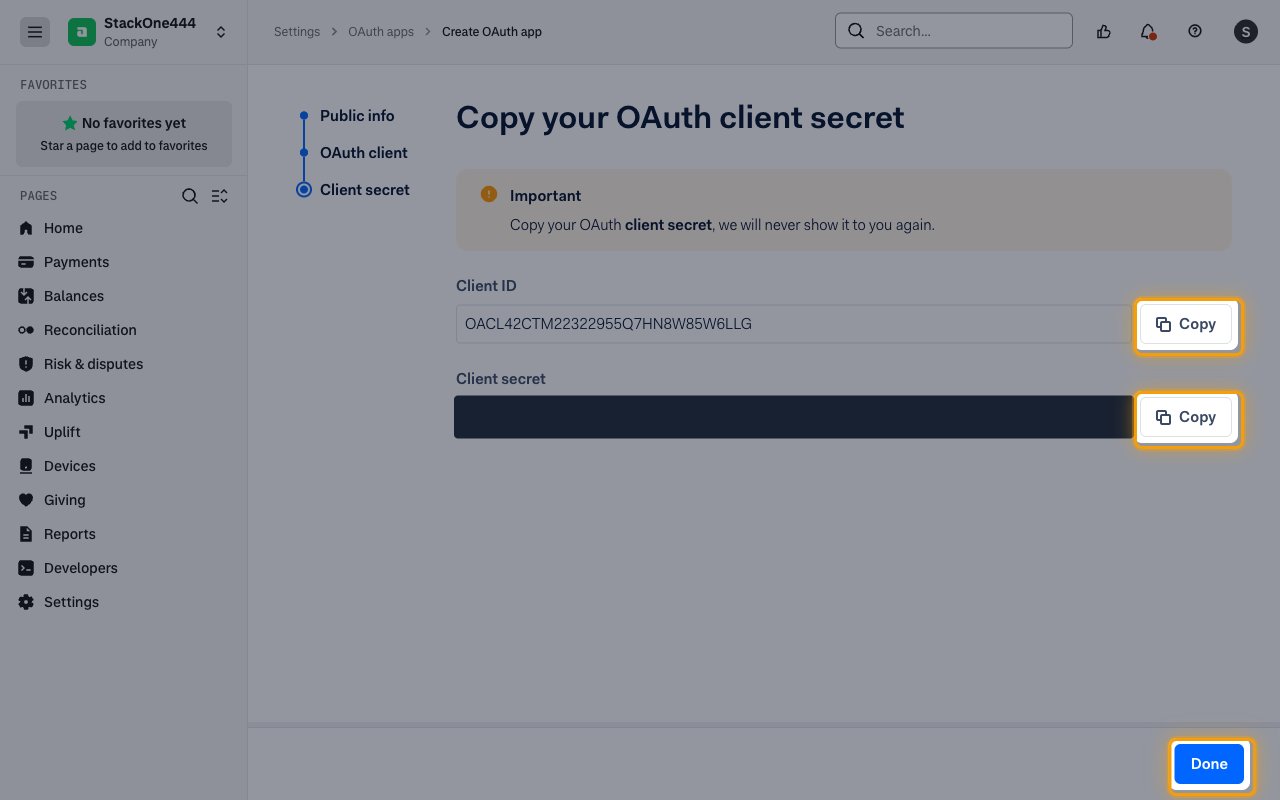
On Copy your OAuth client secret, click Copy next to Client ID and next to Client secret.
- The client secret is shown only once and cannot be retrieved later. Store it securely for use later.
- Paste the values into the Client ID and Client Secret fields in the StackOne Connector profile.
- Click Done.
Creating the StackOne Connector Profile
To create the Connector Profile in StackOne for Adyen:Open the connector
Choose actions and events
- Click Add Profile.
- If the connector offers more than one authentication method, set the Auth Method filter to OAuth 2.0.
- Select the actions, and any events, to enable for this Connector Profile.
- Click Continue.
Set up authentication
- Select Authentication Type as OAuth 2.0.
- Fill out the fields using details retrieved from your provider:
- Client ID
- Client Secret
- Scopes (Optional)
- Click Create Profile.