

Locating Your API URL
The API URL is specific to the ActiveCampaign account rather than to the user who looks it up, so every linked account under this connector profile shares the same value. It includes your data center region.
1
Access Developer Settings
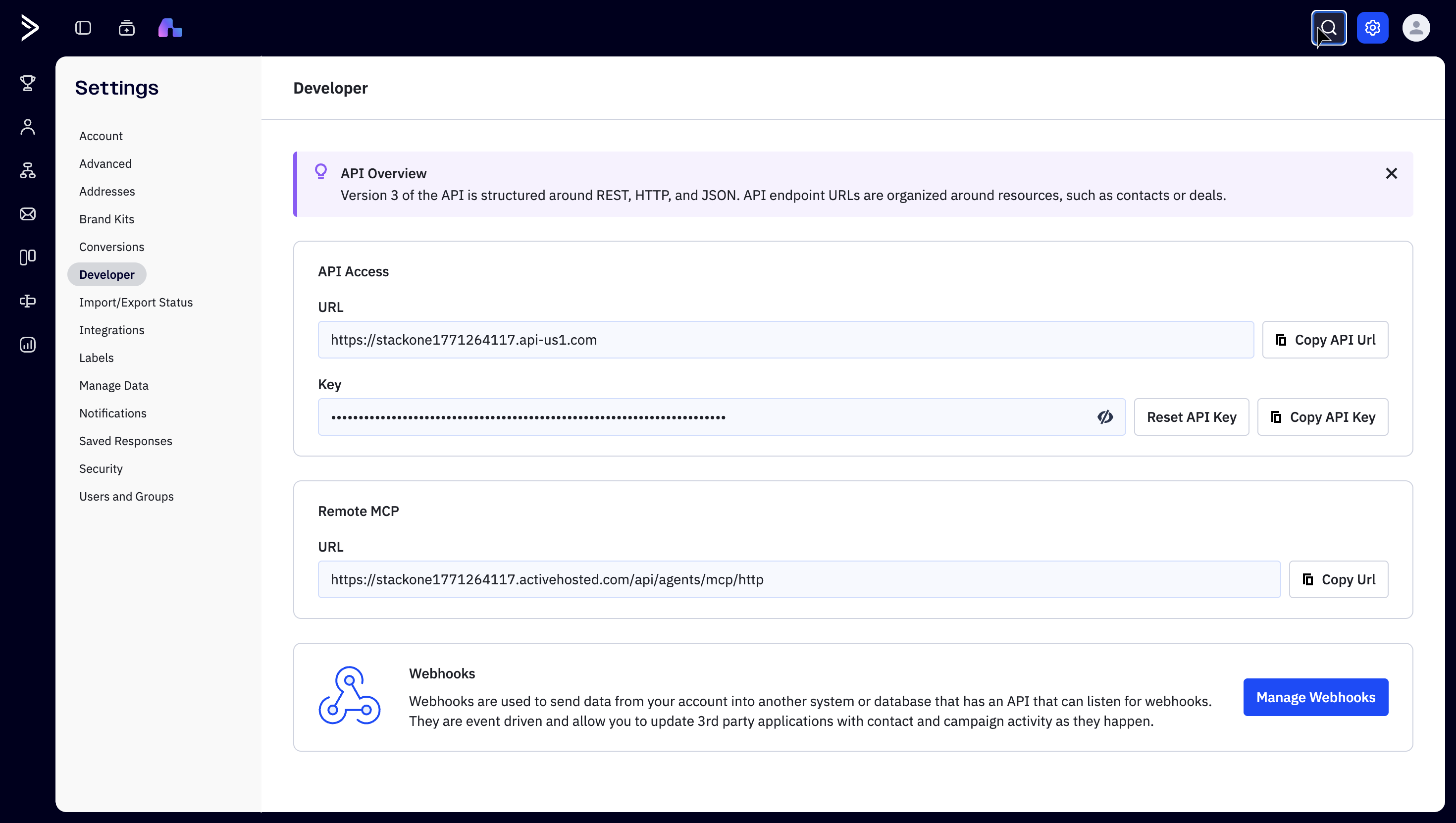
Sign in to your ActiveCampaign account, click the Settings gear icon (⚙) in the top-right corner of the header, then select Developer from the Settings menu on the left.
2
Copy Your API URL
In the API Access section, find the URL field displaying your unique URL and copy the entire URL.
- Format:
https://{account-name}.api-{region}.com - Example US:
https://acmecompany.api-us1.com - Example EU:
https://acmecompany.api-eu1.com - Note: Copy the full URL including https:// but without any trailing path
- Every account linked under this connector profile reaches this one ActiveCampaign account. Use the API Key (Multiple Companies) method instead to connect accounts belonging to different ActiveCampaign accounts.
Create the StackOne Connector Profile
1
Create a Connector Profile
Enable the connector and create a Connector Profile in your project. See Setup Connector Profile.
2
Link an Account
Once the Connector Profile is created, continue to link an account.