

Find your subdomain
Your subdomain is the unique identifier in your Zendesk URL.
- Check your browser address bar when signed in to Zendesk.
- Format:
https://{subdomain}.zendesk.com - Example: if your URL is
https://acme.zendesk.com/agent/home, your subdomain isacme - Enter it in the Subdomain field in StackOne Hub.
Find your email
The email is the address of the Zendesk team member who generates the API token. StackOne authenticates API requests with this email and the token, so it inherits that user’s permissions.
- Use the email address you sign in to Zendesk with.
- Enter it in the Email field in StackOne Hub.
Generating an API token
An API token authenticates StackOne’s requests to your Zendesk account together with your email.
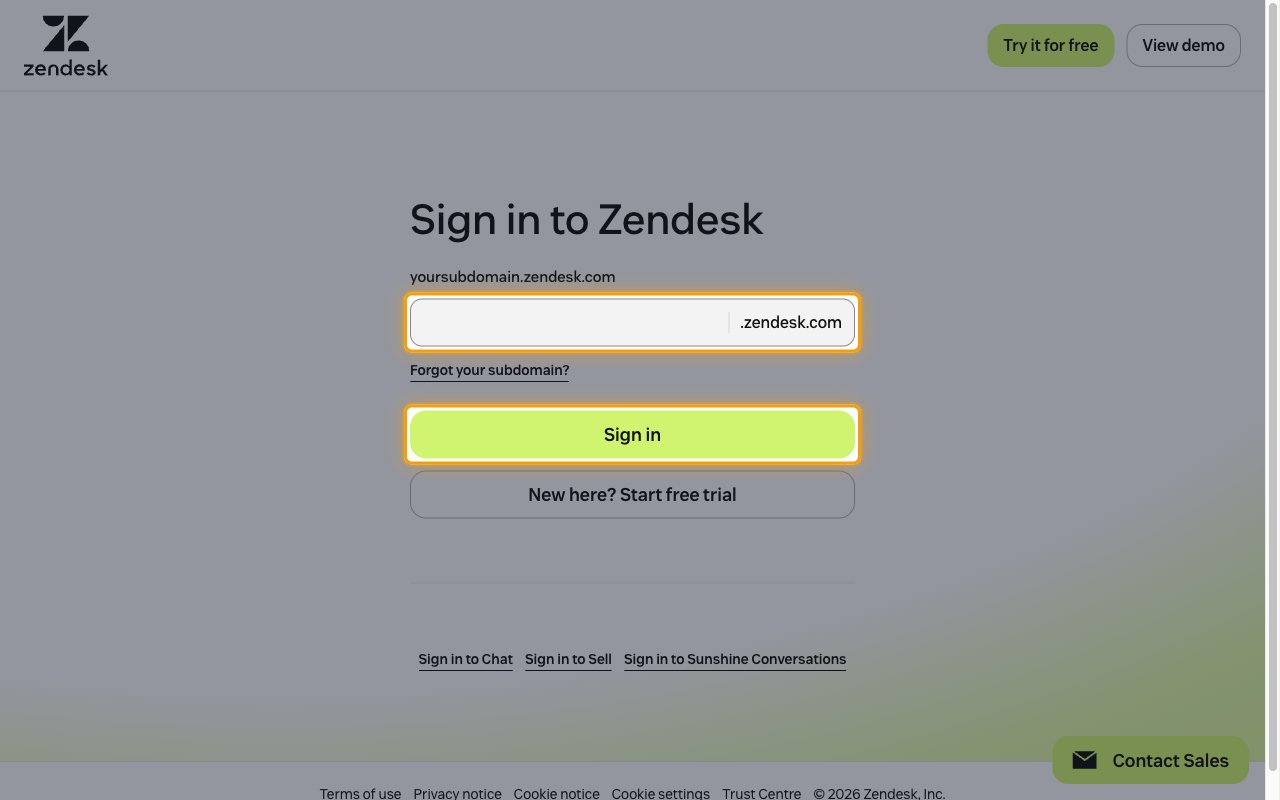
Sign in to Zendesk
Sign in to your Zendesk account.
- Enter your subdomain in the yoursubdomain.zendesk.com field and click Sign in.
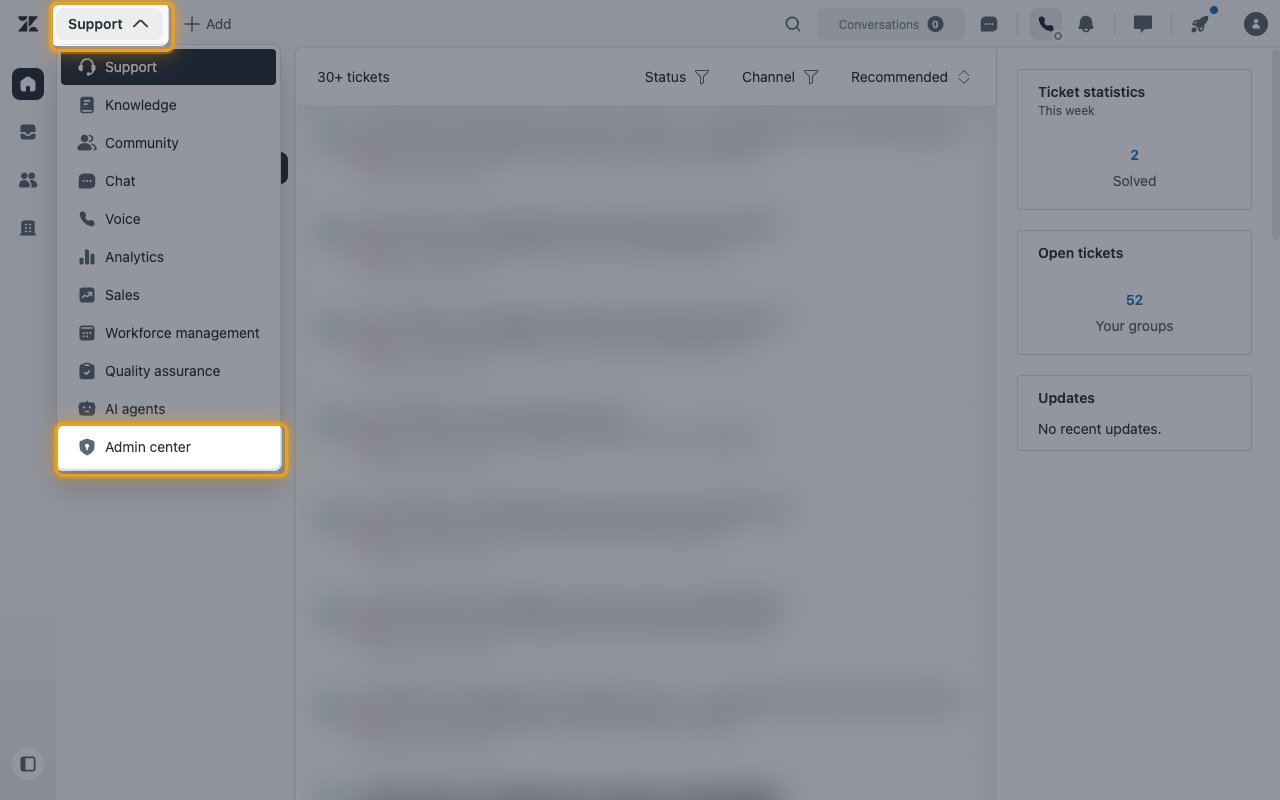
Open Admin center
In the top bar, click the product switcher labeled Support, then select Admin center.
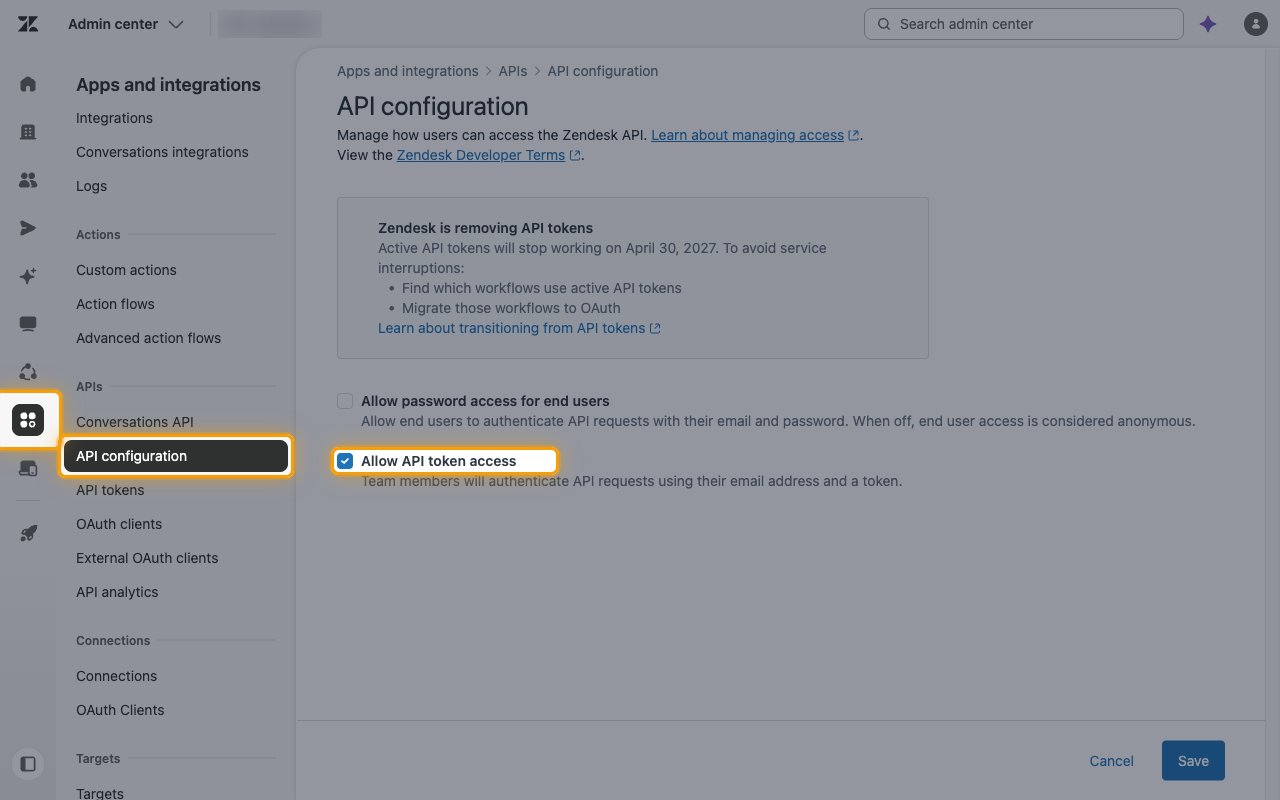
Turn on API token access
In Admin center, click Apps and integrations in the sidebar, then select APIs > API configuration.
- Make sure Allow API token access is selected. If it is not, select it and click Save.
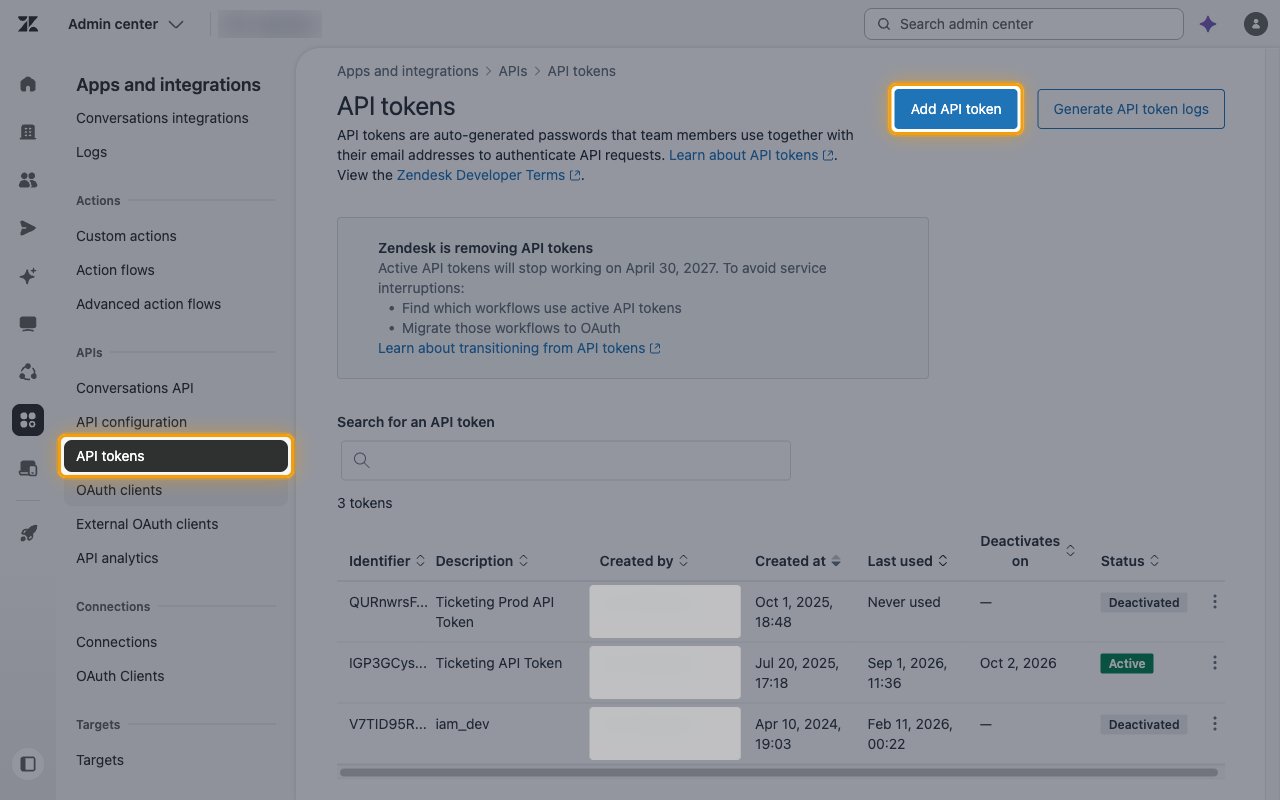
Open API tokens
In the sidebar, select APIs > API tokens, then click Add API token.
Enter a description
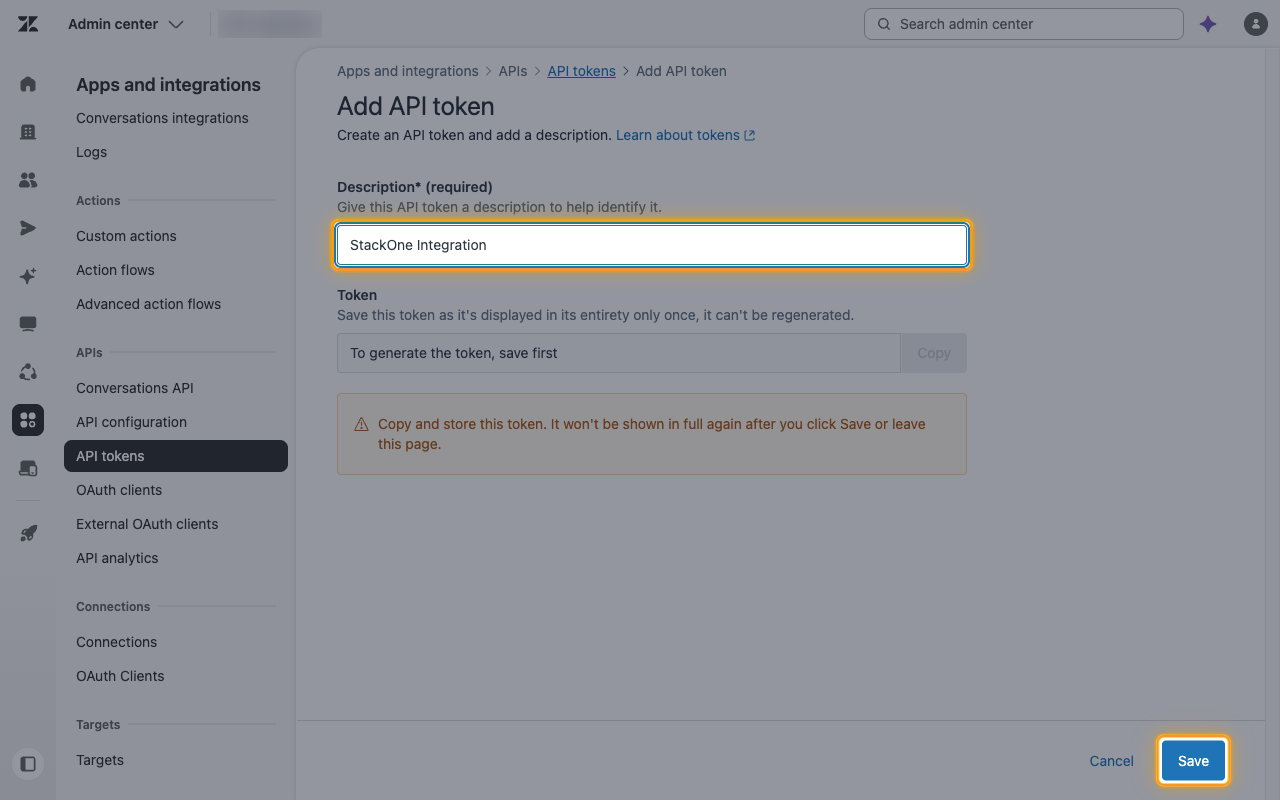
In Description, enter a description that helps identify the token, for example StackOne Integration, then click Save to generate it.
Copy the API token
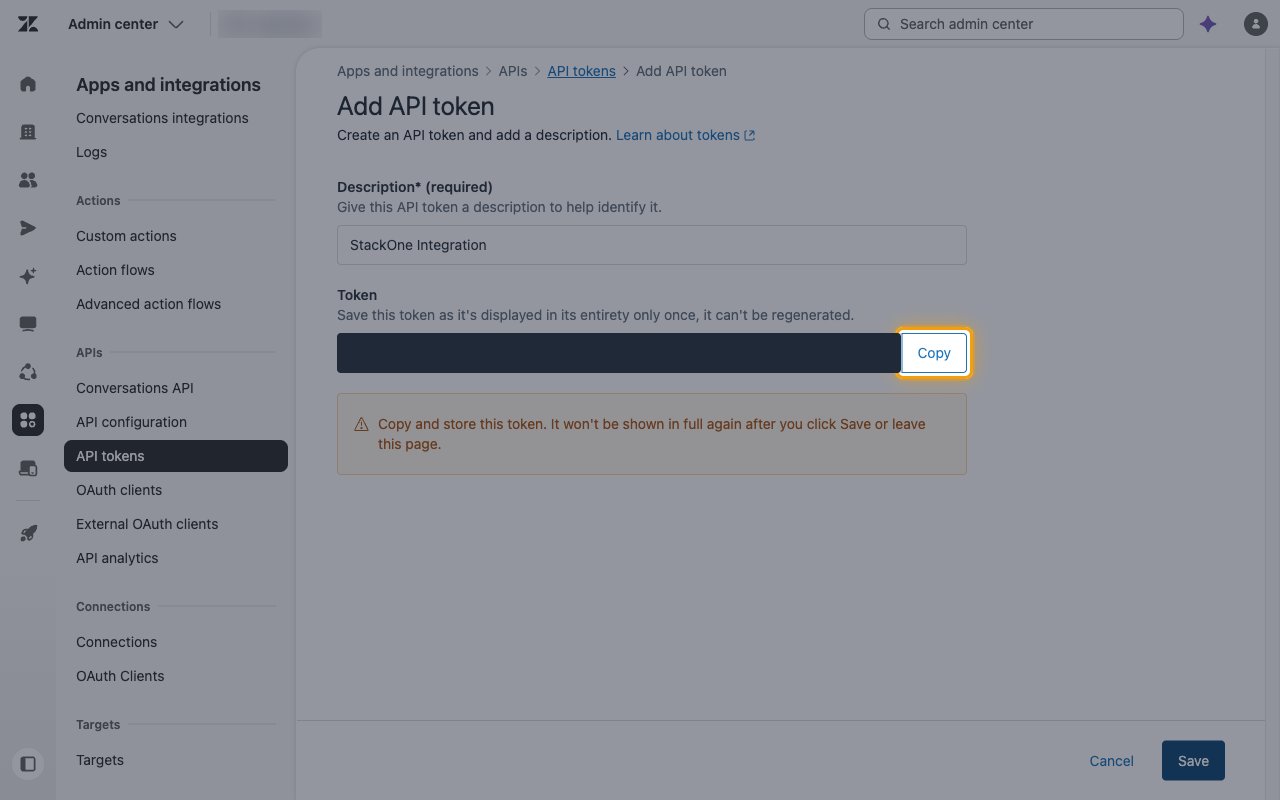
Click Copy next to the generated Token and store it securely for use later.
- The token is shown in full only once and cannot be retrieved or regenerated later. It won’t be shown in full again after you click Save or leave this page.
- Click Save to return to the token list.
- Paste it into the API Token field in StackOne Hub.
Link the Account
Connect
- Click Connect.
- If applicable, the provider will redirect you to a sign-in or authorization page. Complete the provider’s authorization flow.
- Once authorization is successful, you will see a confirmation popup.
Use Actions
Next Steps
Webhooks setup
Configure receiving Events for Zendesk into StackOne.