

Create the Slack app
Create a blank Slack app for the sign-in flow. You only need one per Slack workspace.
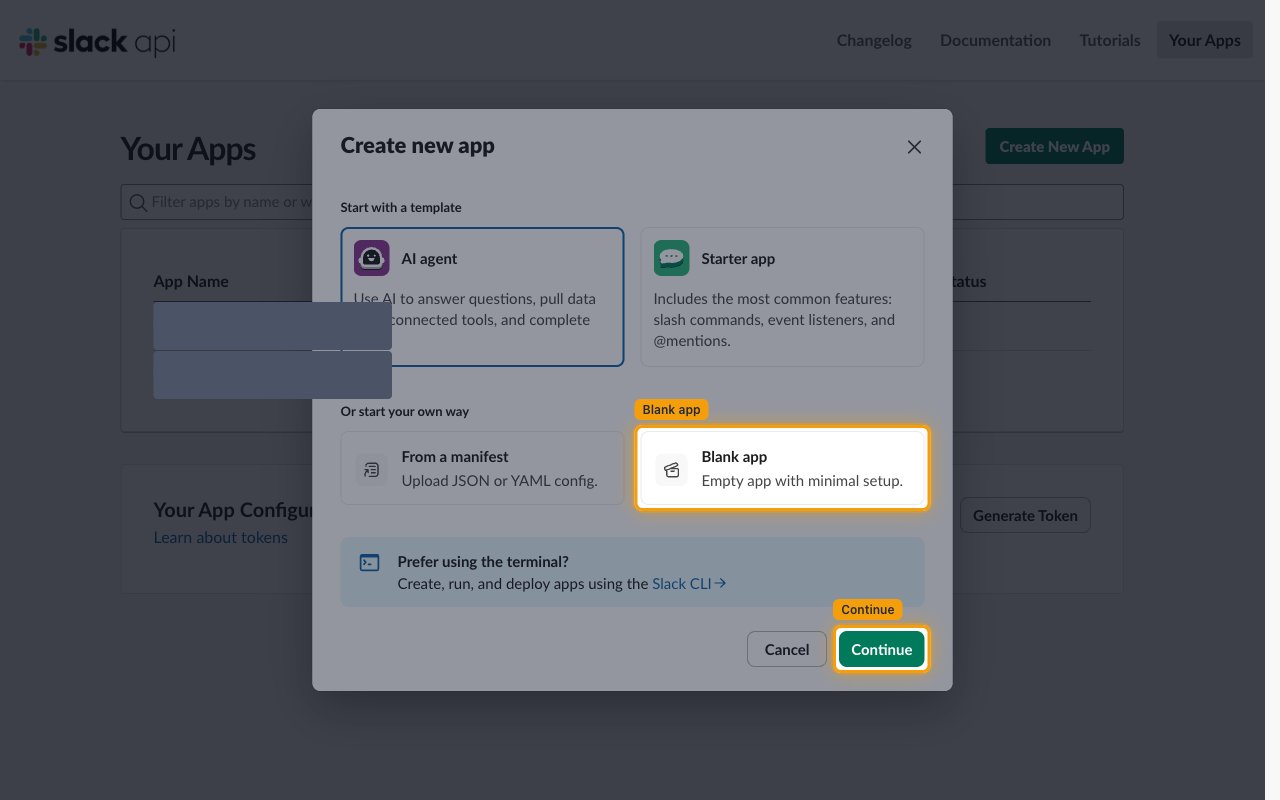
Choose Blank app
Sign in to the Slack API applications dashboard and open the Your Apps page.
- Click Create New App.
- In the Create new app dialog, under Or start your own way, select Blank app.
- Click Continue.
Enter the app name and workspace
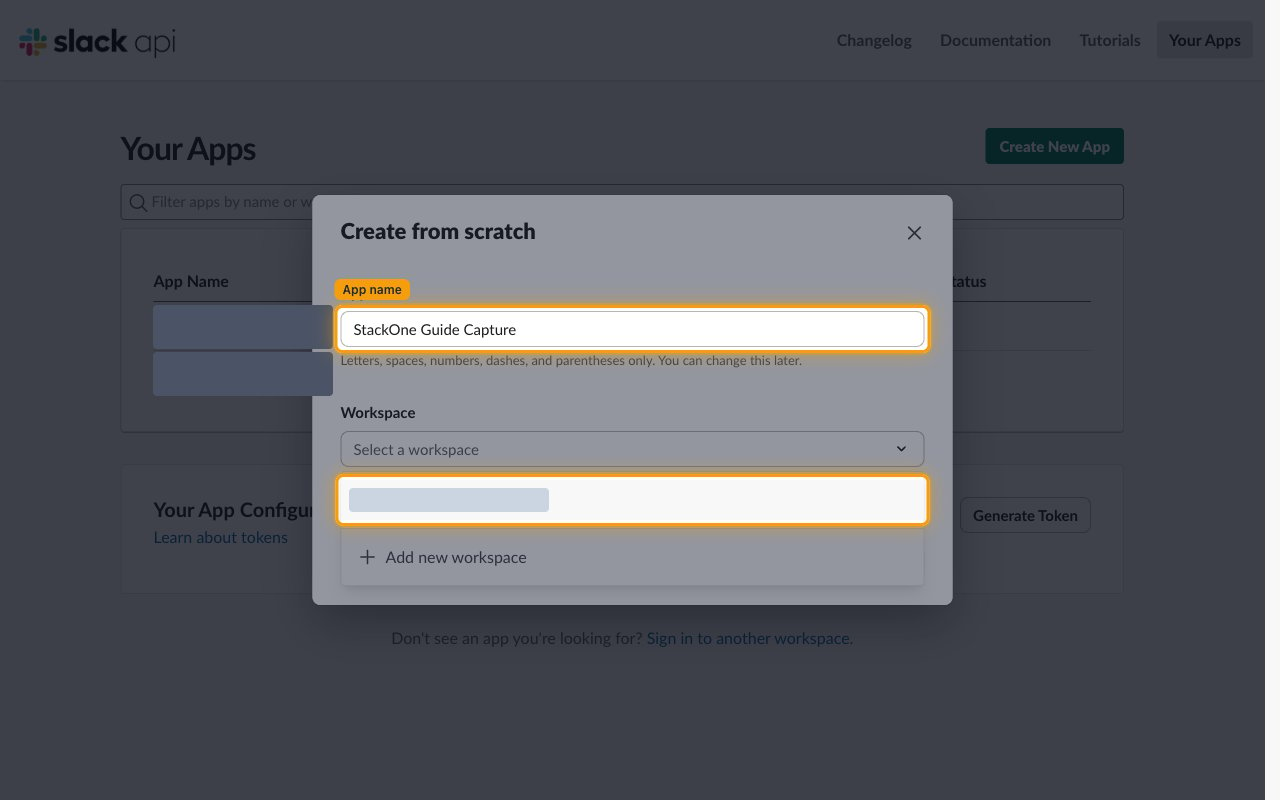
The Create from scratch dialog asks for the app name and workspace.
- App name:
StackOne Wrangle Sign-In - Workspace: the workspace Wrangle is installed in. Slack warns that This can’t be changed later.
- Click Create.
Configure OAuth for the app
Both settings are on the OAuth & Permissions page.
Add the redirect URL
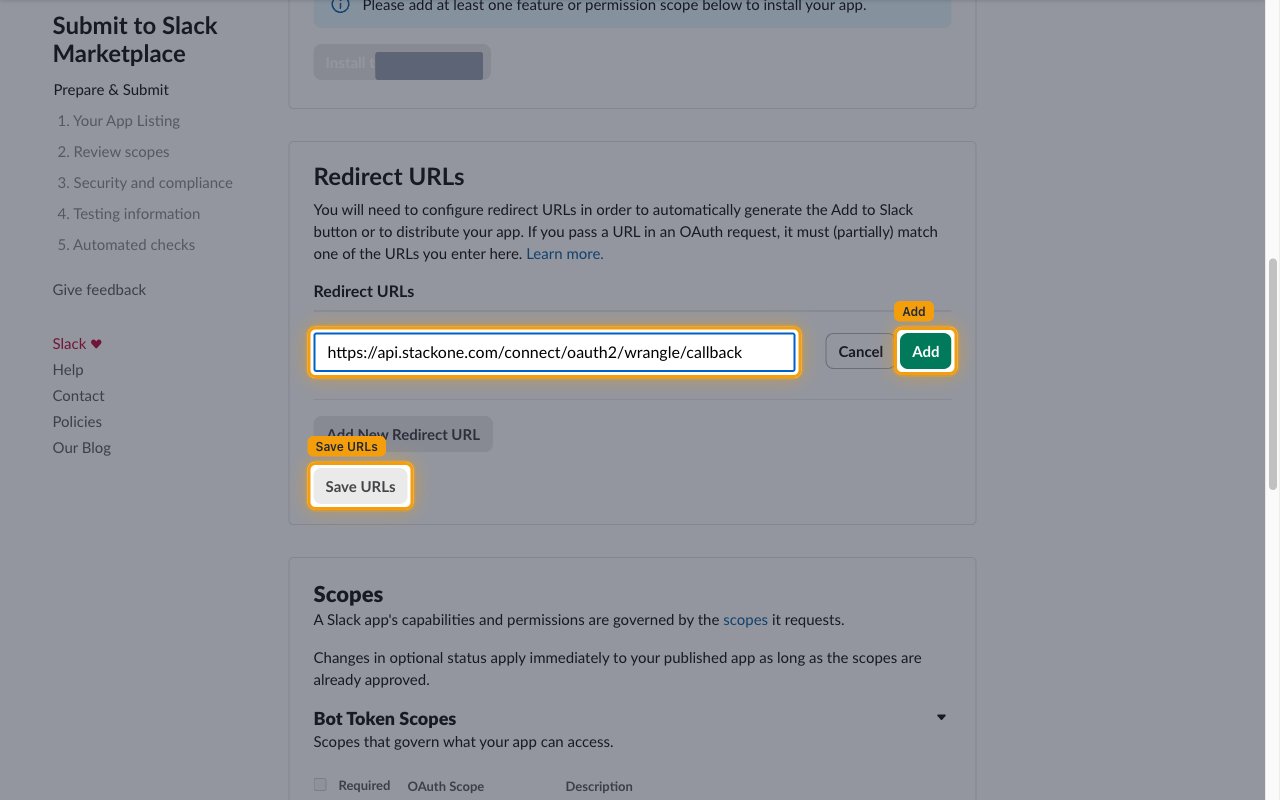
In the app’s left sidebar open OAuth & Permissions and scroll to Redirect URLs.
- Click Add New Redirect URL.
- Enter the Callback URL from your Connector Profile.
- Click Add.
- Click Save URLs.
Add the User Token Scopes
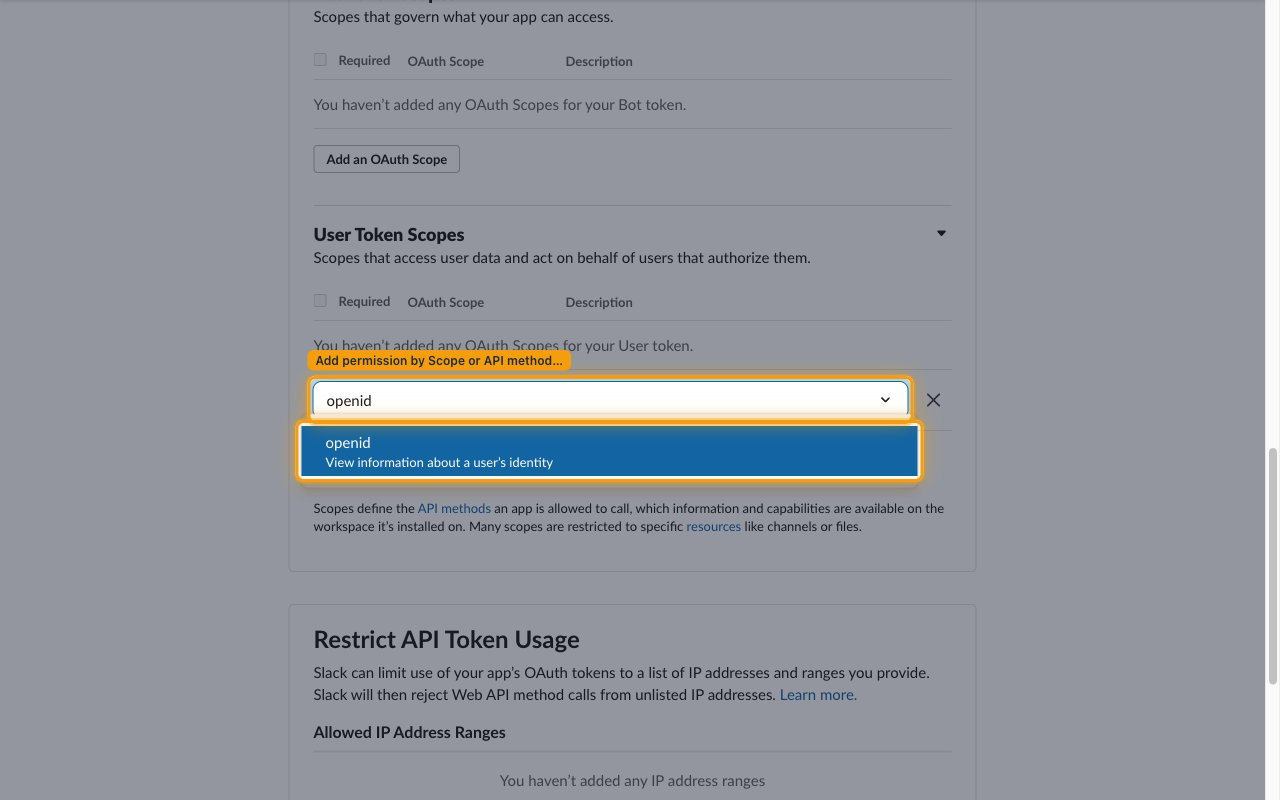
Scroll down to Scopes. The sign-in flow needs three permissions on the User Token Scopes table — not the Bot Token Scopes table.
- Under User Token Scopes, click Add an OAuth Scope.
- Add openid — View information about a user’s identity.
- Add profile — View a user’s Slack avatar and Slack workspace’s basic information.
- Add email — View a user’s email address.
Copy the Slack app credentials
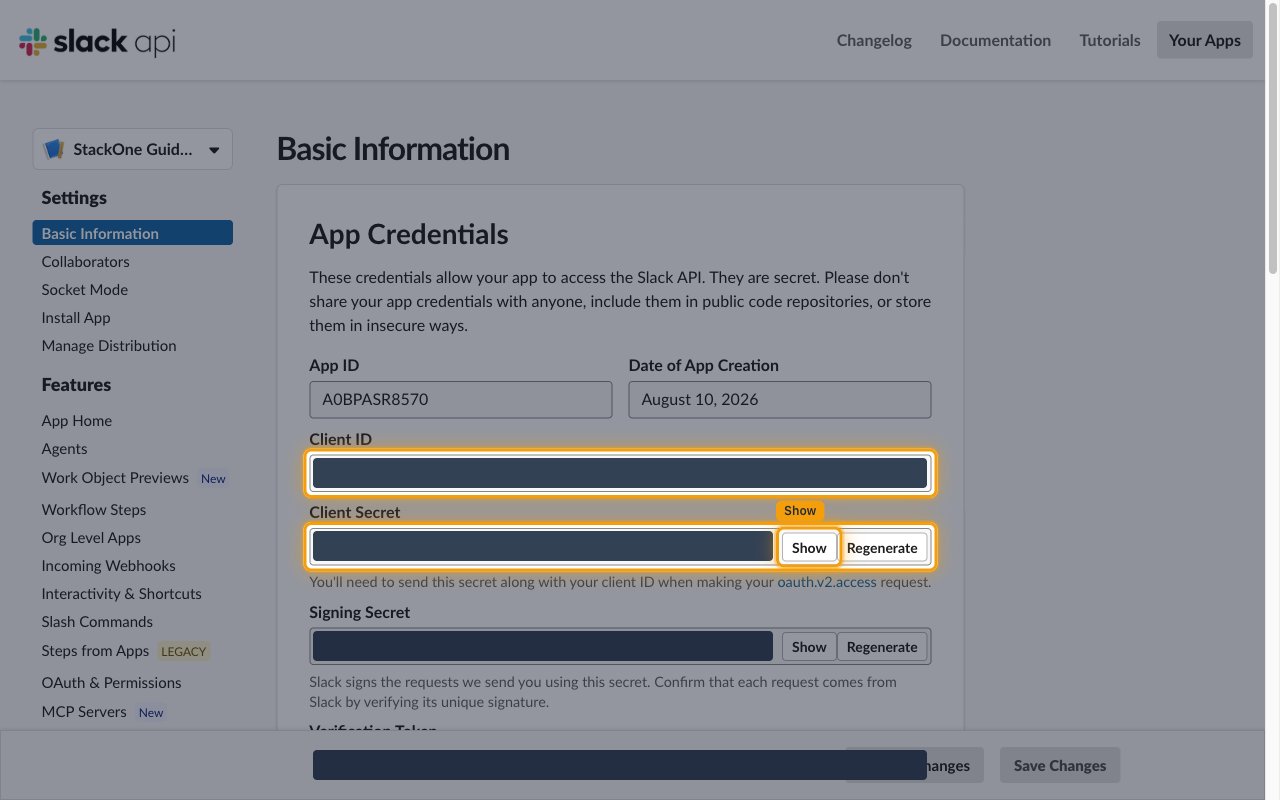
The app’s Basic Information page holds the credentials that become the Slack App Client ID and Slack App Client Secret.
Copy the Client ID and Client Secret
In the app’s left sidebar open Basic Information and find the App Credentials section.
- Copy the Client ID into your Connector Profile.
- Click Show next to Client Secret.
- Copy the Client Secret into your Connector Profile.
- Slack notes that these credentials are secret — do not share them or commit them to a public repository.
Get the Wrangle API token
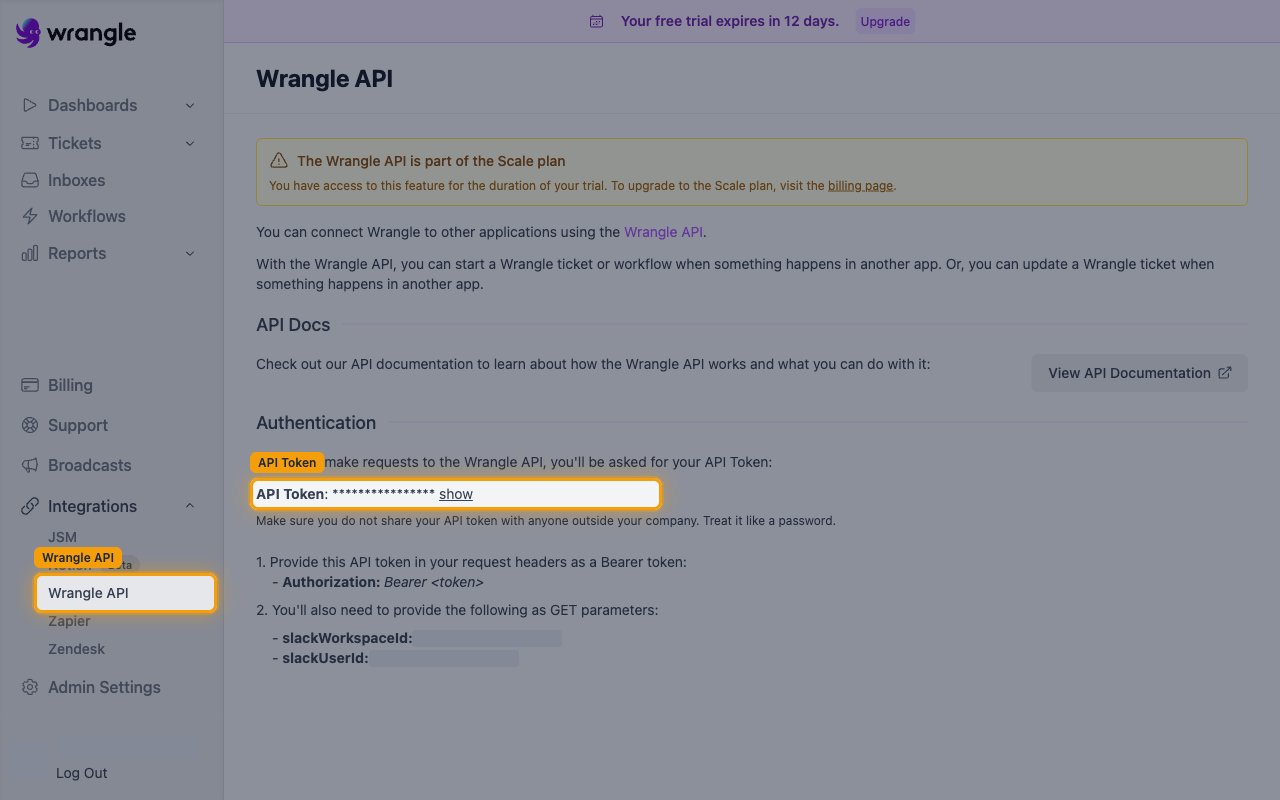
The Wrangle API token authorizes the API calls themselves and is issued in the Wrangle web app. The Wrangle API is part of the Scale plan and is also available during the free trial.
Copy the API token
Sign in to the Wrangle web app, then open Integrations > Wrangle API in the sidebar.
- Next to API Token, click show to reveal the value.
- Copy the API Token into your Connector Profile.
- Wrangle warns to treat the token like a password and not share it outside your company.
- Ignore the slackWorkspaceId and slackUserId values on this page.
Create the StackOne Connector Profile
Create a Connector Profile
Link an Account