

Register an OAuth 2.0 client on Meta-Wiki
Register an OAuth 2.0 client on Meta-Wiki to obtain the Client ID and Client Secret. Requesting only Basic rights gets the client approved automatically; requesting extra write or administrative grants requires OAuth-administrator review (usually a day or two).
Sign in to Meta-Wiki
Sign in to your Meta-Wiki account with your Wikimedia credentials, then open the OAuth consumer registration page.
- If the link does not open the form directly, navigate there via Special pages → OAuth consumer registration → Propose new OAuth 2.0 client.
- Under Navigation, confirm the form is on Propose new OAuth 2.0 client.
Enter the application details
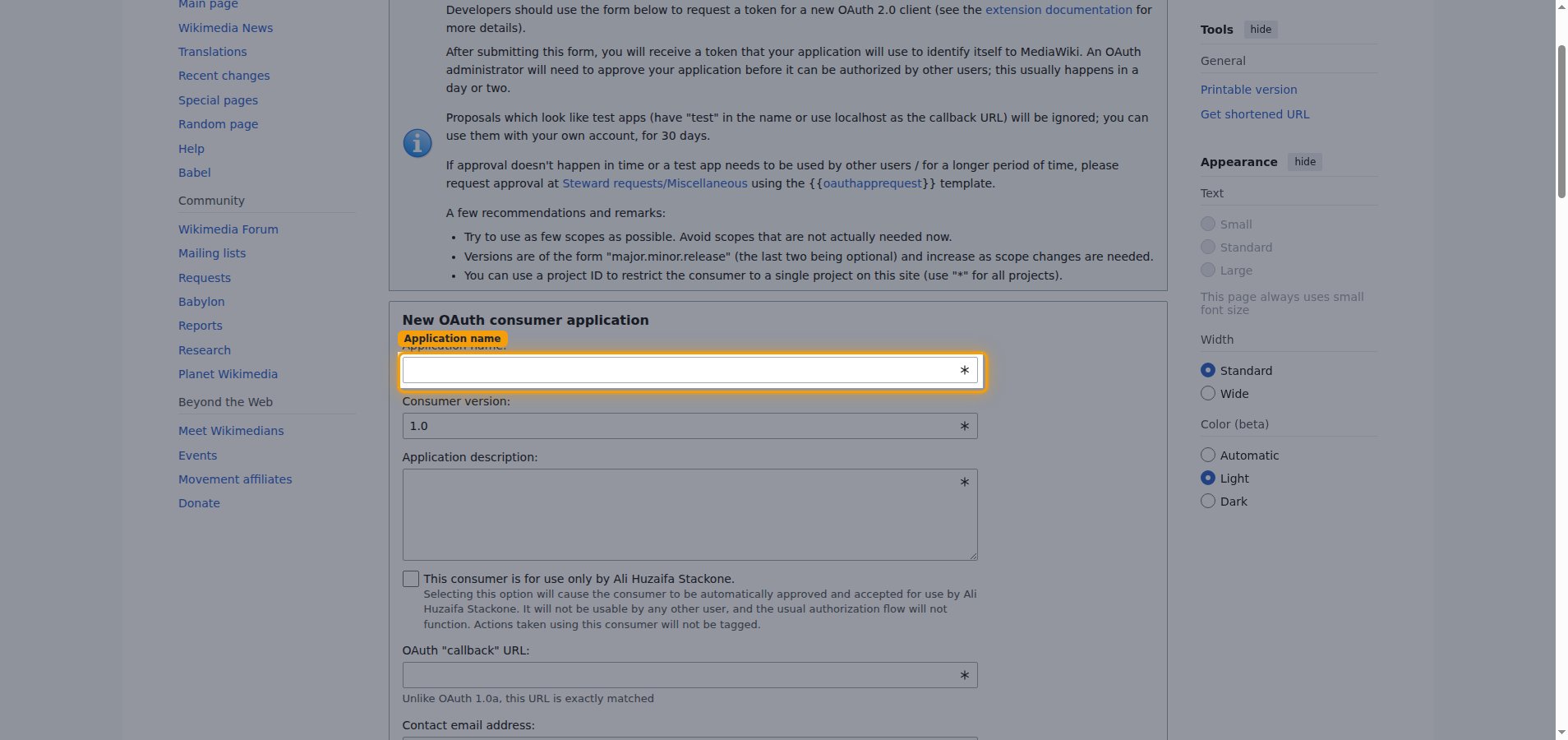
In the New OAuth consumer application section, describe your client.
- Application name: enter a descriptive name — e.g.,
StackOne. - Consumer version: leave as
1.0. - Application description: briefly describe how the client is used.
- Applicable project: leave as
*to allow all projects. - Allowed IP ranges: leave the default (
0.0.0.0/0and::/0), which allows requests from any IP address. - Allowed pages for editing: leave blank unless you need to restrict editing to specific pages.
- Leave This consumer is for use only by [your username]. unchecked so other users can authorize it.
Set the callback URL
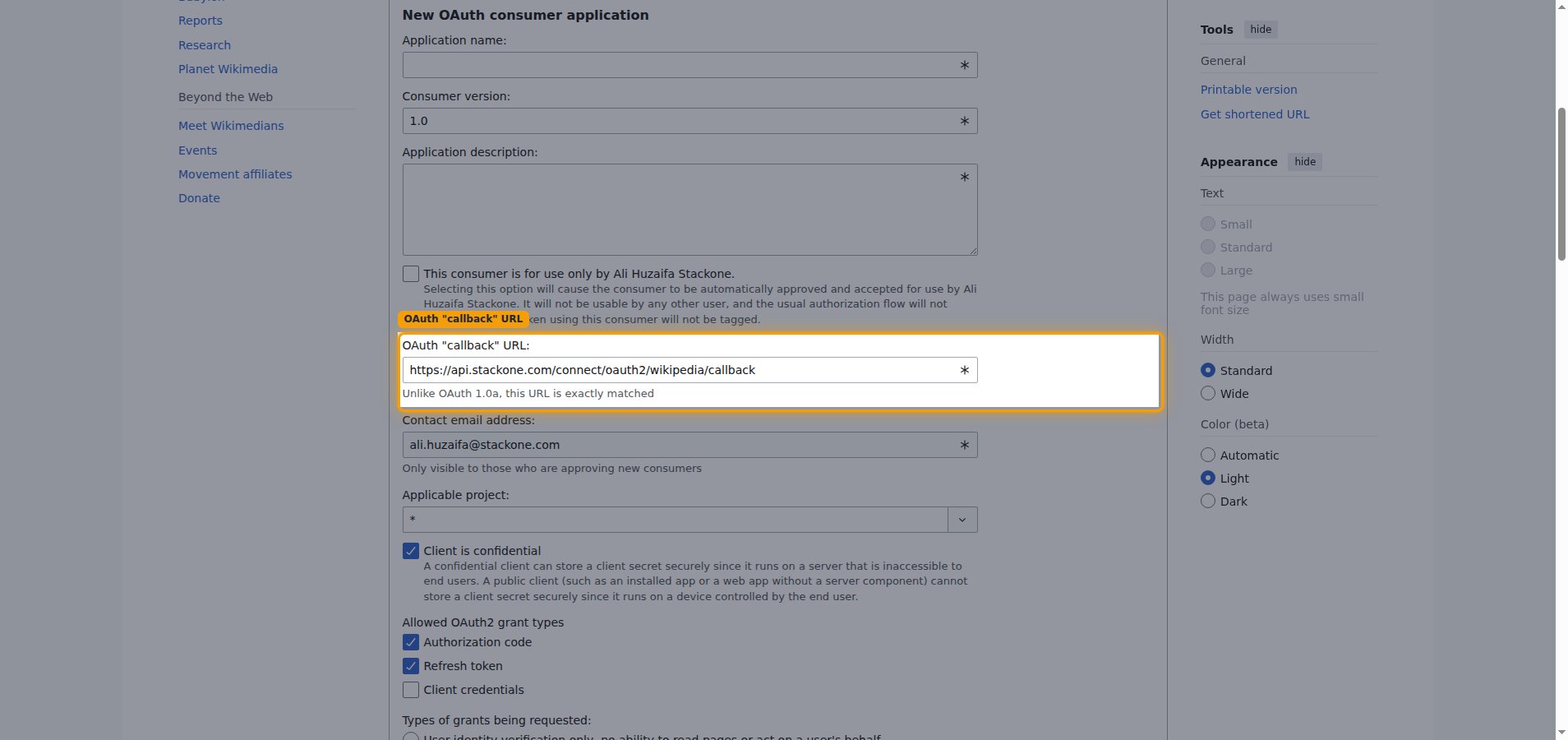
In the OAuth “callback” URL field, enter the StackOne callback URL exactly — this URL is matched exactly.
- OAuth “callback” URL: the Callback URL from your Connector Profile
- Keep Client is confidential checked.
Select the grant types and permissions
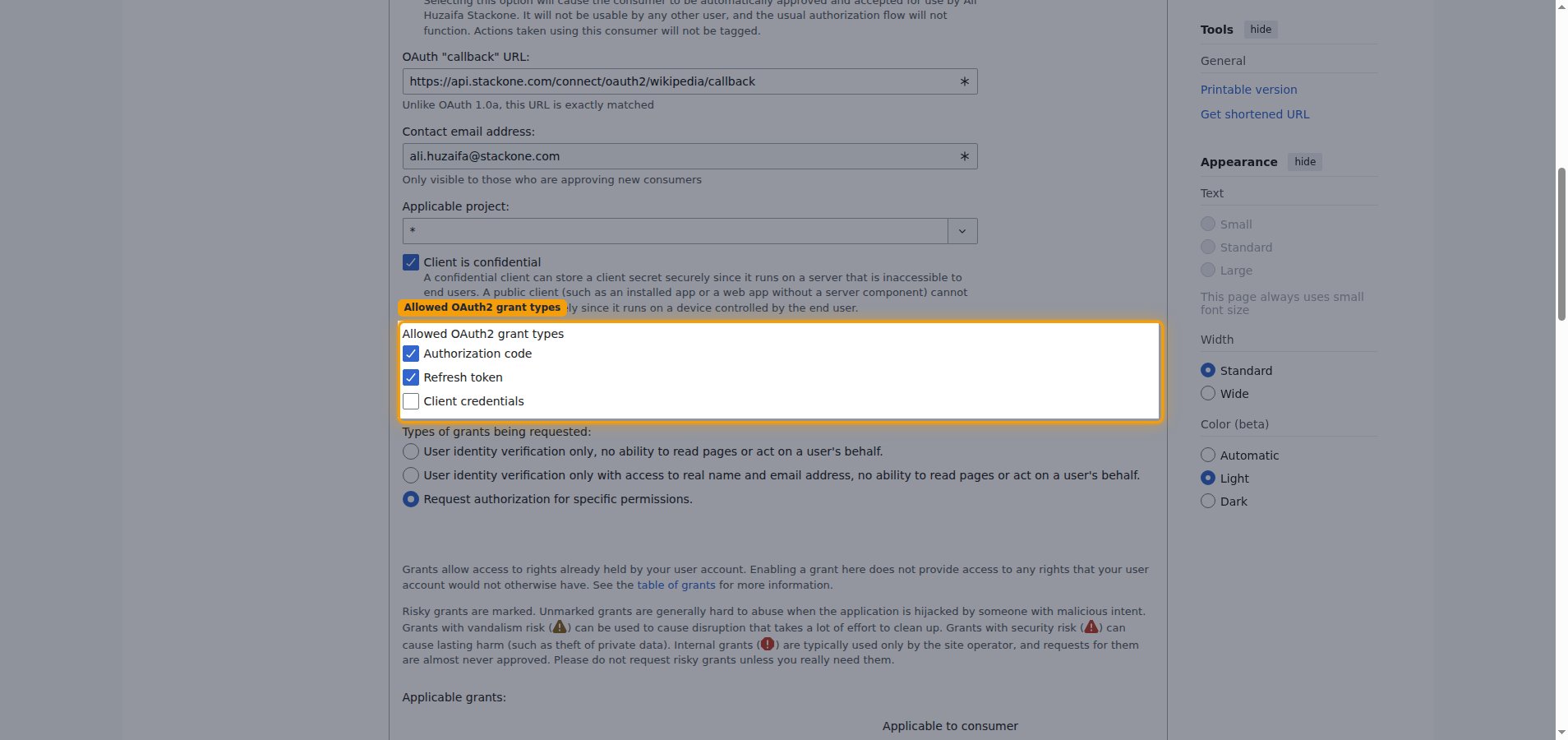
Under Allowed OAuth2 grant types, choose how tokens are issued, then choose the permissions the client requests.
- Keep Authorization code and Refresh token checked.
- Under Types of grants being requested:, keep Request authorization for specific permissions. selected.
- Under Applicable grants:, keep Basic rights selected — this alone covers reading Wikipedia and gets the client approved automatically.
- Only add write grants such as Edit existing pages or Create, edit, and move pages if you genuinely need the create or update page actions — these require OAuth-administrator review before the client can be used, so leave them unchecked for a read-only connection.
Accept the policy and submit
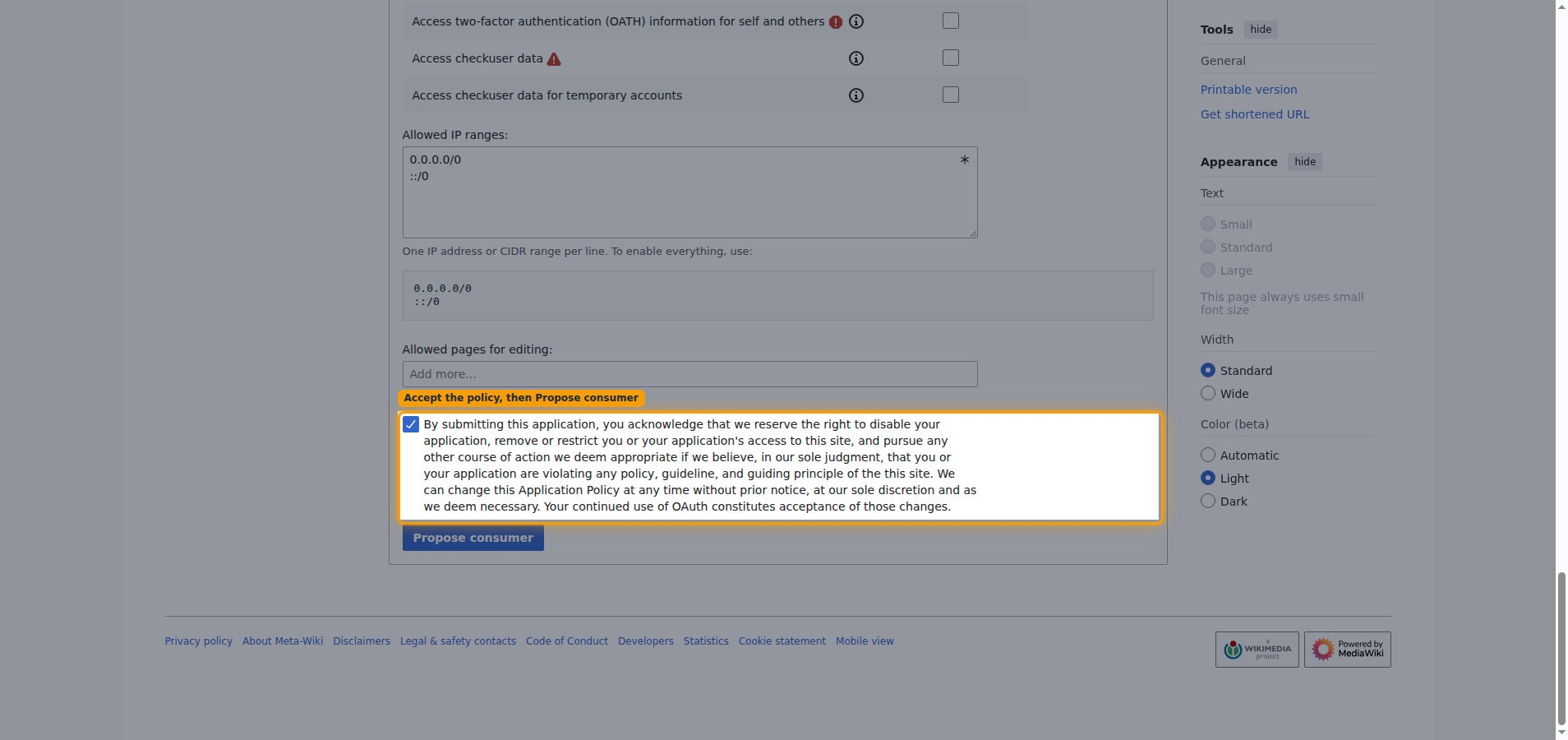
Check the application policy acknowledgement — the By submitting this application, you acknowledge… statement — then click Propose consumer. This checkbox is required; the form will not submit until it is ticked.
Copy your credentials
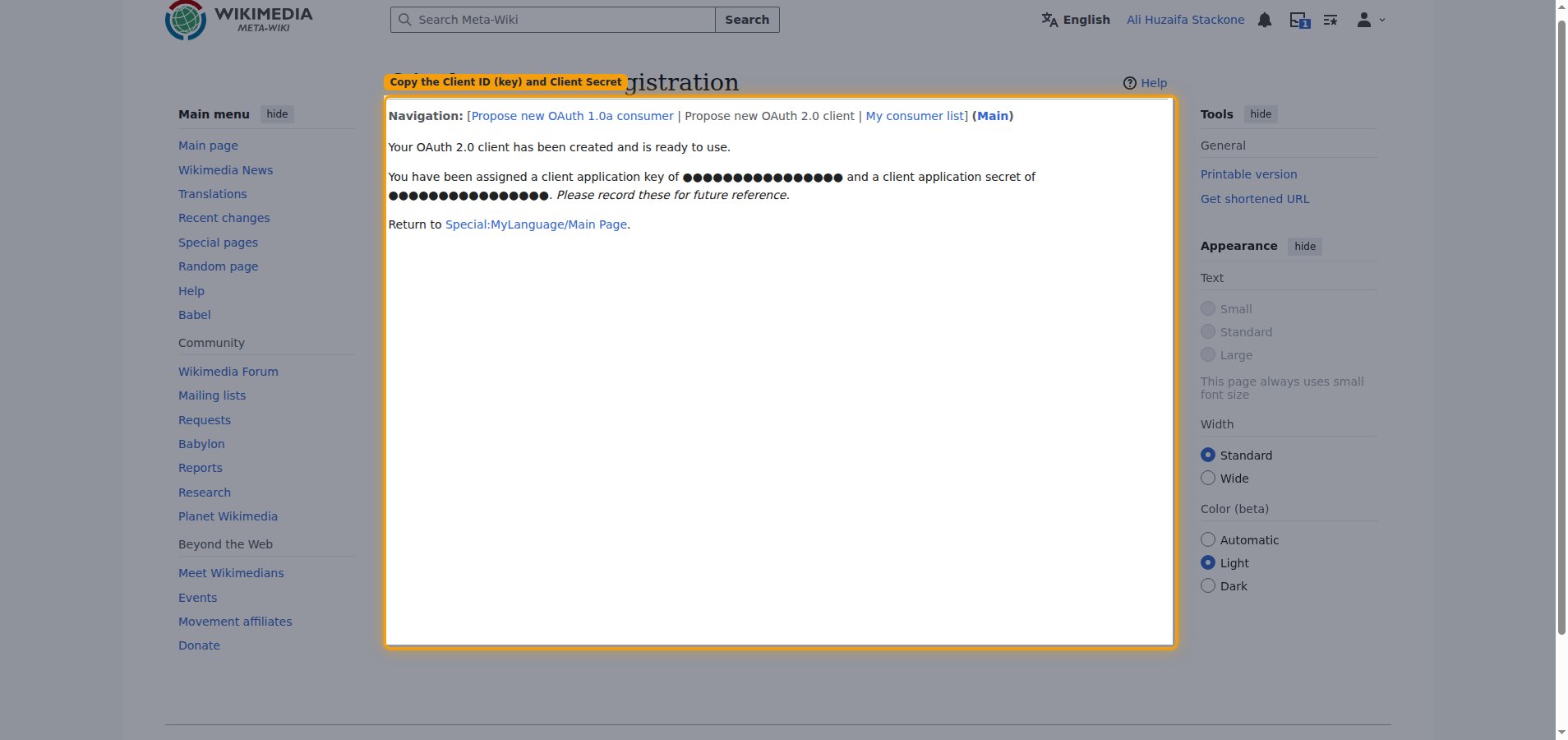
Meta-Wiki shows Your OAuth 2.0 client has been created and is ready to use. and assigns you a client application key and a client application secret.
- Copy the client application key into the Client ID field in the StackOne Connector profile.
- Copy the client application secret into the Client Secret field in the StackOne Connector profile.
- These values are only displayed once — record them for future reference before leaving the page.
- Note: the new client is created with status Proposed. A multi-user client must be approved by an OAuth administrator (usually within a day or two) before it can be authorized. Check its status on your OAuth consumer list and connect only once it shows Approved — connecting while it is still Proposed fails with “Could not validate credentials”.
Creating the StackOne Connector Profile
To create the Connector Profile in StackOne for Wikipedia:Open the connector
Choose actions and events
- Click Add Profile.
- If the connector offers more than one authentication method, set the Auth Method filter to OAuth 2.0.
- Select the actions, and any events, to enable for this Connector Profile.
- Click Continue.
Set up authentication
- Select Authentication Type as OAuth 2.0.
- Fill out the fields using details retrieved from your provider:
- Client ID
- Client Secret
- Click Create Profile.