

Creating a Webflow App
Webflow issues OAuth credentials to Apps created inside a Workspace. Create one App for StackOne and reuse its Client ID and Client Secret for every site in that Workspace.
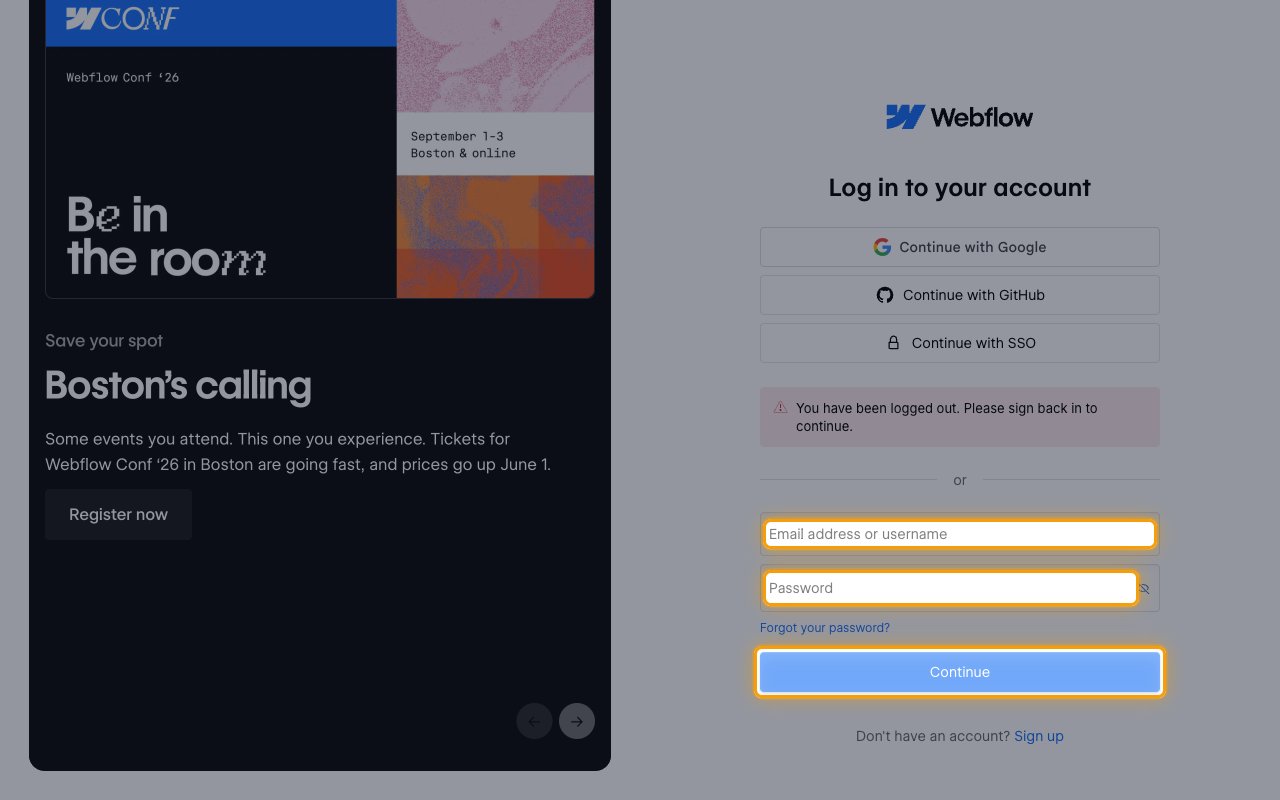
Sign in to Webflow
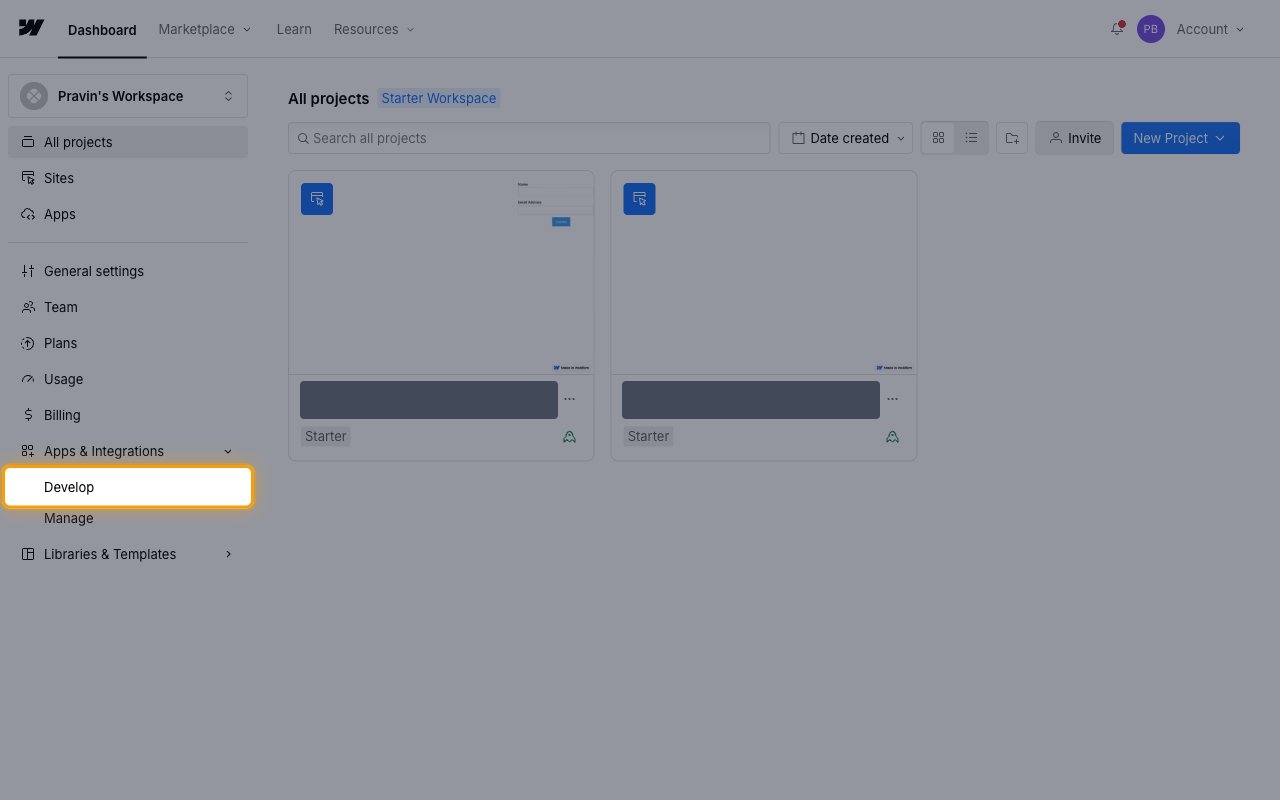
Open App Development
In the left sidebar, click Apps & Integrations to expand it, then click Develop.
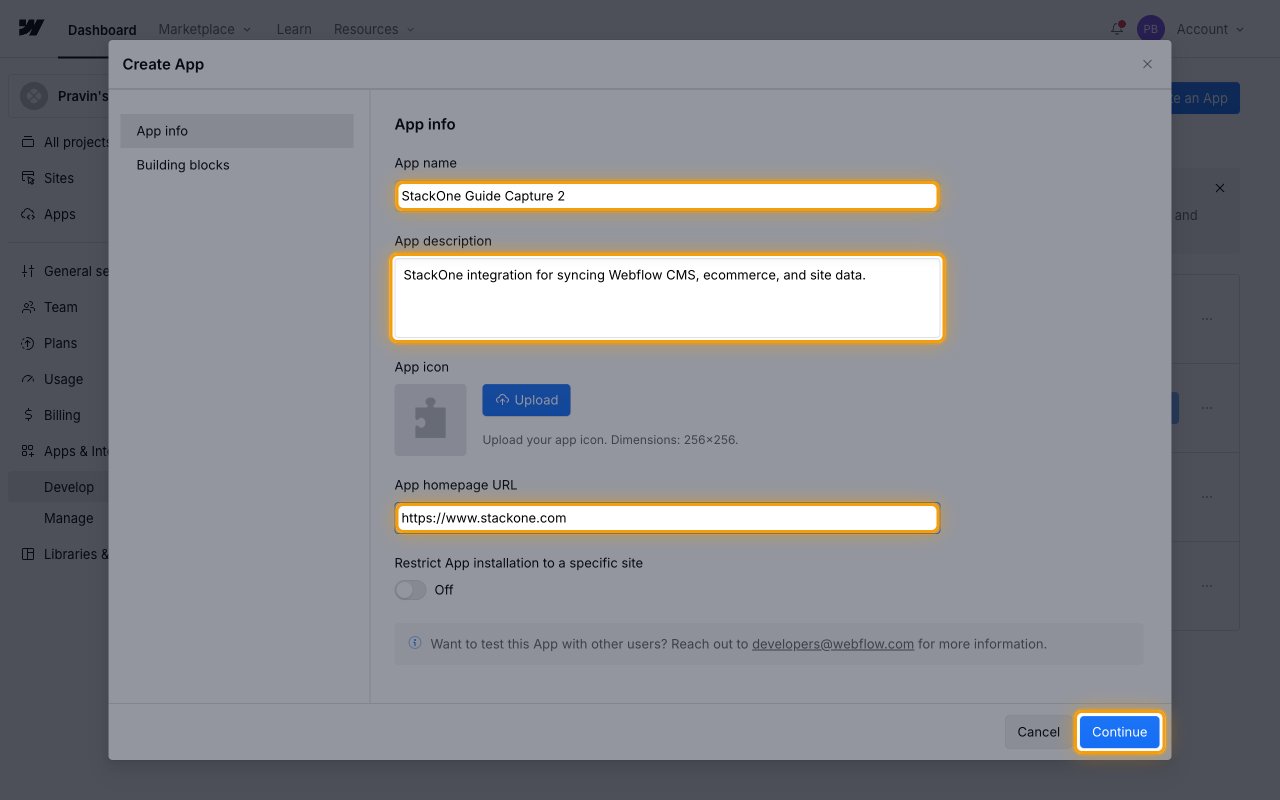
Create an App
On the App Development page, click Create an App and fill in the App info tab.
- App name — a name that identifies the integration, for example
StackOne - App description — a short summary shown to users installing the App, for example
StackOne integration for syncing Webflow CMS, ecommerce, and site data. - App homepage URL — an HTTPS URL for your product or company, for example
https://www.stackone.com - Leave Restrict App installation to a specific site set to Off unless you want the App to be installable on one site only.
- Click Continue to open the Building blocks tab.
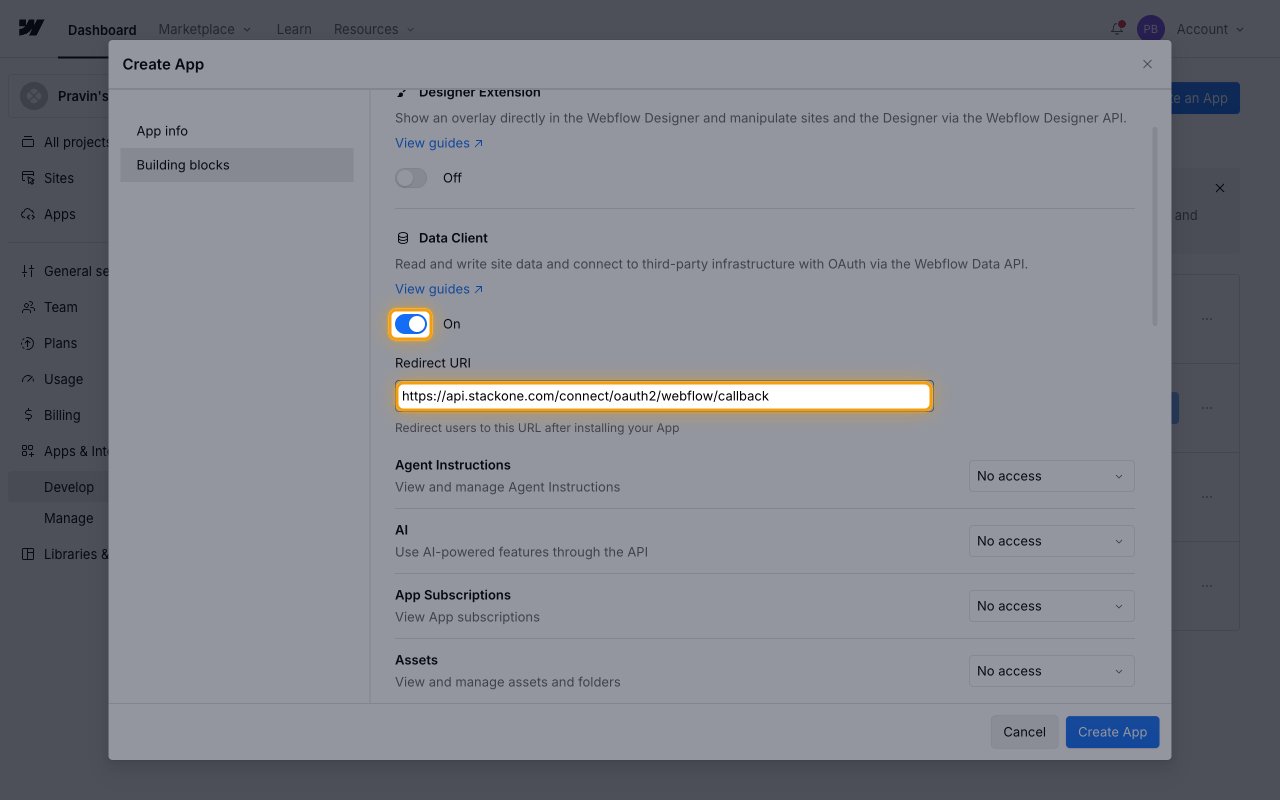
Enable Data Client and set the redirect URI
On the Building blocks tab, switch Data Client to On. This reveals the Redirect URI field and the permission list.
- Enter this exact value in Redirect URI:
https://api.stackone.com/connect/oauth2/webflow/callback - Leave Designer Extension set to Off — StackOne only uses the Data API.
Configuring permissions
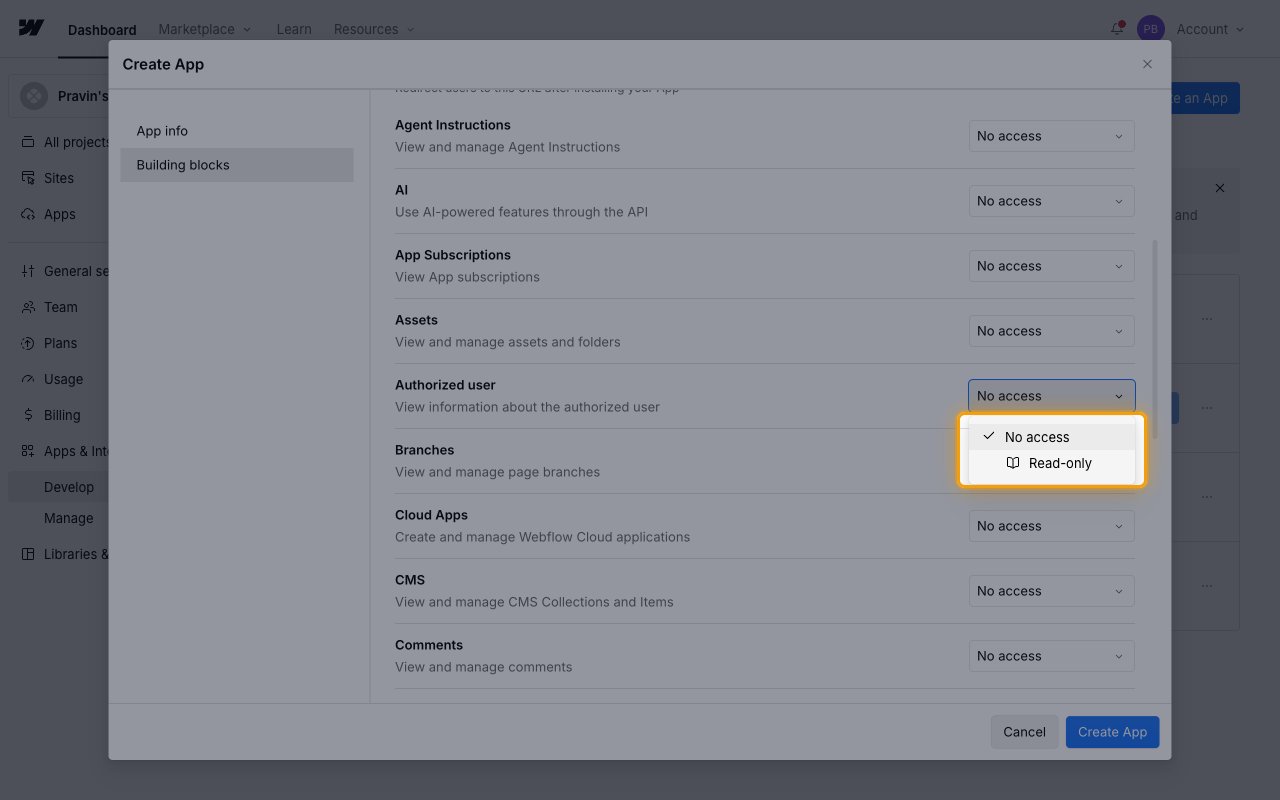
Each resource in the permission list has its own access dropdown offering No access, Read-only, and Read and write. Grant only what your integration needs.
Set the resource permissions
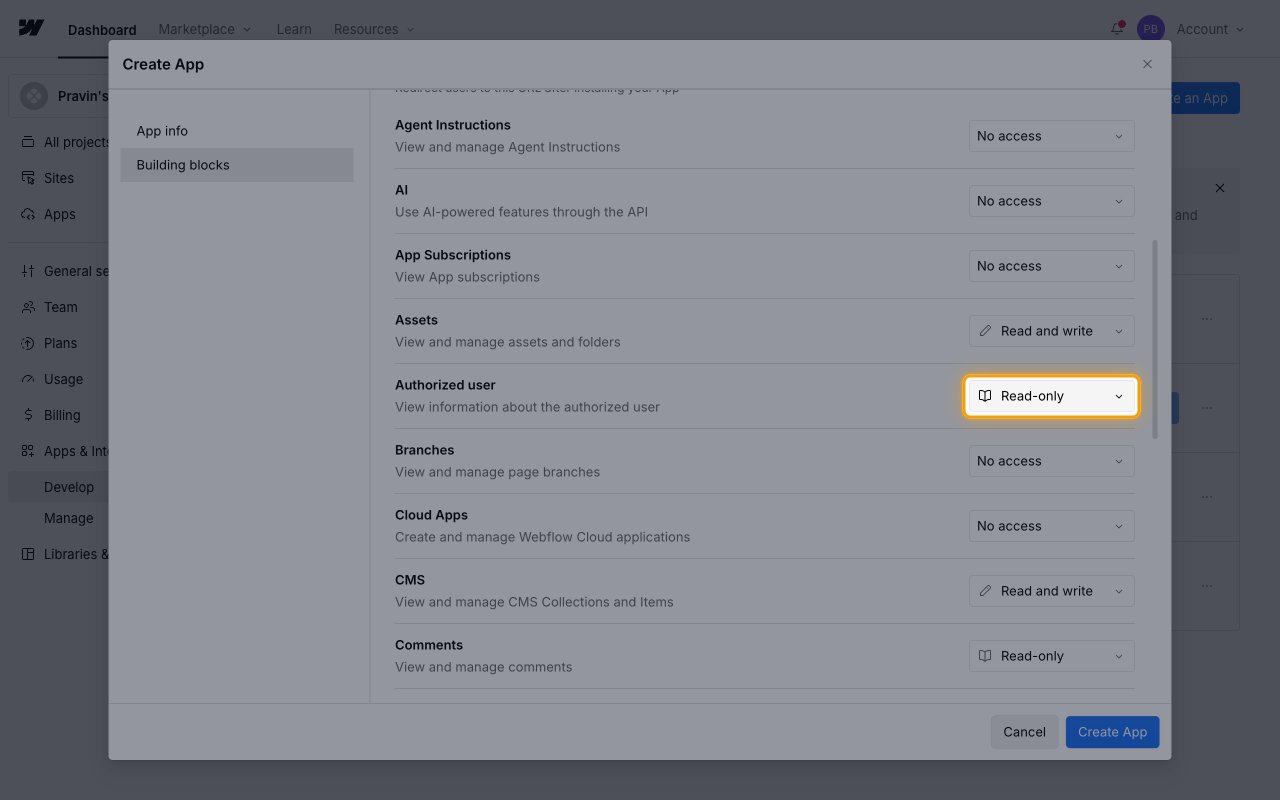
Set each resource StackOne should reach to Read-only or Read and write. The resource rows map to the scopes below — CMS covers the CMS scopes, Ecommerce the ecommerce scopes, and so on.
Create the App
Confirm the permissions, then click Create App to save.
- Set Authorized user to Read-only — StackOne uses this resource for its connection test, and the connection fails without it.
- Custom Code must be granted here if your integration manages site or page scripts — Site Tokens cannot reach those endpoints.
Copying your credentials
Webflow shows the Client ID and Client Secret on the saved App, and they remain available whenever you reopen it.
Open the App
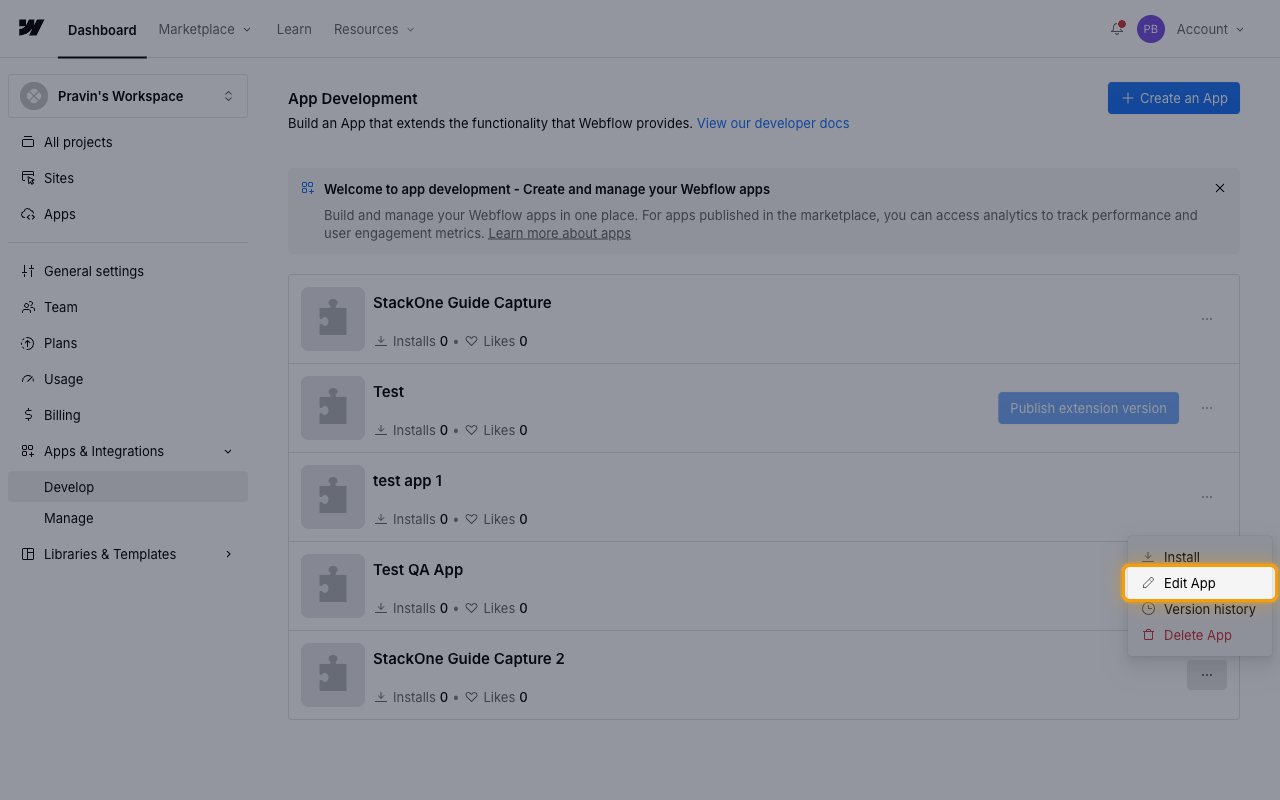
On the App Development page, click the ellipsis button at the end of your App’s row, then click Edit App and open the Building blocks tab.
Copy the Client ID and Client Secret
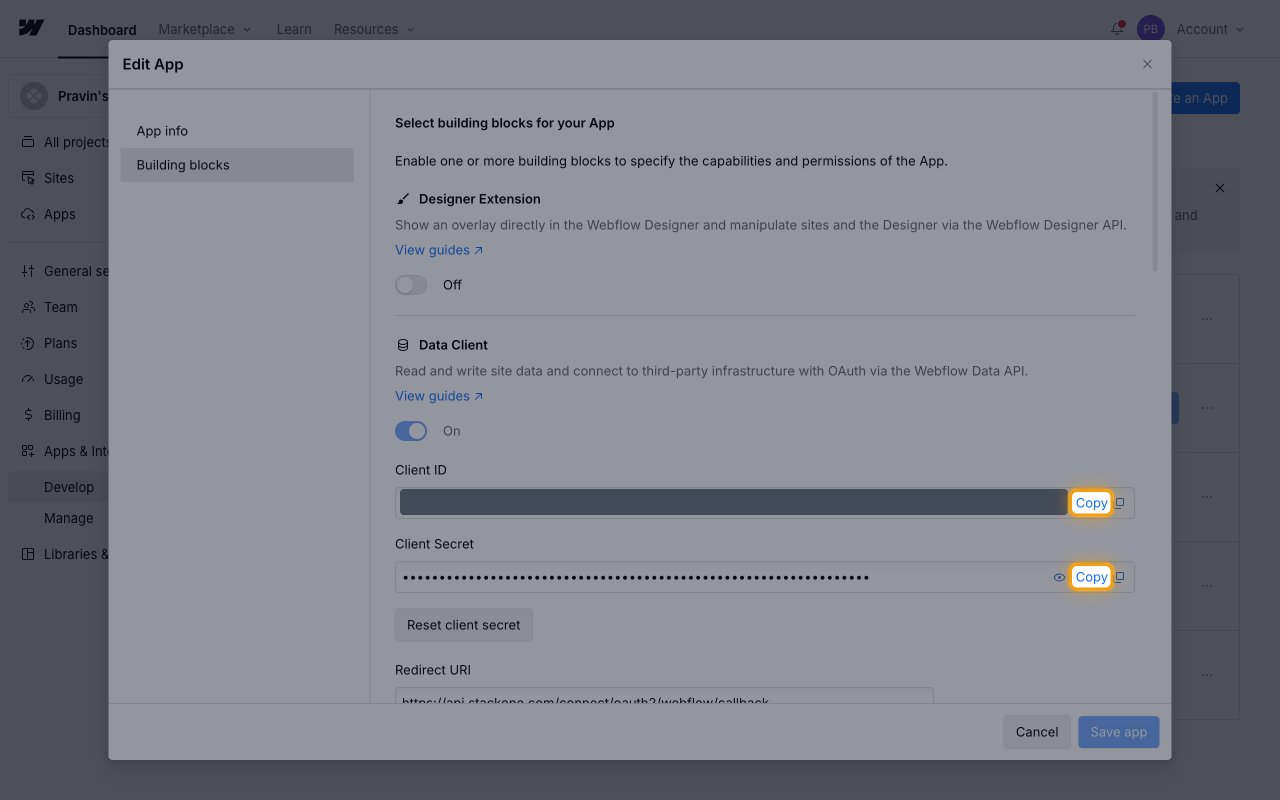
Click Copy next to Client ID and next to Client Secret, and store both securely for use later.
- Paste the Client ID and Client Secret into the matching fields in the StackOne Connector profile.
- Leave Scopes empty in the StackOne Connector profile to request every scope the connector supports, or enter a space-separated subset such as
sites:read cms:read cms:write. - If the Client Secret is ever lost, click Reset client secret to issue a new one and update it in the StackOne Connector profile.
Creating the StackOne Connector Profile
To create the Connector Profile in StackOne for Webflow:Open the connector
Choose actions and events
- Click Add Profile.
- If the connector offers more than one authentication method, set the Auth Method filter to OAuth 2.0.
- Select the actions, and any events, to enable for this Connector Profile.
- Click Continue.
Set up authentication
- Select Authentication Type as OAuth 2.0.
- Fill out the fields using details retrieved from your provider:
- Client ID
- Client Secret
- Scopes (Optional)
- Click Create Profile.