

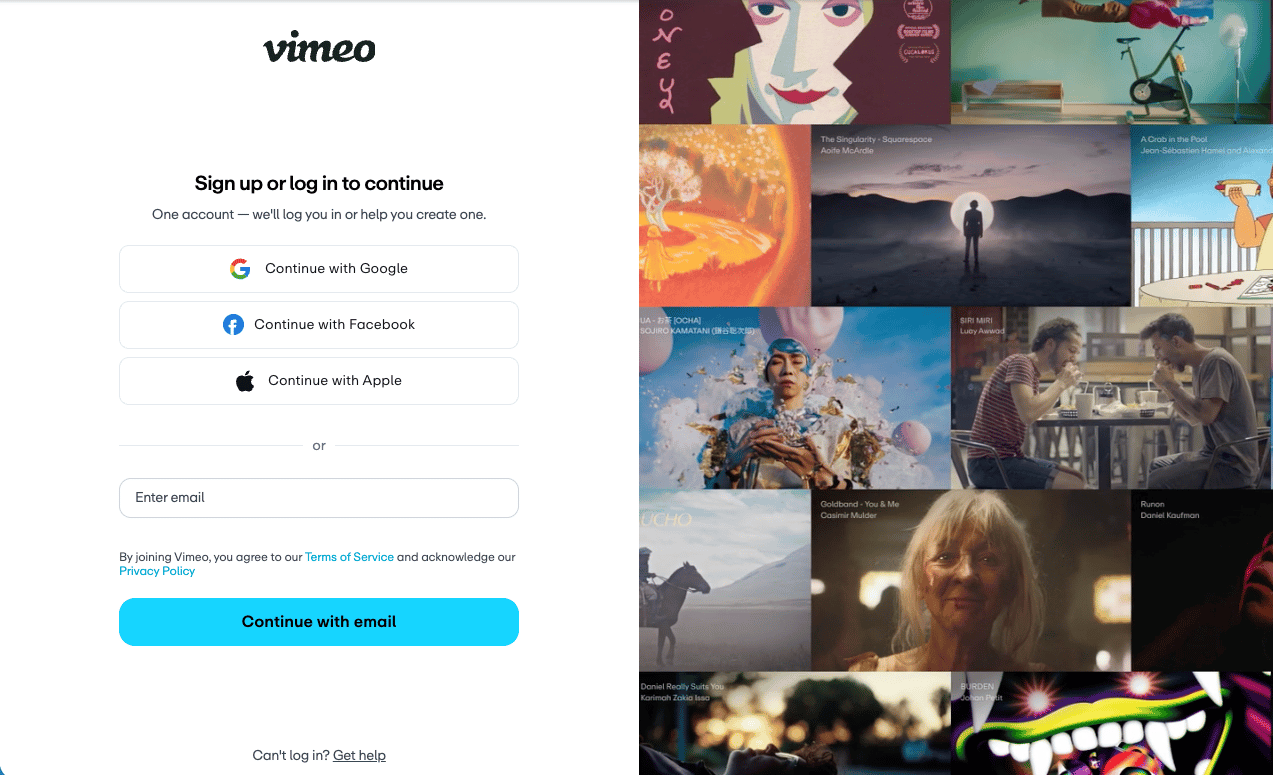
Sign in to Vimeo Developer Portal
To use the Vimeo API with OAuth 2.0, you need a Vimeo account. If you do not have one, sign up at Vimeo.
Register a Vimeo App
To use the Vimeo API with OAuth 2.0, you need to register an application on the Vimeo Developer site.
Access Vimeo Developer Portal
Go to the Vimeo Developer Portal and sign in with your Vimeo account.
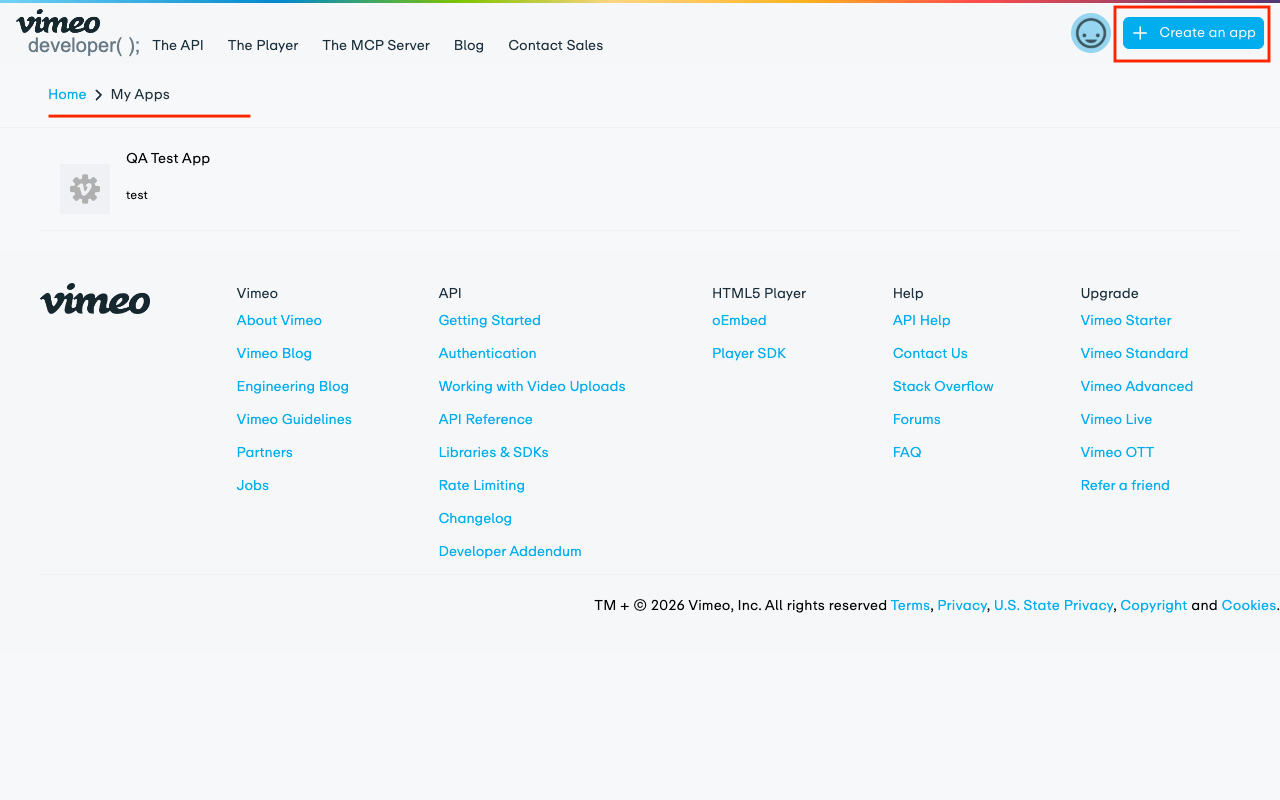
Create a New App
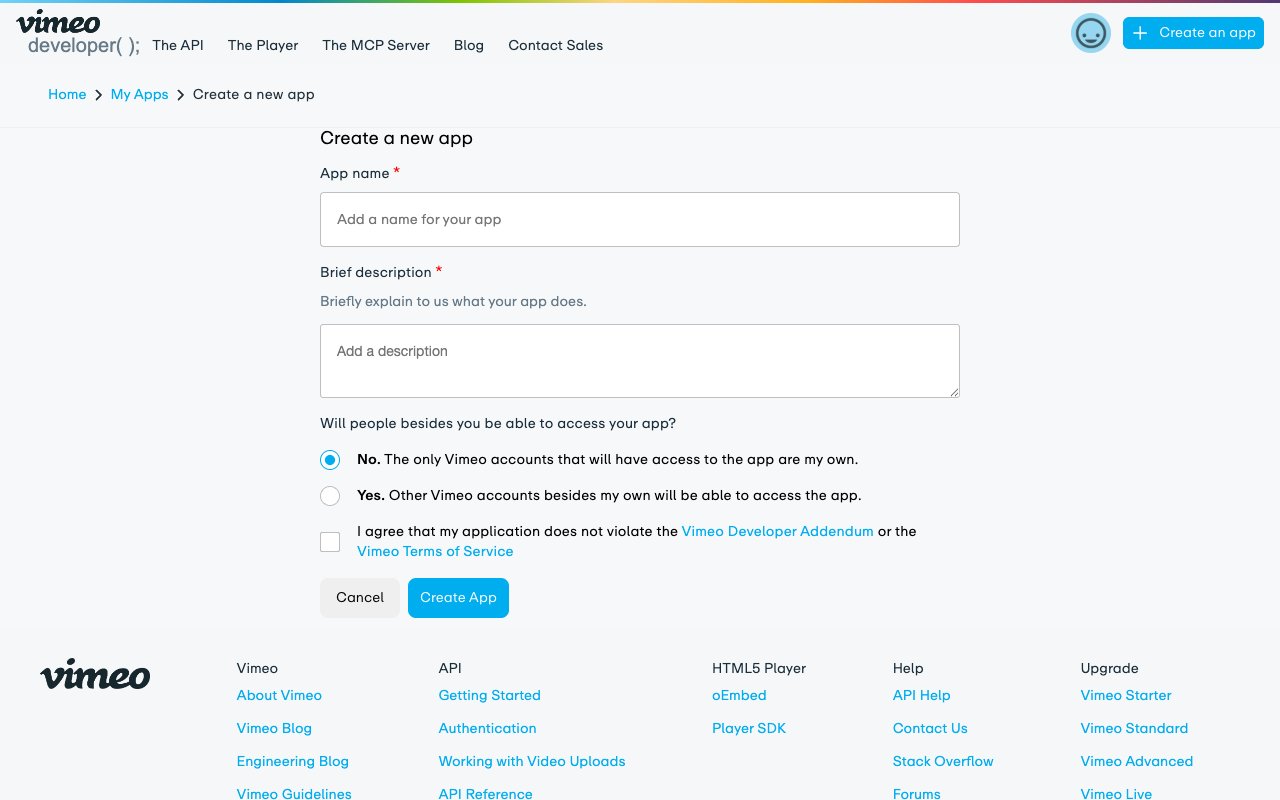
Click the + Create an app link in the centre of the page or the top-right corner and fill in the required details.
- App name: Choose a unique name for your app. For example:
StackOne Integration. - App description: Provide a brief description of your app’s functionality.
- Will people besides you be able to access your app?: Select No unless you are building a multi-user integration.
- Tick the checkbox to agree to the Vimeo API Terms of Service.
- Click Create App to proceed.
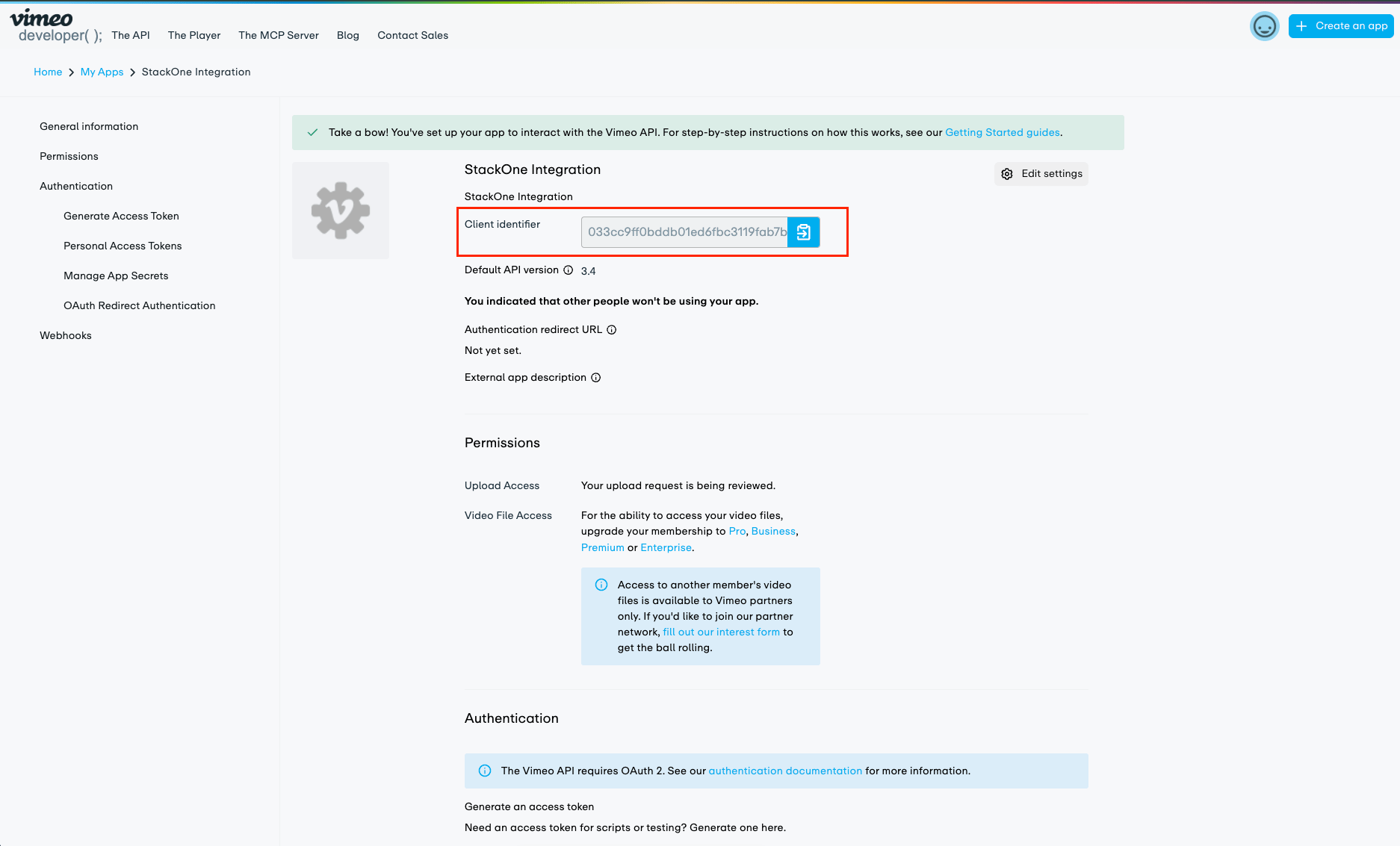
Copy Your App Credentials
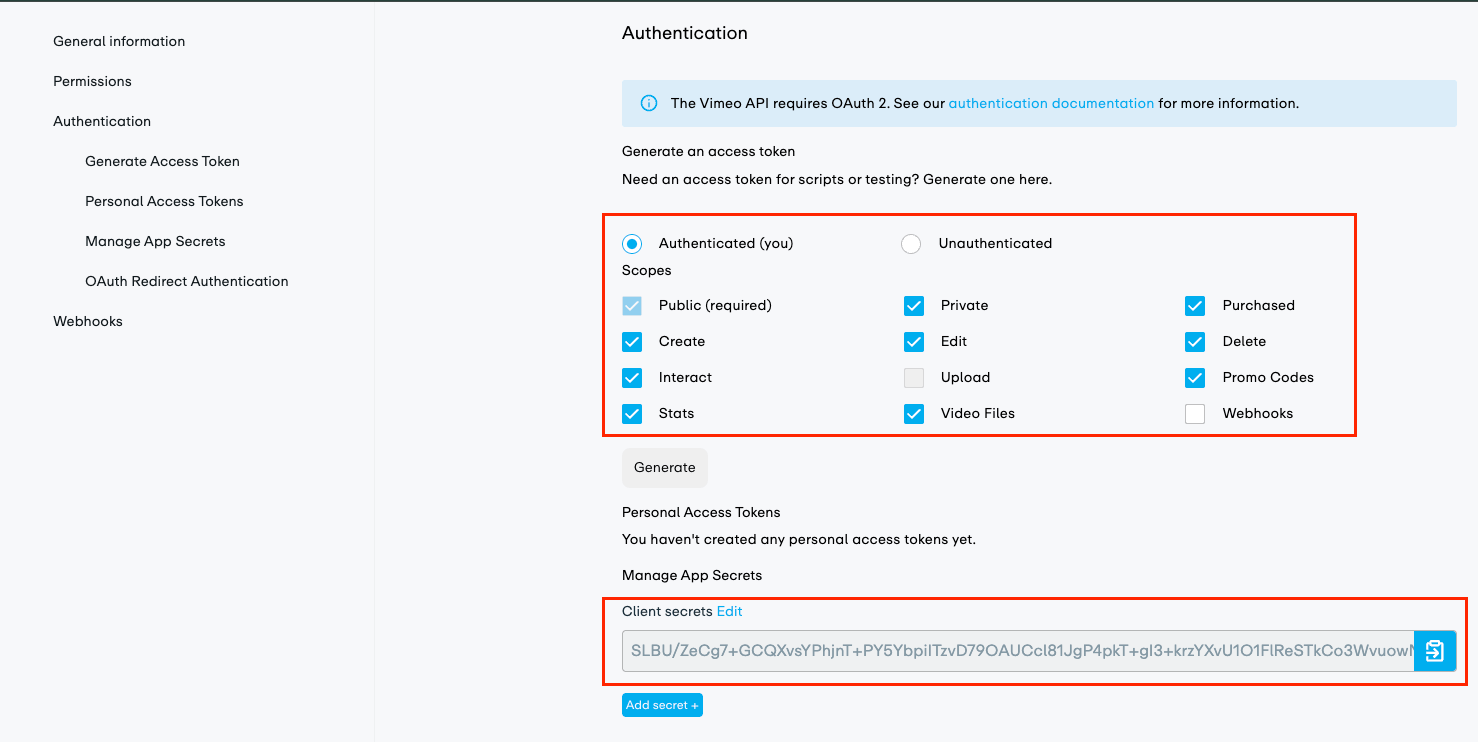
After creating the app, you will be redirected to the app settings page. If not, click on your app name from the My Apps list to open its settings. Note the Client Identifier and Client Secret displayed at the top of the page — you will need these when creating the StackOne Connector Profile.
Configure Scopes
Configure the OAuth scopes your app needs to access Vimeo resources.
Select Scopes
In the Authentication section of your app settings, select the Authenticated (you) radio button. Then select the necessary scopes from the list below. The public scope is required.
- NOTE: The
uploadscope is not available in a sandbox environment, so it is excluded from the default scopes list. You can still add it manually if needed.
Configure OAuth Redirect URI
Add the StackOne callback URL so Vimeo can redirect users back after authorisation.
Add Callback URL
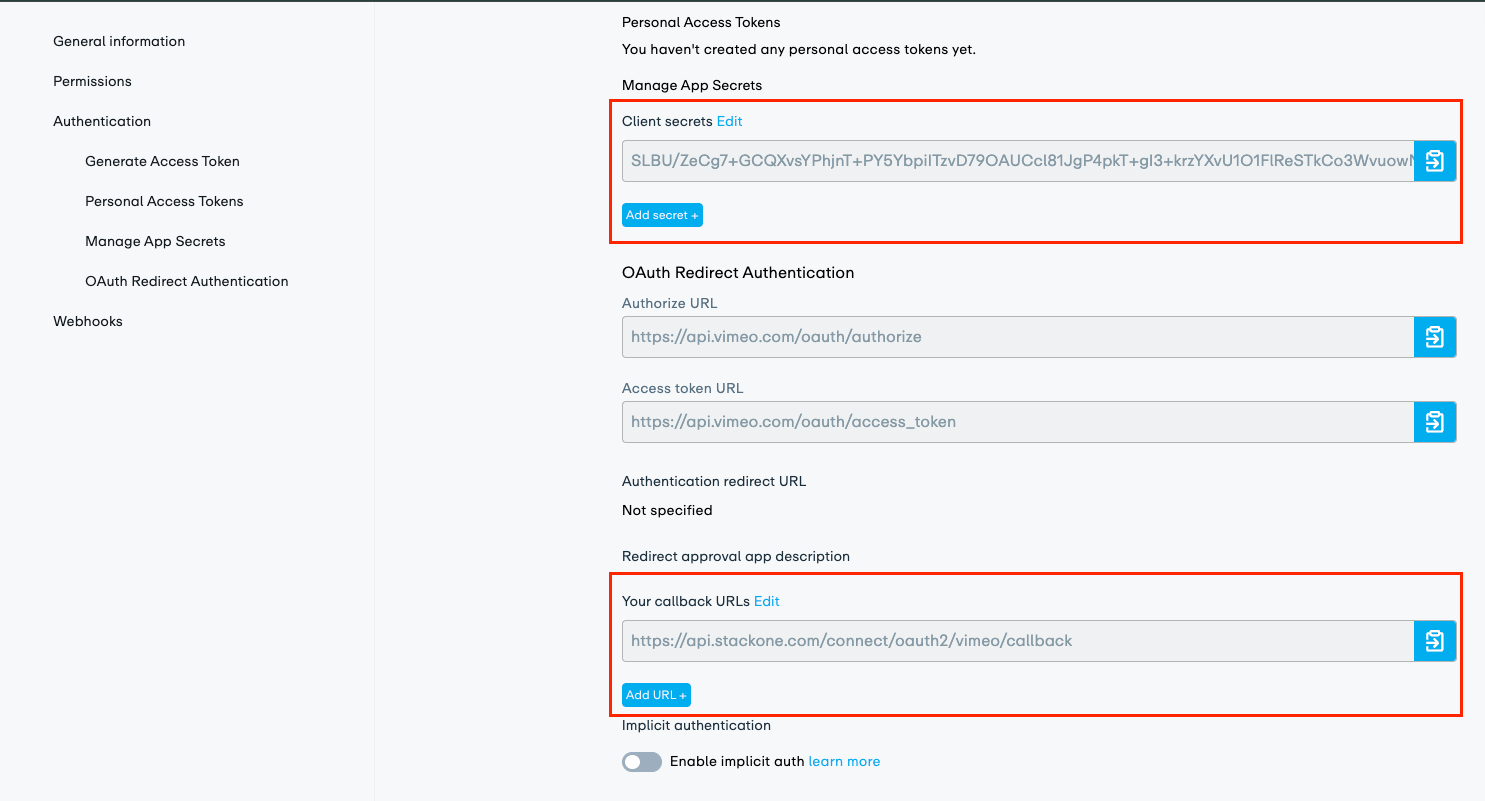
Scroll down to the Callback URLs section in your app settings and click Add URL.
- A modal will open where you can enter the redirect URI.
- Enter
https://api.stackone.com/connect/oauth2/vimeo/callbackas the redirect URI. - Click Add.
Creating the StackOne Connector Profile
To create the Connector Profile in StackOne for Vimeo:Open the connector
Choose actions and events
- Click Add Profile.
- If the connector offers more than one authentication method, set the Auth Method filter to OAuth 2.0.
- Select the actions, and any events, to enable for this Connector Profile.
- Click Continue.
Set up authentication
- Select Authentication Type as OAuth 2.0.
- Fill out the fields using details retrieved from your provider:
- Client ID
- Client Secret
- Scopes (Optional)
- Click Create Profile.