

Register the external application
An external application with user scopes lets each person who links an account sign in to UiPath. Calls then run with that person’s UiPath roles.
Open External applications
Sign in to your UiPath Automation Cloud account as an Organization Administrator.
- On Automation Cloud Public Sector or Dedicated, sign in at
govcloud.uipath.usor{name}.dedicated.uipath.cominstead. - Open the product launcher at the top left and select Admin.
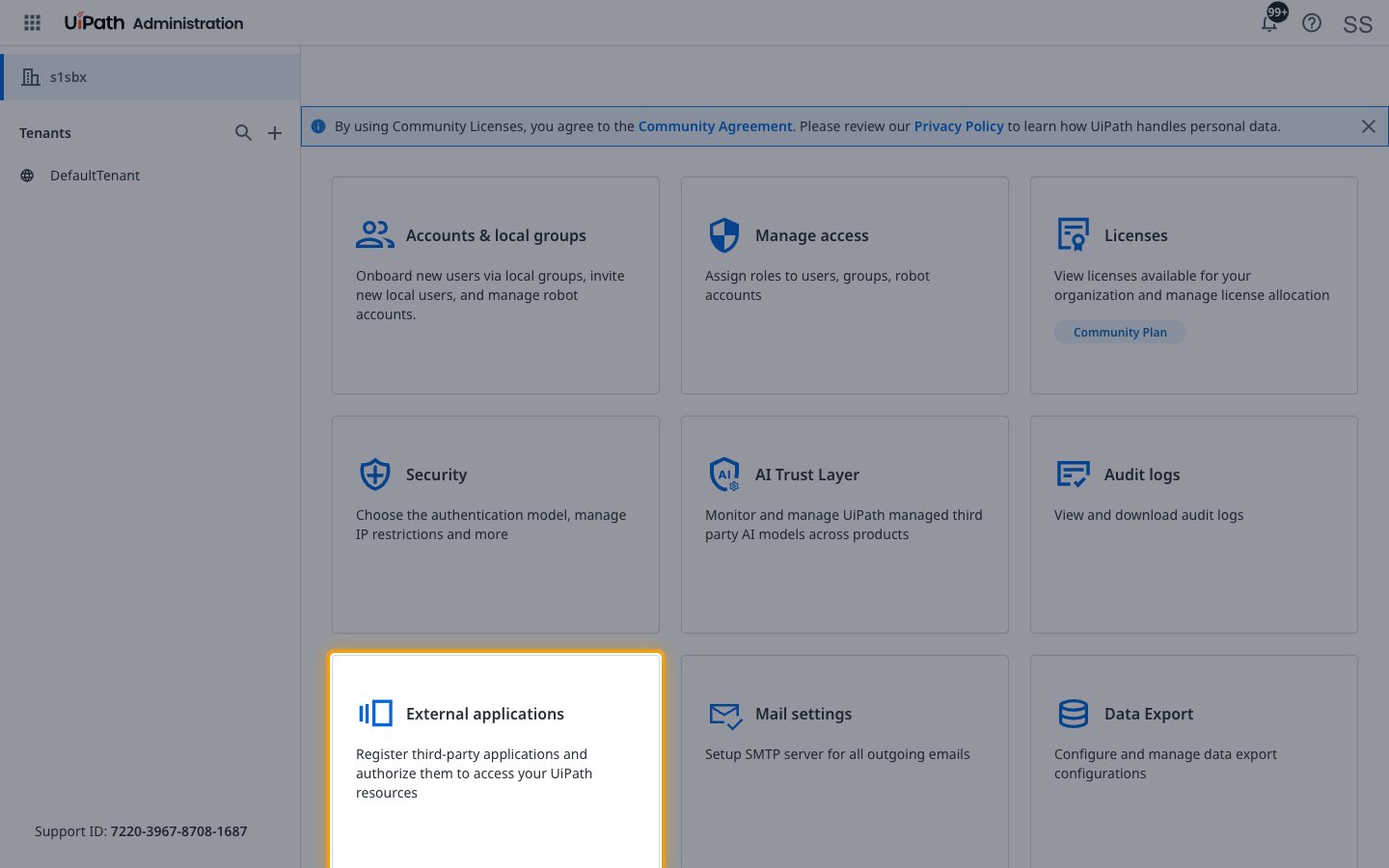
- Select the External applications tile.
Start a new application
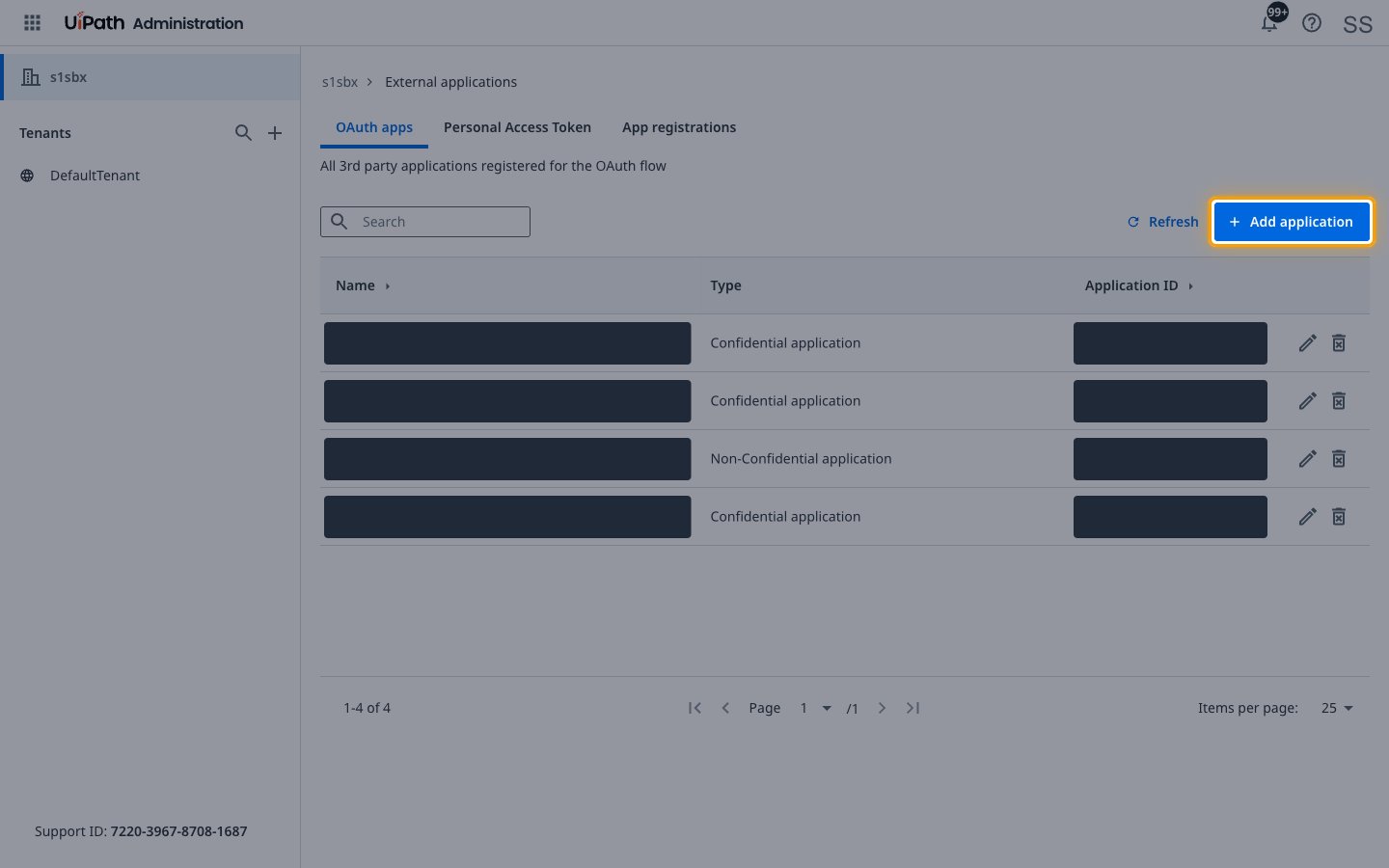
On the OAuth apps tab, click Add application.
Name the application
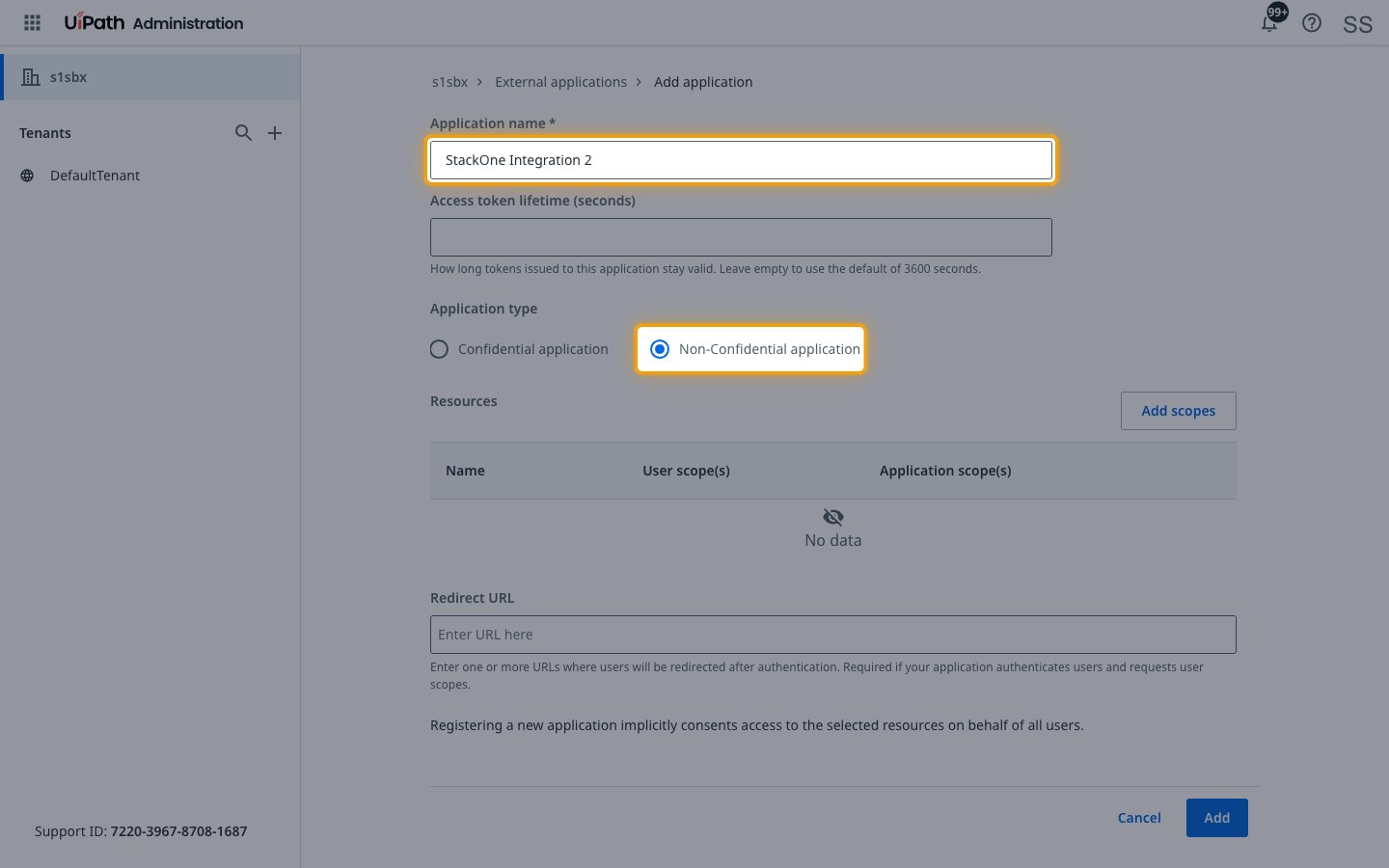
Fill in the top of the form.
- Application name:
StackOne Integration - Application type: Non-Confidential application
- Leave Access token lifetime (seconds) empty to keep the default of 3600 seconds.
Add the Platform Management scopes
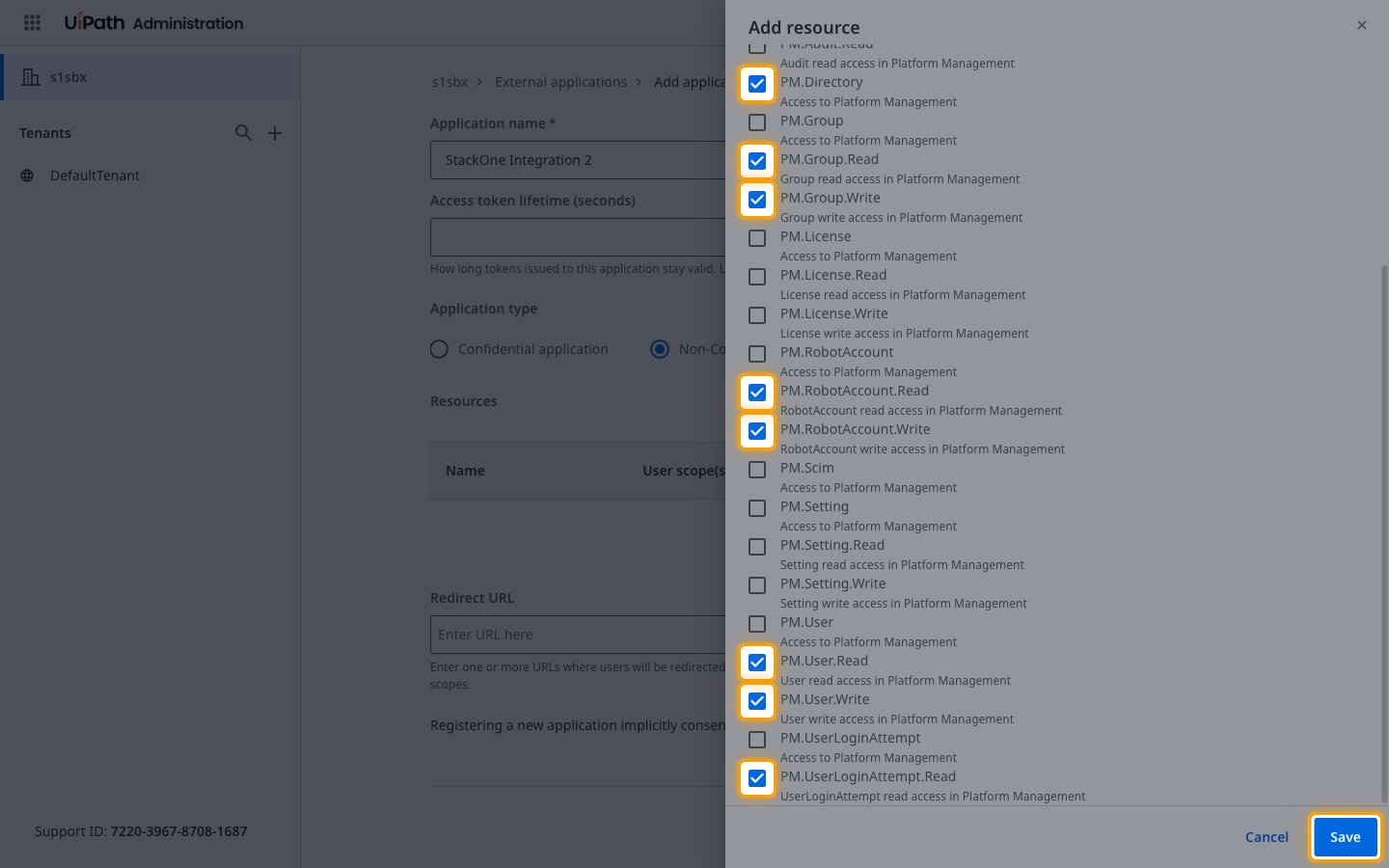
Under Resources, click Add scopes.
- In Resource, select Platform Management.
- Open the User scope(s) tab. A non-confidential application has only this tab.
- Tick each scope listed.
- Click Save.
Add the Orchestrator scopes
Under Resources, click Add scopes again.
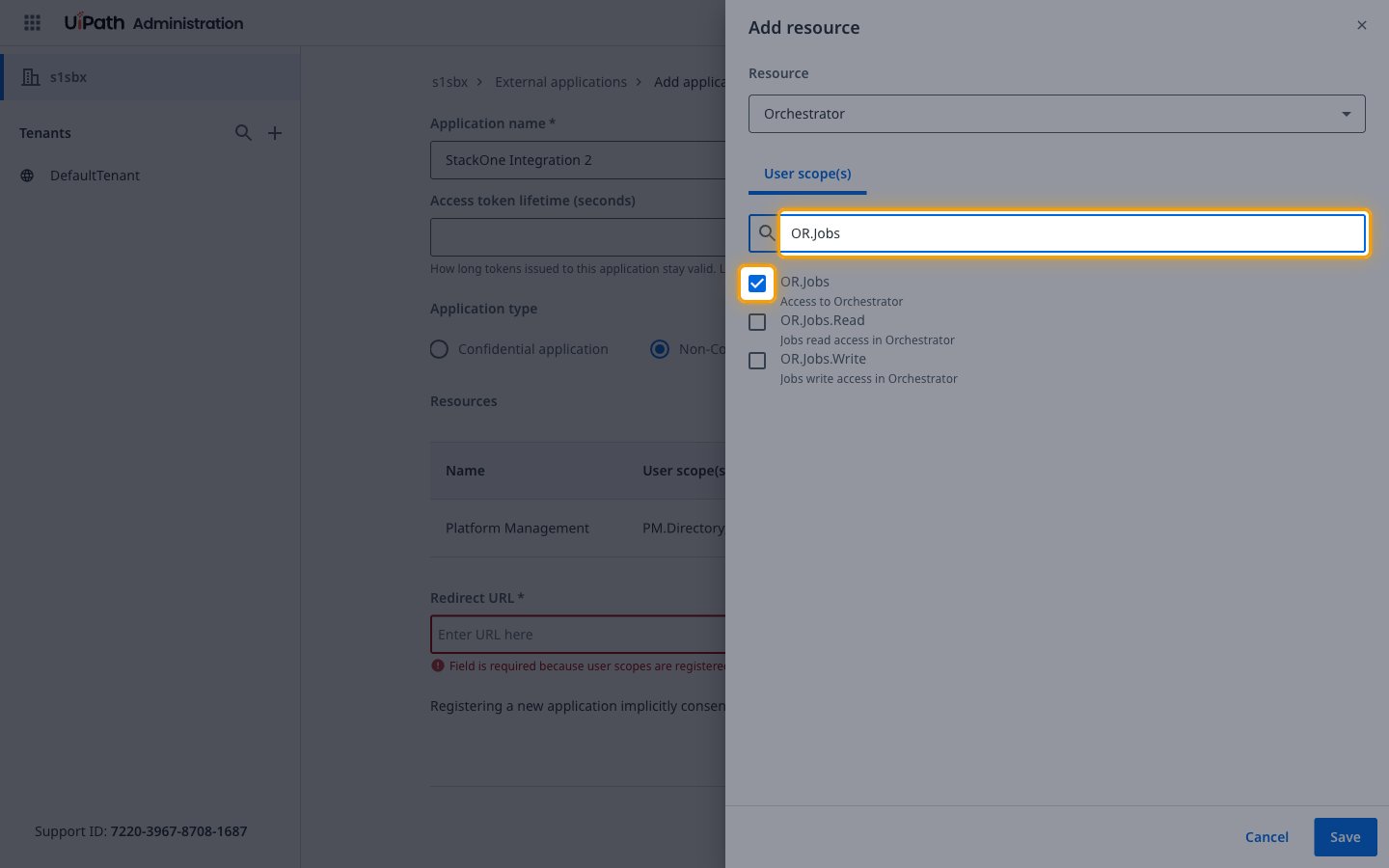
- In Resource, select Orchestrator.
- Open the User scope(s) tab.
- Tick
OR.Folders,OR.Execution,OR.Jobs,OR.Queues,OR.Assets,OR.Robots,OR.Machines,OR.Tasks,OR.Buckets,OR.WebhooksandOR.Monitoring.Read. - Type each name in Search and tick the entry with exactly that name.
- Click Save.
Set the redirect URL
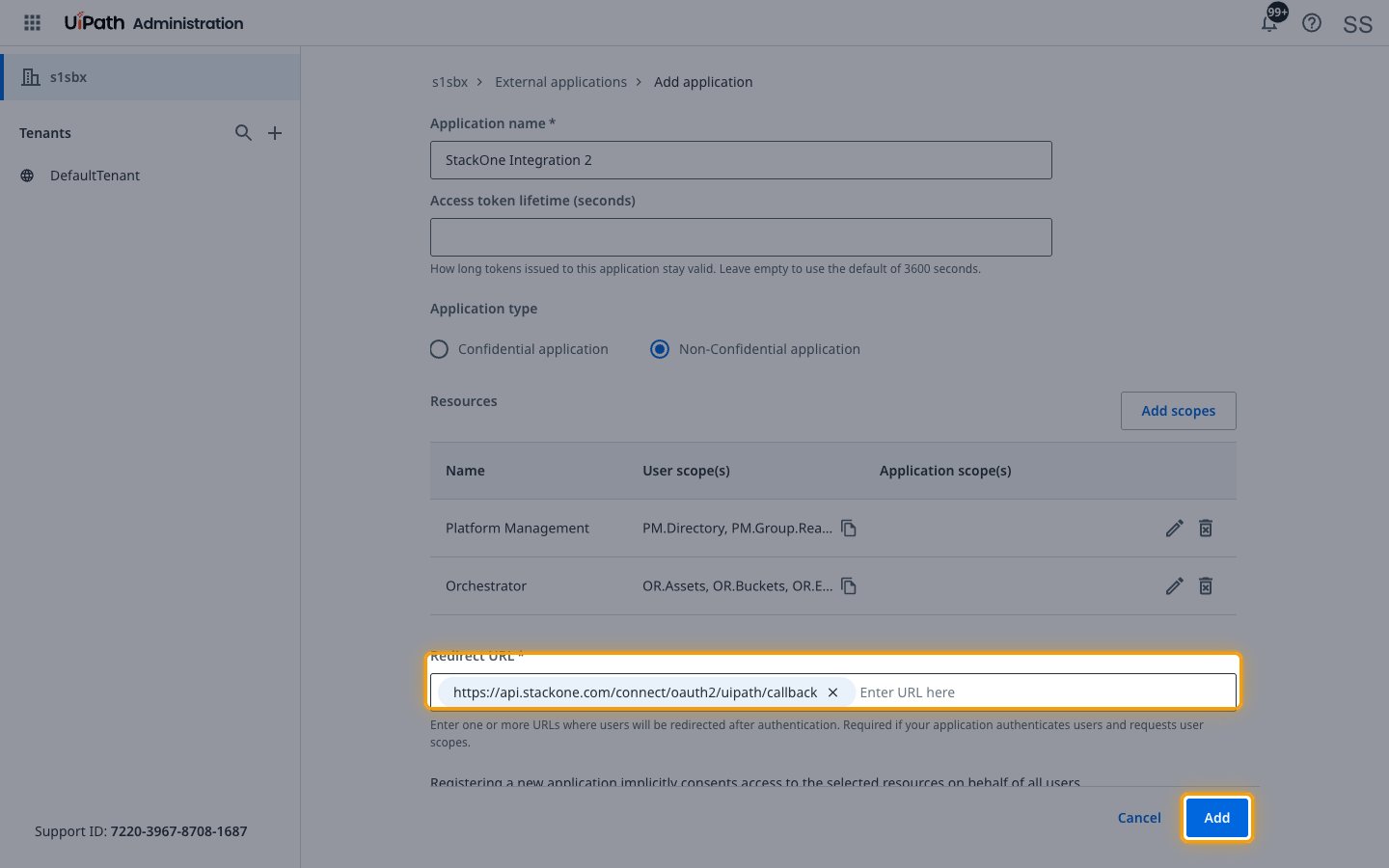
In the Redirect URL field, enter the Callback URL from your Connector Profile and press Enter.
- Click Add.
Copy the App ID
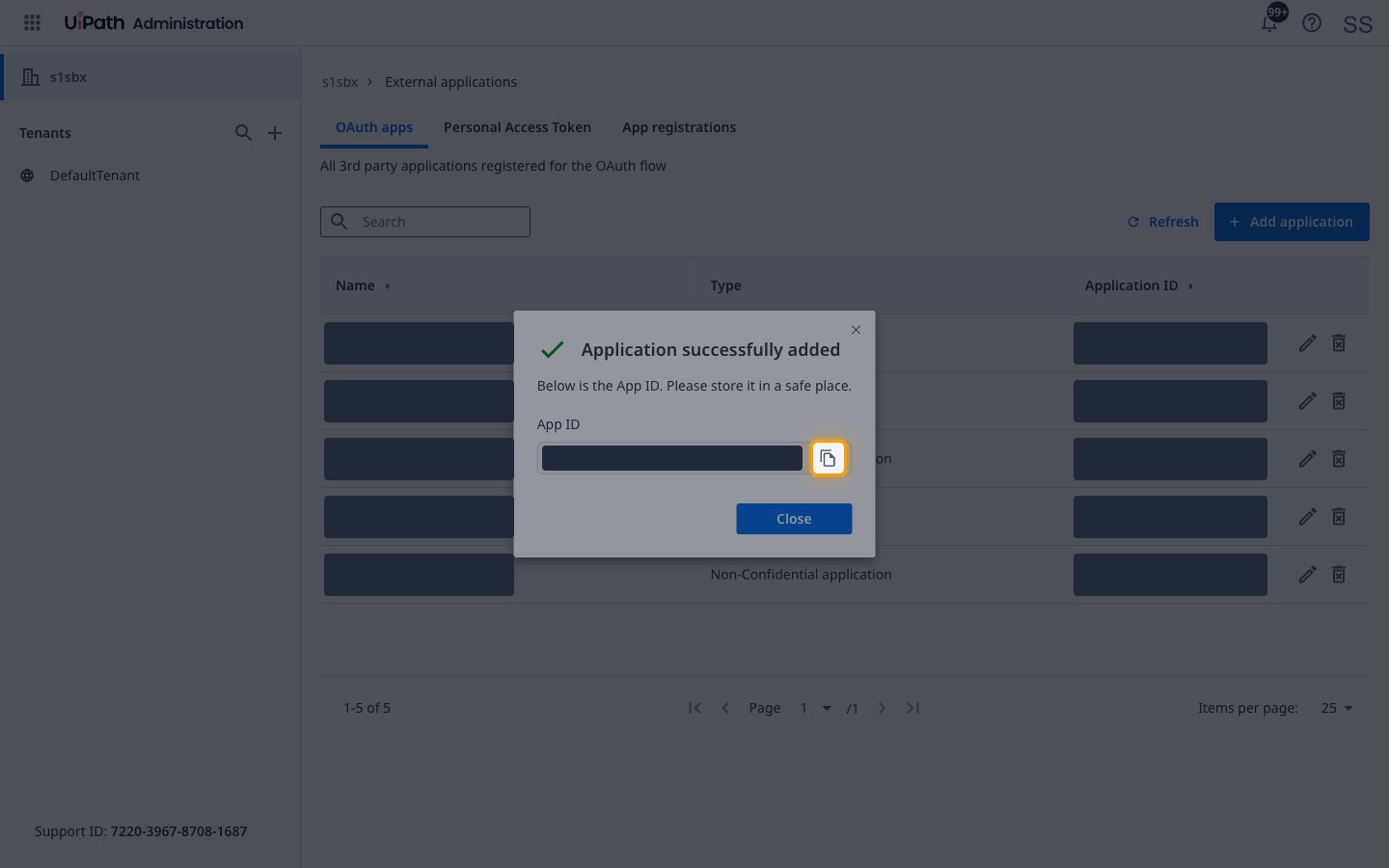
The Application successfully added window shows the App ID. A non-confidential application has no secret.
- Copy the App ID to Application ID in your Connector Profile.
Find your Cloud Type
The Cloud Type is the UiPath cloud your organization signs in to.
- Look at the address in your browser when you are signed in to UiPath.
cloud.uipath.comis Automation Cloudgovcloud.uipath.usis Automation Cloud Public Sector{name}.dedicated.uipath.comis Automation Cloud Dedicated- Leaving Cloud Type empty uses Automation Cloud.
- Select the matching Cloud Type in your Connector Profile.
Find your Dedicated Cloud Name
The Dedicated Cloud Name is the first part of your Automation Cloud Dedicated address. Skip it for the other clouds.
- Format:
{name}from{name}.dedicated.uipath.com - Example:
acme - Use letters, digits and hyphens only.
- Copy the Dedicated Cloud Name into your Connector Profile.
Find your Organization Name
The Organization Name is your organization’s URL name.
Copy the URL name
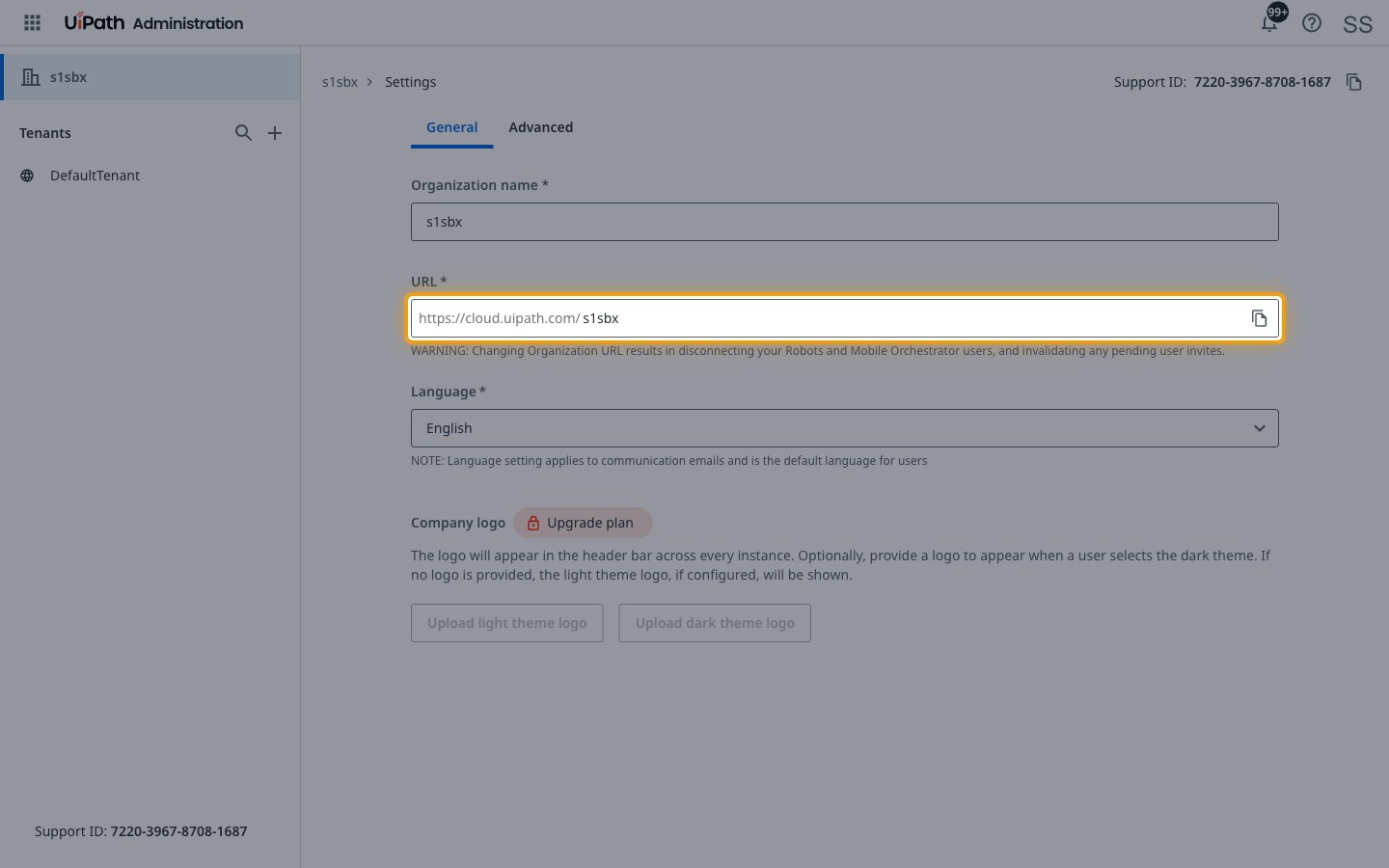
In Admin, open Settings. On the General tab, the URL field shows the name after https://cloud.uipath.com/.
- It is not the Organization name field above it, which is a display name.
- Format:
https://cloud.uipath.com/{organization}/{tenant} - Example:
https://cloud.uipath.com/acmecorp/DefaultTenantgivesacmecorp - Copy the Organization Name into your Connector Profile.
Find your Organization ID
The Organization ID is the ID UiPath calls the partitionGlobalId. It is a GUID.
Check the sign-in address
Sign in to UiPath and look at the address you land on. It holds organizationId= followed by the ID.
- Format:
xxxxxxxx-xxxx-xxxx-xxxx-xxxxxxxxxxxx - The address can change too fast to read.
- Copy the Organization ID into your Connector Profile.
Find it with the browser developer tools
Open the developer tools before you sign in, switch to the Network tab and turn on recording.
- Sign in to UiPath Automation Cloud and select your tenant.
- After the page loads, find a request such as the Settings API request.
- Copy the ID that follows
partitionGlobalIdin its Request URL. - Copy the Organization ID into your Connector Profile.
Create the StackOne Connector Profile
Create a Connector Profile
Link an Account