

Creating the app
Teamwork.com apps are registered in the Developer Portal, which issues the Client ID and Client Secret for the connection.
1
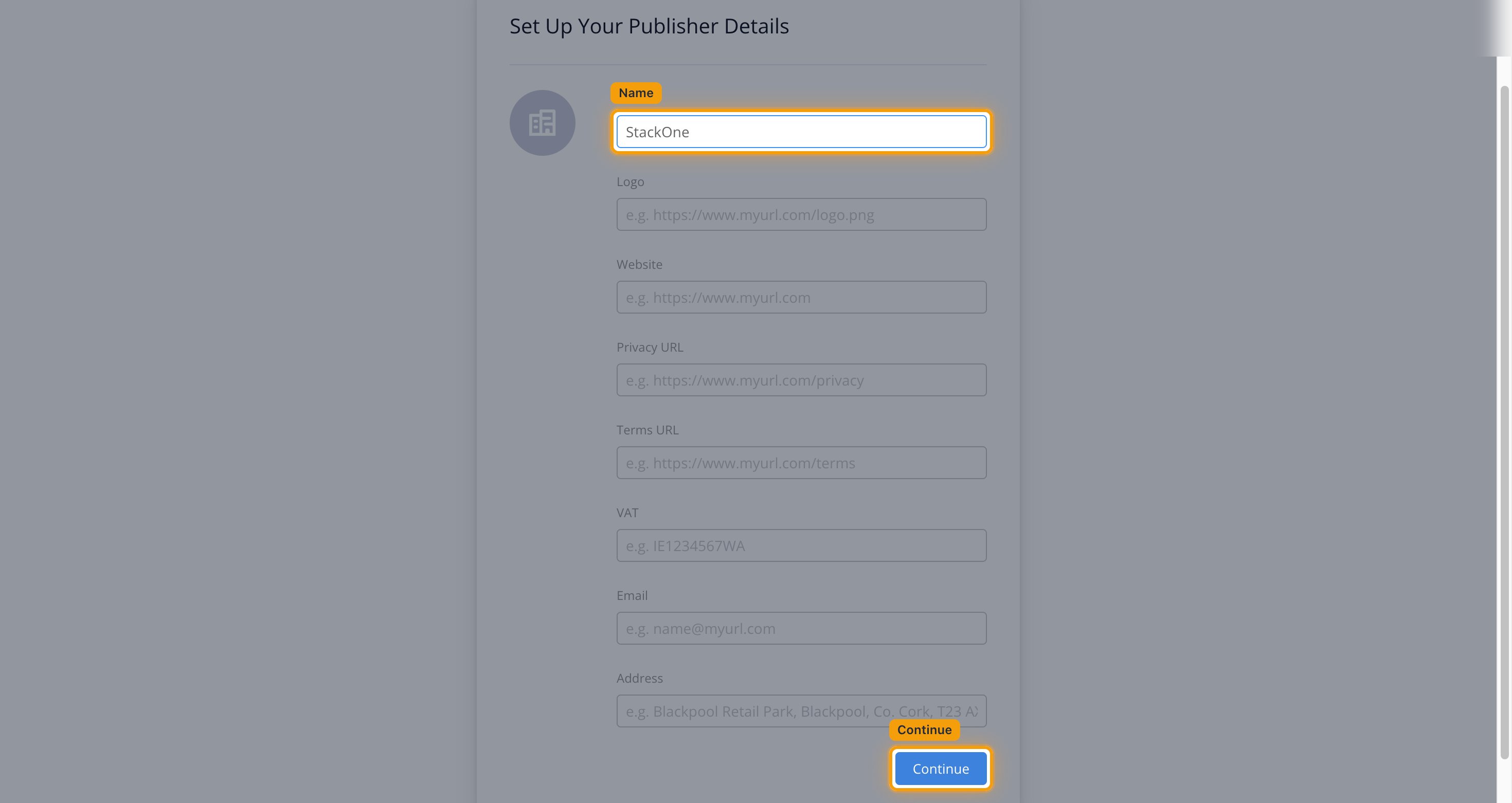
Set up your publisher details
Sign in to your Teamwork.com account, then open the Developer Portal at https://{yourSiteName}.teamwork.com/developer. Teamwork.com asks for publisher details once, before the first app can be created.
- Name: your company name
- Click Continue.
2
Create the app
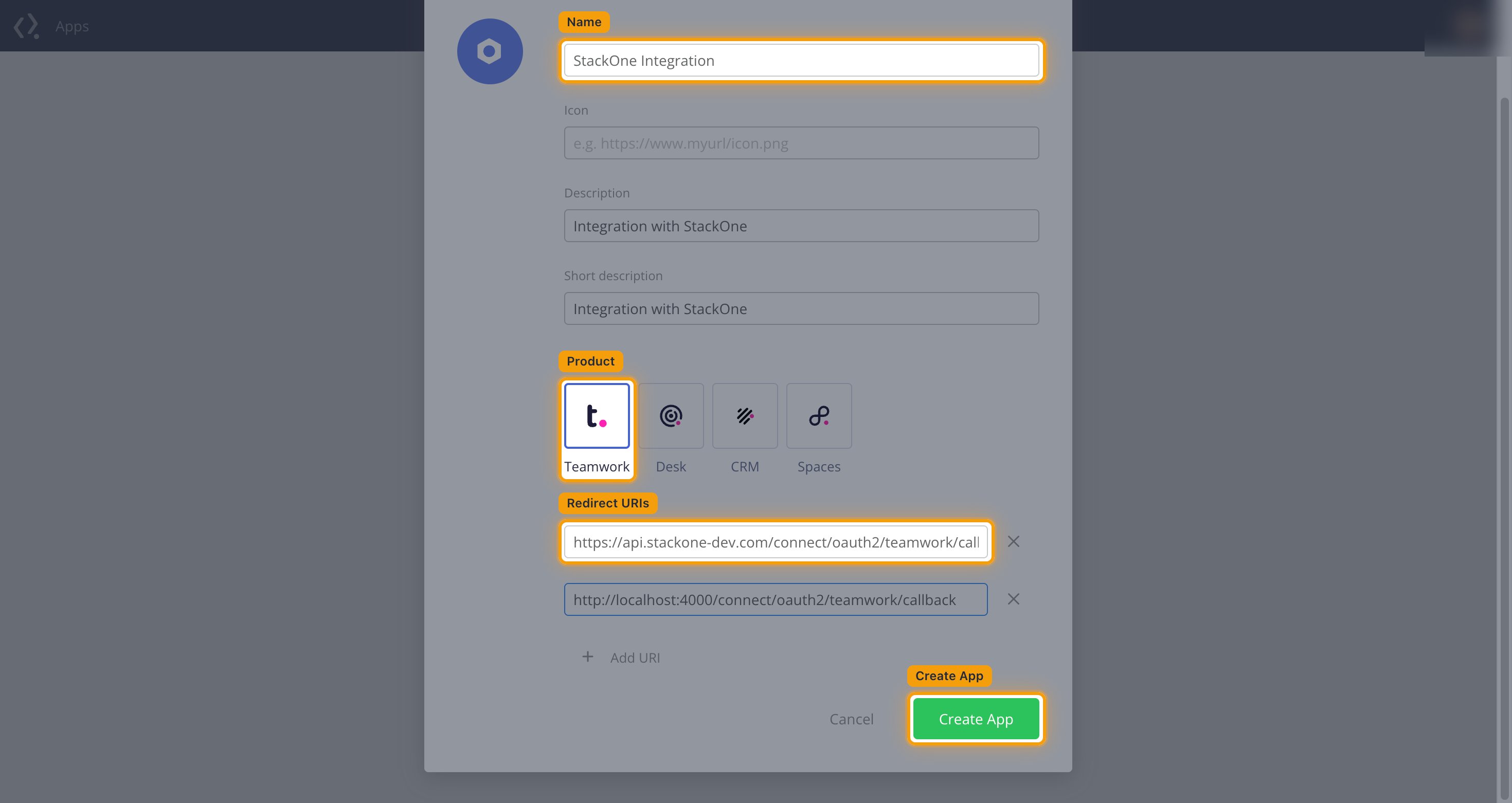
Click Create Your First App, then complete the Create an App form.
- Name:
StackOne Integration - Description and Short description: what the app does, for example
Integration with StackOne. - Product: select Teamwork, which is the product this connector calls.
- Redirect URIs: enter the Callback URL from your Connector Profile. Click Add URI to add one row per environment you connect.
- Click Create App.
3
Copy the credentials
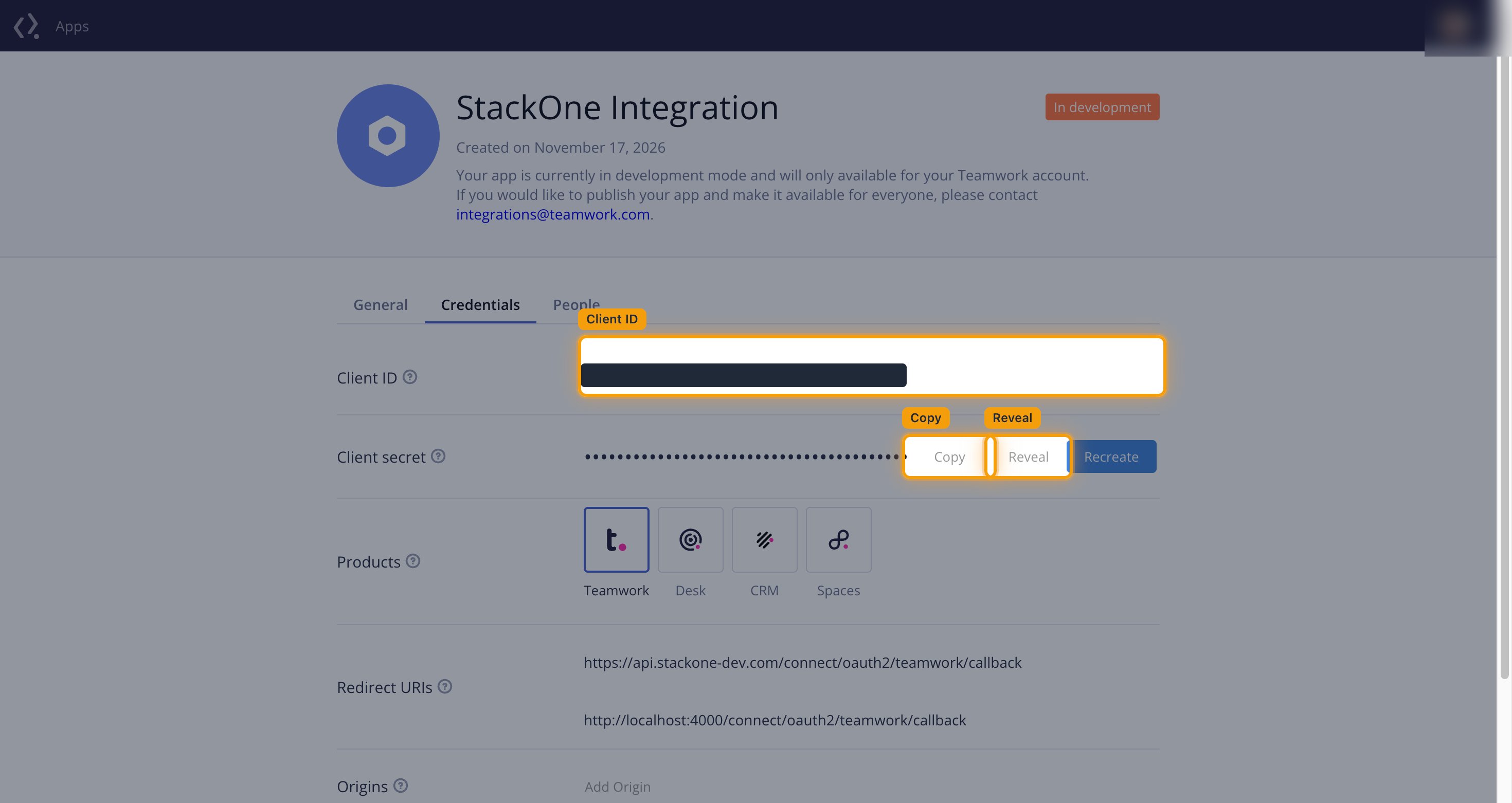
Open StackOne Integration from the Apps list, then select the Credentials tab.
- Copy the Client ID into your Connector Profile.
- Click Reveal to show the Client secret, then Copy to copy it into your Connector Profile.
- Recreate issues a new secret and invalidates the current one.
Create the StackOne Connector Profile
1
Create a Connector Profile
Enable the connector and create a Connector Profile in your project. See Setup Connector Profile.
2
Link an Account
Once the Connector Profile is created, continue to link an account.