Creating and deploying an OAuth app requires a paid SurveyMonkey plan. Group, workgroup and role scopes additionally require a Team or Enterprise plan - on other plans those endpoints return a permission error even when the scope is approved.

Create an OAuth 2.0 App

Register a new OAuth 2.0 application in the SurveyMonkey Developer Portal to obtain your Client ID and Client Secret.

1

Sign in to SurveyMonkey

Sign in with the SurveyMonkey account that owns the data you want to connect.

SurveyMonkey log in page
2

Open My Apps

The Developer Portal lists every OAuth app on your account under My Apps.

  • Click My Apps in the top navigation bar of the Developer Portal
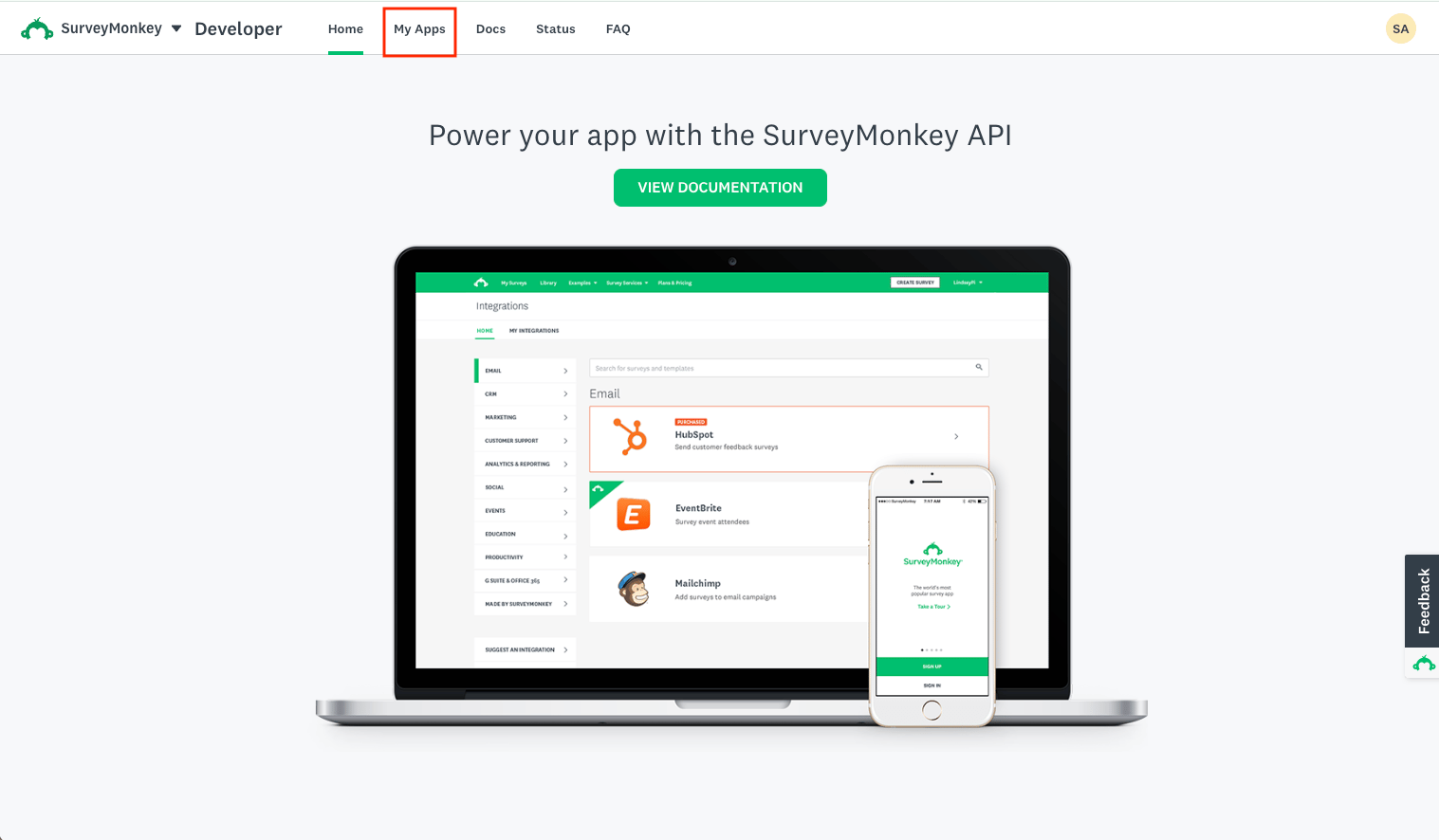
SurveyMonkey Developer Portal My Apps page
3

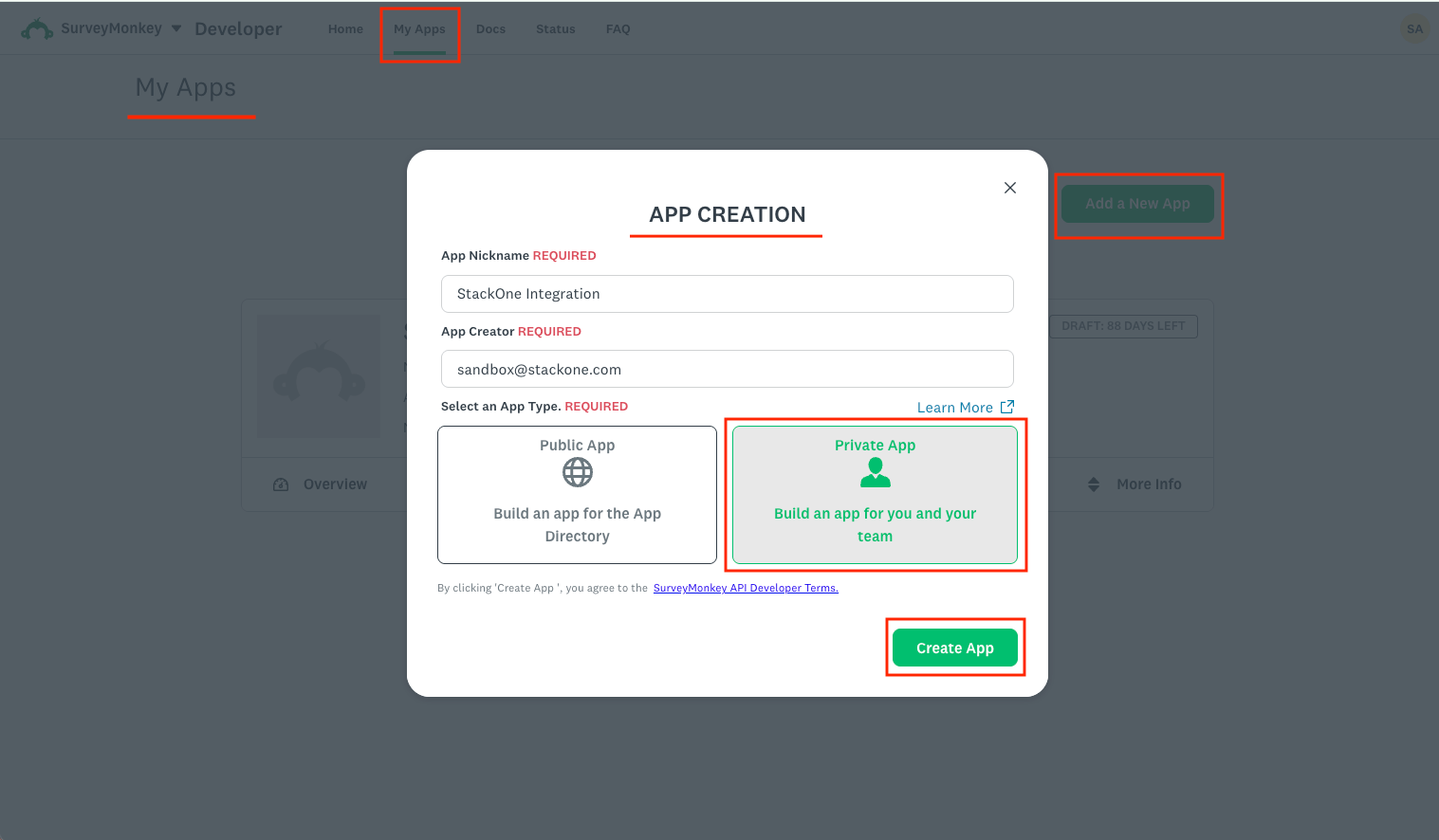
Add a new app

Start the app creation flow from the My Apps page.

  • Click Add a New App in the top right corner
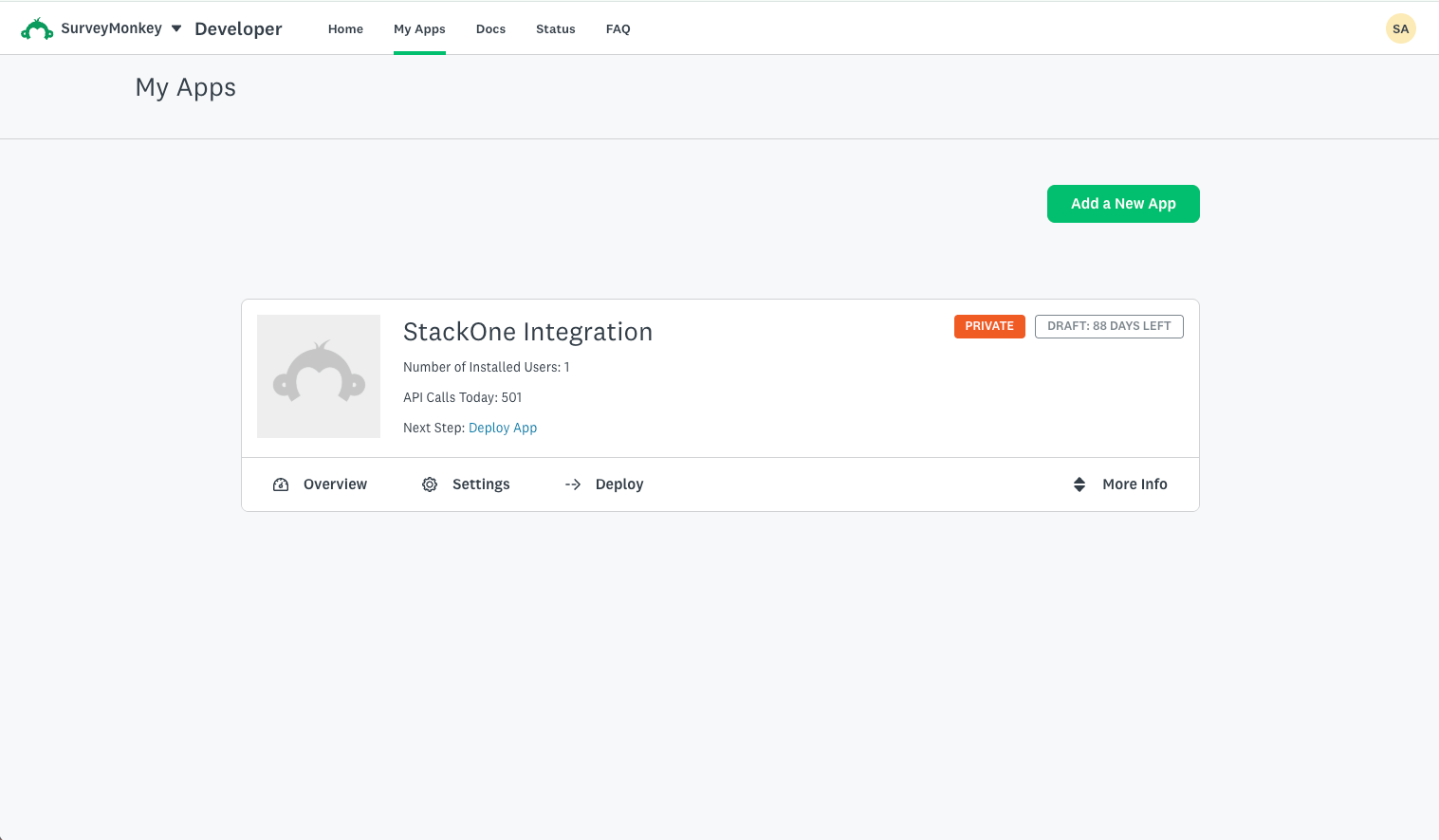
Add a New App button
4

Create the app

Fill in the app details and choose the app type.

  • Enter an App Nickname (for example, “StackOne Integration”)
  • Enter the App Creator email address
  • Select Private App to build an app for you and your team
  • Click Create App
App Creation dialog

Configure OAuth 2.0 Settings

Set the redirect URL and scopes your application needs. Both live on the app’s Settings tab.

1

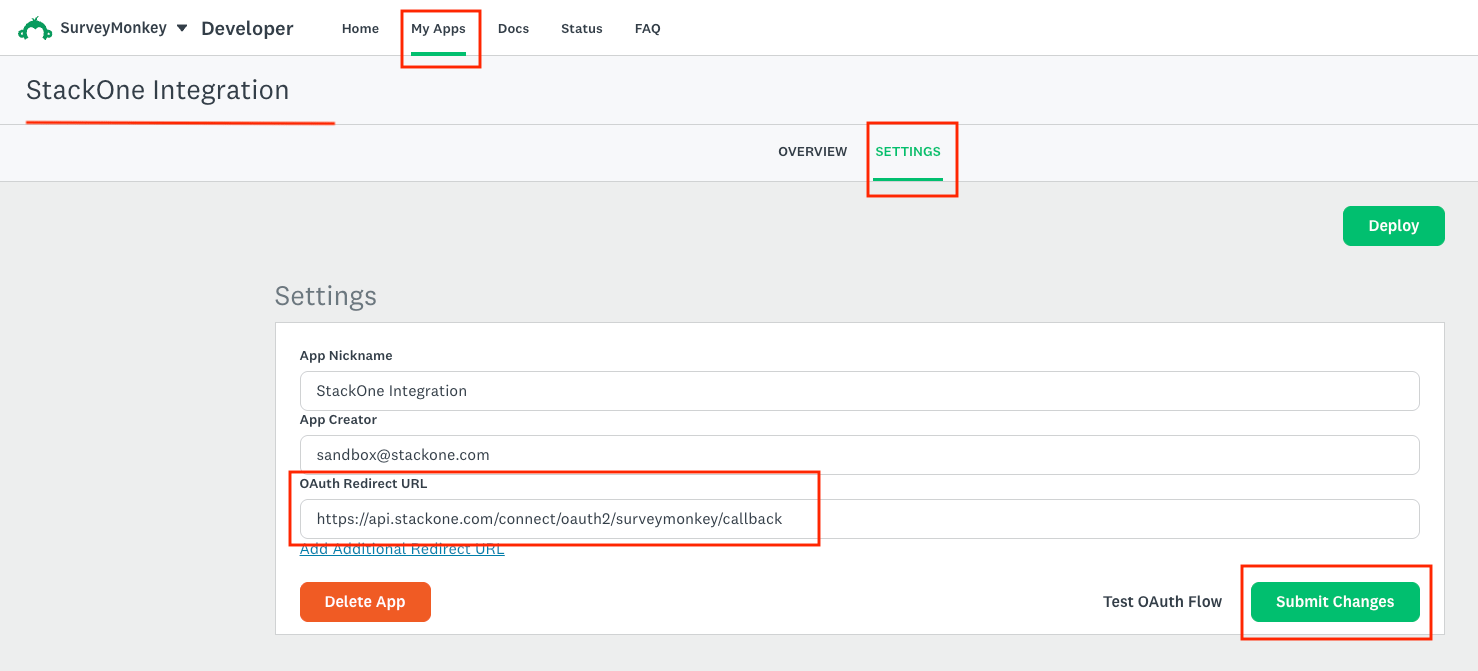
Add the OAuth Redirect URL

StackOne completes the OAuth flow at a fixed callback URL, which must be registered on the app.

  • Open your app and click the SETTINGS tab
  • Enter this value in OAuth Redirect URL: https://api.stackone.com/connect/oauth2/surveymonkey/callback
  • Click Submit Changes
App Settings tab
2

Configure scopes

Enables actions: Copy Contact List, Create Collector Message, Create Collector Response, Create Contact, Create Contact In List, Create Contact List, Create Contacts Bulk, Create Contacts Bulk Global, Create Survey, Create Survey Collector, Create Survey Folder, Create Survey Language Translation, Create Survey Page, Create Survey Question, Create Survey Share, Create Webhook, Delete All Collector Responses, Delete Collector, Delete Collector Message, Delete Collector Response, Delete Contact, Delete Contact List, Delete Survey, Delete Survey Language Translation, Delete Survey Page, Delete Survey Question, Delete Webhook, Get Bulk Collector Responses, Get Bulk Survey Responses, Get Collector, Get Collector Message, Get Collector Recipient, Get Collector Response, Get Collector Response Details, Get Collector Stats, Get Contact, Get Contact Field, Get Contact List, Get Current User, Get Error, Get Message Stats, Get Survey, Get Survey Details, Get Survey Language Translation, Get Survey Page, Get Survey Page Rollups, Get Survey Page Trends, Get Survey Question, Get Survey Question Rollups, Get Survey Question Trends, Get Survey Response, Get Survey Response Details, Get Survey Rollups, Get Survey Trends, Get Unified Credentials, Get Unified Group, Get Unified Organization, Get Unified Role, Get Unified User, Get Webhook, List All Survey Languages, List Collector Messages, List Collector Recipients, List Collector Responses, List Contact Fields, List Contact Lists, List Contacts, List Contacts Bulk, List Contacts In List, List Contacts In List Bulk, List Errors, List Message Recipients, List Question Bank Questions, List Roles, List Survey Categories, List Survey Collectors, List Survey Folders, List Survey Languages, List Survey Pages, List Survey Questions, List Survey Responses, List Survey Shares, List Survey Templates, List Surveys, List Team Survey Templates, List Unified Groups, List Unified Organizations, List Unified Resource Types, List Unified Resource Users, List Unified Roles, List Unified Users, List Webhooks, Merge Contact Lists, Replace Collector, Replace Collector Response, Replace Contact, Replace Contact List, Replace Survey, Replace Survey Page, Replace Survey Question, Replace Webhook, Send Collector Message, Update Collector, Update Collector Message, Update Collector Response, Update Contact, Update Contact Field, Update Contact List, Update Survey, Update Survey Language Translation, Update Survey Page, Update Survey Question, Update Survey Response, Update Survey Share, Update Webhook

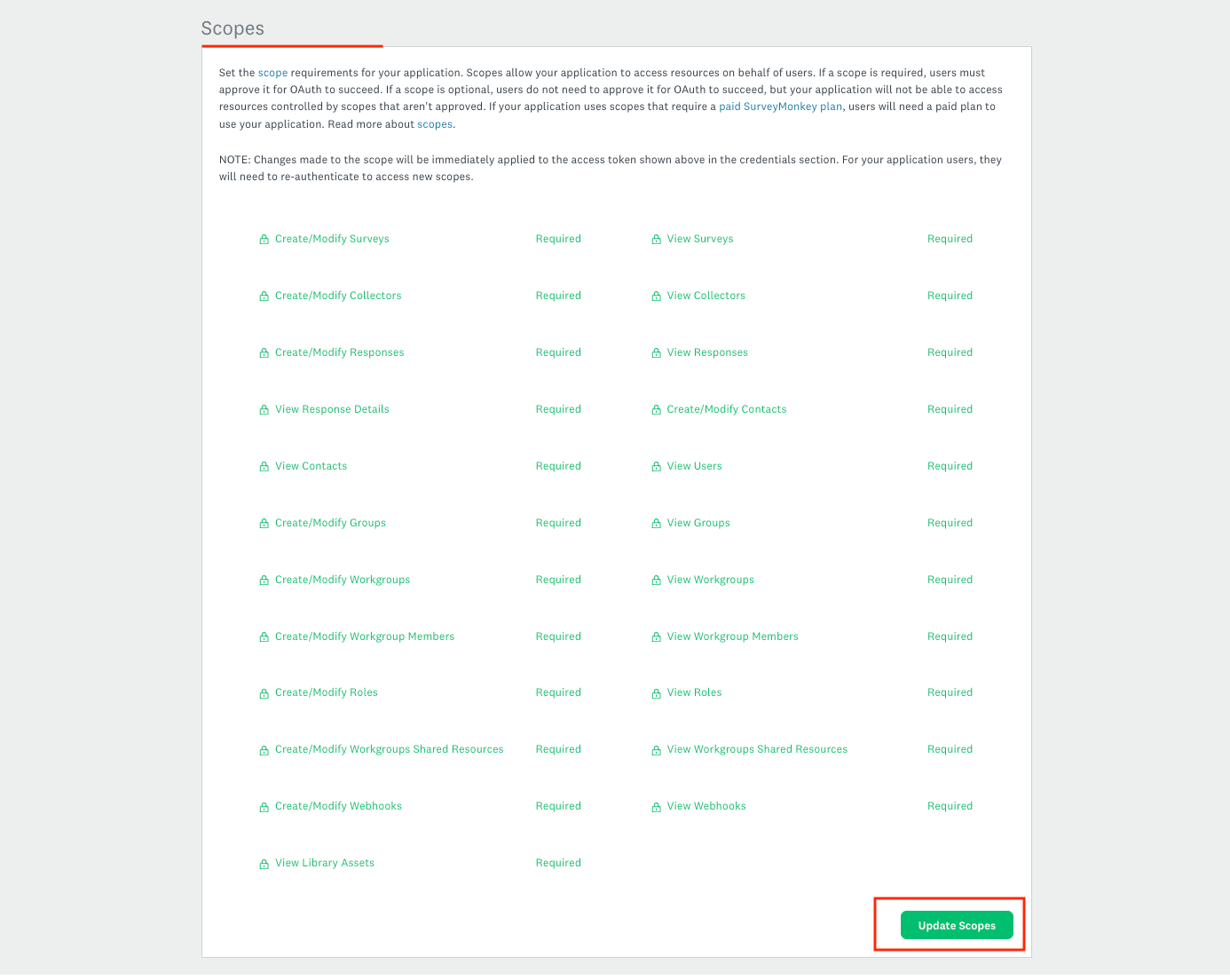
Scopes control which SurveyMonkey resources the app can reach. Scopes marked Required must be approved by the user for OAuth to succeed.

  • Scroll down the SETTINGS tab to the Scopes section
  • Set the scopes your integration needs to Required, or select them all for full access
  • Click Update Scopes
Scopes section

Copy Your Credentials

Retrieve the Client ID and Client Secret to paste into StackOne.

1

Copy the Client ID and Client Secret

The credentials live on the app’s Overview tab, not on Settings.

  • Open your app and click the OVERVIEW tab
  • Copy the Client ID from the Details section
  • Click the eye icon next to Client Secret to reveal it, then copy it
  • Store both securely - you will paste them into StackOne when connecting the account
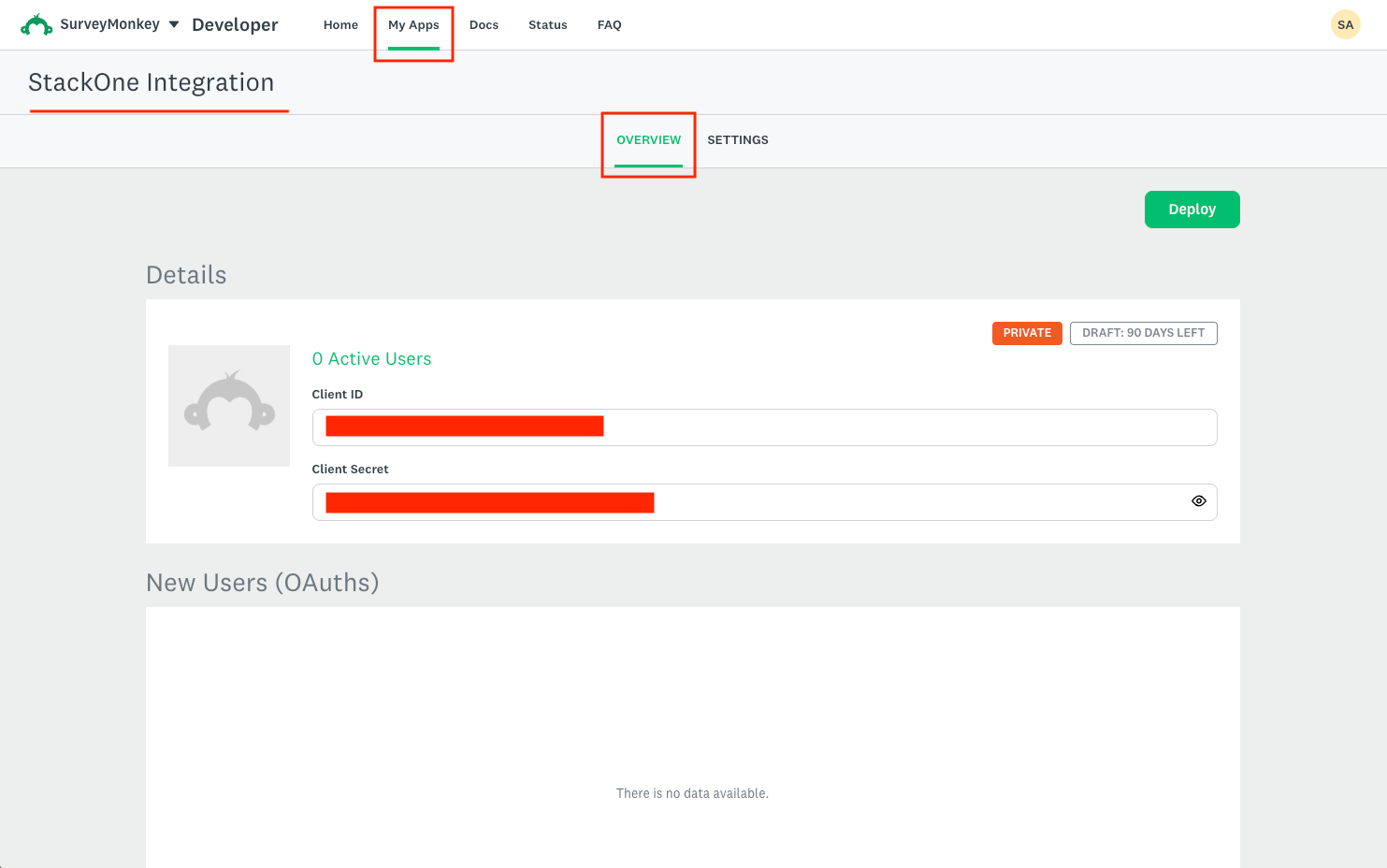
App Overview tab

Deploy Your App

Deploy the app to move it out of draft status.

1

Deploy privately or publicly

Choose the deployment option that matches how the app will be used.

  • Click Deploy in the top right of the app page
  • For internal team use, deploy as a Private App - no SurveyMonkey review is required
  • For broader distribution, deploy as a Public App to the App Directory, which requires SurveyMonkey review
  • Draft apps expire after a 90-day development window, so deploy before it ends
  • Private apps require every user to be on the same SurveyMonkey team on a paid plan

Creating the StackOne Connector Profile

To create the Connector Profile in StackOne for SurveyMonkey:
1

Open the connector

Log in to StackOne, open Connectors, and select SurveyMonkey.
2

Choose actions and events

  • Click Add Profile.
  • If the connector offers more than one authentication method, set the Auth Method filter to OAuth 2.0.
  • Select the actions, and any events, to enable for this Connector Profile.
  • Click Continue.
3

Set up authentication

  • Select Authentication Type as OAuth 2.0.
  • Fill out the fields using details retrieved from your provider:
    • Client ID
    • Client Secret
    • Application Scopes (Optional)
  • Click Create Profile.
Congratulations! The new Connector Profile now shows up on the connector page. If you created it as a project member rather than an admin, it starts disabled until a project admin enables it. You can now continue to Link Accounts for SurveyMonkey.