

Create a Squarespace developer app
Register an OAuth app in the Squarespace Account Dashboard to get the Client ID and Client secret StackOne uses.
Sign in to Squarespace
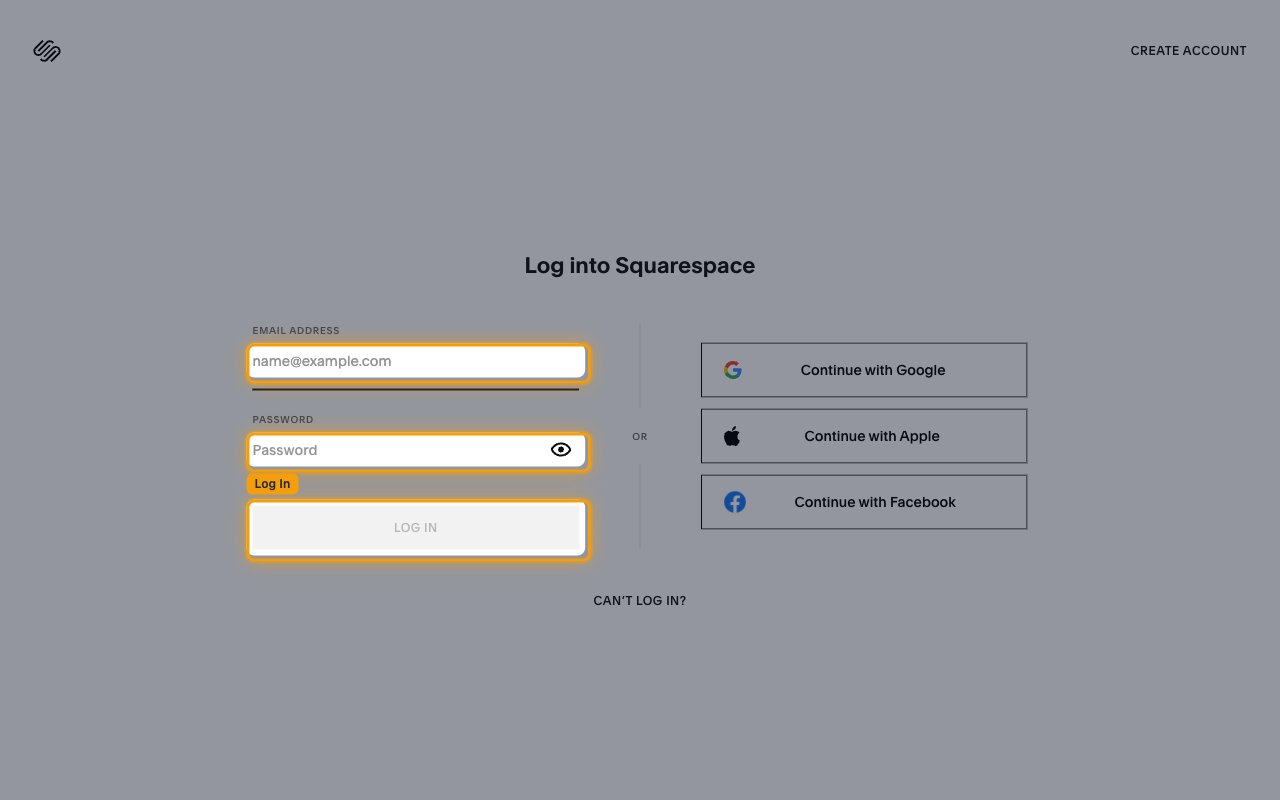
Sign in to your Squarespace account with your Email address and Password, then click Log In.
Open Developer Apps
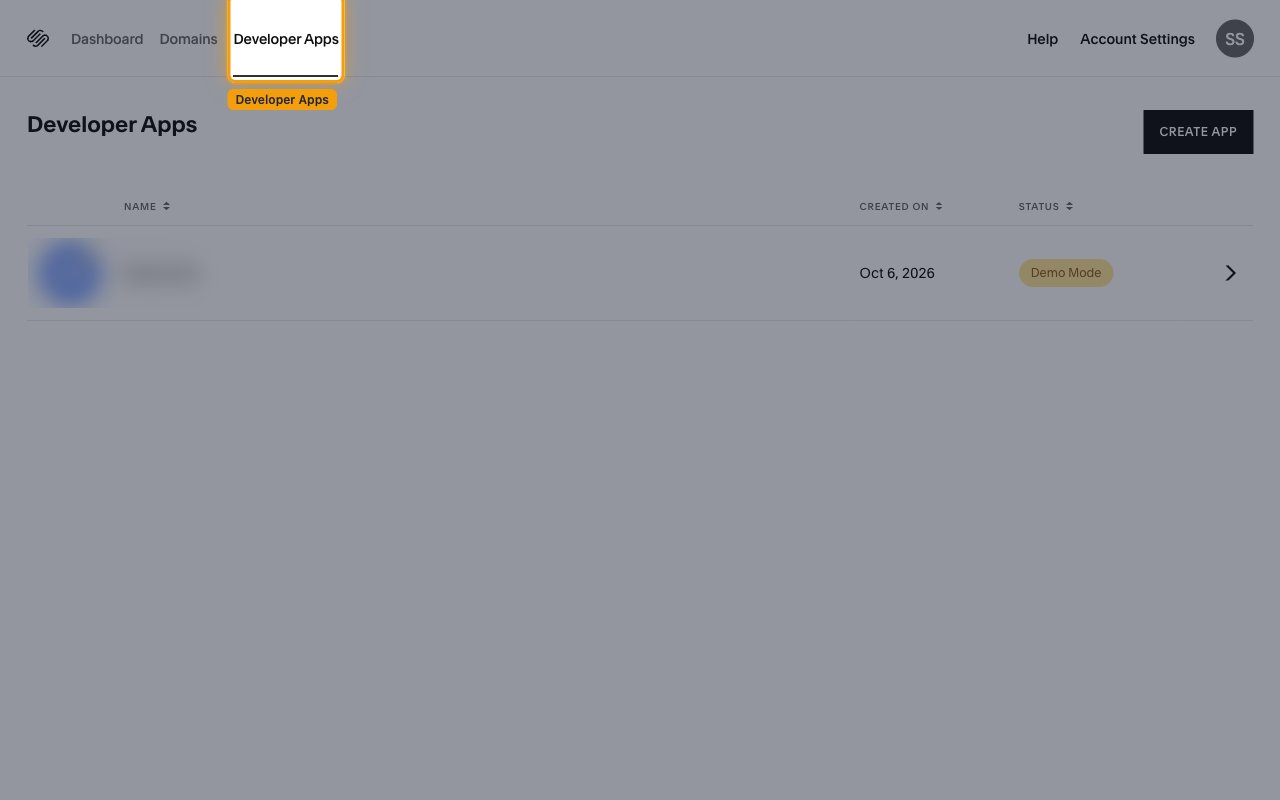
In the Account Dashboard, click the Developer Apps tab.
Start a new app
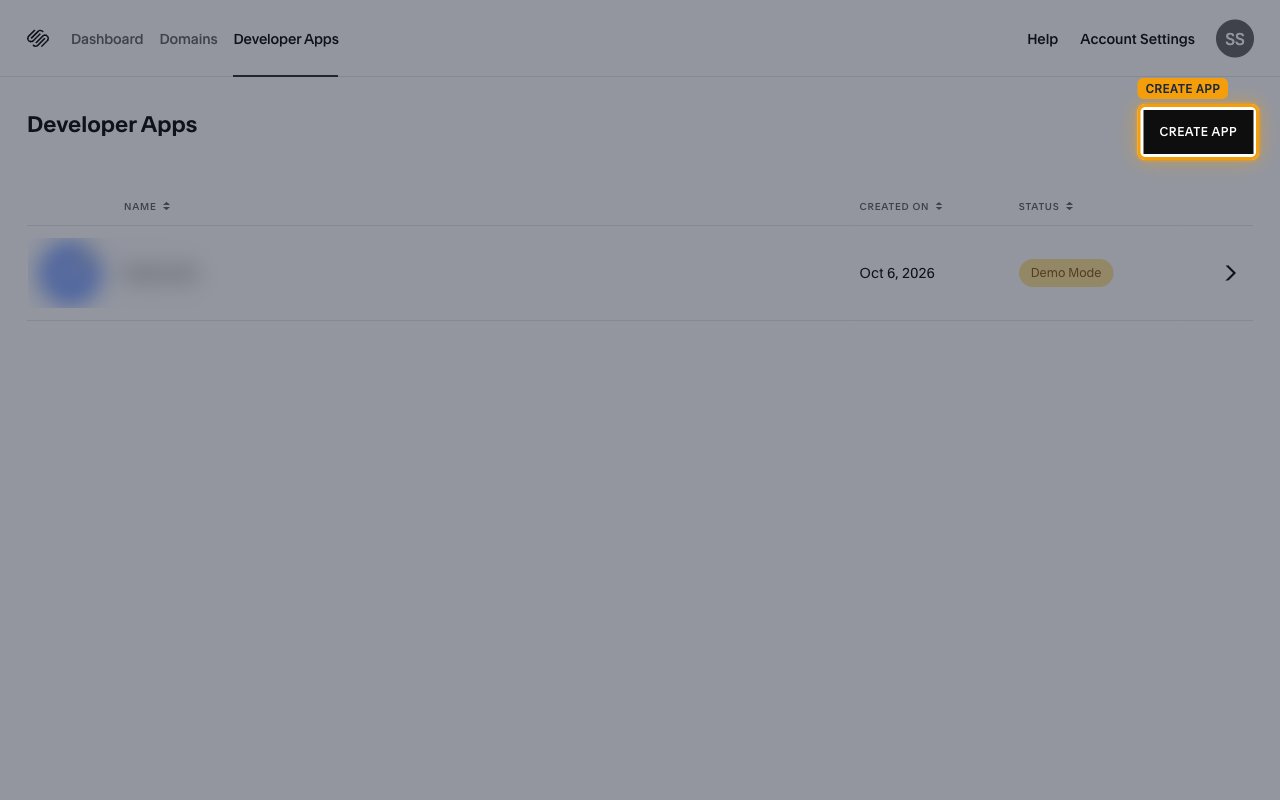
On the Developer Apps page, click CREATE APP.
Enter app details
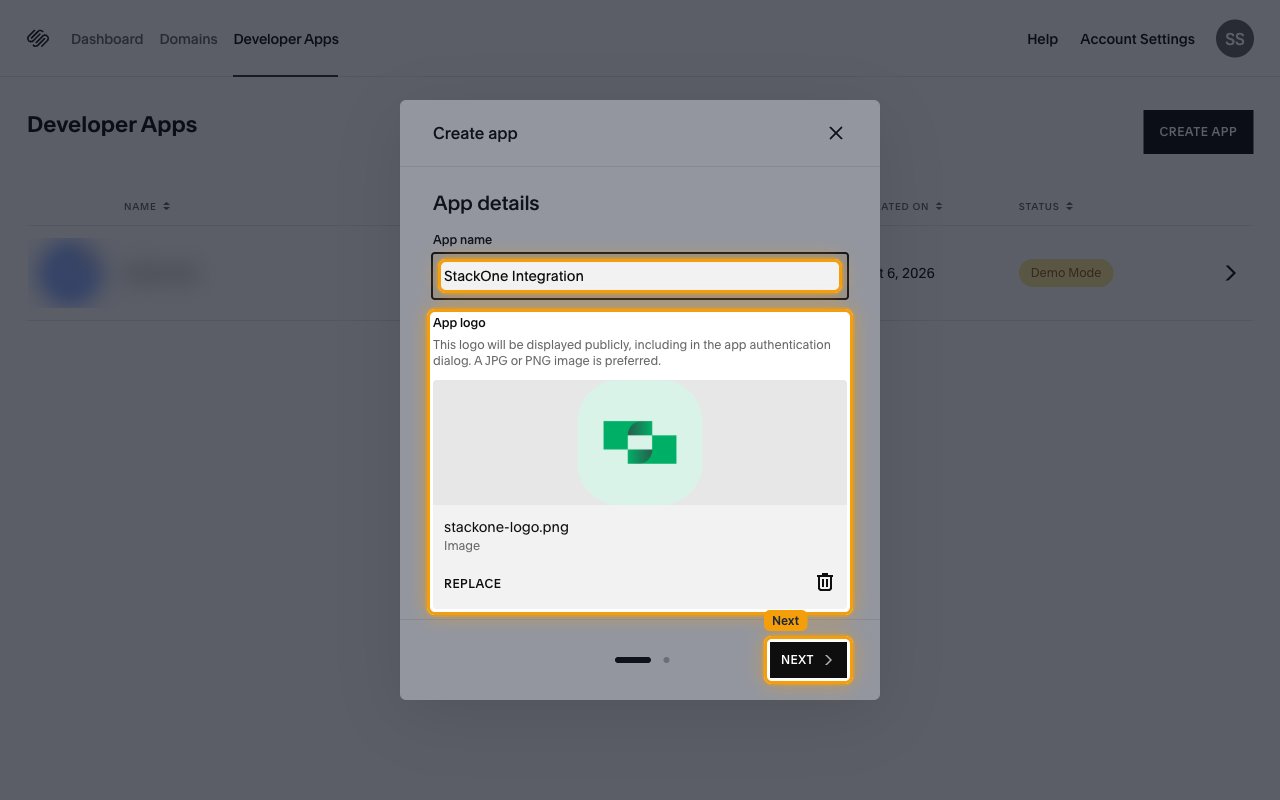
In the Create app dialog, fill in the App details, then click Next.
- App name:
StackOne Integration - Under App logo, click Add image and upload your organization’s logo. Squarespace shows it on the app authorization screen.
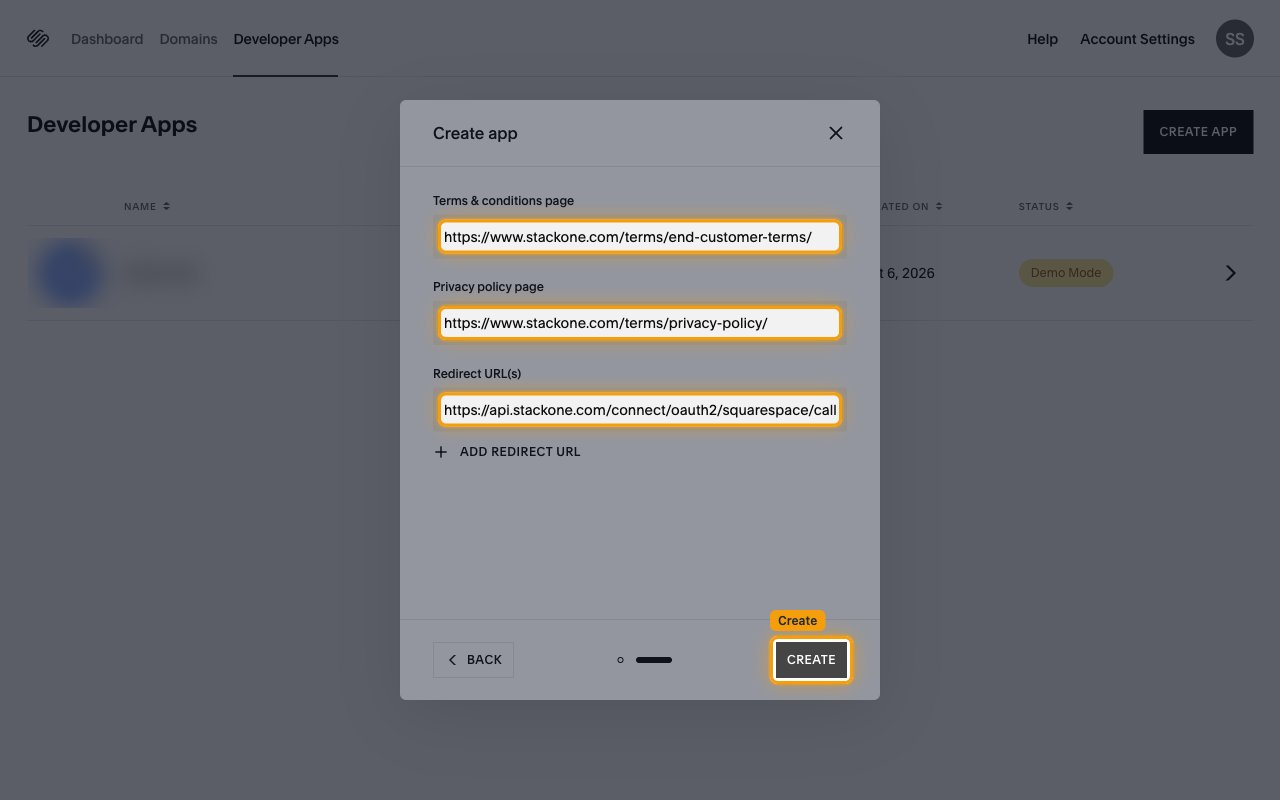
Add app links and the redirect URL
Enter each value as a full URL that starts with https, then click Create.
- Terms & conditions page — your organization’s terms of service URL
- Privacy policy page — your organization’s privacy policy URL
- Redirect URL(s):
https://api.stackone.com/connect/oauth2/squarespace/callback
Copy the client credentials
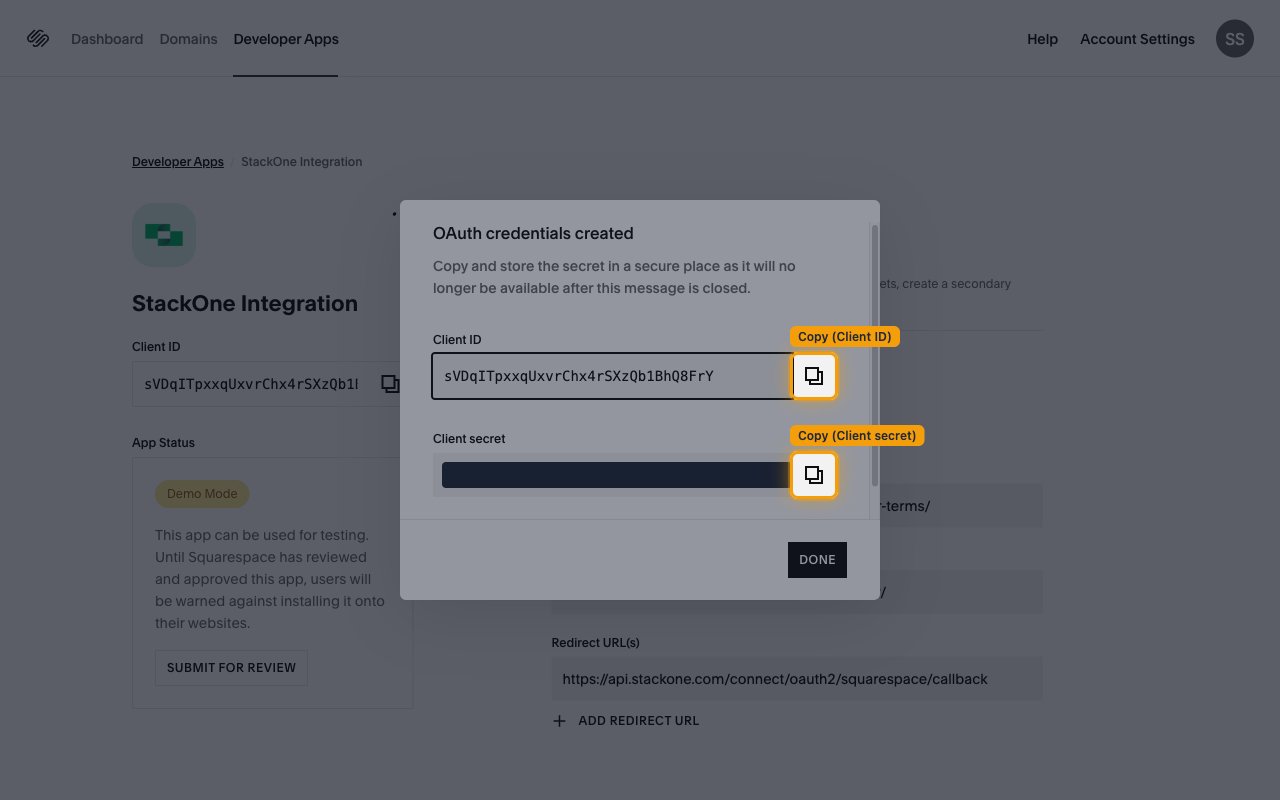
Squarespace shows the credentials once, right after the app is created.
Copy the Client ID and Client secret
In the OAuth credentials created dialog, click Copy next to each value, then click Done.
- Client ID — the public identifier of your app. Paste it into the Client ID field in the StackOne Connector profile.
- Client secret — the private key of your app. Paste it into the Client Secret field in the StackOne Connector profile.
- The Client secret is only displayed once and cannot be retrieved later. If you lose it, open the app and click CREATE SECONDARY SECRET.
Submit the app for review
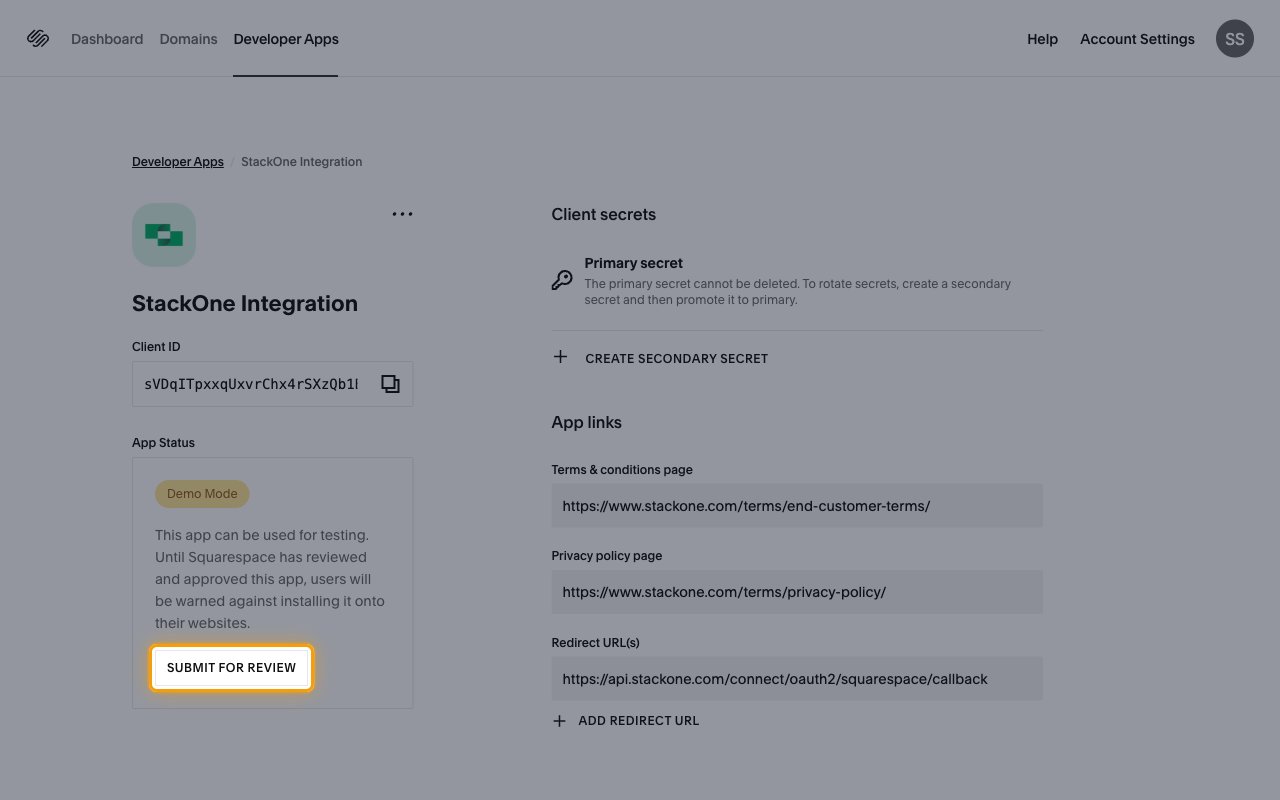
The app opens in Demo Mode, which is enough for testing. Before customers connect, click SUBMIT FOR REVIEW under App Status so Squarespace can approve the app for production.
Choose scopes
Squarespace asks for scopes when a user connects their site, not when you create the app. Set them in the Scopes field in the StackOne Connector profile.
Enter the scopes to request
Enter the scopes below in the Scopes field, separated by commas. Leave the field blank to request every scope this connector uses.
Creating the StackOne Connector Profile
To create the Connector Profile in StackOne for Squarespace:Open the connector
Choose actions and events
- Click Add Profile.
- If the connector offers more than one authentication method, set the Auth Method filter to OAuth 2.0.
- Select the actions, and any events, to enable for this Connector Profile.
- Click Continue.
Set up authentication
- Select Authentication Type as OAuth 2.0.
- Fill out the fields using details retrieved from your provider:
- Client ID
- Client Secret
- Scopes (Optional)
- Click Create Profile.