

Create an OAuth application
Register an application in the signNow API Dashboard to get the OAuth 2.0 Client ID and Client Secret the StackOne Connector profile needs.
1
Sign in to signNow
Sign in to your signNow account.
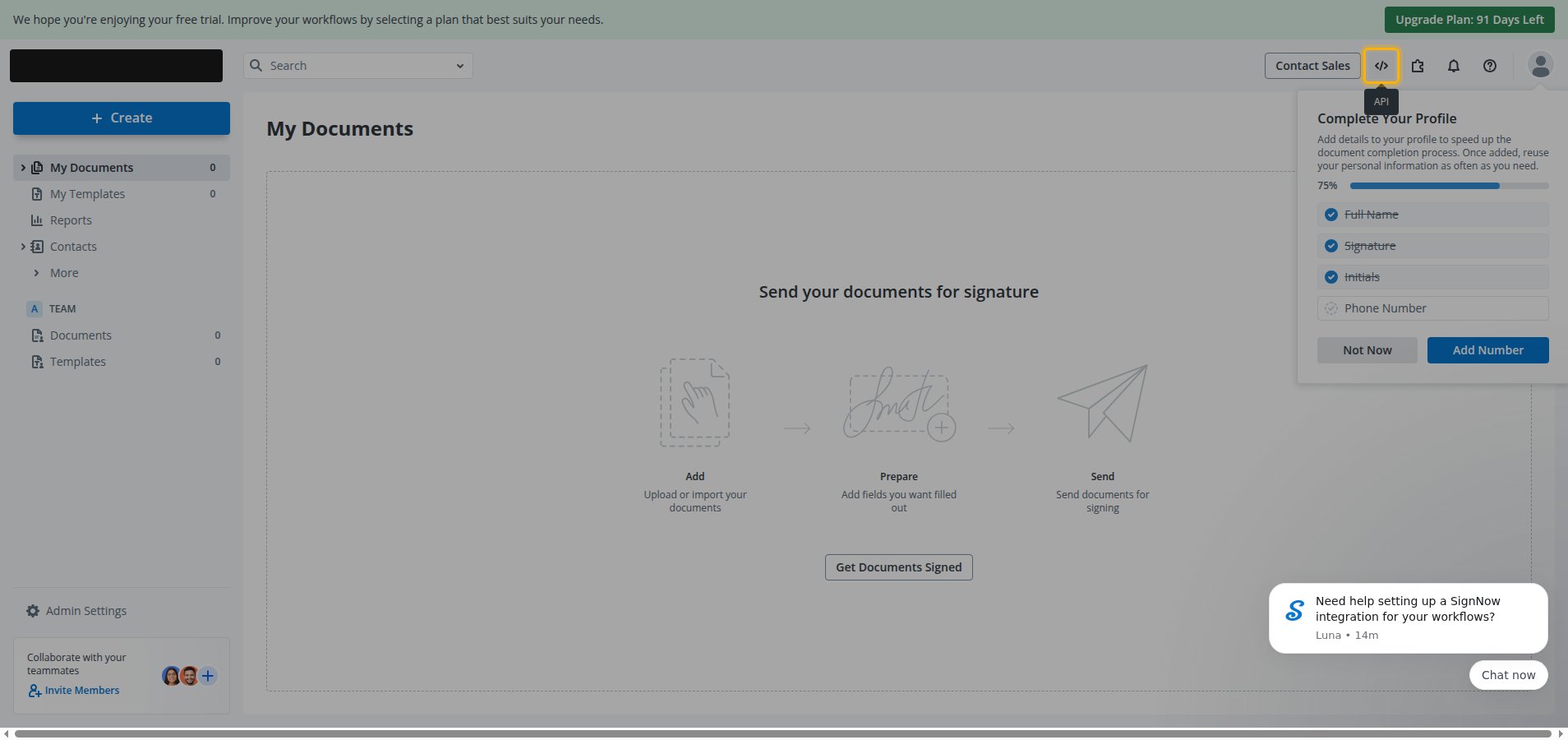
- Click the API icon in the top header to open the API Dashboard in a new tab.
2
Open the Apps and Keys page
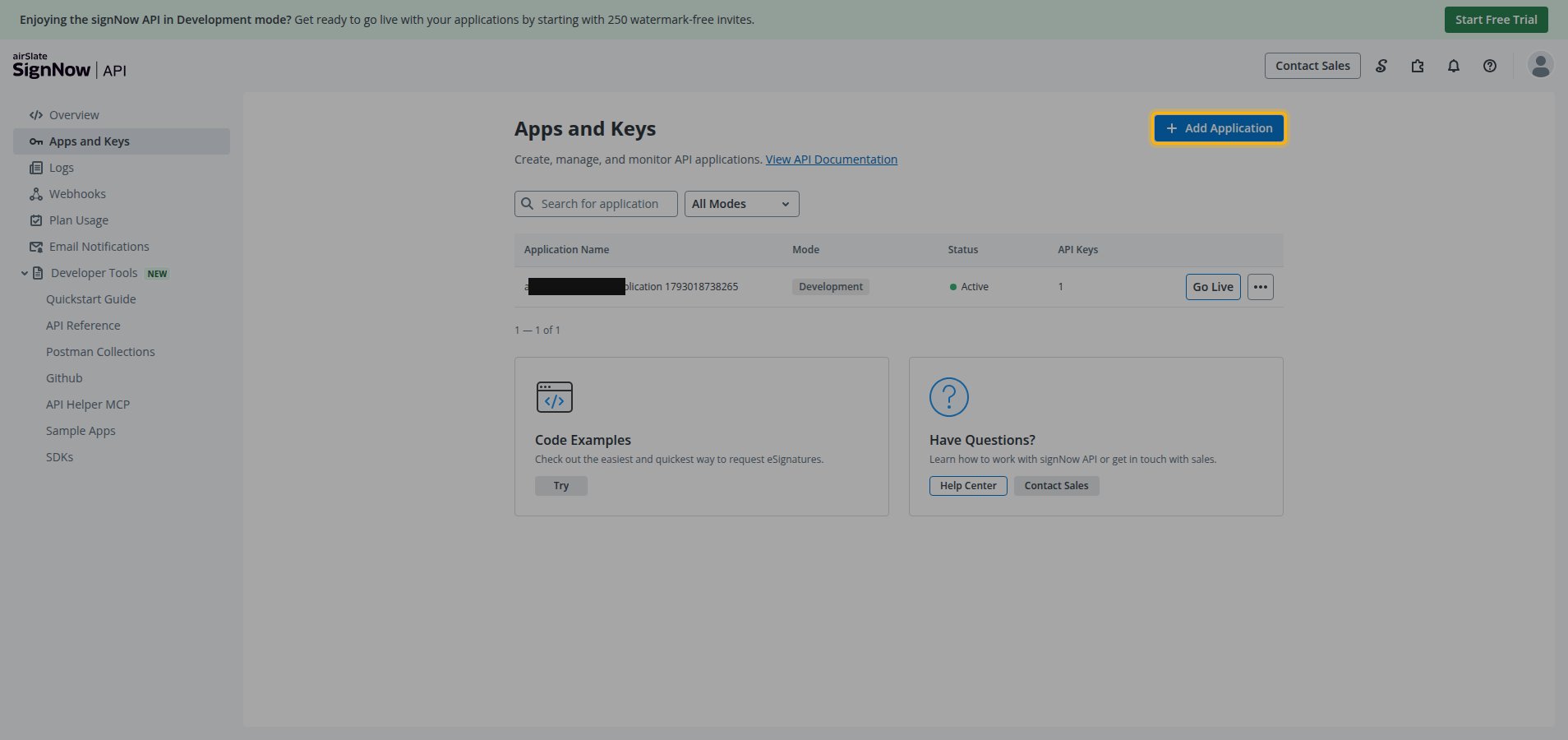
In the API Dashboard, select Apps and Keys from the left menu.
- Click Add Application.
3
Copy the OAuth 2.0 credentials
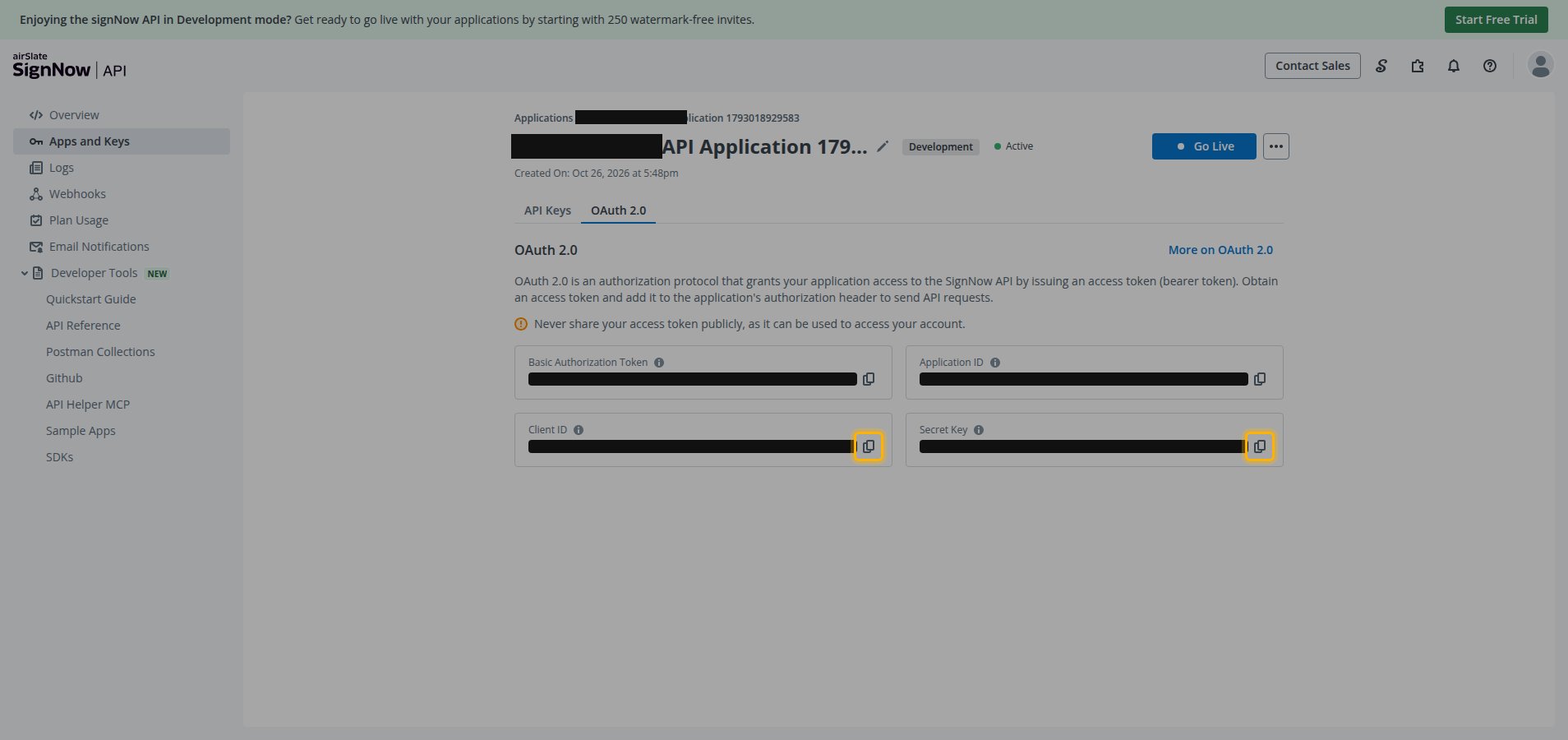
signNow creates the application immediately and opens its details page.
- Select the OAuth 2.0 tab.
- Copy the Client ID value.
- Copy the Secret Key value.
- You can return to this tab at any time to copy the Secret Key again — store it securely for use later.
- StackOne’s redirect URI for this connector:
https://api.stackone.com/connect/oauth2/signnow/callback. signNow does not require registering it in the application — it’s supplied automatically with every authorization request.
Creating the StackOne Connector Profile
To create the Connector Profile in StackOne for SignNow:1
Open the connector
Log in to StackOne, open Connectors, and select SignNow.
2
Choose actions and events
- Click Add Profile.
- If the connector offers more than one authentication method, set the Auth Method filter to OAuth 2.0.
- Select the actions, and any events, to enable for this Connector Profile.
- Click Continue.
3
Set up authentication
- Select Authentication Type as OAuth 2.0.
- Fill out the fields using details retrieved from your provider:
- Client ID
- Client Secret
- Click Create Profile.