

Setting up the client in SAP Cloud Identity Services
The client is an OpenID Connect application in the SAP Cloud Identity Services tenant your SAP SuccessFactors instance signs in with. Create a dedicated application for this connection method, separate from any application used for client credentials.
Create the application
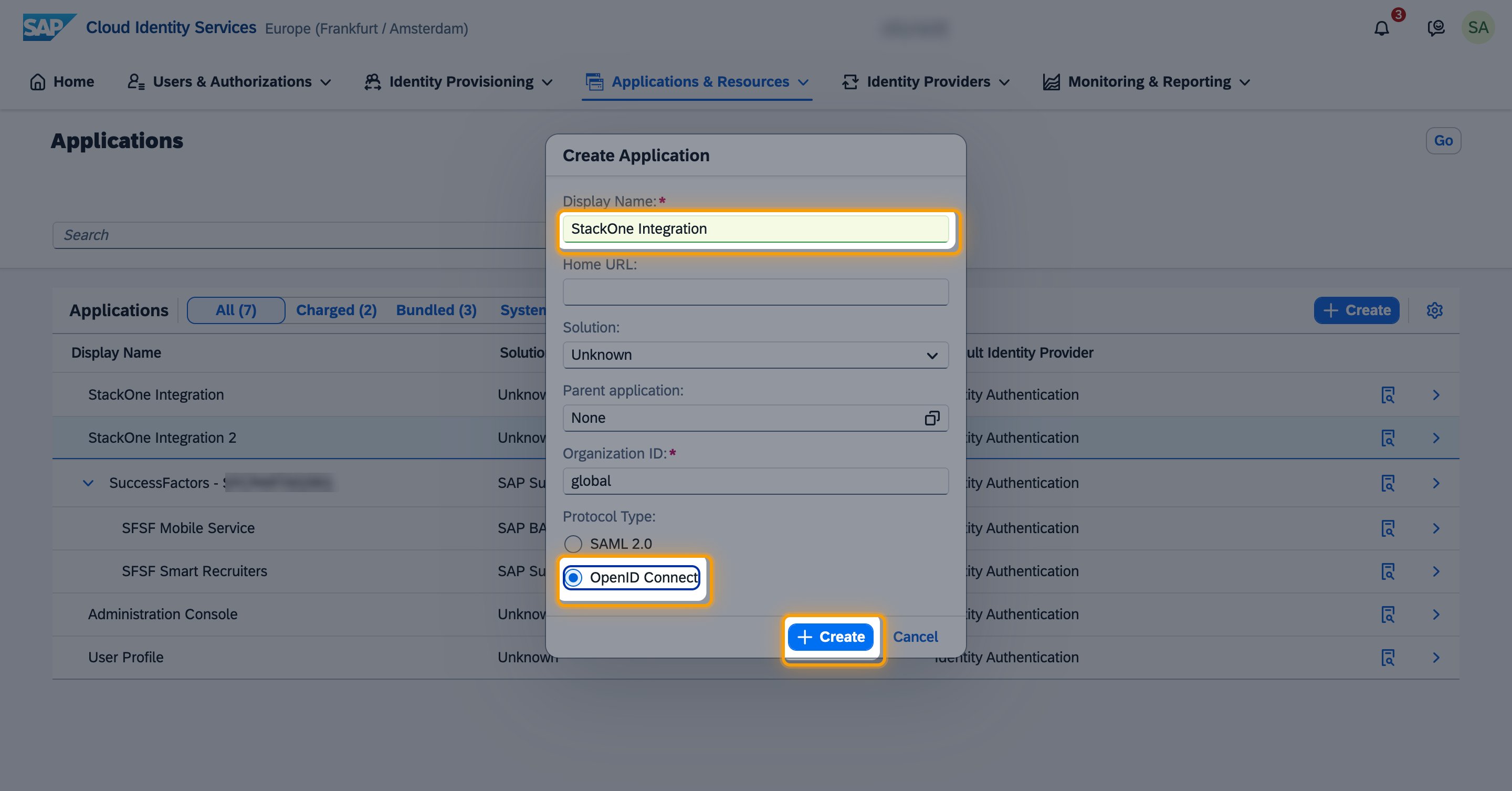
Sign in to the administration console of your SAP Cloud Identity Services tenant, then open Applications & Resources > Applications.
- Click Create.
- Display Name:
StackOne Integration - Protocol Type: OpenID Connect
- Click Create.
- Copy the Identity Authentication Host into your Connector Profile. It is your tenant name followed by
.accounts.ondemand.com, withouthttps://, even when your administration console opens onaccounts.cloud.sap. - Format:
{tenant}.accounts.ondemand.com - Example: if your administration console is
https://example.accounts.cloud.sap/admin, your Identity Authentication Host isexample.accounts.ondemand.com
Name the OpenID Connect configuration
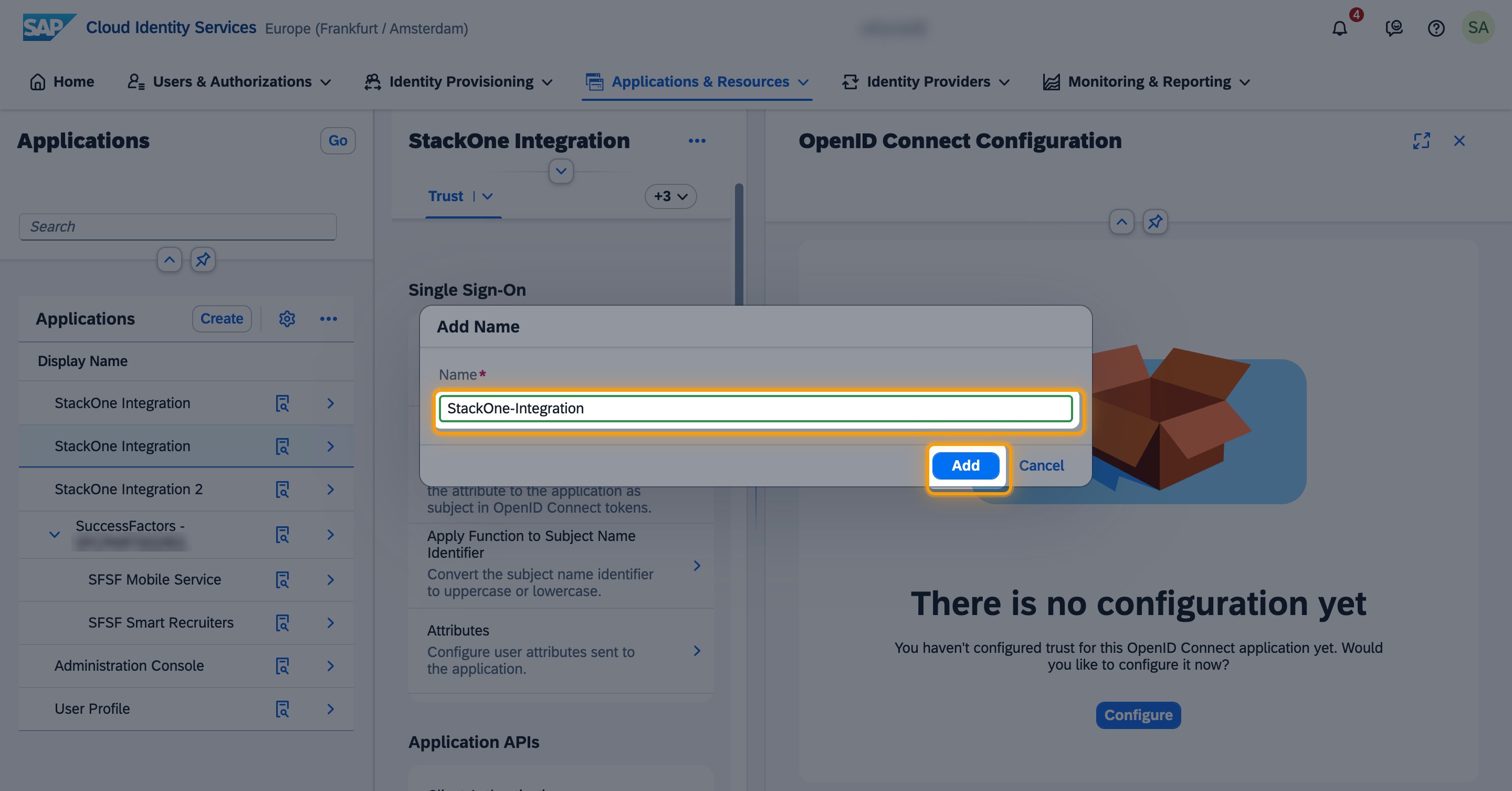
On the Trust tab, under Single Sign-On, choose OpenID Connect Configuration.
- Click Configure.
- Name:
StackOne-Integration - The name can’t contain spaces and must be unique in the tenant.
- Click Add.
Set the callback URL
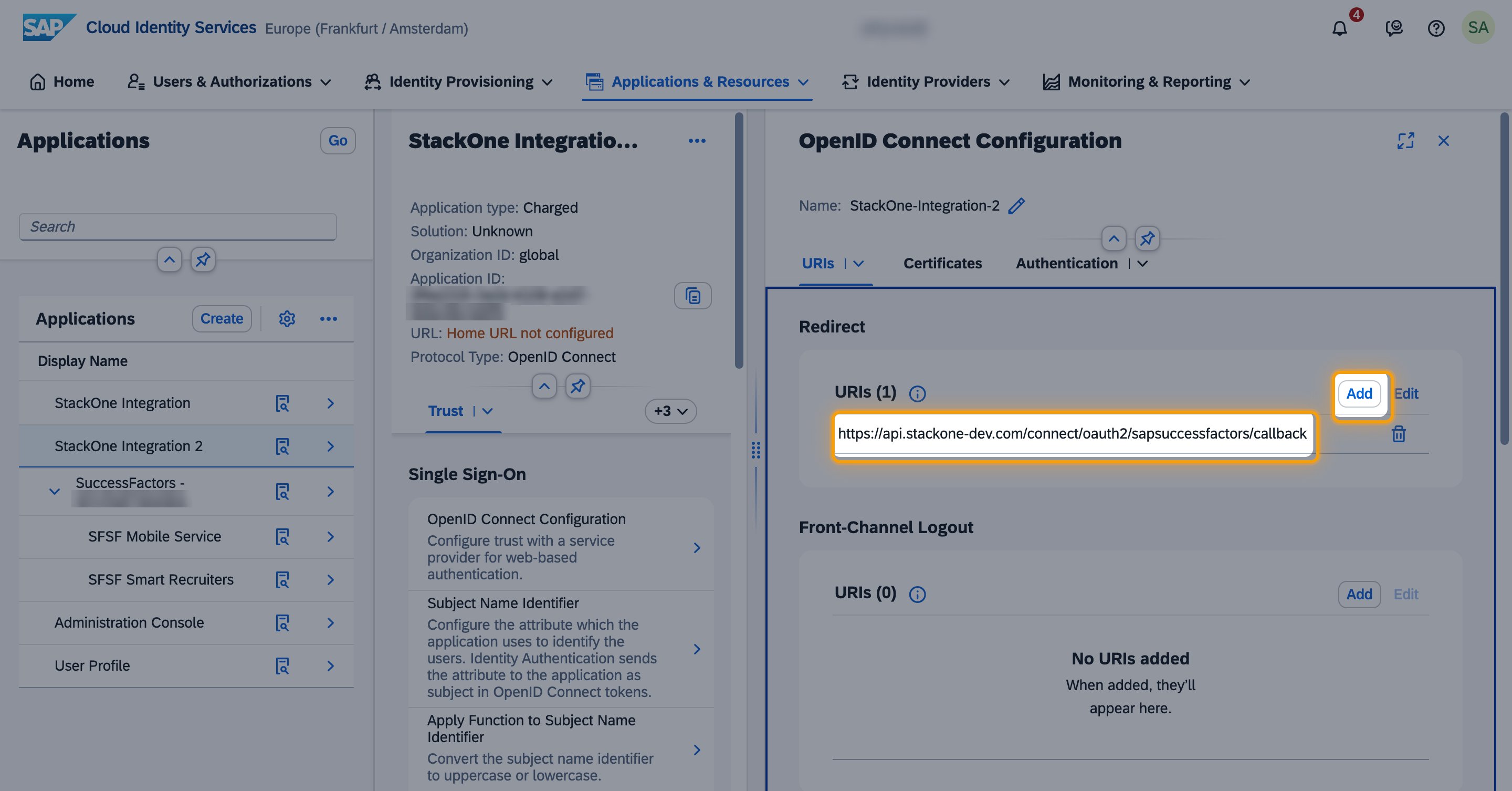
Open the URIs tab of the configuration.
- Under Redirect, click Add.
- Enter the Callback URL from your Connector Profile.
- Click Save.
Allow only the sign-in grant types
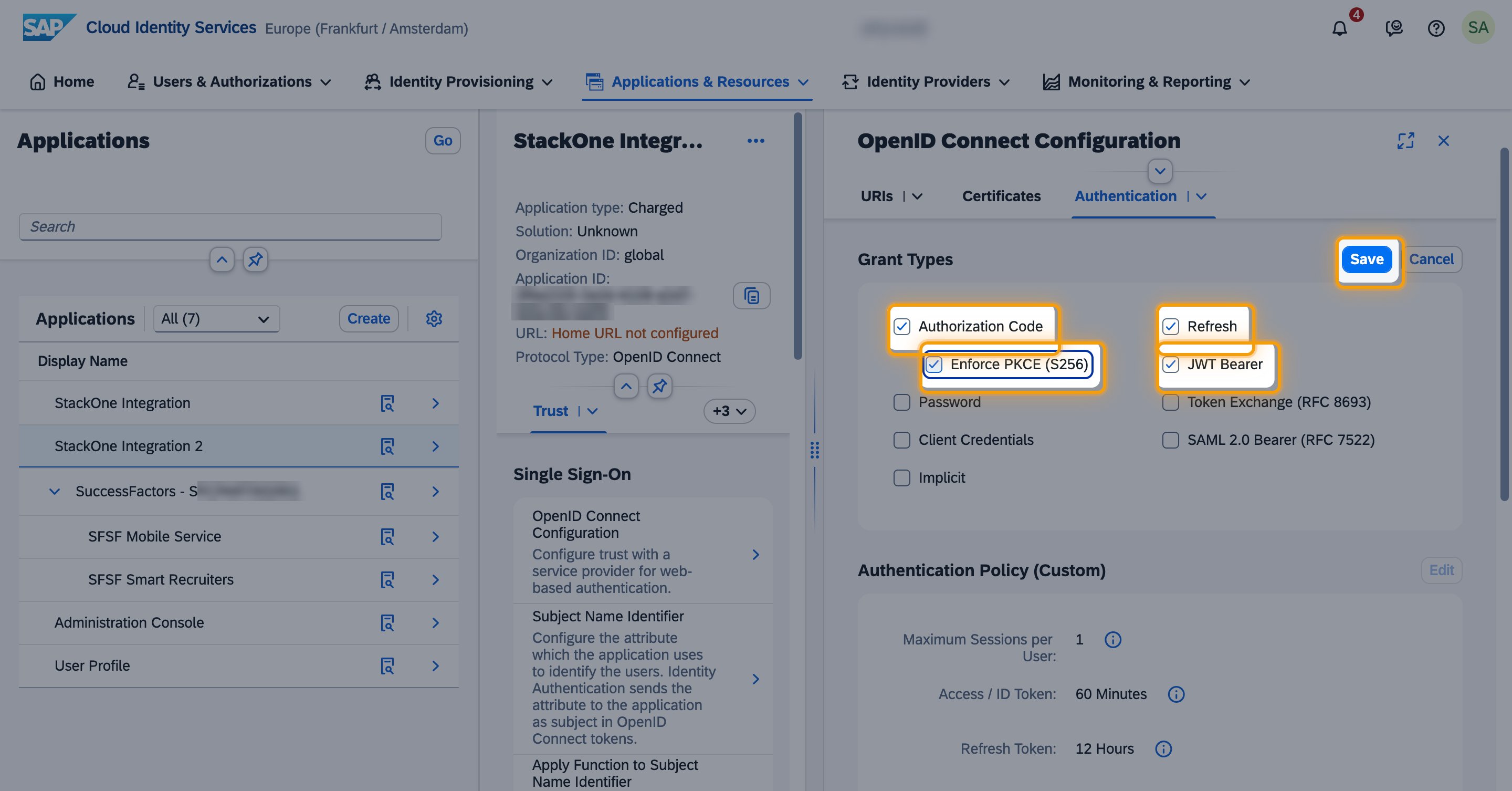
Open the Authentication tab of the configuration. New applications allow several grant types, and this connection needs only the sign-in ones.
- Next to Grant Types, click Edit.
- Keep Authorization Code, Refresh and JWT Bearer selected.
- Select Enforce PKCE (S256).
- Clear every other grant type, including Password and Client Credentials.
- Click Save.
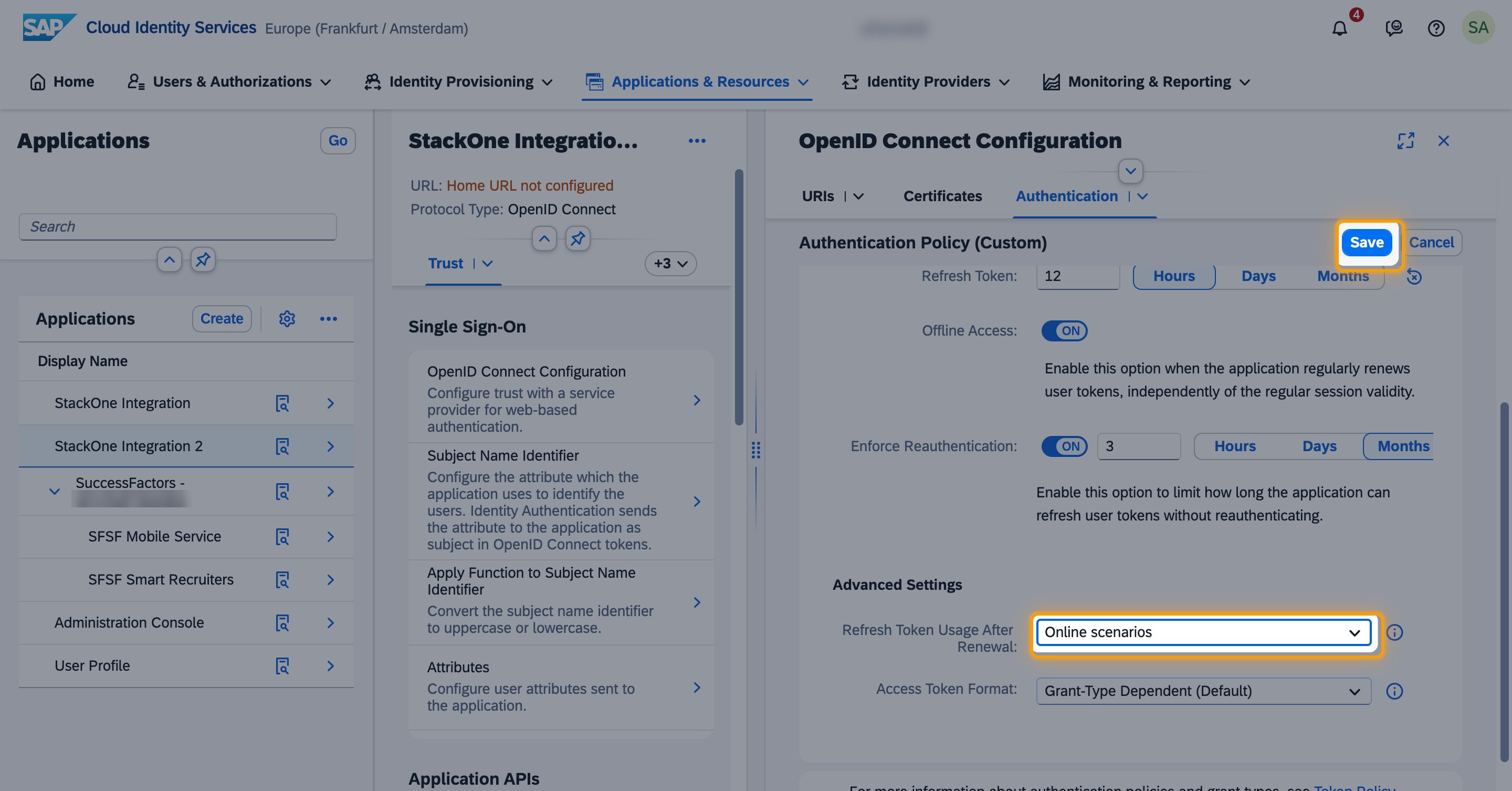
Set the token policy
The token policy is under Authentication Policy on the same Authentication tab.
- Click Edit.
- Under Advanced Settings, set Refresh Token Usage After Renewal to Online scenarios.
- Click Save.
Add the SAP SuccessFactors dependency
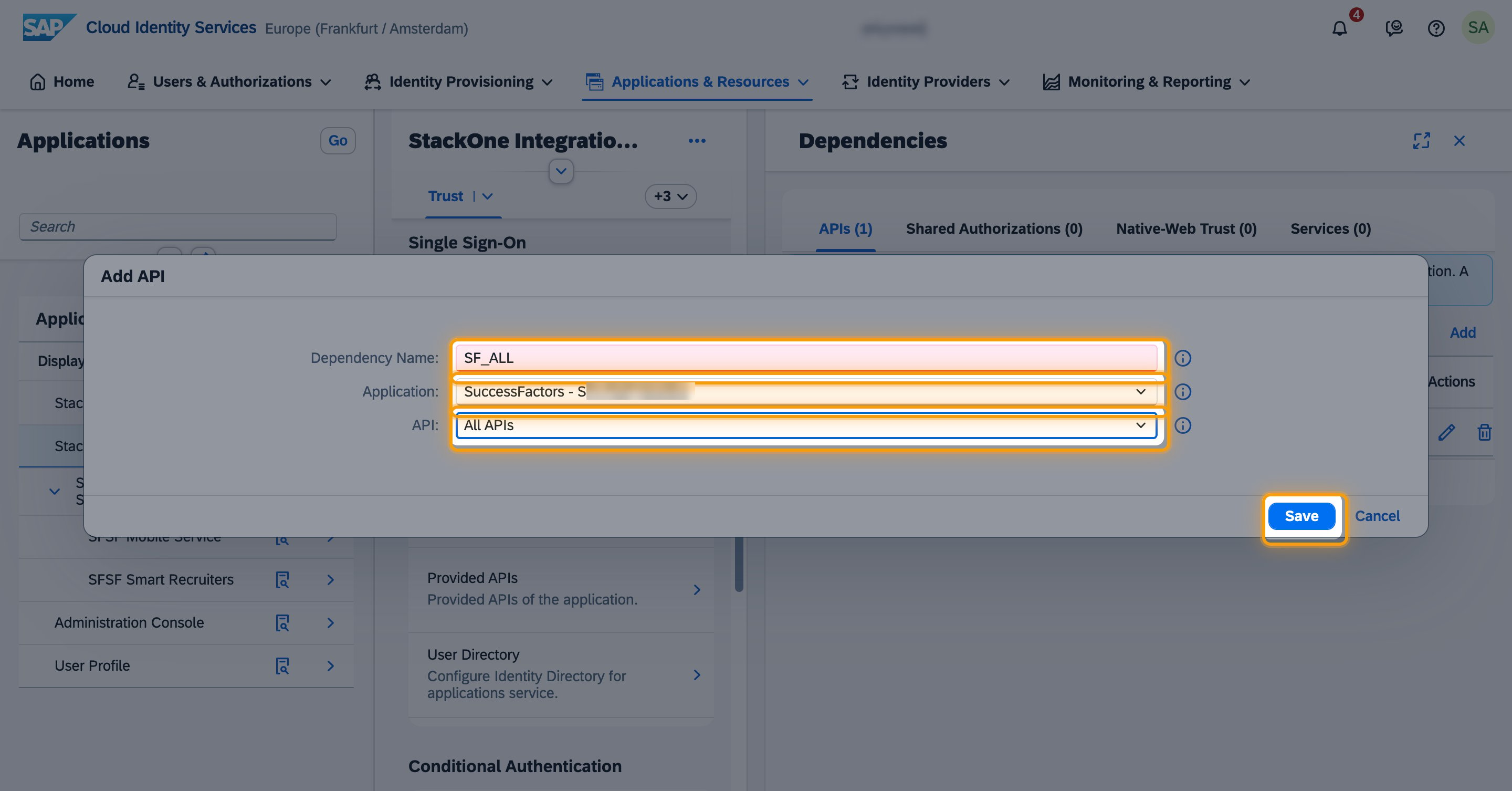
On the Trust tab, under Application APIs, choose Dependencies.
- Click Add.
- Dependency Name:
SF_ALL - Application: your SAP SuccessFactors application
- API: All APIs
- Click Save.
- Copy the Dependency Name into your Connector Profile.
Create the client secret
On the Trust tab, under Application APIs, choose Client Authentication.
- In the Secrets section, click Add.
- Description:
Integration with StackOne - Expire in: the period that suits your rotation policy
- API Access: OpenID
- Click Save.
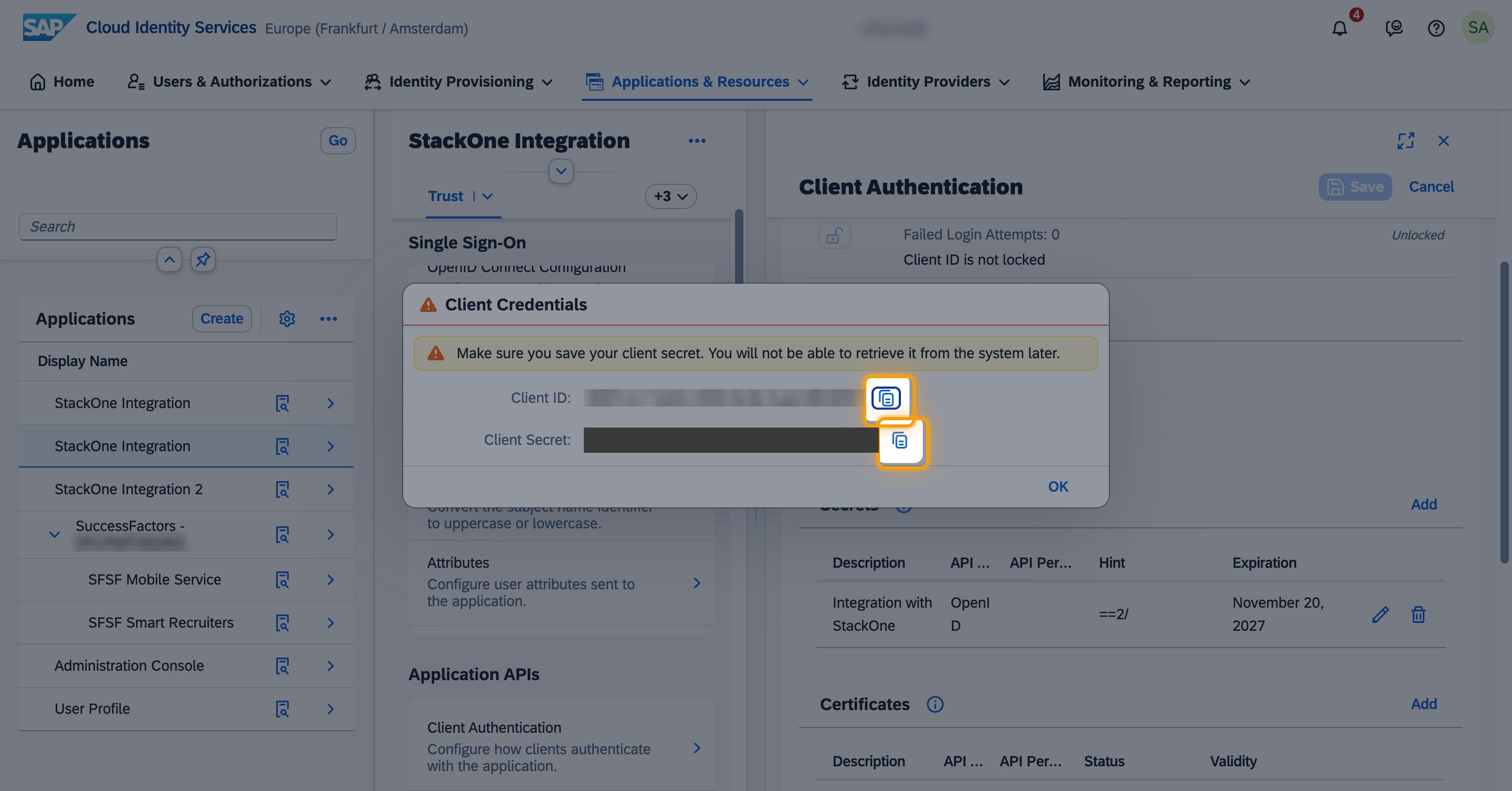
- Copy the Client ID into your Connector Profile.
- Copy the Client Secret into your Connector Profile. It is only displayed once and can’t be retrieved later.
Check principal propagation
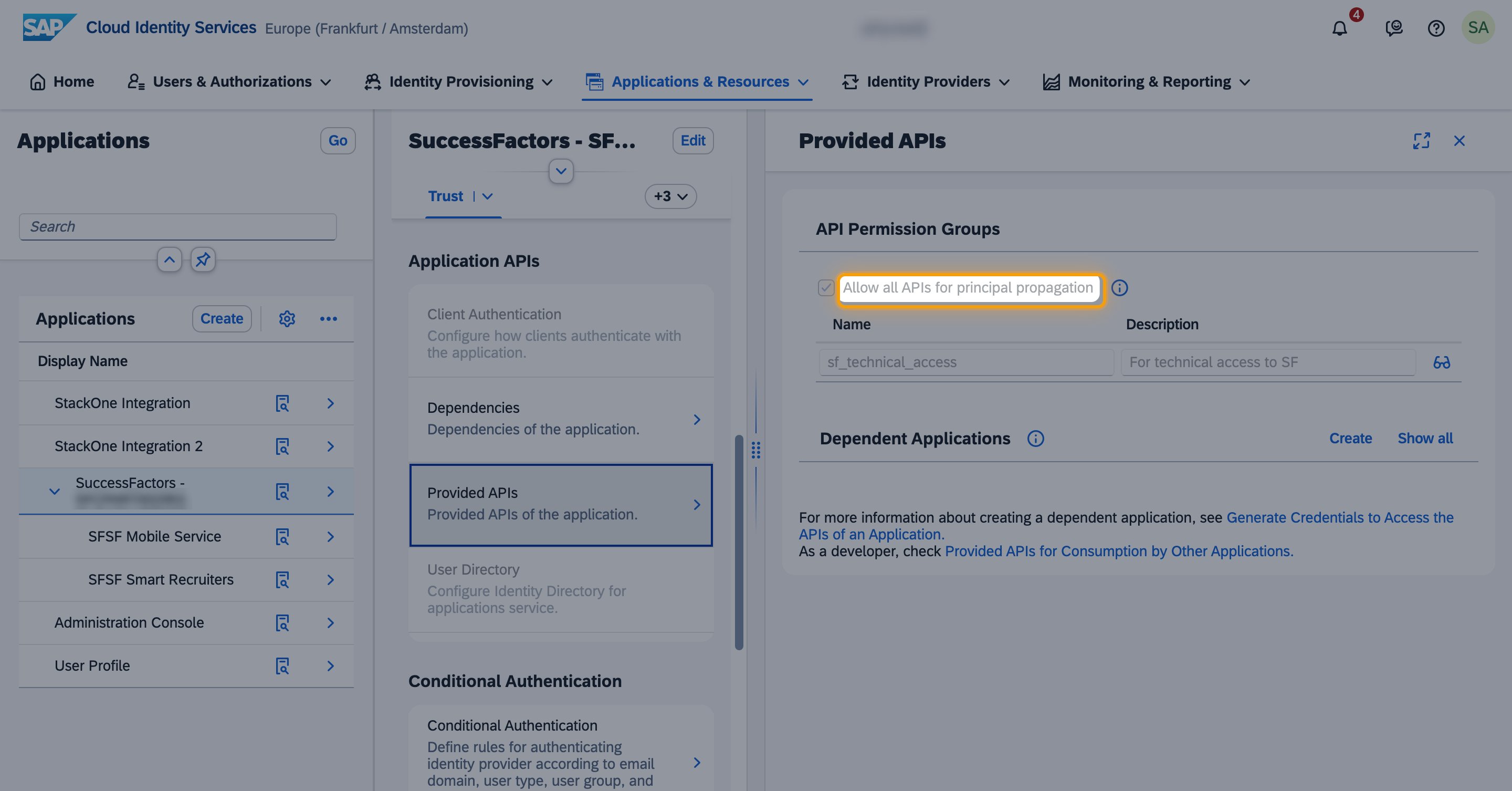
In Applications & Resources > Applications, select your SAP SuccessFactors application and choose Provided APIs.
- Check that Allow all APIs for principal propagation is selected. It is selected on the application that SAP creates for SAP SuccessFactors.
Find your API Server
Your API server is the SAP SuccessFactors API host for your data center.
- Open the List of SAP SuccessFactors API Servers and find your data center.
- Copy the API Server into your Connector Profile, without the trailing slash.
- For Learning and OCN actions, copy the Learning Domain URL into your Connector Profile. It is the address of your Learning module up to
/learning. - Format:
https://{subdomain}.successfactors.com - Example: if your Learning address is
https://salesdemo8.successfactors.com/learning/admin, your Learning Domain URL ishttps://salesdemo8.successfactors.com
Create the StackOne Connector Profile
Create a Connector Profile
Link an Account