

Prerequisites
The connector should already be set up, with a Connector Profile and a Linked Account. See Getting Started on the Salesforce Service Cloud connector page.Outbound message and flow per event
Salesforce sends events through outbound messages, and a record-triggered flow decides when each one is sent. Create one outbound message and one flow for every event you want, using the object and trigger listed for it. Email message events use a flow with an HTTP callout instead.
Copy the Native Webhook URL
The Native Webhook URL is generated once an account has been linked. Salesforce sends every outbound message to this URL.
- Open the linked account in StackOne.
- Copy the value from Native Webhook URL.
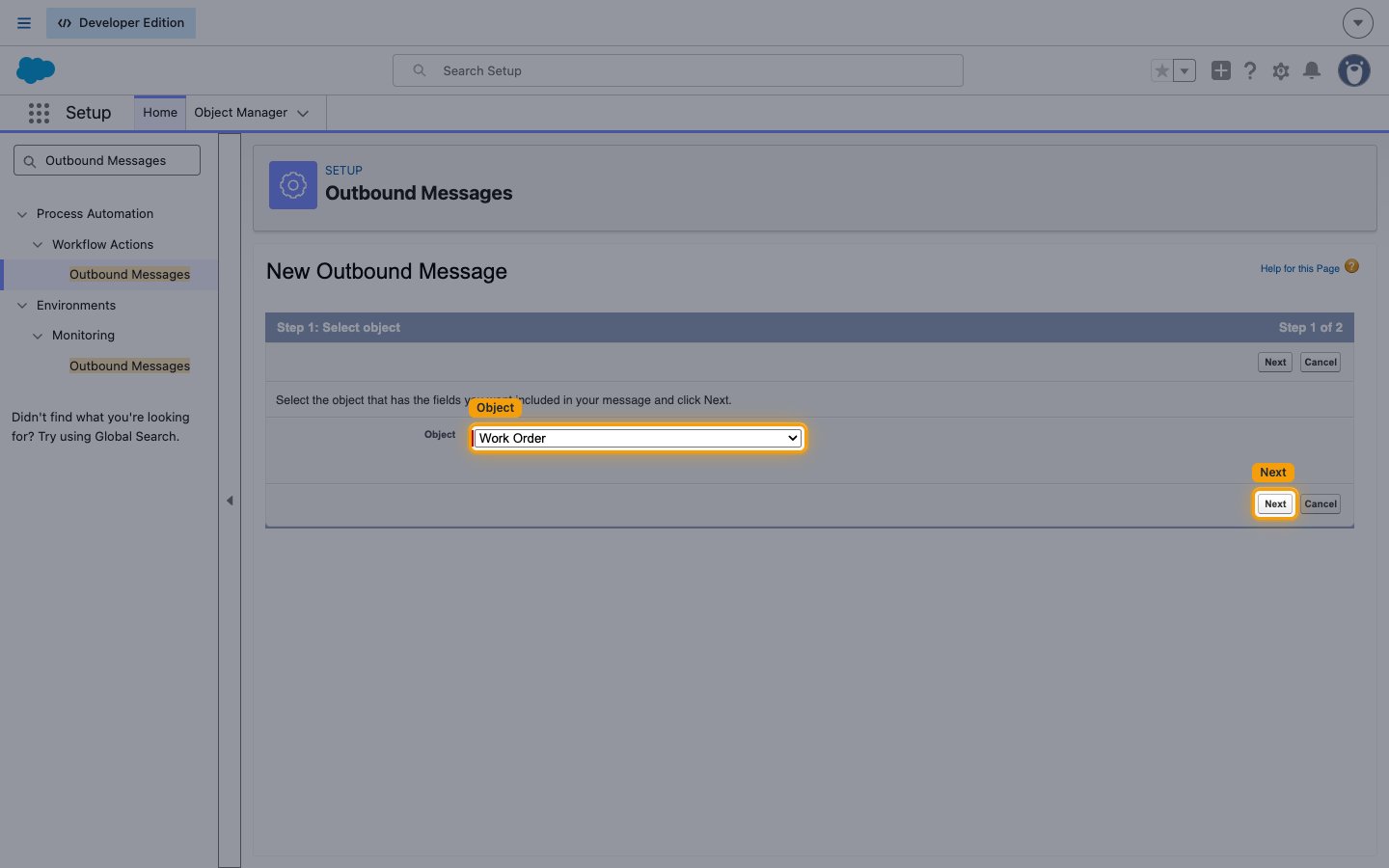
Select the object
Sign in to Salesforce, or to your sandbox for a sandbox org, and open Setup. In the Quick Find box, enter Outbound Messages and select Outbound Messages under Workflow Actions.
- If the Understanding Workflow page opens, click Continue.
- Click New Outbound Message.
- Object: the object for the event:
- Case:
case.created,case.updated - Case Comment:
casecomment.created,casecomment.updated - Contact:
contact.created,contact.updated - Entitlement:
entitlement.created,entitlement.updated - Service Contract:
servicecontract.created,servicecontract.updated - Task:
task.created,task.updated - User:
user.created,user.updated - Work Order:
workorder.created,workorder.updated - Knowledge article and social post objects appear only when Knowledge or Social Customer Service is enabled in the org.
- Click Next.
Fill in the message details
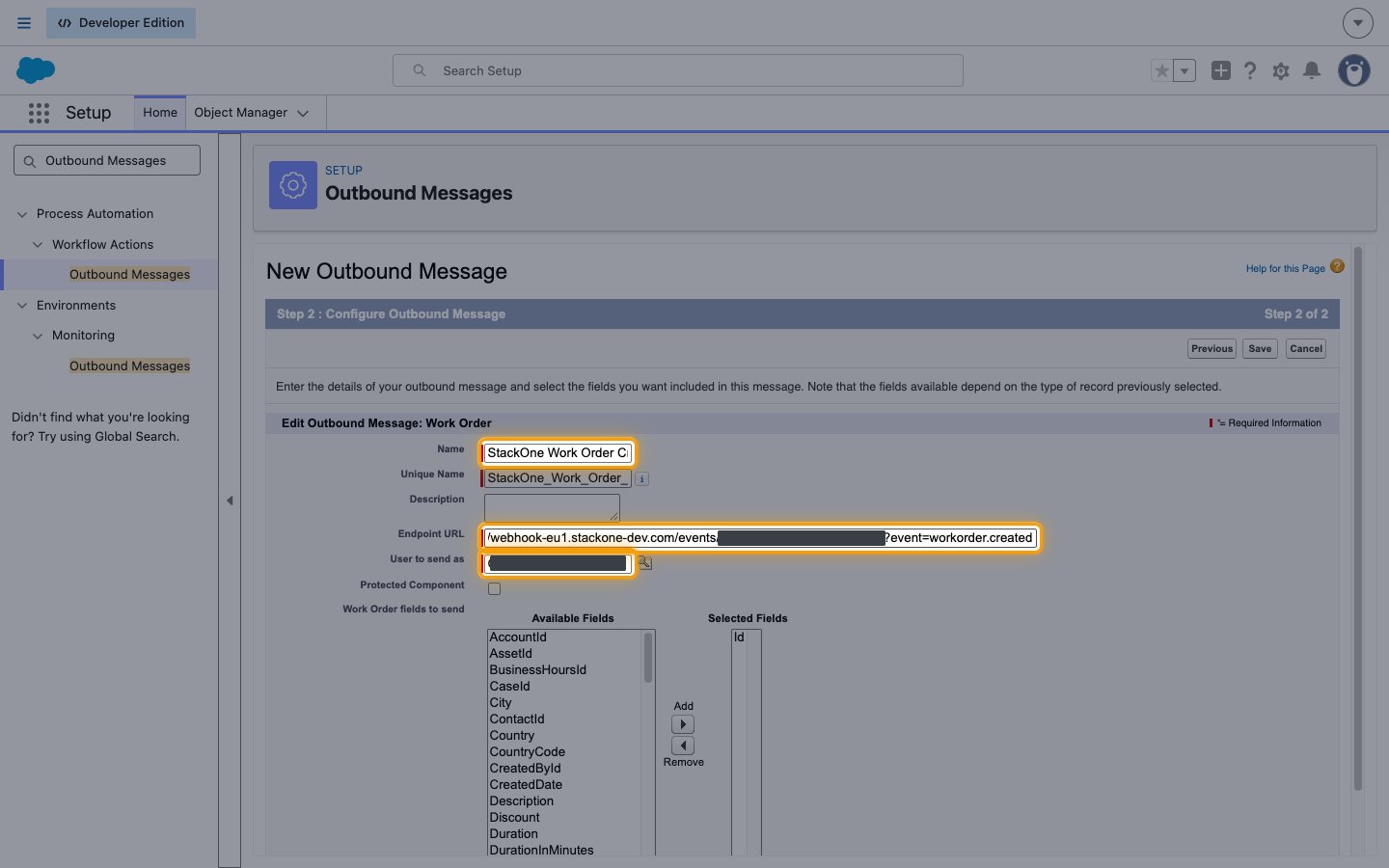
Each outbound message sends one event, named by the event value in its endpoint URL.
- Name: a name for the event, such as
StackOne Work Order Created - Endpoint URL: the Native Webhook URL followed by
?event=and the event code. If the URL already contains?, add&event=instead of?event=. - Format:
<Native Webhook URL>?event=<event code>, or<Native Webhook URL>&event=<event code> - Example: for
casecomment.created, the endpoint URL ends inevent=casecomment.created - User to send as: a user with read access to the object and the fields you send
Choose the fields to send
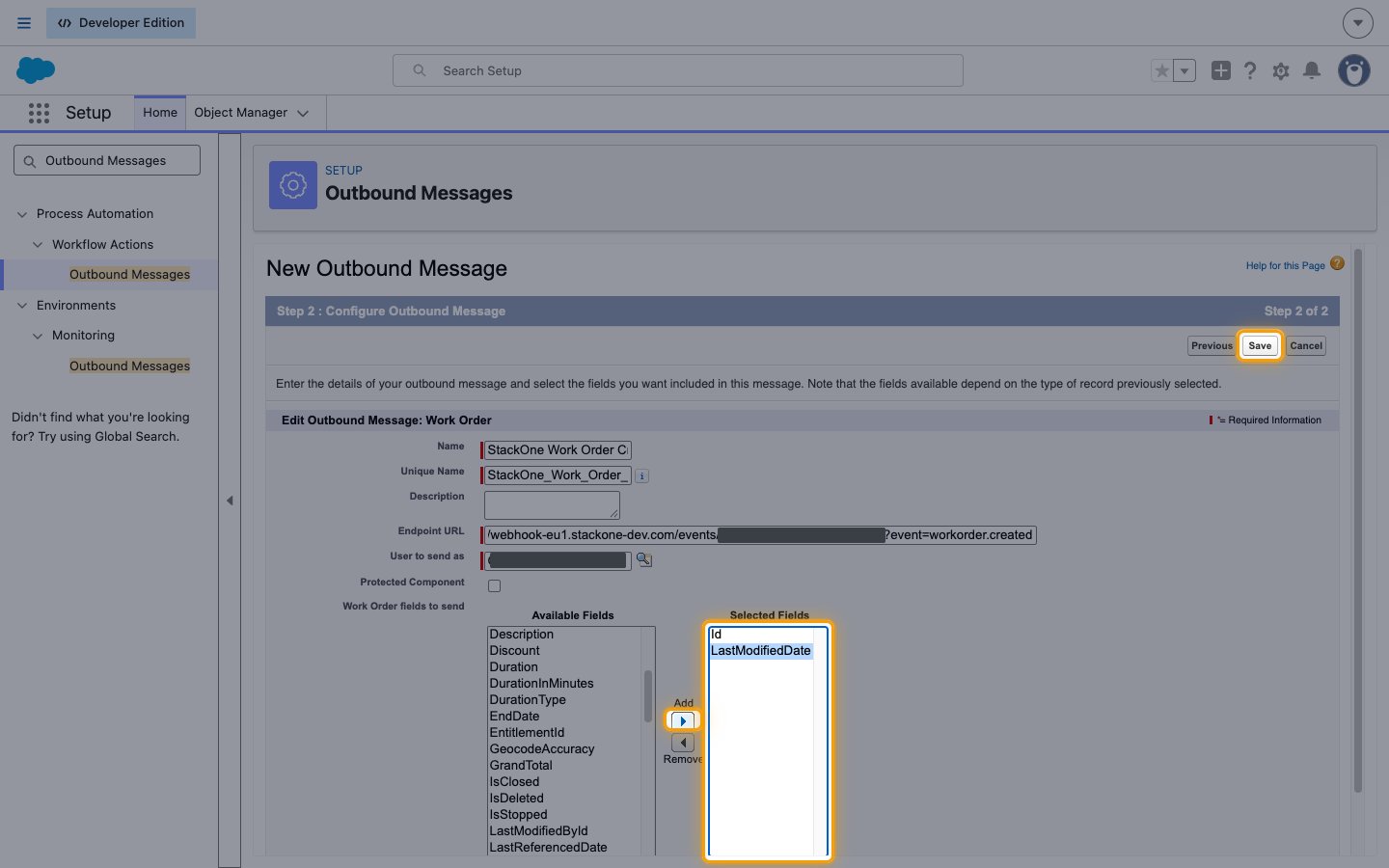
Id is already in Selected Fields, and it is the only field StackOne needs. Any other field you add is included in the event payload.
- In Available Fields, select each extra field you want, such as LastModifiedDate.
- Click Add.
- Click Save.
Send each message from a flow
Outbound message actions are only available in record-triggered flows that run after the record is saved. Create one flow for each outbound message.
Create a record-triggered flow
In the Quick Find box, enter Flows and select Flows.
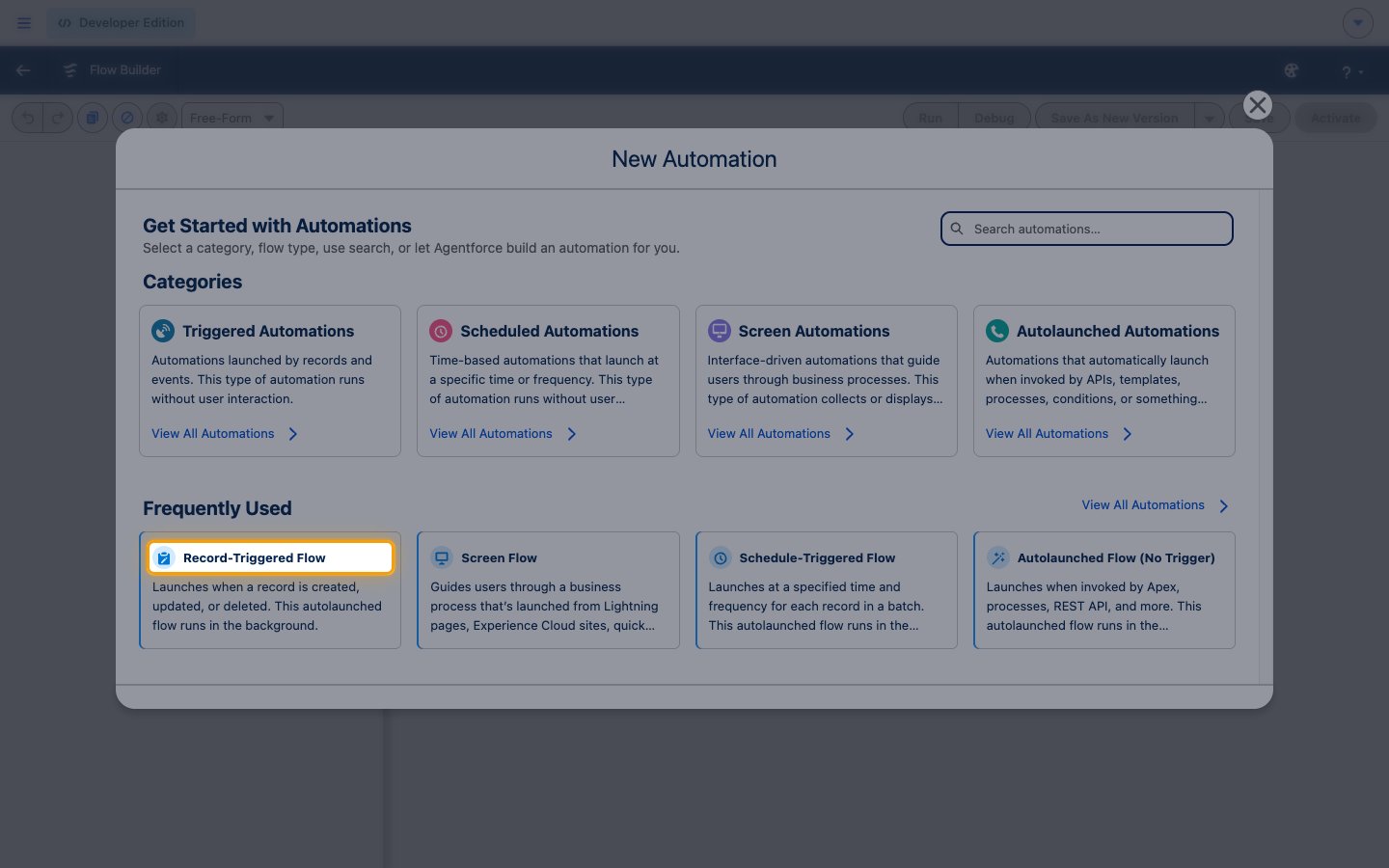
- Click New Flow.
- In New Automation, select Record-Triggered Flow.
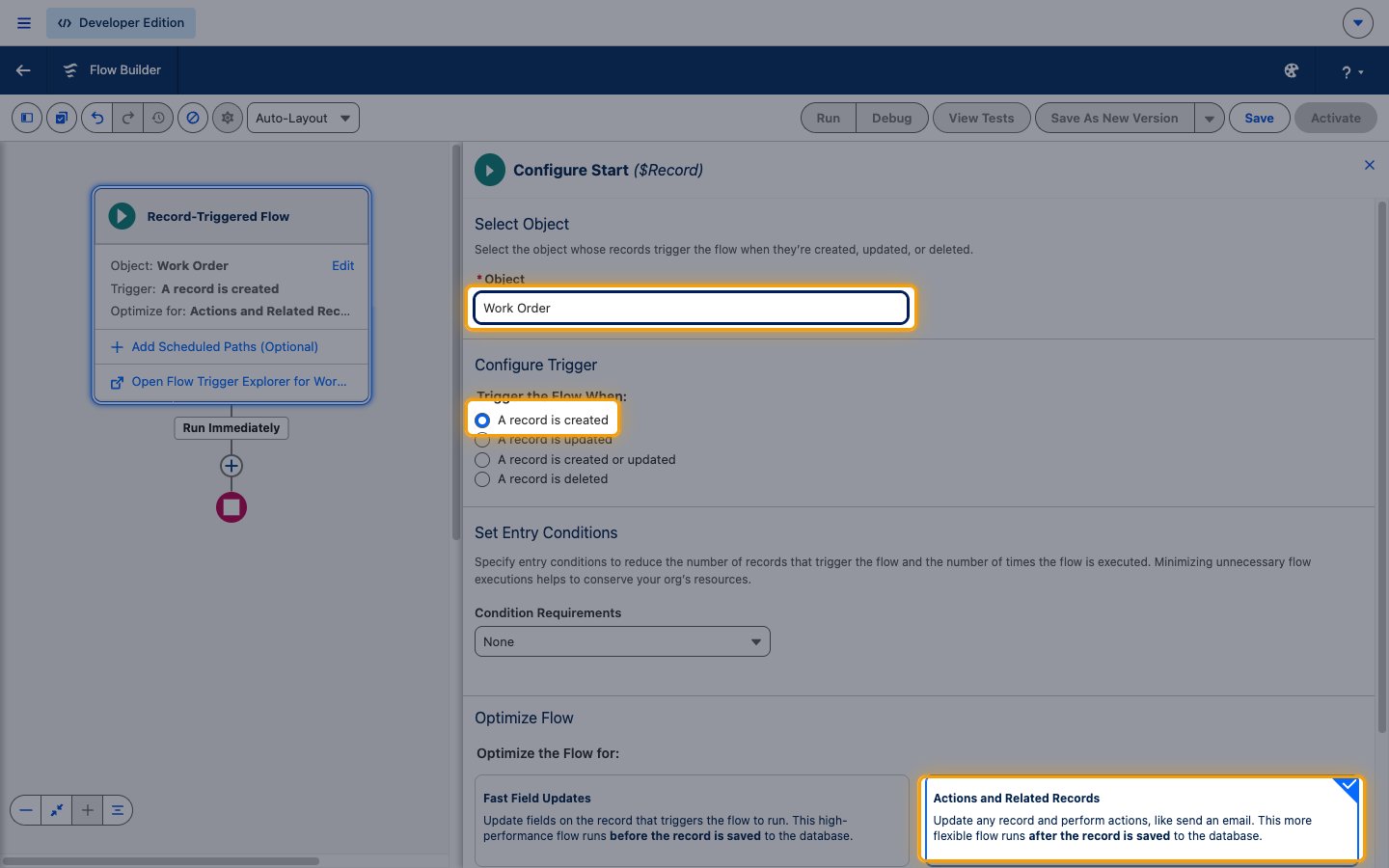
Configure the start
Set the flow to run for the same object and change as the outbound message.
- Object: the outbound message’s object, such as Work Order
- Trigger the Flow When: A record is created for a
.createdevent, or A record is updated for an.updatedevent - Optimize the Flow for: Actions and Related Records
Add the outbound message action
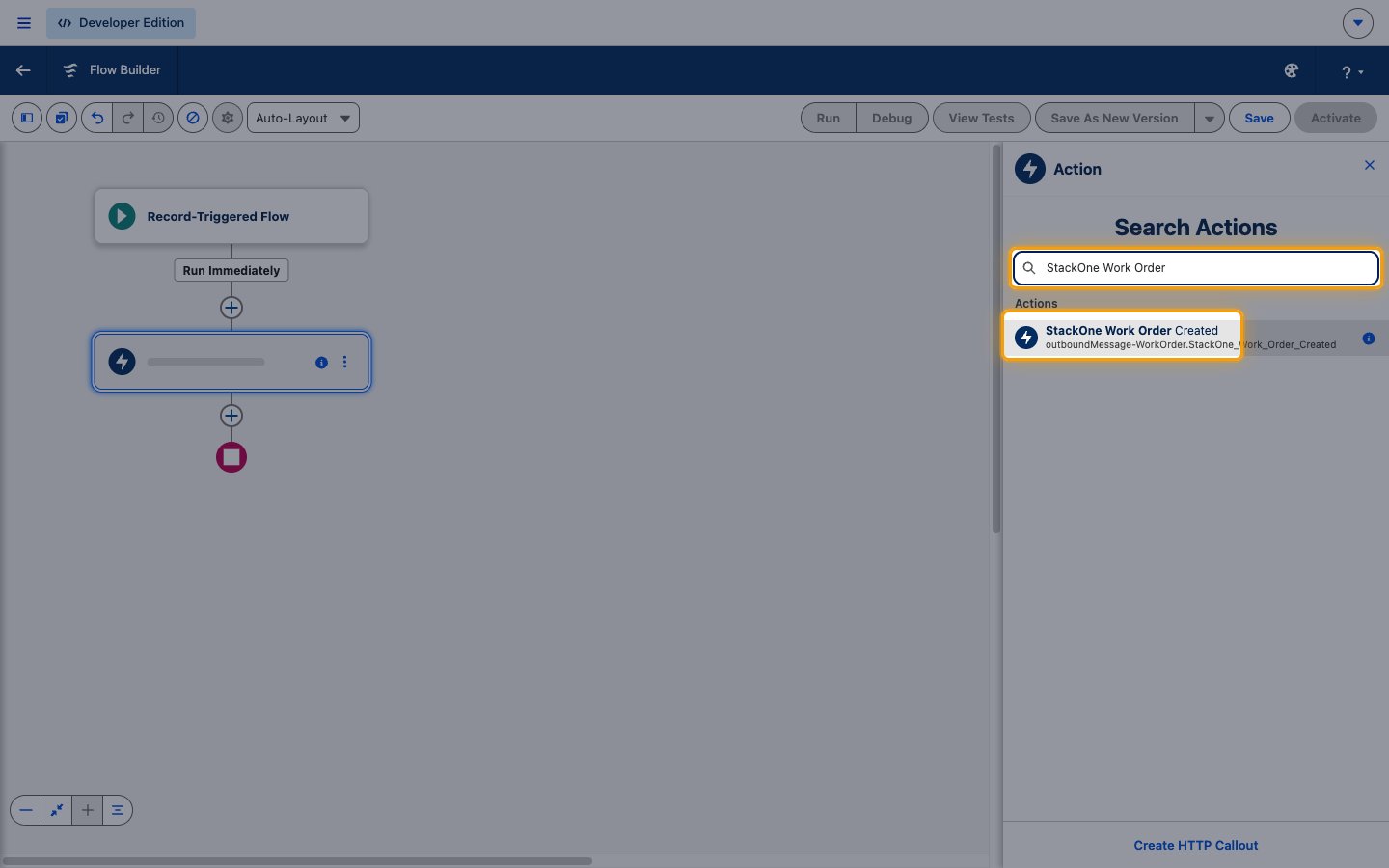
Add the action on the canvas, below Run Immediately.
- Click the add button.
- Select Action.
- In Search Actions, enter the outbound message name and select it.
- Label: a name for the element, such as
Send to StackOne
Save and activate the flow
The action has no inputs. Salesforce passes the triggering record to the outbound message.
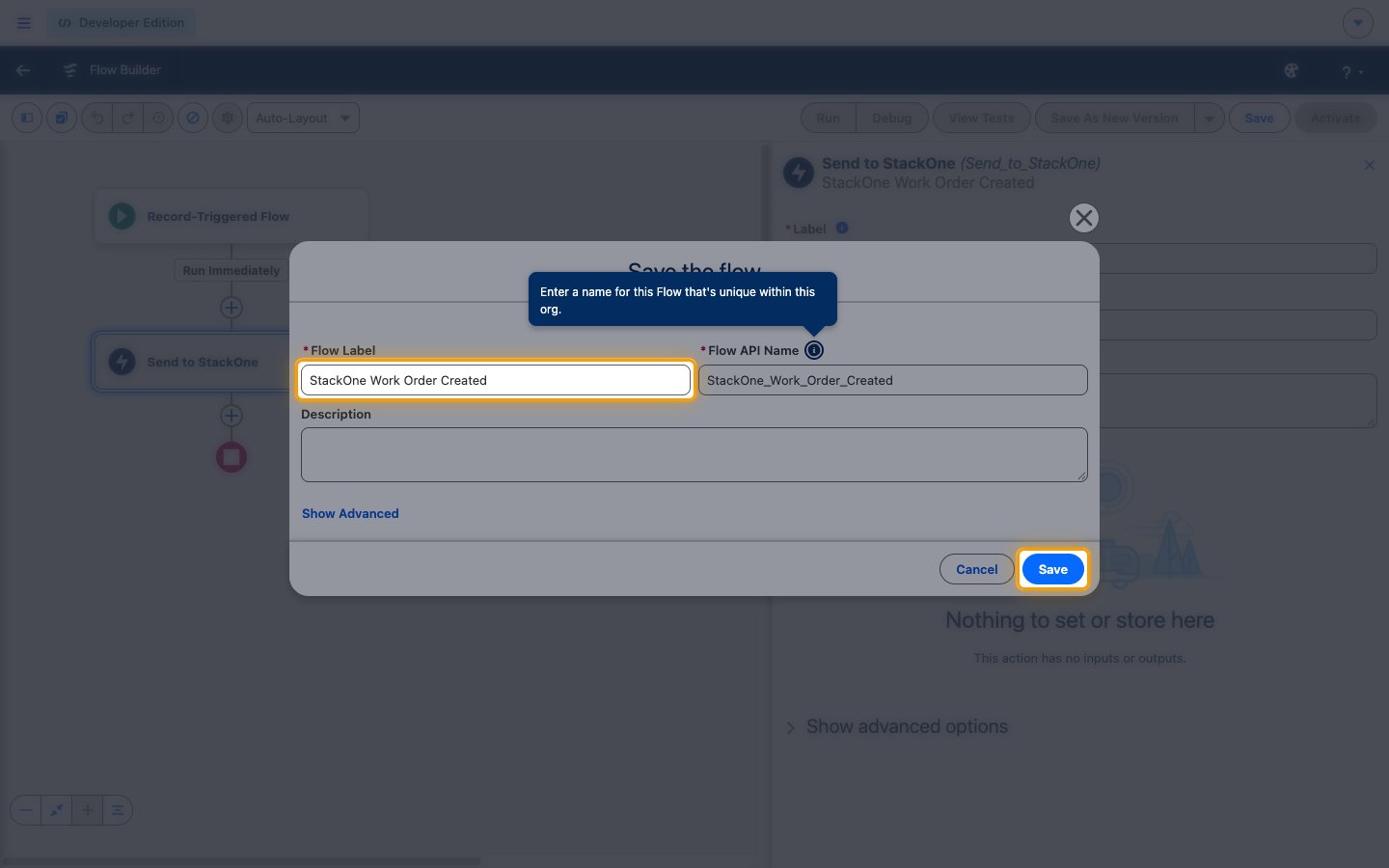
- Click Save.
- Flow Label: the same name as the outbound message
- Click Save.
- Click Activate.
Email message events
Outbound messages can’t be created on Email Message, so emailmessage.created and emailmessage.updated are sent by a flow with an HTTP callout. Set up the credential and permission set once, then create one flow per event.
Create the external credential
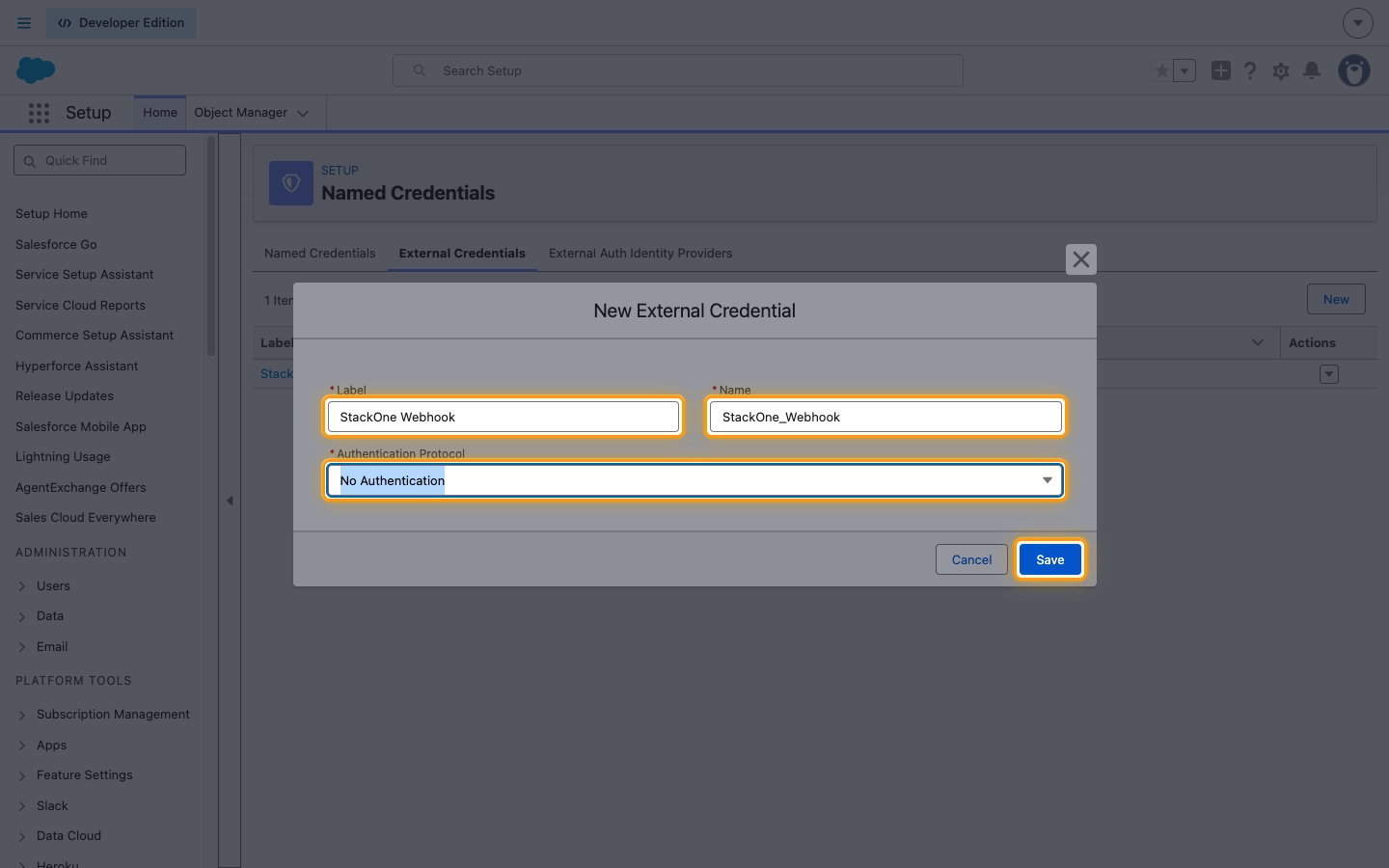
In Setup, enter Named Credentials in the Quick Find box and select Named Credentials. Open the External Credentials tab and click New.
- Label:
StackOne Webhook - Name:
StackOne_Webhook - Authentication Protocol: No Authentication
- Click Save.
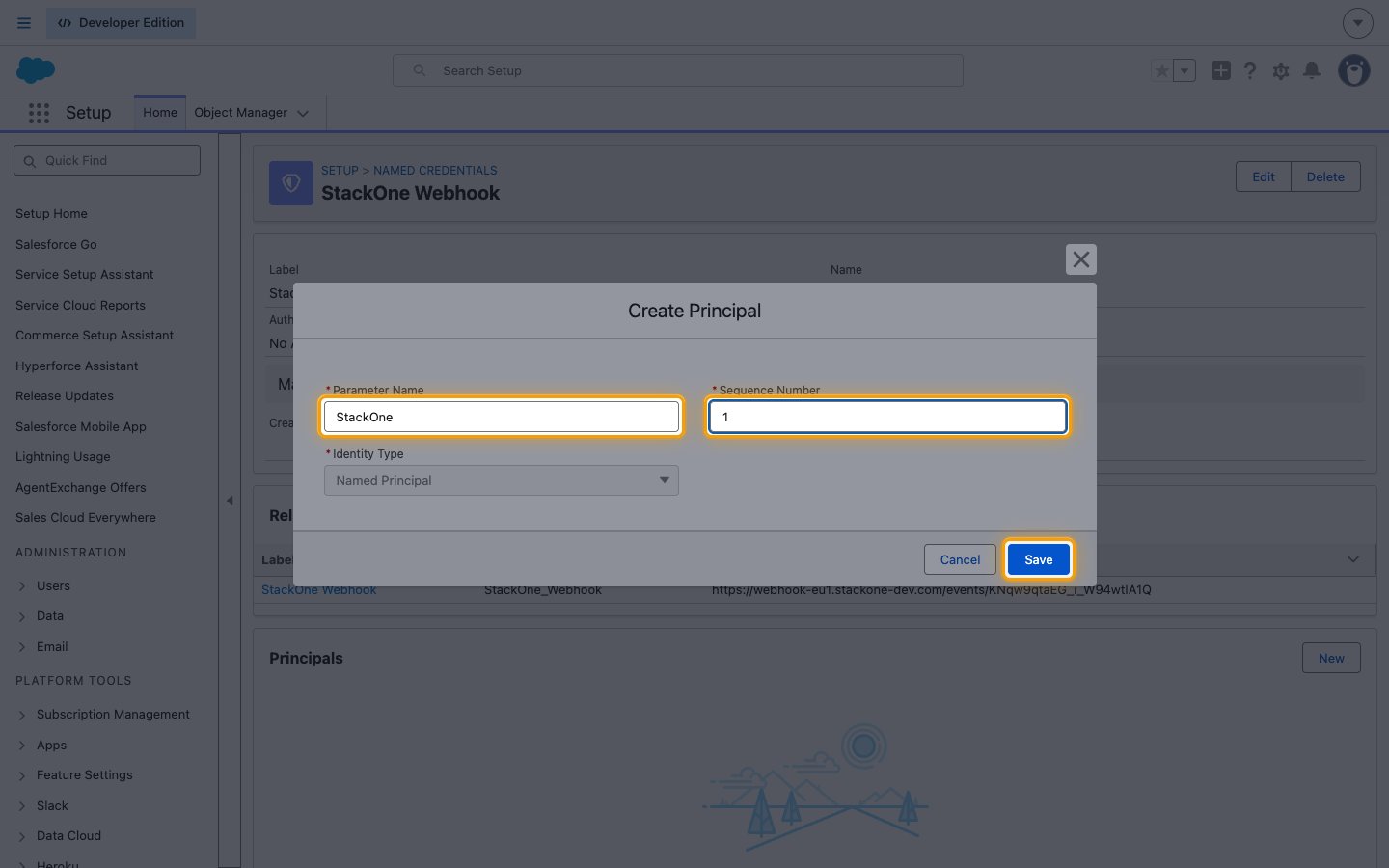
Add a principal
On the StackOne Webhook external credential, click New in the Principals section.
- Parameter Name:
StackOne - Sequence Number:
1 - Click Save.
Create the named credential
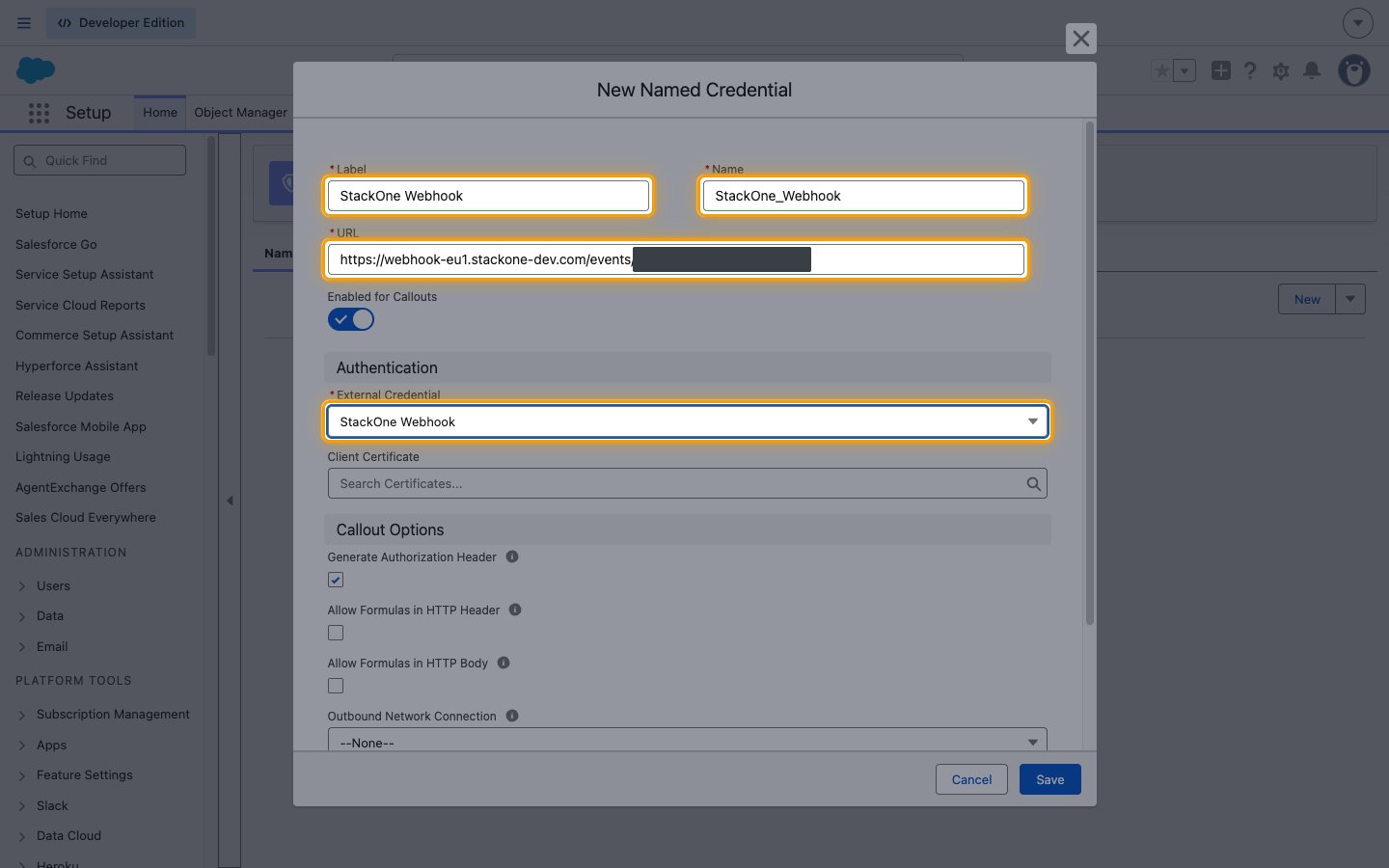
Open the Named Credentials tab and click New.
- Label:
StackOne Webhook - Name:
StackOne_Webhook - URL: the Native Webhook URL, exactly as copied from StackOne
- External Credential: StackOne Webhook
- Click Save.
Grant access to the credential
The permission set lets users run the callout. In the Quick Find box, enter Permission Sets and select Permission Sets.
- Click New.
- Label:
StackOne Webhook Callouts - Click Save.
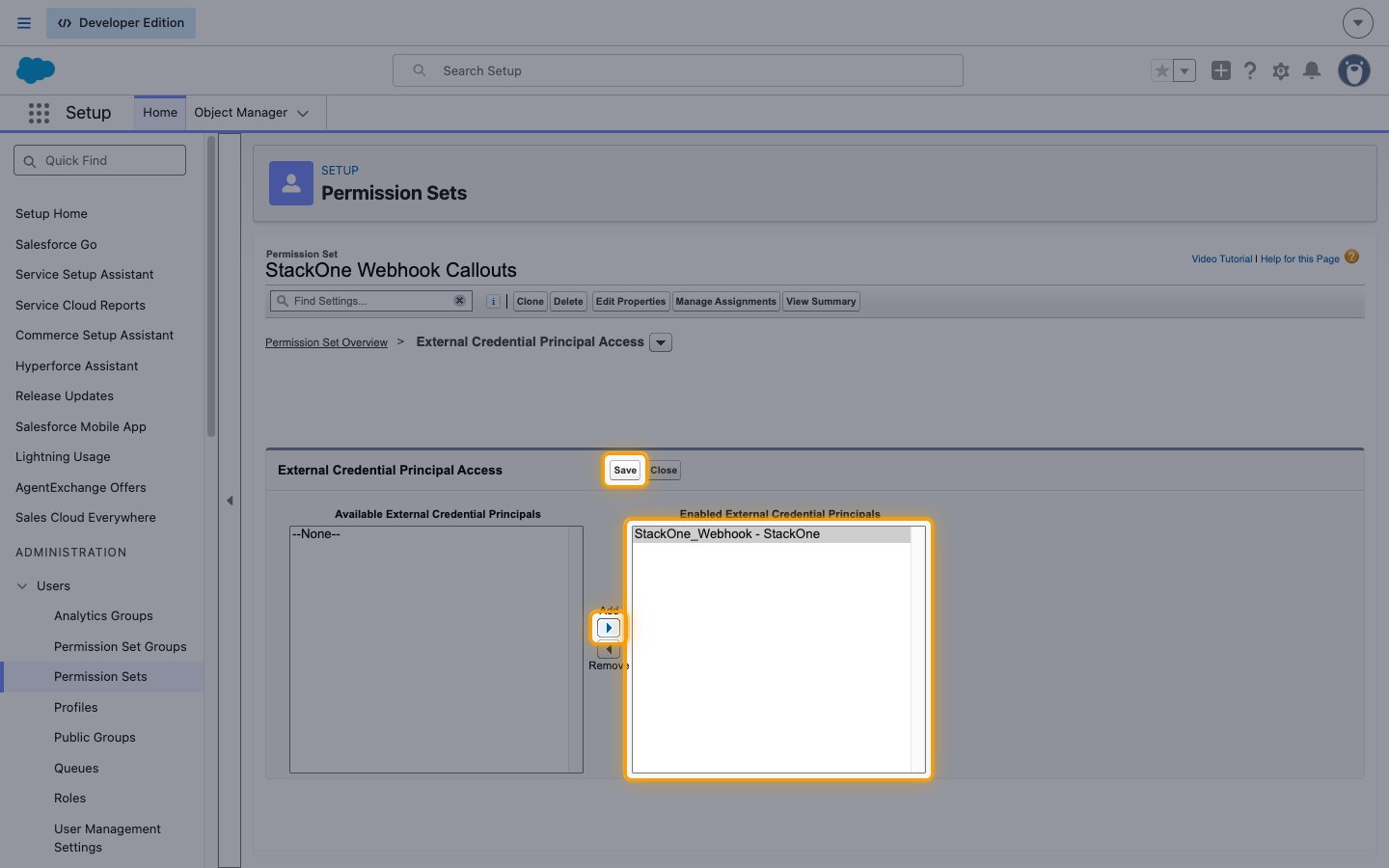
- Click External Credential Principal Access.
- Click Edit.
- Select StackOne_Webhook - StackOne and click Add.
- Click Save.
Assign the permission set
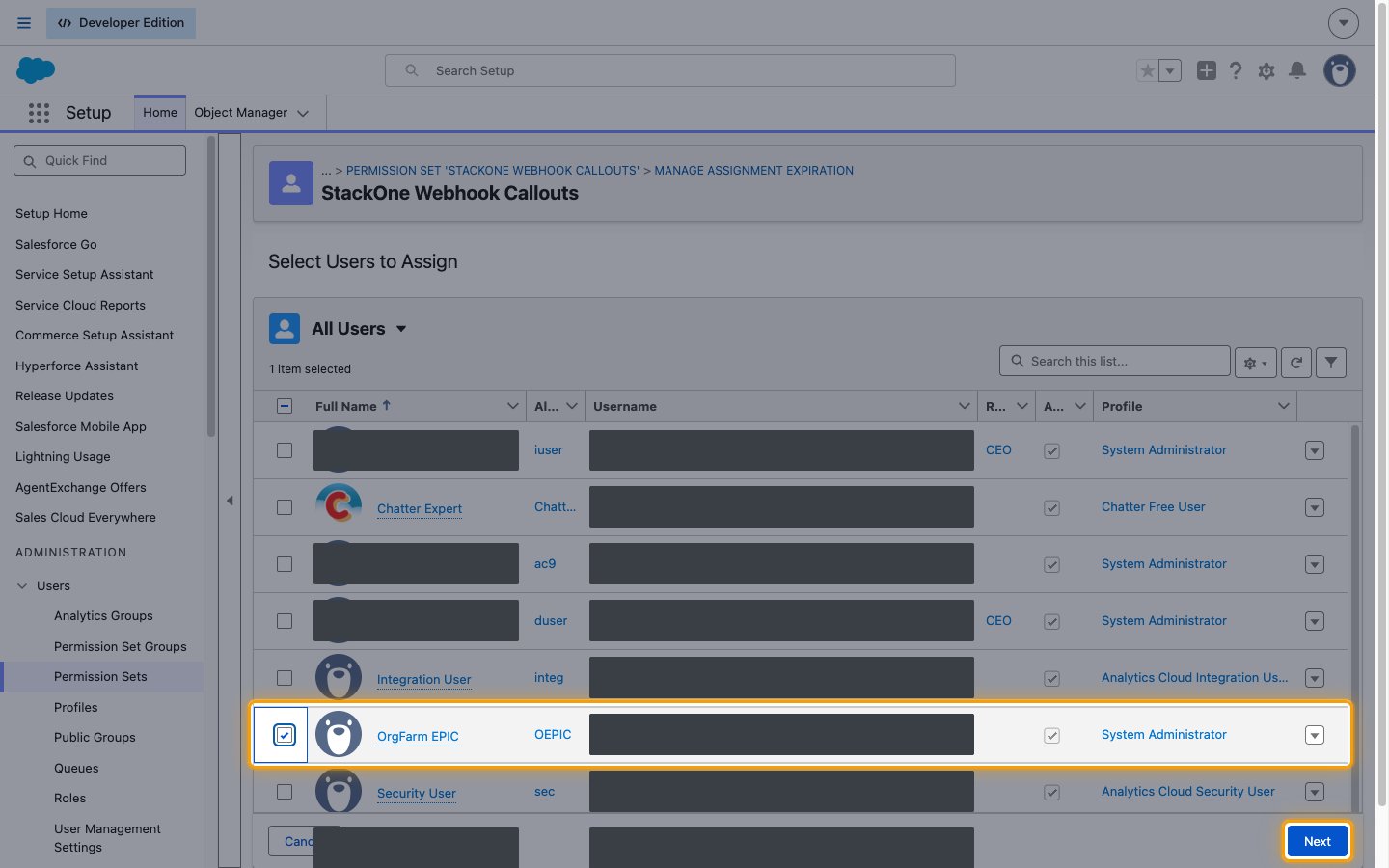
Assign the permission set to every user who creates or updates email messages, such as support agents and integration users.
- Click Manage Assignments.
- Click Add Assignment.
- Select the users.
- Click Next.
- Click Assign.
Start the email message flow
In the Quick Find box, enter Flows and select Flows.
- Click New Flow.
- Select Record-Triggered Flow.
- Object: Email Message
- Trigger the Flow When: A record is created
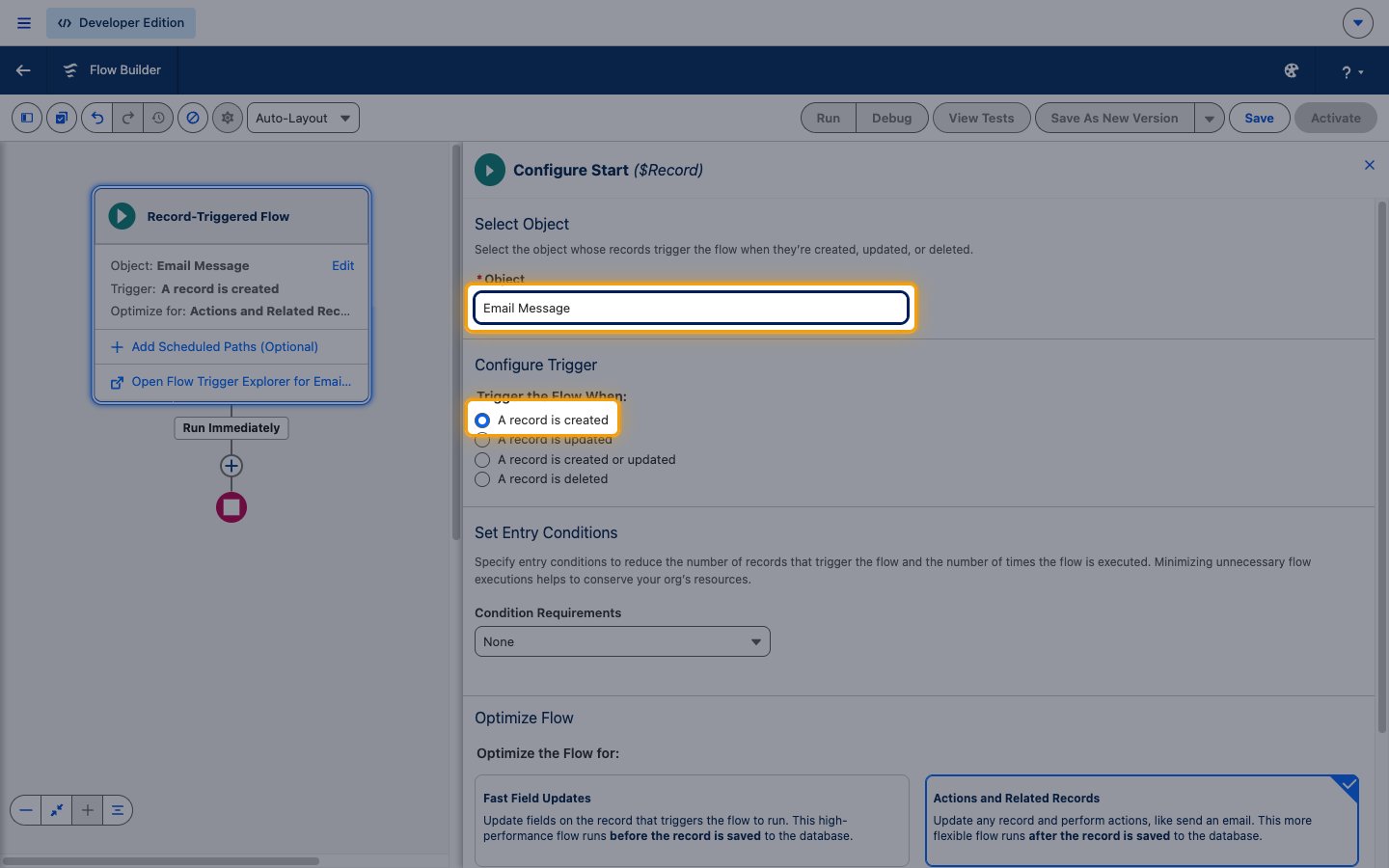
Add the asynchronous path
An HTTP callout can only run on an asynchronous path.
- Optimize the Flow for: Actions and Related Records
- Turn on Add Asynchronous Path.
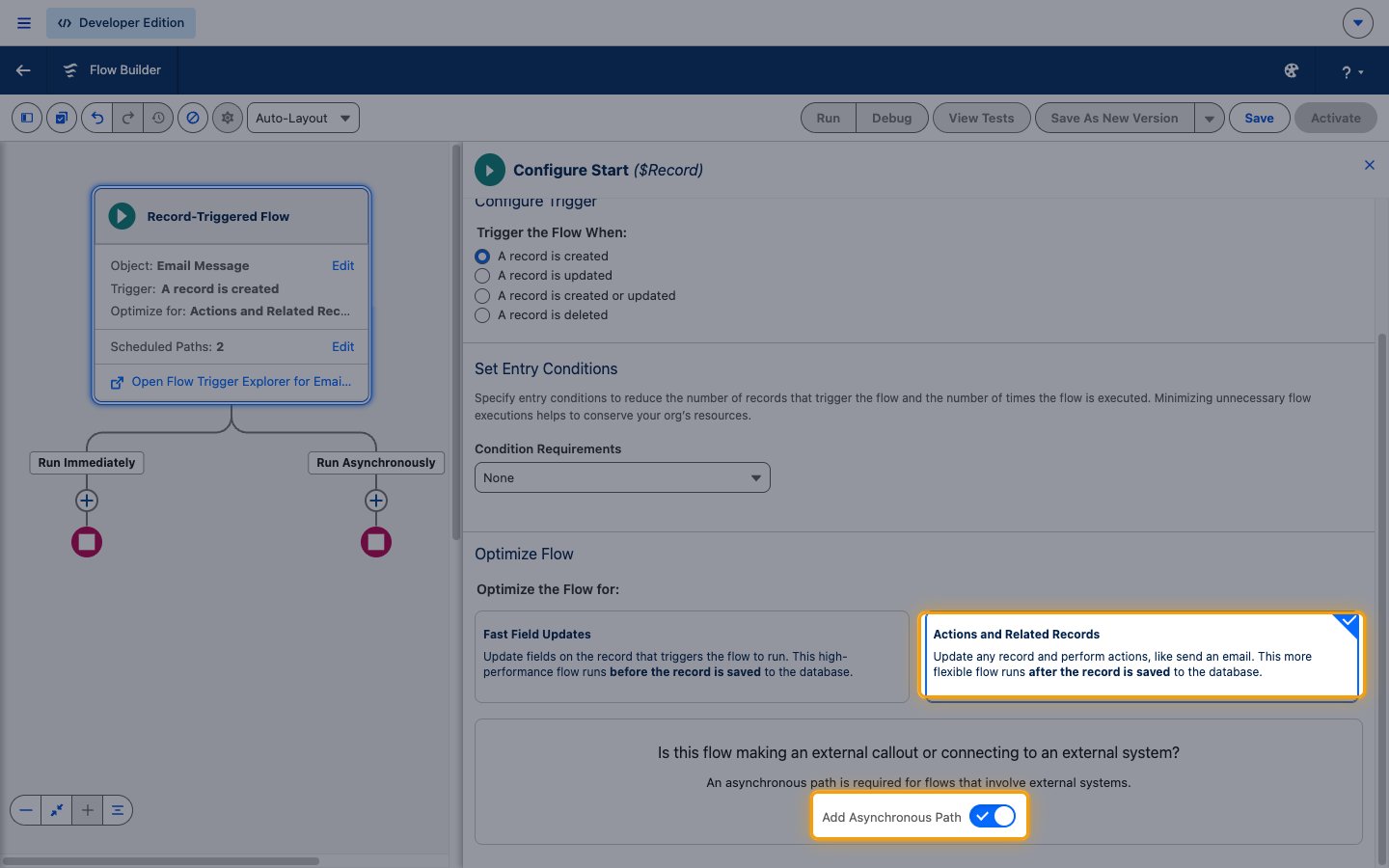
Create the HTTP callout
Add the callout on the Run Asynchronously path.
- Click the add button below Run Asynchronously.
- Select Action.
- Click Create HTTP Callout.
- Name:
StackOneWebhook - Named Credential: StackOne Webhook
- Click Next.
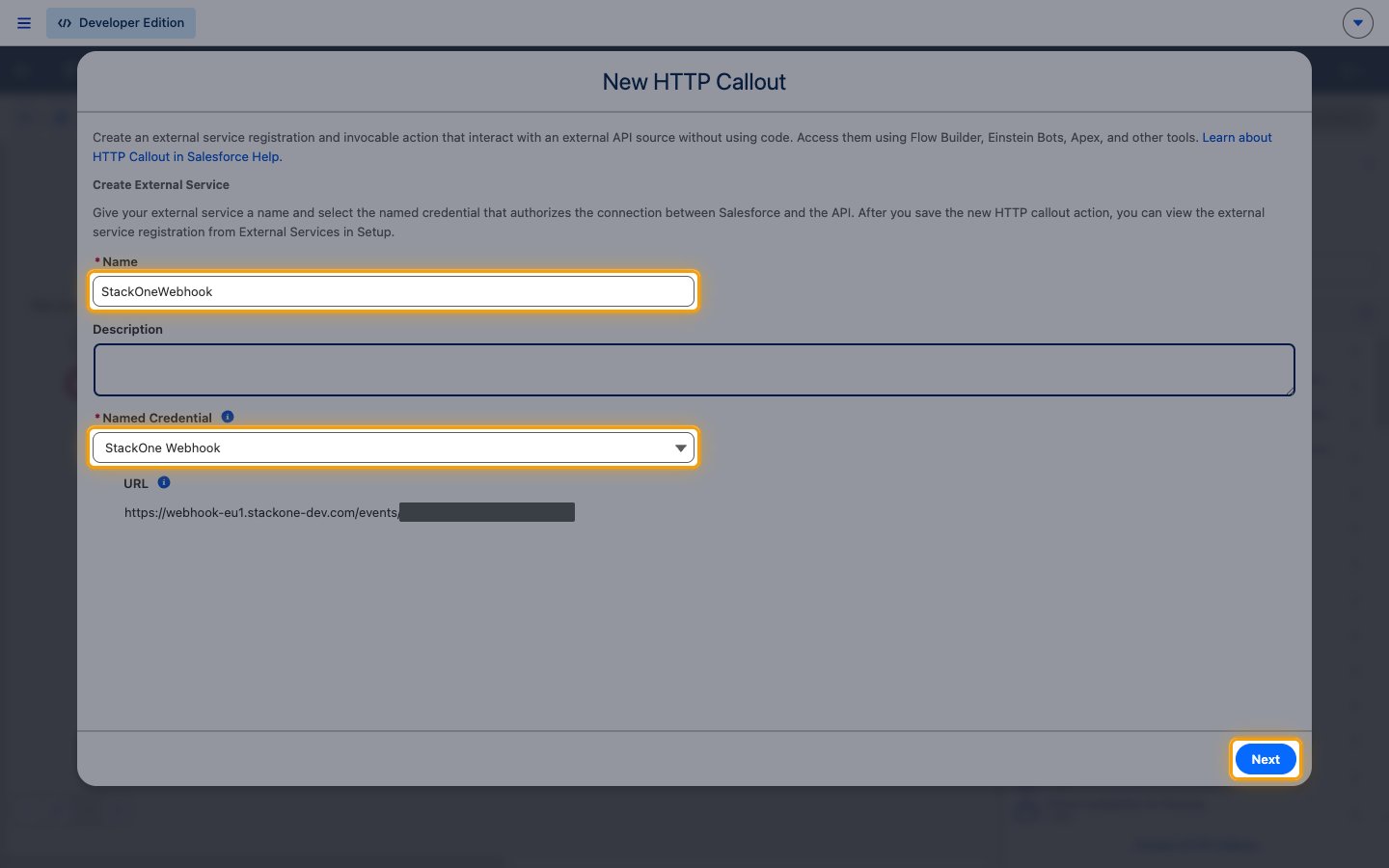
Set the callout method
Leave URL Path empty.
- Label:
Send to StackOne - Method: POST
- Click Next.
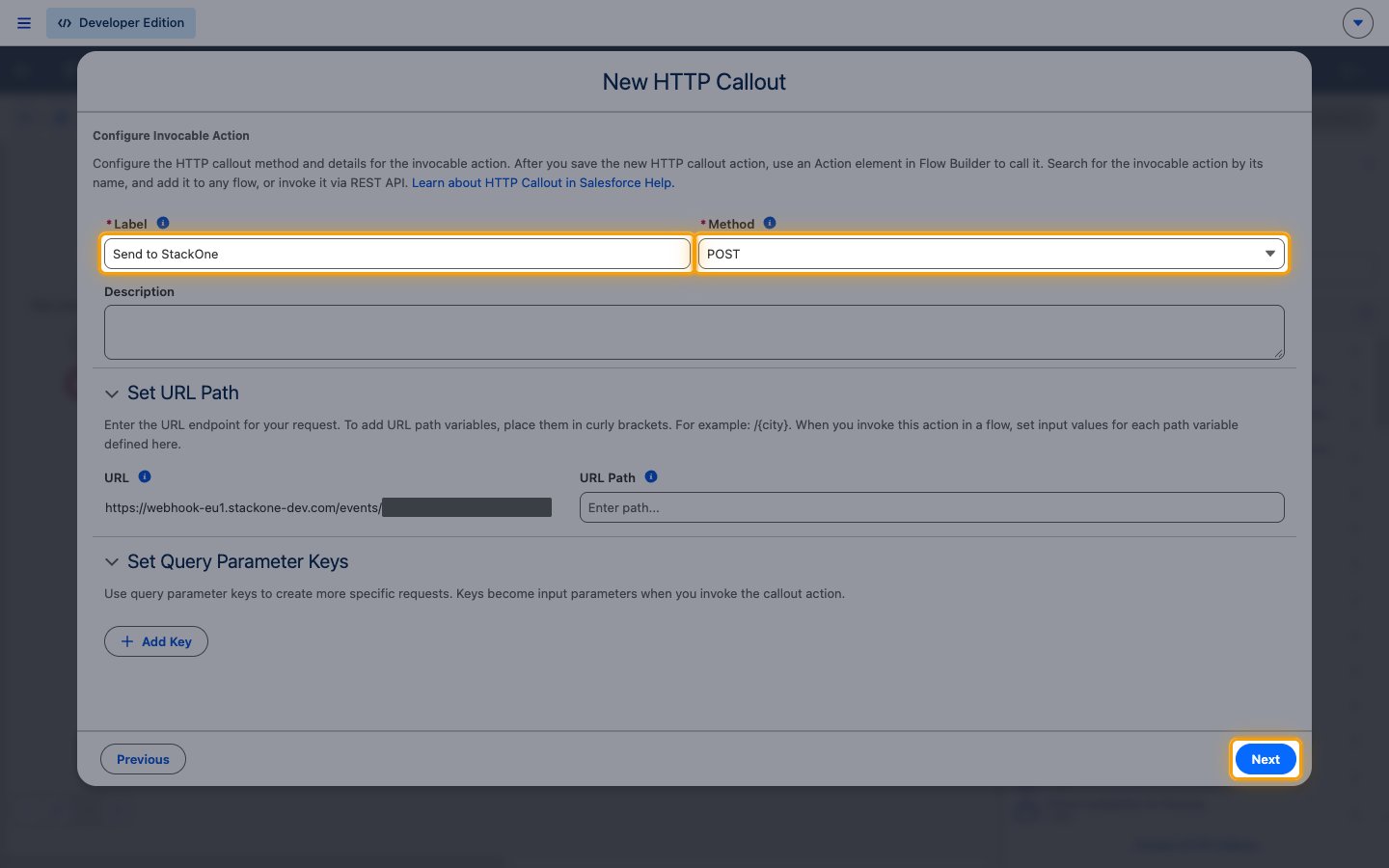
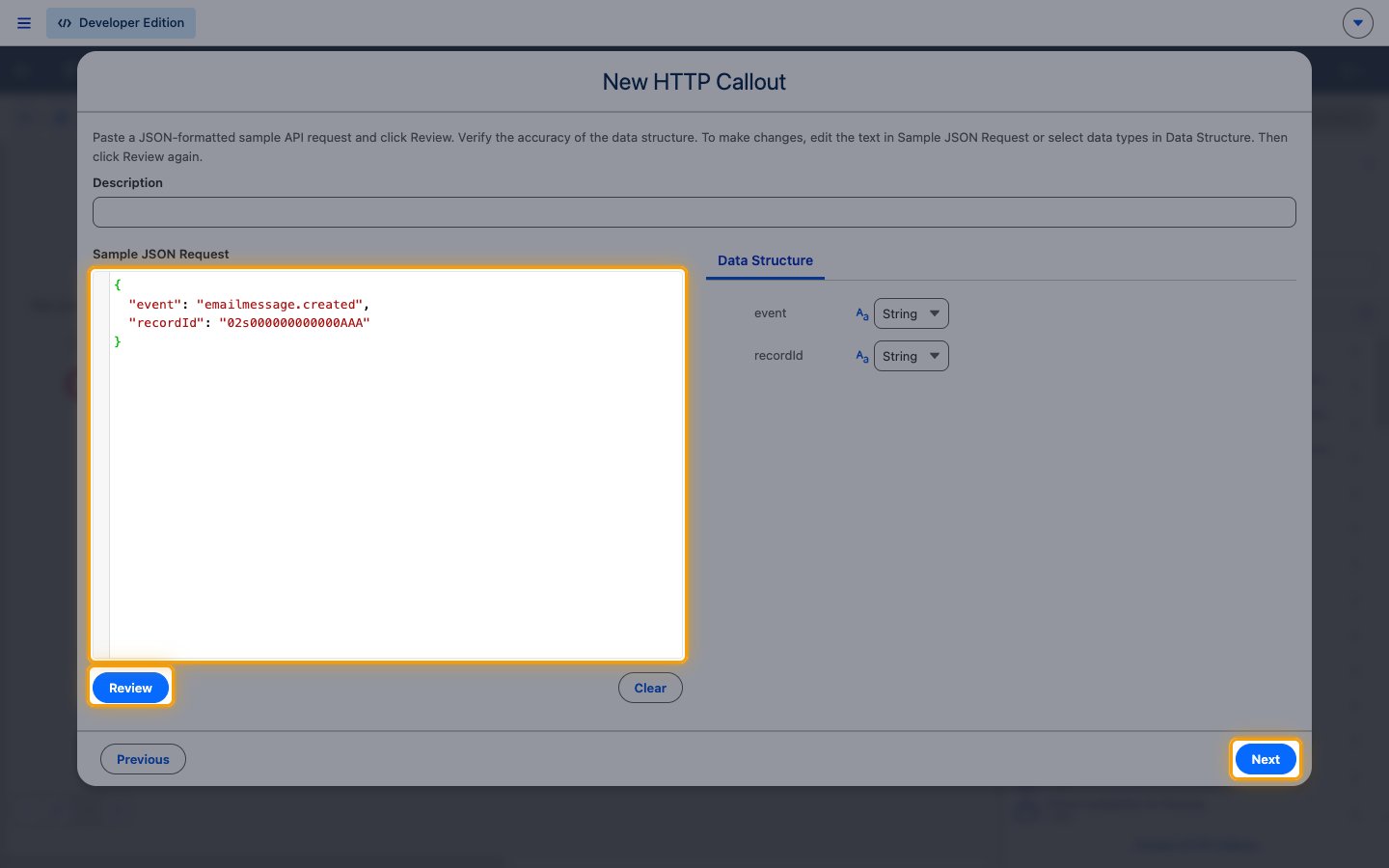
Paste the sample request
Paste this into Sample JSON Request.
- Click Review.
- Click Next.
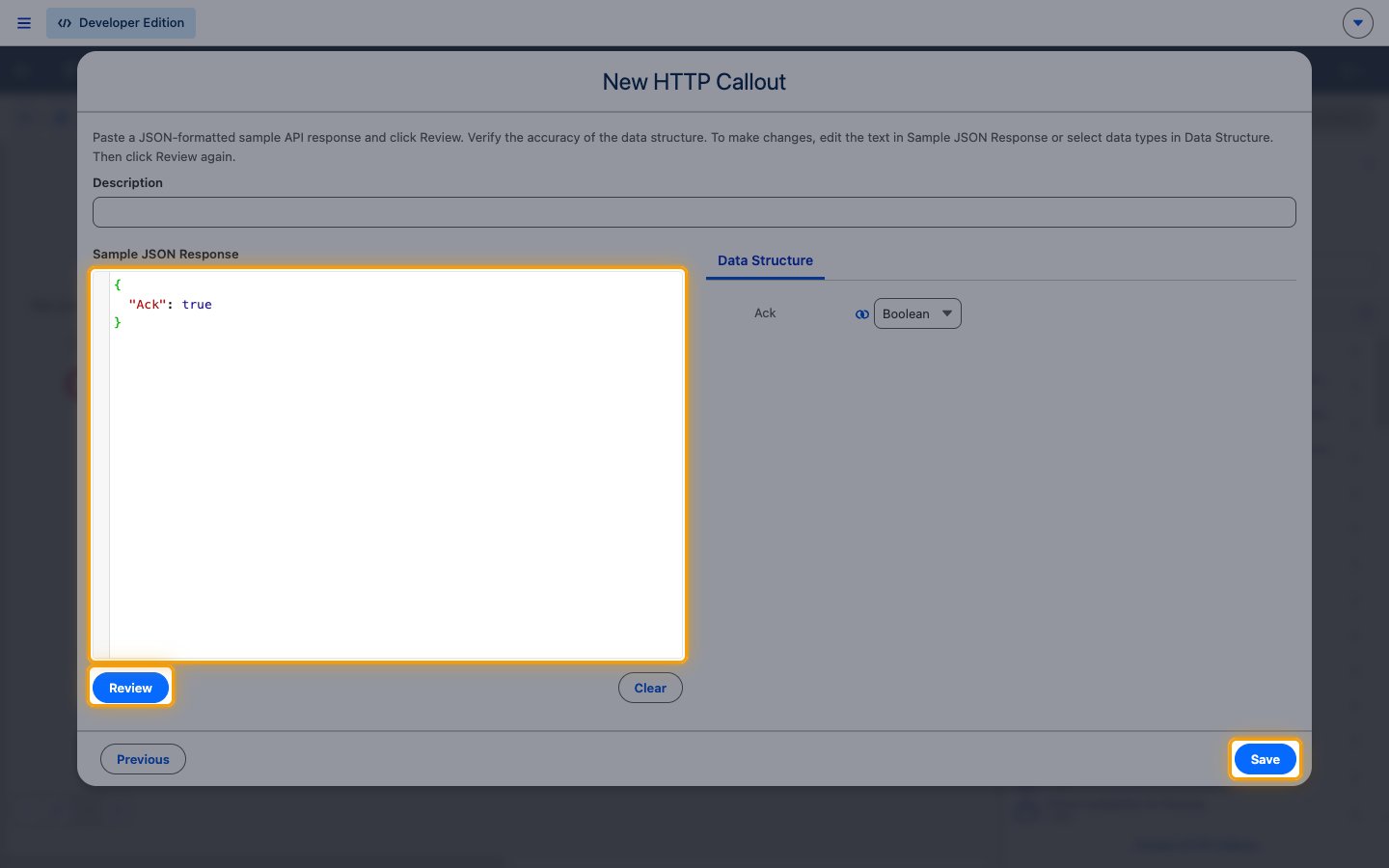
Add the example response
Select Use Example Response, click Next, and paste this into Sample JSON Response.
- Click Review.
- Click Save.
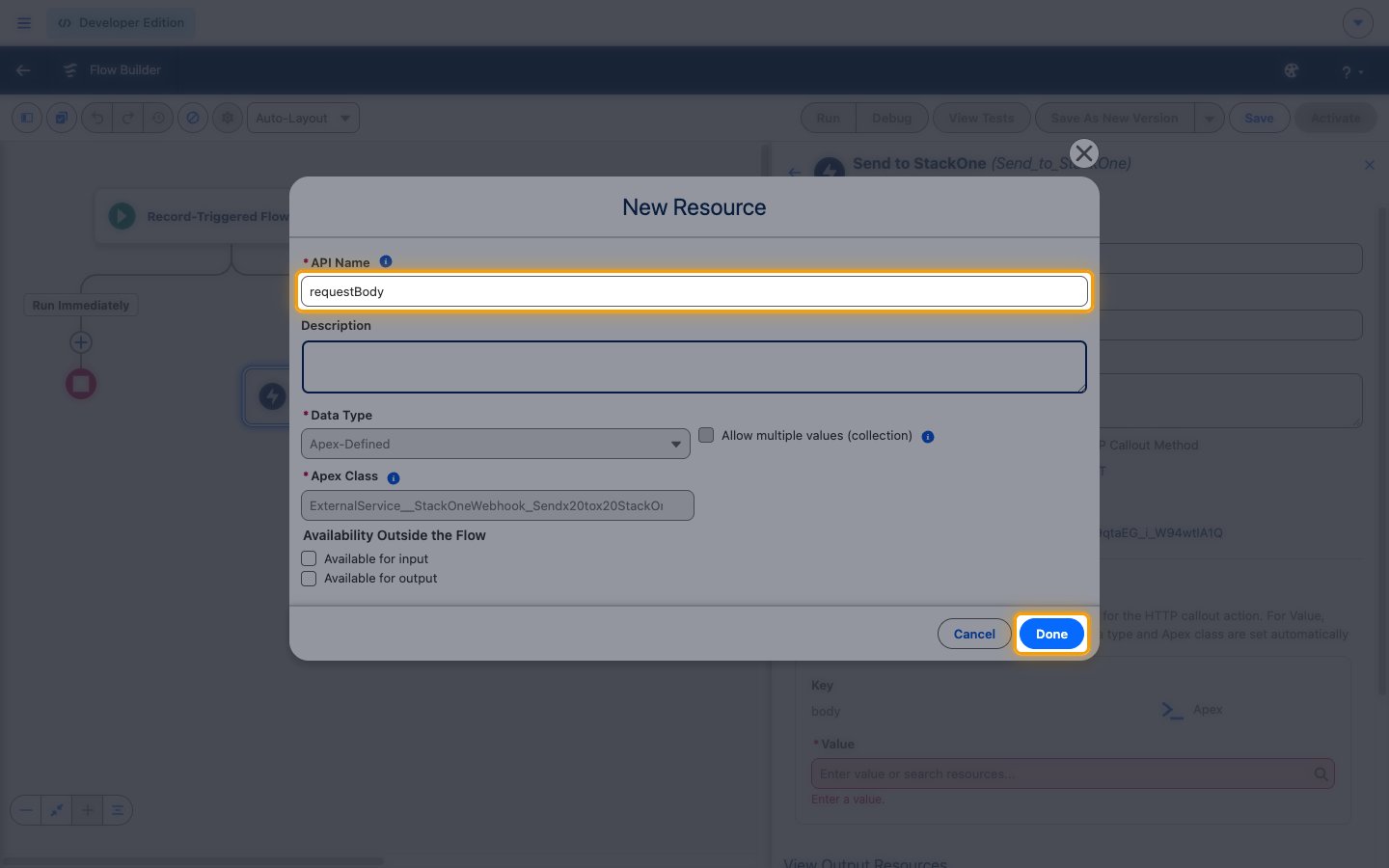
Create the request body
In the Send to StackOne action, under Set Request Body, the body needs its own resource.
- Open Value.
- Select New Resource.
- API Name:
requestBody - Click Done.
- Label:
Send to StackOne
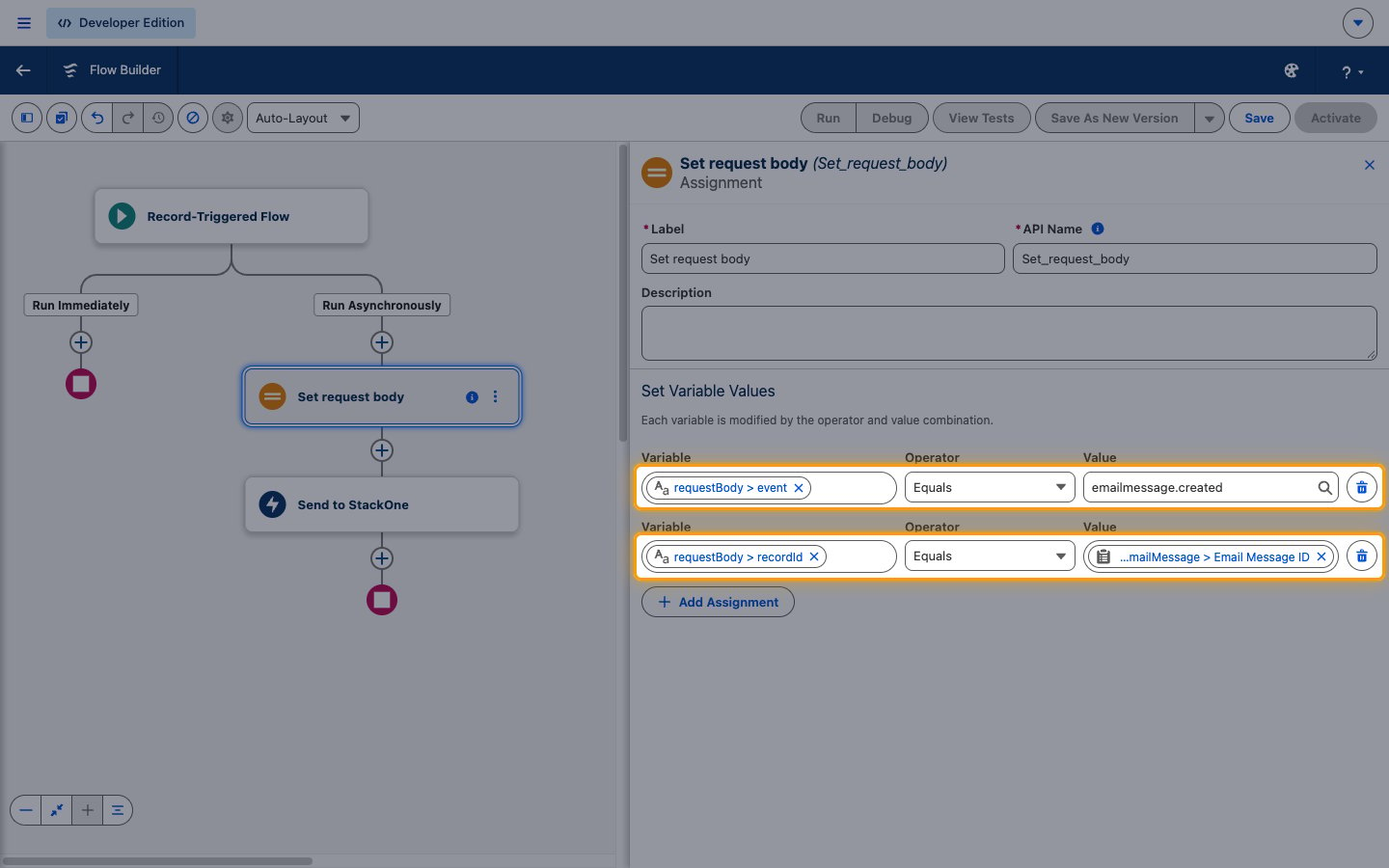
Fill in the request body
Add an assignment between Run Asynchronously and Send to StackOne.
- Click the add button above Send to StackOne.
- Select Assignment.
- Label:
Set request body - requestBody > event Equals
emailmessage.created - requestBody > recordId Equals Triggering EmailMessage > Email Message ID, the entry without an arrow
Save and activate the flow
Save the flow under the name of the event it sends.
- Click Save.
- Flow Label:
StackOne Email Message Created - Click Save.
- Click Activate.
Add the update flow
Copy the flow for updates, change three settings, then save and activate it.
- Click Save As New Flow.
- Flow Label:
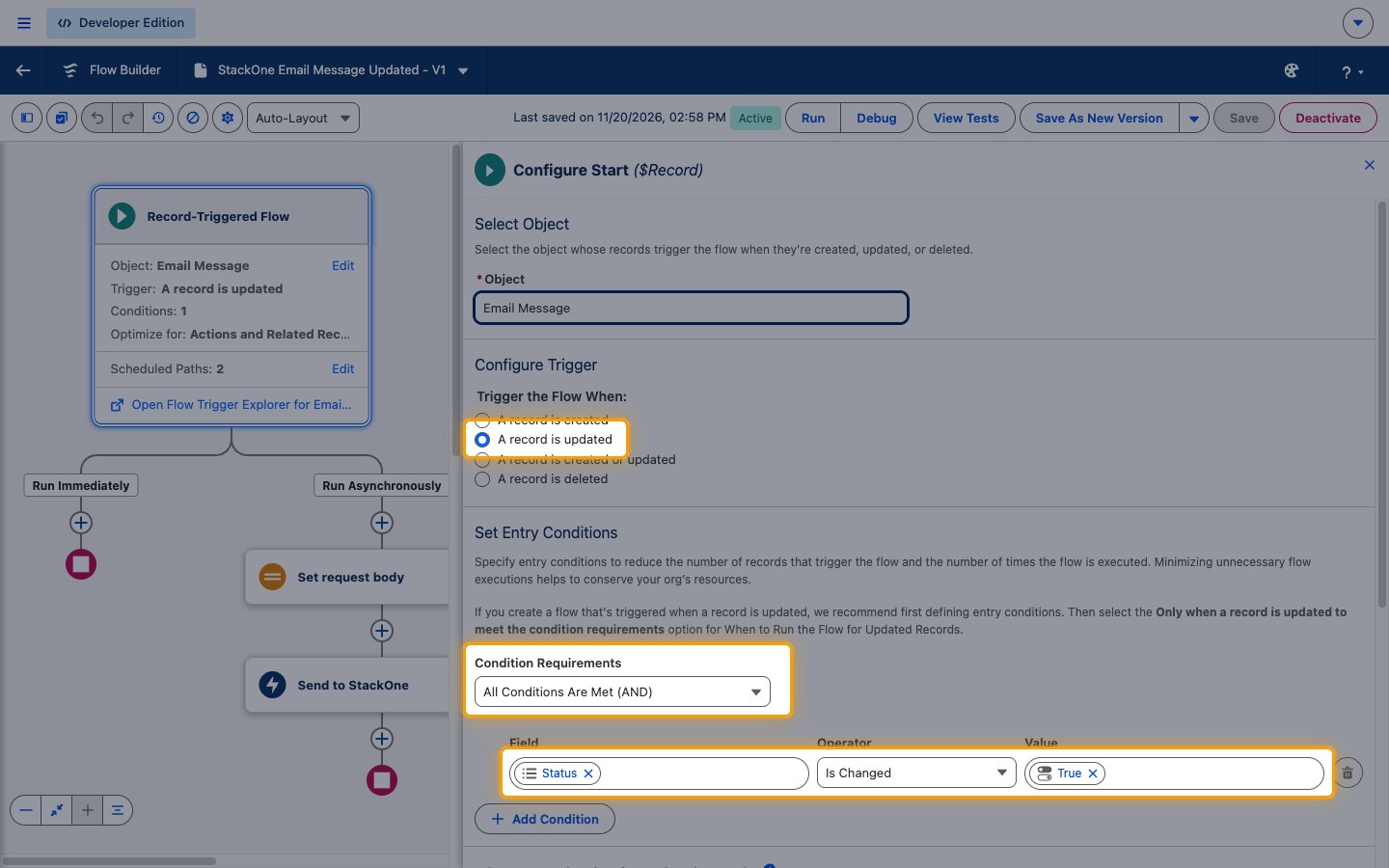
StackOne Email Message Updated - Trigger the Flow When: A record is updated
- Condition Requirements: All Conditions Are Met (AND), with Status Is Changed True
- In Set request body, change
emailmessage.createdtoemailmessage.updated.
Available webhook events
The following events can be delivered to StackOne. Salesforce sends only the outbound messages an administrator has configured, so an event is delivered only once its outbound message and flow exist and are active.
Case events
Events related to cases and their comments.
- Case Created (
case.created) — Fired when a Case record is inserted - Case Updated (
case.updated) — Fired when a Case record is edited - Case Comment Created (
casecomment.created) — Fired when a CaseComment is added to a case - Case Comment Updated (
casecomment.updated) — Fired when a CaseComment is edited
Field service events
Events related to work orders and service contracts.
- Work Order Created (
workorder.created) — Fired when a WorkOrder record is inserted - Work Order Updated (
workorder.updated) — Fired when a WorkOrder record is edited - Service Contract Created (
servicecontract.created) — Fired when a ServiceContract record is inserted - Service Contract Updated (
servicecontract.updated) — Fired when a ServiceContract record is edited
Entitlement events
Events related to entitlements.
- Entitlement Created (
entitlement.created) — Fired when an Entitlement record is inserted - Entitlement Updated (
entitlement.updated) — Fired when an Entitlement record is edited
Knowledge events
Events related to knowledge article versions.
- Knowledge Article Created (
knowledgearticle.created) — Fired when a Knowledge article version is inserted - Knowledge Article Updated (
knowledgearticle.updated) — Fired when a Knowledge article version is edited
People and activity events
Events related to contacts, agents, and tasks logged against cases.
- Contact Created (
contact.created) — Fired when a Contact record is inserted - Contact Updated (
contact.updated) — Fired when a Contact record is edited - User Created (
user.created) — Fired when a User record is inserted - User Updated (
user.updated) — Fired when a User record is edited - Task Created (
task.created) — Fired when a Task record is inserted - Task Updated (
task.updated) — Fired when a Task record is edited
Customer communication events
Events related to email and social messages logged against cases. Email message events are sent by a flow with an HTTP callout instead of an outbound message.
- Email Message Created (
emailmessage.created) — Fired when an EmailMessage record is inserted - Email Message Updated (
emailmessage.updated) — Fired when an EmailMessage record changes, such as when an incoming email is read - Social Post Created (
socialpost.created) — Fired when a SocialPost record is inserted - Social Post Updated (
socialpost.updated) — Fired when a SocialPost record is edited
Delivery format
Details of how Salesforce delivers outbound messages to StackOne.
Batched payloads
A single SOAP message can include up to 100 notifications. Each notification contains an ID that uniquely identifies a record, and a reference to the data in the record.
Retries and delivery guarantees
Salesforce queues messages until they are delivered.
- If the endpoint is unavailable, messages stay in the queue until sent successfully or until they are 24 hours old. After 24 hours, messages are dropped from the queue.
- If a message cannot be delivered, the interval between retries increases exponentially, up to a maximum of 2 hours between retries.
- Messages are retried independent of their order in the queue, so they can arrive out of order.
- A message is usually delivered once, but it can be delivered more than once.
Payload contents
The notification carries only the fields selected on the outbound message, alongside the record ID and the sending organization’s ID.
- If the record changes after the notification is queued but before it is sent, only the latest data is delivered.