

Register the OAuth application
Create the OAuth application in the PlanetScale organization you will connect.
1
Create the app
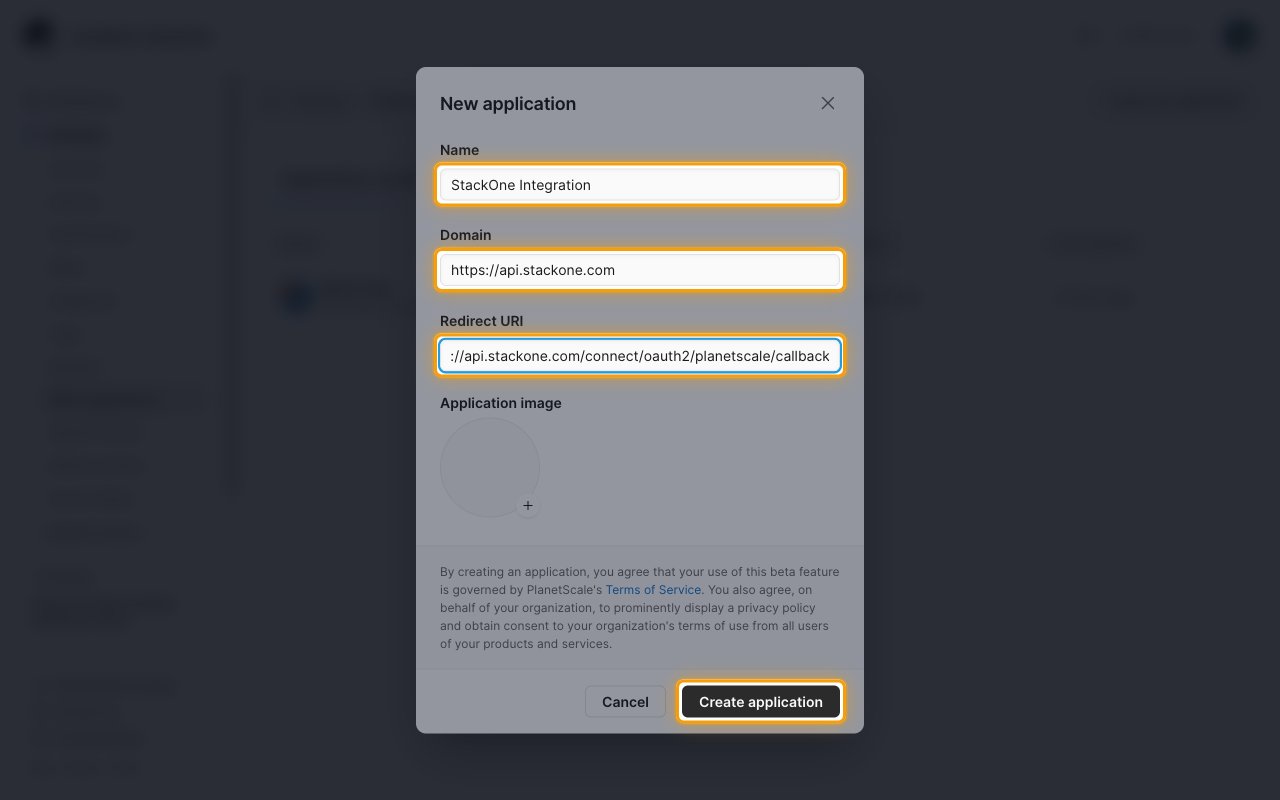
Sign in to your PlanetScale account, then open Settings > OAuth applications.
- Click Create new application.
- Name:
StackOne Integration - Domain: the scheme and host of the Callback URL from your Connector Profile
- Example: if the Callback URL starts with
https://api.stackone.com/, the Domain ishttps://api.stackone.com - Redirect URI: the Callback URL from your Connector Profile
- Click Create application.
2
Copy the client secret
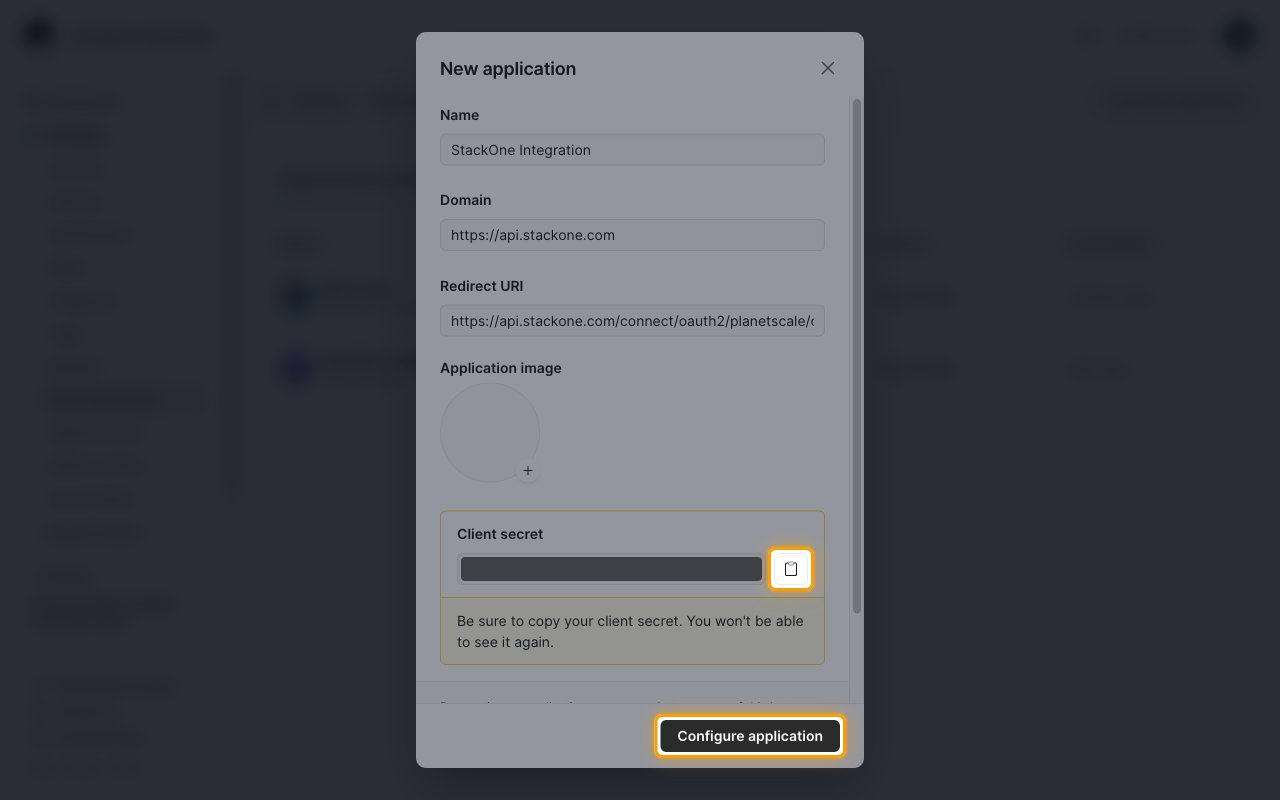
Copy the Client secret into your Connector Profile.
- The Client secret is only displayed once and cannot be retrieved later.
- Click Configure application.
3
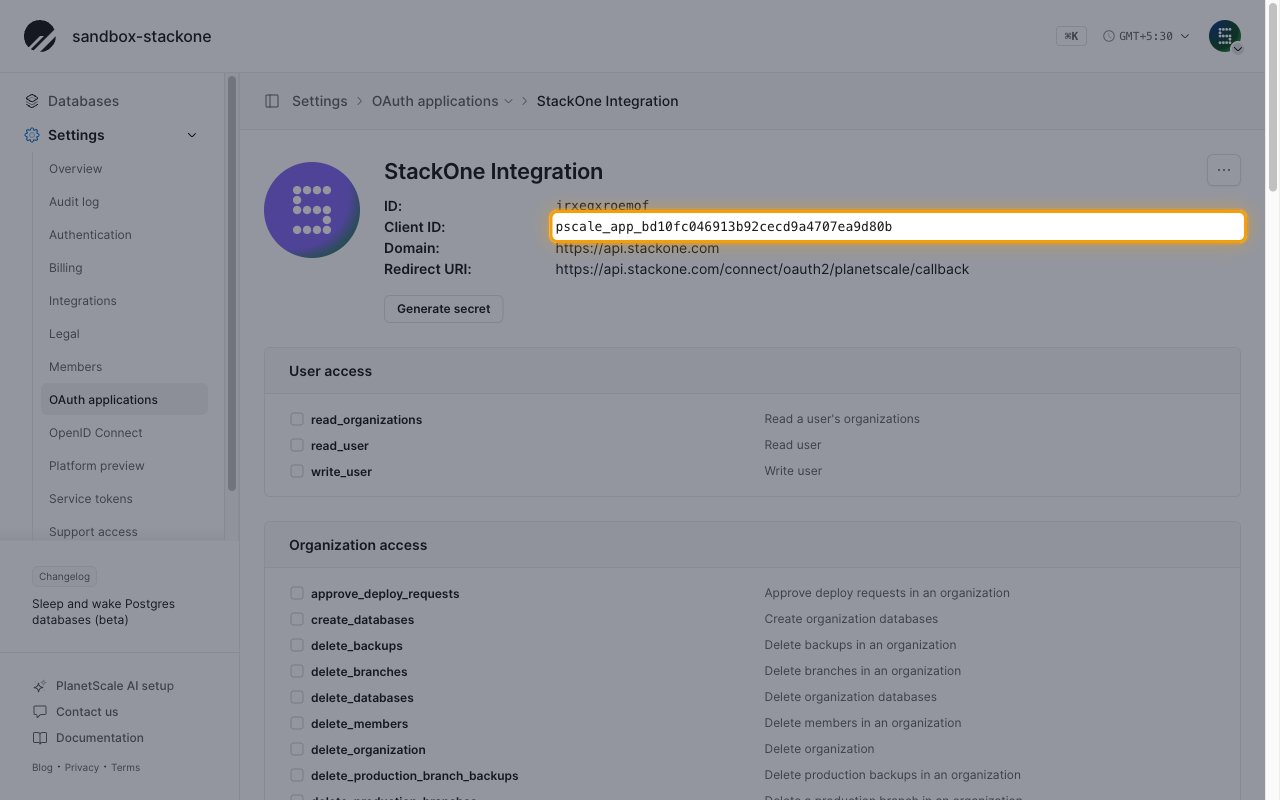
Copy the client ID
Copy the Client ID into your Connector Profile.
4
Add the scopes
Enables actions: Cancel Branch Change Request, Cancel Change Request, Cancel Insights Agent Run, Cancel MoveTables Workflow, Cancel Queued Deploy Request, Check Deploy Request Storage, Close Deploy Request, Complete Errored Deploy, Complete Gated Deploy Request, Complete MoveTables Workflow, Complete Revert, Create Backup, Create Branch, Create Database, Create Deploy Request, Create Insights Agent Run, Create MoveTables Workflow, Create Password, Create Query Patterns Report, Create Role, Create Switchover, Delete Backup, Delete Branch, Delete Database, Delete Password, Delete Query Patterns Report, Delete Role, Demote Branch, Dismiss Schema Recommendation, Force Cutover Deploy Request, Get Backup, Get Branch, Get Branch Anomaly, Get Branch Change Request, Get Branch Config Change Request, Get Branch Metrics, Get Branch Query, Get Branch Query Error, Get Branch Query Tag, Get Branch Resize Request, Get Branch Schema, Get Change Request, Get Current User, Get Database, Get Default Role, Get Deploy Queue, Get Deploy Request, Get Deployment, Get Insights Agent Run, Get Keyspace Config Change Request, Get MoveTables Workflow, Get MoveTables Workflow Status, Get Organization, Get Password, Get Query Patterns Report, Get Query Patterns Report Status, Get Query Statistics, Get Query Summary, Get Role, Get Schema Recommendation, Get Switchover, Get Vtctld Operation, Lint Branch Schema, List Admin Size SKUs, List Backups, List Branch Anomalies, List Branch Change Requests, List Branch Config Change Requests, List Branch Queries, List Branch Query Errors, List Branch Query Tag Summaries, List Branch Query Tags, List Branch Resize Requests, List Branch Vitess Parameters, List Branches, List Change Requests, List Cluster Size SKUs, List Database Regions, List Databases, List Deploy Operations, List Deploy Request Reviews, List Deploy Requests, List Generated Query Patterns Reports, List Insights Agent Runs, List Keyspace Config Change Requests, List MoveTables Workflows, List Organizations, List Passwords, List Regions For Organization, List Roles, List Schema Recommendations, List Switchovers, Promote Branch, Queue Deploy Request, Reassign Role Objects, Renew Password, Renew Role, Reset Default Role, Reset Role Password, Reverse Traffic MoveTables Workflow, Review Deploy Request, Run Branch Maintenance, Skip Revert Period, Start List MoveTables Workflows, Start MoveTables Workflow, Stop MoveTables Workflow, Switch Traffic MoveTables Workflow, Update Aggressive Cutover, Update Auto Apply, Update Auto Delete Branch, Update Backup, Update Branch, Update Branch Change Request, Update Branch Resize Request, Update Database Settings, Update Password, Update Role
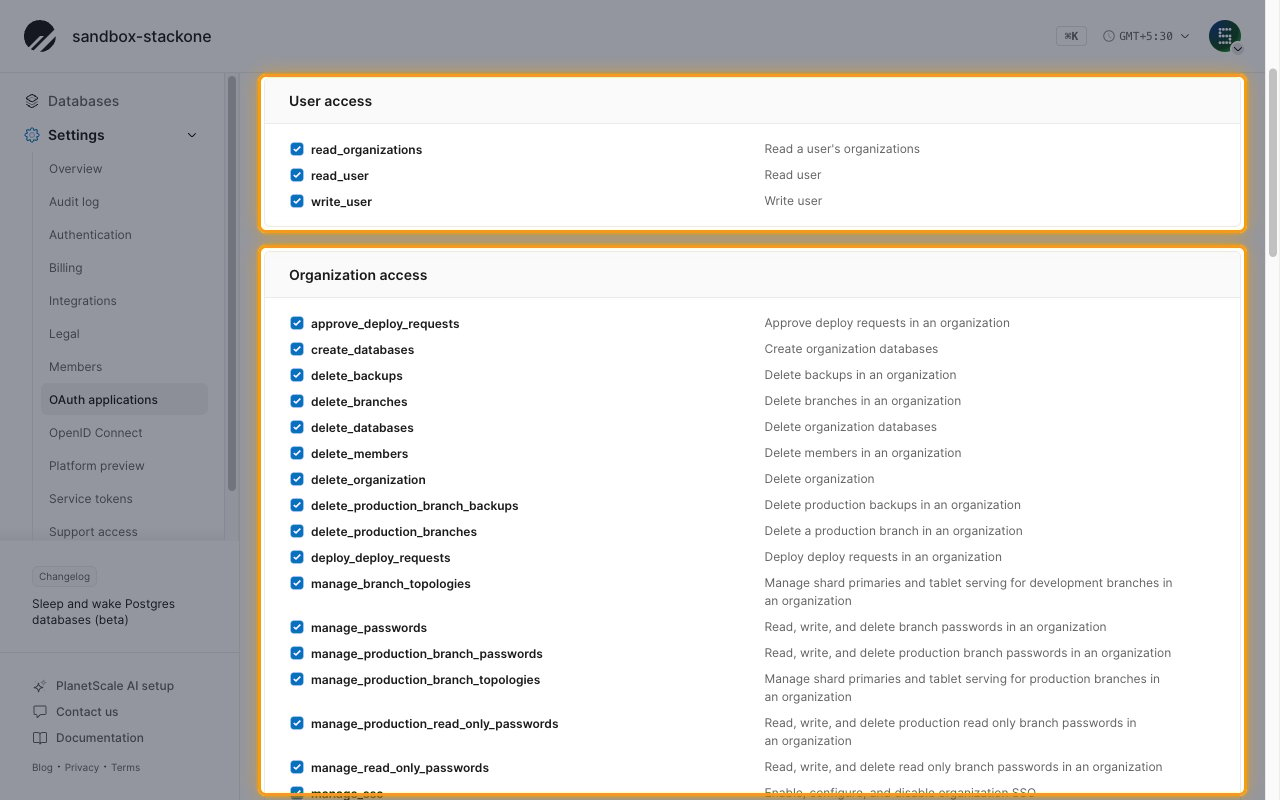
In the User access, Organization access, Database access and Branch access sections, select every scope listed.
- Click Save access scopes.
Create the StackOne Connector Profile
1
Create a Connector Profile
Enable the connector and create a Connector Profile in your project. See Setup Connector Profile.
2
Link an Account
Once the Connector Profile is created, continue to link an account.