

Creating a Pipedrive app
Register an app in the Pipedrive Developer Hub to obtain the OAuth 2.0 credentials.
Sign in to Pipedrive
Sign in to your Pipedrive account.
- Pipedrive redirects you to your own company subdomain after sign-in.
- Create the app in the same Pipedrive account you intend to connect.
Open the Developer Hub
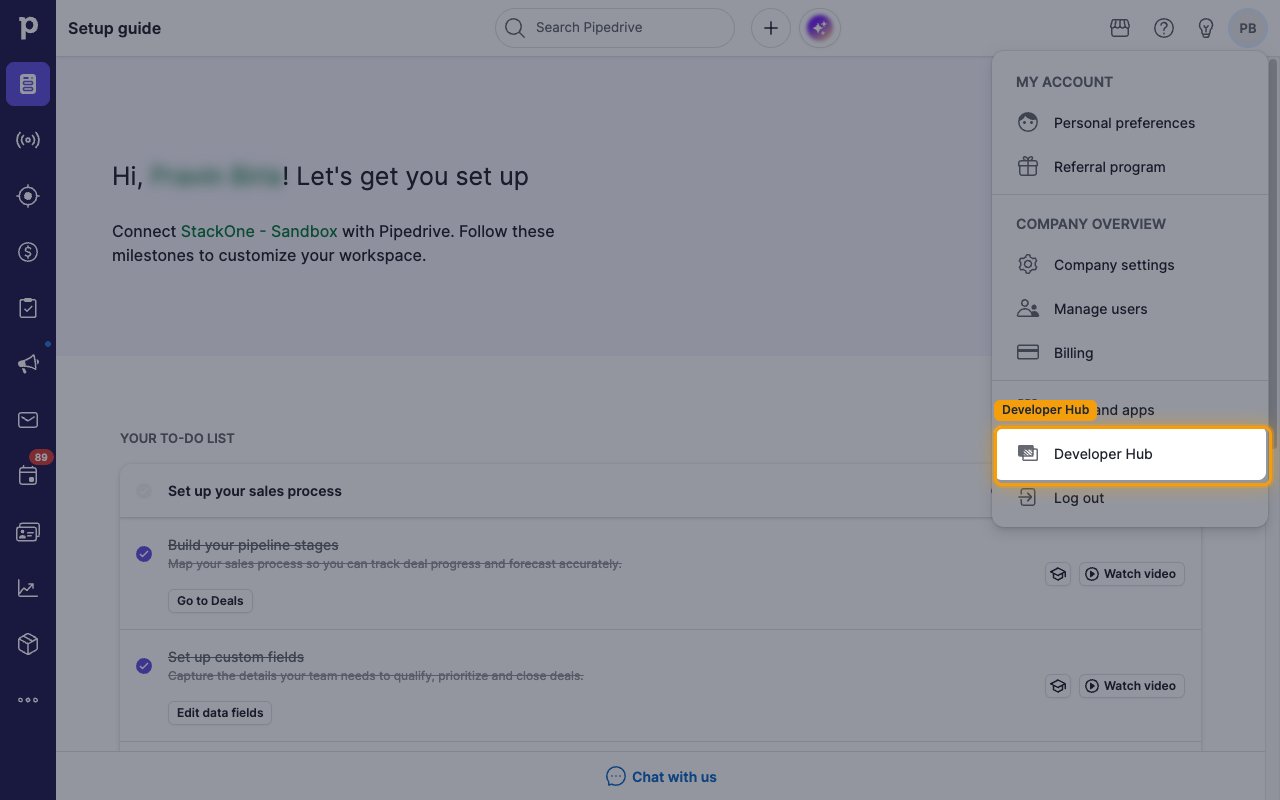
Click your profile avatar in the top right corner of the page.
- In the dropdown menu, select Developer Hub.
Start a new app
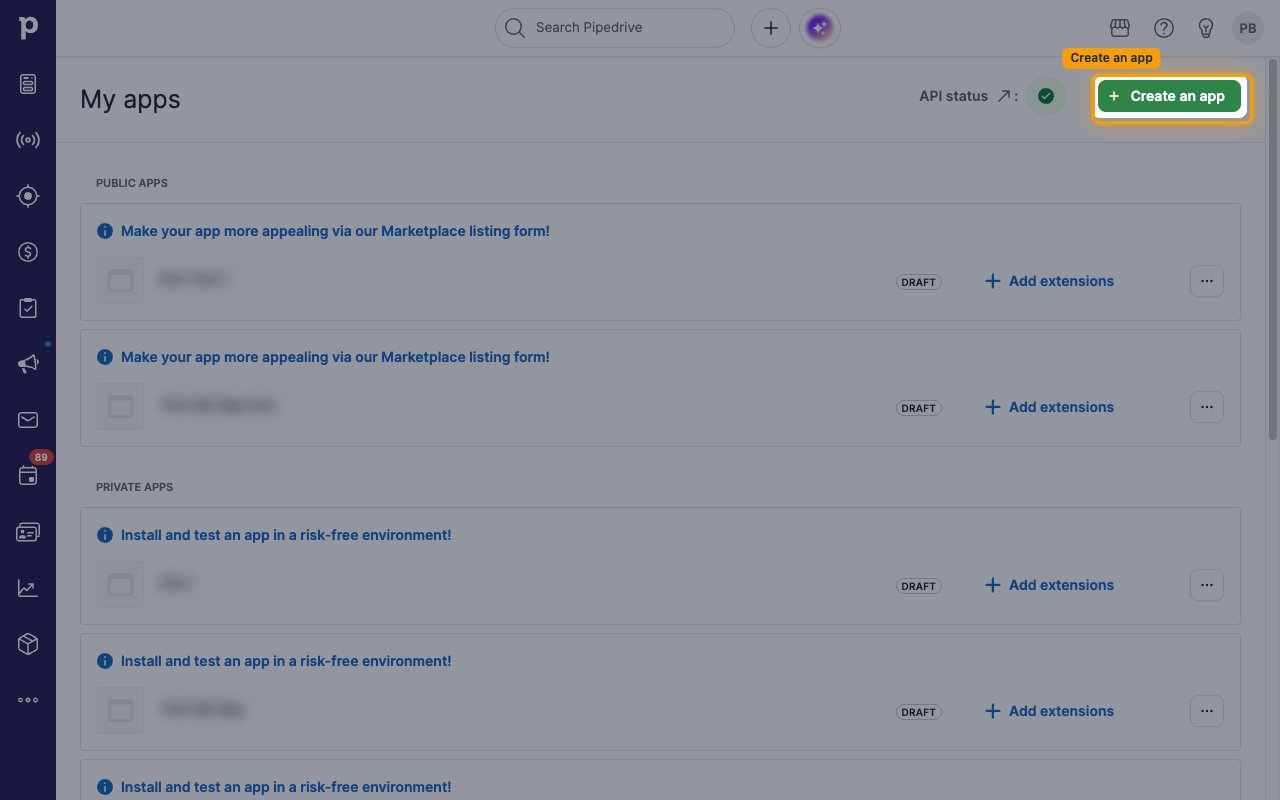
On the My apps page, click + Create an app.
Choose the app type
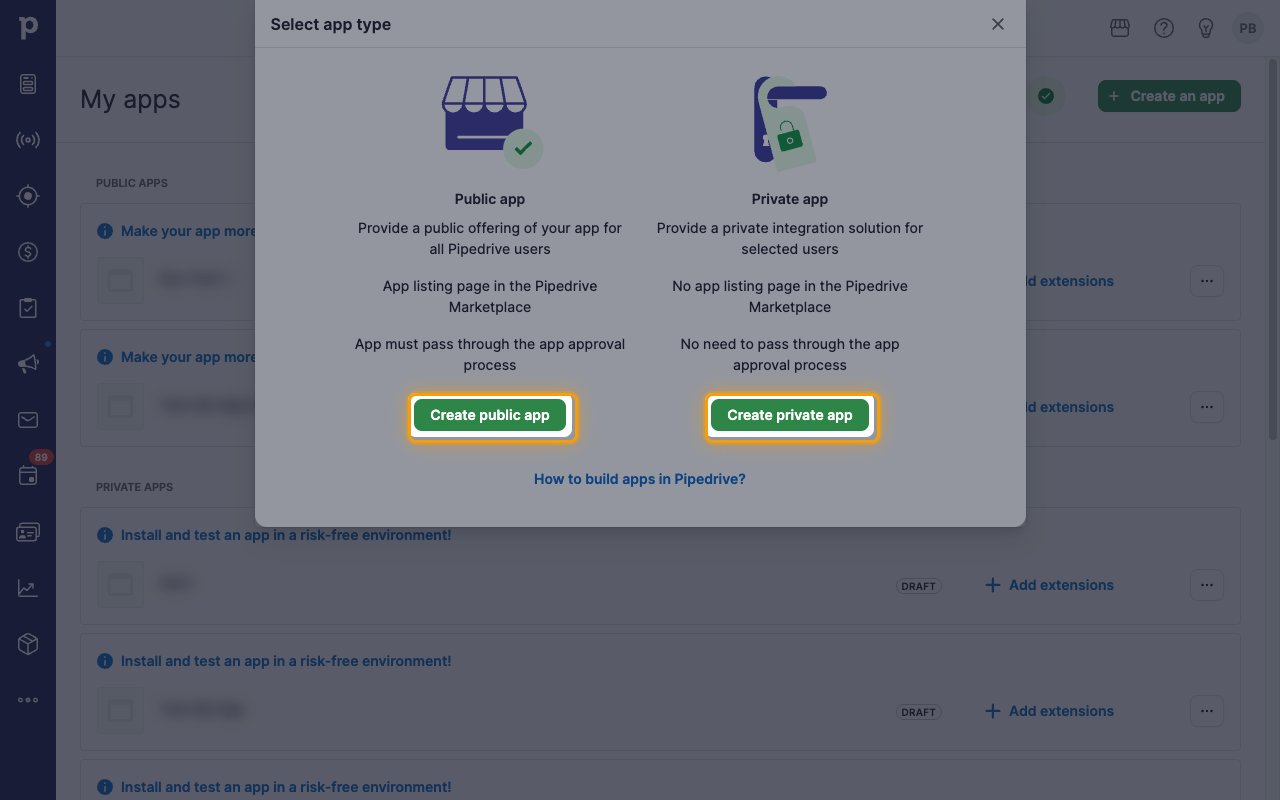
In the Select app type dialog, choose Create public app or Create private app. The remaining setup steps are identical for both.
- Private app — a private integration for selected users, with no Pipedrive Marketplace listing and no app approval process.
- Public app — a public offering listed in the Pipedrive Marketplace, which must pass the app approval process.
Fill in the app details
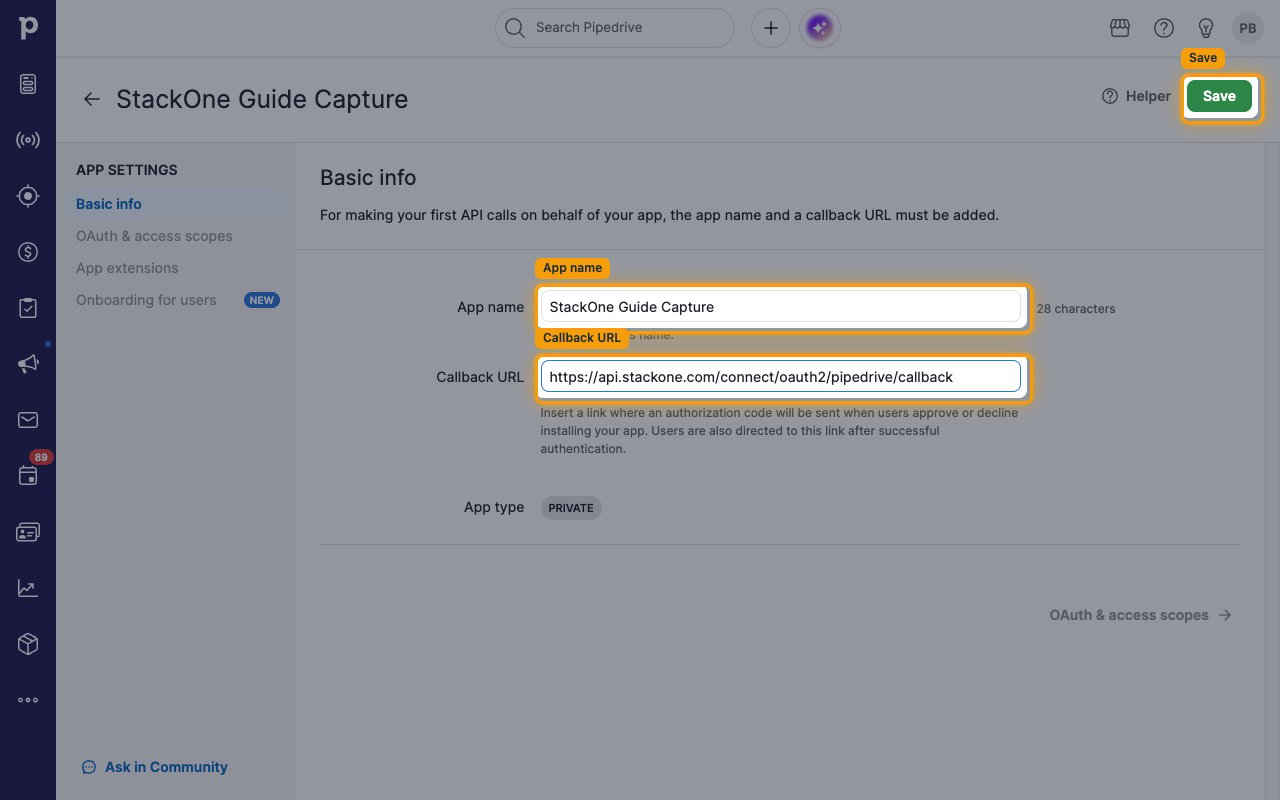
On the Basic info tab, enter the app name and the callback URL, then click Save in the top right corner.
- App name — a name of your choice, for example
StackOne - Callback URL —
https://api.stackone.com/connect/oauth2/pipedrive/callback - The callback URL must match exactly, or the authorization will fail.
- Pipedrive opens the OAuth & access scopes page automatically once the app is saved.
Configuring access scopes
Scopes limit what your app can reach in a connected Pipedrive account. Grant only the scopes the integration needs.
Select the access scopes
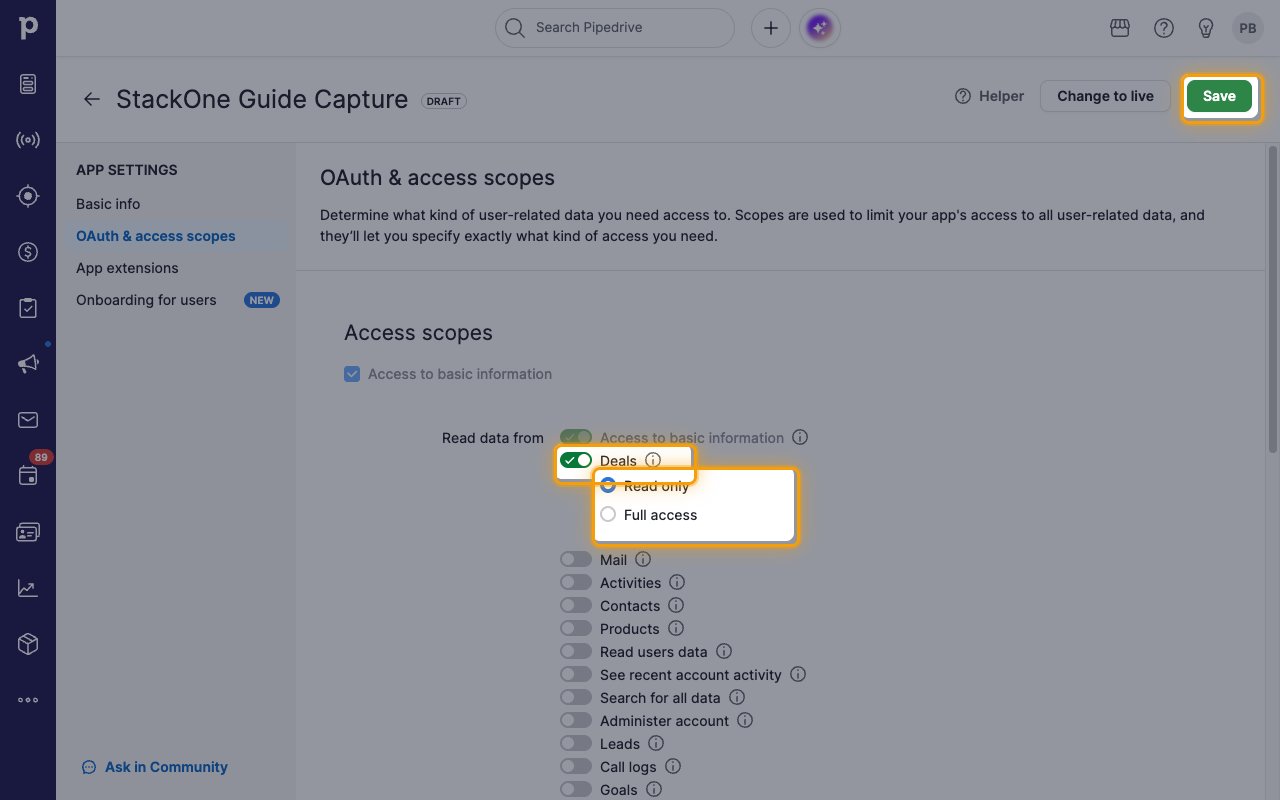
On the OAuth & access scopes page, turn on the toggle for each resource you need under Read data from. Turning a toggle on reveals a Read only and a Full access option — pick Read only for a :read scope and Full access for a :full scope.
The toggle names differ from the scope names: Read users data grants users:read, Search for all data grants search:read, and Administer account grants admin. Access to basic information is always granted and cannot be turned off.
Save and install the app
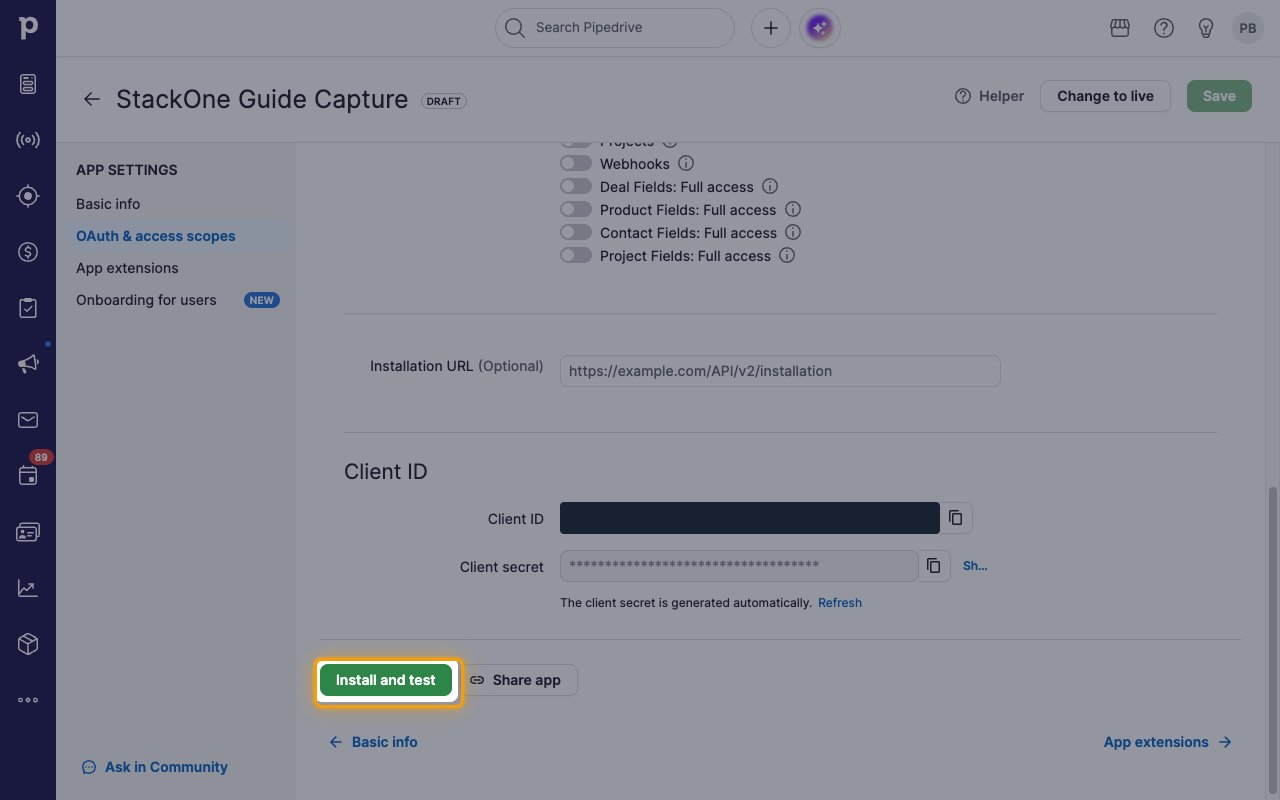
Click Save in the top right corner, then click Install and test at the bottom of the page to activate the app.
- The Save button stays disabled until you change at least one scope.
- Install and test only becomes available after the scopes are saved.
Copying the app credentials
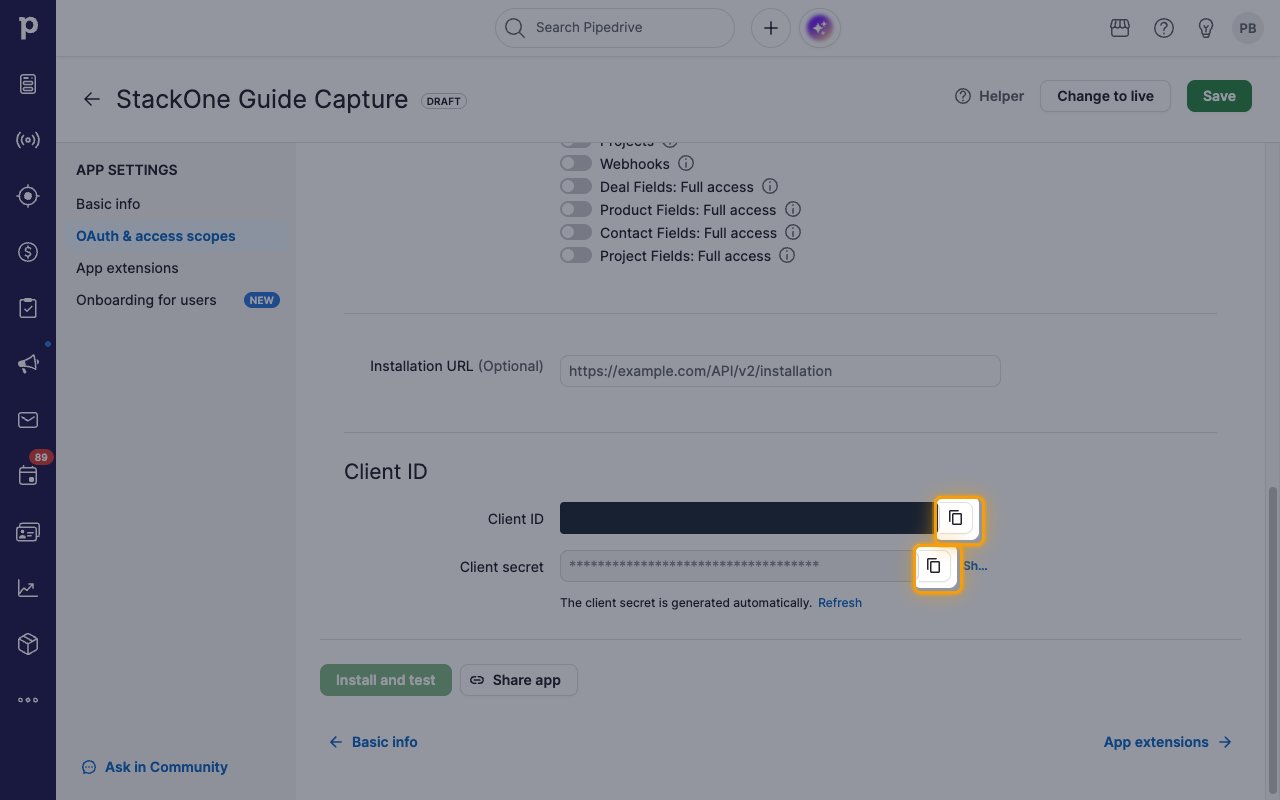
The credentials are shown at the bottom of the OAuth & access scopes page.
Copy the Client ID and Client secret
Copy both values using the copy icon beside each field, and store them securely for use later.
- Client ID — the public identifier of your app, shown in the Client ID field.
- Client secret — the confidential key for your app, generated automatically and masked until you reveal it.
- Paste them into the Client ID and Client Secret fields in the StackOne Connector profile.
- Treat the client secret like a password and never share it.
Creating the StackOne Connector Profile
To create the Connector Profile in StackOne for Pipedrive:Open the connector
Choose actions and events
- Click Add Profile.
- If the connector offers more than one authentication method, set the Auth Method filter to OAuth 2.0.
- Select the actions, and any events, to enable for this Connector Profile.
- Click Continue.
Set up authentication
- Select Authentication Type as OAuth 2.0.
- Fill out the fields using details retrieved from your provider:
- Client ID
- Client Secret
- Click Create Profile.