

Register an OAuth application
Register an application in the PandaDoc Dev Center to get its client ID and client secret.
1
Create the application
Sign in to your PandaDoc account and open Settings > API and Integrations.
- Click the API and Webhooks card, then click Open.
- On the Configuration tab, under Applications, click Create application.
- Set the application’s redirect URI to the Callback URL from your Connector Profile.
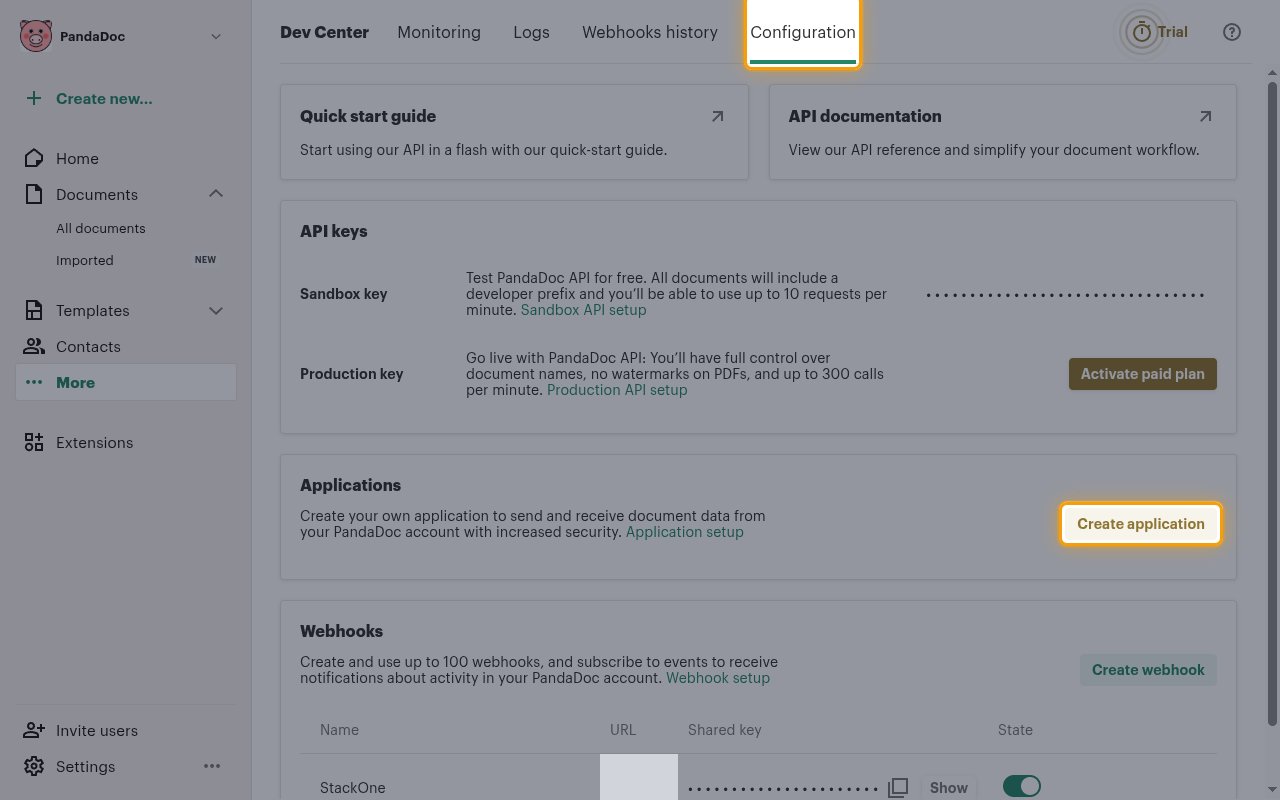
2
Copy the credentials
Enables actions: Add Document Recipient, Add Member To Workspace, Append Content Library Item To A Document, Catalog Item Details, Change Member Role, Contact Details, Create API Key, Create Catalog Item, Create Contact, Create Document, Create Document Editing Session, Create Document Session For Embedded Sign, Create Documents Folder, Create Member Token, Create Template, Create Template Editing Session, Create Templates Folder, Create User, Create Workspace, Deactivate Workspace, Delete Catalog Item, Delete Contact, Delete Document, Delete Document Recipient, Delete Documents (bulk), Delete Template, Document Details, Document ESign Disclosure, Document Move To Folder, Document Status, Document Status Change, Duplicate Template, Get Current Member, Get Member, Get Unified Credentials, Get Unified Group, Get Unified Role, Get Unified User, Get User, List Catalog Items Search, List Contacts, List Content Library Items, List Documents, List Documents Folders, List Members, List Templates, List Templates Folders, List Unified Groups, List Unified Roles, List Unified Users, List Users, List Workspaces, Move Document To Draft, Reassign Document Recipient, Remove Member From Workspace, Rename Documents Folder, Rename Templates Folder, Send Document, Template Details, Template Status, Template Update, Transfer All Documents Ownership, Update Catalog Item, Update Contact, Update Document, Update Document Ownership, Update Document Recipient, [Beta] Update Workspace
Copy the application’s client ID and client secret into your Connector Profile.
- PandaDoc grants scopes when a user authorizes the application, not in the application settings.
Create the StackOne Connector Profile
1
Create a Connector Profile
Enable the connector and create a Connector Profile in your project. See Setup Connector Profile.
2
Link an Account
Once the Connector Profile is created, continue to link an account.