

Creating an OAuth Application
To connect Netlify with StackOne, you’ll need to create an OAuth application in your Netlify account.
Sign in to Netlify
Sign in to your Netlify account.
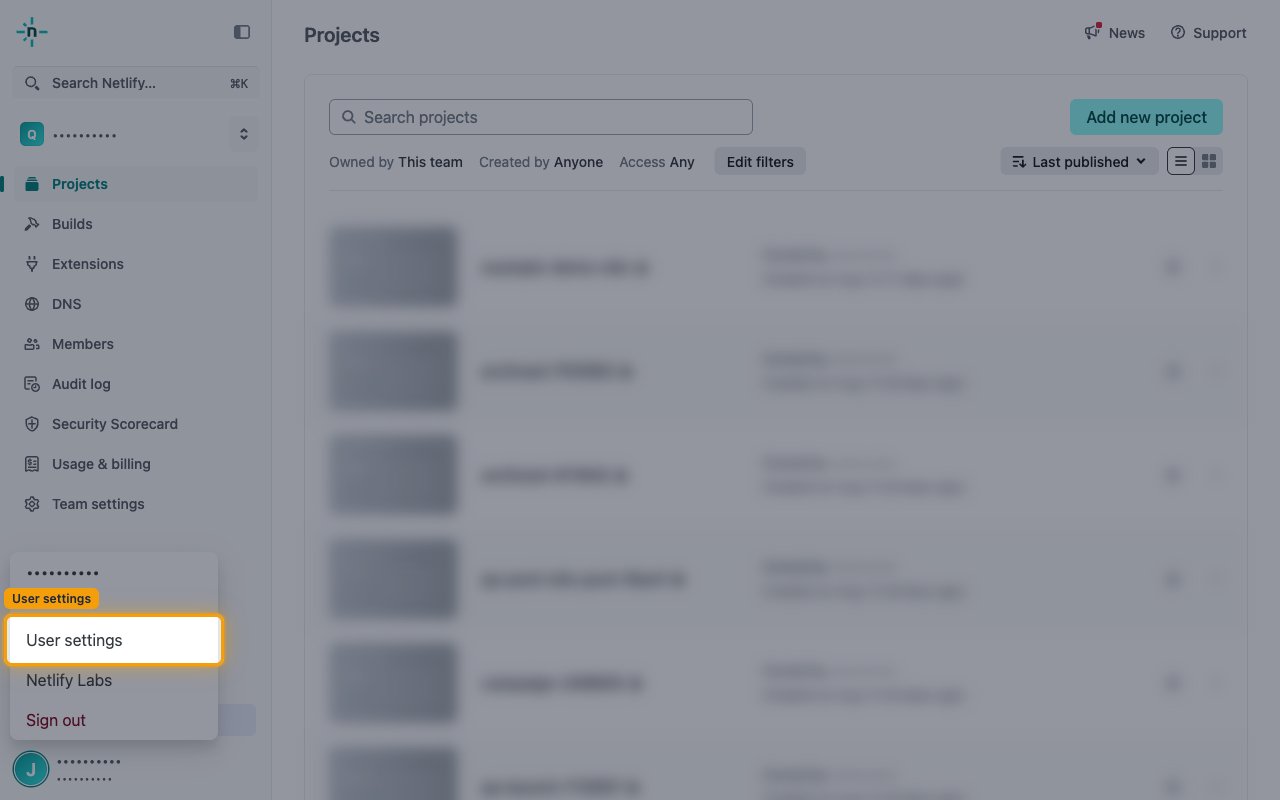
Access User Settings
Open your user settings from the account menu.
- Click on your profile avatar in the bottom left corner.
- Select User settings from the dropdown menu.
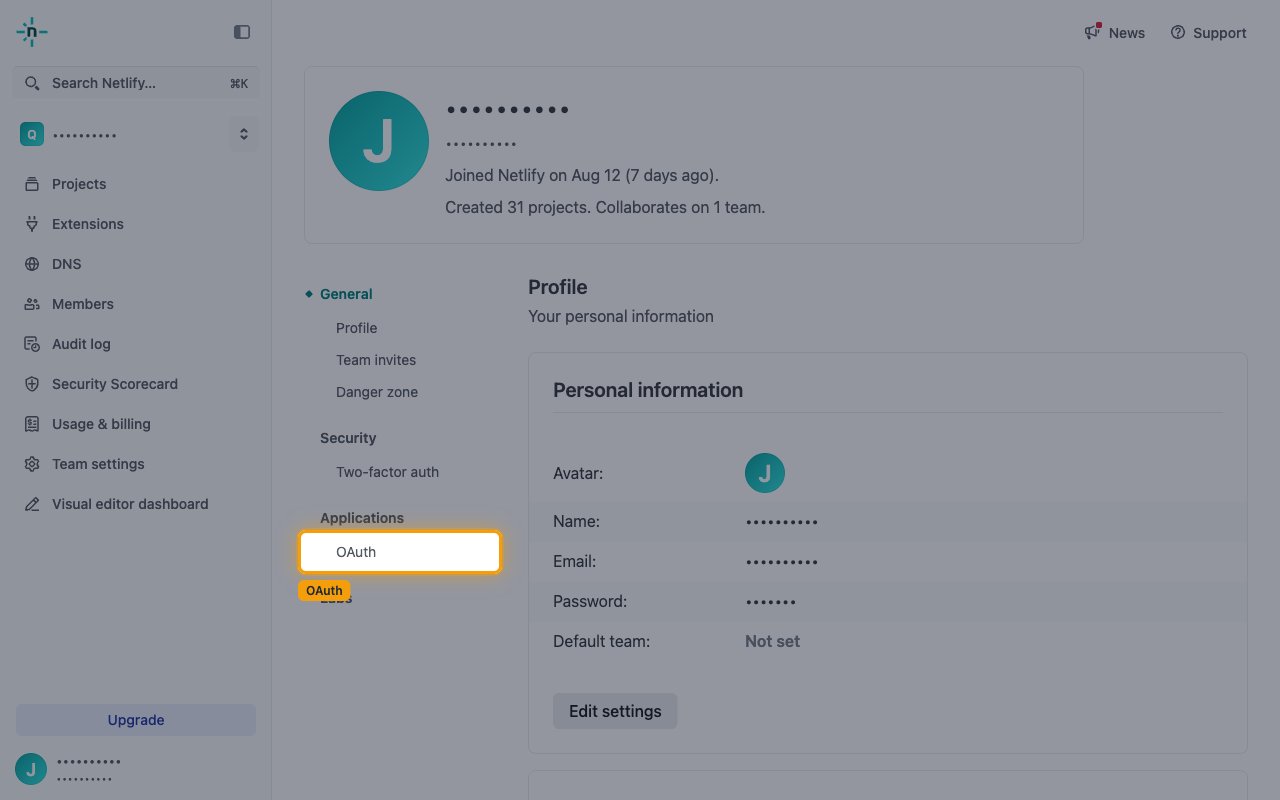
Navigate to OAuth Applications
In the User settings page, navigate to the OAuth section.
- In the left sidebar, under Applications, click OAuth.
- You will see the OAuth applications section.
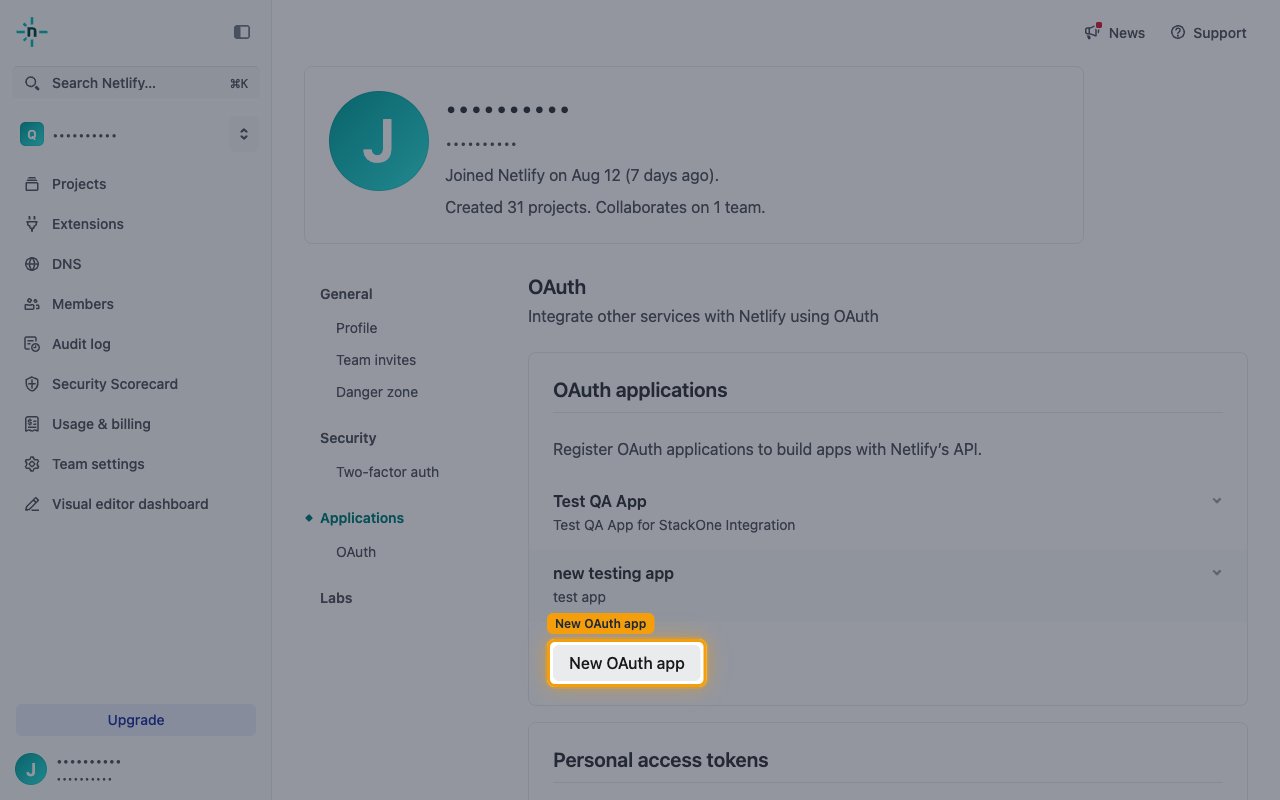
Create New OAuth Application
In the OAuth applications section, click New OAuth app.
Configure and Save the Application
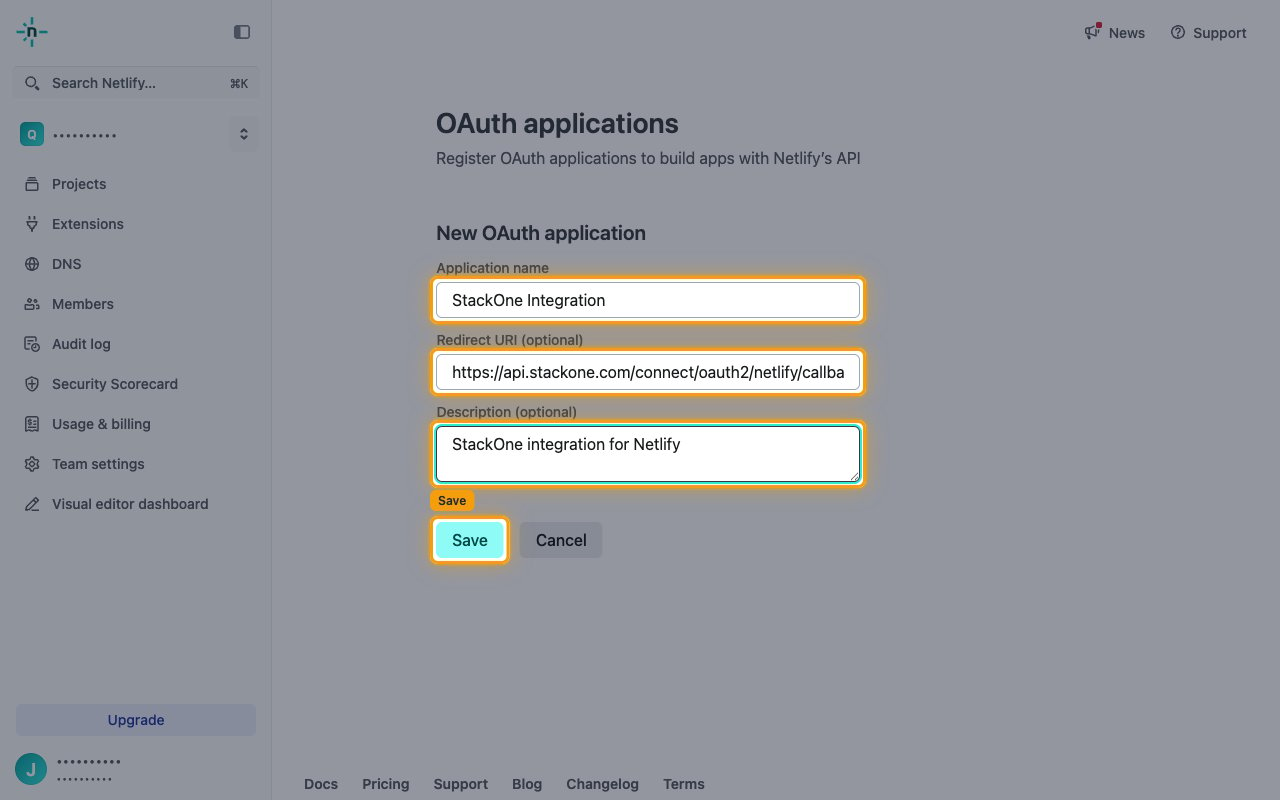
Fill in the New OAuth application form.
- Application name: Enter a name (e.g., StackOne Integration)
- Redirect URI: Enter
https://api.stackone.com/connect/oauth2/netlify/callback - Description: Optional - add a description for the application
- Click Save to create the application.
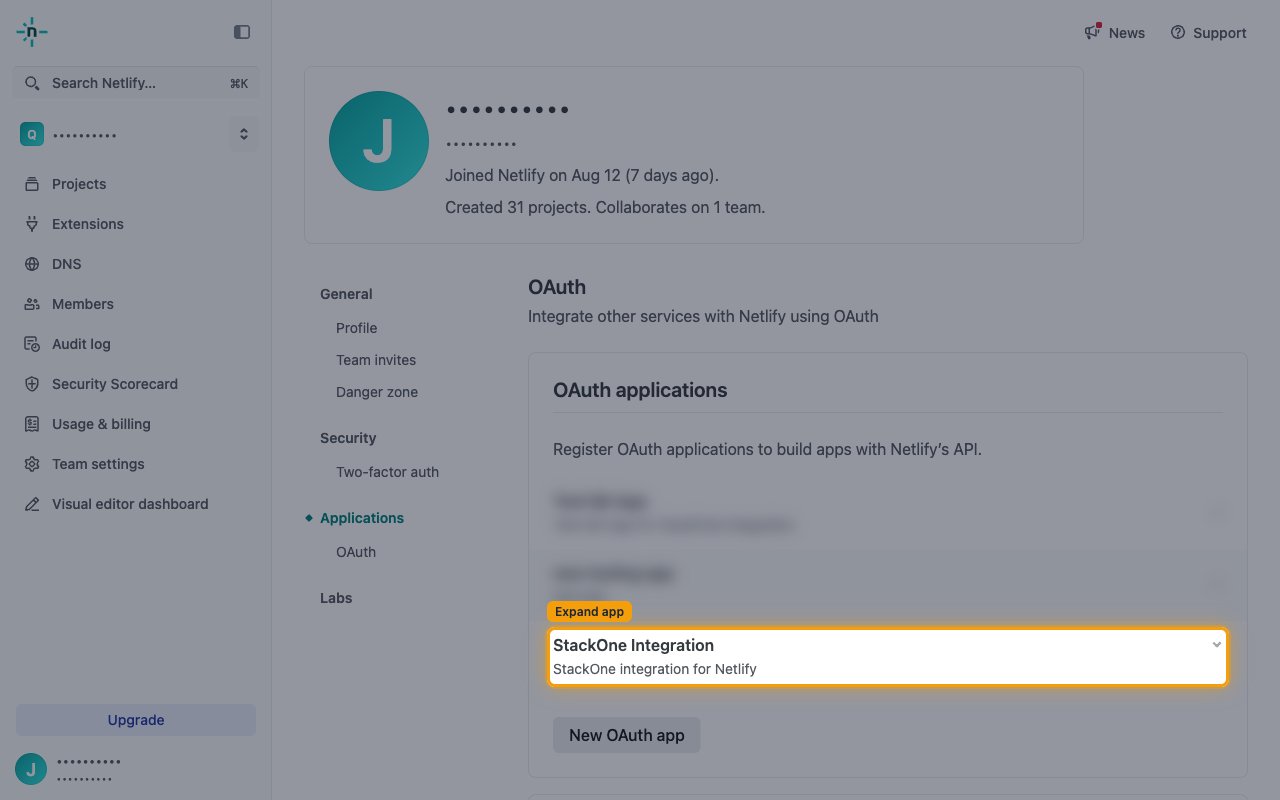
Expand Your OAuth Application
After saving, the application appears as a collapsed row in the OAuth
applications list. Click the row to expand it and reveal the Redirect
URI, Client ID and Secret.
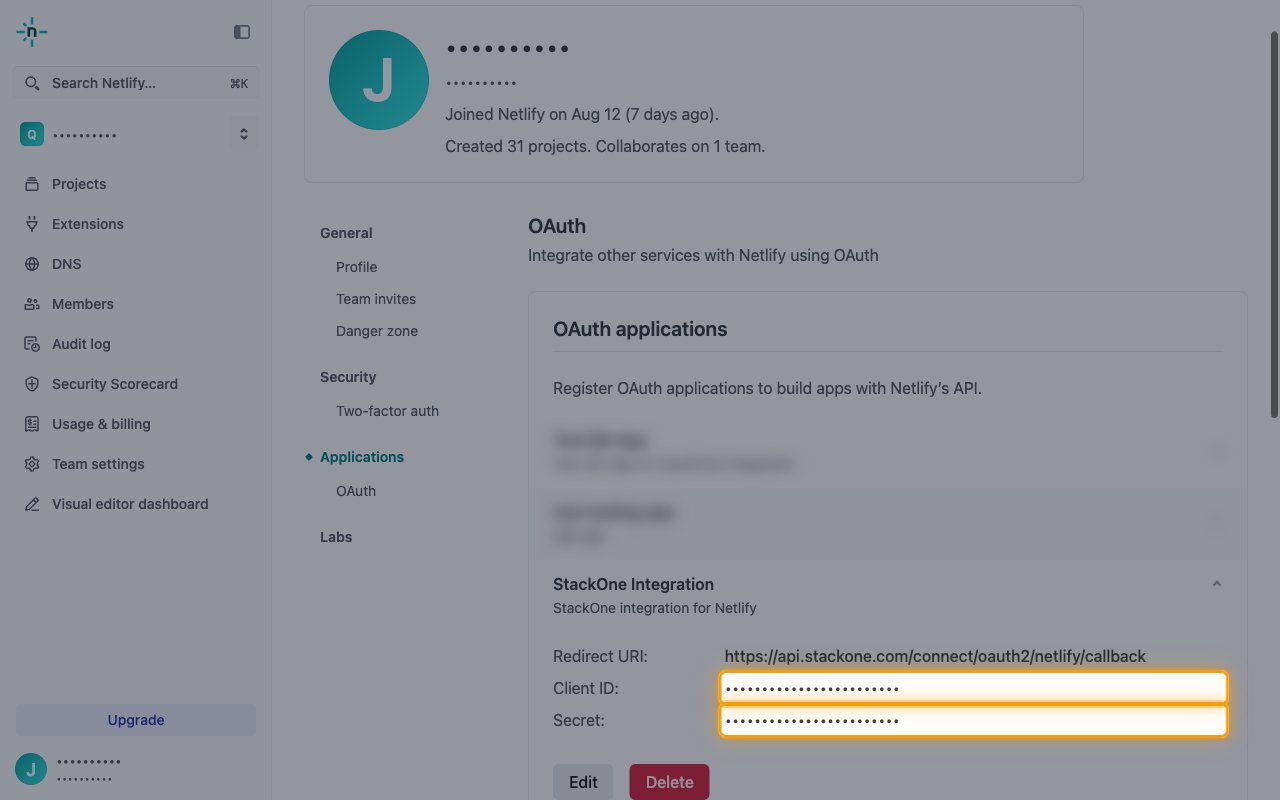
Copy Client Credentials
With the application expanded, copy its credentials.
- Copy the Client ID value.
- Copy the Secret value. This is your Client Secret.
- Store both values securely for use later.
Creating the StackOne Connector Profile
To create the Connector Profile in StackOne for Netlify:Open the connector
Choose actions and events
- Click Add Profile.
- If the connector offers more than one authentication method, set the Auth Method filter to OAuth 2.0.
- Select the actions, and any events, to enable for this Connector Profile.
- Click Continue.
Set up authentication
- Select Authentication Type as OAuth 2.0.
- Fill out the fields using details retrieved from your provider:
- Client ID
- Client Secret
- Click Create Profile.