

Create OAuth Application
Set up a new OAuth application in the Miro Developer Portal.
1
Access Developer Portal
Navigate to the Miro Developer Portal.
- Log in to your Miro account
- Go to Miro Developer Portal
- Select the Your apps tab in your Profile Settings
2
Create New App
Create a new OAuth application for your integration.
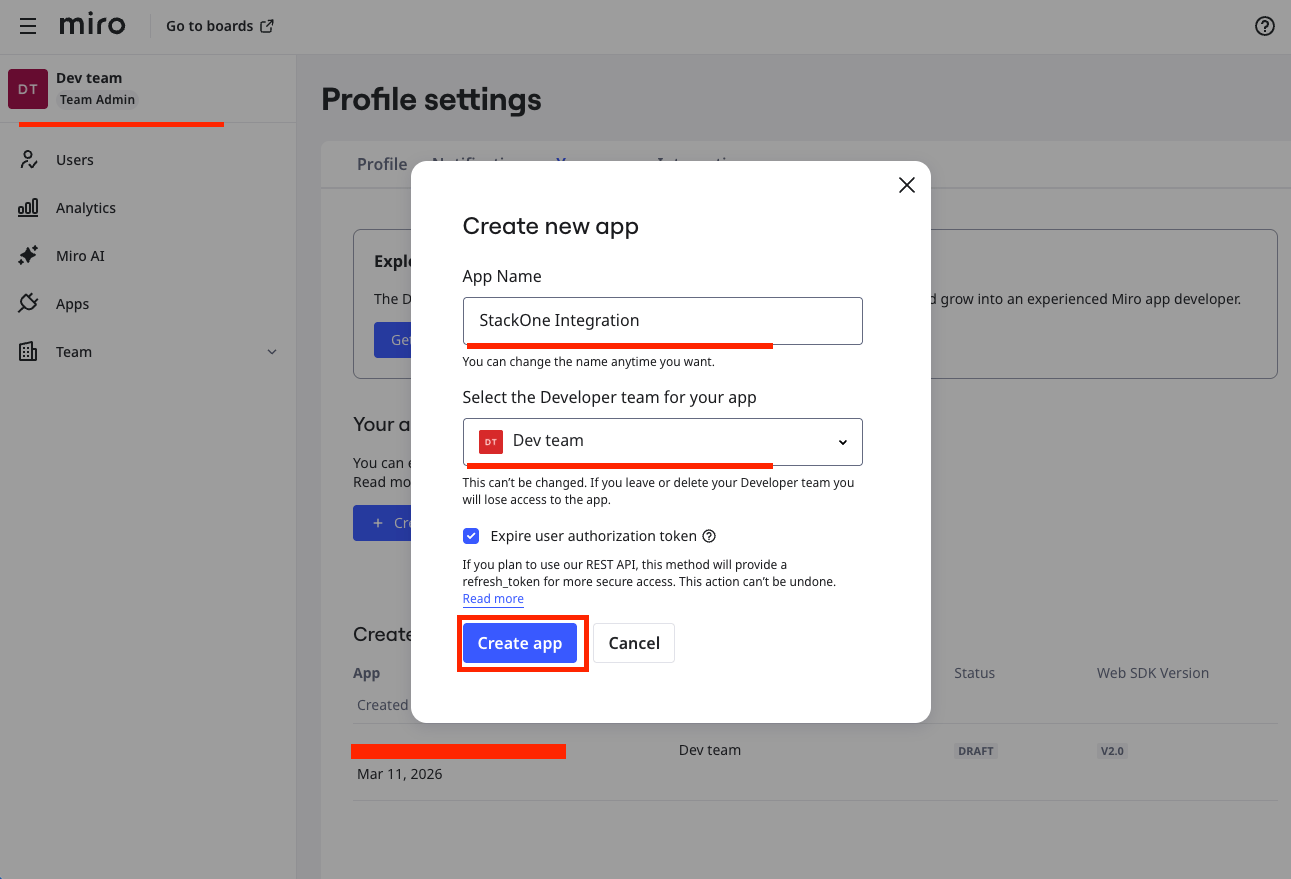
- Click the + Create new button
- If prompted with a Create team modal, tick the terms of service checkbox and click Create team before proceeding
- Enter an App name (e.g., “StackOne Integration”)
- Select your team from the dropdown
- Tick Expire user authorization token
- Click Create app to proceed
3
Obtain Client Credentials
Copy your OAuth credentials for use in StackOne configuration.
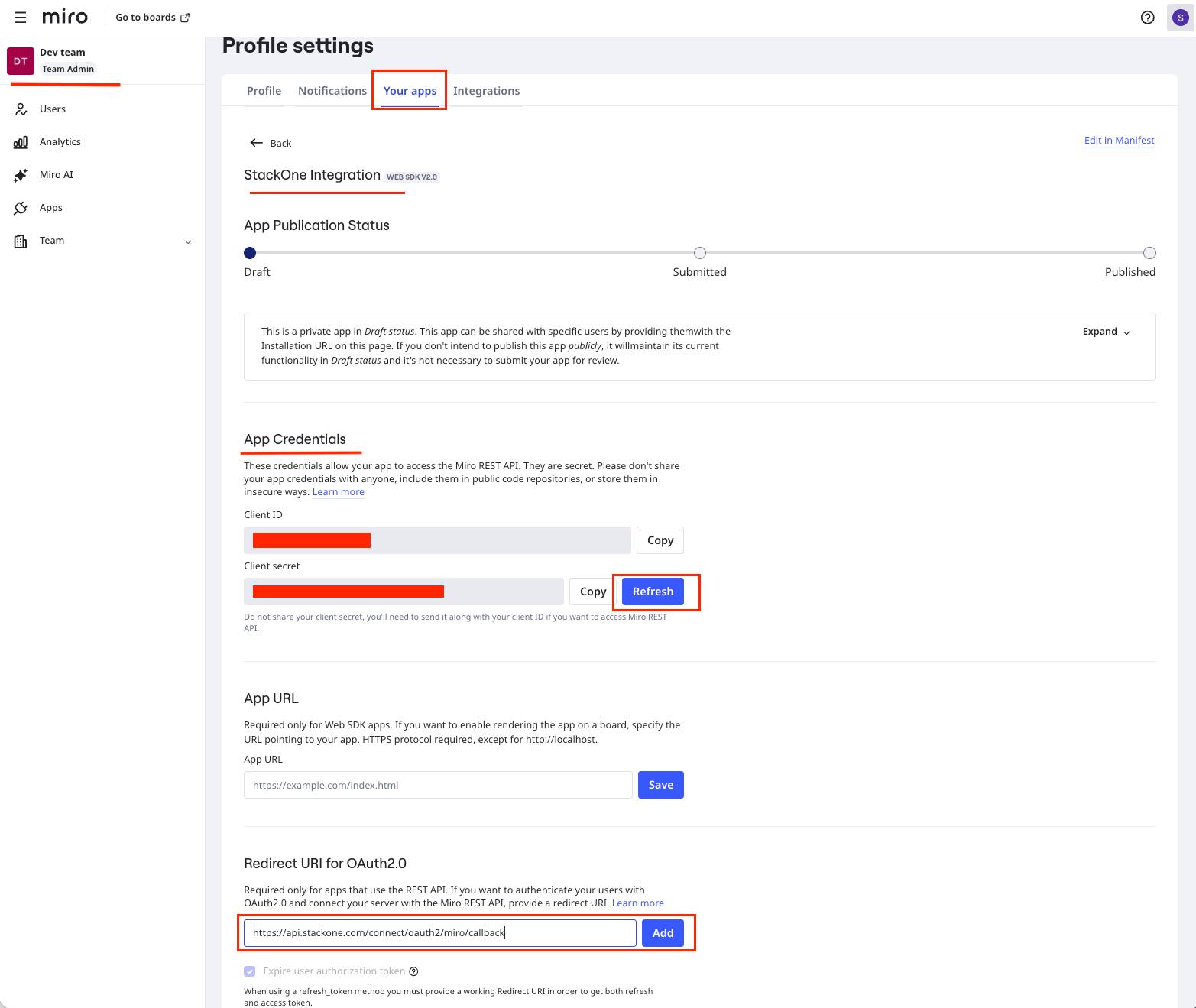
- Scroll up to the App Credentials section
- Locate Client ID and copy it
- Locate Client secret, then copy it
- Scroll down to the Redirect URI for OAuth2.0 section
- Add a new redirect URI, “
https://api.stackone.com/connect/oauth2/miro/callback” - Click Add to save the redirect URI
4
Configure Permissions
Enables actions: Attach Tag To Item, Create App Card Item, Create Board, Create Card Item, Create Connector, Create Doc Format Item, Create Document Item, Create Document Item From File, Create Embed Item, Create Frame, Create Group, Create Image Item, Create Image Item From File, Create Project, Create Shape Item, Create Sticky Note Item, Create Tag, Create Text Item, Delete App Card Item, Delete Board, Delete Board Item, Delete Card Item, Delete Connector, Delete Doc Format Item, Delete Document Item, Delete Embed Item, Delete Frame, Delete Group, Delete Image Item, Delete Project, Delete Shape Item, Delete Sticky Note Item, Delete Tag, Delete Text Item, Detach Tag From Item, Get A Group By Its ID, Get All Groups On A Board, Get App Card Item, Get Board, Get Board Item, Get Board Member, Get Card Item, Get Connector, Get Current User, Get Doc Format Item, Get Document Item, Get Embed Item, Get Frame, Get Image Item, Get Items By Tag, Get Items Of A Group By ID, Get Items Within Frame, Get Project, Get Shape Item, Get Sticky Note Item, Get Tag, Get Tags From Item, Get Text Item, List Board Items, List Board Members, List Board Tags, List Boards, List Connectors, List Projects, Remove Board Member, Share Board, Ungroup Items, Update A Group With New Items, Update App Card Item, Update Board, Update Board Item, Update Board Member, Update Card Item, Update Connector, Update Document Item, Update Document Item From File, Update Embed Item, Update Frame, Update Image Item, Update Image Item From File, Update Project, Update Shape Item, Update Sticky Note Item, Update Tag, Update Text Item
Set up the permissions (scopes) your application will use.
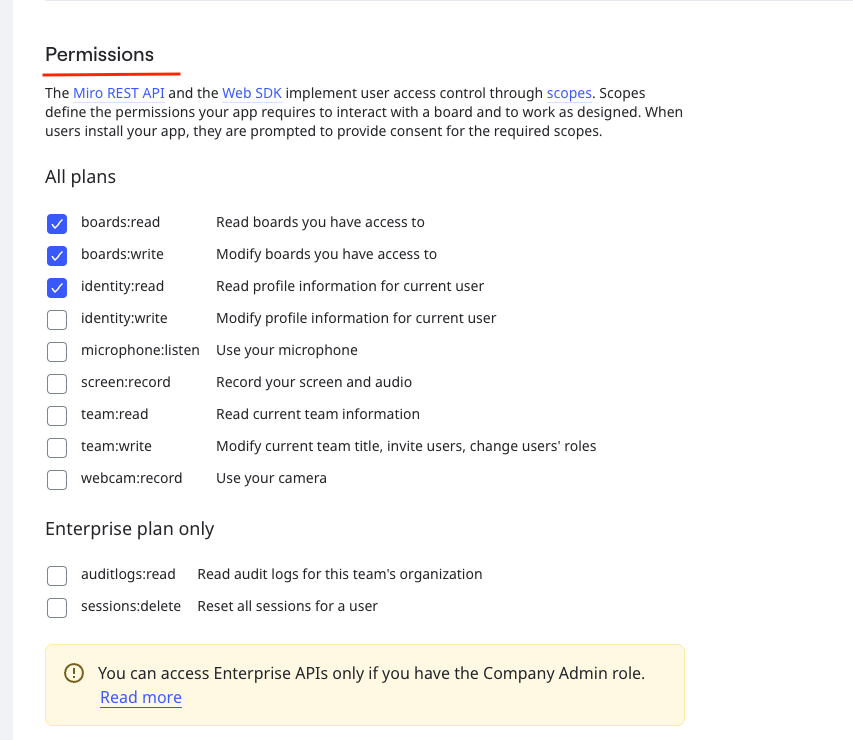
- Scroll down to the Permissions section
- Select the following scopes for a complete StackOne integration:
identity:read,boards:read,boards:write - If you are on an Enterprise plan, also select
projects:readandprojects:write. These scopes will not be available on non-Enterprise plans and can be skipped. - Permission changes will be automatically saved.
Creating the StackOne Connector Profile
To create the Connector Profile in StackOne for Miro:1
Open the connector
Log in to StackOne, open Connectors, and select Miro.
2
Choose actions and events
- Click Add Profile.
- If the connector offers more than one authentication method, set the Auth Method filter to OAuth 2.0.
- Select the actions, and any events, to enable for this Connector Profile.
- Click Continue.
3
Set up authentication
- Select Authentication Type as OAuth 2.0.
- Fill out the fields using details retrieved from your provider:
- Client ID
- Client Secret
- Click Create Profile.