

Create a Hootsuite developer app
Register a new app in the Hootsuite developer area to get the Client ID and Client Secret that StackOne uses for OAuth 2.0 authorization.
Sign in to Hootsuite
Sign in to your Hootsuite account.
Open the account menu
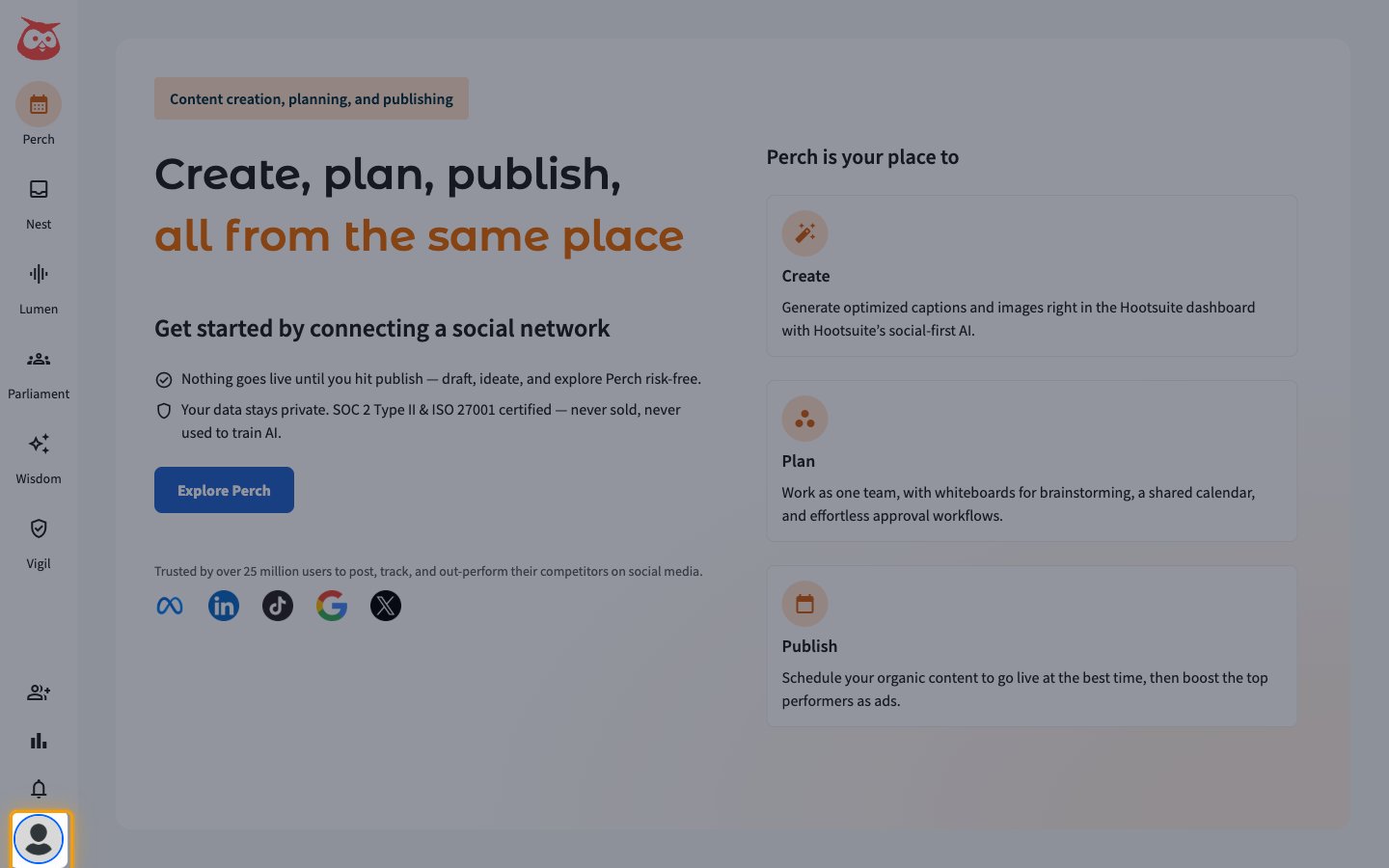
At the bottom of the left sidebar of the Hootsuite dashboard, click your profile avatar (the Manage account, subscription, and preferences button).
Open App directory
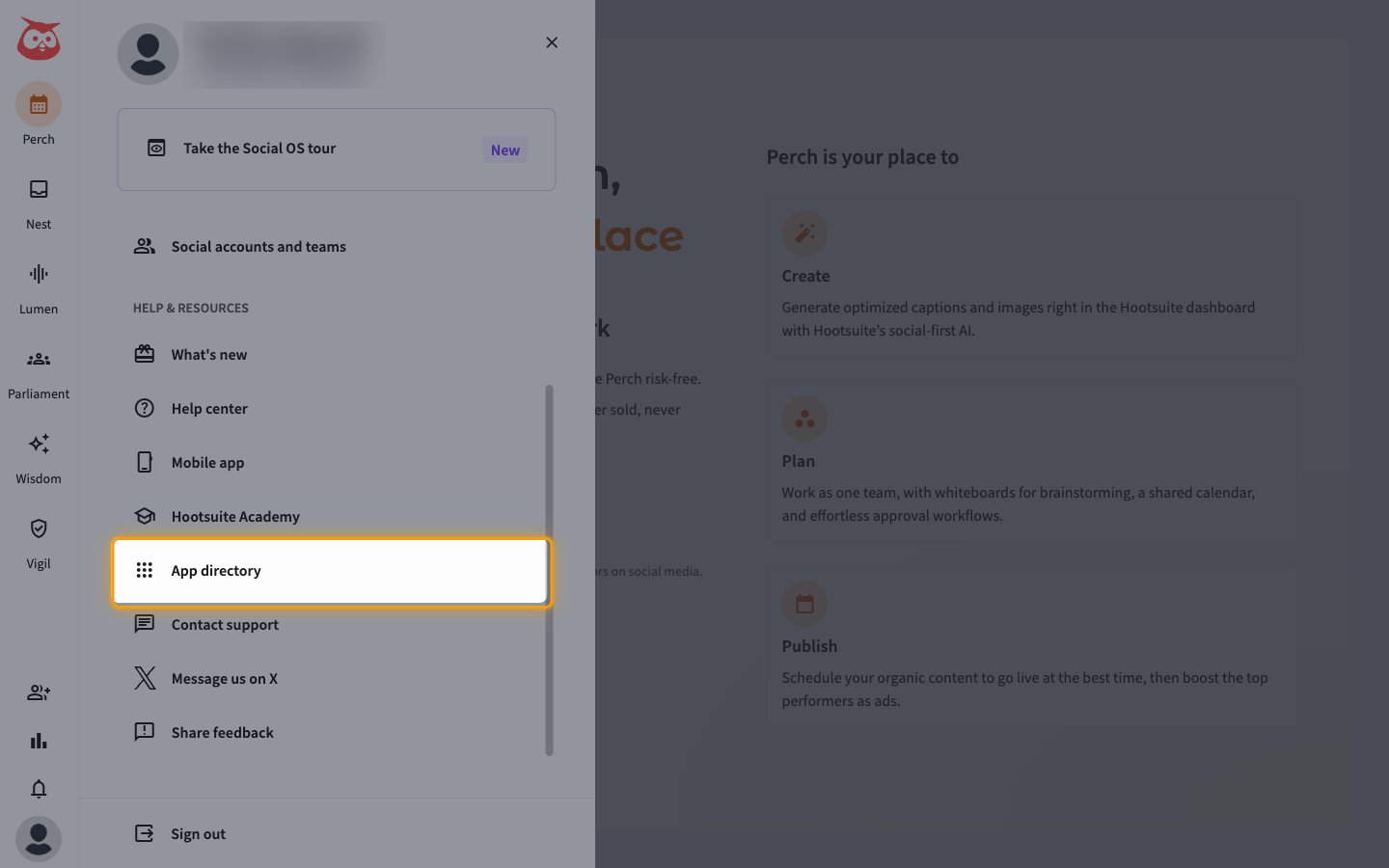
In the panel that opens, click App directory under HELP & RESOURCES.
Open Developer apps
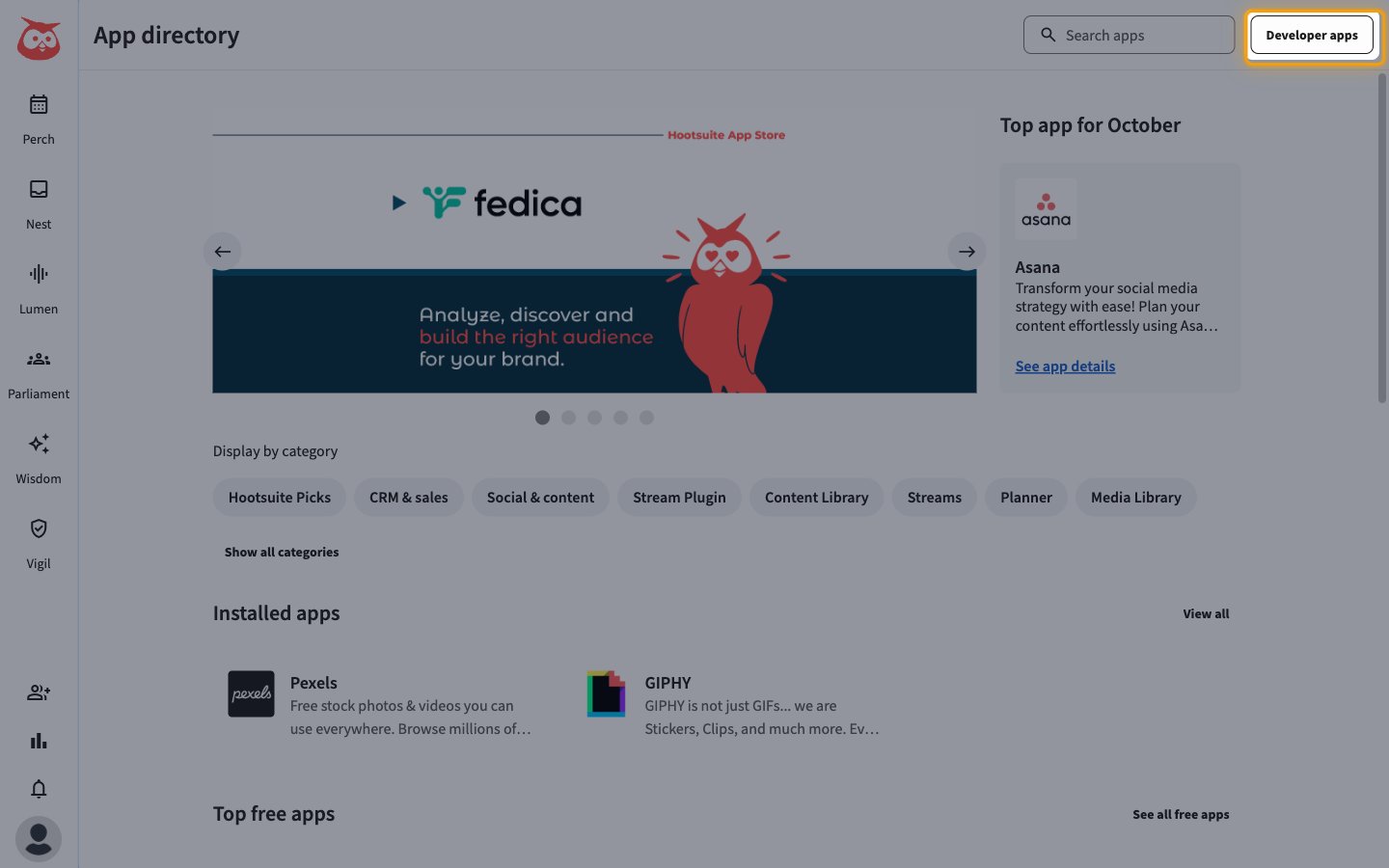
On the App directory page, click Developer apps in the top right.
Register as a developer if prompted
If your Hootsuite account has not joined the developer program yet, a Hootsuite Developer Program registration form opens instead of Your apps. Complete and submit the form, then open Developer apps again. If Your apps opens, skip this step.
Start a new app
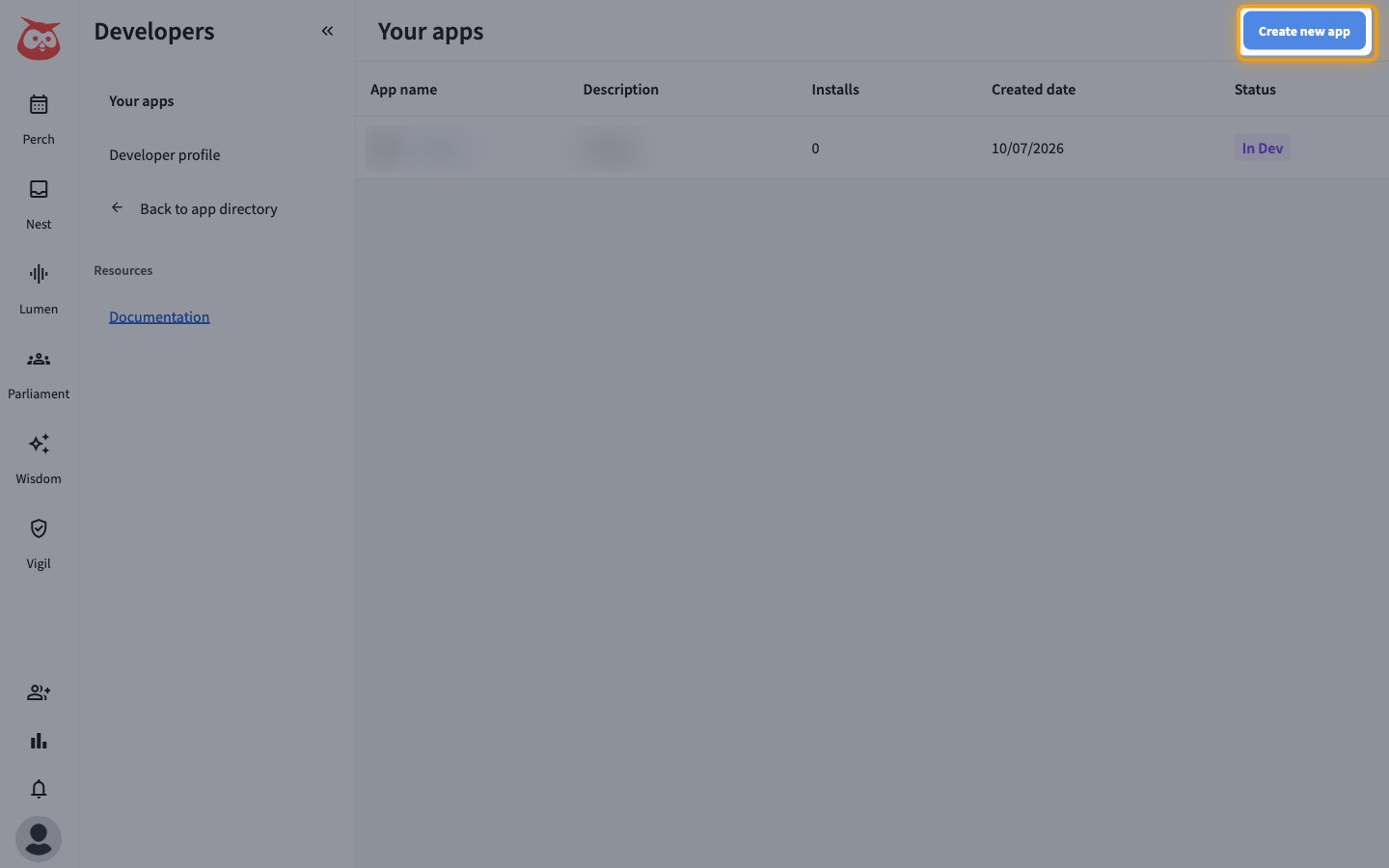
On the Your apps page, click Create new app.
Name and create the app
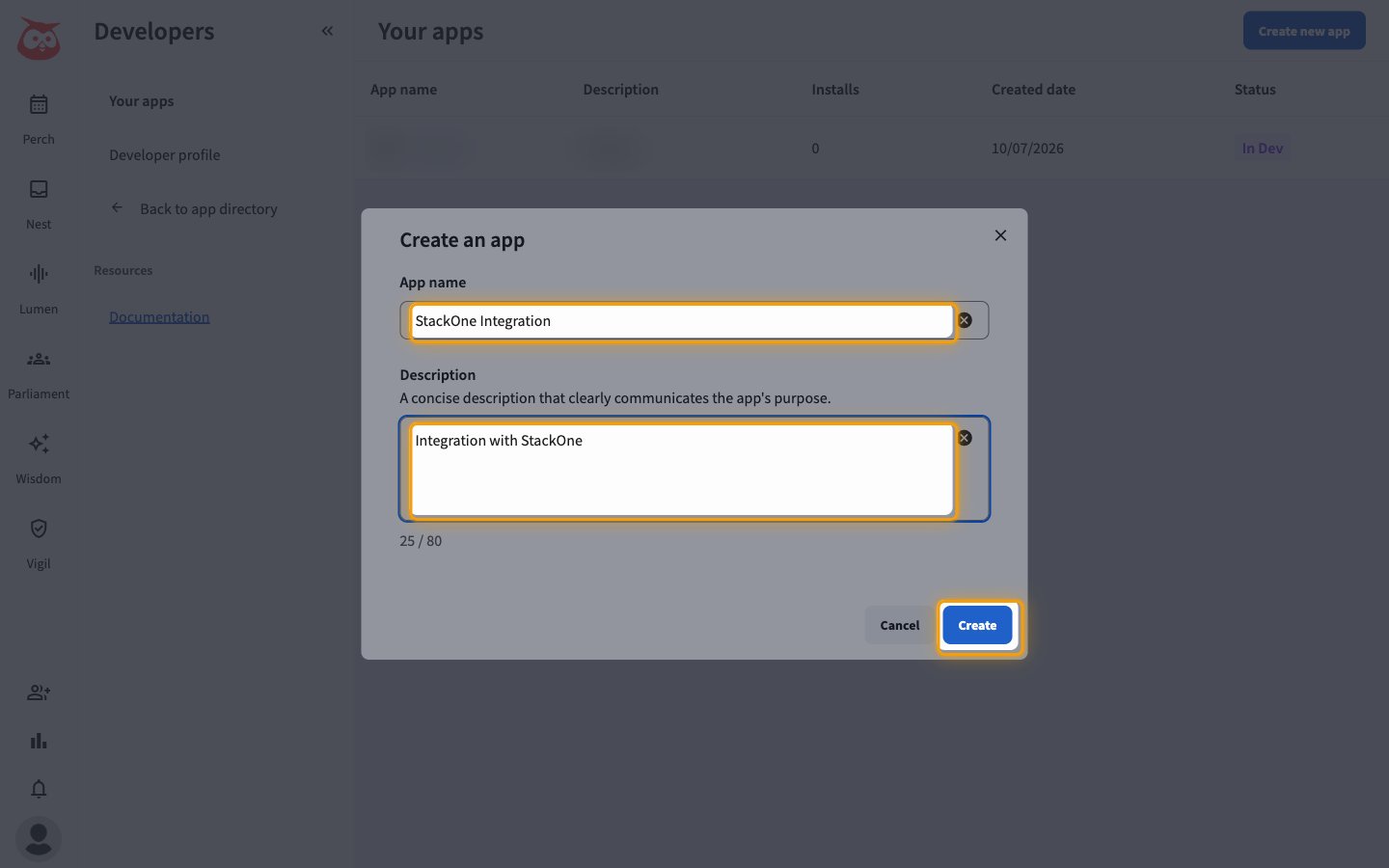
In the Create an app dialog, fill in the fields and create the app.
- Enter a name in App name, for example
StackOne Integration. - Enter a short summary in Description (up to 80 characters).
- Click Create. The new app opens on its Extensions page.
Configure redirect URL and copy credentials
The app’s Rest API page holds the OAuth credentials and the redirect URIs StackOne needs.
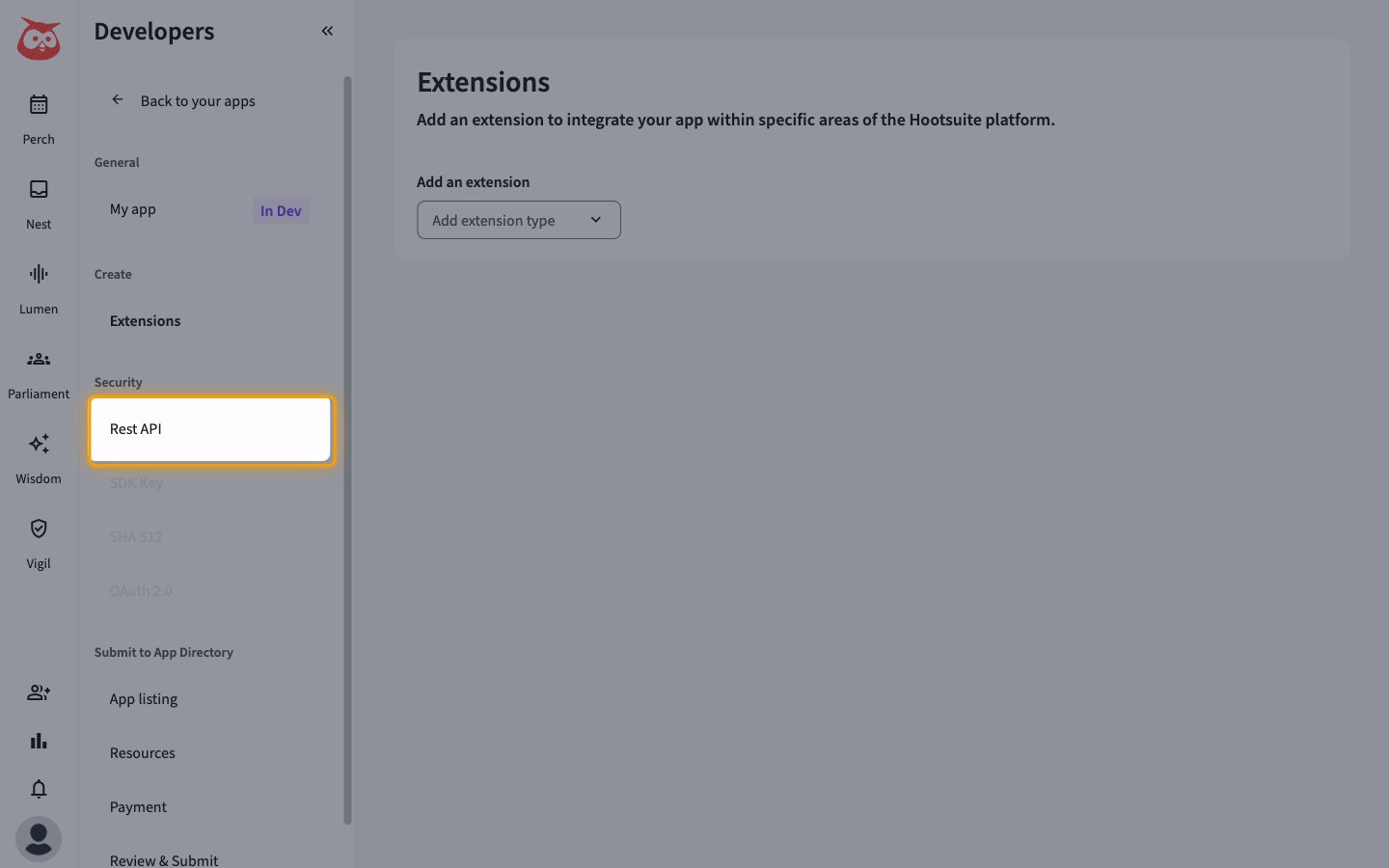
Open Rest API
In the app’s left navigation, click Rest API under the Security heading.
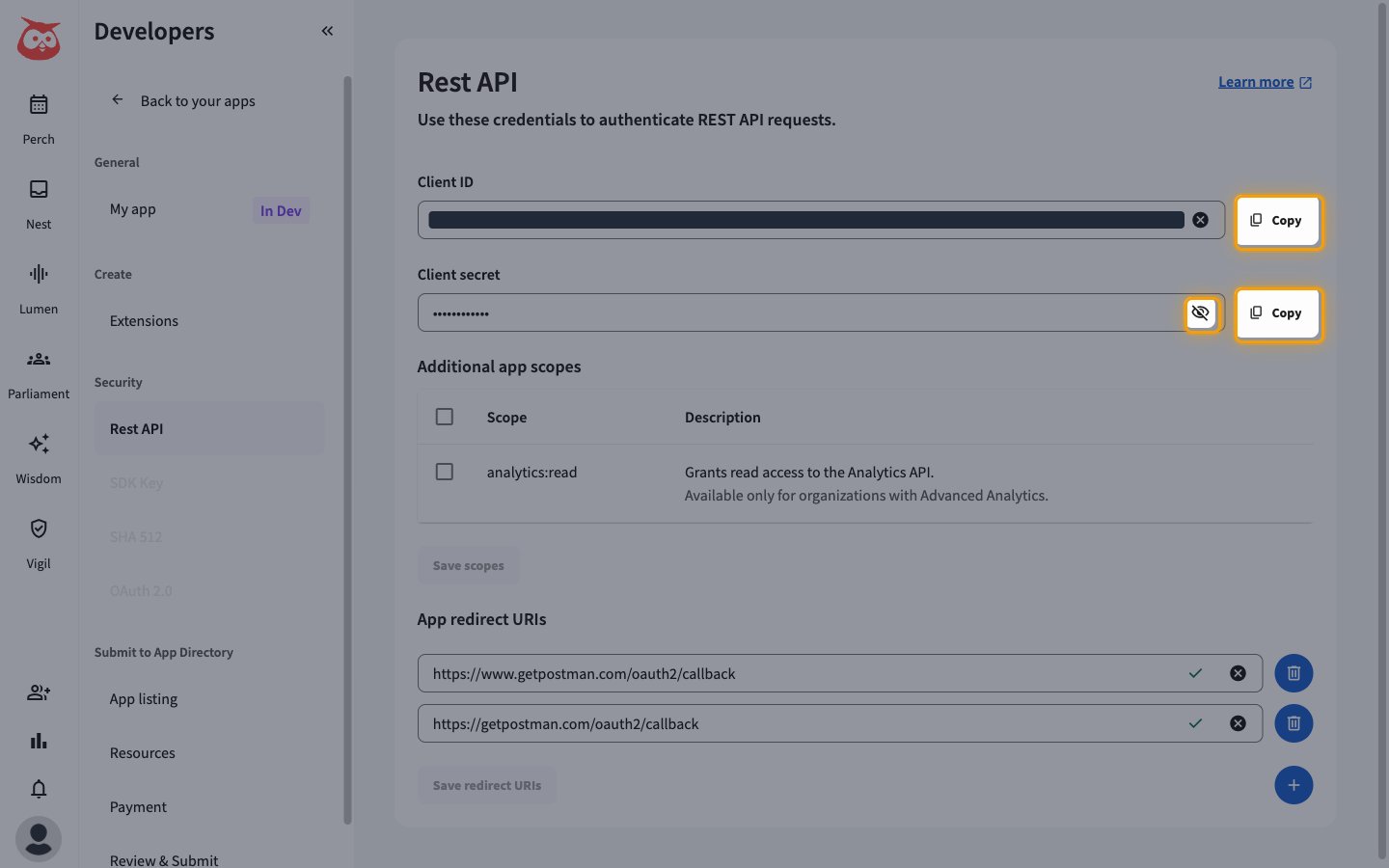
Copy the Client ID and Client secret
Copy both values and paste them into the StackOne Connector profile.
- Click Copy next to Client ID and paste it into the Client ID field.
- Click the eye icon in the Client secret field to reveal the secret, then click Copy next to it and paste it into the Client Secret field.
- Leave Additional app scopes unchanged. StackOne only requests the
offlinescope, which needs no setting on this page.
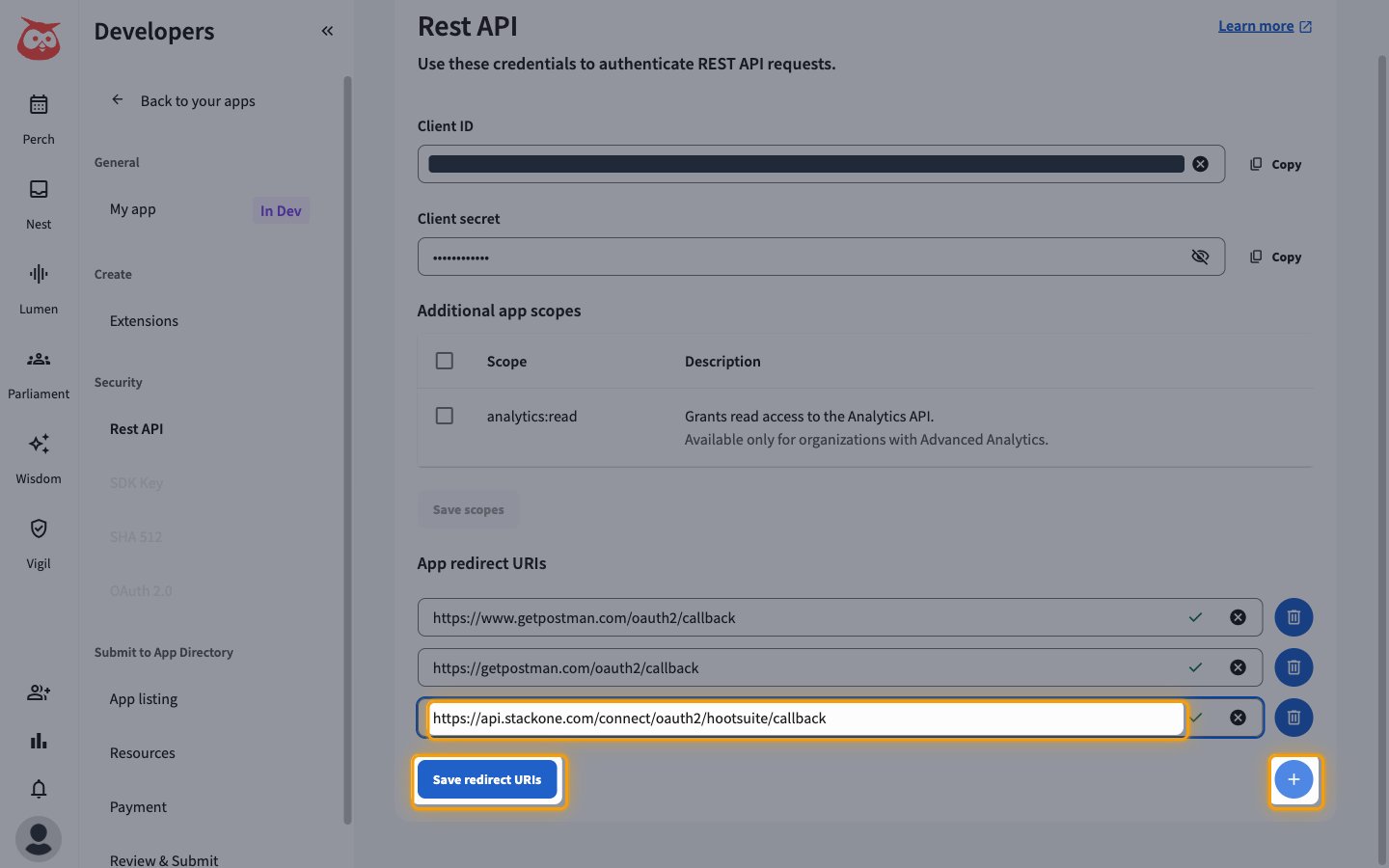
Add the StackOne redirect URI
Under App redirect URIs, click the + (Add) button to add an empty row, paste the StackOne redirect URI into it, then click Save redirect URIs.
- Redirect URI:
https://api.stackone.com/connect/oauth2/hootsuite/callback - New apps already list two Postman callback URIs. You can keep or delete them.
Creating the StackOne Connector Profile
To create the Connector Profile in StackOne for Hootsuite:Open the connector
Choose actions and events
- Click Add Profile.
- If the connector offers more than one authentication method, set the Auth Method filter to OAuth 2.0.
- Select the actions, and any events, to enable for this Connector Profile.
- Click Continue.
Set up authentication
- Select Authentication Type as OAuth 2.0.
- Fill out the fields using details retrieved from your provider:
- Client ID
- Client Secret
- Click Create Profile.