

Create an OAuth Application
To connect Go1 with StackOne, create a private OAuth application in your Go1 portal and copy its credentials.
Note: myGo1 retires on 31 December 2026. This setup flow (Integrations > Developers > Create app) currently relies on the myGo1 portal. Review Go1’s Go1 Learn admin guide for migration details, as these steps may move to Go1 Learn.
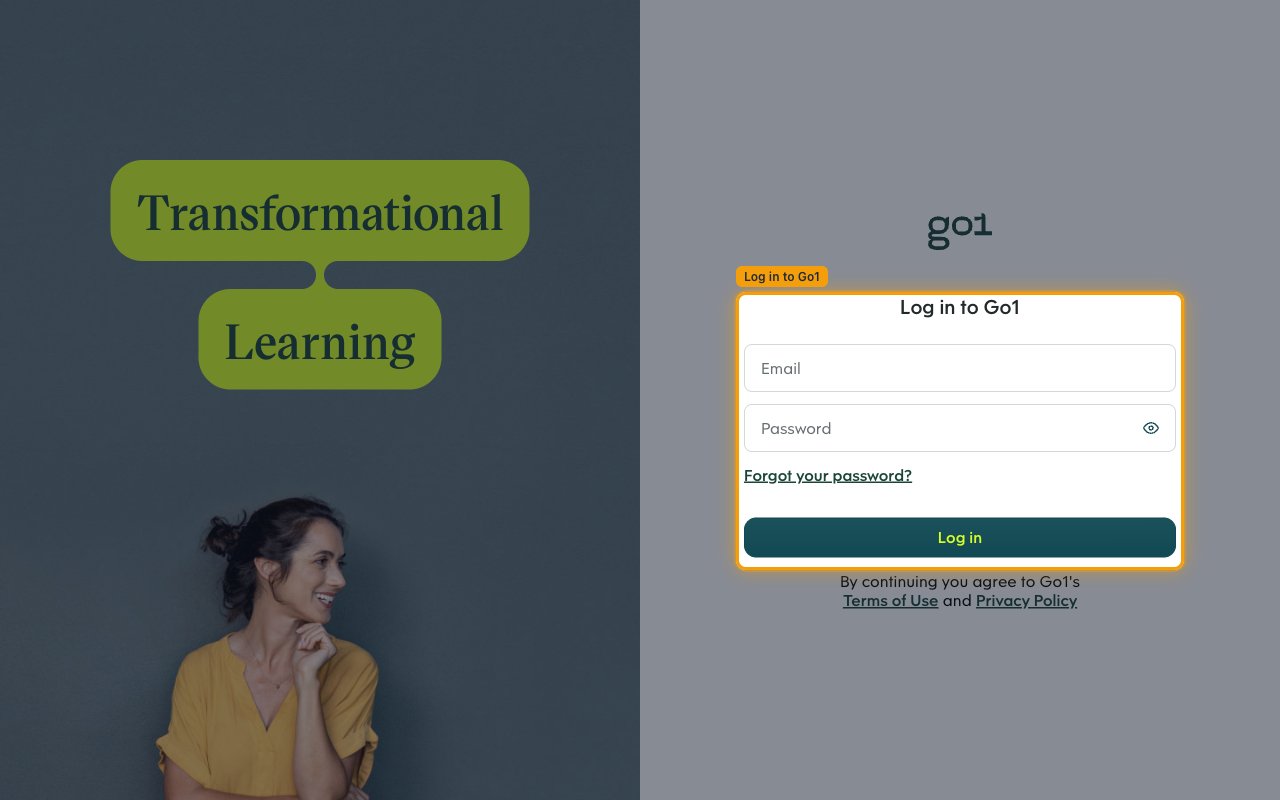
Sign in to Go1
Go to your Go1 portal and sign in with an admin account. Enter your Email and Password, then click Log in. If you have more than one portal, select the portal you want to connect.
Note: After signing in, you may land on Go1 Learn. Click Return to myGo1 at the bottom-left to switch to the classic portal, where Integrations > Developers is accessible.
Open Integrations
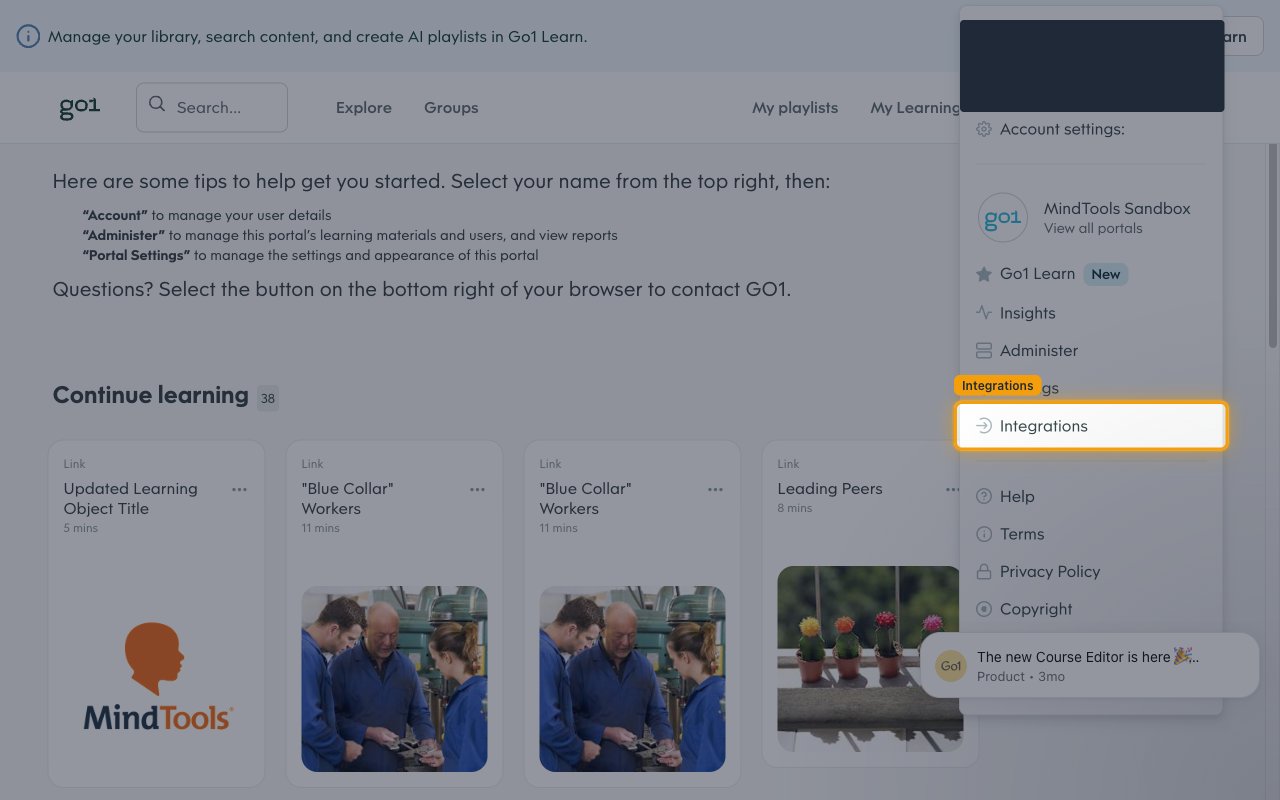
Click your initials in the top-right corner to open the account menu, then select Integrations.
Open Developer settings
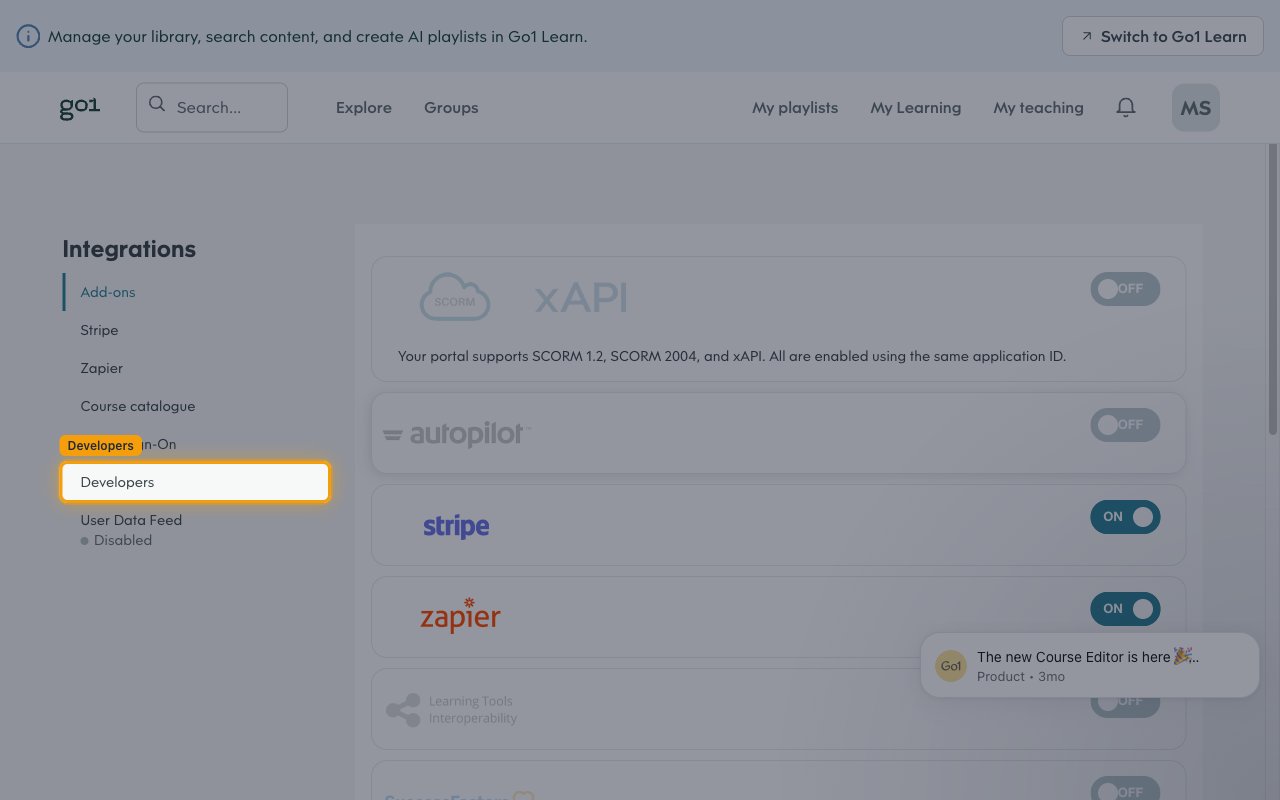
In the Integrations side menu, select Developers to open the Client Apps page.
Create a new app
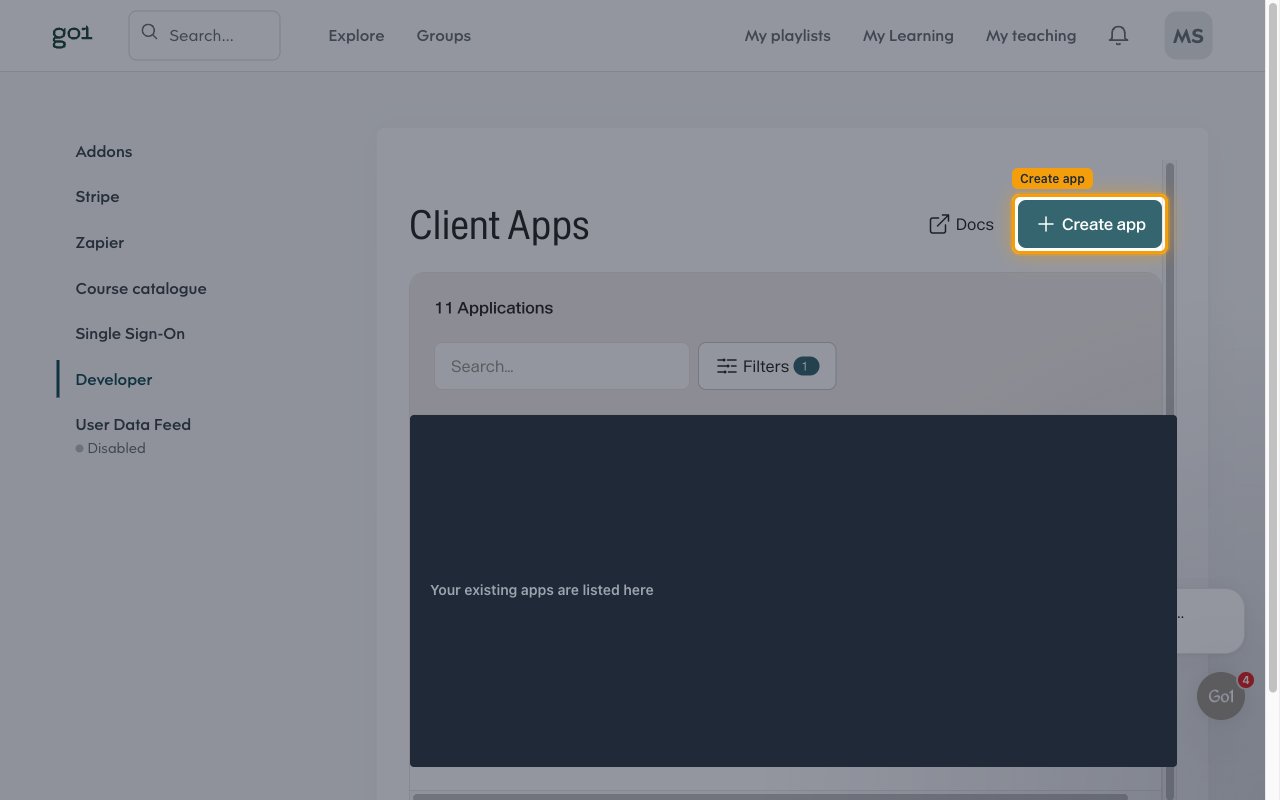
On the Client Apps page, click Create app to start creating a new private OAuth application.
Configure app details
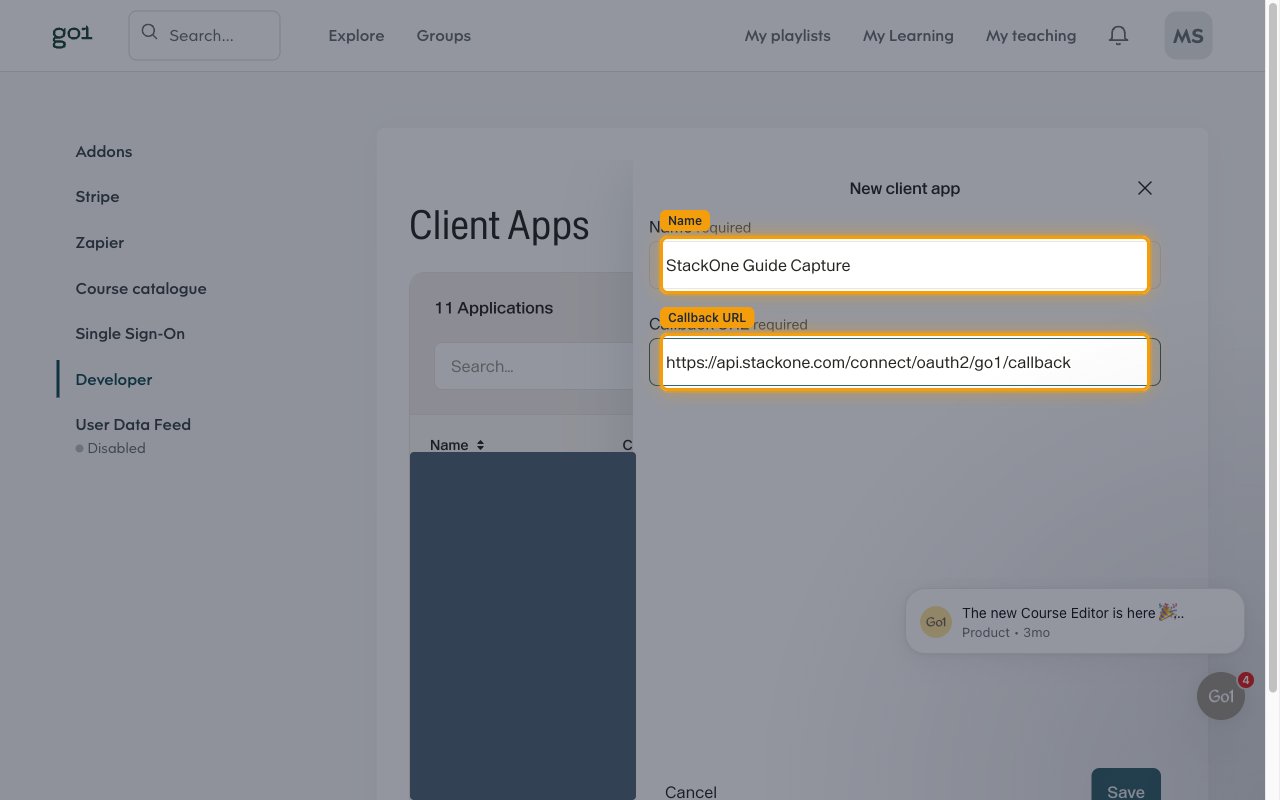
In the New client app dialog, fill in the fields and click Save.
- Name: Enter a descriptive name (for example,
StackOne Integration). - Callback URL: Enter
https://api.stackone.com/connect/oauth2/go1/callback
Save and copy credentials
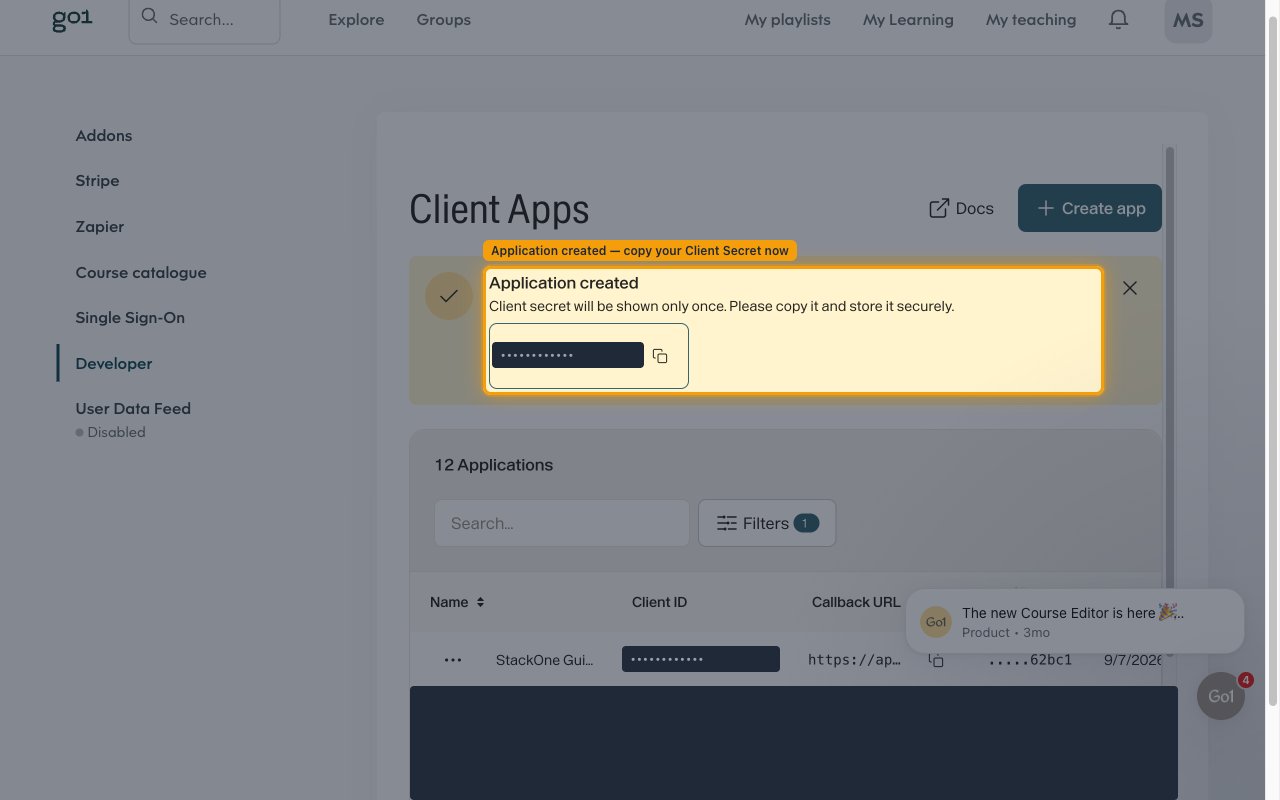
After saving, the Application created confirmation shows your credentials. Copy the Client ID from the app’s row and paste it into the Client ID field in the StackOne Connector profile, then copy the Client Secret and paste it into the Client Secret field in the StackOne Connector profile.
- The Client Secret will be shown only once. Please copy it and store it securely — if lost, you will need to create a new application.
Set application scopes
The Application Scopes field in the StackOne Connector profile controls which Go1 permissions the integration requests (for example, reading users, learning objects, and enrollments). Leave it blank to request the full default set of scopes, or enter a space-separated list of the scopes below to narrow the access granted.
Important Notes
Keep the following in mind when managing your Go1 OAuth application.
- If the administrator who created the app becomes inactive or loses admin status, the credentials will stop working.
- Multiple OAuth applications can be created for the same portal if needed.
Creating the StackOne Connector Profile
To create the Connector Profile in StackOne for Go1:Navigate to Connector Profiles
Create New Connector Profile
- Click + Connector Profile
- Search for and select Go1
- Select Type as OAuth 2.0
- Fill out the fields using details retrieved from your provider:
- Client ID
- Client Secret
- Application Scopes (Optional)
- (Optional) Select Actions to be enabled for this Connector Profile
- Click Create profile