

Create a Meta app
Meta issues the App ID and App Secret when you create an app in the Meta for Developers portal.
Sign in to Meta for Developers
Sign in to your Meta for Developers account.
- Click Continue with Facebook and sign in with the Facebook account that will own the app.
Start a new app
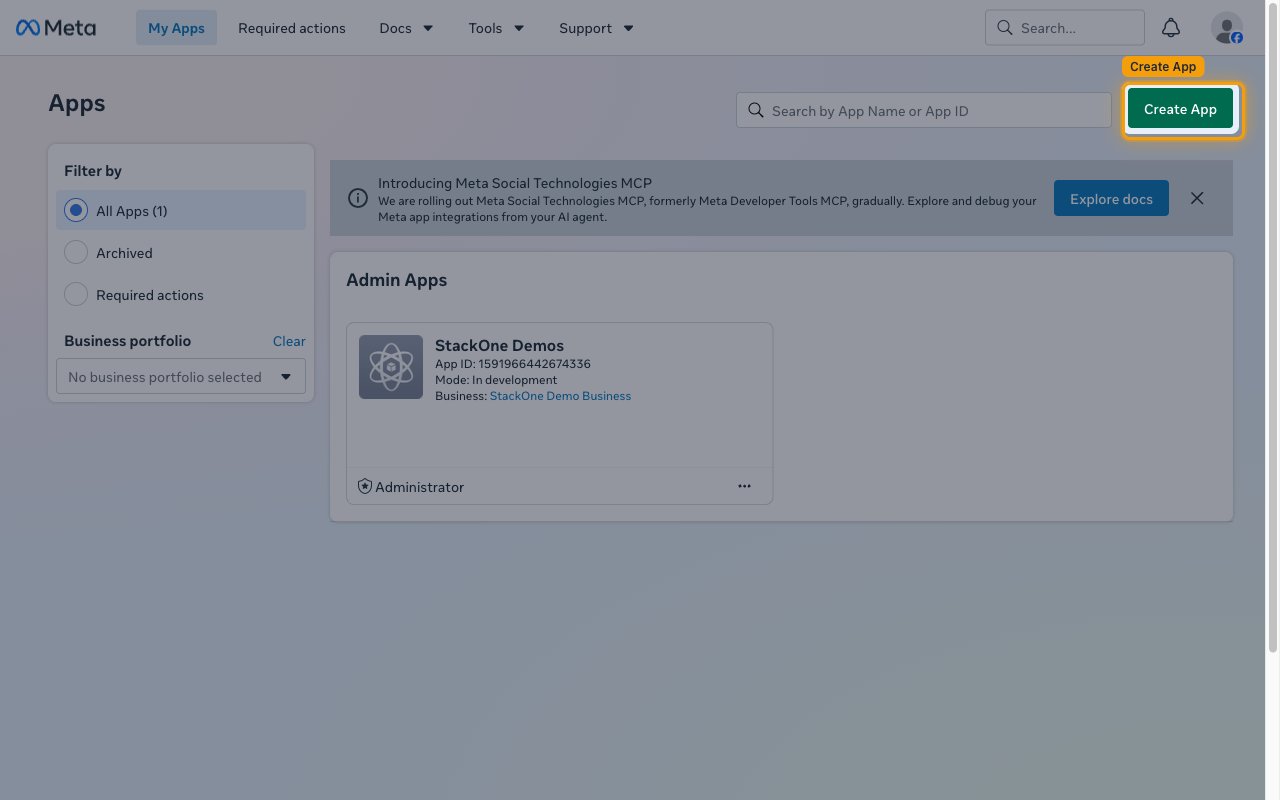
On the Apps page, click Create App.
Name the app and set the contact email
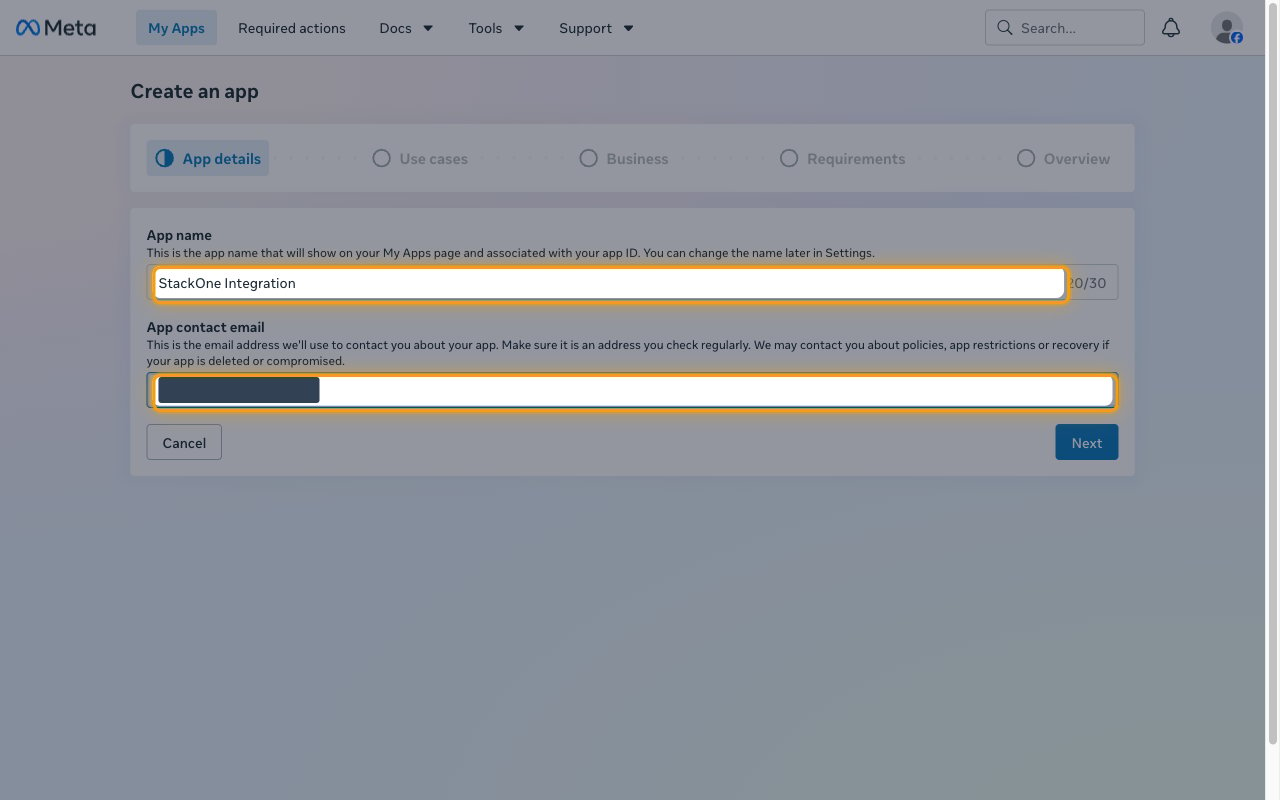
On the App details step, enter a name in App name and check the address in App contact email.
- App name — the name shown on your My Apps page and associated with your app ID, for example
StackOne Integration. You can change it later in Settings. - App contact email — the address Meta uses to contact you about policies, app restrictions, or recovery if the app is deleted or compromised.
- Click Next.
Select the Facebook Login use case
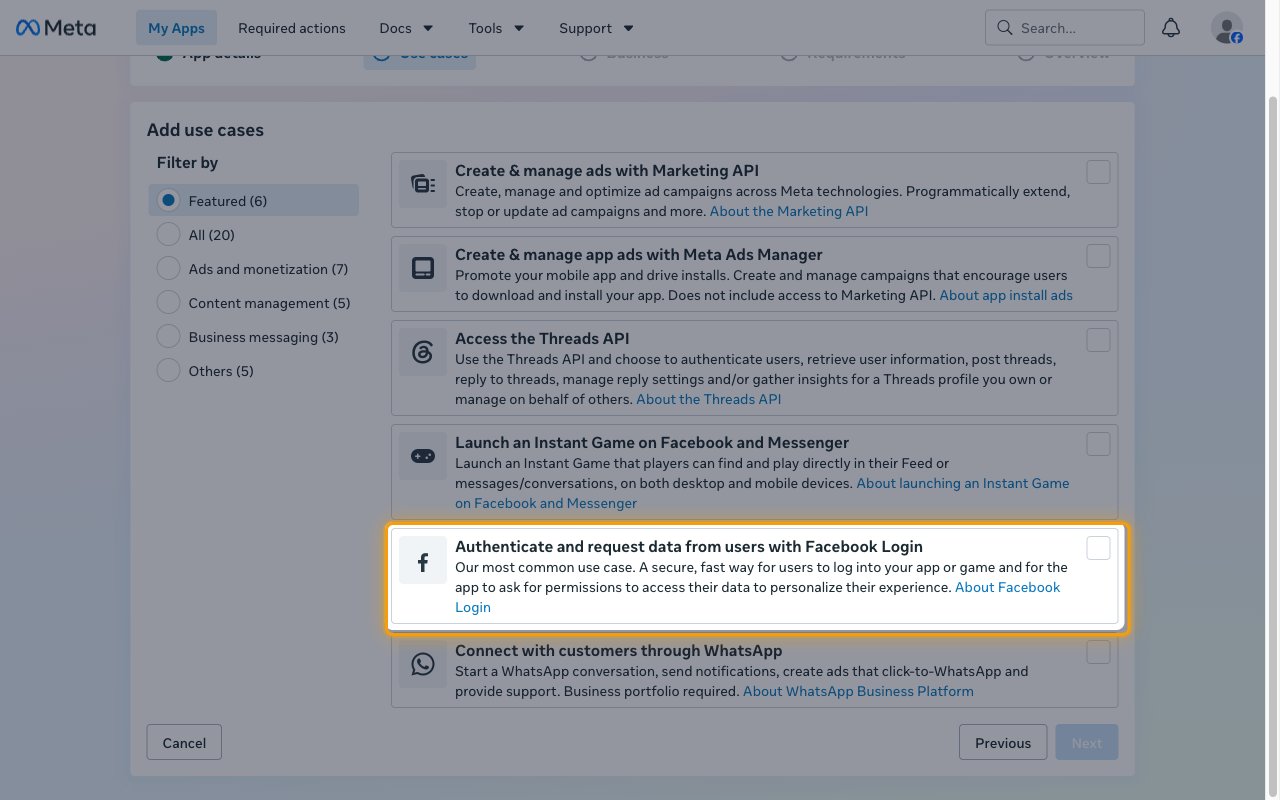
On the Add use cases step, select Authenticate and request data from users with Facebook Login, then click Next.
- Selecting this use case greys out the use cases that cannot be combined with it on the same app.
Choose a business portfolio
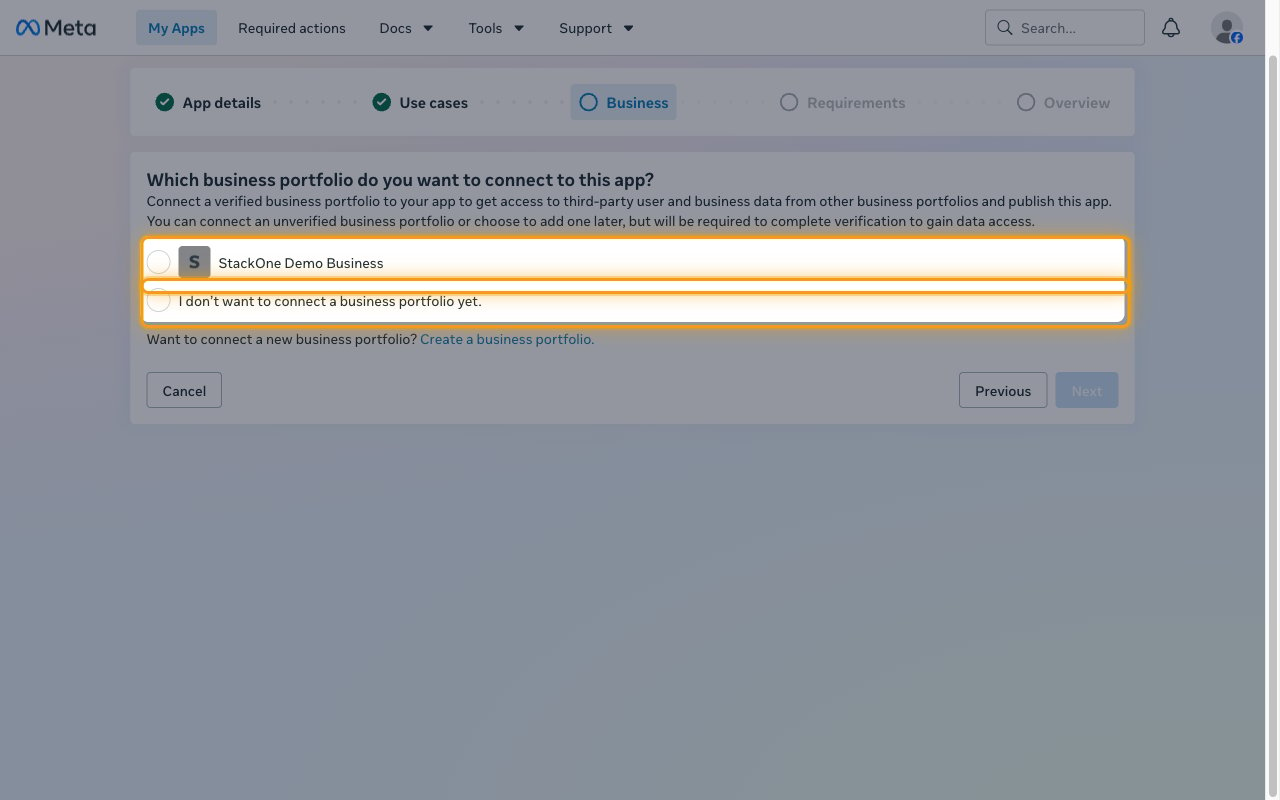
On the Business step, answer Which business portfolio do you want to connect to this app?, then click Next.
- Select the verified business portfolio that will own this integration. Connecting a verified portfolio is what gives the app access to third-party user and business data.
- You can select I don’t want to connect a business portfolio yet. and add one later, but verification is required before the app can access that data.
- Click Create a business portfolio. if you do not have one yet.
Create the app
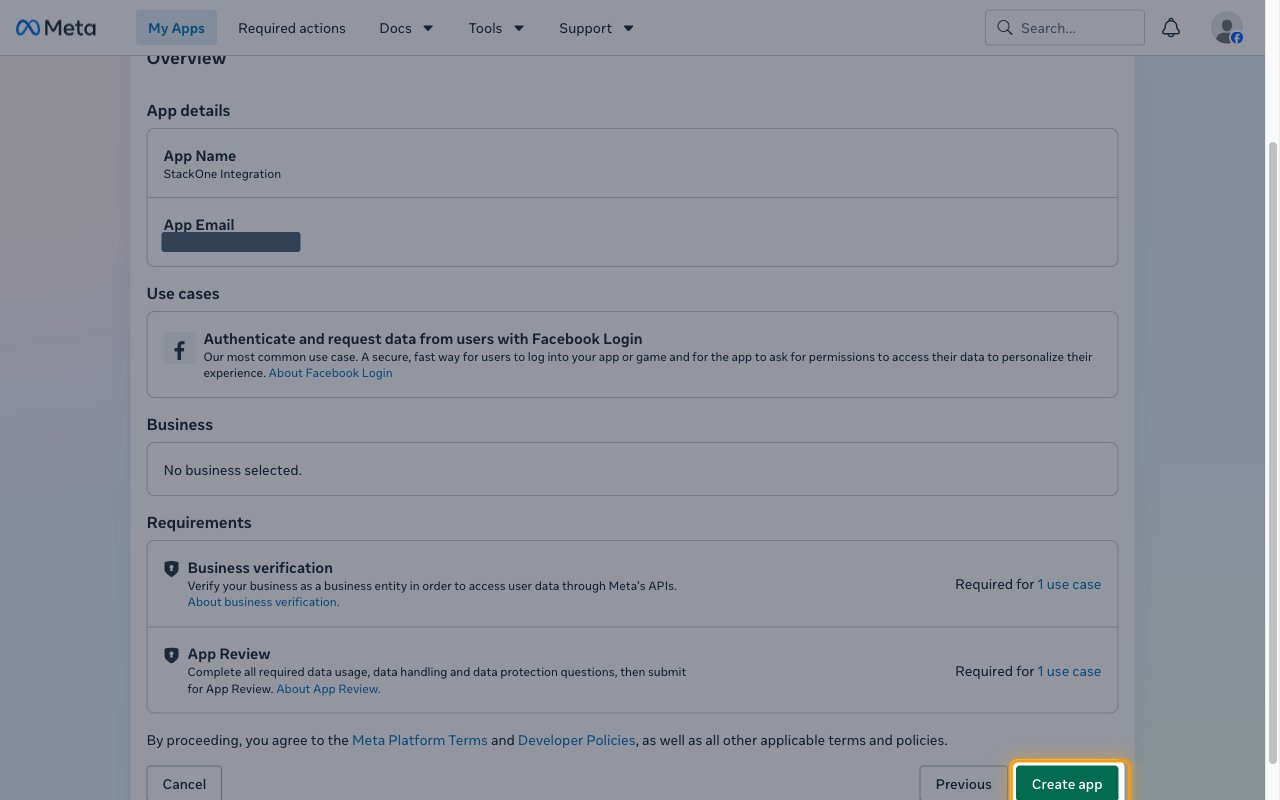
Review the Publishing requirements step, click Next, then check the Overview summary and click Create app.
- Business verification — verify your business as a business entity in order to access user data through Meta’s APIs.
- App Review — complete all required data usage, data handling and data protection questions, then submit for App Review.
- Meta opens the new app’s dashboard once it is created.
Add the StackOne redirect URL
StackOne completes the OAuth flow on a fixed callback URL, and Meta only redirects to URLs listed on the app.
Open the Facebook Login settings
In the left sidebar, open Use cases, click Customize on the Facebook Login use case, then select Settings.
Add the redirect URL
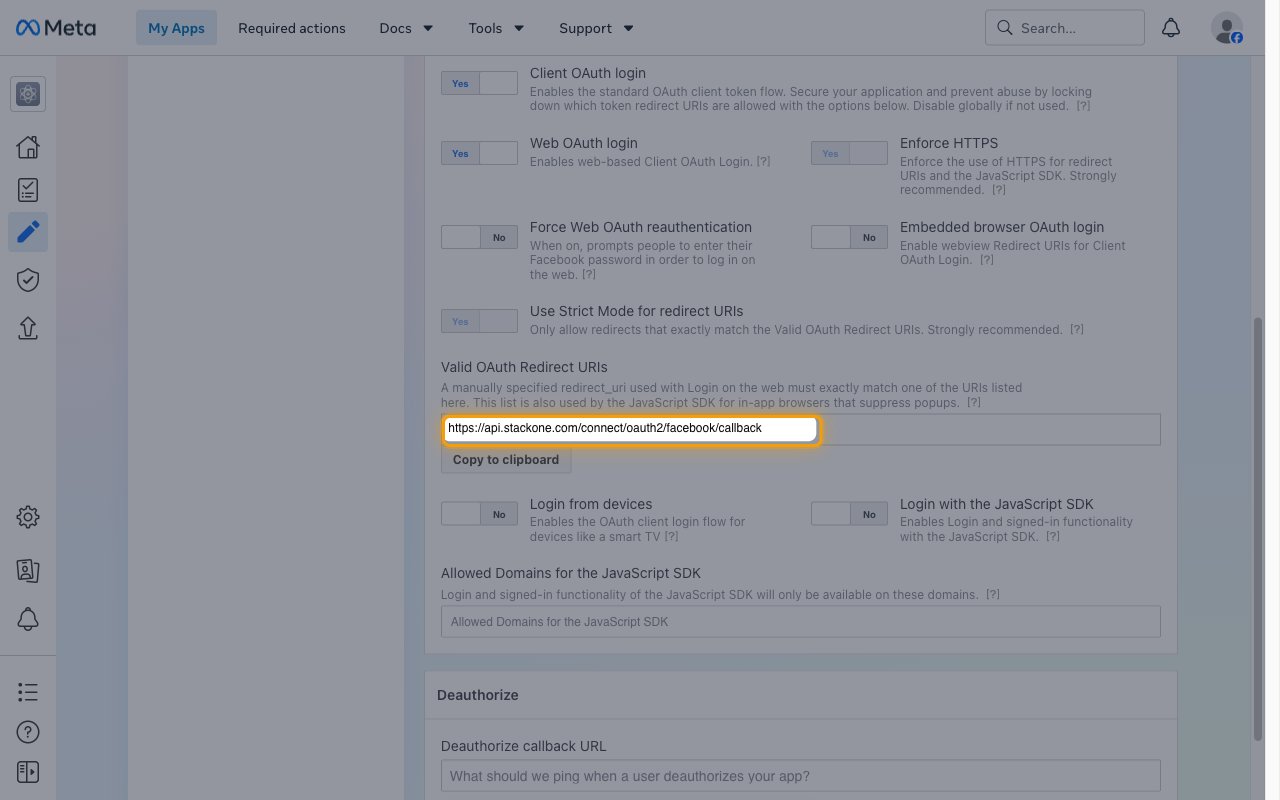
Add this value to Valid OAuth Redirect URIs, then save the page.
https://api.stackone.com/connect/oauth2/facebook/callback- Use Strict Mode for redirect URIs is on by default, so the URL must match exactly. Add it without a trailing slash.
- Enforce HTTPS is on by default and the StackOne callback is already an
httpsURL.
Copy the app credentials
The App ID and App secret identify your app to StackOne.
Open the basic app settings
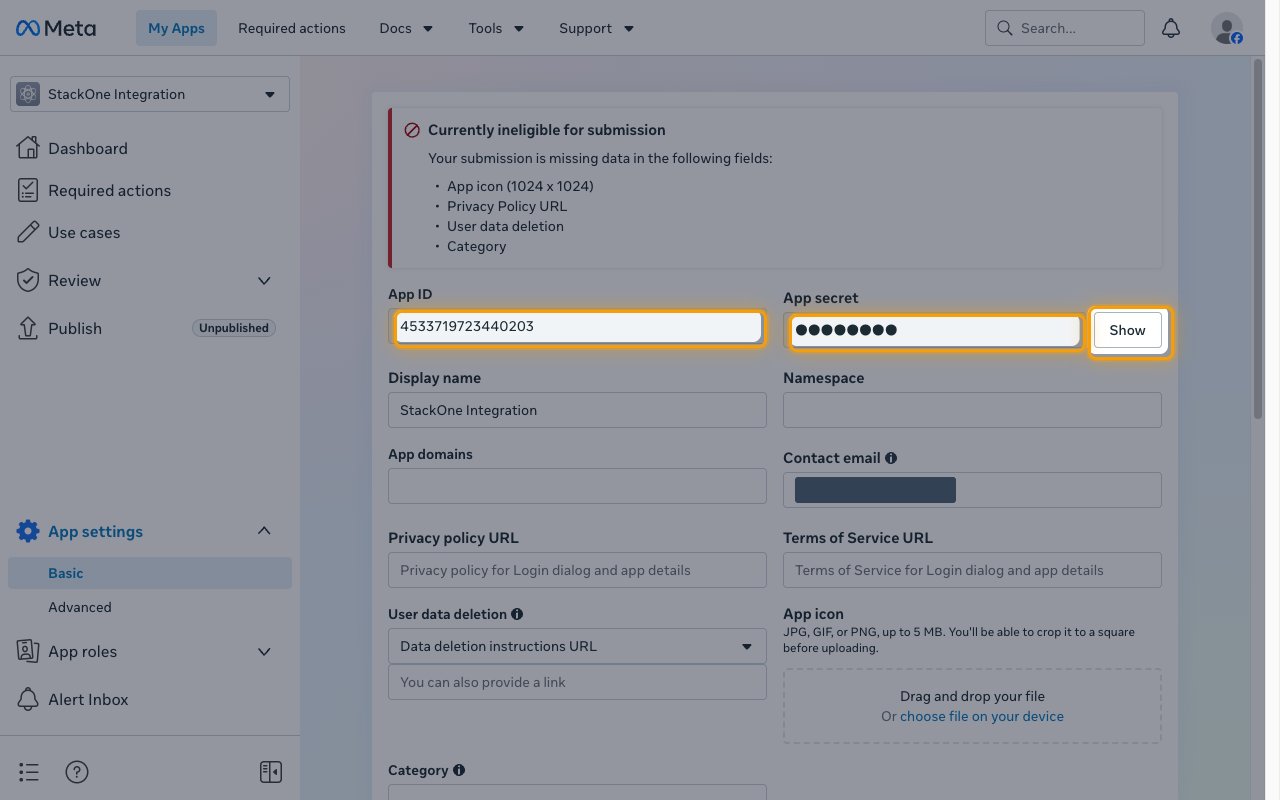
In the left sidebar, open App settings, then click Basic.
Copy the App ID and App secret
Copy both values from the top of the page.
- App ID — the public identifier of your Meta app. Paste it into the App ID field in the StackOne Connector profile.
- App secret — the secret half of the app credentials, hidden behind Show. Click Show, copy the value, and paste it into the App Secret field in the StackOne Connector profile.
- The App secret can create an app access token that acts on behalf of any user of the app, so store it securely and never include it in client-side code.
Grant the permissions the integration needs
Meta requests permissions from the person connecting the account during the login flow, so there is nothing to enable inside the app for them.
Select the permissions to request
The Permissions field in the StackOne Connector profile sets the permissions requested during login. Leaving it blank requests the connector’s default set, which does not include leads_retrieval or pages_manage_ads, so enter the permissions explicitly if the integration retrieves leads.
Creating the StackOne Connector Profile
To create the Connector Profile in StackOne for Facebook:Open the connector
Choose actions and events
- Click Add Profile.
- If the connector offers more than one authentication method, set the Auth Method filter to OAuth 2.0.
- Select the actions, and any events, to enable for this Connector Profile.
- Click Continue.
Set up authentication
- Select Authentication Type as OAuth 2.0.
- Fill out the fields using details retrieved from your provider:
- App ID
- App Secret
- Permissions (Optional)
- Click Create Profile.