

Creating the DHL app
The API Key belongs to a DHL API Developer Portal app with Shipment Tracking - Unified and the Unified Location Finder API added. Every account linked through this profile uses it.
1
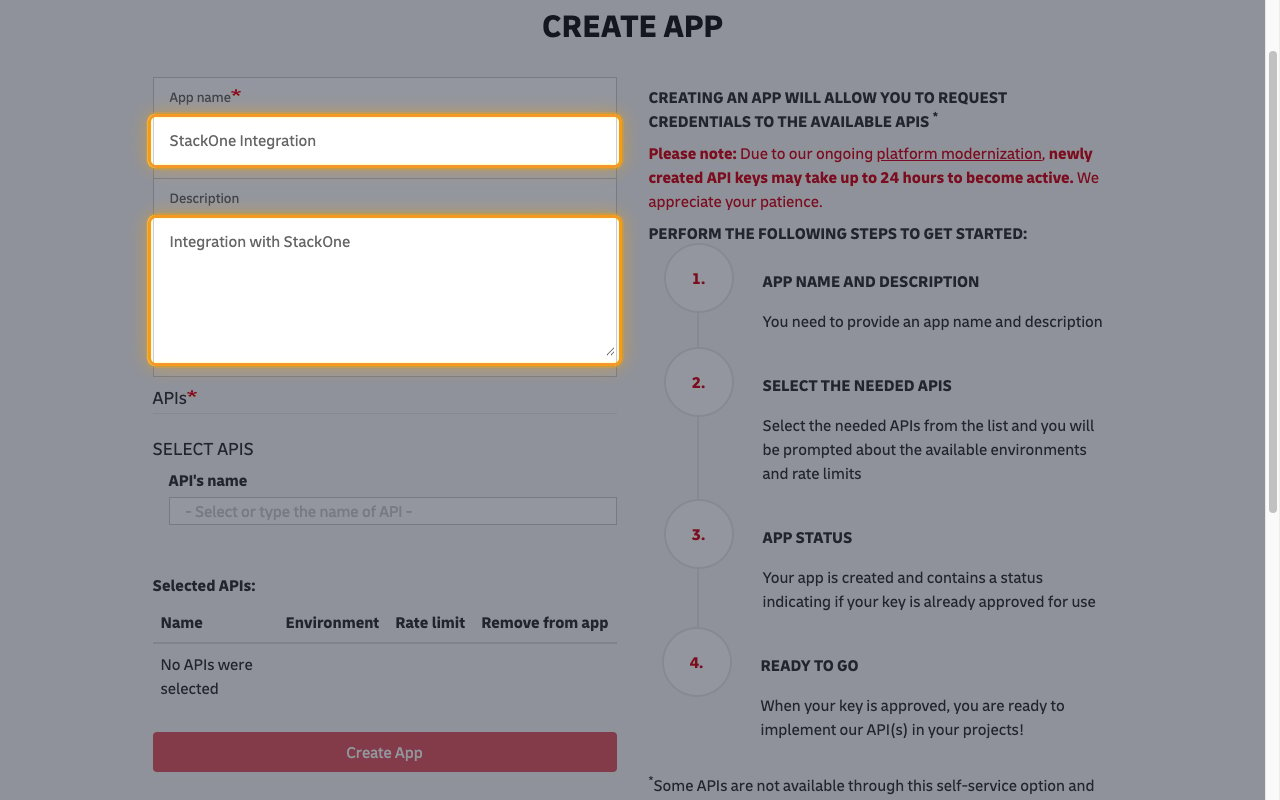
Name the app
Sign in to the DHL API Developer Portal and open Apps.
- Click Create App.
- App name:
StackOne Integration - Description:
Integration with StackOne
2
Add the APIs
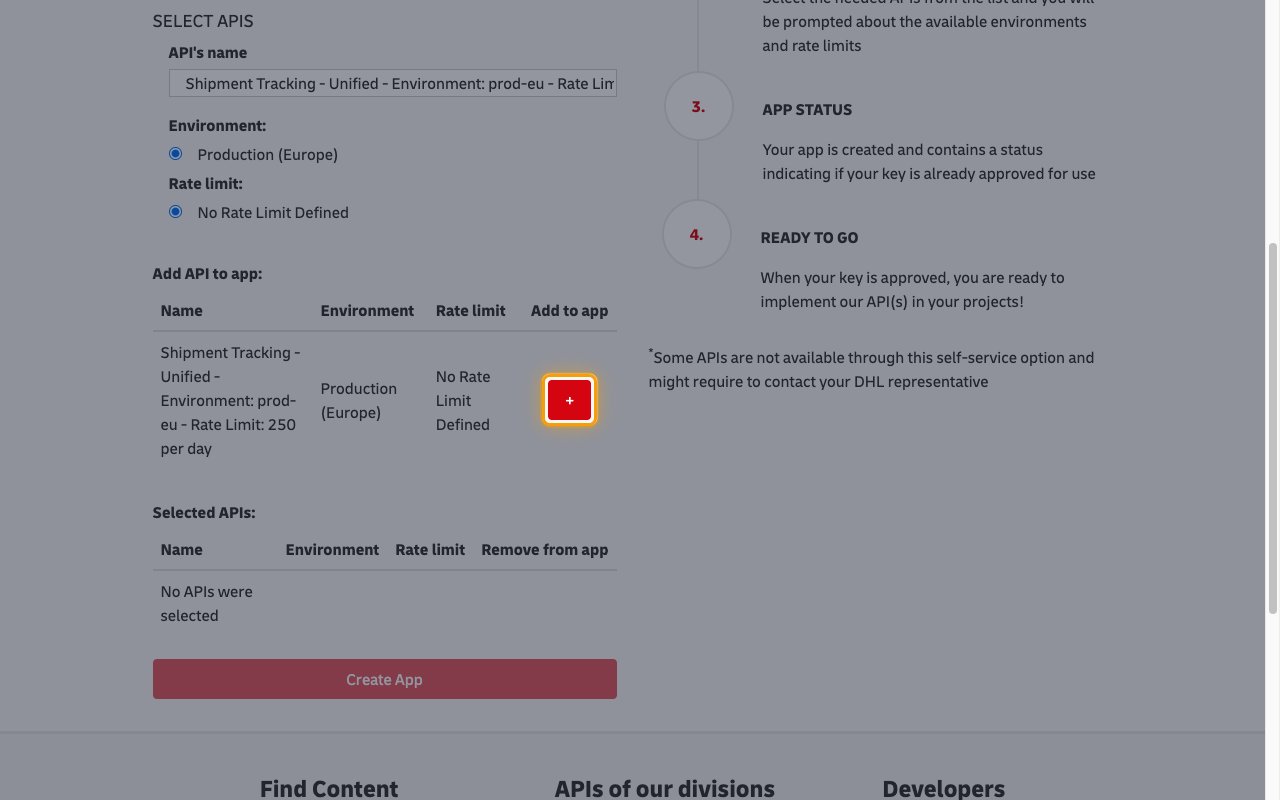
Under SELECT APIS, add both APIs to the app.
- API’s name:
Shipment Tracking - Select Shipment Tracking - Unified - Environment: prod-eu - Rate Limit: 250 per day.
- Under Add to app, click +.
- API’s name:
Location Finder - Select Unified Location Finder API - Environment: production - Rate Limit: 500 per day.
- Under Add to app, click +.
3
Create the app
Both APIs are listed under Selected APIs:.
- Click Create App.
- DHL approves Shipment Tracking - Unified by hand, so it shows pending until approved, and new API keys can take up to 24 hours to become active.
4
Copy the API Key
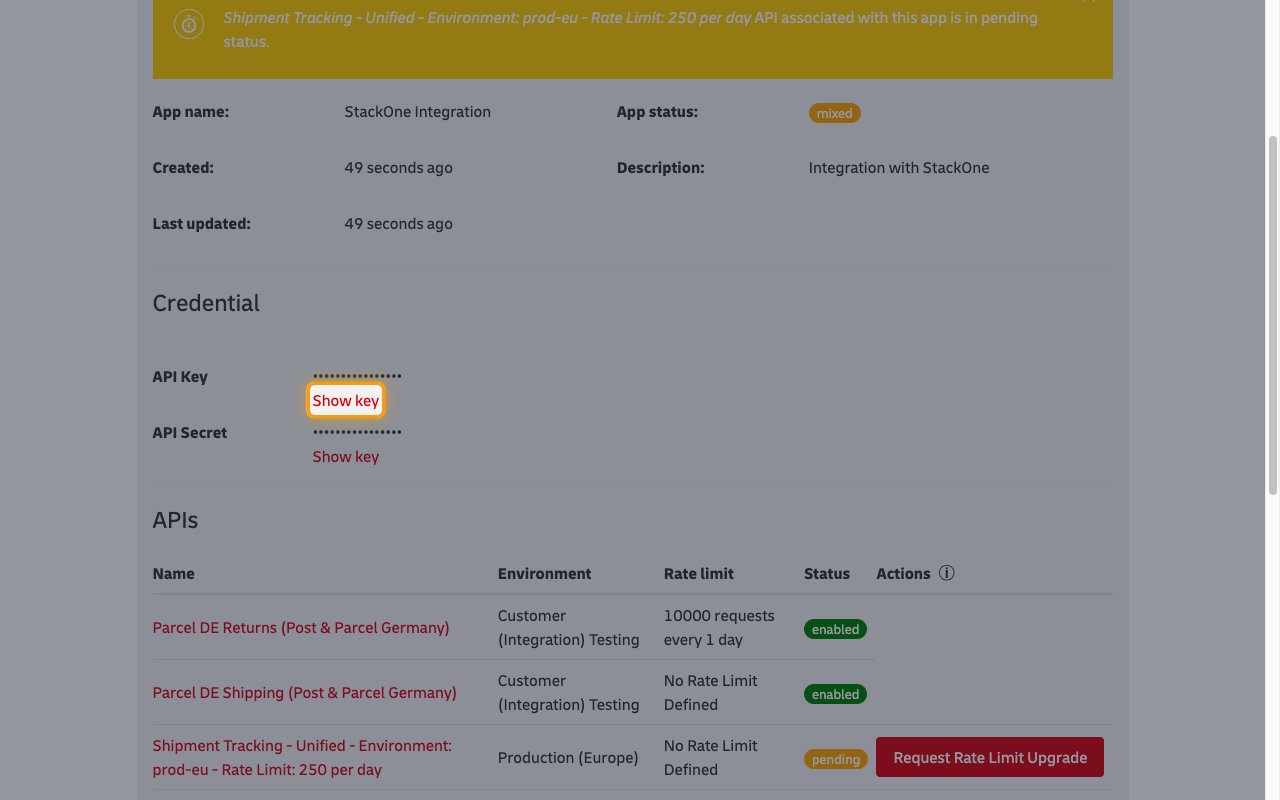
Open the app from the Apps page.
- Click STACKONE INTEGRATION.
- Under Credential, click Show key next to API Key.
- Copy the API Key into your Connector Profile.
Create the StackOne Connector Profile
1
Create a Connector Profile
Enable the connector and create a Connector Profile in your project. See Setup Connector Profile.
2
Link an Account
Once the Connector Profile is created, continue to link an account.