

Creating the DHL app
The API Key and API Secret belong to a DHL API Developer Portal app with Parcel DE Shipping, Parcel DE Returns and Parcel DE Pickup added. DHL approves sandbox access automatically and production access by hand.
1
Name the app
Sign in to the DHL API Developer Portal and open Apps.
- Click Create App.
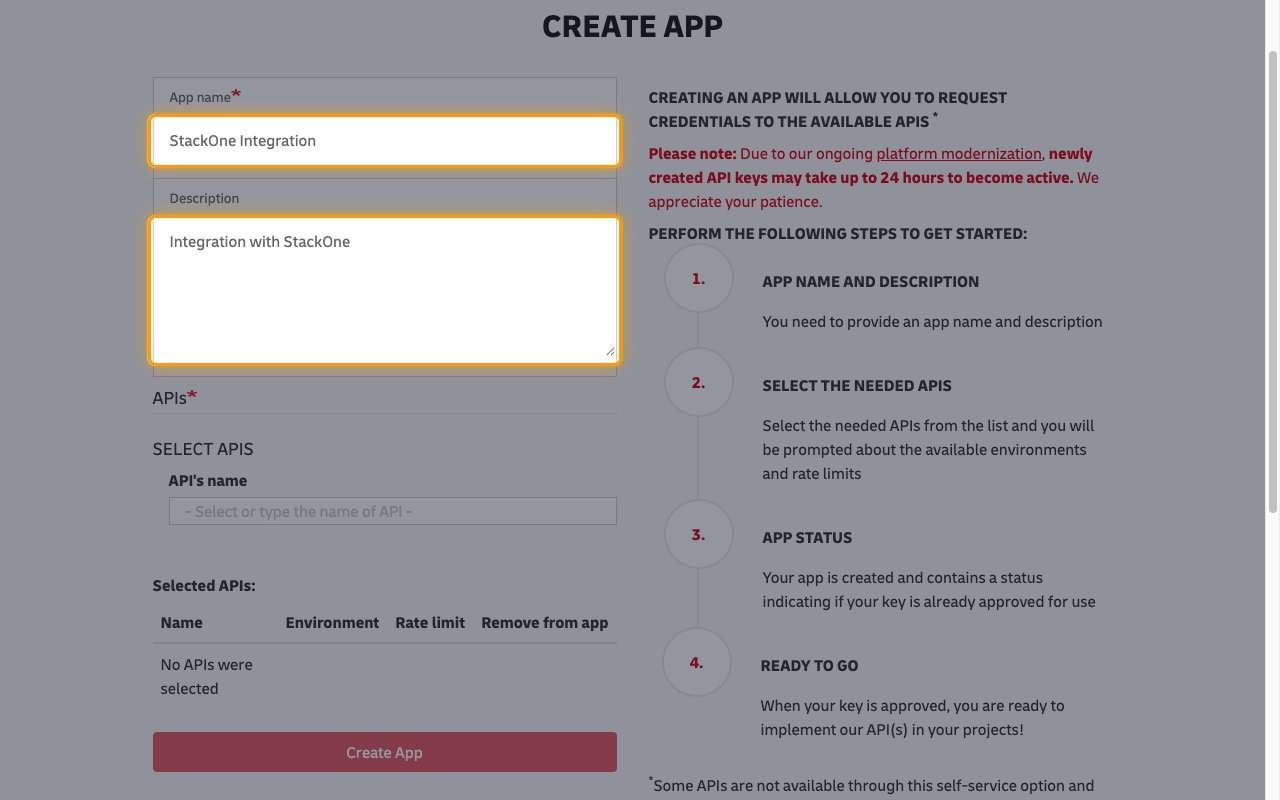
- App name:
StackOne Integration - Description:
Integration with StackOne
2
Add the APIs
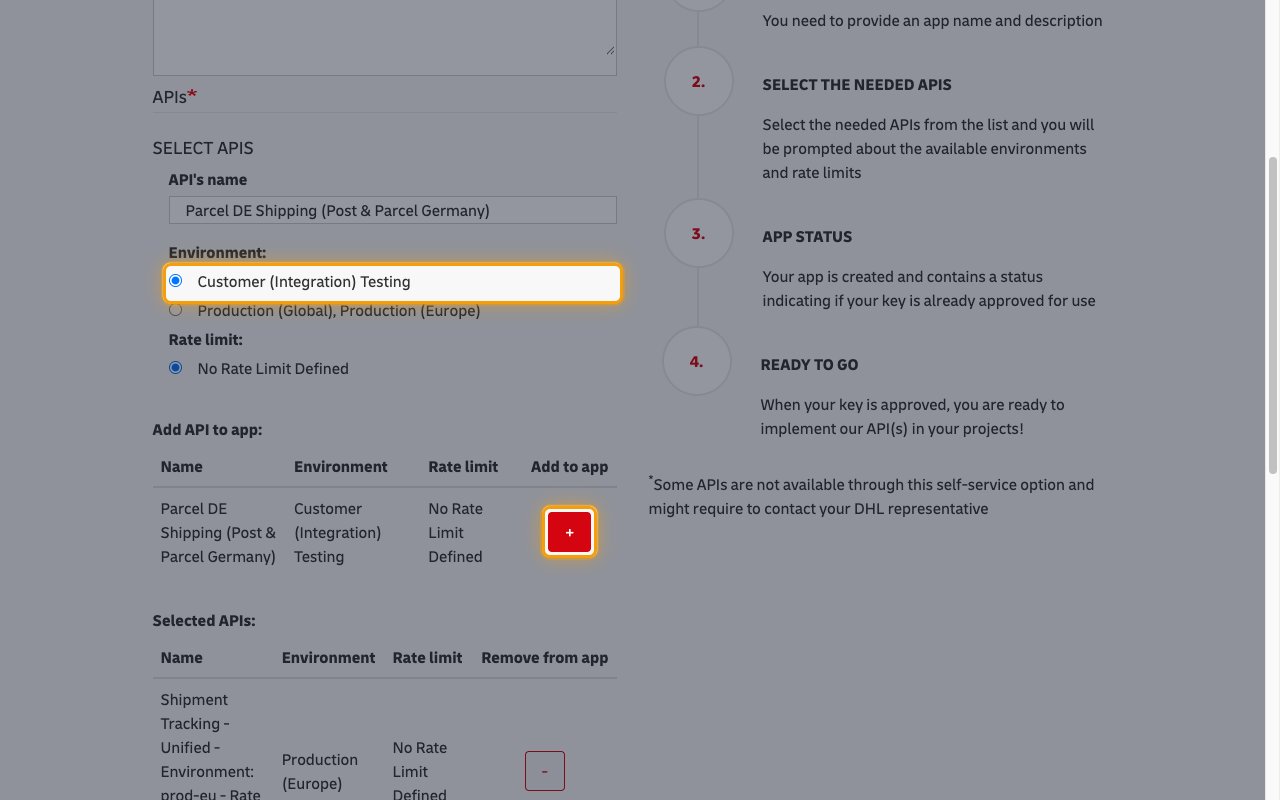
Under SELECT APIS, add all three APIs in the environment you will connect.
- API’s name:
Parcel DE Shipping - Select Parcel DE Shipping (Post & Parcel Germany).
- Environment: Customer (Integration) Testing for sandbox, or Production (Global), Production (Europe) for production
- Under Add to app, click +.
- Repeat for Parcel DE Returns (Post & Parcel Germany) in the same environment.
- Repeat for Parcel DE Pickup (Post & Parcel Germany) in the same environment. Without it, every pickup action returns 401 ‘no apiproduct match found’.
3
Create the app
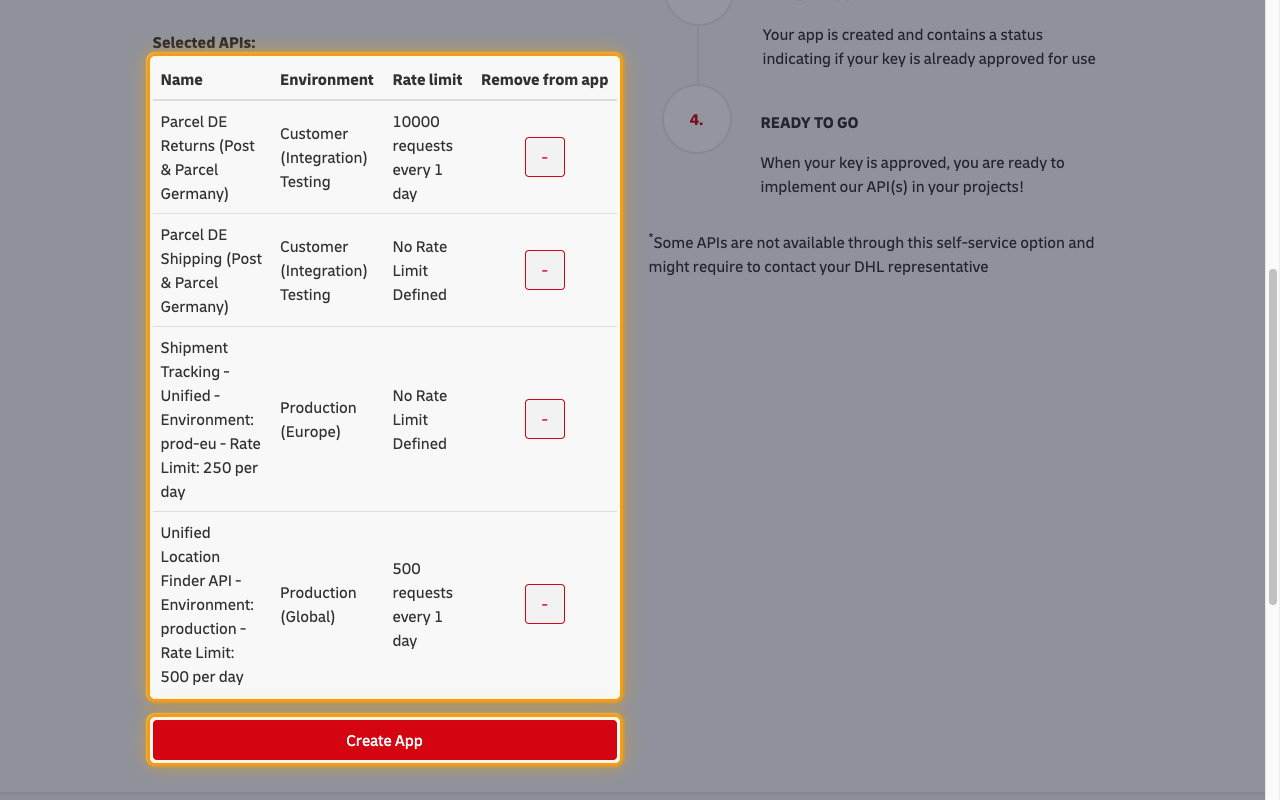
Both APIs are listed under Selected APIs:.
- Click Create App.
- New API keys can take up to 24 hours to become active.
4
Copy the credentials
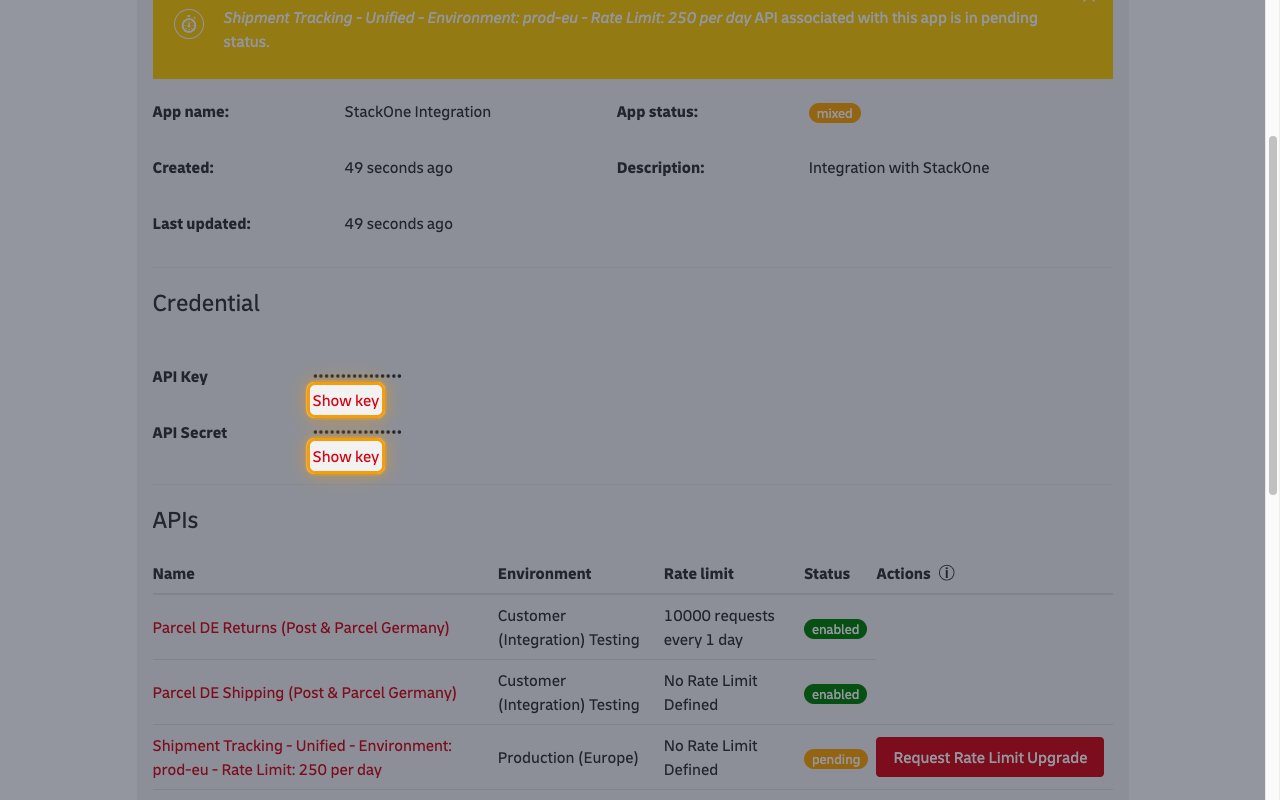
Open the app from the Apps page.
- Click STACKONE INTEGRATION.
- Under Credential, click Show key next to API Key and next to API Secret.
- Copy the API Key into your Connector Profile.
- Copy the API Secret into your Connector Profile.
Create the StackOne Connector Profile
1
Create a Connector Profile
Enable the connector and create a Connector Profile in your project. See Setup Connector Profile.
2
Link an Account
Once the Connector Profile is created, continue to link an account.