

Register OAuth application
Create an OAuth application in the Autodesk Platform Services portal to obtain a Client ID and Client Secret.
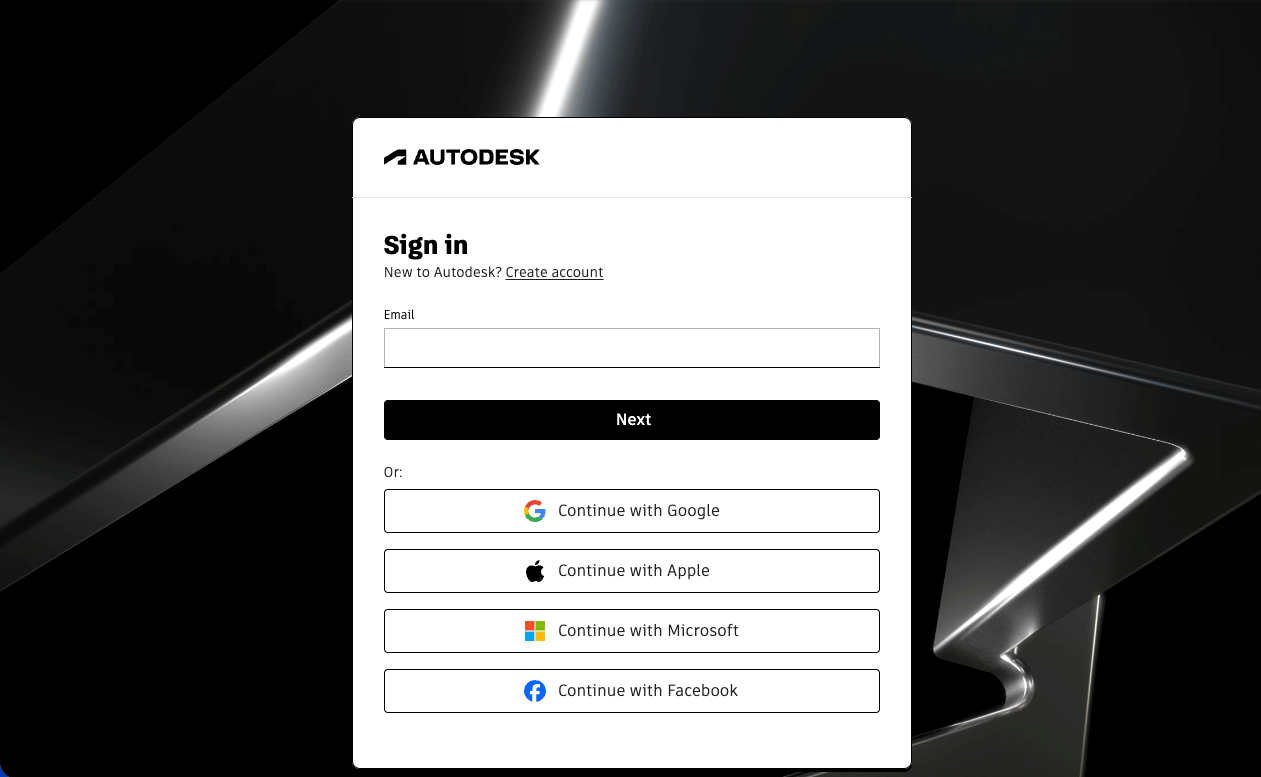
Sign in to Autodesk Platform Services
Sign in to the APS developer portal hub.
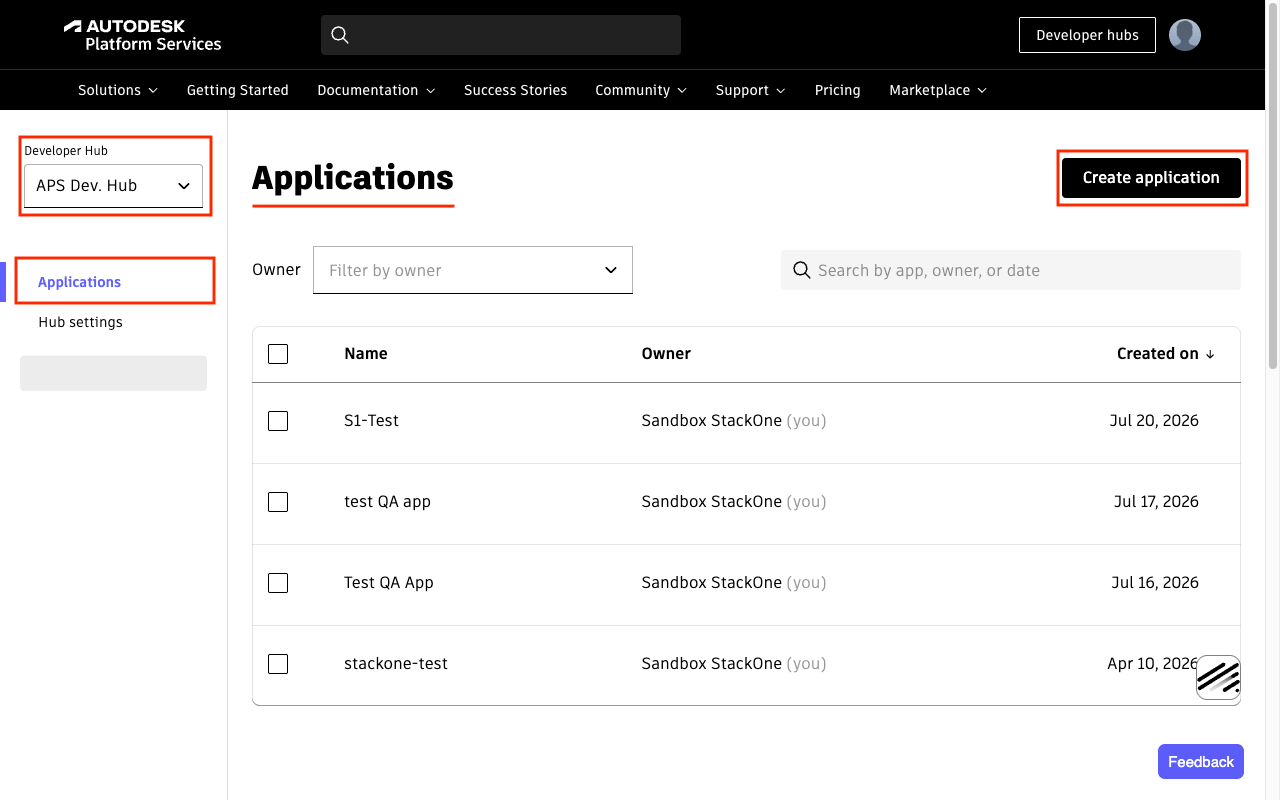
Open Applications page
After signing in, you will be directed to the Applications page.
- Click the Create application button in the top right.
Create application
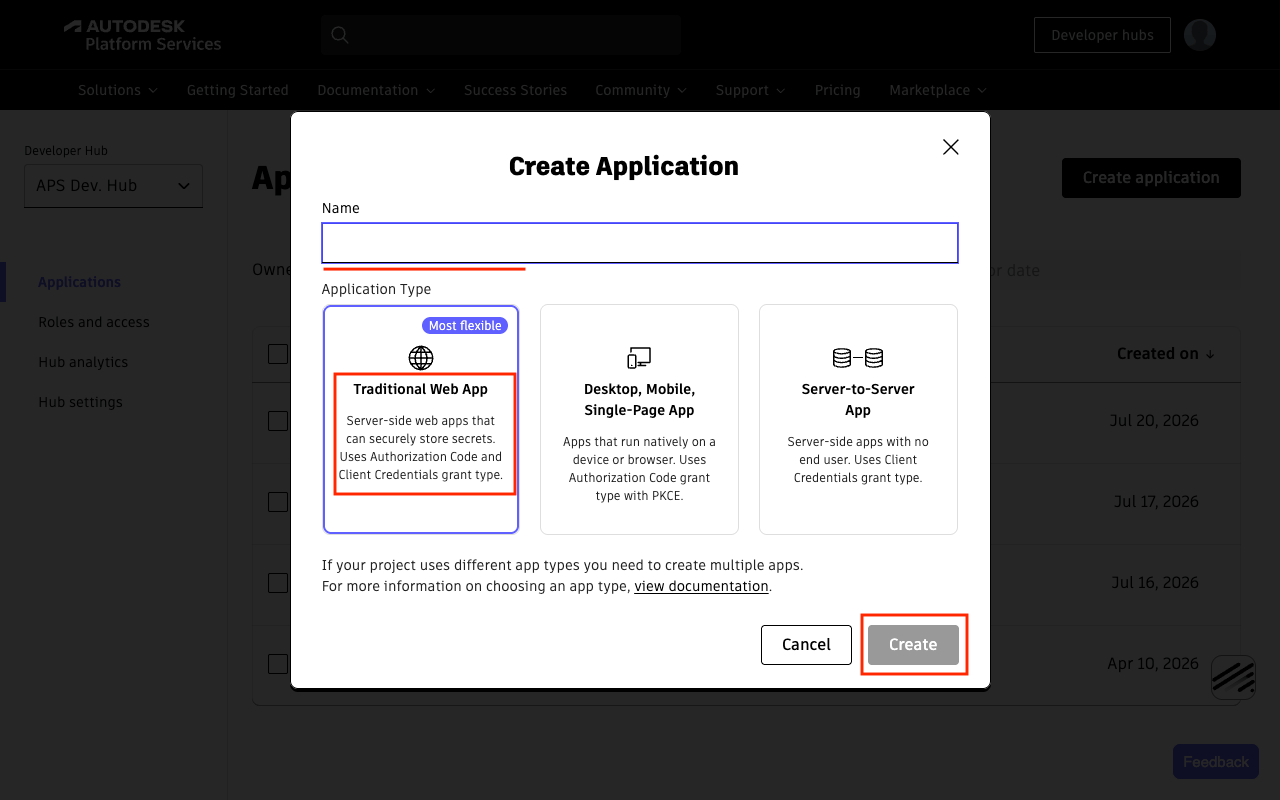
Fill in the details in the dialog.
- App Name: e.g.
StackOne Integrations - Application Type: select Traditional Web App
- Click Create.
Configure Callback URL
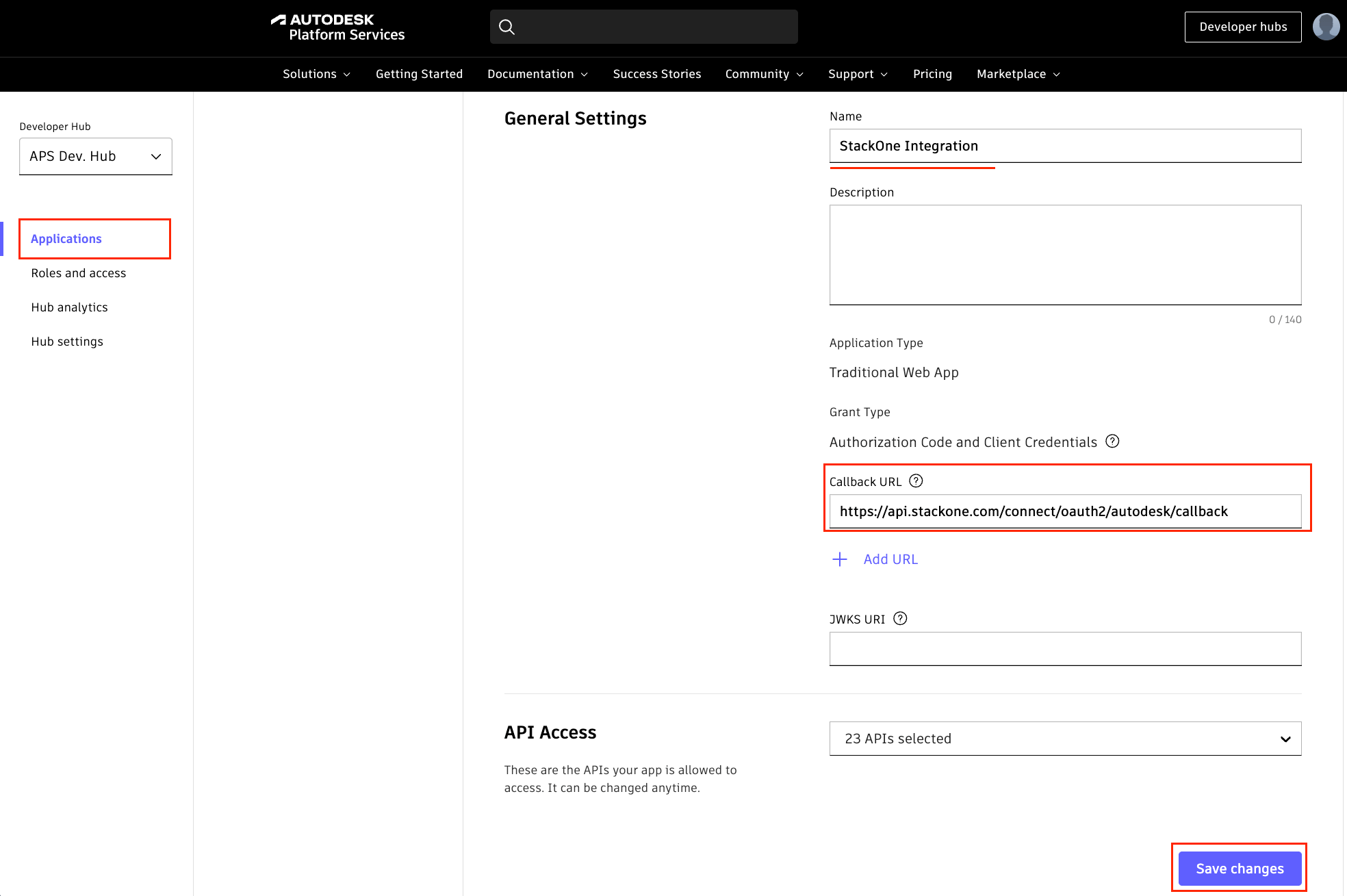
After the app is created, configure the Callback URL in the app settings page.
- Callback URL: copy it from your Connector Profile
- Click Save changes.
Select APIs
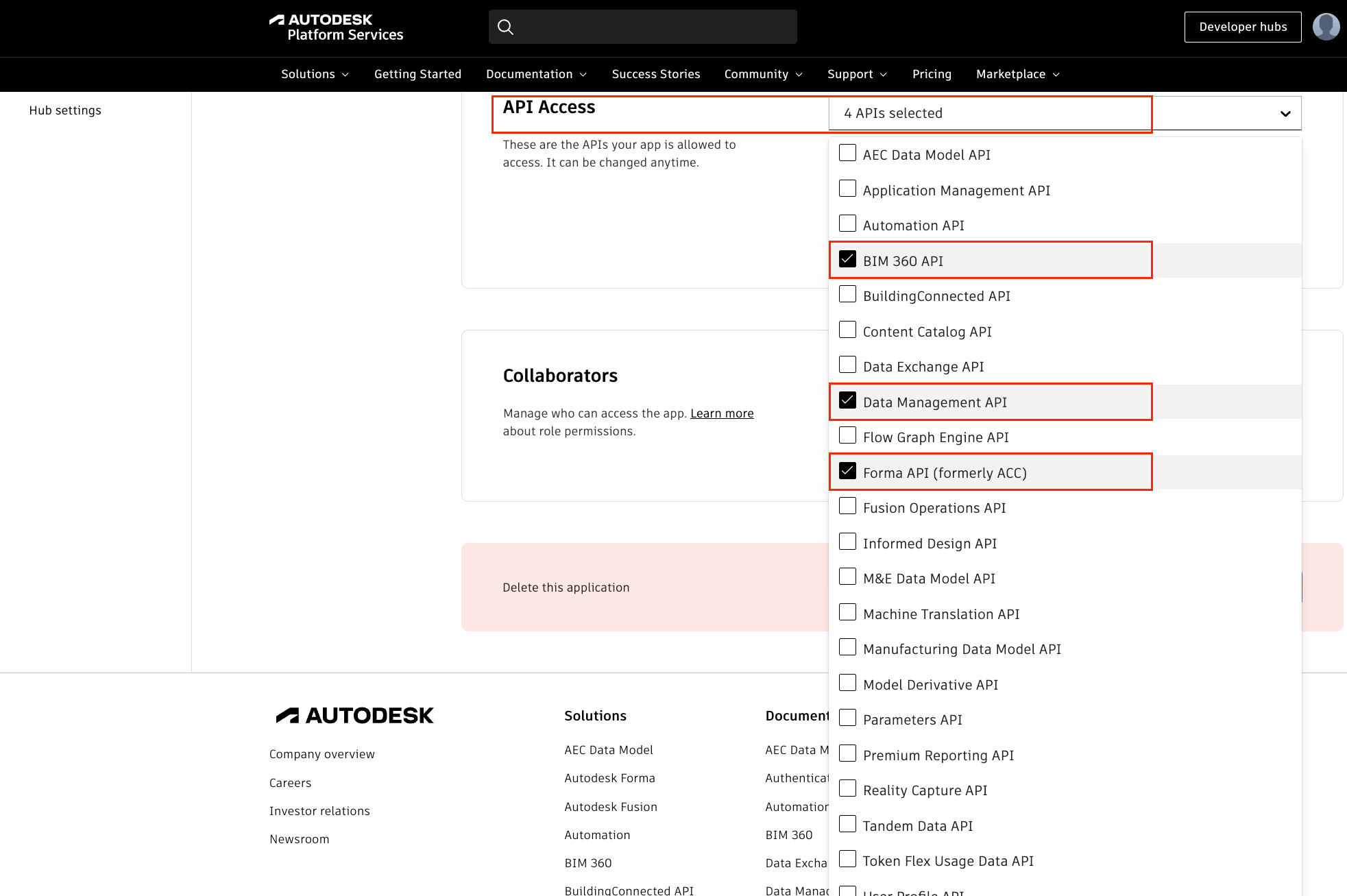
Navigate to the API Access section in the app settings page. All APIs are enabled by default. The StackOne integration uses the following APIs.
- Data Management API — required for
data:*andbucket:*scopes (files, folders, hubs, projects, storage). - Forma API (formerly ACC) — required for
account:*scopes (account admin, projects, companies, users). - BIM 360 API — required for BIM 360 account administration endpoints (
/hq/v1/accounts/...). - Webhooks API — required if using webhook actions.
- You may deselect any other APIs you do not need.
Configure scopes
The APS portal has no scope settings. Enter the scopes your actions need, separated by spaces, in the Scopes field of your Connector Profile. If you leave it blank, StackOne requests every scope listed below, including write and bucket:delete.
Copy credentials
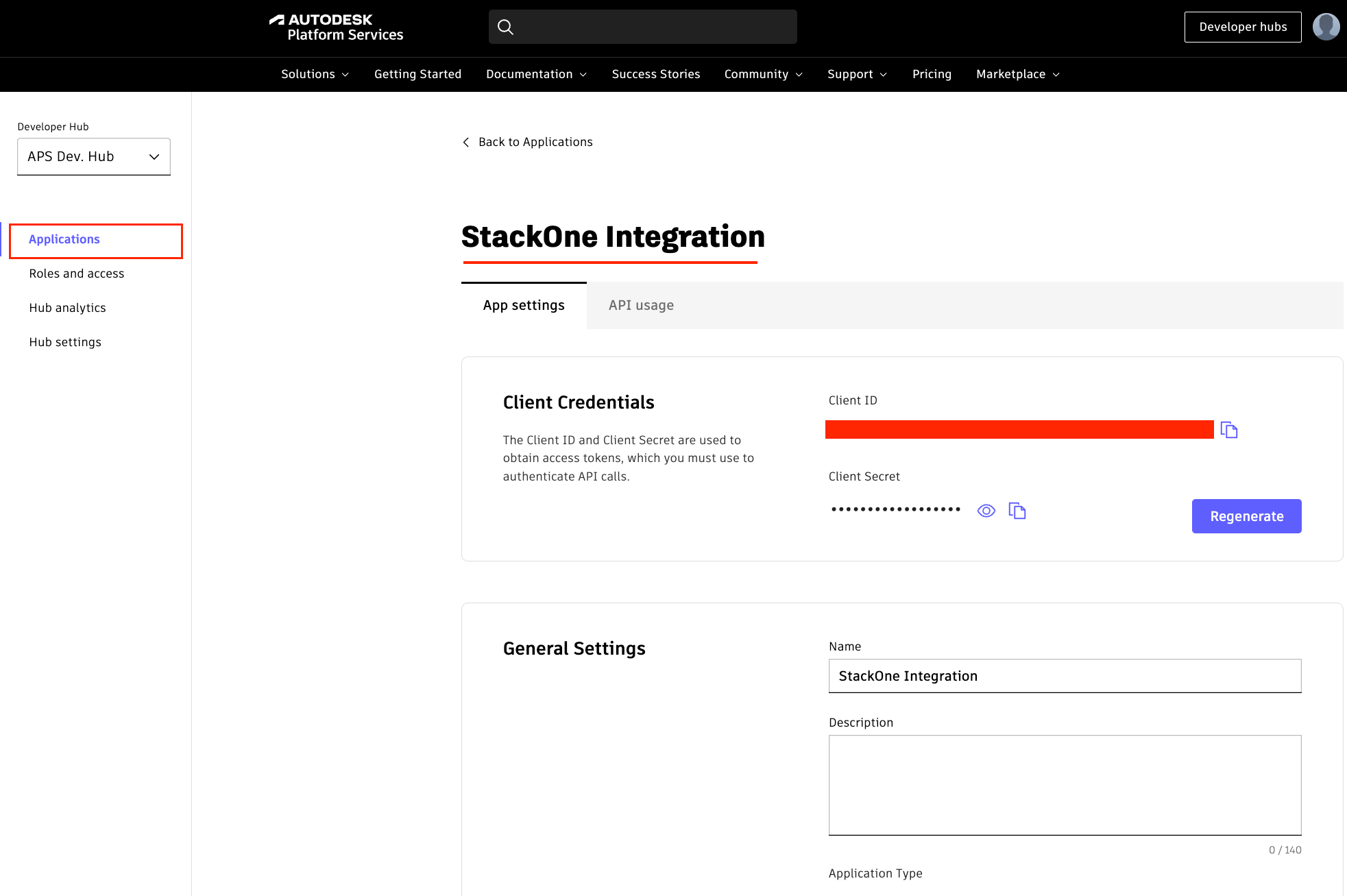
Open the application details page and copy the credentials.
- Copy the Client ID into your Connector Profile.
- Copy the Client Secret into your Connector Profile.
- The Client Secret is shown in full only once — regenerate it from the app details if lost.
Set your data region
Your data region identifies the Autodesk data center where your company’s BIM 360 / ACC / Forma account is hosted. Sign in to your Autodesk Forma / ACC account and check your browser address bar — the domain identifies the region. Select it as the Data Region in your Connector Profile. If your company has accounts in more than one region, create one Connector Profile per region.
- United States —
acc.autodesk.com→US - Canada —
acc.can.autodesk.com→CAN - Europe —
acc.autodesk.eu→EMEA - United Kingdom —
acc.gbr.autodesk.com→GBR - Germany —
acc.deu.autodesk.com→DEU - India —
acc.ind.autodesk.com→IND - Japan —
acc.jpn.autodesk.com→JPN - Australia —
acc.aus.autodesk.com→AUS - See the ACC regions reference for the full list.
Create the StackOne Connector Profile
Create a Connector Profile
Link an Account