

Prerequisites
The connector should already be set up, with a Connector Profile and a Linked Account. See Getting Started on the Zoom connector page.Copy your Native Webhook URL
The Native Webhook URL is the endpoint Zoom sends events to. It is generated per connection and shown on the connected account.
- Open the connected Zoom account in StackOne Hub.
- Copy the read-only Native Webhook URL value.
- Note: This URL is only available after the account has been connected.
Open Event Subscriptions in Zoom
Turn on Event Subscriptions for the same Zoom app used to connect the account, and copy its Secret Token into StackOne.
Sign in to Zoom App Marketplace
Sign in to the Zoom App Marketplace.
- Click Develop, open Created apps, and select the app you used to connect (OAuth or Server-to-Server OAuth).
- In the left sidebar, under Features, open Access.
Copy the Secret Token into StackOne
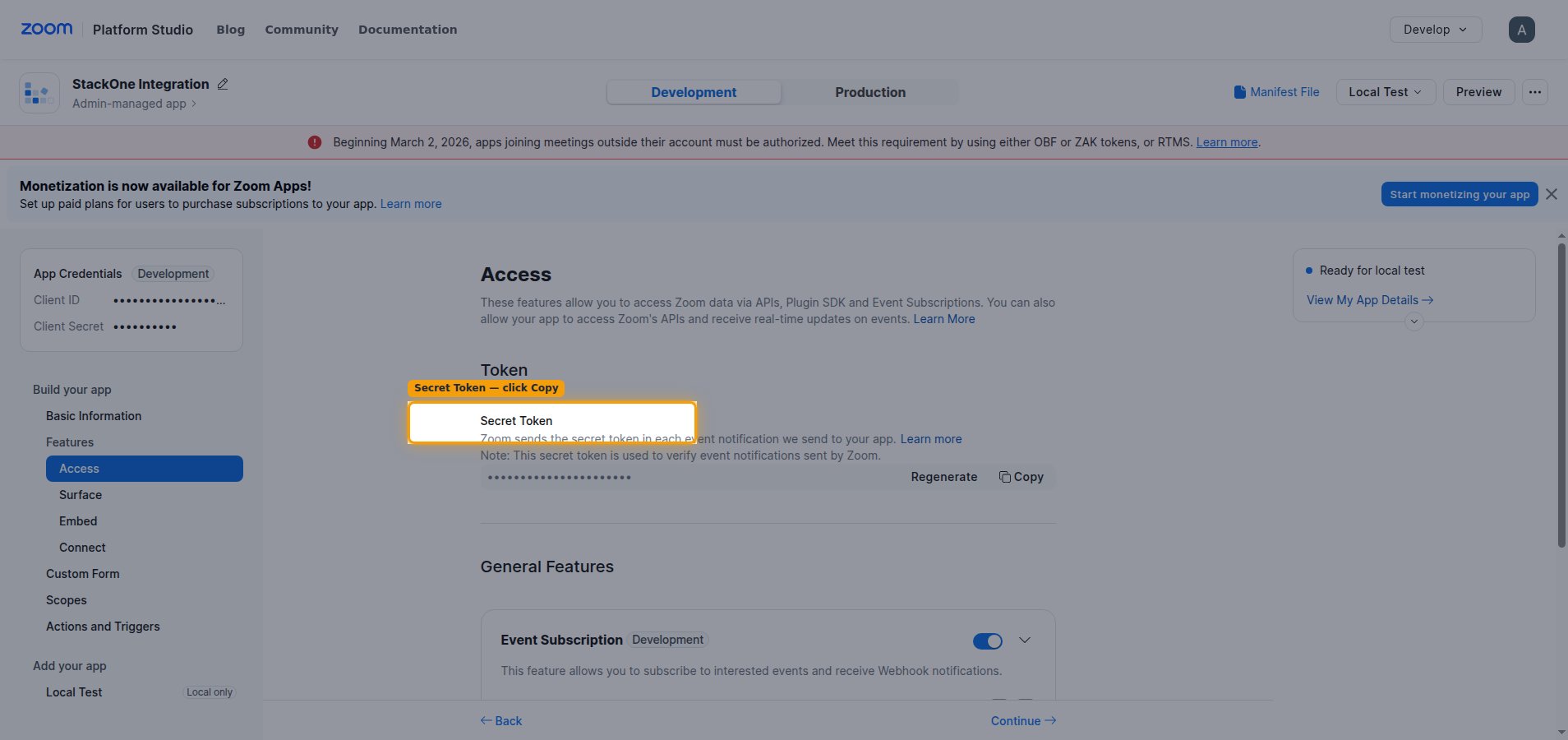
In the Token section, find the Secret Token. Zoom uses this token to verify the event notifications it sends to your app.
- Click Copy next to the Secret Token.
- Paste it into the Webhook Secret Token field on the connected Zoom account in StackOne Hub and save.
- Note: The Secret Token must be saved in StackOne before validation, otherwise endpoint validation fails.
Turn on Event Subscription
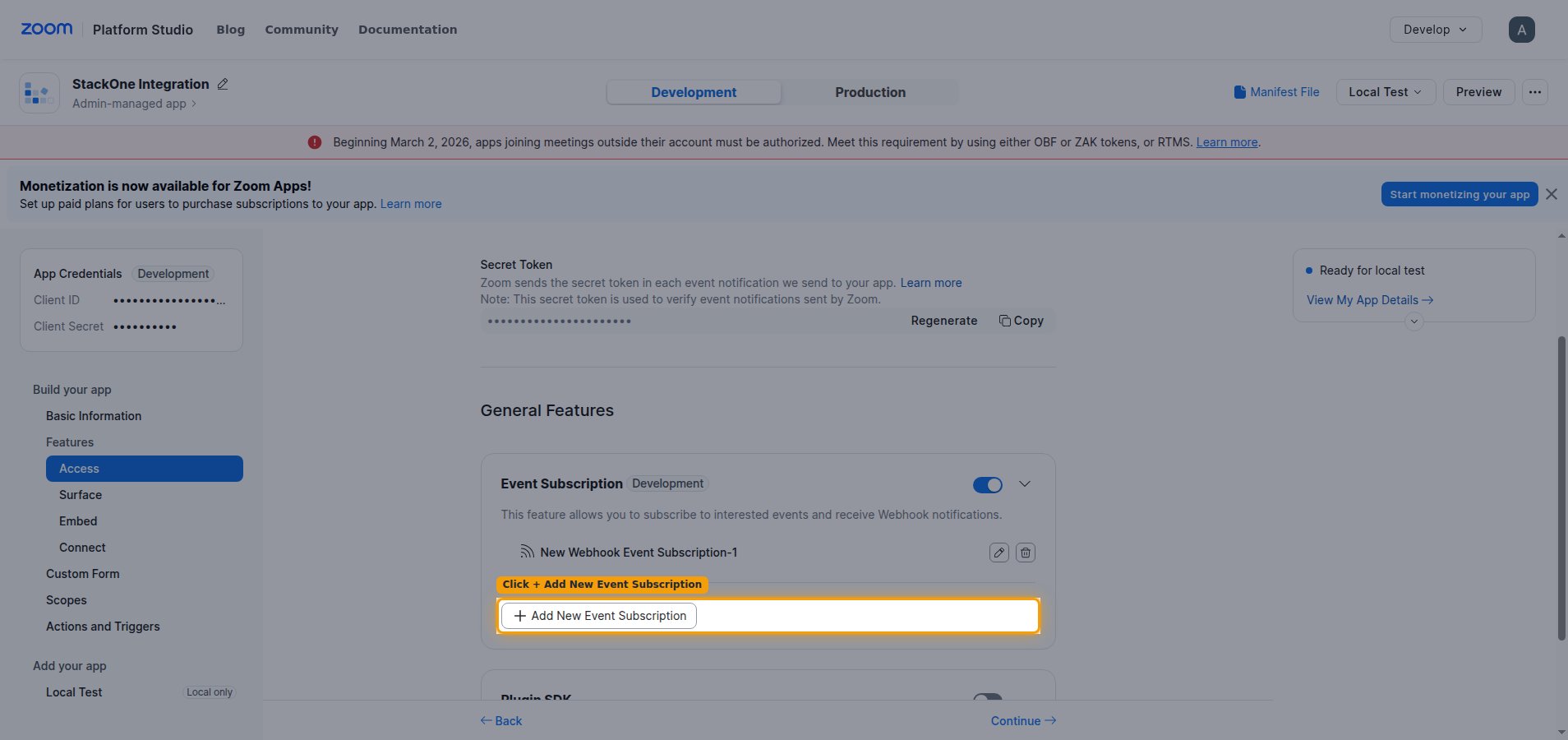
Under General Features, make sure Event Subscription is enabled, then expand it to manage subscriptions.
- Toggle Event Subscription on if it is not already enabled.
Add and configure the endpoint
Register the Native Webhook URL as an event subscription and choose the events to receive.
Add a new event subscription
Click + Add New Event Subscription and give it a Subscription name (for example, StackOne).
- Under Choose a Method, keep Webhook selected.
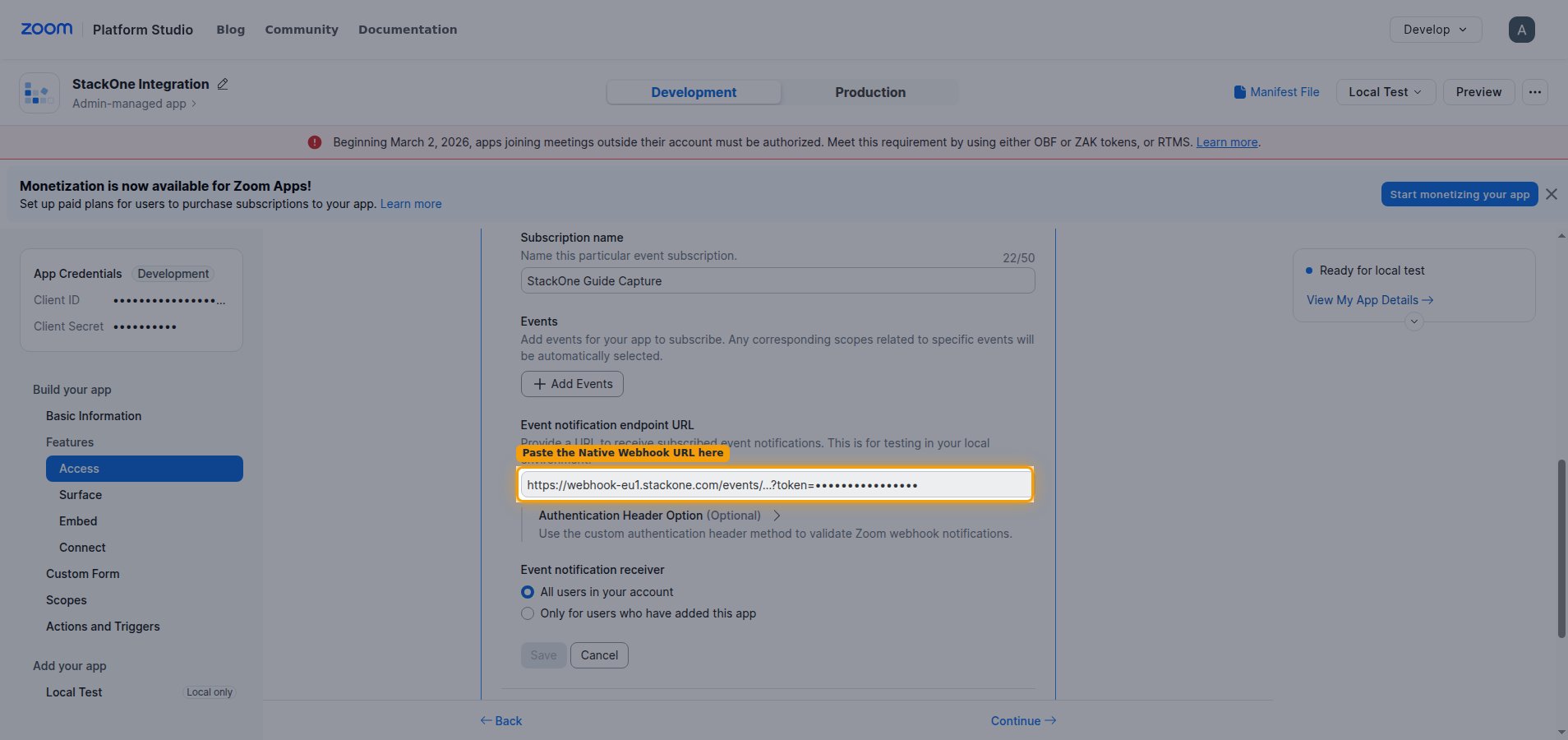
Paste the Native Webhook URL
In the Event notification endpoint URL field, paste the Native Webhook URL you copied from StackOne.
Select events and save
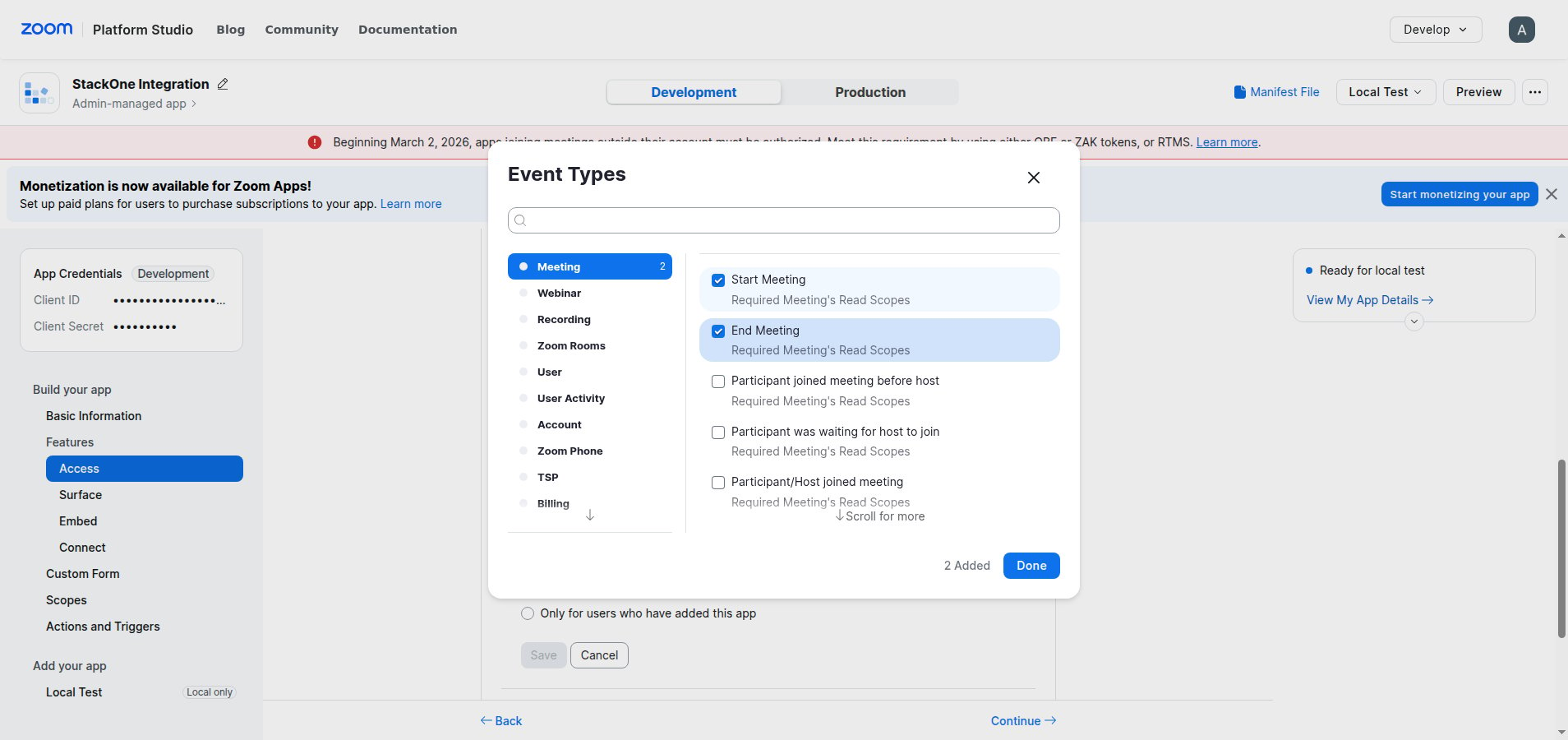
Click + Add Events to open the Event Types picker, choose the events to receive, then save the subscription.
- Select events from the Meeting, Webinar, Recording, and User categories as needed.
- Click Done to confirm your selection.
- Click Save. The subscription appears in the list once Zoom validates the endpoint.
Available webhook events
The following Zoom events can be enabled. Only events selected in StackOne are delivered — Zoom will not send events that are not subscribed.
Meeting events
Events related to meetings and their participants.
- Meeting has been created (
meeting.created) — Fired when a meeting is scheduled or created - Meeting has been updated (
meeting.updated) — Fired when a meeting’s settings or details change - Meeting has been deleted (
meeting.deleted) — Fired when a meeting is deleted - Start Meeting (
meeting.started) — Fired when a meeting starts - End Meeting (
meeting.ended) — Fired when a meeting ends - Participant/Host joined meeting (
meeting.participant_joined) — Fired when a participant joins a meeting - Participant/Host left meeting (
meeting.participant_left) — Fired when a participant leaves a meeting - Participant was admitted into a meeting (
meeting.participant_admitted) — Fired when a participant is admitted from the waiting room - Meeting Registration has been created (
meeting.registration_created) — Fired when a registrant registers for a meeting (requires a paid plan) - Meeting Registration has been approved (
meeting.registration_approved) — Fired when a meeting registrant is approved (requires a paid plan) - Meeting Sharing Started (
meeting.sharing_started) — Fired when screen sharing starts in a meeting - Meeting summary has been completed (
meeting.summary_completed) — Fired when the AI Companion meeting summary is ready (requires a Pro plan with AI Companion)
Webinar events
Events related to webinars. All webinar events require a Webinar license.
- Webinar has been created (
webinar.created) — Fired when a webinar is scheduled or created - Webinar has been updated (
webinar.updated) — Fired when a webinar’s settings or details change - Webinar has been deleted (
webinar.deleted) — Fired when a webinar is deleted - Start Webinar (
webinar.started) — Fired when a webinar starts - End Webinar (
webinar.ended) — Fired when a webinar ends - Participant/Host joined webinar (
webinar.participant_joined) — Fired when a participant joins a webinar - Participant/Host left webinar (
webinar.participant_left) — Fired when a participant leaves a webinar - Webinar Registration has been created (
webinar.registration_created) — Fired when a registrant registers for a webinar - Webinar Registration has been approved (
webinar.registration_approved) — Fired when a webinar registrant is approved - Webinar Sharing Started (
webinar.sharing_started) — Fired when screen sharing starts in a webinar
Cloud recording events
Events related to cloud recordings. Cloud recording requires a Pro plan.
- Recording Started (
recording.started) — Fired when cloud recording starts - Recording Stopped (
recording.stopped) — Fired when cloud recording stops - All Recordings have completed (
recording.completed) — Fired when all cloud recordings finish processing - Recording Transcript files have completed (
recording.transcript_completed) — Fired when an audio transcript is ready - Recording Renamed (
recording.renamed) — Fired when a cloud recording is renamed - Recording files have been permanently deleted (
recording.deleted) — Fired when a cloud recording is permanently deleted - Recording files have been deleted to Trash (
recording.trashed) — Fired when a cloud recording is moved to the trash - Recording files have been recovered from Trash (
recording.recovered) — Fired when a cloud recording is recovered from the trash
User events
Events related to users on the account.
- User has been created (
user.created) — Fired when a user is added to the account - User’s profile info has been updated (
user.updated) — Fired when a user’s profile information changes - User’s settings have been updated (
user.settings_updated) — Fired when a user’s settings change - User has been deleted (
user.deleted) — Fired when a user is removed from the account - User has been activated (
user.activated) — Fired when a user is activated - User has been deactivated (
user.deactivated) — Fired when a user is deactivated - User has signed in (
user.signed_in) — Fired when a user signs in to Zoom - User has signed out (
user.signed_out) — Fired when a user signs out of Zoom
Delivery format
How Zoom delivers events to the Native Webhook URL.
- Zoom sends one event per request as a JSON payload, with the event type in
eventand the data inpayload. - Each delivery includes an
x-zm-signatureheader, computed from the app’s Secret Token, that can be used to verify the request came from Zoom. - Endpoint validation is automatic: Zoom periodically sends an
endpoint.url_validationchallenge (about every 72 hours), and StackOne answers it using the saved Secret Token — keep the token in place. - Zoom retries failed deliveries; repeated failures can cause Zoom to disable the subscription.
Stop receiving events
To stop receiving events, remove or disable the subscription in Zoom, or disable individual event types in StackOne.
- In the Zoom app’s Event Subscription, delete the subscription or remove specific events, then save.
- Alternatively, disable individual events in StackOne — unmatched events are silently acknowledged.