

Prerequisites
The connector should already be set up, with a Connector Profile and a Linked Account. See Getting Started on the Zoho Vault connector page.Copy the Native Webhook URL
The Native Webhook URL is the StackOne address that receives the Zoho Vault events for this linked account.
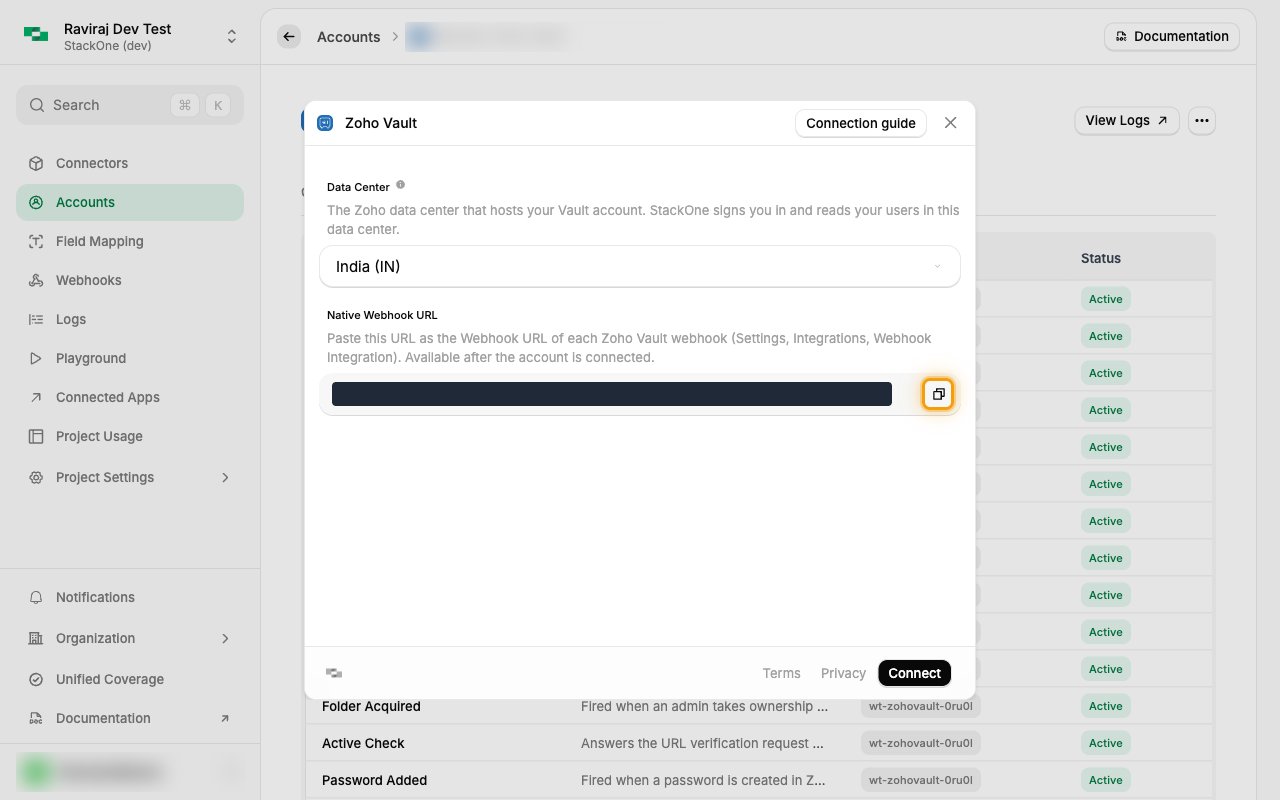
Copy the URL from the linked account
Open the linked account in StackOne and copy the Native Webhook URL with the copy icon.
- It is available once the account is connected.
- Every Vault webhook below uses this same URL.
Create the Zoho Vault webhooks
Each Vault webhook covers one module, so create one webhook per module whose events you want: Passwords, Folder, Users and Apps.
Sign in to Zoho Vault
Sign in to your Zoho Vault account as a Super Admin.
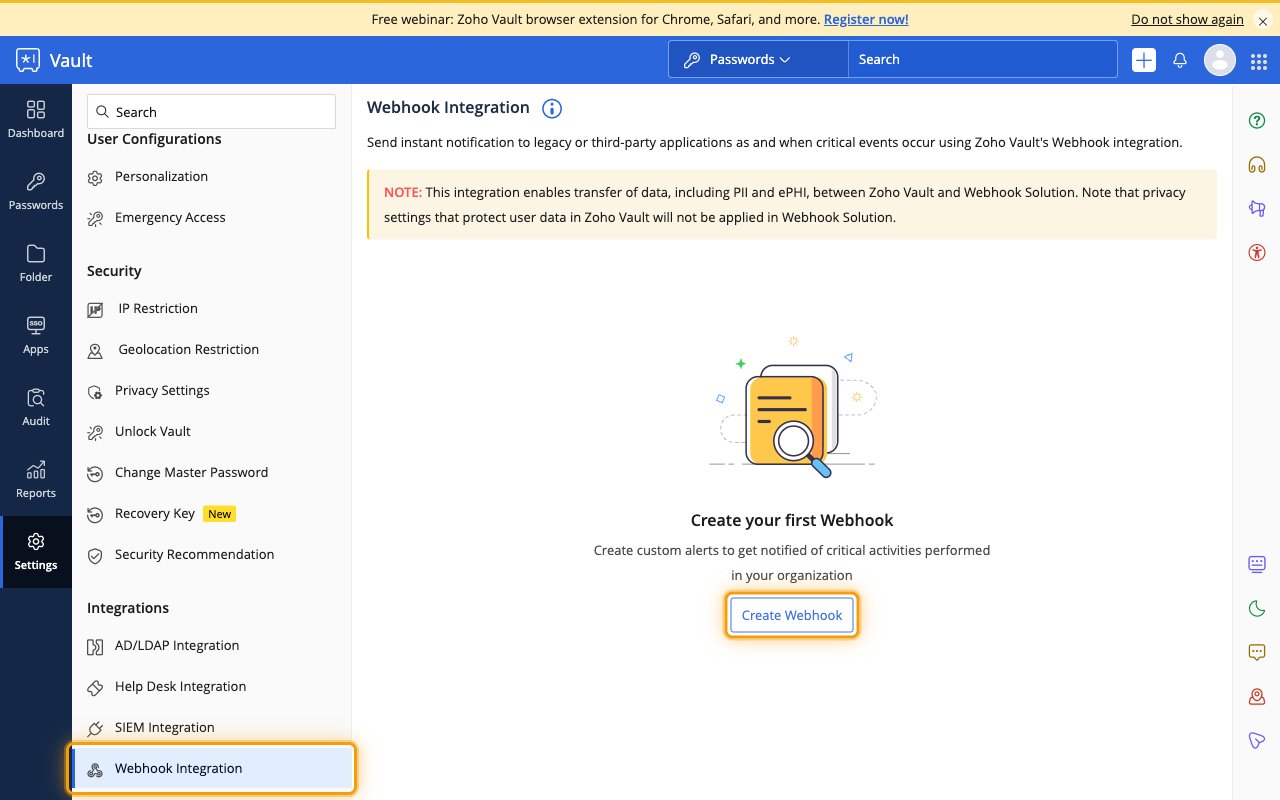
- Click Settings, then Webhook Integration under Integrations.
- Click Create Webhook, or Add when webhooks already exist.
Fill in the webhook details
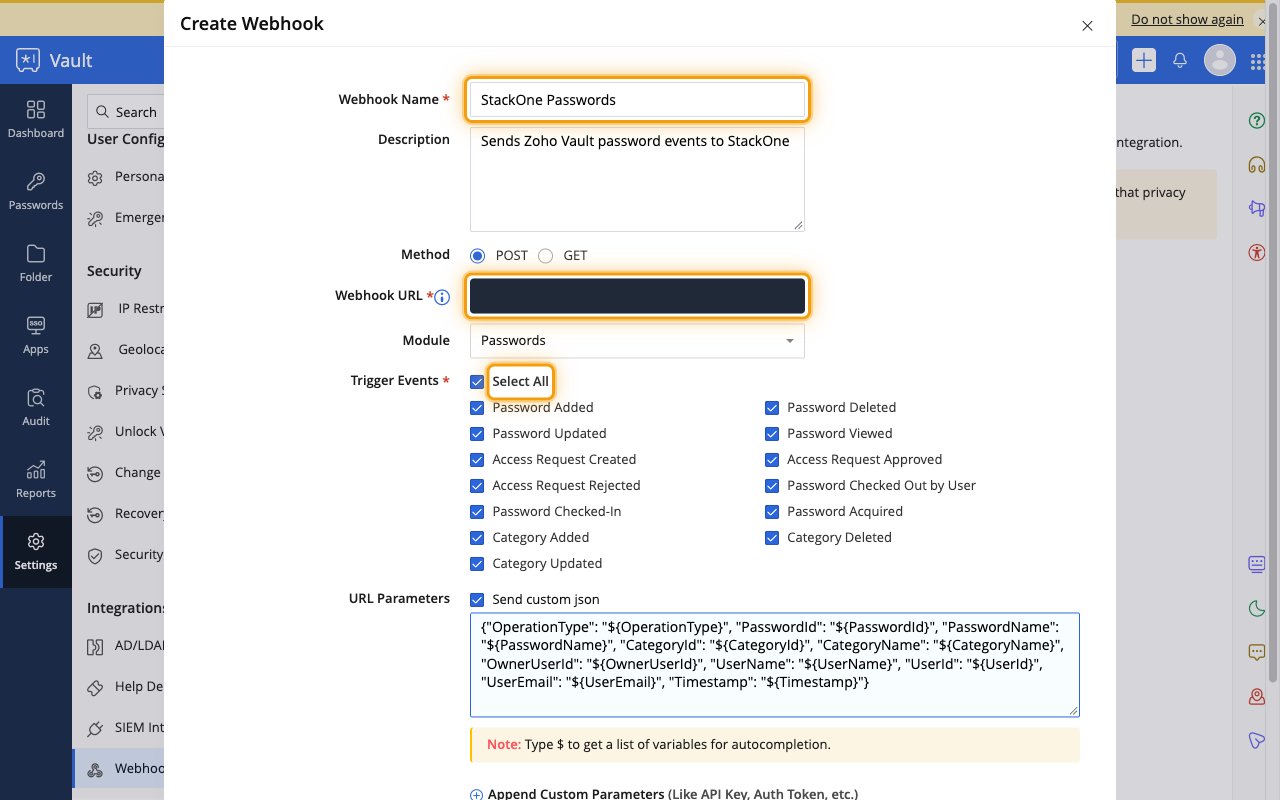
In Create Webhook, enter a Webhook Name such as StackOne Passwords, keep Method as POST and paste the Native Webhook URL into Webhook URL.
- Keep Module as Passwords for this first webhook.
- Under Trigger Events, click Select All.
Paste the payload and create the webhook
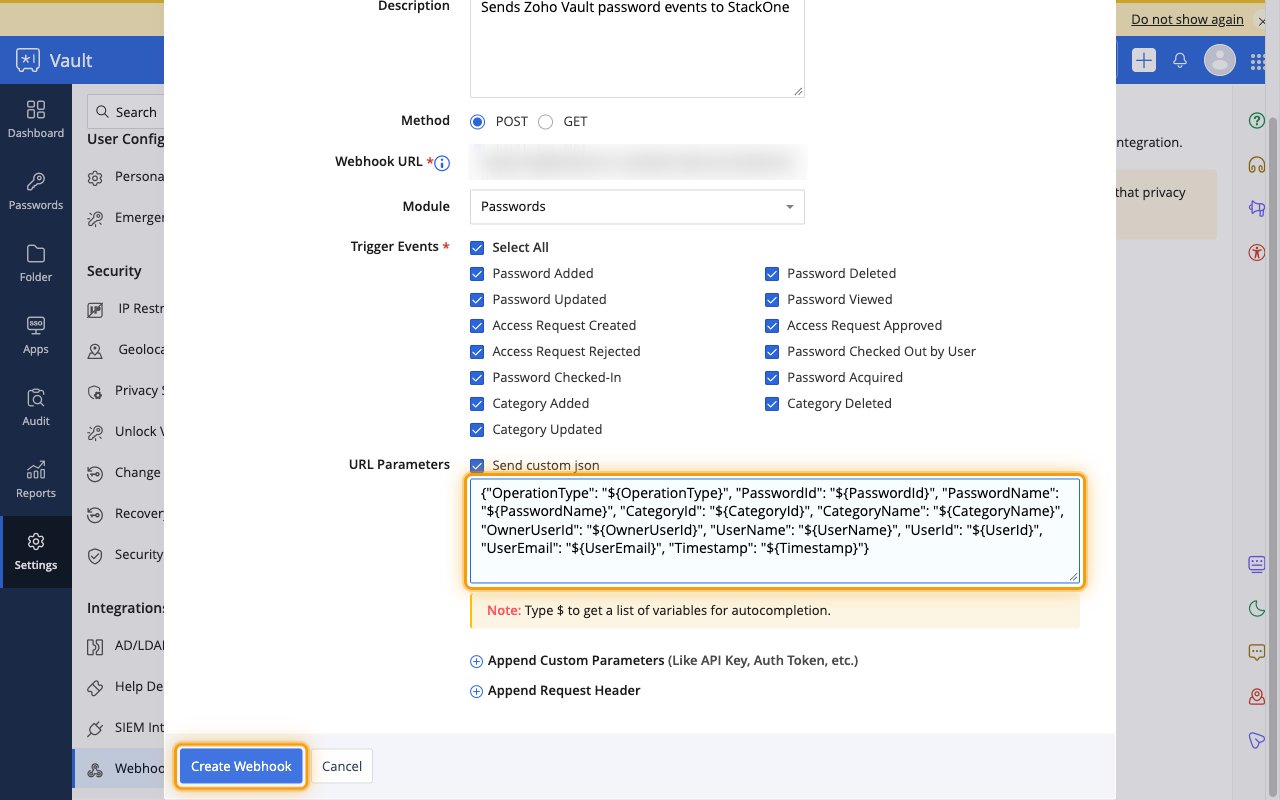
Under URL Parameters, select Send custom json and replace the box contents with the payload for the module, then click Create Webhook.
- StackOne routes each event by its OperationType field, so keep the payload exactly as shown.
- Vault checks the URL when the webhook is created and StackOne answers that check automatically.
Copy the Passwords payload
Paste this payload for the Passwords module.
Repeat for the other modules
Click Add again for each other module, pick it under Module, click Select All and paste its payload.
- Folder (name it
StackOne Folders) - Users (name it
StackOne Users) - Apps (name it
StackOne SSO Apps)
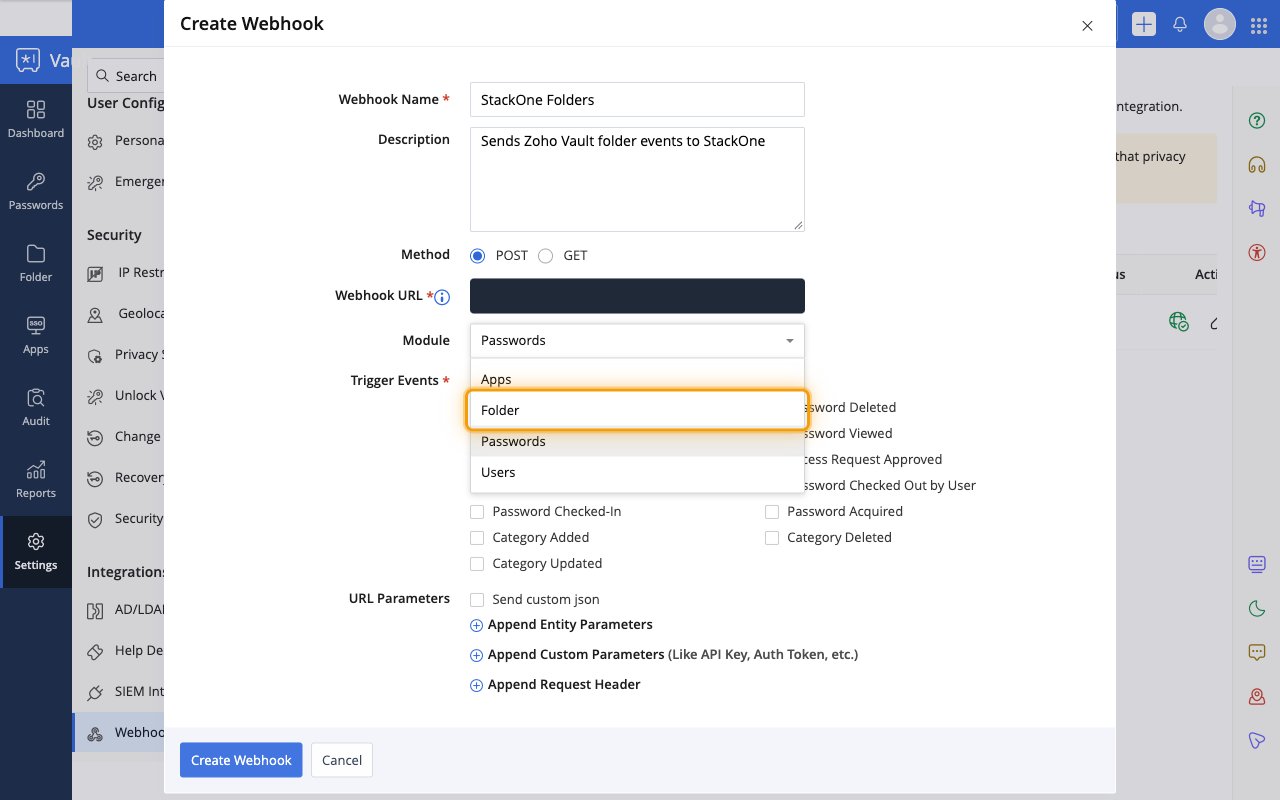
Copy the Folder, Users and Apps payloads
Folder:
Users:
Apps:
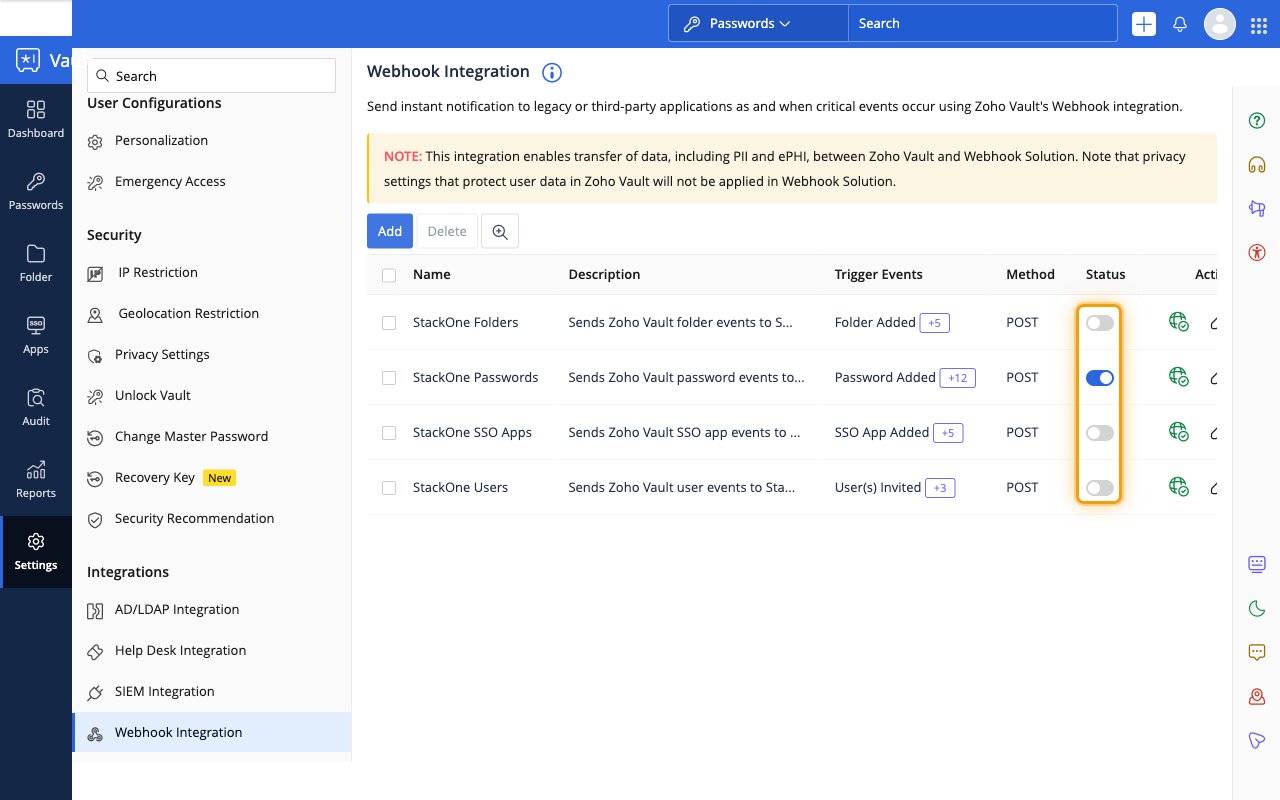
Turn on each webhook
New webhooks start switched off. Turn on the Status toggle of each webhook you created.
- Vault turns a webhook off after 5 failed deliveries in a row. Turn it on again from the same toggle.
Available webhook events
These Zoho Vault events can be enabled. Only events selected in StackOne are delivered, and Vault sends only the events ticked on its webhooks.
Verification
Vault verifies the URL when a webhook is created or turned on.
- Active Check (
url_verification) — Fired when Vault checks the webhook URL; StackOne answers it so Vault can enable the webhook
Password events
Events from the Passwords module.
- Password Added (
password.added) — Fired when a password is created - Password Updated (
password.updated) — Fired when a password is edited - Password Deleted (
password.deleted) — Fired when a password is deleted - Password Viewed (
password.viewed) — Fired when a user reveals a password in Vault - Password Checked Out by User (
password.checked_out) — Fired when a user checks out a password under access control - Password Checked-In (
password.checked_in) — Fired when a checked-out password is checked back in - Password Acquired (
password.acquired) — Fired when an admin takes ownership of a password - Access Request Created (
access_request.created) — Fired when a user requests access to a password - Access Request Approved (
access_request.approved) — Fired when an access request is approved - Access Request Rejected (
access_request.rejected) — Fired when an access request is rejected - Category Added (
category.added) — Fired when a password category is added - Category Updated (
category.updated) — Fired when a password category is edited. In testing, Vault did not send this event - Category Deleted (
category.deleted) — Fired when a password category is deleted
Folder events
Events from the Folder module.
- Folder Added (
folder.added) — Fired when a folder is created - Folder Updated (
folder.updated) — Fired when a folder is edited - Folder Deleted (
folder.deleted) — Fired when a folder is deleted - Folder Shared (
folder.shared) — Fired when a folder is shared with users or user groups - Folder Shared To Third Party (
folder.shared_to_third_party) — Fired when a folder is shared with an outside party - Folder Acquired (
folder.acquired) — Fired when an admin takes ownership of a folder
User events
Events from the Users module.
- Users Invited (
users.invited) — Fired when users are invited to the organization - Users Added (
users.added) — Fired when users join the organization - Users Deleted (
users.deleted) — Fired when users are deleted - Users Role Changed (
users.role_changed) — Fired when a user’s role changes
SSO app events
Events from the Apps module.
- SSO App Added (
sso_app.added) — Fired when an SSO app is added - SSO App Updated (
sso_app.updated) — Fired when an SSO app is edited - SSO App Enabled (
sso_app.enabled) — Fired when an SSO app is enabled - SSO App Disabled (
sso_app.disabled) — Fired when an SSO app is disabled - SSO App Deleted (
sso_app.deleted) — Fired when an SSO app is deleted - SSO App User Mappings Updated (
sso_app.user_mappings_updated) — Fired when the users mapped to an SSO app change. In testing, Vault did not send this event
Delivery format
Each delivery is the JSON payload you pasted, with the placeholders filled in.
- Fields that don’t apply to an event keep their placeholder text, for example
${PasswordId}on category events. - Vault does not sign deliveries. Keep the Native Webhook URL private.