

Create the Self Client
The Self Client is a Zoho app that belongs to your own Zoho account and needs no browser sign-in.
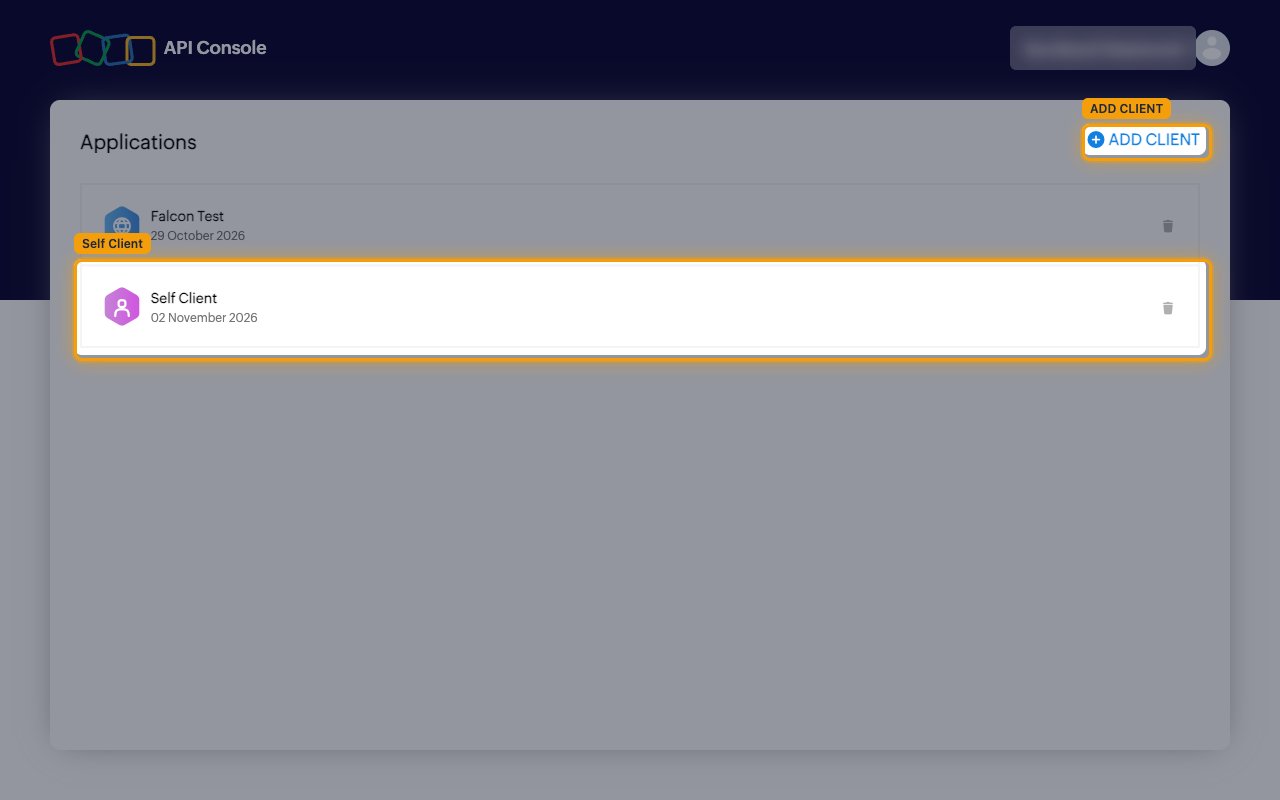
Open the Self Client
Sign in to the Zoho API Console for your data center, for example the Zoho API Console (US) or the Zoho API Console (India).
- If Self Client is already under Applications, click it.
- Otherwise click ADD CLIENT, click CREATE NOW on the Self Client card, and confirm.
Copy the Client ID and Client Secret
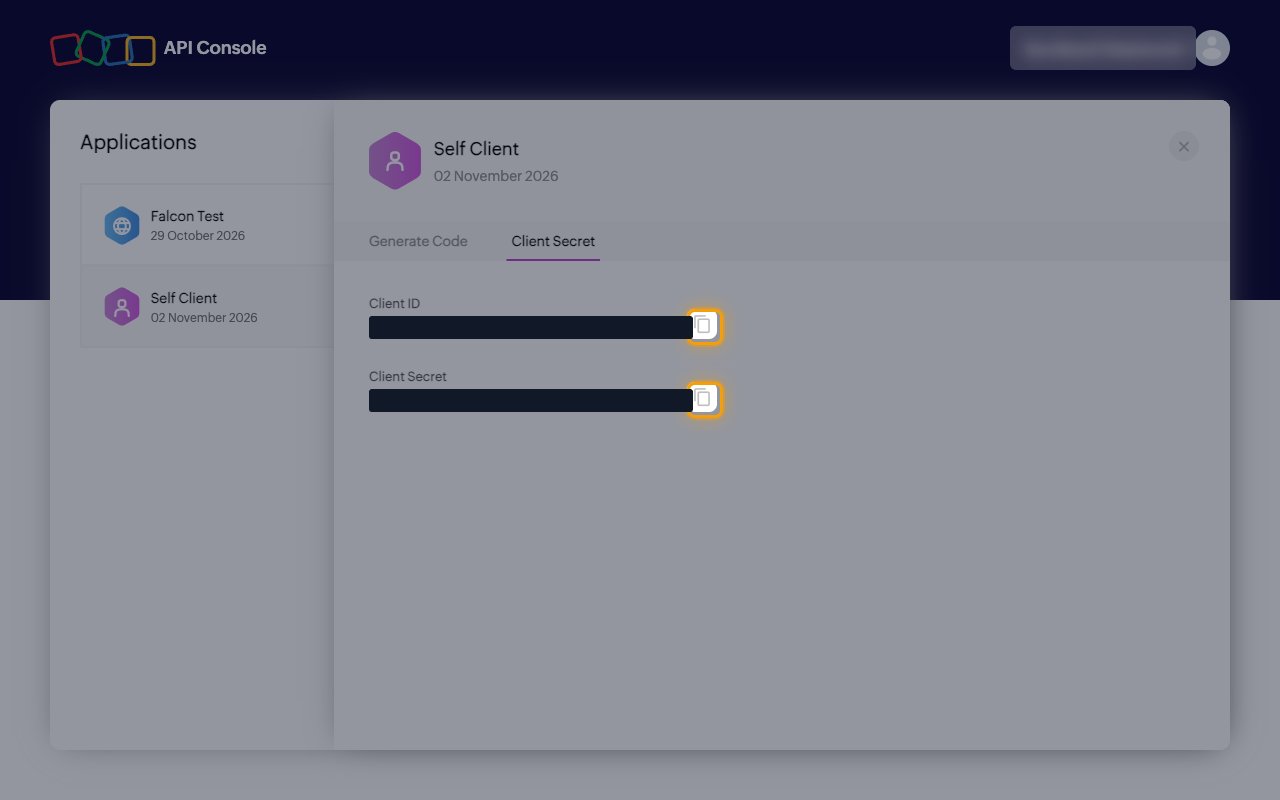
Open the Client Secret tab of the Self Client.
- Click the copy icon next to Client ID and paste it into StackOne Hub.
- Click the copy icon next to Client Secret and paste it into StackOne Hub.
Get a refresh token
StackOne needs a refresh token, not the code from the Generate Code tab. You turn the code into a refresh token once.
Fill in the Generate Code form
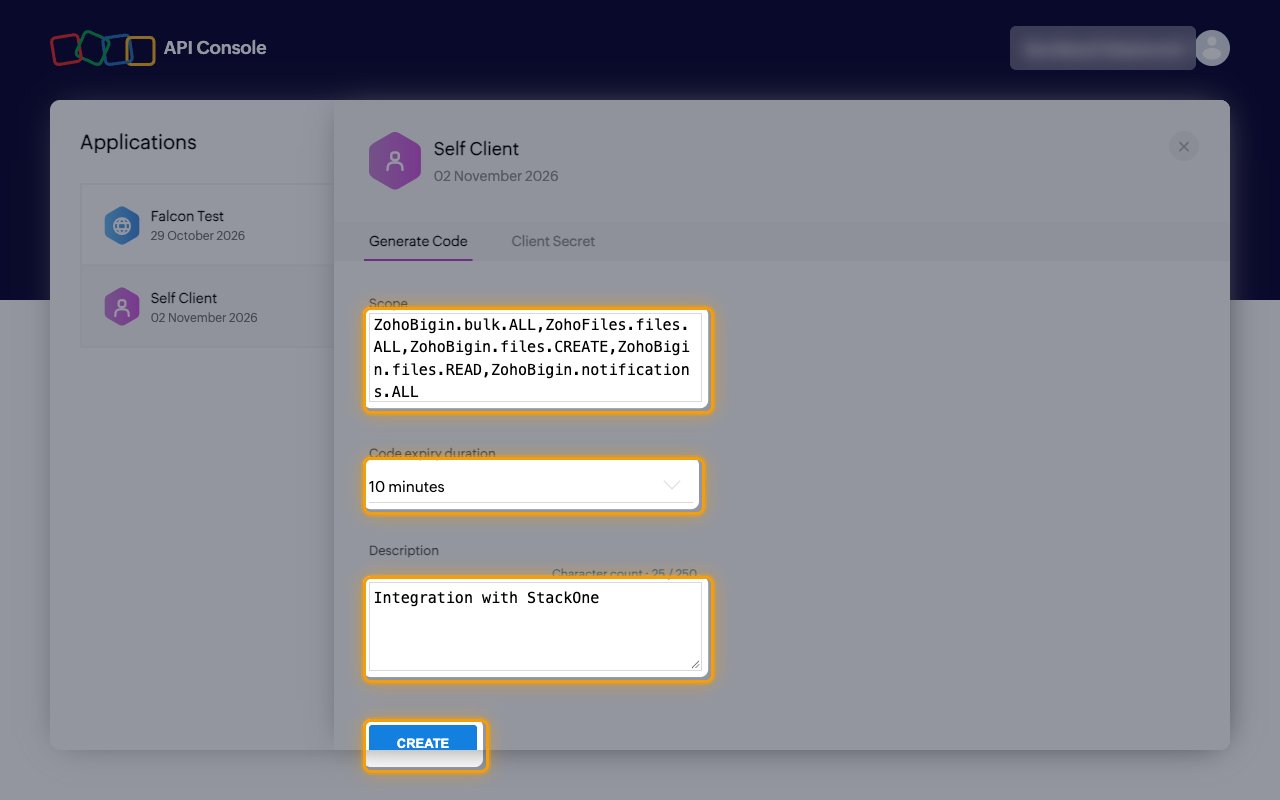
Open the Generate Code tab of the Self Client.
- In Scope, enter the scopes below, separated by commas.
- In Code expiry duration, select 10 minutes.
- In Description, enter what the code is for, for example
Integration with StackOne. - Click CREATE.
Select your Bigin organization
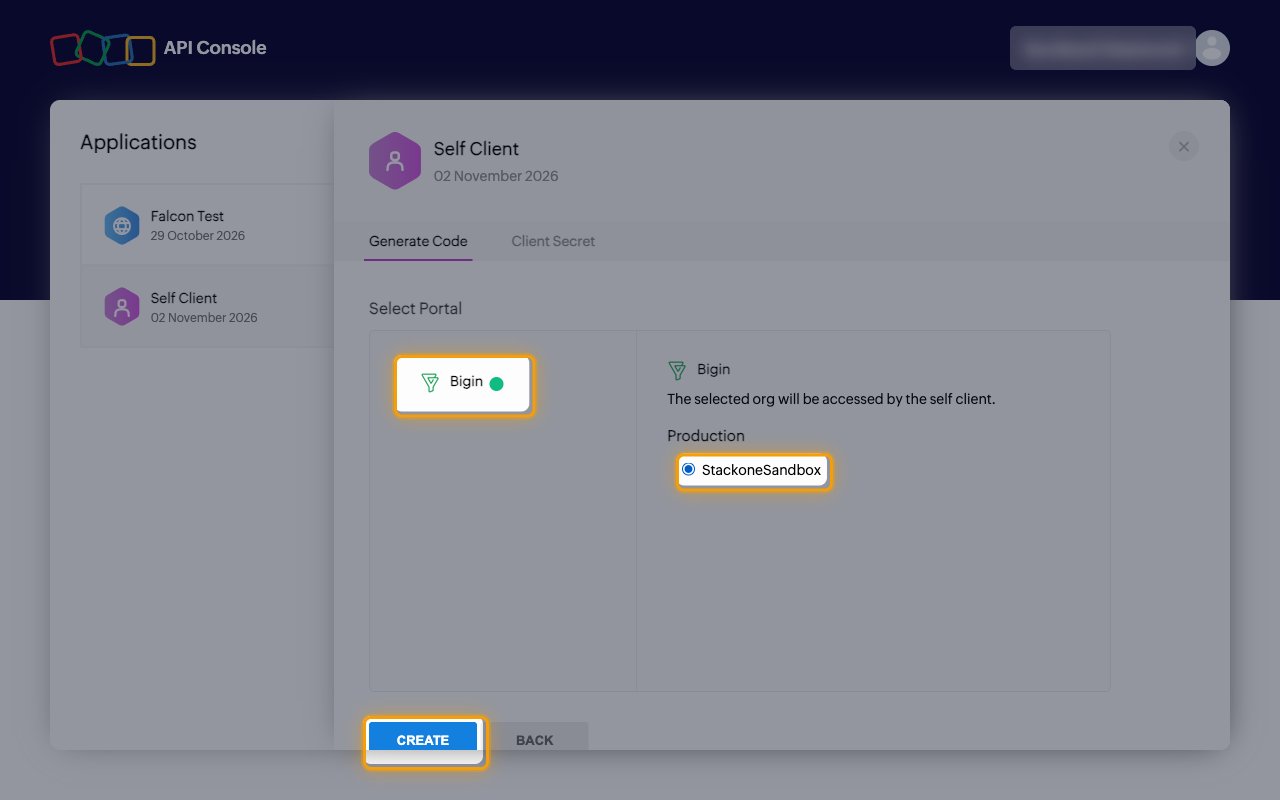
Zoho shows Select Portal.
- Click Bigin.
- Under Production, select your Bigin organization. StackOne can only reach this organization.
- Click CREATE.
Copy the code
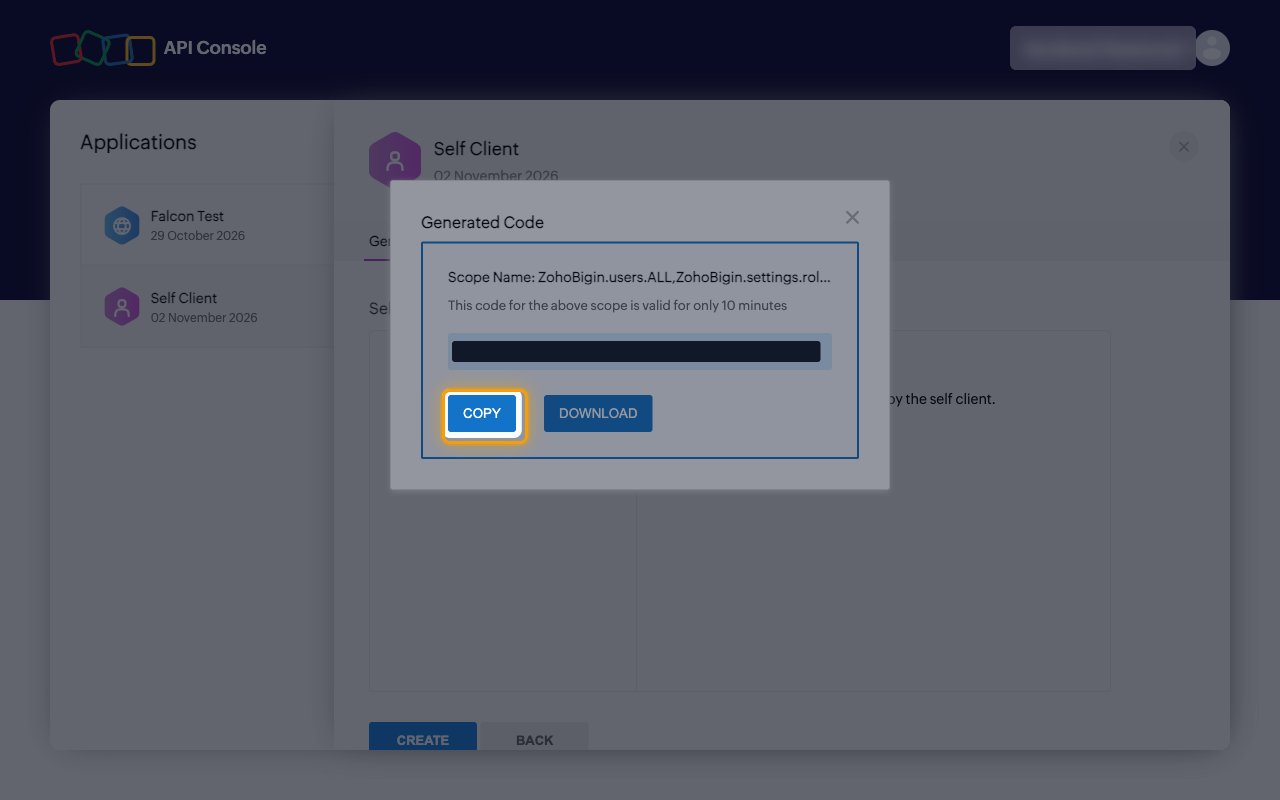
Zoho shows the Generated Code.
- Click COPY.
- The code works once, and only for the time you selected in Code expiry duration.
- The code is only displayed in this window and cannot be retrieved later. To keep a copy, click DOWNLOAD.
Request the refresh token
Before the code expires, send it to the Zoho token endpoint of your data center. Replace zoho.com with your data center domain, such as zoho.eu or zoho.in, and fill in your own values:
- Copy the
refresh_tokenvalue from the response into StackOne Hub. - If the response says
invalid_code, the code was already used or has expired. Generate a new code and send it again straight away. - The refresh token has no expiry, so you do this only once.
Connect in StackOne Hub
Select Self Client, then fill in the form.
- Data Center: the Zoho region in your Bigin address, for example
bigin.zoho.inis India (IN). - Client ID and Client Secret: from the Self Client’s Client Secret tab.
- Refresh Token: the
refresh_tokenfrom the token response, not the code.
Revoke access
To stop StackOne from using your Bigin account, delete the Self Client in the Zoho API Console. The refresh token stops working and the connection fails until a new Self Client is set up.
Link the Account
Connect
- Click Connect.
- If applicable, the provider will redirect you to a sign-in or authorization page. Complete the provider’s authorization flow.
- Once authorization is successful, you will see a confirmation popup.
Use Actions
Next Steps
Webhooks setup
Configure receiving Events for Zoho Bigin into StackOne.