

Prerequisites
The connector should already be set up, with a Connector Profile and a Linked Account. See Getting Started on the Wrangle connector page.Prerequisites in StackOne
Set up event delivery in StackOne before you link the Wrangle account. Events only reach your integration when the connector profile has them turned on and pointed at a webhook.
Add a webhook in StackOne
In StackOne, open Webhooks and click Add Webhook.
- Enter a Name and the HTTPS URL that should receive the events, then click Create.
Turn on the events in the connector profile
Create a connector profile for Wrangle (Connectors > Wrangle > Add Profile), then choose the events on the Events step of the new profile.
- Turn on Ticket Created and Ticket Updated.
- Also turn on Webhook Active Check. It answers the verification request Wrangle sends when you create the webhook and never delivers an event.
Select the webhook for the events
For each event you turned on, choose the webhook you added under Select Webhook. Click Continue, fill in the profile details, then click Create Profile.
- When editing an existing profile, click Save Profile instead.
Link the Wrangle account
Only then link the Wrangle account with this profile (Connectors > Wrangle > Link Account). Its Native Webhook URL is generated when the account is linked.
- You can also change the events later. The linked account follows the profile’s event settings.
Retrieve StackOne Native Webhook URL
The Native Webhook URL is generated once an account has been linked.
- Open the linked account in StackOne (Accounts > the account > ⋯ > Reconnect) and copy the value from Native Webhook URL.
- Close the form without clicking Connect.
- The URL already identifies the linked account, so there is nothing else to enter in StackOne.
- The URL ends in a
tokenthat authenticates deliveries for this account. Treat it like a password and only paste it into Wrangle.
Webhook setup in Wrangle
Create one webhook in the Wrangle web app that points at the Native Webhook URL. Wrangle has no API for webhook subscriptions, so this is done by hand.
Sign in to Wrangle
Sign in to your Wrangle account.
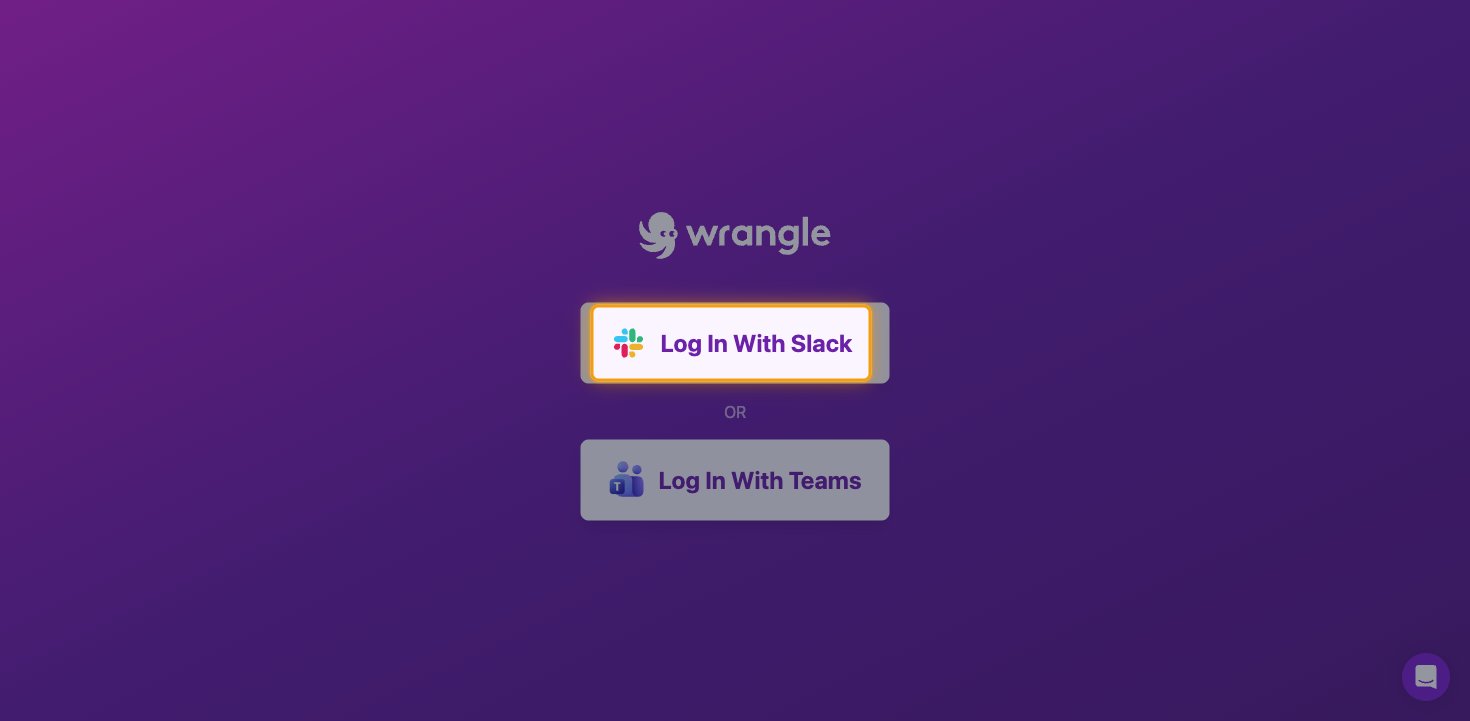
- Click Log In With Slack, or Log In With Teams if your organization uses Microsoft Teams.
Approve the Wrangle app in Slack
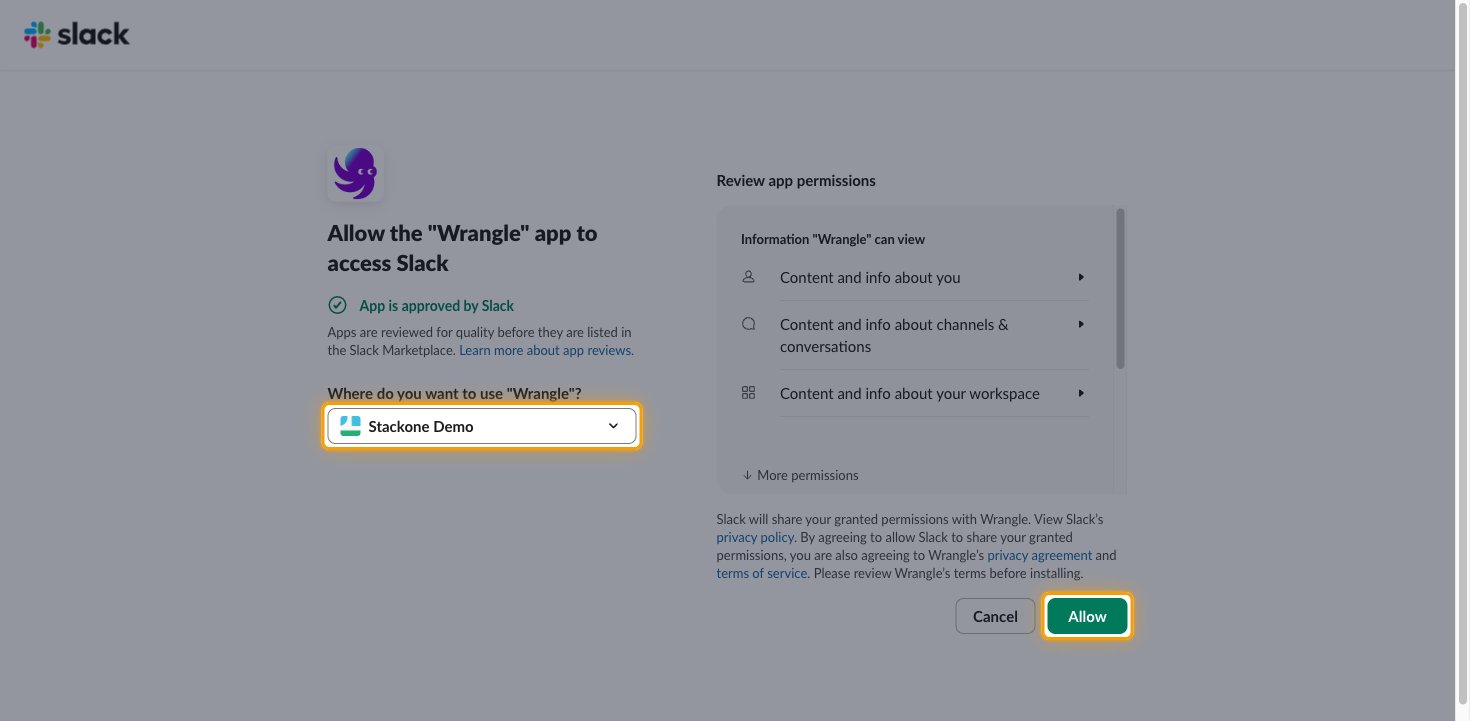
If Slack shows Allow the “Wrangle” app to access Slack, confirm the workspace and allow access.
- Under Where do you want to use “Wrangle”?, choose the workspace you use with Wrangle.
- Click Allow.
Open the Webhooks page
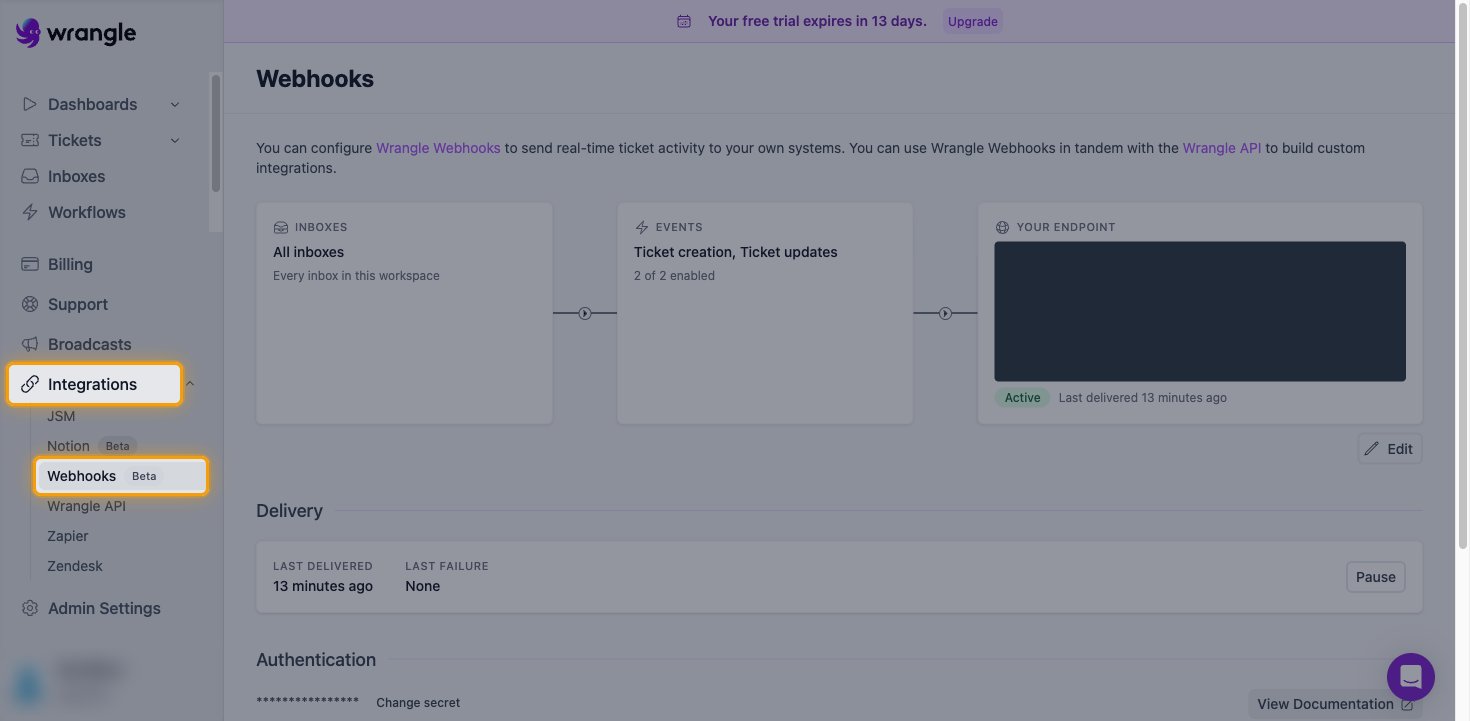
In the sidebar, expand Integrations and click Webhooks.
- Wrangle shows a single webhook. If Your endpoint already shows a URL, click Edit and replace the Webhook URL instead of creating a new webhook.
Start a new webhook
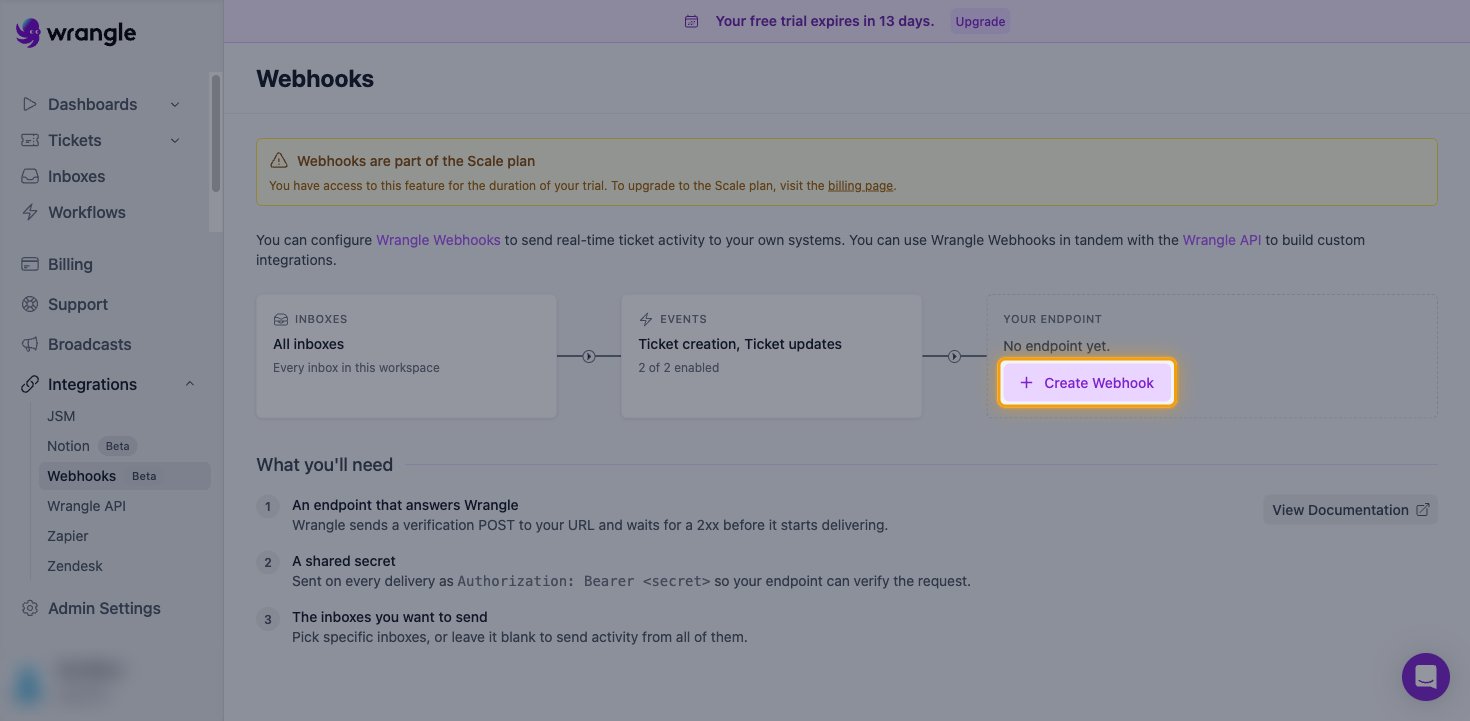
Under Your endpoint, Wrangle shows No endpoint yet. until a webhook exists. Click Create Webhook.
- The Webhooks are part of the Scale plan banner appears during the free trial. You have access to webhooks for the duration of the trial.
Enter the webhook URL and secret
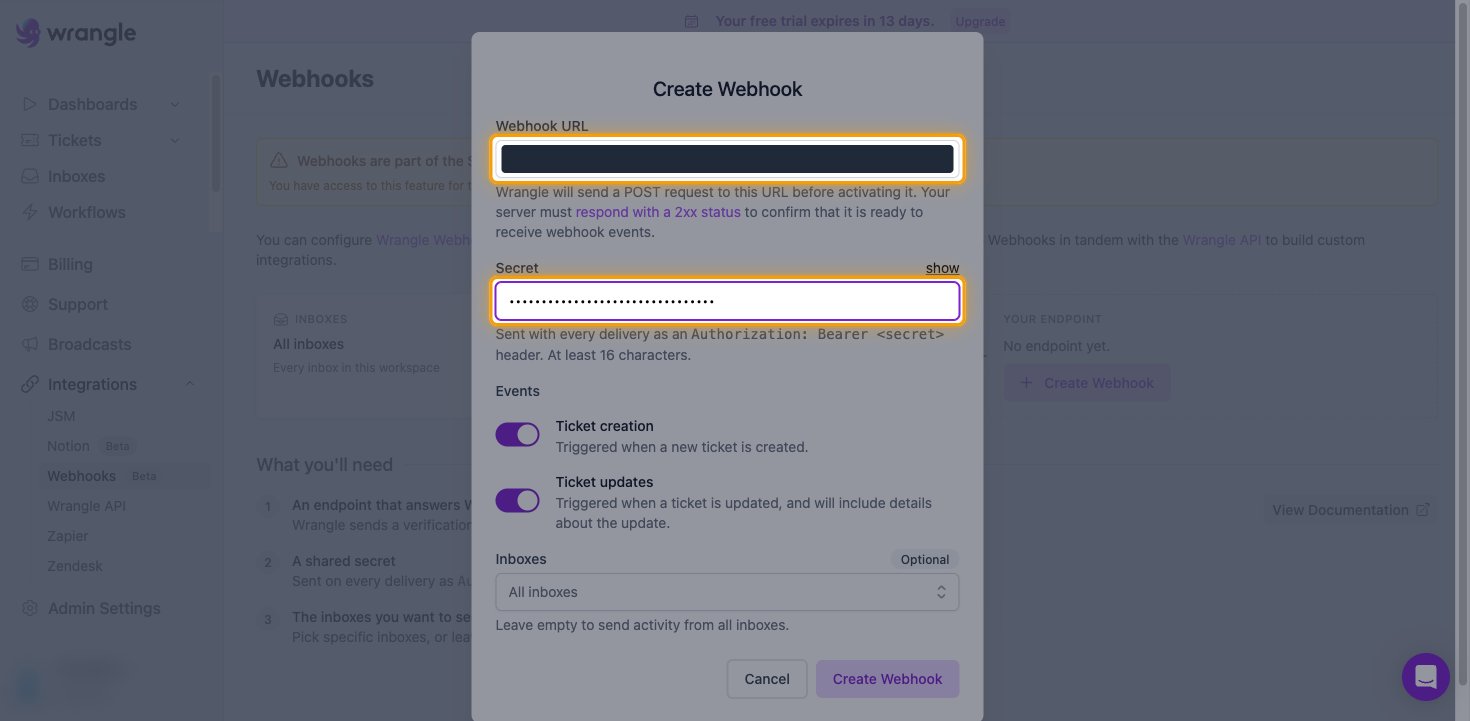
In the Create Webhook dialog, paste the StackOne Native Webhook URL into Webhook URL.
- Wrangle sends a verification POST to the URL before activating it. StackOne answers it automatically.
- In Secret, enter a random value of at least 16 characters. Wrangle sends it on every delivery as
Authorization: Bearer <secret>. - StackOne identifies the account from the Native Webhook URL, so the secret is not entered in StackOne. Store it securely in case you need to change it later.
Choose events and inboxes
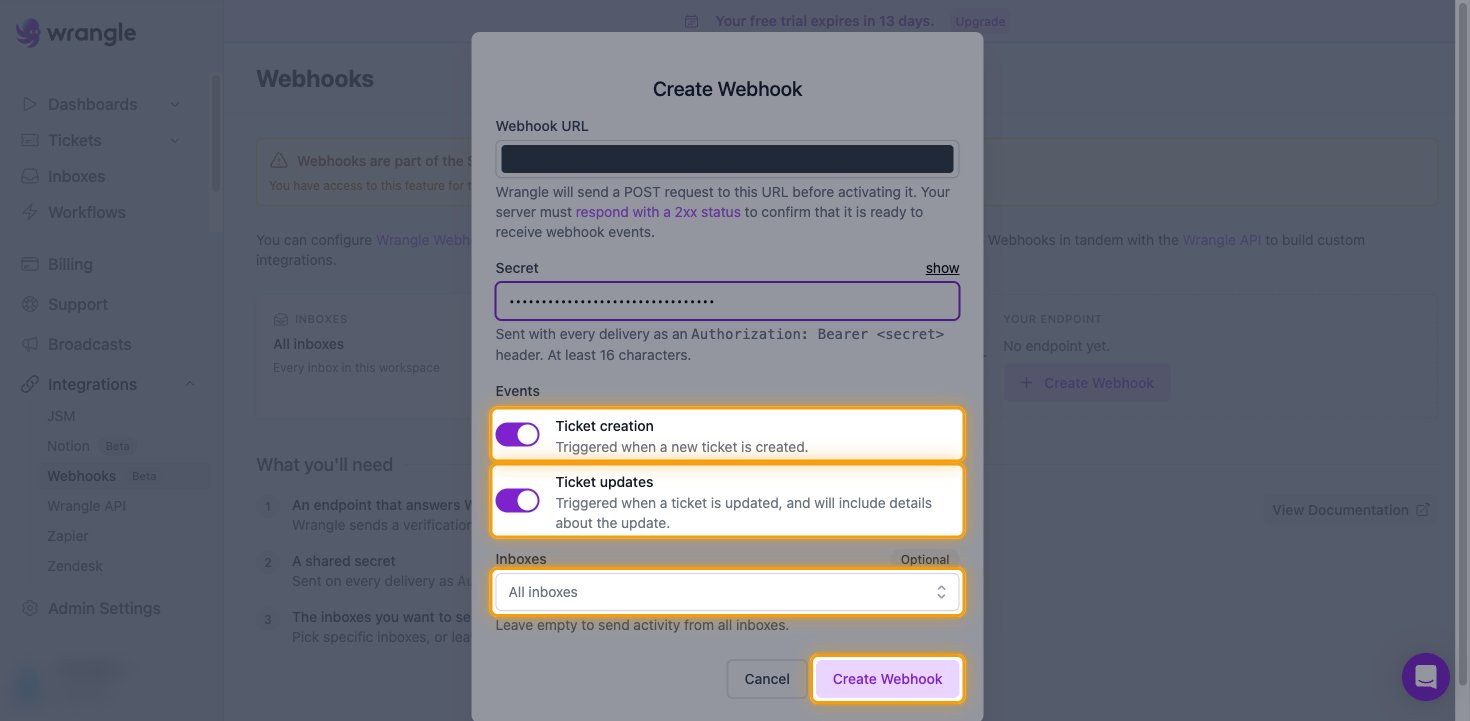
Under Events, leave Ticket creation and Ticket updates switched on.
- Leave Inboxes set to All inboxes to send activity from every inbox, or pick specific inboxes. Inboxes marked as confidential are only included when you select them explicitly.
- Click Create Webhook.
Confirm the webhook is active
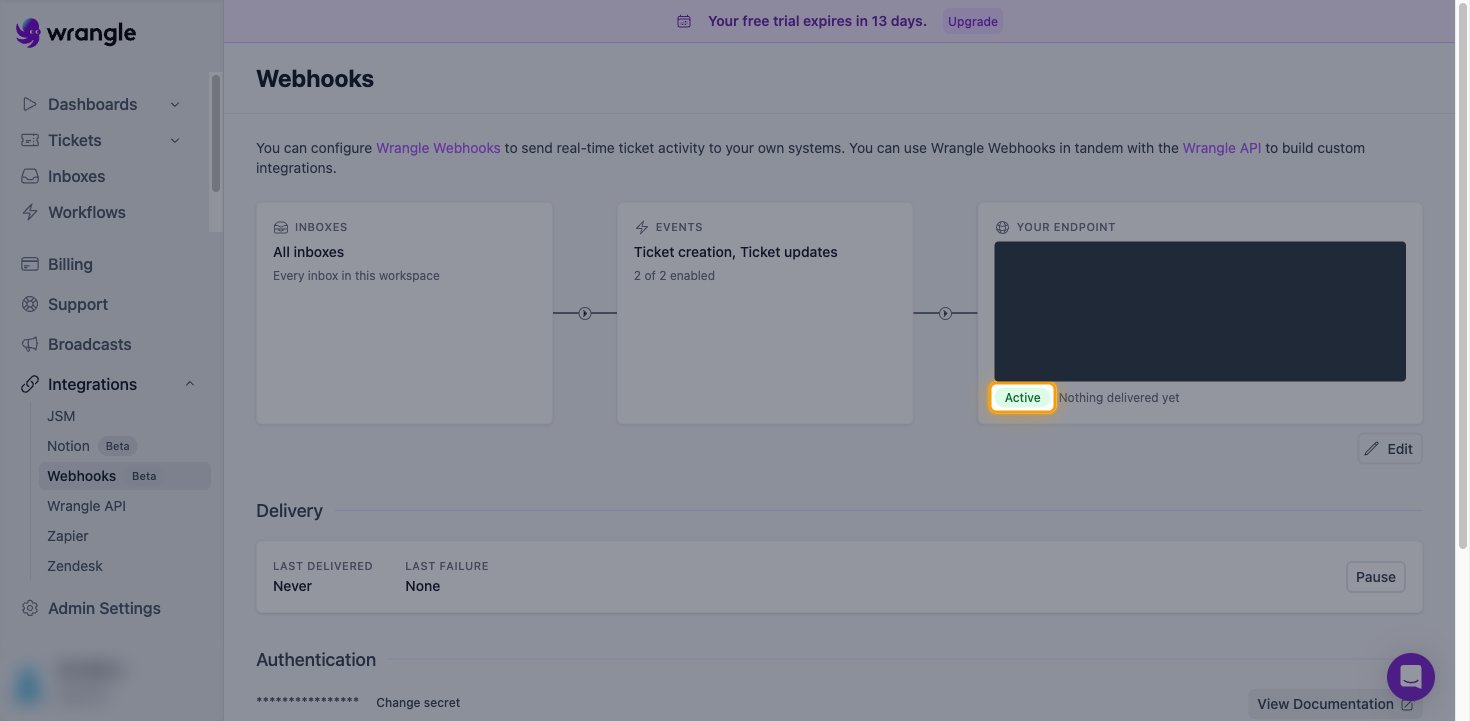
After Wrangle verifies the URL, Your endpoint shows Active.
- The status reads Nothing delivered yet until the first ticket is created or updated.
- The Delivery section shows Last delivered and Last failure for troubleshooting.
Available webhook events
The following Wrangle events can be enabled. Only events selected in StackOne are delivered to your integration, and Wrangle only sends the event types switched on in its webhook.
Ticket events
Events related to tickets in your Wrangle inboxes.
- Ticket Created (
ticket.created) — Fired when a new ticket is created in Wrangle, including tickets created through the Wrangle API - Ticket Updated (
ticket.updated) — Fired when a ticket changes. TheeventTypesfield lists every change in the delivery
Verification
Handles requests from Wrangle that are not ticket activity.
- Webhook Active Check — Acknowledges the verification request Wrangle sends when a webhook is created or edited (its
activityTypeiswebhookValidation), and any other request that is not ticket activity. It does not deliver an event
Delivery format
Wrangle sends one request per ticket activity. Each request carries occurredAt, activityType and the full ticket under ticket, in the same shape the get_ticket action returns. The event’s record ID is the Wrangle ticket ID.
- A single Ticket Updated delivery can carry more than one change, listed in
eventTypes. The ticket reflects its state after the change; previous values are not included. - Possible
eventTypesvalues:ASSIGNMENT_CHANGE,CSAT_SUBMISSION,DESCRIPTION_CHANGE,FOLLOWER_ADDED_VIA_MENTION,FOLLOWER_CHANGE,INBOX_CHANGE,NAME_CHANGE,PRIORITY_CHANGE,STATUS_CHANGE,TAGS_CHANGE,TICKET_CLAIM,WORKFLOW_SUGGEST - Deleting a ticket does not send an event.