

Register an owner-only OAuth 2.0 client on Meta-Wiki
Client credentials access uses an owner-only OAuth 2.0 client, which is automatically approved and usable immediately by your own account.
Sign in to Meta-Wiki
Sign in to your Meta-Wiki account with your Wikimedia credentials, then open the OAuth consumer registration page. If the link does not open the form directly, navigate there via Special pages → OAuth consumer registration → Propose new OAuth 2.0 client.
Enter the application details
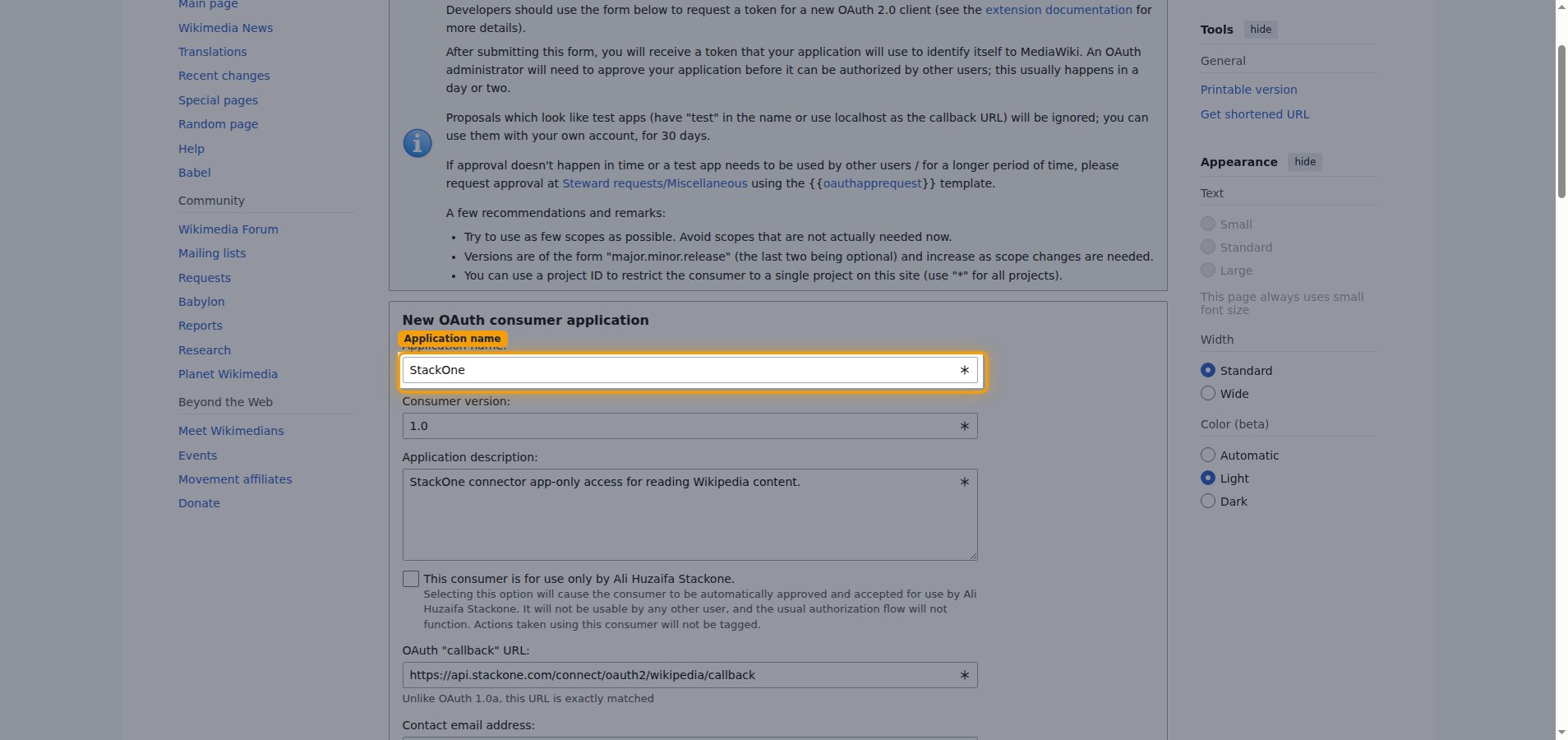
In the New OAuth consumer application section, describe your client.
- Application name: enter a descriptive name — e.g.,
StackOne. - Consumer version: leave as
1.0. - Application description: briefly describe how the client is used.
- Applicable project: leave as
*to allow all projects. - Allowed IP ranges: leave the default (
0.0.0.0/0and::/0), which allows requests from any IP address. - Allowed pages for editing: leave blank unless you need to restrict editing to specific pages.
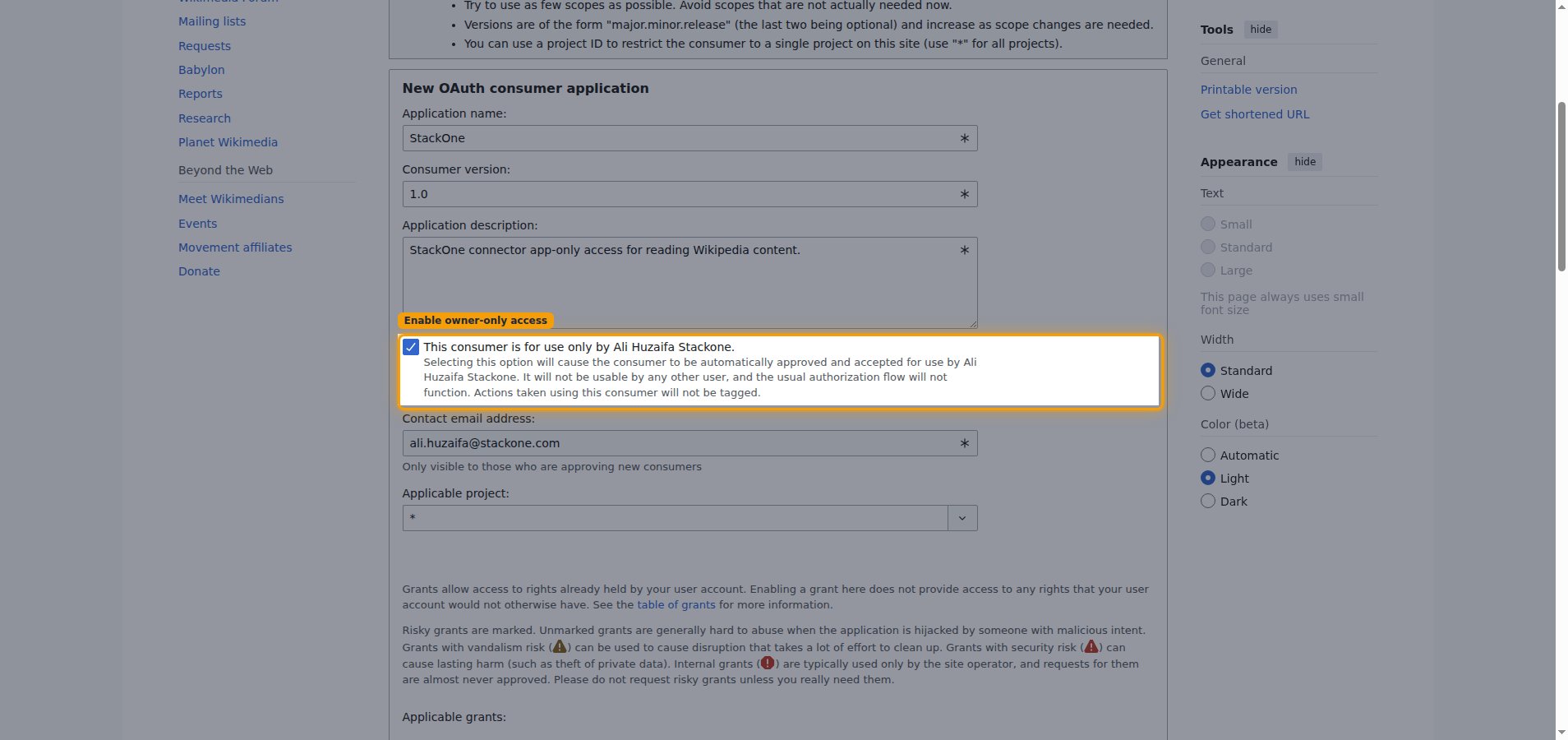
Enable owner-only access
Check This consumer is for use only by [your username]. Selecting this option causes the client to be automatically approved and accepted for use by your account, so no administrator review is needed. (Once owner-only is enabled, the OAuth2 grant-types section is disabled — you do not select a grant type here; the client credentials grant is used automatically.)
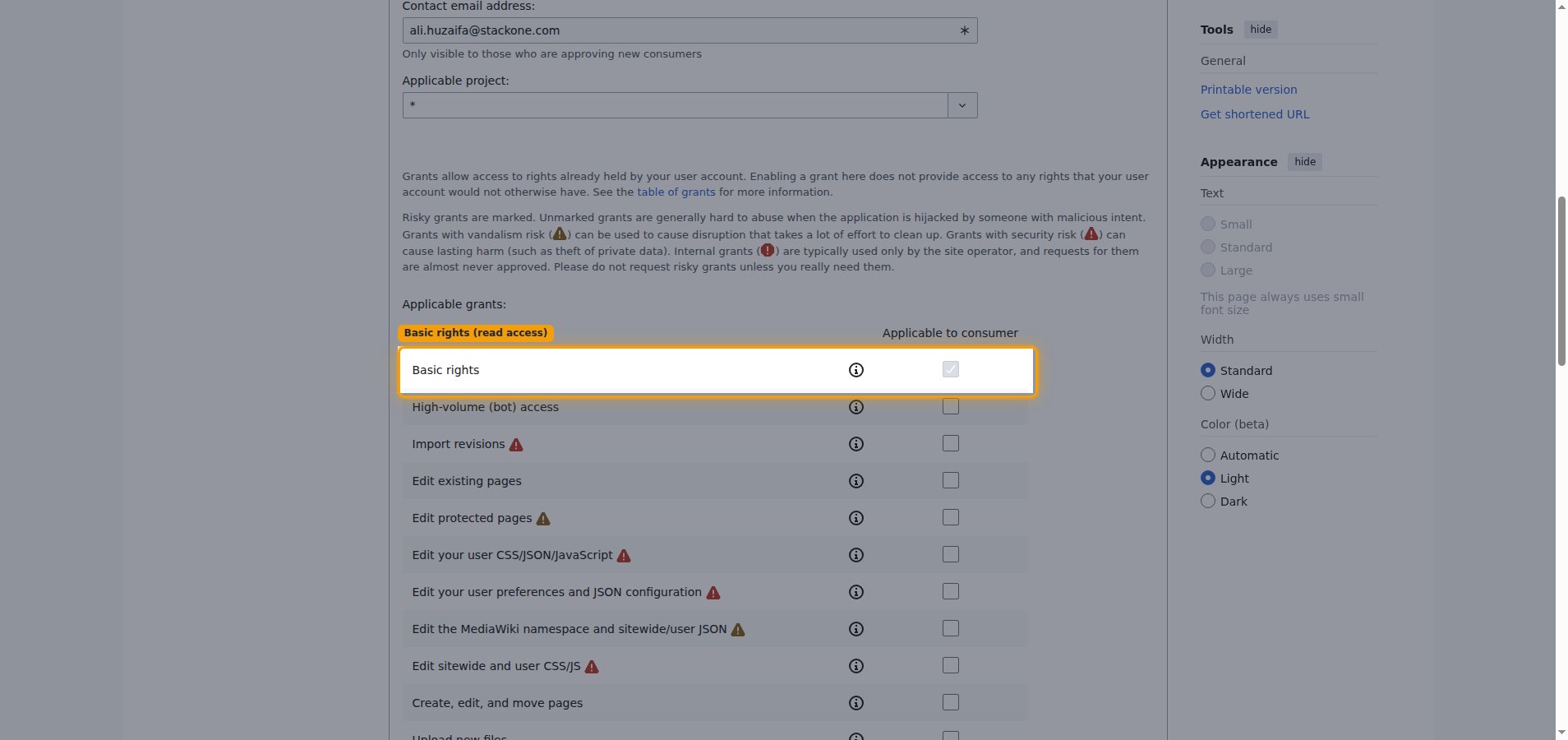
Check the read permissions
Under Applicable grants:, Basic rights is enabled by default and is sufficient for reading Wikipedia content. Leave the other, higher-risk grants unchecked.
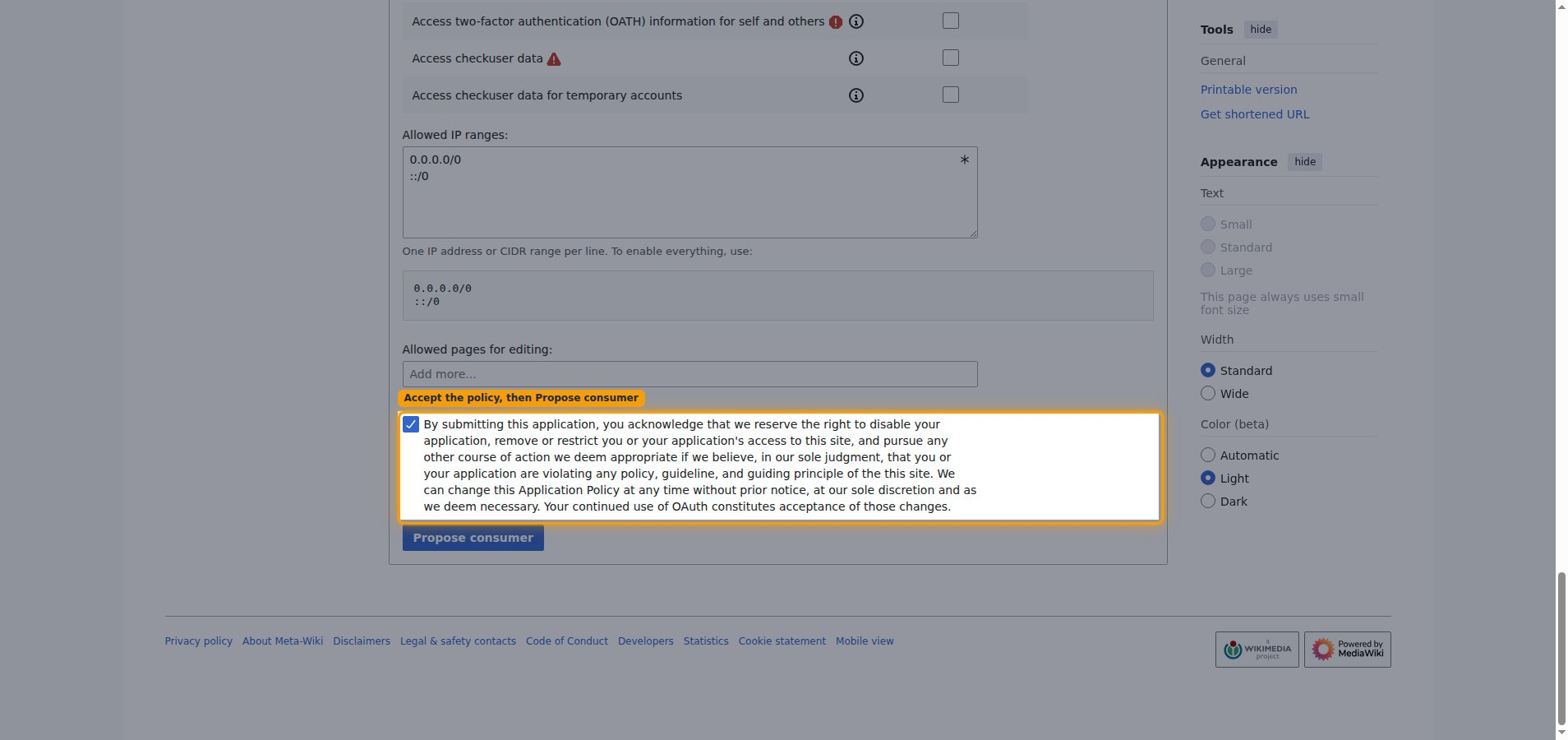
Accept the policy and submit
Check the application policy acknowledgement — the By submitting this application, you acknowledge… statement — then click Propose consumer. This checkbox is required; the form will not submit until it is ticked.
Copy your credentials
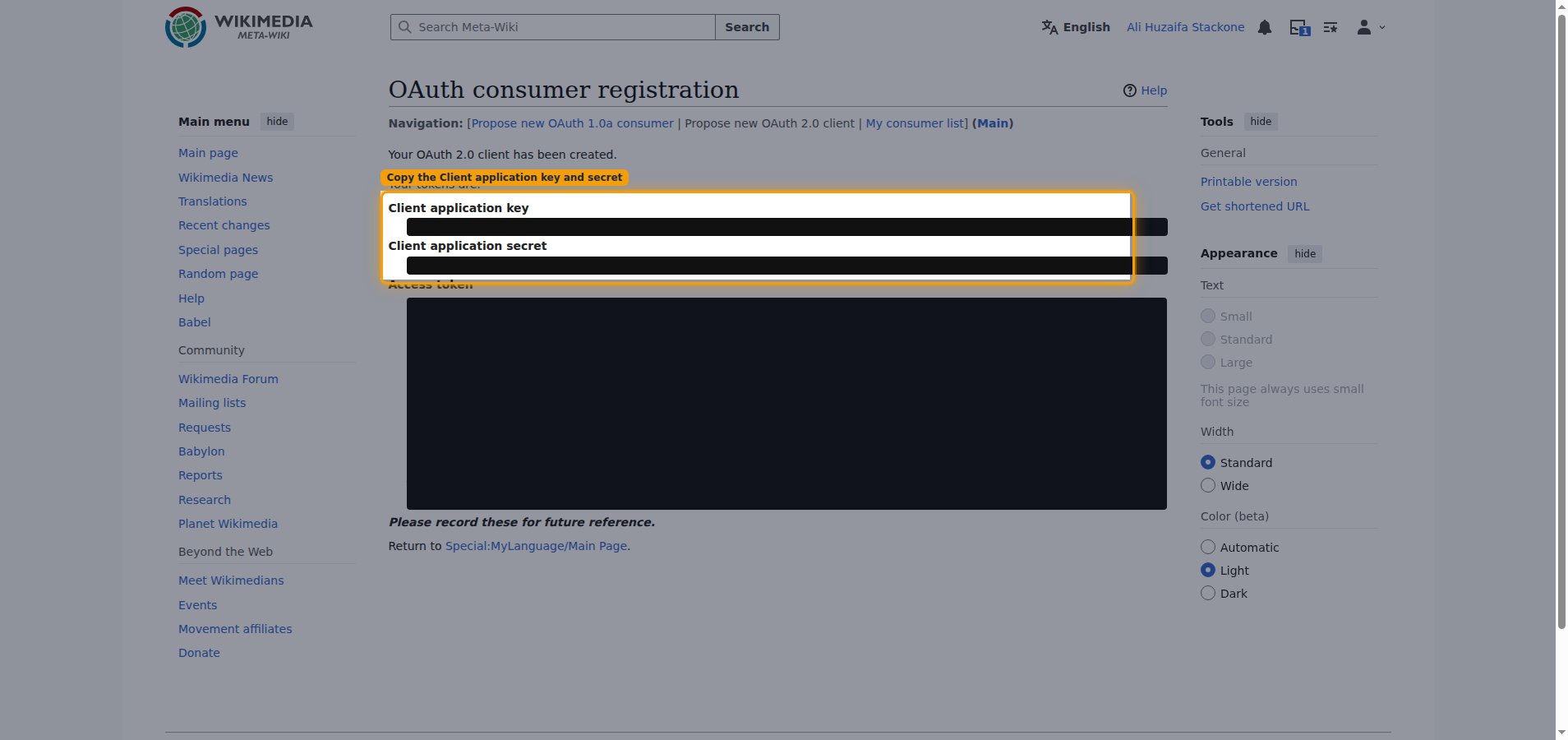
Meta-Wiki shows Your OAuth 2.0 client has been created. with Your tokens are: listing the Client application key, Client application secret, and Access token.
- Copy the Client application key into the Client ID field in StackOne Hub.
- Copy the Client application secret into the Client Secret field in StackOne Hub.
- These tokens are only displayed once — record them for future reference before leaving the page.
Choose your language edition
Your language edition selects which language edition of Wikipedia this connection reads from.
Select the Language Code
The Language Code field is a dropdown listing every available Wikipedia edition.
- Open the Language Code dropdown in StackOne Hub and select your edition.
- Each option shows the language name and its code — the subdomain before
.wikipedia.org(for example,enforhttps://en.wikipedia.org). - Common choices: English (en), Spanish (es), French (fr), German (de), Japanese (ja).
Linking the Account from the Hub
Navigate to the Hub
Fill out the fields
- Client ID
- Client Secret
- Language Code
Connect
- Click Connect
- If applicable, the provider will redirect you to a sign-in or authorization page. Complete the provider’s authorization flow.
- Once authorization is successful, you will see a confirmation popup
If the account linking is successful, you will see the newly linked account on your Accounts page.