

Prerequisites
The connector should already be set up, with a Connector Profile and a Linked Account. See Getting Started on the Webflow connector page.Automatic webhook subscription
StackOne creates and manages the Webflow webhooks automatically when the account is connected, and deletes them when the account is disconnected. You don’t need to create any webhook in Webflow.
Check token and scope requirements
The connection must be able to manage webhooks on the site.
- OAuth 2.0 connections need the
sites:writescope, plus the read scope for each event you enable:forms:read,sites:read,pages:read,cms:read,ecommerce:readorcomments:read. - Site Token connections can manage webhooks on the token’s own site.
Select events in StackOne
Enable the webhook events you want on the Webflow connector in StackOne. Webflow allows one trigger type per webhook, so StackOne creates one webhook on the site for each selected event.
Find your Site ID
Webflow webhooks belong to a single site. The Site ID identifies that site, and StackOne creates the webhooks on it. Webhooks cannot be created while Webhook Site ID is empty.
Open the site menu
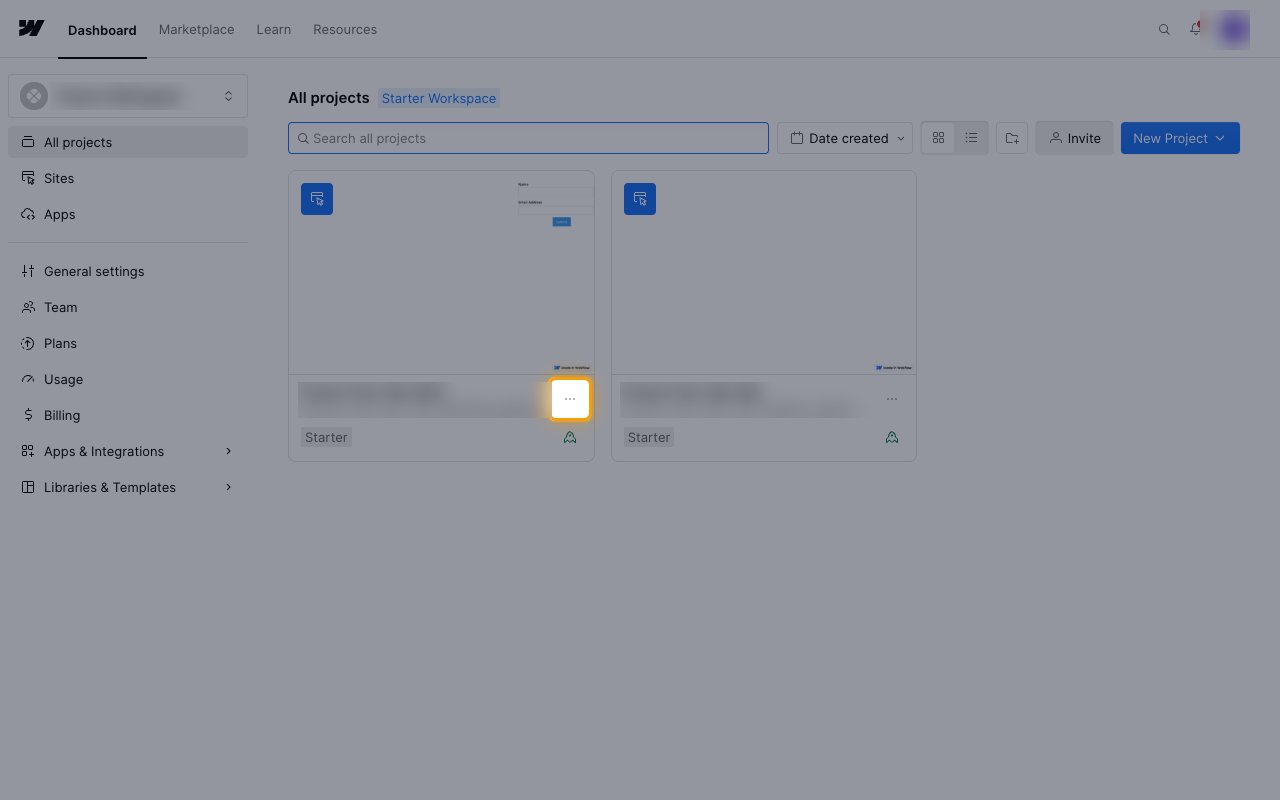
Sign in to your Webflow account. On the All projects page, find the site’s card and click its Site settings menu (the three-dot button next to the site name).
Open the site settings
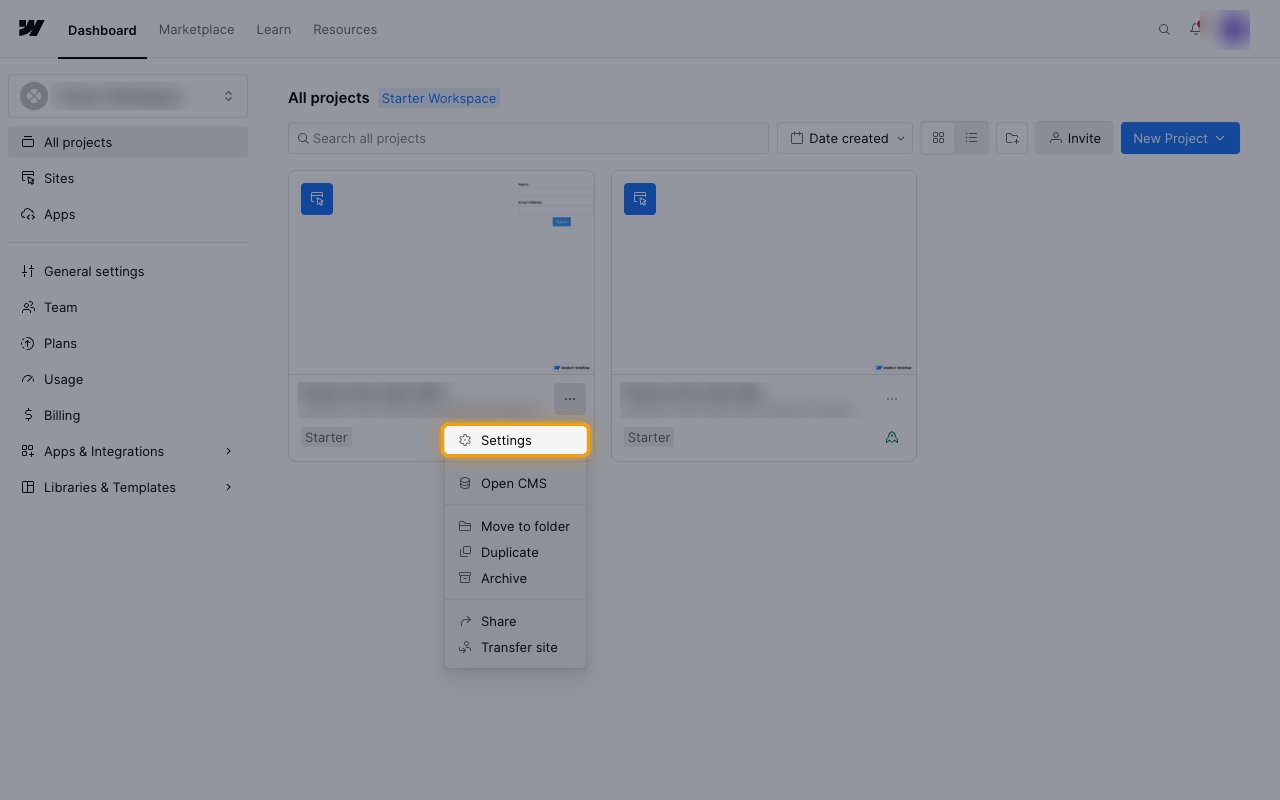
Click Settings in the menu. The site settings open on the General tab.
Copy the Site ID
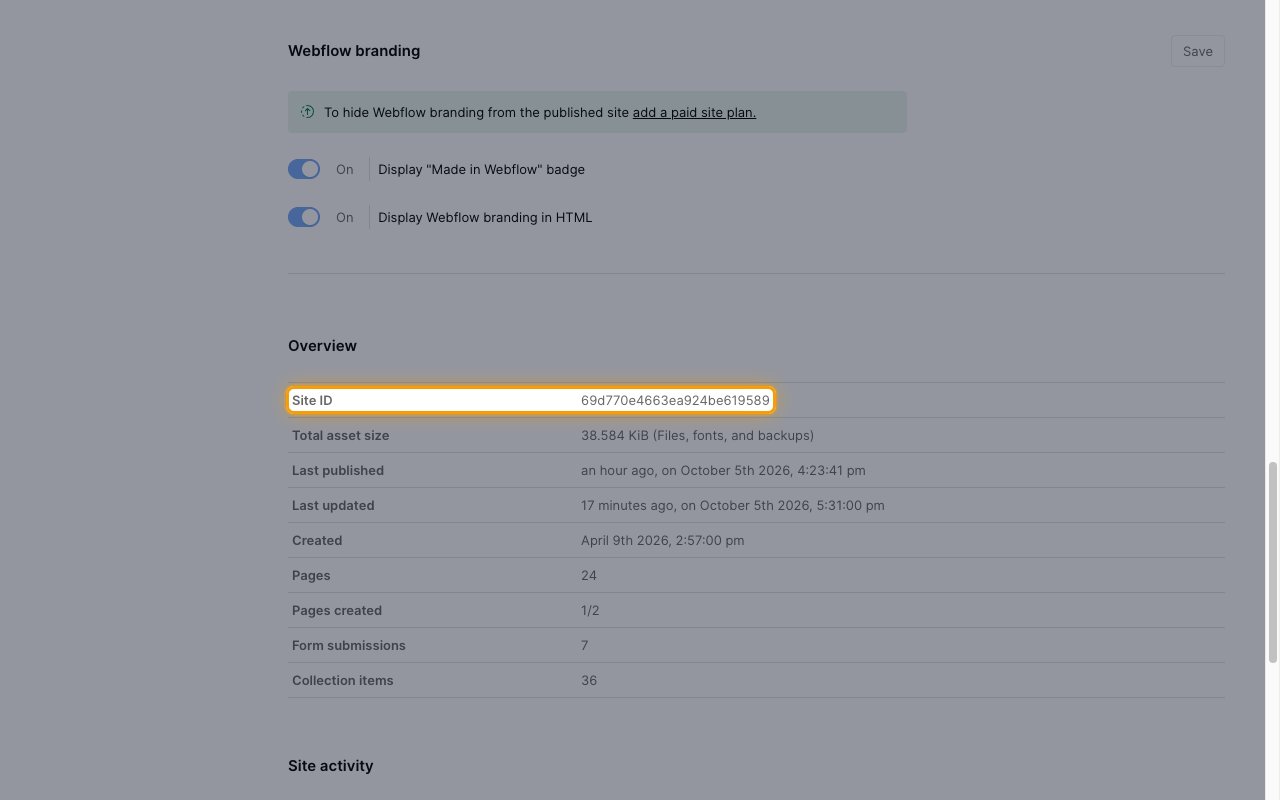
Scroll down to the Overview section and copy the value next to Site ID.
- Enter it in Webhook Site ID on the linked account in StackOne Hub.
- For a Site Token connection, use the ID of the site the token was generated for.
Available webhook events
The following Webflow events can be enabled. Only events selected in StackOne are subscribed, and Webflow does not deliver events that are not subscribed.
Form events
Events on form submissions.
- Form Submission (
form_submission) — Fired when a form on the site is submitted
Site and page events
Events on site publishing and pages.
- Site Publish (
site_publish) — Fired when the site, or a single page of it, is published - Page Created (
page_created) — Fired when a page is created - Page Metadata Updated (
page_metadata_updated) — Fired when a page’s metadata or settings are updated - Page Deleted (
page_deleted) — Fired when a page is deleted
CMS events
Events on CMS collection items.
- Collection Item Created (
collection_item_created) — Fired when a CMS collection item is created - Collection Item Changed (
collection_item_changed) — Fired when a CMS collection item is updated - Collection Item Deleted (
collection_item_deleted) — Fired when a CMS collection item is deleted - Collection Item Published (
collection_item_published) — Fired when a CMS collection item is published - Collection Item Unpublished (
collection_item_unpublished) — Fired when a CMS collection item is unpublished
Ecommerce events
Events on ecommerce orders and inventory. These require Ecommerce to be enabled on the site, which needs an Ecommerce site plan.
- New Ecommerce Order (
ecomm_new_order) — Fired when a new ecommerce order is placed - Ecommerce Order Changed (
ecomm_order_changed) — Fired when an ecommerce order changes, for example its status, fulfilment or comment - Ecommerce Inventory Changed (
ecomm_inventory_changed) — Fired when the inventory of a product SKU changes
Comment events
Events on site comments.
- Comment Created (
comment_created) — Fired when a comment thread or a reply is created. Webflow may deliver it up to 5 minutes after the comment is posted
Delivery format
Details of how Webflow delivers events to StackOne.
JSON payloads
Webflow sends one event per HTTP POST. The trigger type is in triggerType and the record in payload. StackOne uses the changed record’s ID from payload as the event ID, for example the item ID, page ID, order ID or comment ID.
- Order and inventory events do not include a site ID in the payload.
- Collection Item Published carries the published items as a list in
payload.items, because one publish can cover several items. StackOne emits one event per published item.
Signature verification
Webflow signs each delivery with the x-webflow-signature header, a hex HMAC-SHA256 of the x-webflow-timestamp header, a colon, and the raw body. OAuth 2.0 webhooks are signed with the app’s client secret.
Retries and deactivation
Webflow retries a failed delivery up to 3 times, 10 minutes apart. If deliveries keep failing, Webflow deactivates the webhook and notifies the Workspace by email.