

Generating a Site Token
A Site Token authorizes StackOne against a single Webflow site — the Webflow portal calls it an API token. Generate one token per site you want to connect.
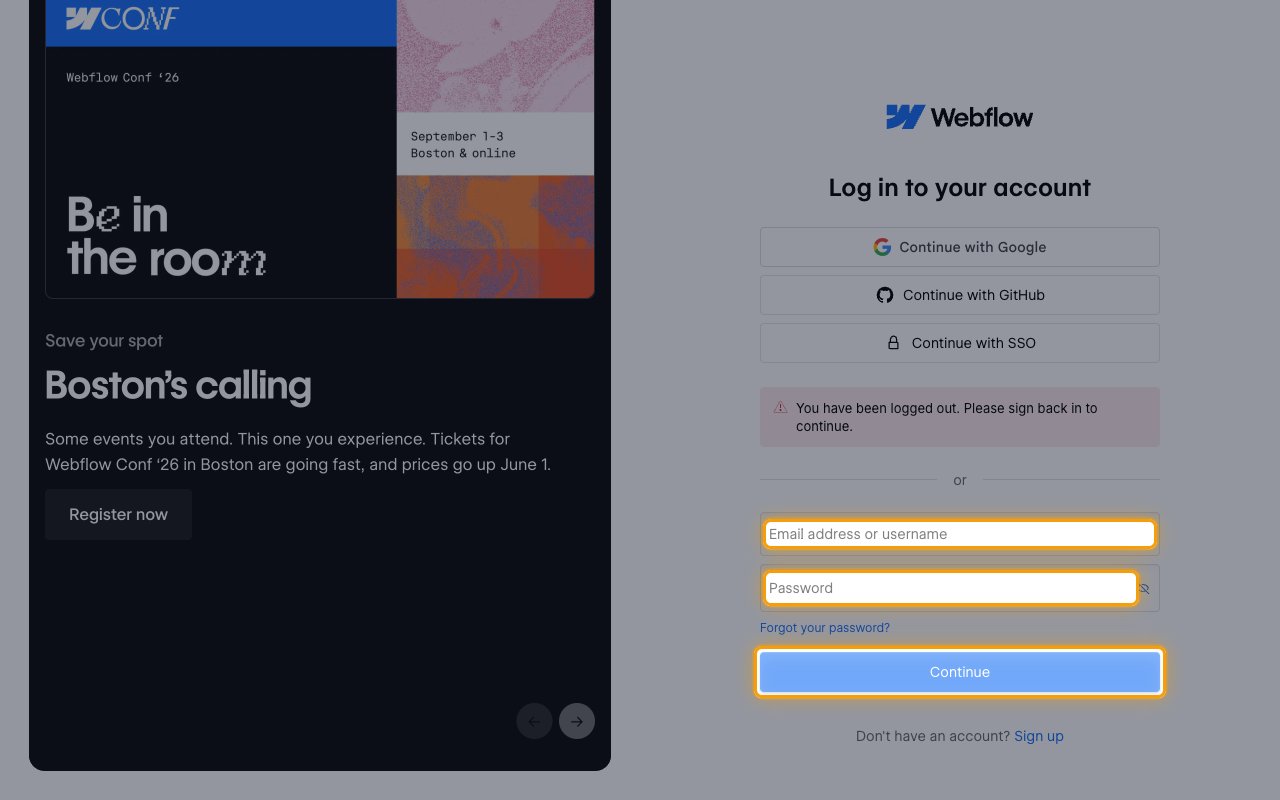
Sign in to Webflow
Sign in to your Webflow account.
- In the left sidebar, click Sites to list the sites in your Workspace.
- Click the site you want to connect to open its settings.
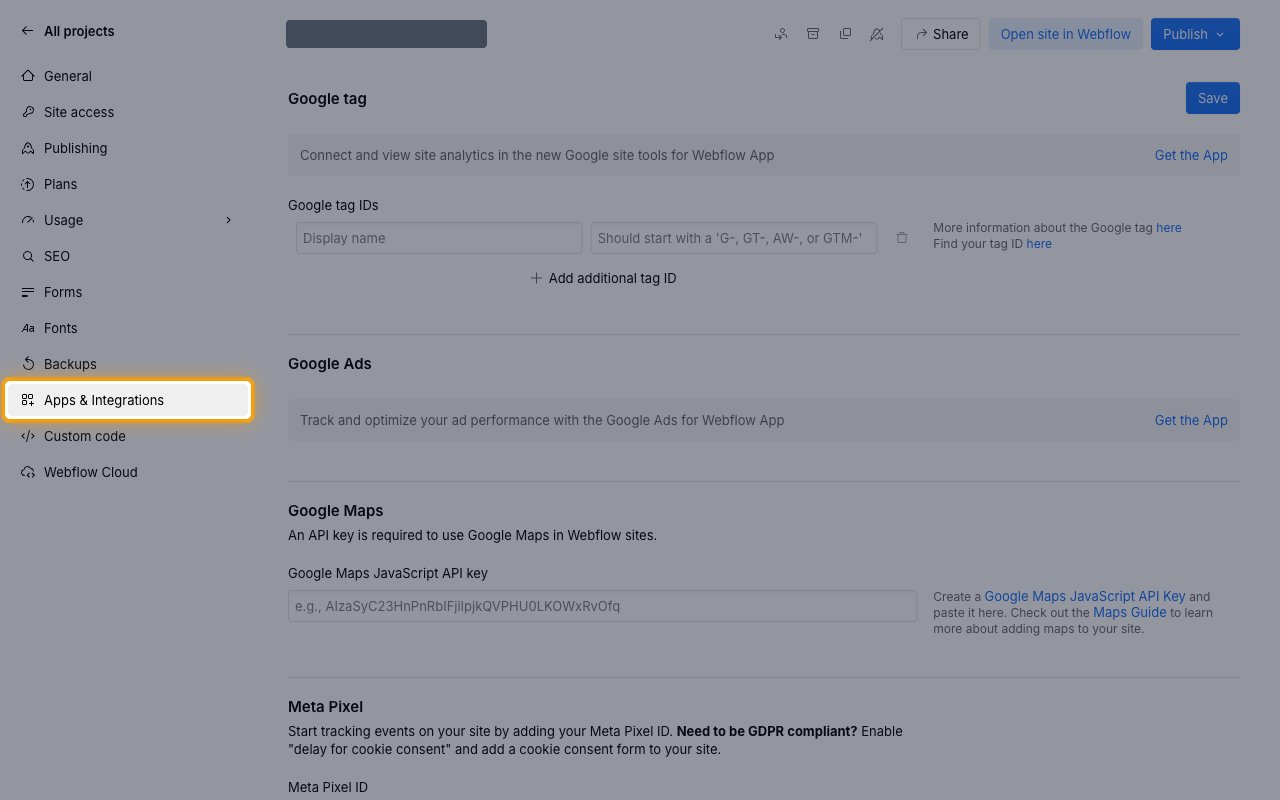
Open Apps & Integrations
In the site’s left sidebar, click Apps & Integrations.
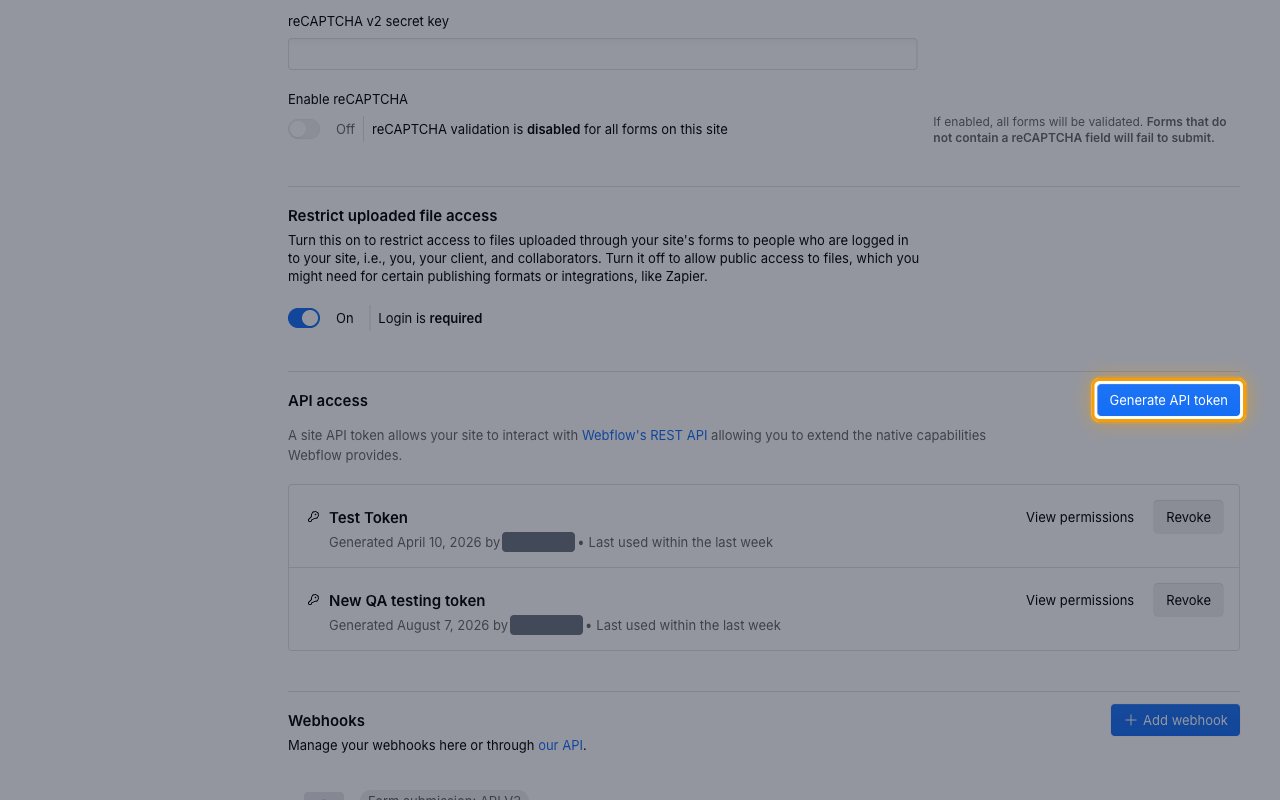
Generate an API token
Scroll to the API access section at the bottom of the page and click Generate API token.
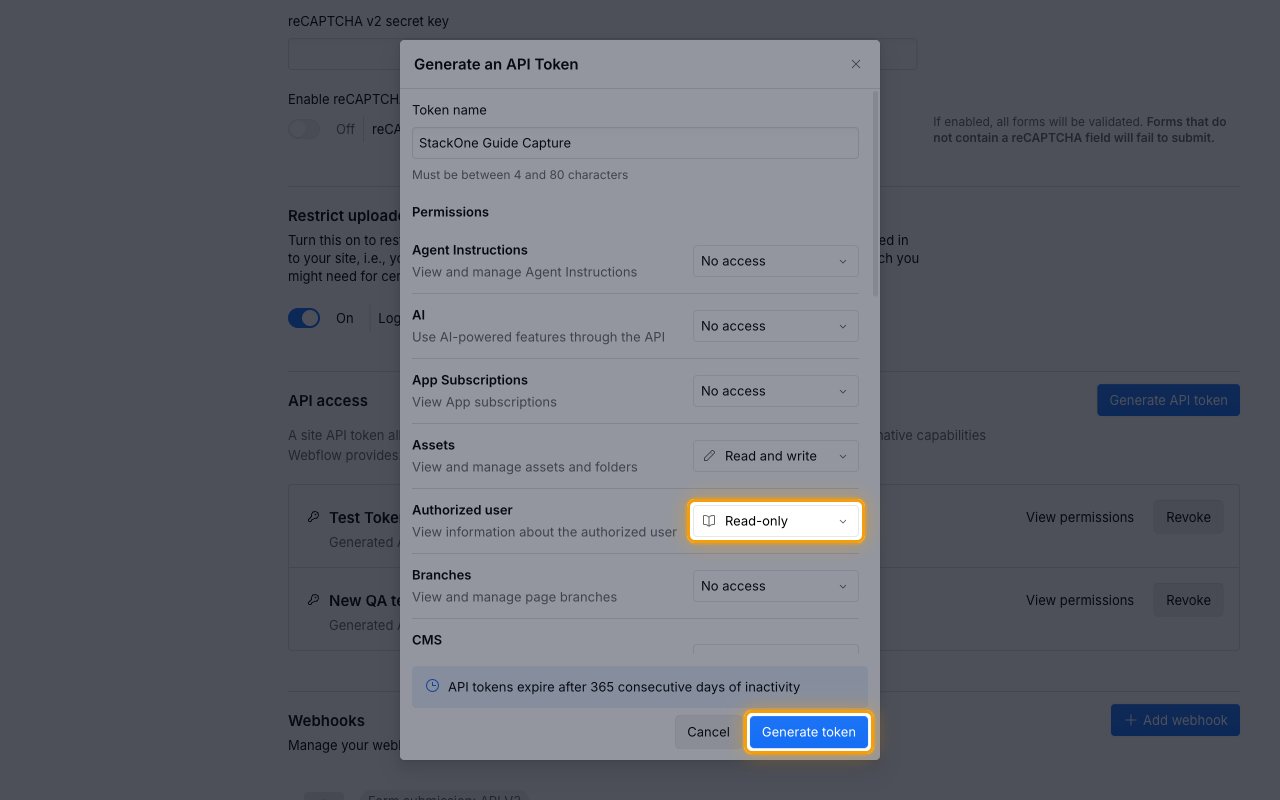
Name the token and set permissions
In the Generate an API Token dialog, enter a Token name between 4 and 80 characters, then set the access level for each resource under Permissions.
- Each resource offers No access, Read-only, or Read and write — grant only what your integration needs.
- Set Authorized user to Read-only — StackOne uses this resource for its connection test, and the connection fails without it.
- Read-only is enough for Comments and Site activity — StackOne only reads those resources.
- Set Assets, CMS, Components, Ecommerce, Forms, Pages, Sites, and Site config to Read and write if StackOne should create or update that data, or Read-only if it should only read it.
- Workspace is only needed at Read and write, and only if StackOne should create new sites.
- Leave every other resource on No access.
Copy the token
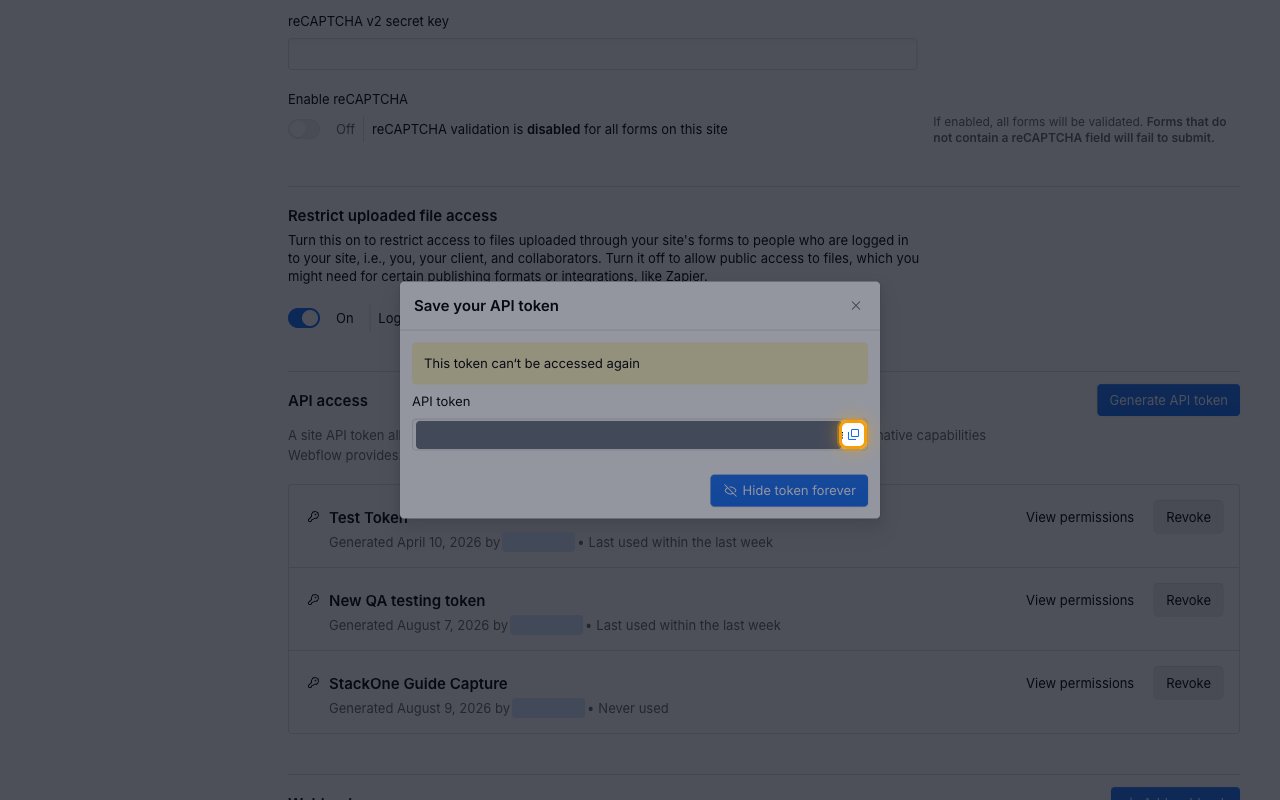
Click Generate token, then copy the value shown under API token in the Save your API token dialog and store it securely for use later.
- The token is displayed only once and cannot be retrieved later — copy it before closing the dialog.
- If the token is lost, click Revoke on it in the API access section and generate a new one.
- Paste it into the Site Token field in StackOne Hub.
- The token stays valid until it is revoked, but expires after 365 consecutive days of inactivity.
Linking the Account from the Hub
Navigate to the Hub
Fill out the fields
- Site Token
- Webhook Site ID (Optional)
Connect
- Click Connect
- If applicable, the provider will redirect you to a sign-in or authorization page. Complete the provider’s authorization flow.
- Once authorization is successful, you will see a confirmation popup
If the account linking is successful, you will see the newly linked account in your Accounts page.
Next Steps
Webhooks setup
Configure receiving Events for Webflow into StackOne.