

Generating an Ultipa Cloud API key
Each key belongs to one Ultipa Cloud account and carries the permissions picked when it is created.
1
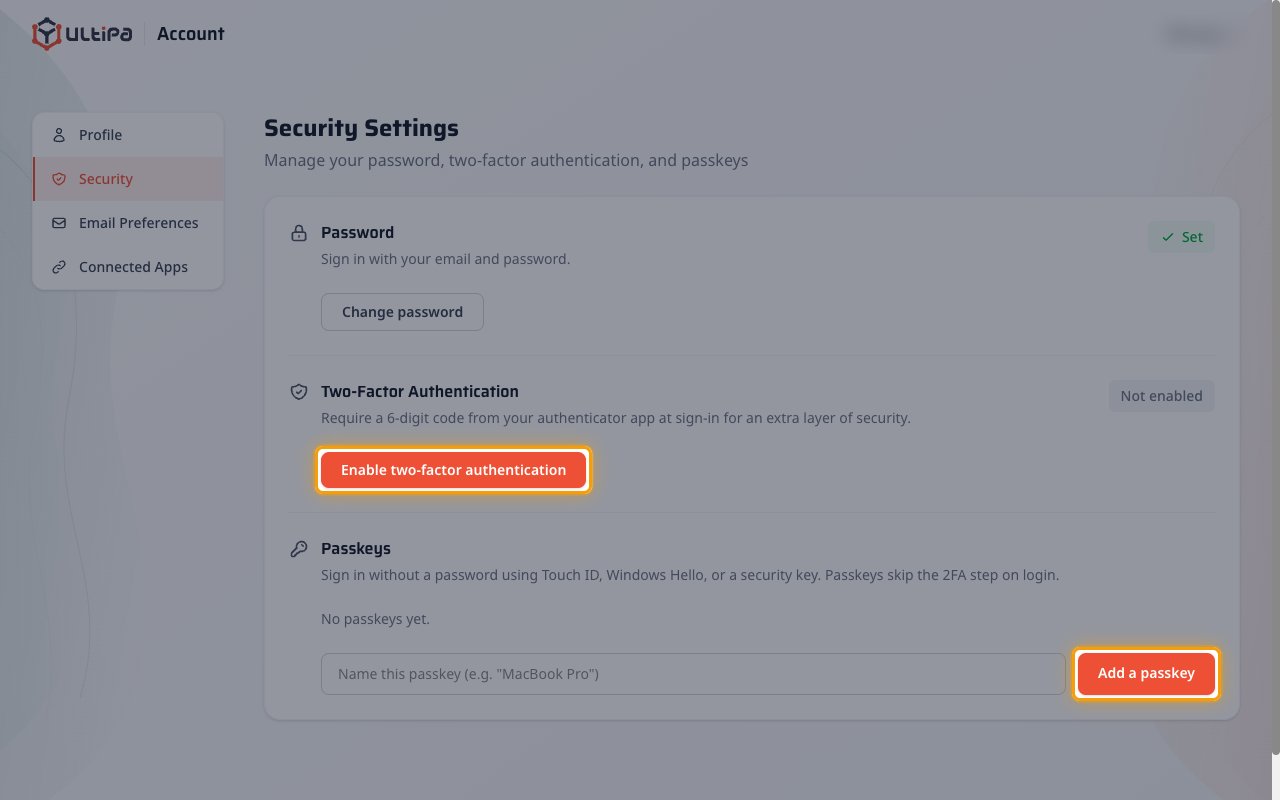
Turn on two-factor authentication or a passkey
Ultipa Cloud creates API keys only for accounts with two-factor authentication or a passkey. Sign in to your Ultipa Account and open Security.
- Skip this step if Two-Factor Authentication or Passkeys already shows as set up.
- Two-factor authentication: Click Enable two-factor authentication and follow the prompts.
- Passkey: Name the passkey, then click Add a passkey.
2
Create the key
Enables actions: Add Firewall Rule, Clear Backup Schedule, Confirm Card Setup, Create Backup, Create Card Setup Intent, Create Card Setup Session, Create Instance, Create Top-Up, Delete Backup, Delete Instance, Download Receipt PDF, Get Auto Reload Settings, Get Balance, Get Enterprise Status, Get Instance, Get Instance Credentials, Get Instance Logs, Get Latest GQLDB Version, Get Live Metrics, Get Metrics History, Get My IP, Get Payment Method, Get Trial Status, Get Usage, List Alerts, List Backups, List Deleted Instances, List Firewall Rules, List Instance Alerts, List Instance Sizes, List Instances, List Transactions, Pause Instance, Remove Firewall Rule, Rename Instance, Reset Instance Admin Password, Restart Instance, Restore Backup, Resume Instance, Set Backup Schedule, Set Instance Log Level, Update Auto Reload Settings, Upgrade Instance Version
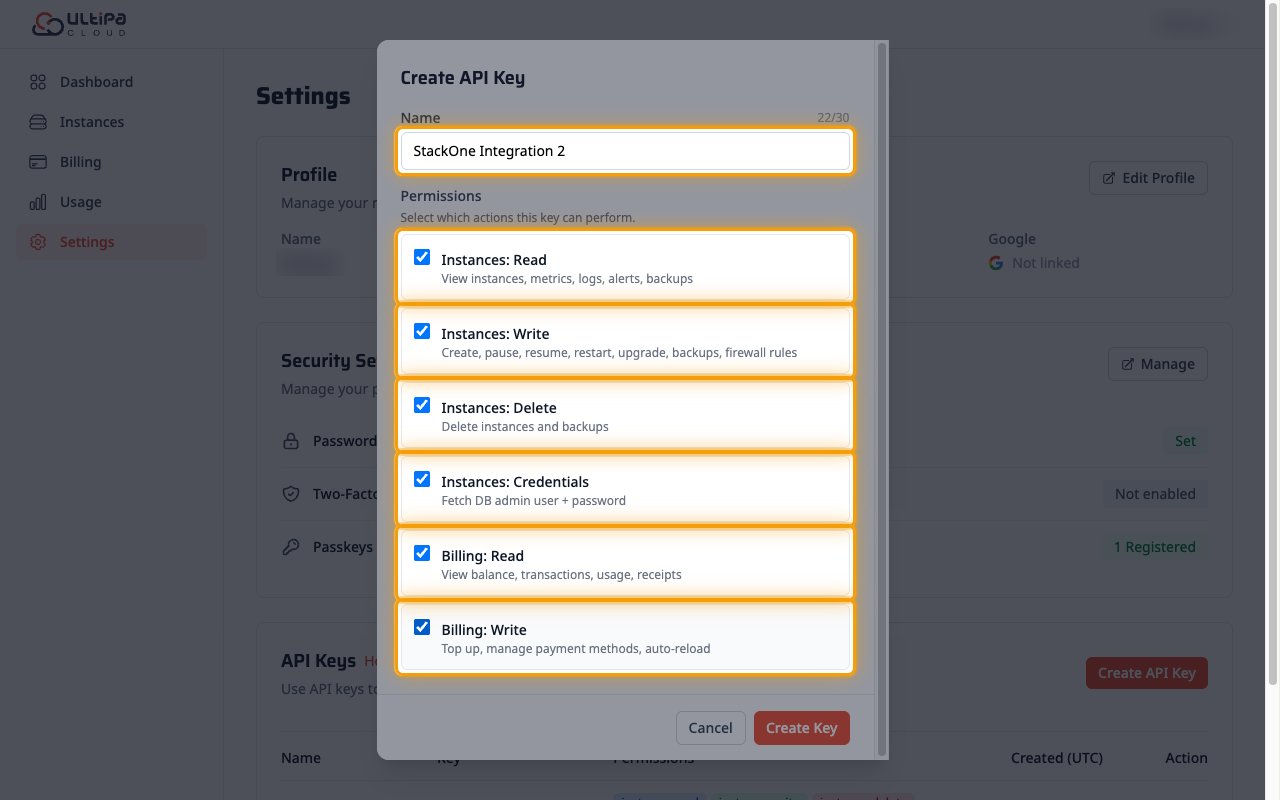
Sign in to Ultipa Cloud and open Settings from the left navigation.
- In the API Keys section, click Create API Key.
- Name:
StackOne Integration - Under Permissions, tick only the permissions in the list for this step and leave the others unticked.
- Click Create Key.
3
Copy the key
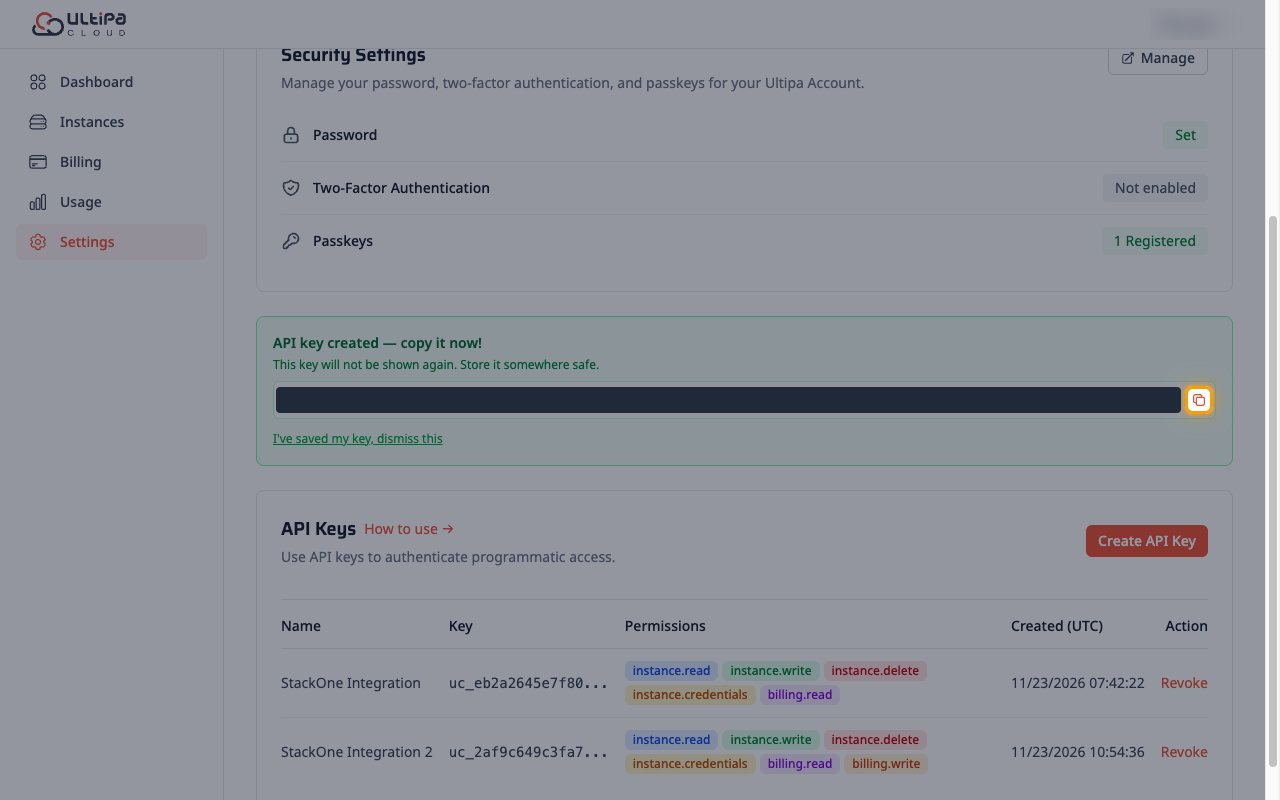
Copy the API Key across.
- In the API key created — copy it now! banner, click Copy beside the key.
- The key is shown only once and cannot be retrieved later.
Link the Account
1
Connect
- Click Connect.
- If applicable, the provider will redirect you to a sign-in or authorization page. Complete the provider’s authorization flow.
- Once authorization is successful, you will see a confirmation popup.
2
Use Actions
Connect an AI platform to the linked account’s actions. See AI Platforms.Other ways to call actions are listed in Protocols & SDKs.