

Prerequisites
The connector should already be set up, with a Connector Profile and a Linked Account. See Getting Started on the UiPath connector page.How webhooks are set up
StackOne creates and manages the Orchestrator webhook automatically when the account is connected, and removes it when the account is disconnected. There is no URL to paste in Orchestrator. The webhook belongs to the tenant in the Tenant Name field and covers every folder in it.
- StackOne creates one tenant webhook named
StackOne, subscribed to the events you enable in StackOne. - Changing the enabled events in StackOne replaces the webhook with a new one.
- The Native Webhook URL on the linked account is the address StackOne registers. You don’t need to copy it.
Grant the webhooks scope
The external application the account uses needs the OR.Webhooks application scope, so StackOne can create and delete the webhook.
Open the external application
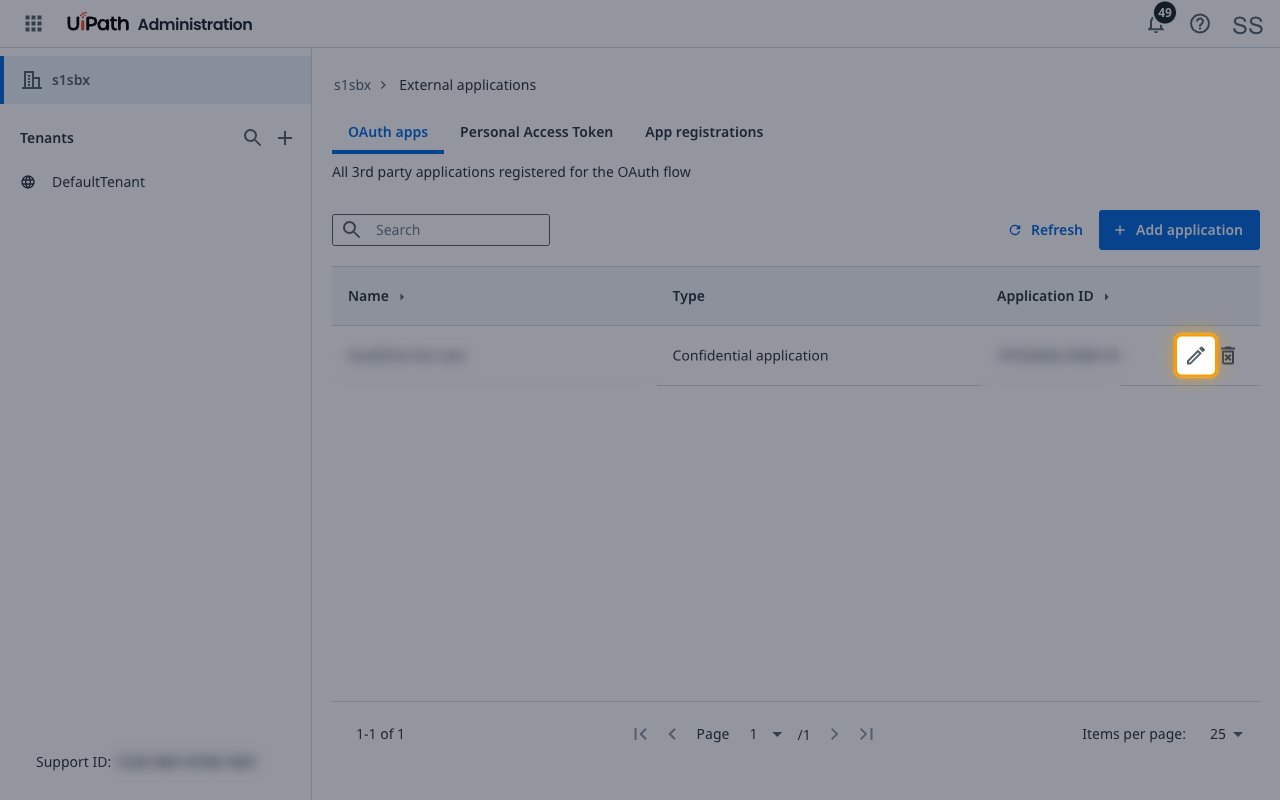
Sign in to your UiPath Automation Cloud account as an Organization Administrator, open Admin and select External applications.
- On the OAuth apps tab, click Edit on the application the account uses.
Edit the Orchestrator resource
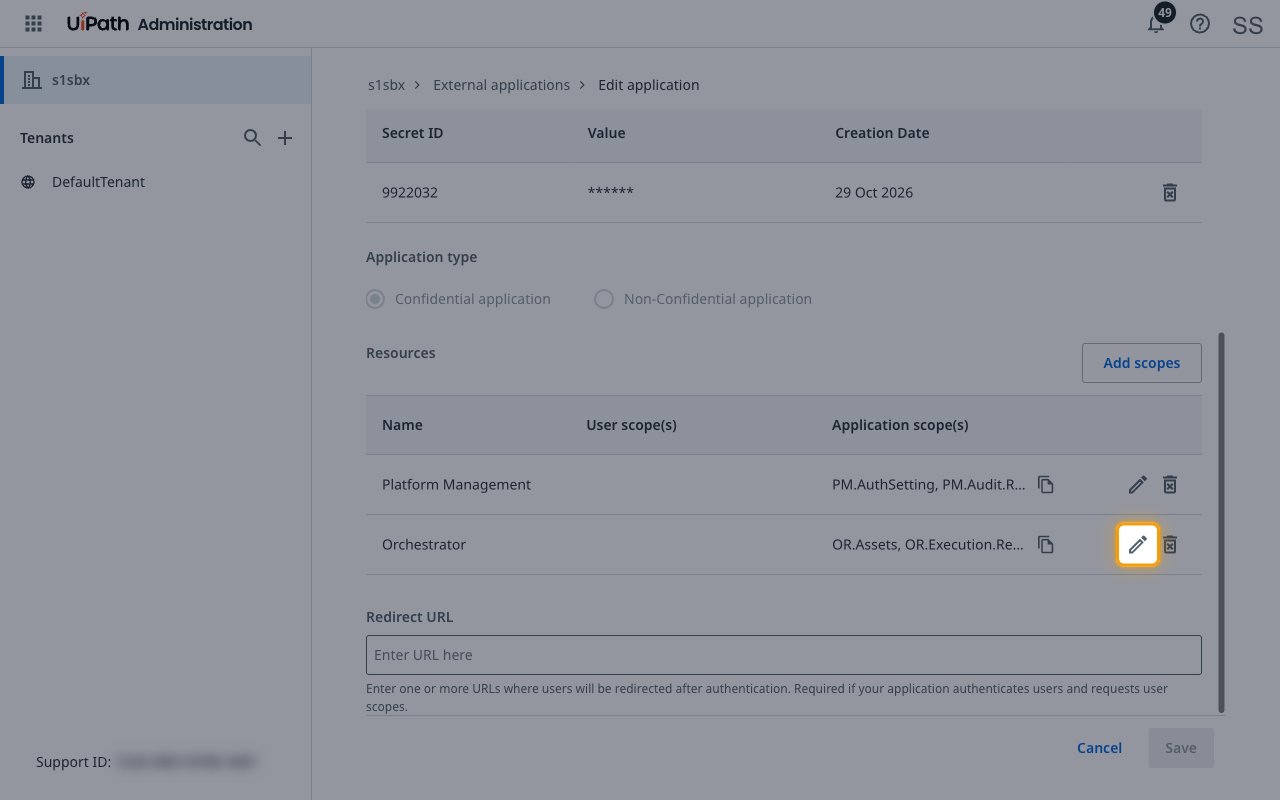
Under Resources, click Edit on the Orchestrator row. The Edit resource panel opens.
Add the OR.Webhooks scope
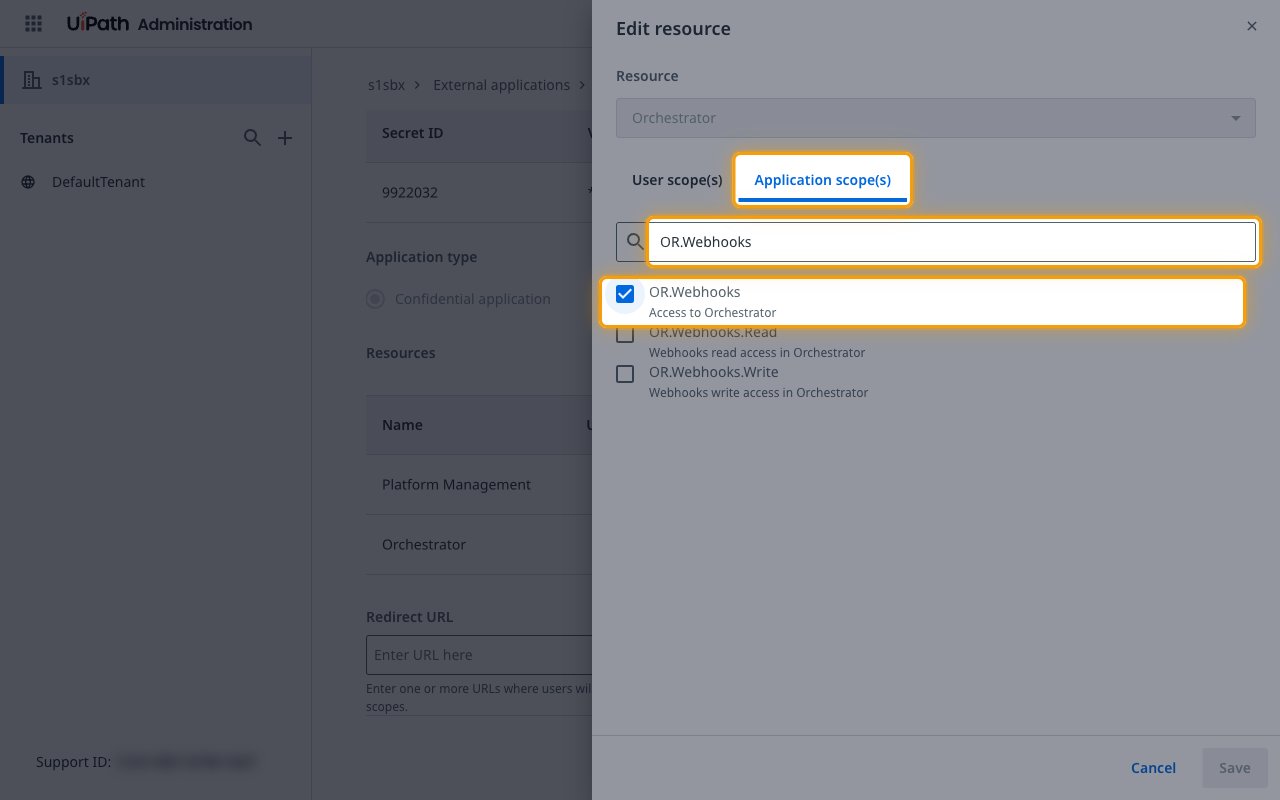
Open the Application scope(s) tab and type OR.Webhooks in Search.
- Tick OR.Webhooks, the entry with no
.Reador.Writeending. - Click Save in the panel, then click Save on the application page.
Add the scope to the account
Edit the account in StackOne Hub and add OR.Webhooks to the end of its Scopes field, separated by a space.
- Example:
PM.Group.Read PM.RobotAccount.Read PM.User.Read OR.Folders.Read OR.Execution.Read OR.Jobs OR.Queues OR.Assets OR.Robots.Read OR.Machines.Read OR.Monitoring.Read OR.Tasks OR.Webhooks - Save the account, then enable the events you want.
Available webhook events
The following Orchestrator events can be enabled. Only events selected in StackOne are included in the webhook, so Orchestrator does not deliver events that are not selected.
Review job and trigger events
Events about jobs in any folder of the tenant, and about time triggers that fail to start one.
- Job Created (
job.created) — Fired when one or more jobs are created, manually, by a trigger or through the API. - Job Started (
job.started) — Fired when a job starts running on a robot. - Job Completed (
job.completed) — Fired when a job finishes successfully. - Job Faulted (
job.faulted) — Fired when a job finishes with an error. - Job Stopped (
job.stopped) — Fired when one or more jobs are stopped or killed. - Job Suspended (
job.suspended) — Fired when a long-running job is suspended to wait for an action or a resume trigger. - Schedule Failed (
schedule.failed) — Fired when a time trigger fails to start its job. The payload gives the reason.
Review process events
Events about processes deployed in folders.
- Process Created (
process.created) — Fired when a process is created. - Process Updated (
process.updated) — Fired when a process changes, such as a new package version. - Process Deleted (
process.deleted) — Fired when a process is deleted.
Review queue and queue item events
Events about queues and the transactions robots process from them.
- Queue Created (
queue.created) — Fired when a queue is created. - Queue Updated (
queue.updated) — Fired when a queue changes. - Queue Deleted (
queue.deleted) — Fired when a queue is deleted. - Queue Item Added (
queueItem.added) — Fired when items are added to a queue. - Queue Item Transaction Started (
queueItem.transactionStarted) — Fired when a robot starts processing a queue item. - Queue Item Transaction Completed (
queueItem.transactionCompleted) — Fired when a queue item transaction completes successfully. - Queue Item Transaction Failed (
queueItem.transactionFailed) — Fired when a queue item transaction fails with a business or application exception. - Queue Item Transaction Abandoned (
queueItem.transactionAbandoned) — Fired when a queue item is abandoned after 24 hours in progress. - Queue Item Retried (
queueItem.retried) — Fired when a queue item is retried after a failed attempt.
Review robot and machine events
Events about robots and the state of robot and machine sessions.
- Robot Created (
robot.created) — Fired when a robot is created. - Robot Updated (
robot.updated) — Fired when a robot changes. - Robot Deleted (
robot.deleted) — Fired when a robot is deleted. - Robot Status Changed (
robot.status) — Fired when a robot session becomes available, busy, disconnected or unresponsive. - Machine Session Status Changed (
machineSession.status) — Fired when a machine session changes state.
Review Action Center task events
Events about Action Center tasks.
- Task Created (
task.created) — Fired when a task is created by a workflow or through the API. - Task Updated (
task.updated) — Fired when a task changes. - Task Assignment Changed (
task.assignmentChanged) — Fired when a task assignee is added, changed or removed. - Task Forwarded (
task.forwarded) — Fired when a task is forwarded to another user. - Task Saved (
task.saved) — Fired when a task is saved before it is completed. - Task Completed (
task.completed) — Fired when a task is completed. - Task Deleted (
task.deleted) — Fired when a task is deleted.
Delivery format
Details of how Orchestrator delivers events to StackOne.
- Each request carries one event. Events that cover several records, such as Job Created or Queue Item Added, list them in one payload.
- Each request is signed with HMAC-SHA256 in the
X-UiPath-Signatureheader, using the secret StackOne sets on the webhook. - Orchestrator does not retry a failed delivery. After repeated failures it stops sending to the webhook for one hour.