

Prerequisites
The connector should already be set up, with a Connector Profile and a Linked Account. See Getting Started on the Twingate connector page.Sending Twingate notifications to StackOne
Twingate sends admin notifications, such as access requests and Connector status changes, to any webhook you add in the Admin Console. Add the StackOne Native Webhook URL as a webhook and select the notifications to send.
Retrieve StackOne Native Webhook URL
The Native Webhook URL is generated once an account has been linked.
- Open the Linked Account in StackOne.
- Copy the value from Native Webhook URL.
- The URL contains an access token, so keep it private and paste it only into Twingate.
Sign in to Twingate
Sign in to your Twingate Admin Console at https://{network}.twingate.com as an Admin.
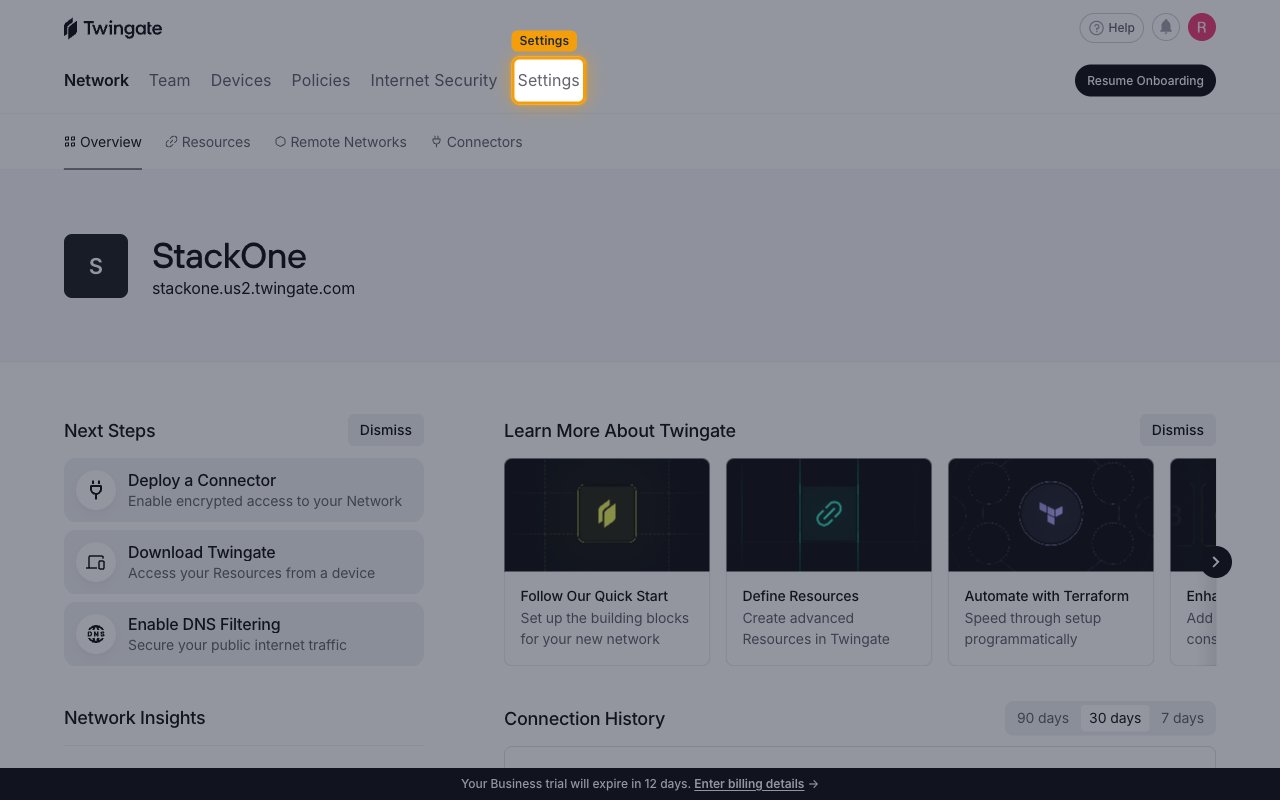
- Click Settings in the top navigation.
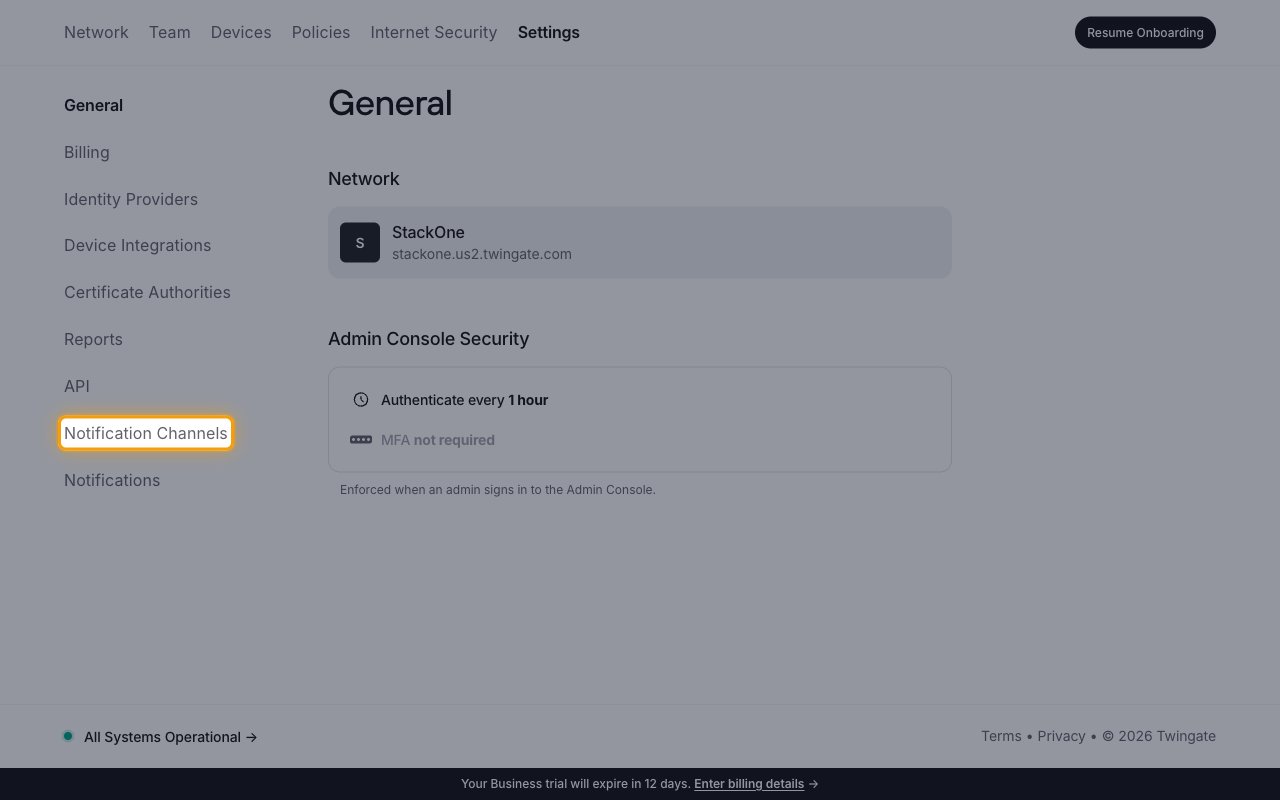
Open Notification Channels
Click Notification Channels in the Settings menu on the left.
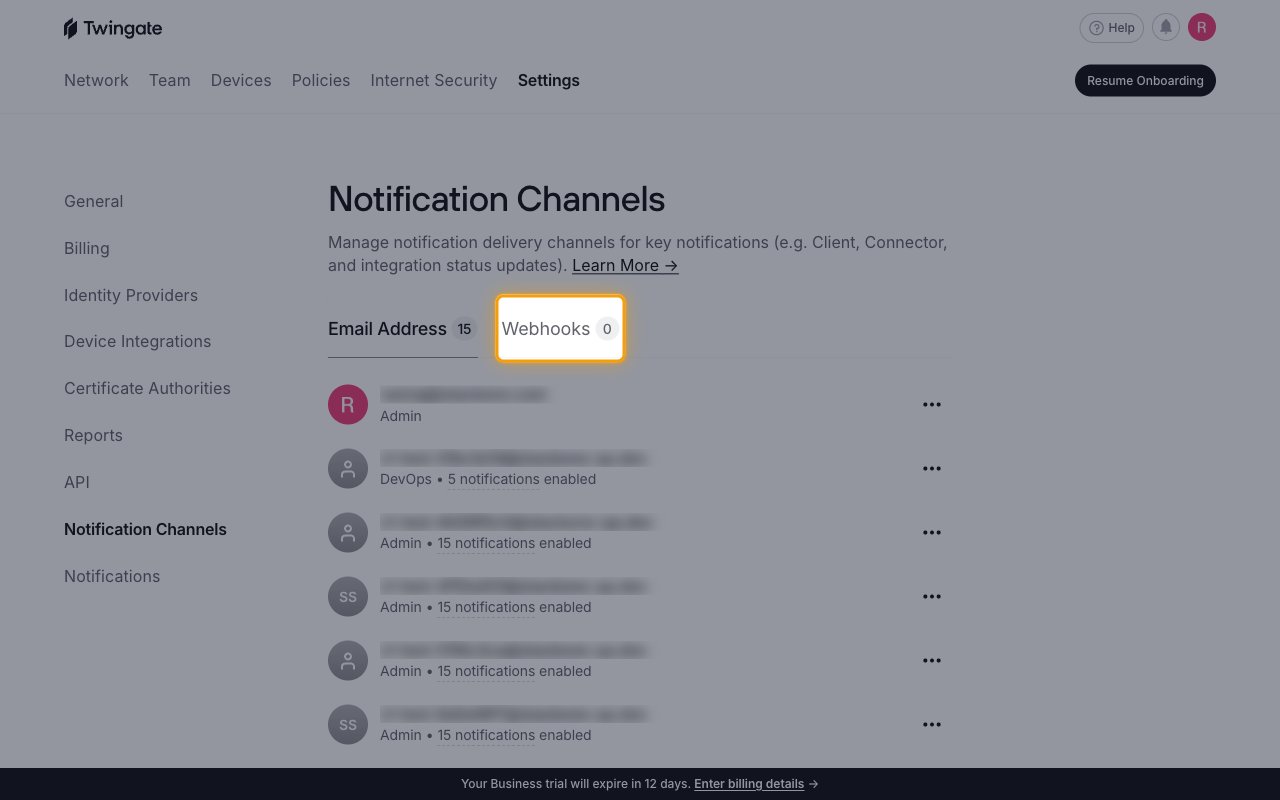
Open the Webhooks tab
On the Notification Channels page, click the Webhooks tab.
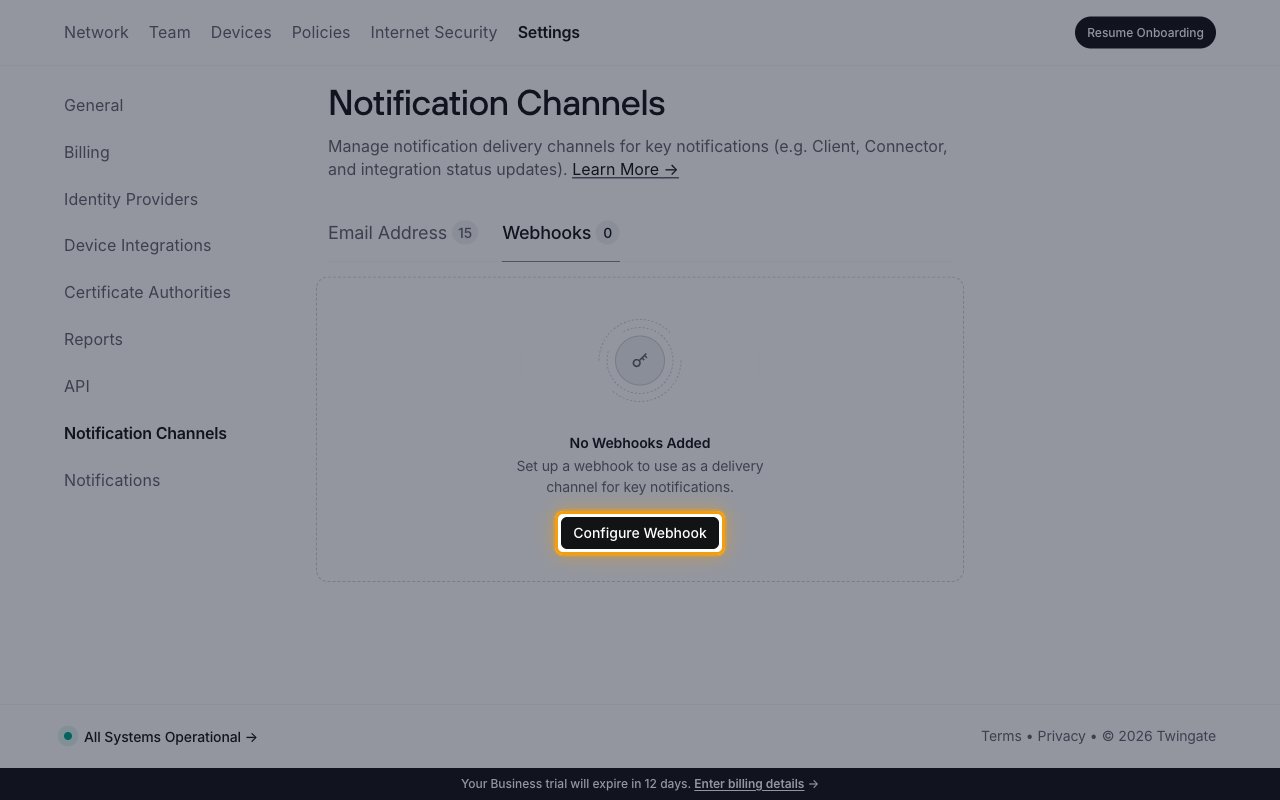
Start a new webhook
Click Configure Webhook.
- When the network already has a webhook, the button is labeled Add Webhook instead.
Enter the webhook details
The Configure Webhook dialog opens.
- Enter Name:
StackOne - Paste the Native Webhook URL into Paste your Webhook URL.
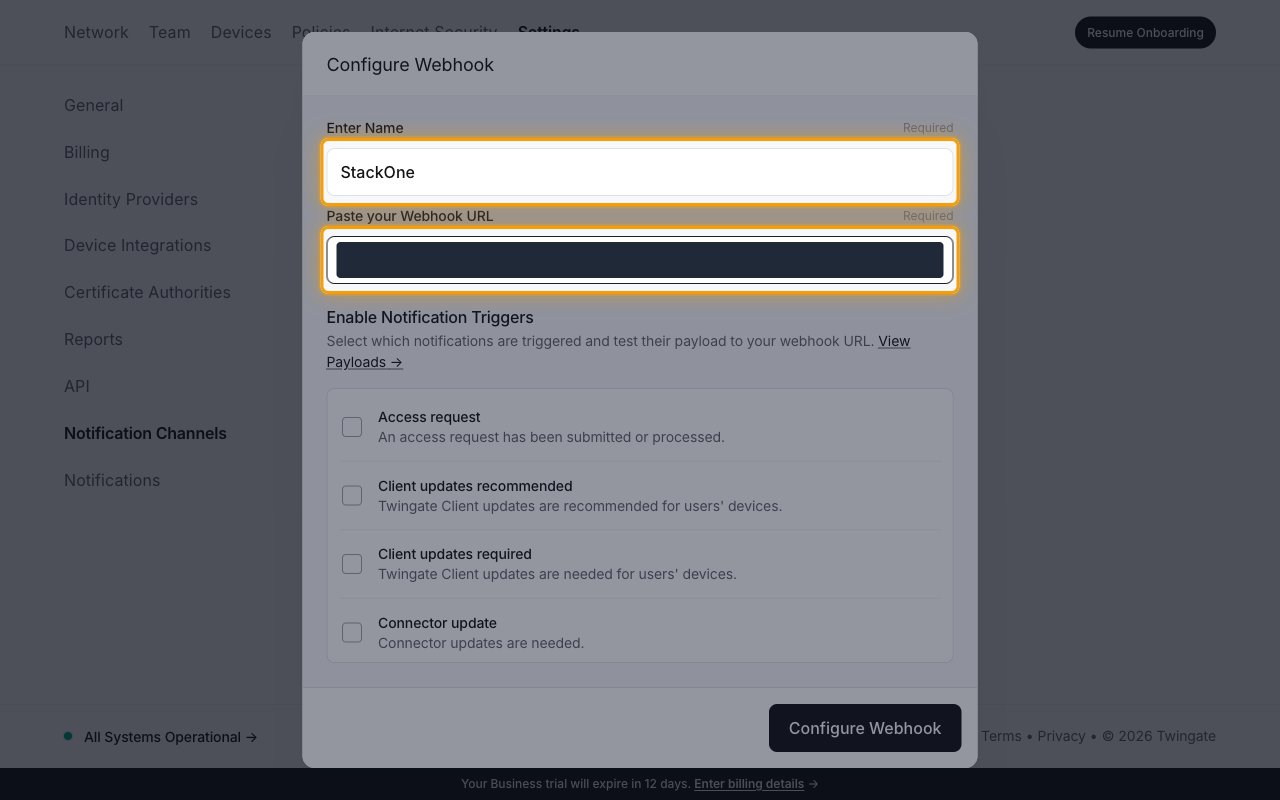
Select the notifications
Under Enable Notification Triggers, tick each notification you want StackOne to receive.
- Tick the same notifications you enable for this account in StackOne. Twingate sends only the ones ticked here.
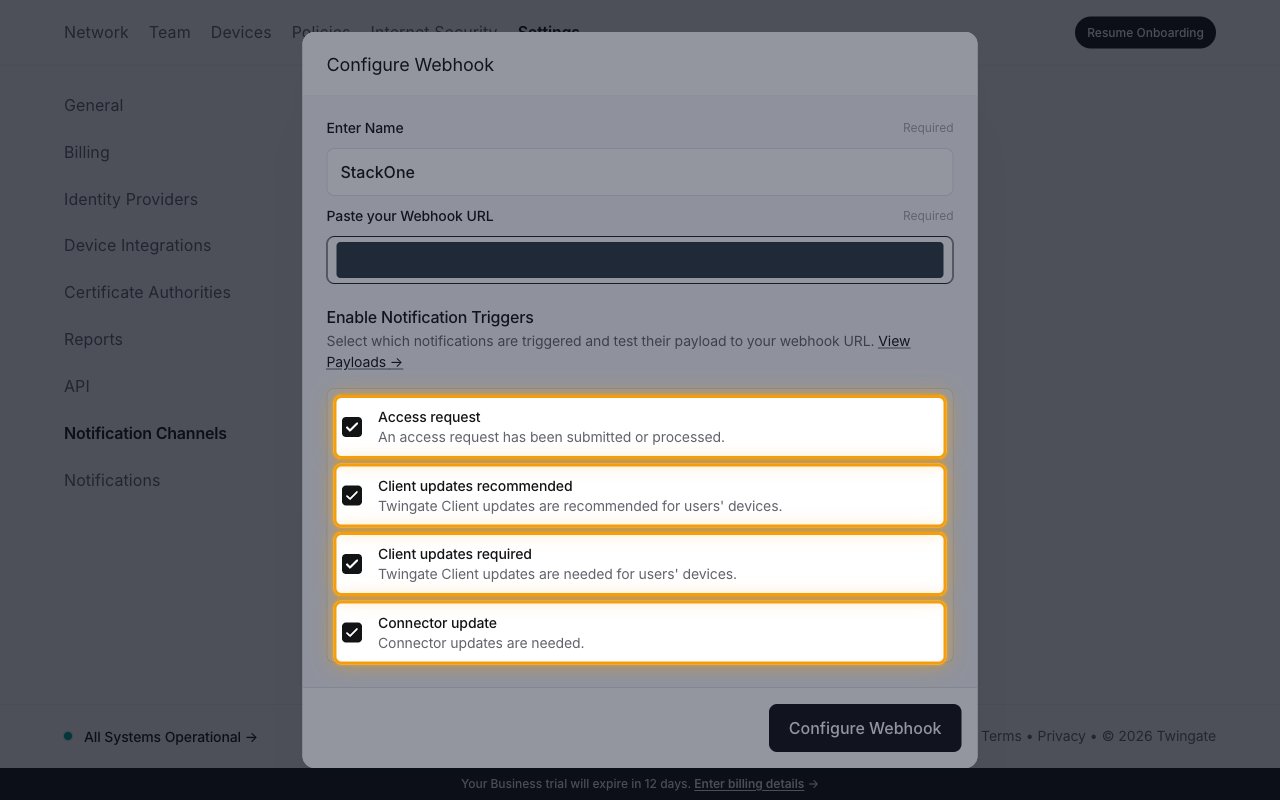
Save the webhook
Click Configure Webhook at the bottom of the dialog.
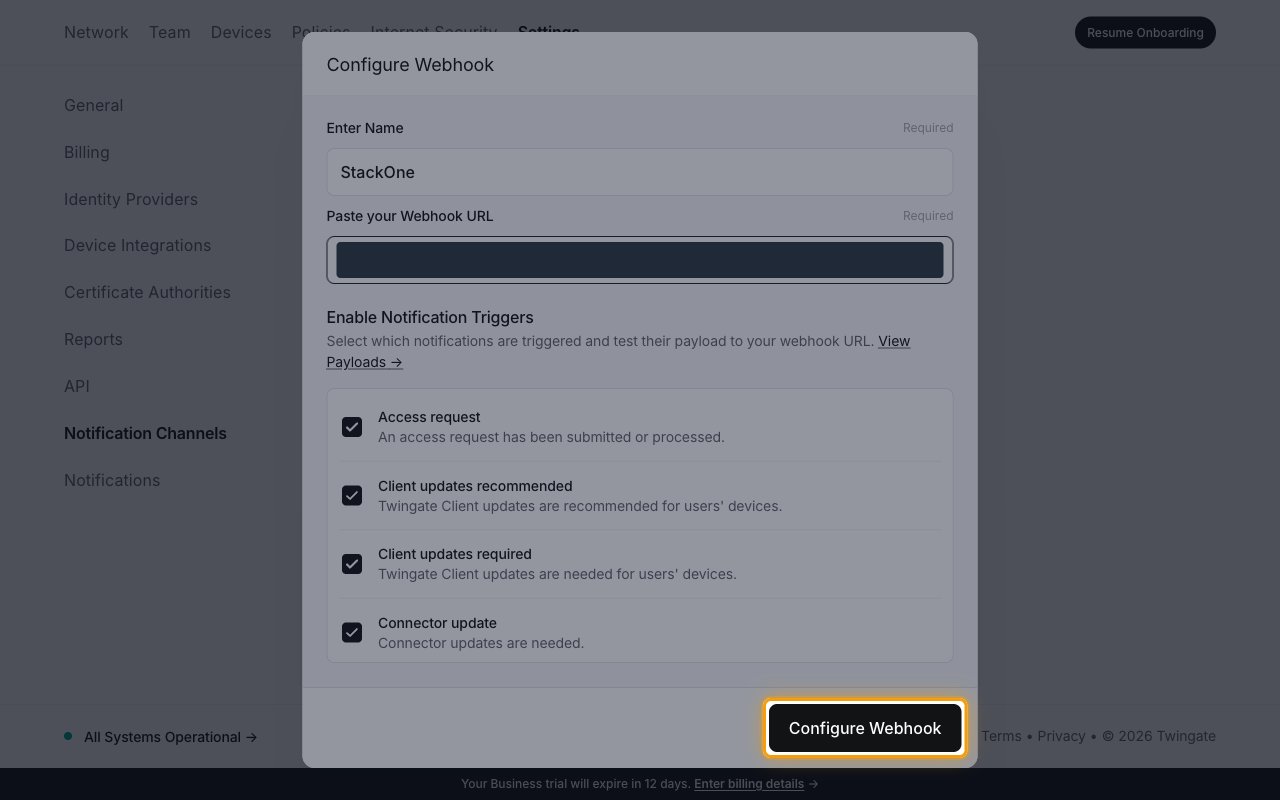
Check the webhook is listed
The Webhooks tab lists the StackOne webhook with the number of notifications enabled.
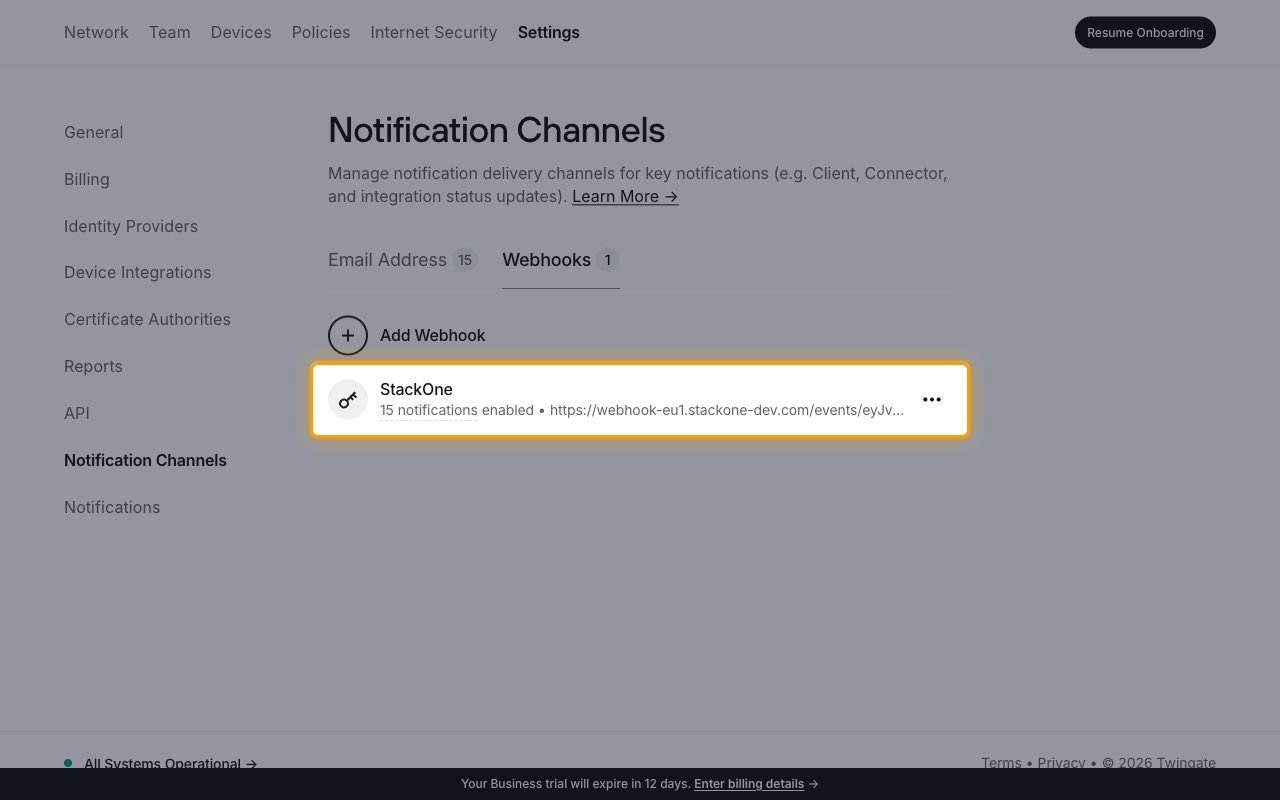
Available webhook events
The following Twingate notifications can be enabled. Only events selected in StackOne are delivered, and Twingate sends only the notifications ticked on its webhook.
Access and credential events
Events about access requests and credentials that are about to expire.
- Access request (
ACCESS_REQUEST) — Fired when an access request has been submitted or processed. Covers JIT access requests and usage-based auto-lock requests;request_typetells them apart - Service Account keys expiration (
SERVICE_ACCOUNT_KEYS_EXPIRATION) — Fired when service account keys are expiring soon - Device integration API token expiration (
DEVICE_INTEGRATION_API_TOKEN_EXPIRATION) — Fired when the API token for a device integration is expiring
Connector and Client events
Events about Connectors and the Twingate Client app.
- Connectors offline (
CONNECTOR_STATUS_OFFLINE) — Fired when Connectors are offline - Connectors online (
CONNECTOR_STATUS_ONLINE) — Fired when Connectors are back online - Connector update (
CONNECTOR_UPGRADE_AVAILABLE) — Fired when Connector updates are needed - Client updates recommended (
CLIENT_UPDATE_RECOMMENDED) — Fired when Twingate Client updates are recommended for users’ devices - Client updates required (
CLIENT_UPDATE_REQUIRED) — Fired when Twingate Client updates are needed for users’ devices
Integration and event sync events
Events about identity provider and device integrations, and the sync of network events to external storage.
- Integration errors (
INTEGRATION_ERRORS) — Fired when a configured integration is experiencing errors - Integration error resolved (
INTEGRATION_ERROR_RESOLVED) — Fired when the integration errors have been resolved - Identity provider integration error (
IDENTITY_PROVIDER_INTEGRATION_ERROR) — Fired when a configured identity provider integration is experiencing errors - Google Workspace sync error (
GOOGLE_WORKSPACE_SYNC_ERROR) — Fired when Google Workspace is experiencing errors - Event sync errors (
EVENTS_SYNC_ERRORS) — Fired when the configured event sync is retrying due to recent failures - Event sync errors resolved (
EVENTS_SYNC_ERROR_RESOLVED) — Fired when the event sync errors have been resolved - Events sync requires attention (
EVENTS_SYNC_REQUIRES_ATTENTION) — Fired when the configured event sync is not operational and requires attention
Delivery format
Details of how Twingate delivers notifications to StackOne.
- Twingate sends one POST request with a JSON body per notification. The
typefield names the notification, and StackOne routes each request by it. - Every payload carries
timestamp,tenant(the network host),versionandtype. - Connector, Client and service account key notifications carry a
tablearray with one row per affected item, so a single notification can cover several Connectors or keys. - Twingate does not sign webhook requests.