

Create a Tomba API key
Tomba authenticates every request with an API key and your account secret. Both are listed on the API Keys page of the Tomba dashboard.
1
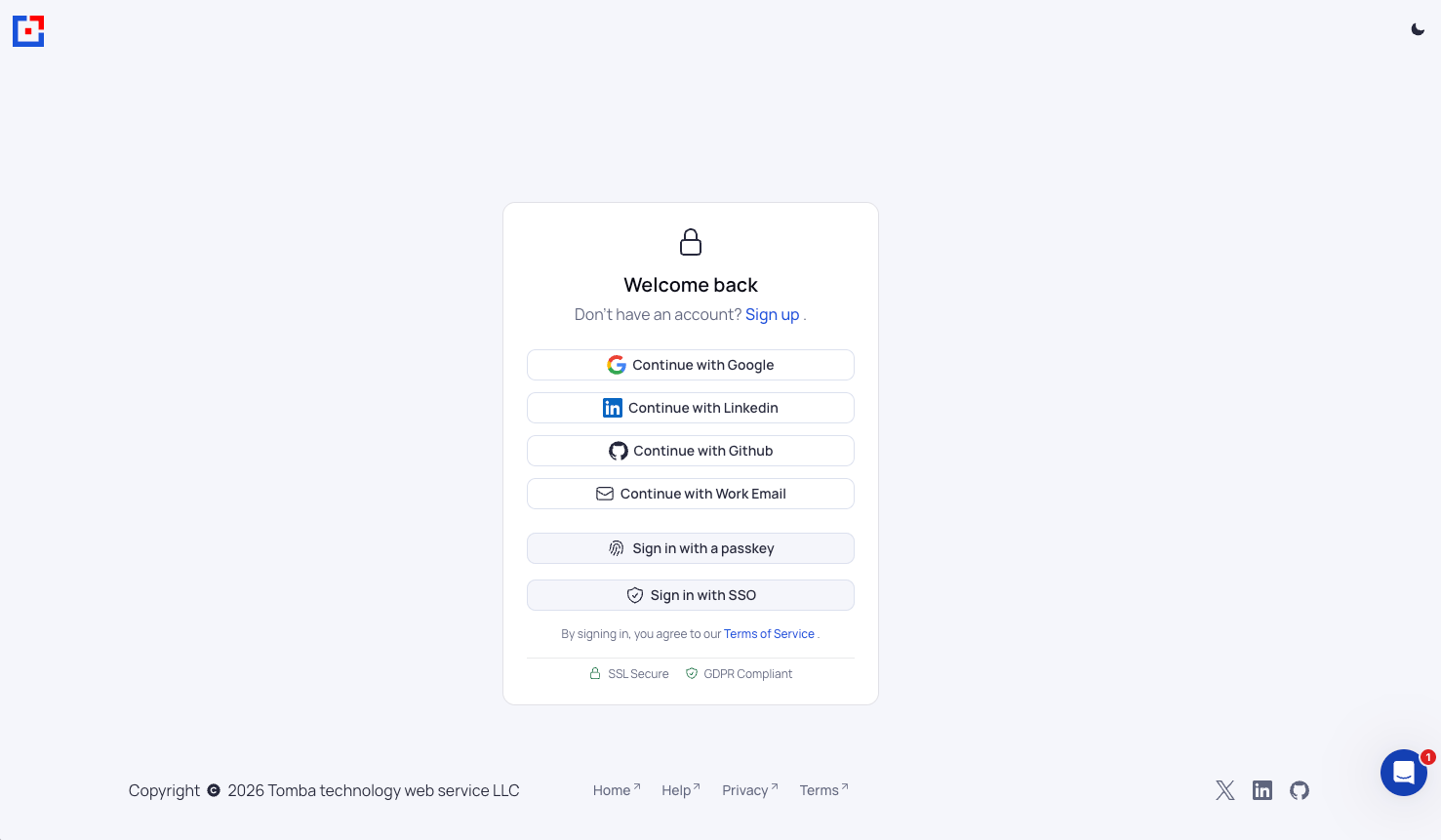
Sign in to Tomba
Sign in to your Tomba account.
- Choose Continue with Google, Continue with Linkedin, Continue with Github, or Continue with Work Email.
- Sign in with a passkey and Sign in with SSO are also available.
2
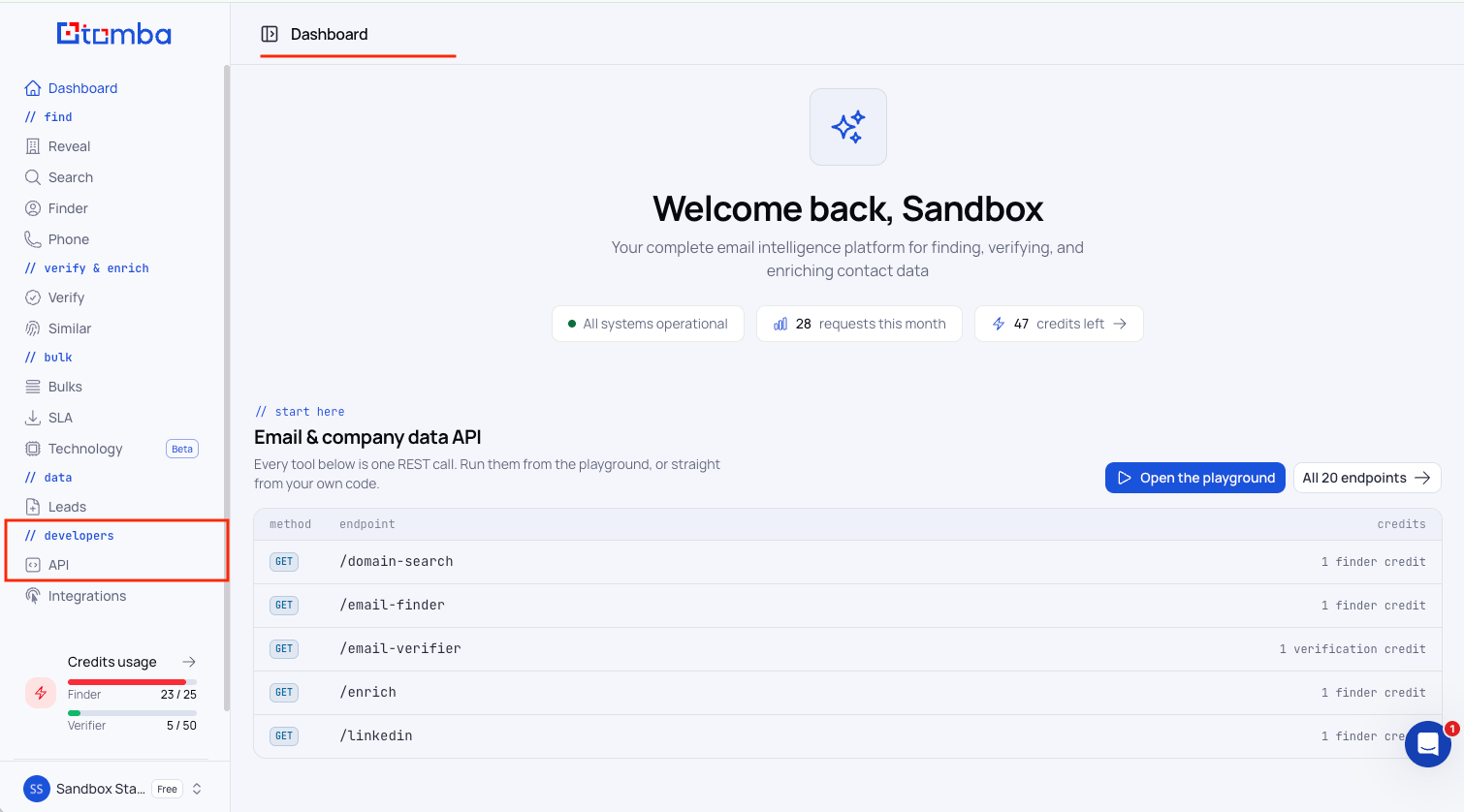
Open the API page
In the sidebar, under // developers, click API.
- The page opens on API Keys, which you can also reach directly at
https://app.tomba.io/api.
3
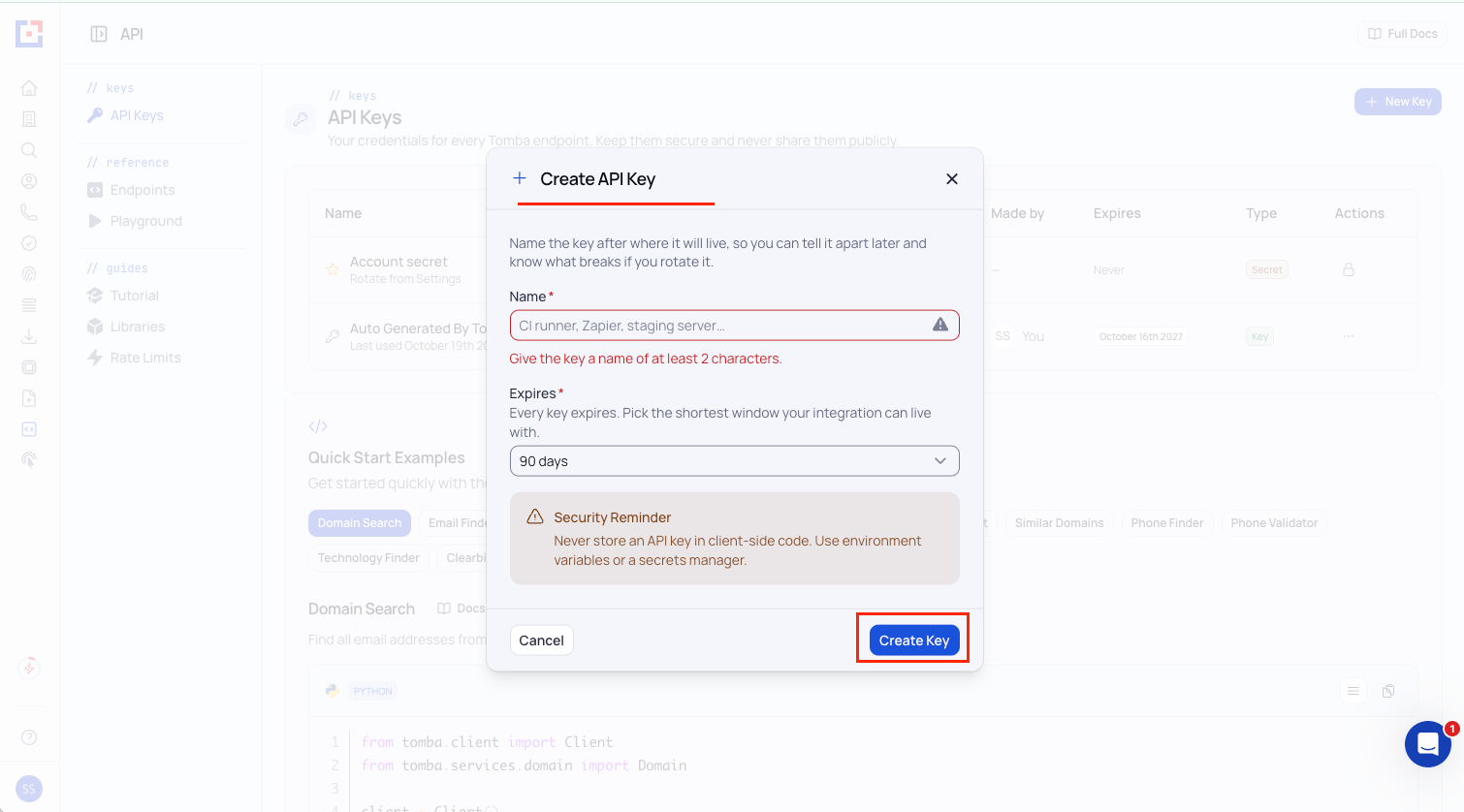
Create a key
On the API Keys page, click + New Key.
- In the Create API Key dialog, enter a Name of at least 2 characters that identifies this integration.
- Name:
StackOne Integration - Pick an Expires window. The dialog defaults to 90 days and the longest available lifetime is 365 days.
- Click Create Key.
- Tomba emails you 30 days, 7 days, and 1 day before a key expires, so you can replace it before it lapses.
4
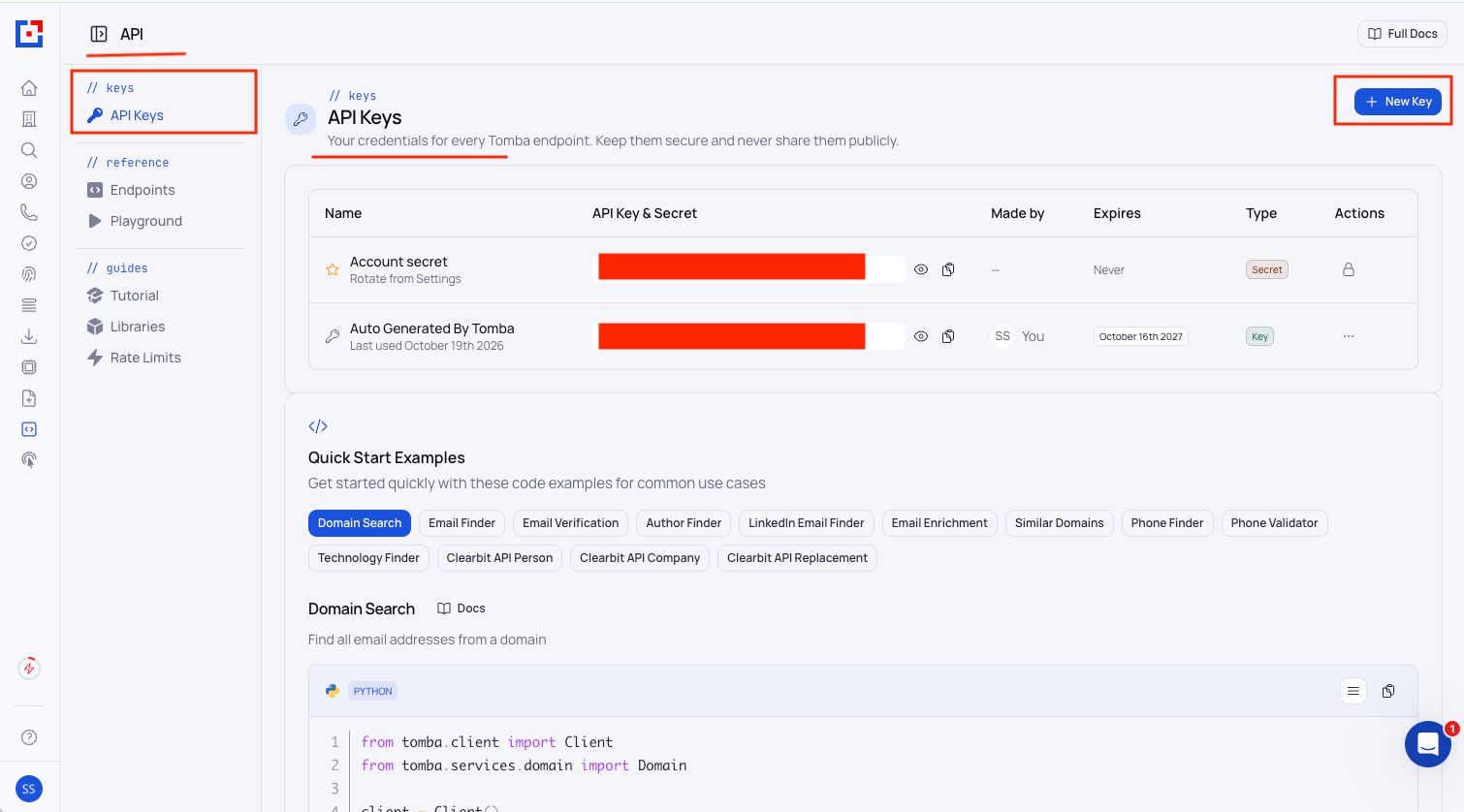
Copy the key and the account secret
Both values sit in the API Key & Secret column of the API Keys table. Click the eye icon to reveal a value and the copy icon to copy it.
- Copy the value on the row of the key you just created, and paste it into the API Key or Auto Generated By Tomba (default or in sandbox account) field in StackOne Hub.
- Copy the value on the Account secret row, and paste it into the API Secret field in StackOne Hub.
- Format:
ta_followed by 37 characters for the key, andts_followed by a UUID for the account secret - The Account secret row shows Expires as Never and is rotated from Settings.
- Keep both values on a server and store them securely for use later. Anyone who obtains them can spend your credits.
Linking the Account from the Hub
1
Navigate to the Hub
Use one of the three Linking Account Methods to access the Hub.
2
Fill out the fields
Fill out the following fields using details from your provider:
- API Key
- API Secret
3
Connect
- Click Connect
- If applicable, the provider will redirect you to a sign-in or authorization page. Complete the provider’s authorization flow.
- Once authorization is successful, you will see a confirmation popup
If the account linking is successful, you will see the newly linked account in your Accounts page.