

Prerequisites
The connector should already be set up, with a Connector Profile and a Linked Account. See Getting Started on the Teamtailor connector page.Copy your Native Webhook URL
The Native Webhook URL is generated once a Teamtailor account has been linked in StackOne. Teamtailor sends every webhook event to this URL.
- Open the linked account in StackOne.
- Copy the value from Native Webhook URL.
- Treat this URL as a secret. Anyone holding it can post events to your account.
Creating the webhook in Teamtailor
Teamtailor webhooks are created in the Teamtailor settings. One webhook covers every event you tick, across the whole company.
Activate the Webhooks add-on
Sign in to your Teamtailor account. If Webhooks does not appear under Integrations in the settings menu, activate the add-on first.
- Open Settings and go to Add-ons > Activated add-ons.
- Click Activate add-ons and find Webhooks (category Enterprise, type Free).
- Activate the add-on.
Open the Webhooks settings
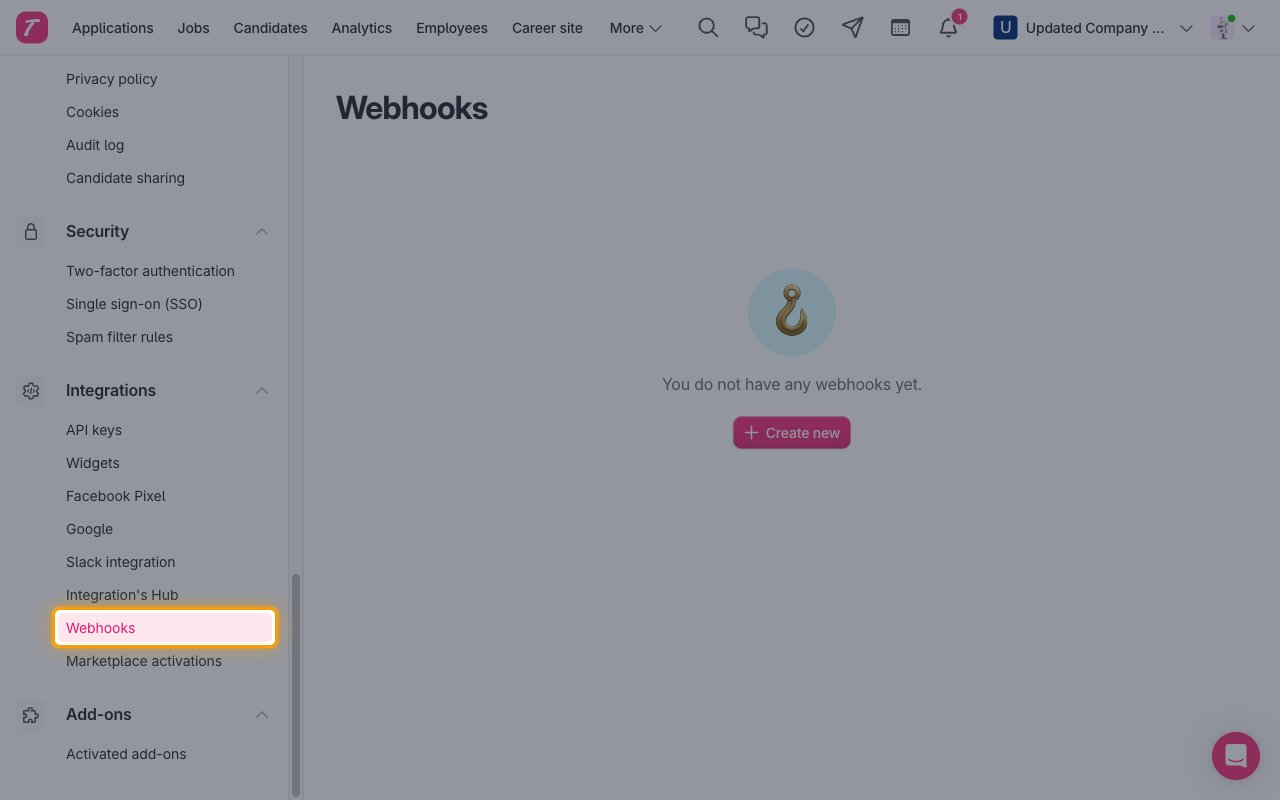
In Settings, scroll to Integrations and click Webhooks.
Create a new webhook
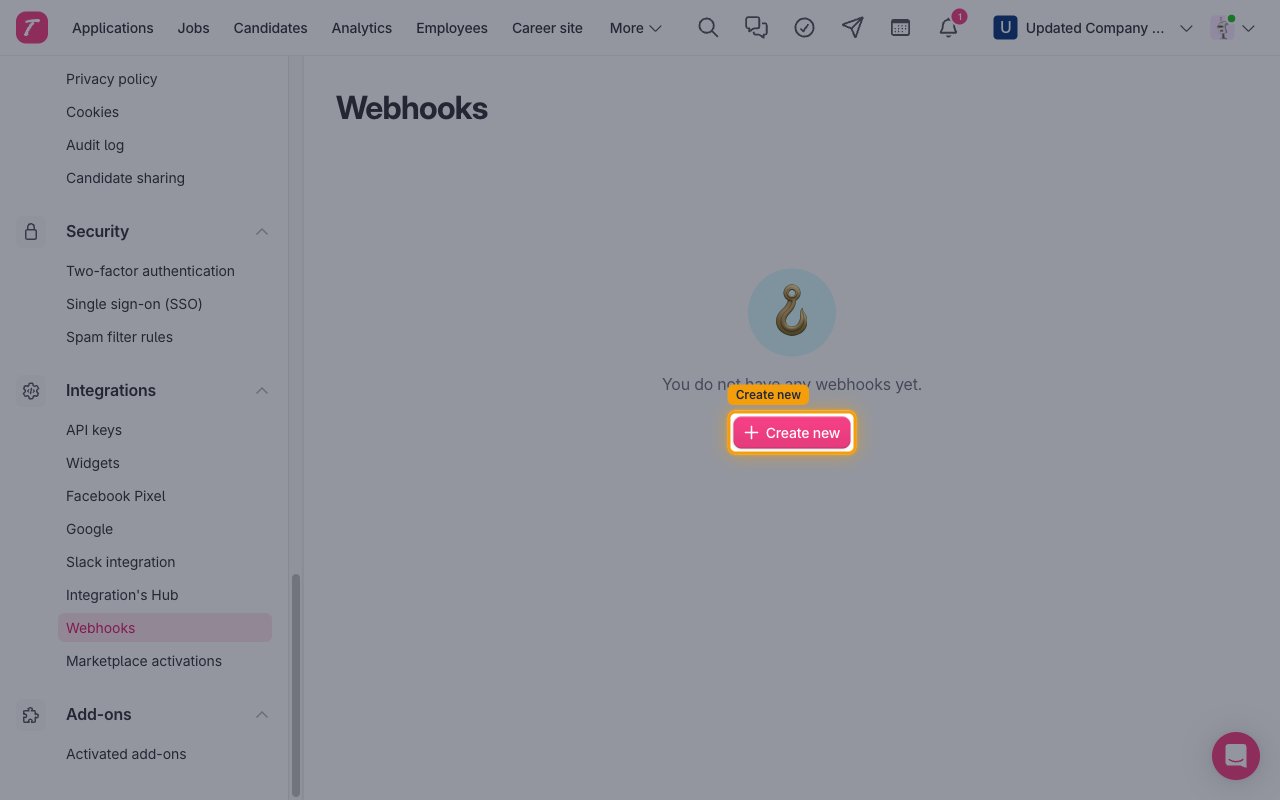
Click Create new (or Create new webhook when webhooks already exist).
Enter the label and Webhook URL
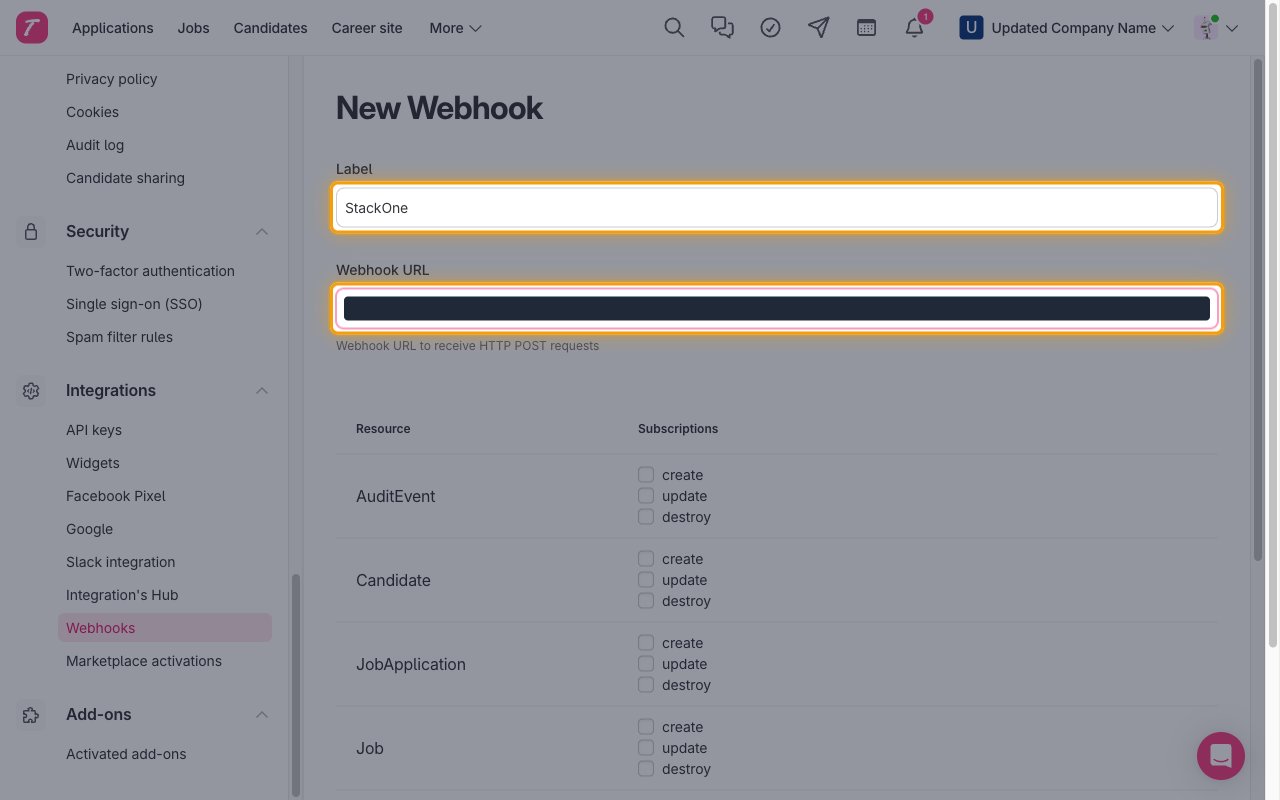
Fill in the top of the New Webhook form.
- Label: a name you will recognize, such as
StackOne. - Webhook URL: paste the Native Webhook URL you copied from StackOne.
Select the events
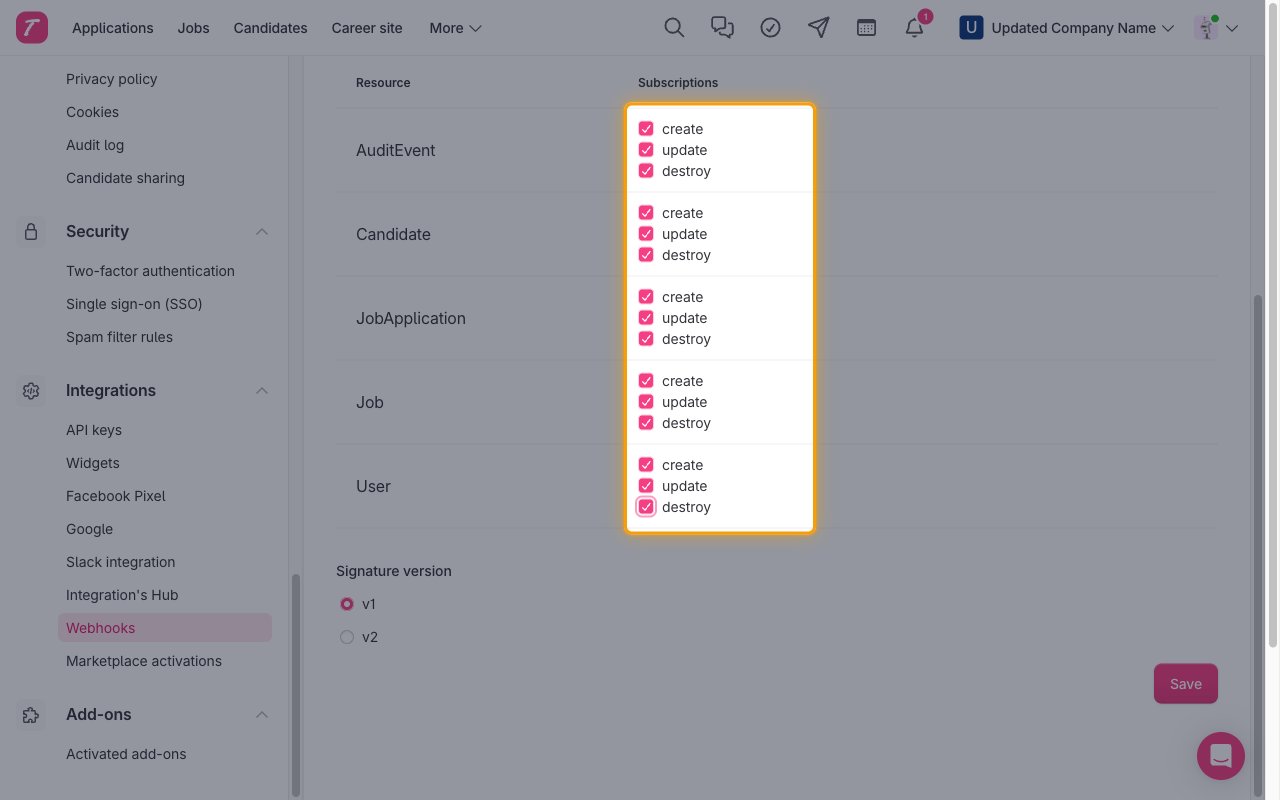
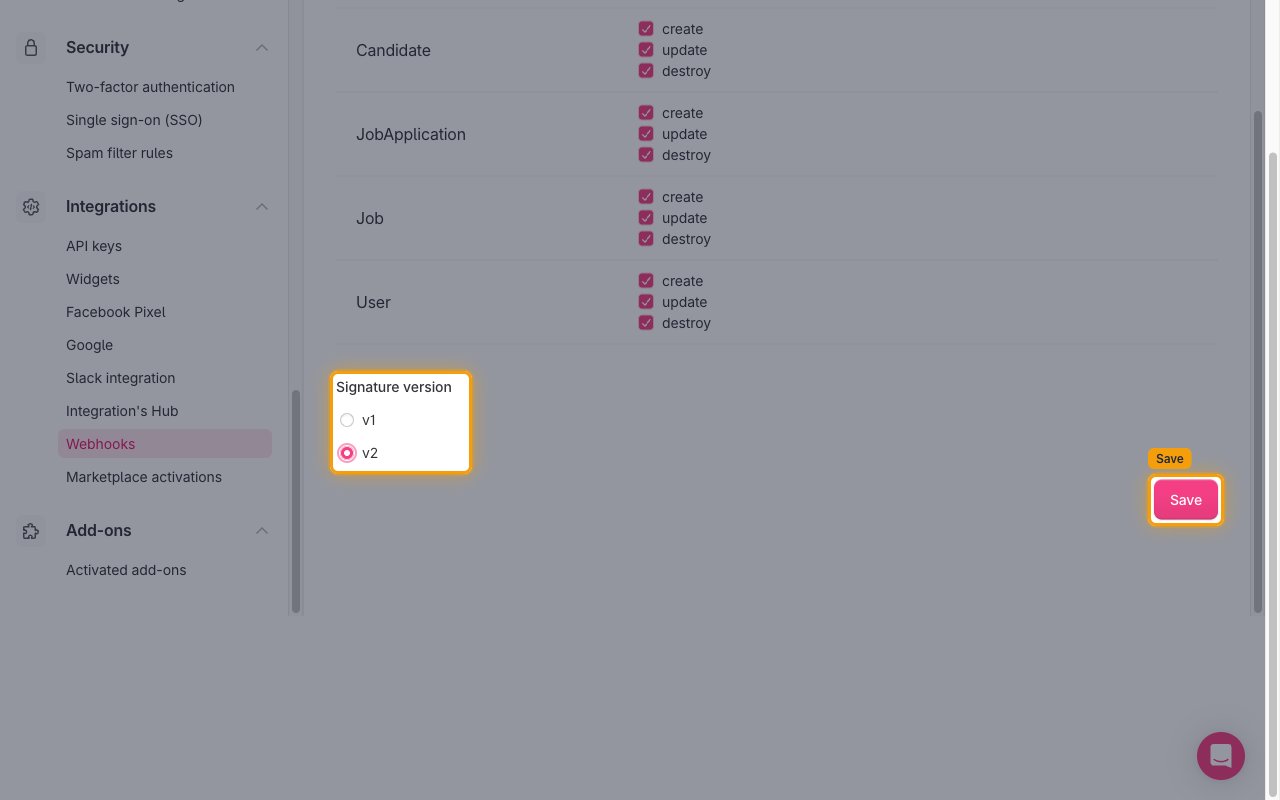
Under Subscriptions, tick create, update and destroy for each resource whose events you enabled in StackOne (AuditEvent, Candidate, JobApplication, Job, User).
Choose the signature version and save
Under Signature version, select v2 (Teamtailor recommends v2 over the deprecated v1), then click Save.
Confirm the webhook was created
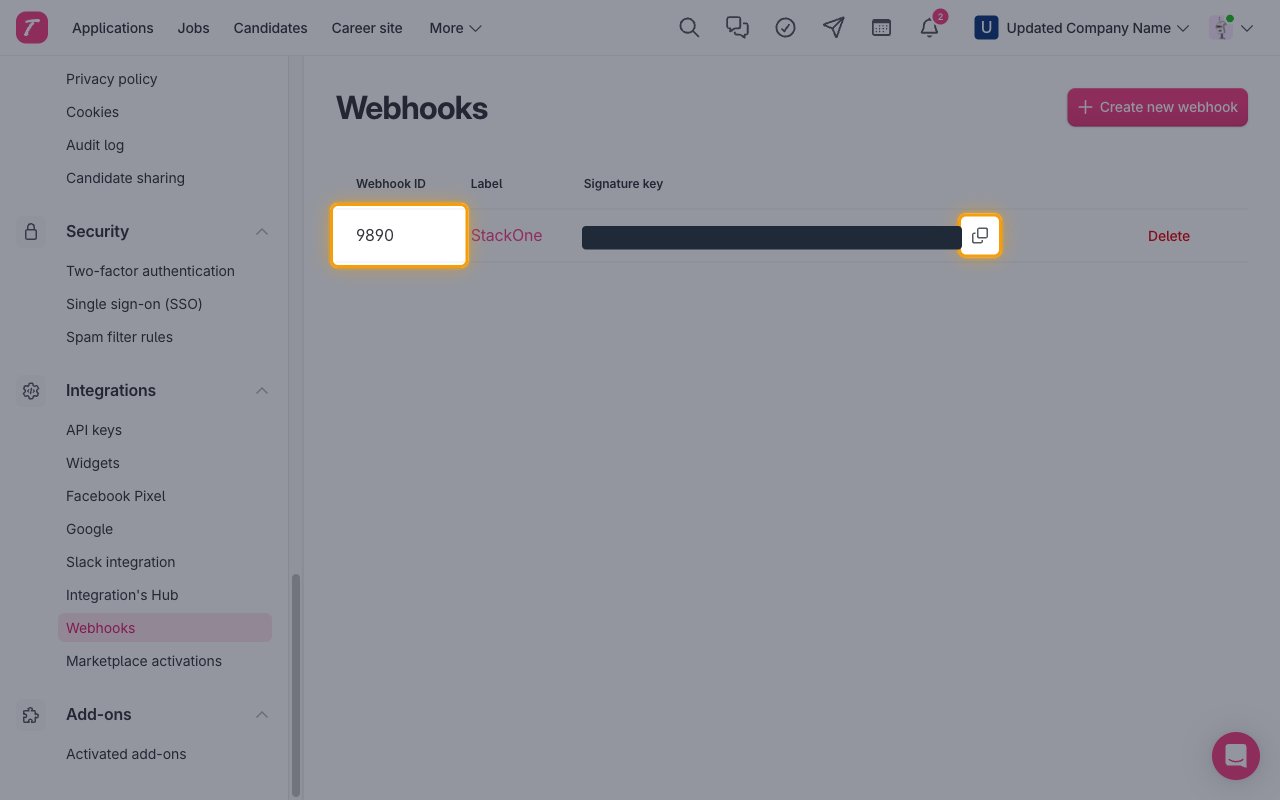
The webhook now appears in the list with its Webhook ID, Label and Signature key. Click Copy signature key if you want to verify the TT-Signature header on your side. StackOne does not verify the signature.
Available webhook events
The following Teamtailor events can be handled. Only events ticked in the Teamtailor webhook and enabled in StackOne are delivered.
Candidate events
Events related to candidates.
- Candidate Created (
candidate.create) — Fired when a new candidate is created - Candidate Updated (
candidate.update) — Fired when a candidate’s email, name, phone, pitch, LinkedIn URL, picture, referring site or URL, internal flag, restriction, custom fields or locations change - Candidate Deleted (
candidate.destroy) — Fired when a candidate is deleted
Job events
Events related to jobs.
- Job Created (
job.create) — Fired when a new job is created - Job Updated (
job.update) — Fired when a job’s title, body, pitch, status, employment details, salary, dates, recruiter, owner, department, role, tags, custom fields, locations or team memberships change - Job Deleted (
job.destroy) — Fired when a job is deleted
Job application events
Events related to job applications.
- Job Application Created (
job_application.create) — Fired when a new application is submitted - Job Application Updated (
job_application.update) — Fired when an application’s stage, rejection, cover letter, job title or promotion changes - Job Application Deleted (
job_application.destroy) — Fired when an application is deleted
User events
Events related to Teamtailor users (recruiters, hiring managers and admins).
- User Created (
user.create) — Fired when a new user is added to the company - User Updated (
user.update) — Fired when a user is updated - User Deleted (
user.destroy) — Fired when a user is deleted
Audit events
Events related to the company audit log.
- Audit Event Created (
audit_event.create) — Fired when a new audit log entry is recorded - Audit Event Updated (
audit_event.update) — Fired when an audit log entry is updated - Audit Event Deleted (
audit_event.destroy) — Fired when an audit log entry is deleted
Delivery format
Details of how Teamtailor delivers events to StackOne.
One event per request
Each request carries a single event as a flat JSON object: event_name, the resource id, company_uuid and the resource fields in snake_case (for example updated_at). The signature is sent in the TT-Signature header. The event ID is the Teamtailor ID of the affected record (candidate, job, application, user or audit event).
No retries
Teamtailor does not retry a delivery that fails. Events sent while the webhook URL is unreachable are lost.