

Copy your Swagger API key
Swagger (SwaggerHub) authenticates every Registry and Portal API request with a single
account-level API key from your SmartBear ID account.
1
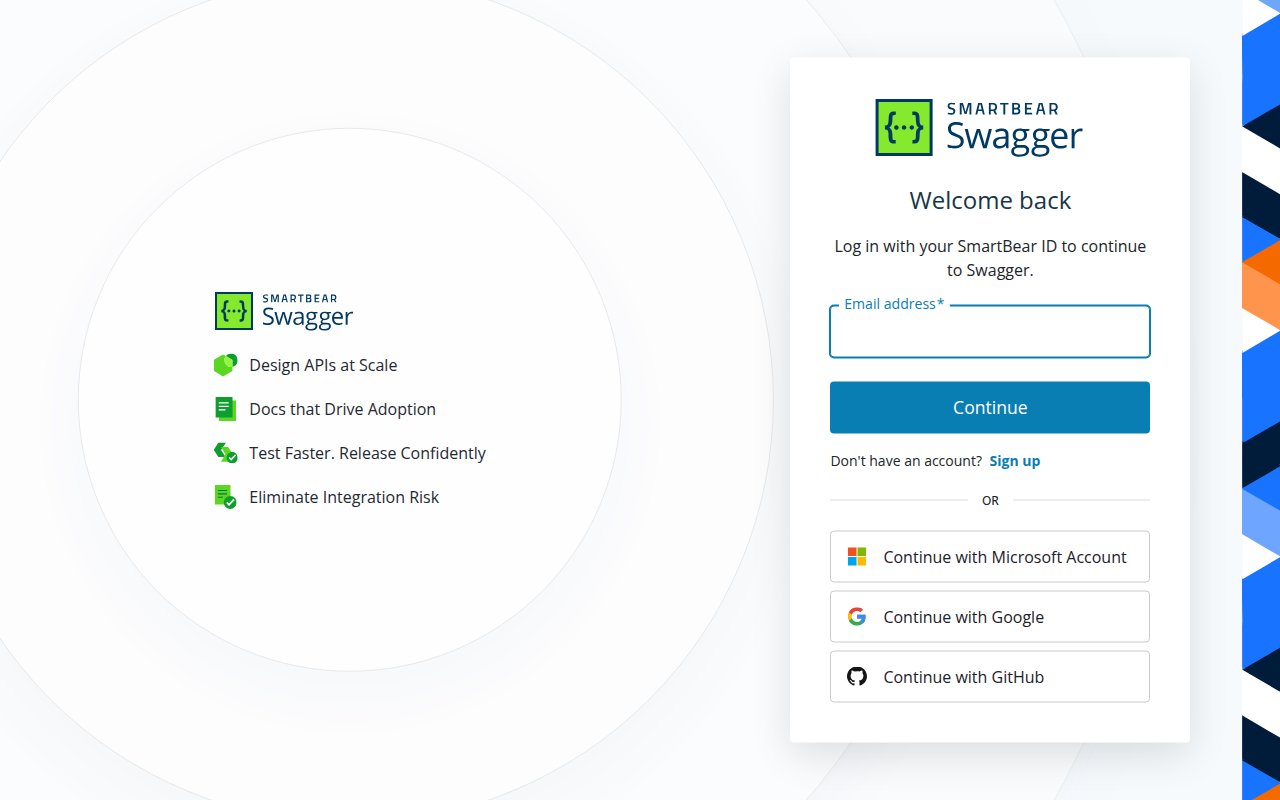
Sign in to Swagger
Sign in to your Swagger account with your SmartBear ID.
- On the Welcome back screen, enter your SmartBear ID and click Continue — or use Continue with Google, Continue with Microsoft Account, or Continue with GitHub.
2
Open the API Key page
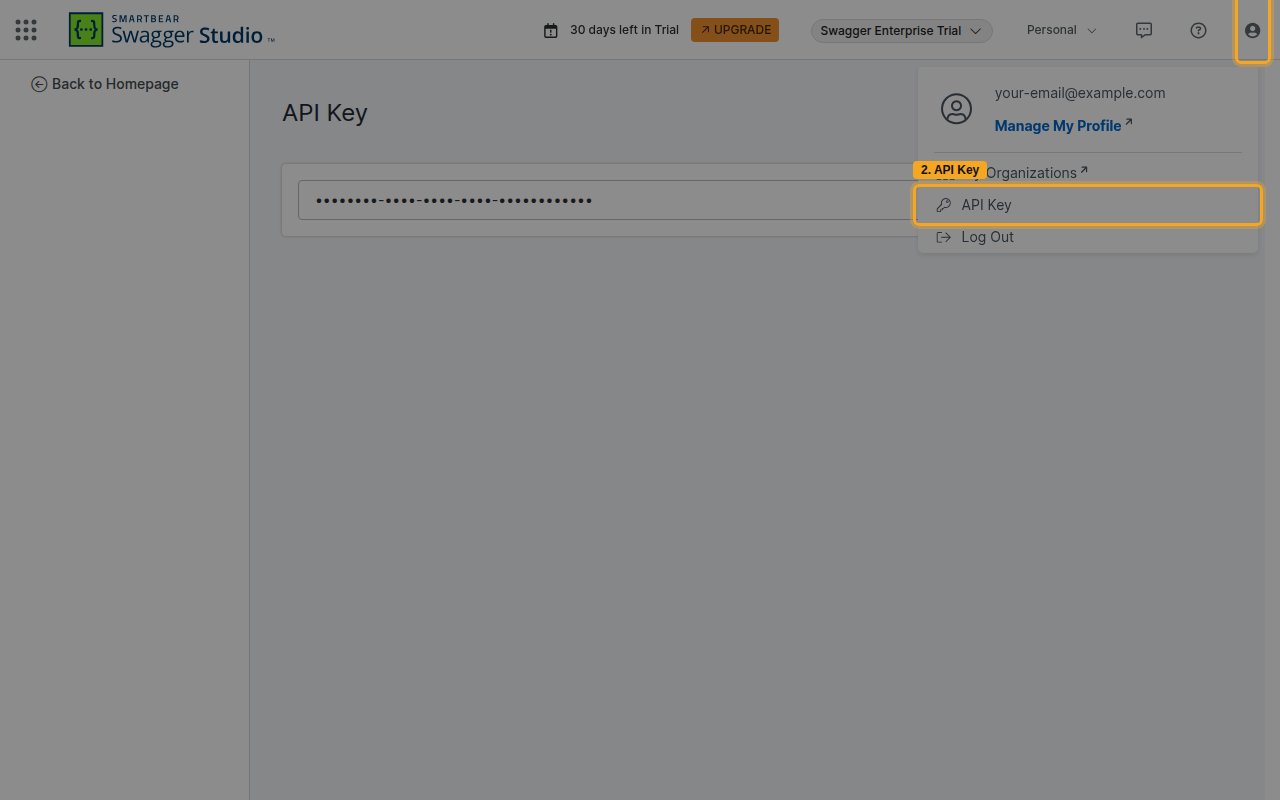
Open your API key from the account menu.
- Click the user profile icon in the top-right corner.
- Select API Key from the menu.
3
Copy your API key
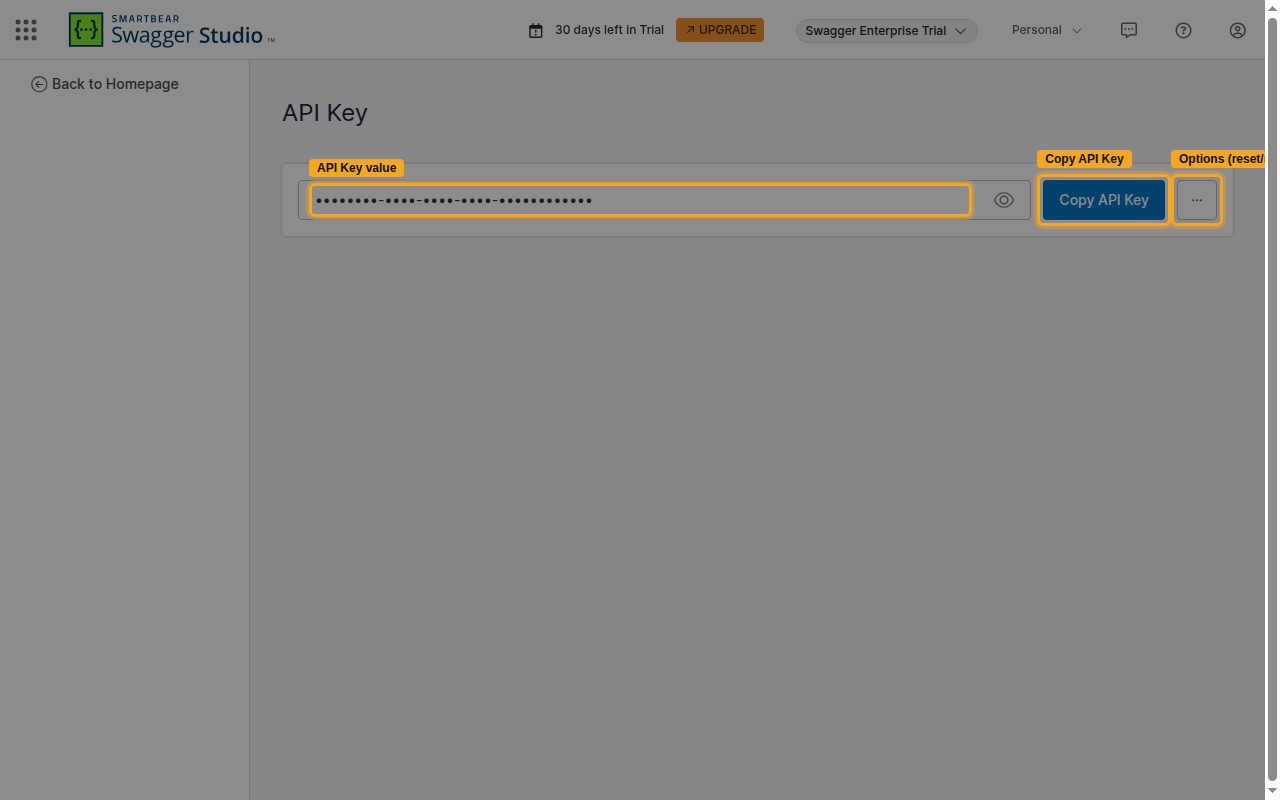
On the API Key page, reveal and copy your key.
- Click the show (eye) icon to reveal the key, or click Copy API Key to copy it to your clipboard.
- Paste it into the API Key field in StackOne.
- Use the options (⋯) menu on this page and choose Regenerate API Key to rotate the key later — regenerating invalidates the previous key and requires updating existing integrations.
Linking the Account from the Hub
1
Navigate to the Hub
Use one of the three Linking Account Methods to access the Hub.
2
Fill out the fields
Fill out the following fields using details from your provider:
- API Key
3
Connect
- Click Connect
- If applicable, the provider will redirect you to a sign-in or authorization page. Complete the provider’s authorization flow.
- Once authorization is successful, you will see a confirmation popup
If the account linking is successful, you will see the newly linked account on your Accounts page.
Next Steps
Webhooks setup
Configure receiving Events for Swagger into StackOne.