

Authorize StackOne
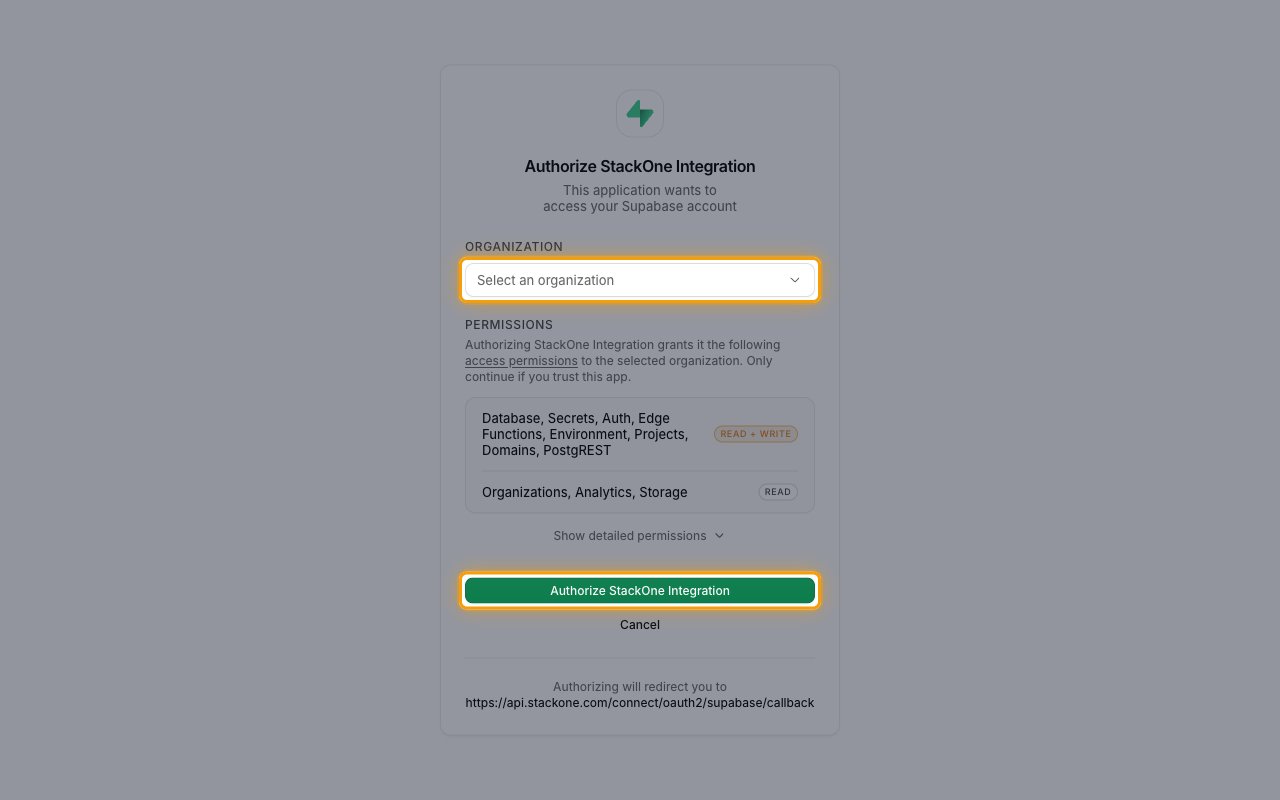
When you connect your account in StackOne Hub, you are redirected to Supabase to approve access for the OAuth application.
1
Sign in to Supabase
Sign in to your Supabase account if prompted.
- From Organization, select the organization to connect.
- Review the Permissions the application requests, then click Authorize StackOne Integration. The button shows the name your administrator gave the OAuth application.
- The Native Webhook URL field in StackOne Hub is read-only and filled in after the connection is created. You only need it when setting up Supabase webhooks.
Link the Account
1
Connect
- Click Connect.
- If applicable, the provider will redirect you to a sign-in or authorization page. Complete the provider’s authorization flow.
- Once authorization is successful, you will see a confirmation popup.
2
Use Actions
Connect an AI platform to the linked account’s actions. See AI Platforms.Other ways to call actions are listed in Protocols & SDKs.
Next Steps
Webhooks setup
Configure receiving Events for Supabase into StackOne.