

Create an app token
Sumsub app tokens work only in the mode they were created in, Sandbox or Production, so create the token in the mode you want to connect.
1
Choose the mode
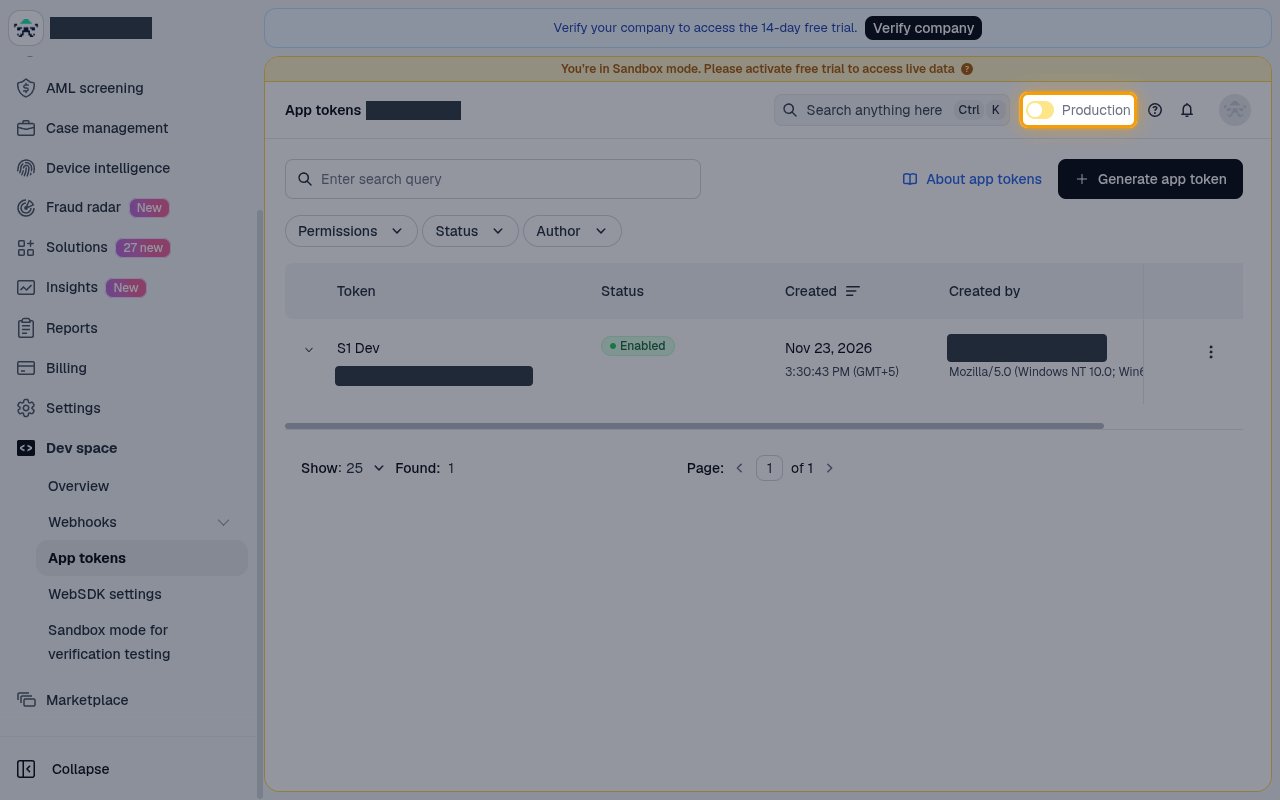
Sign in to the Sumsub Dashboard, then open Dev space > App tokens.
- Turn on the Production toggle to create a production token, or leave it off to create a Sandbox token.
2
Name the token
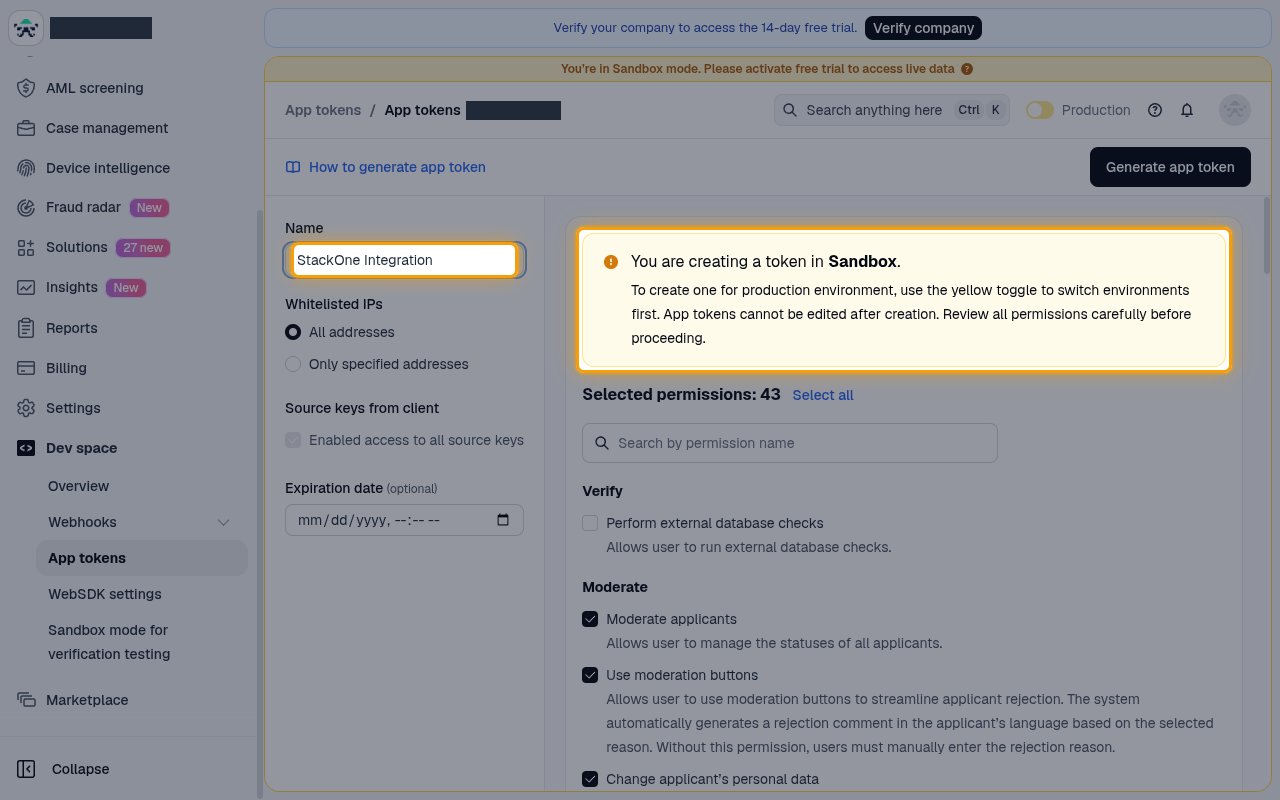
Click Generate app token.
- Name:
StackOne Integration - Whitelisted IPs: All addresses
- Check that the notice at the top reads You are creating a token in followed by the mode you chose.
3
Select the permissions
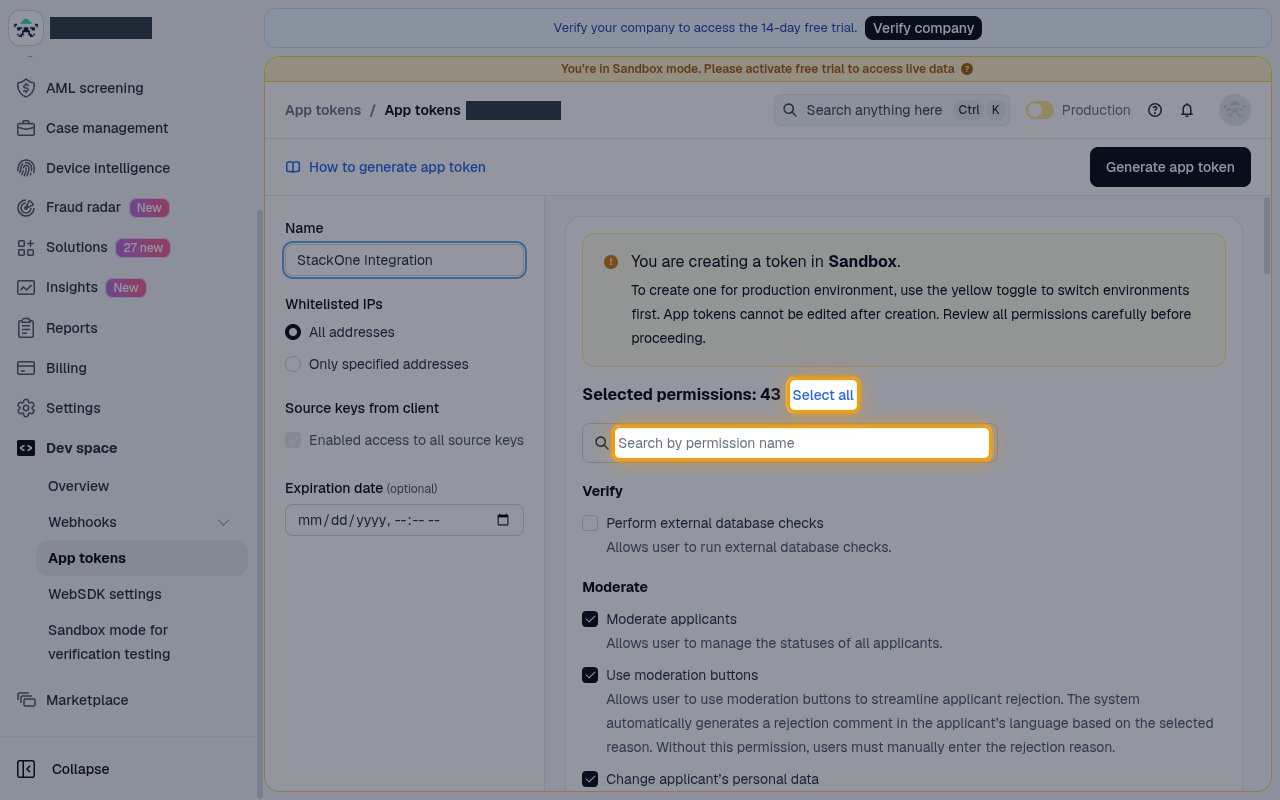
Under Selected permissions, enable the permissions for the actions you plan to use. App tokens cannot be edited after creation.
- To grant every permission, click Select all.
- Applicants: Create applicants, View applicants, View applicant’s personal data, View applicant’s images in personal data, Change applicant’s personal data
- Review: Moderate applicants, Reset applicants, Deactivate applicants, Blocklist applicants, Change verification level, Create verification requests
- Notes and tags: Manage applicant notes, View applicant notes, Manage applicant tags
- Checks and AML: View check results, Manage check results, View AML screening, Manage AML screening
- Click Generate app token.
4
Copy the token and secret key
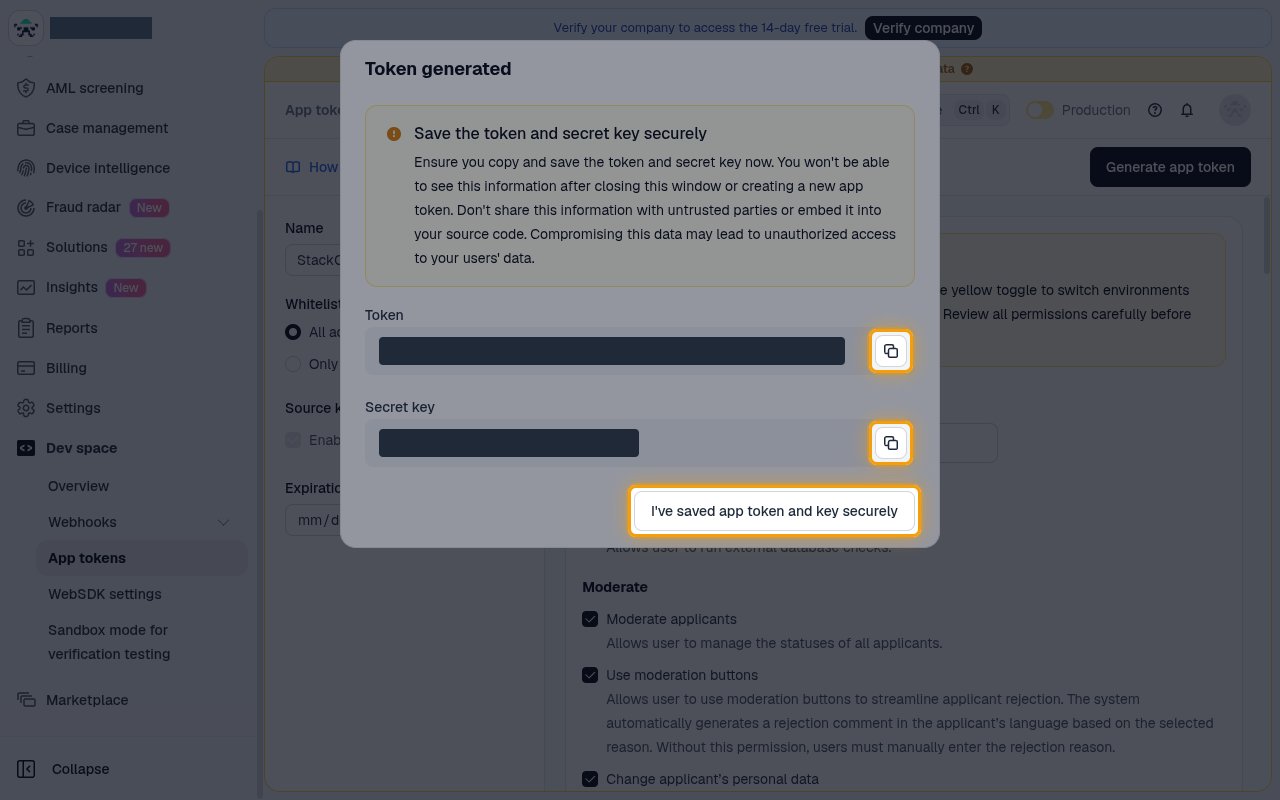
The token and secret key are only displayed once and cannot be retrieved later.
- Copy the Token across to App Token.
- Copy the Secret key across.
- Click I’ve saved app token and key securely.
Link the Account
1
Connect
- Click Connect.
- If applicable, the provider will redirect you to a sign-in or authorization page. Complete the provider’s authorization flow.
- Once authorization is successful, you will see a confirmation popup.
2
Use Actions
Connect an AI platform to the linked account’s actions. See AI Platforms.Other ways to call actions are listed in Protocols & SDKs.
Next Steps
Webhooks setup
Configure receiving Events for Sumsub into StackOne.