

Open API Credentials
API credentials live in the global settings of Sophos Central.
Open the API Credentials page
Sign in to your Sophos Central account.
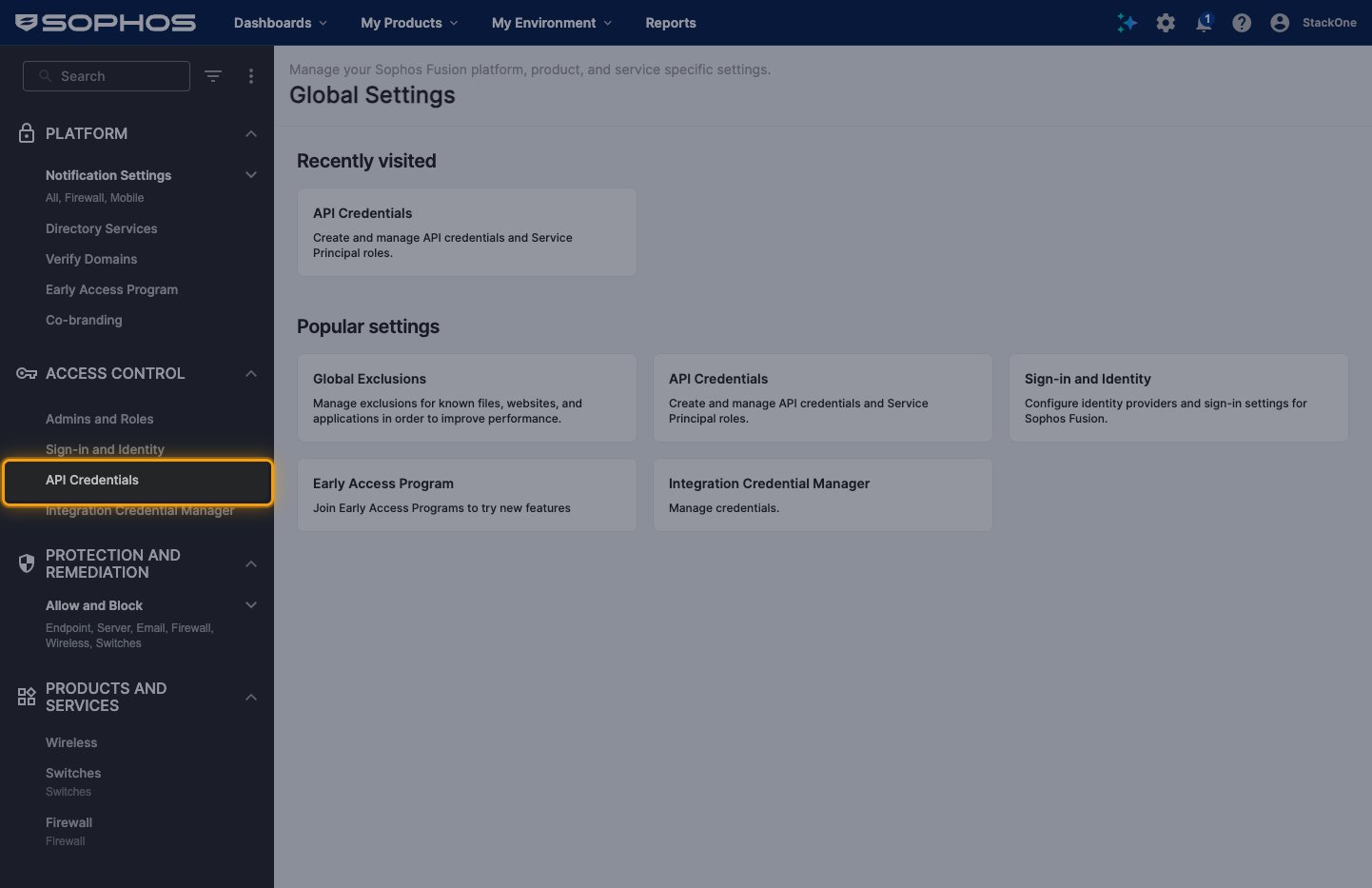
- Click the gear icon in the top navigation to open Global Settings.
- Under Access Control, click API Credentials.
Add a credential
Each credential is a Client ID and Client Secret pair tied to one Service Principal role.
Start a new credential
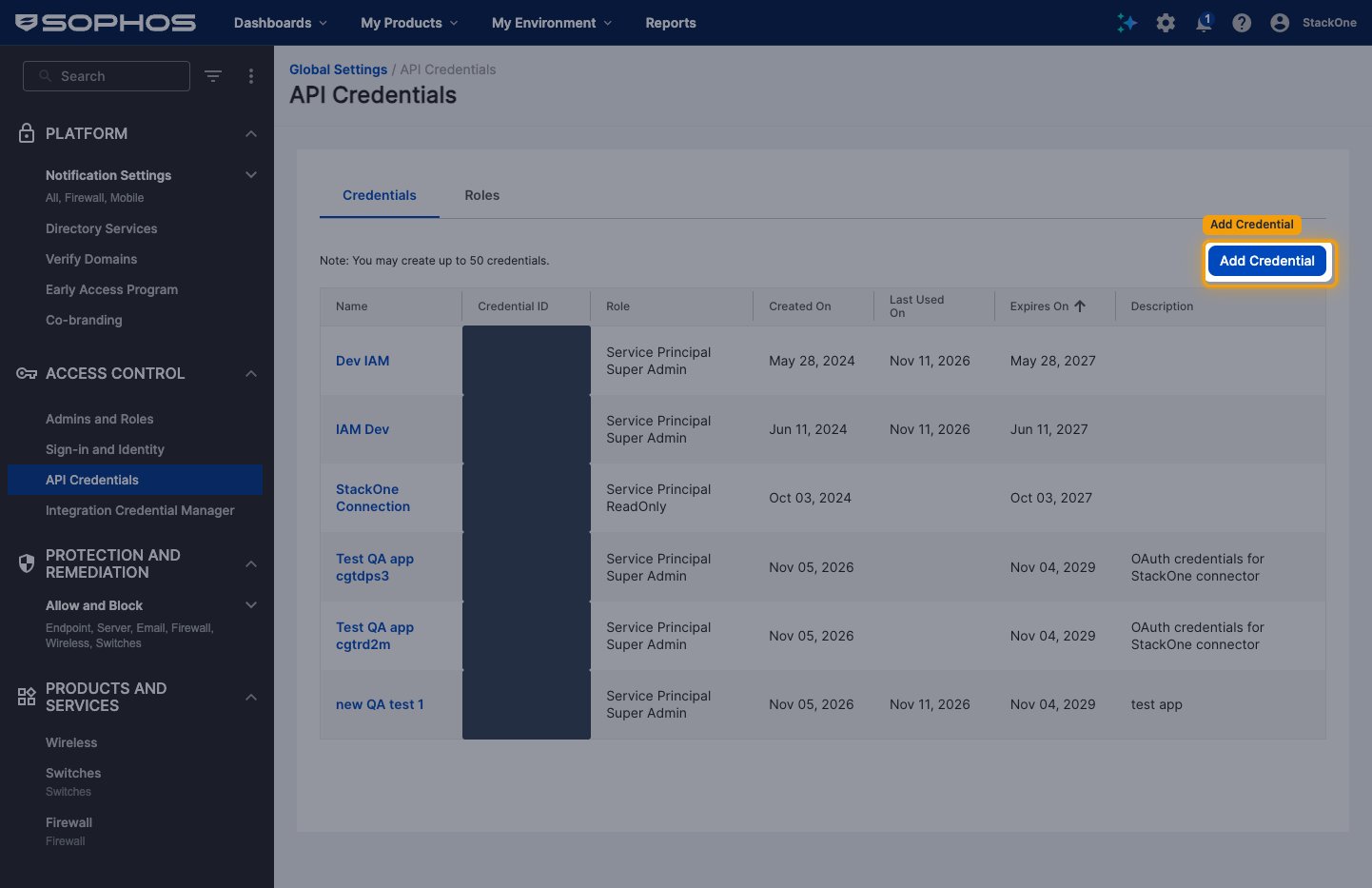
On the Credentials tab, click Add Credential.
Fill in the credential details
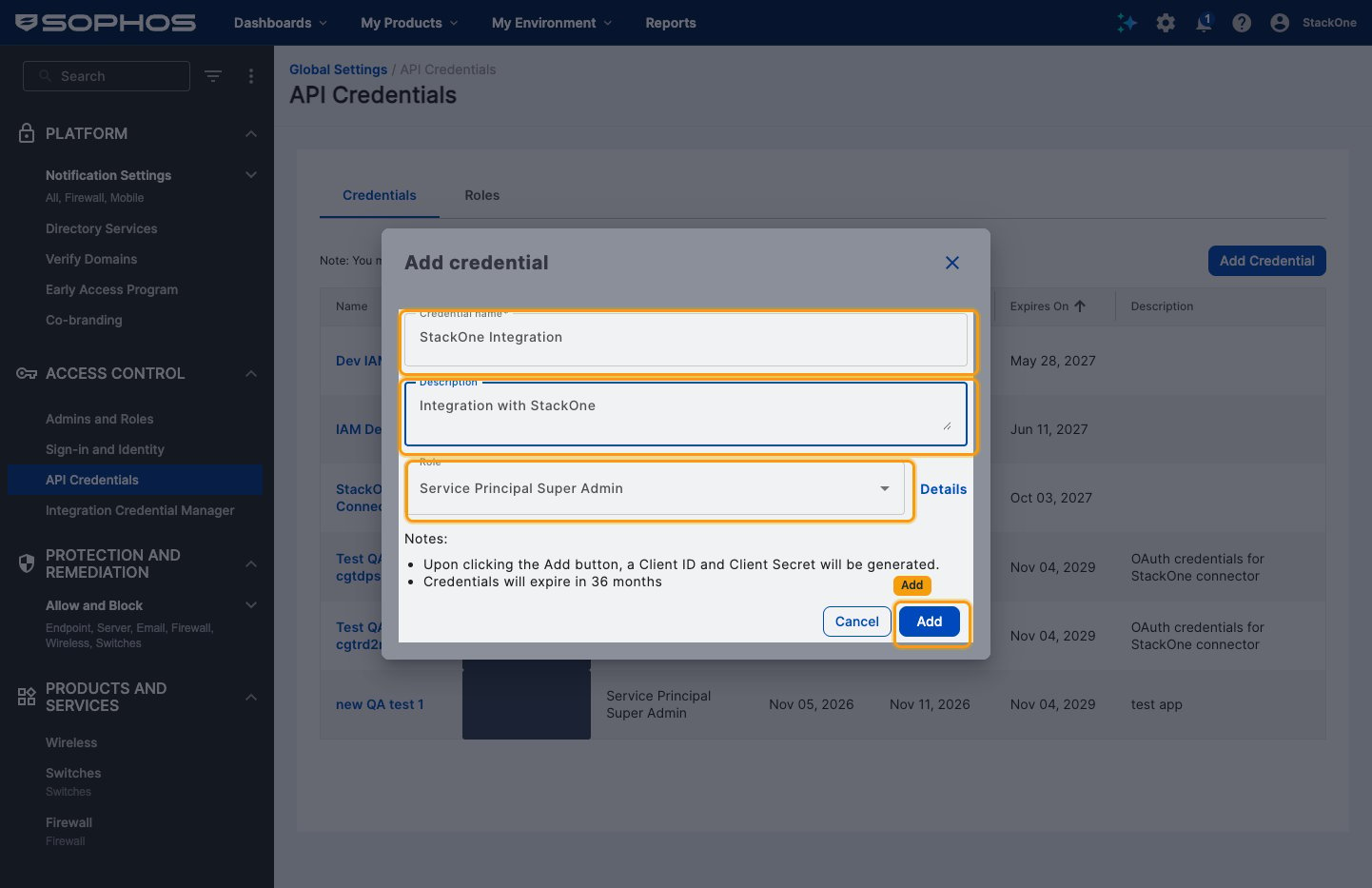
Complete the Add credential dialog, then click Add to generate the credential.
- Credential name (required) — any name you recognise, for example
StackOne Integration. - Description (optional) — free text, for example
Integration with StackOne. - Role — leave the default Service Principal Super Admin, or pick another role. Click Details to see what a role allows.
Choose a Service Principal role
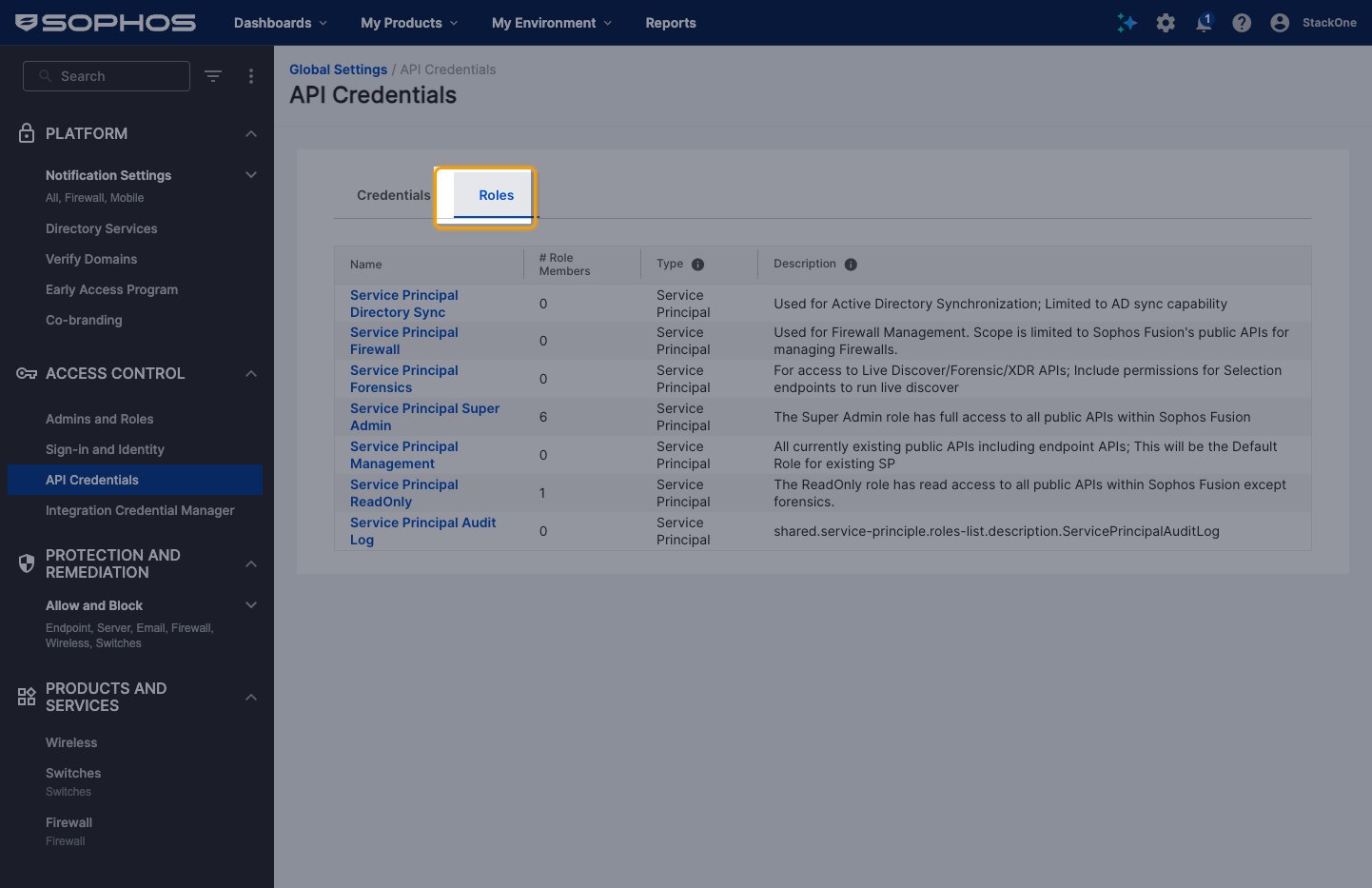
The role decides which Sophos Central APIs the credential can call. Service Principal Super
Admin is the default in the dialog and covers every action in this connector. The Roles tab
on the API Credentials page describes each role, so you can pick a narrower one that matches the
actions you plan to use.
Review the available roles
Open the Roles tab to compare the Service Principal roles before you choose one.
- Service Principal Super Admin — full access to all public APIs. The default, and the safe choice for both read and write actions.
- Service Principal Management — all currently existing public APIs including endpoint APIs.
- Service Principal ReadOnly — read access to all public APIs except forensics. Enough when you only use the list and get actions.
- Service Principal Forensics — access to the Live Discover, Forensic and XDR APIs.
- Service Principal Directory Sync — limited to Active Directory synchronisation.
- Service Principal Firewall — limited to the firewall management APIs.
- Service Principal Audit Log — limited to the audit log APIs.
Copy the Client ID and Client Secret
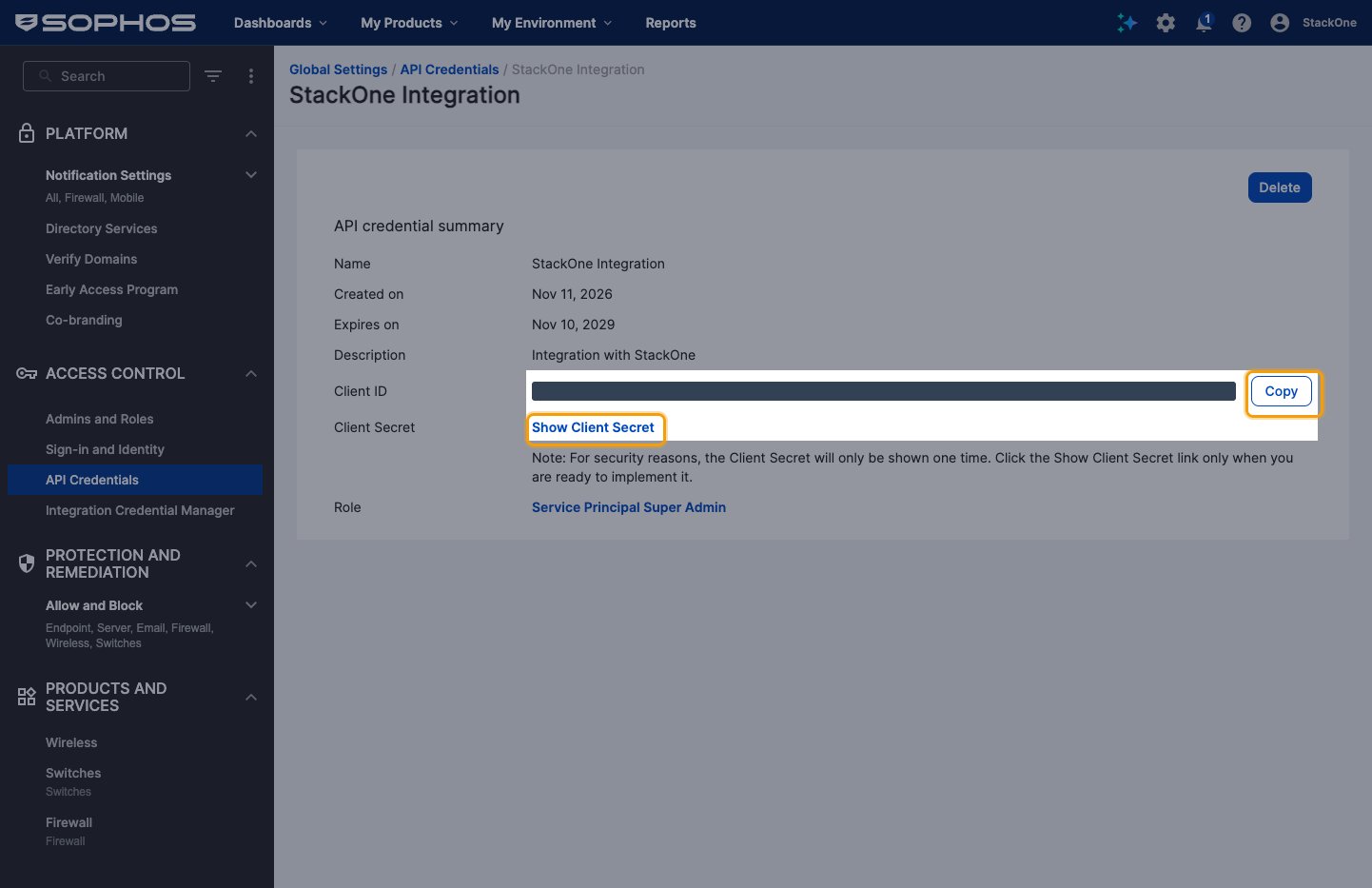
Sophos Central opens the API credential summary page as soon as the credential is created.
It also shows Expires on — a Sophos credential stops working 36 months after it is created.
Before that date, create a replacement credential and paste its Client ID and Client Secret into
StackOne Hub, otherwise the connection fails once the old one expires.
Copy the Client ID
Click Copy next to Client ID, then paste the value into StackOne Hub.
- Format:
xxxxxxxx-xxxx-xxxx-xxxx-xxxxxxxxxxxx
Copy the Client Secret
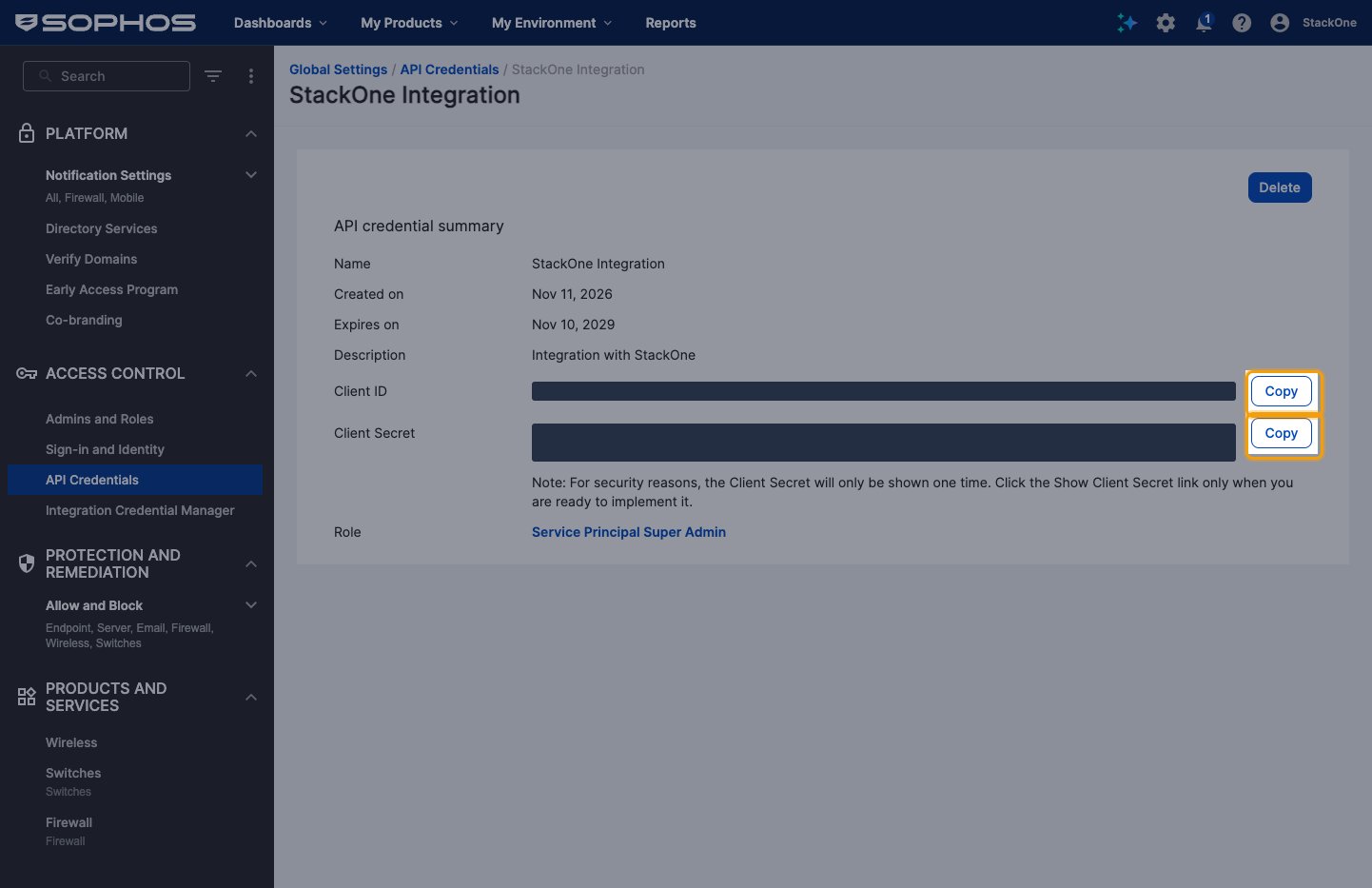
Click Show Client Secret, then click Copy beside the revealed value and paste it
into StackOne Hub.
Link the Account
Connect
- Click Connect.
- If applicable, the provider will redirect you to a sign-in or authorization page. Complete the provider’s authorization flow.
- Once authorization is successful, you will see a confirmation popup.
Use Actions