

Prerequisites
The connector should already be set up, with a Connector Profile and a Linked Account. See Getting Started on the Socure connector page.Send RiskOS events to StackOne
RiskOS delivers webhooks to a URL you register in the Developer Workbench. Each webhook subscribes to a single RiskOS use case, so register one webhook per use case you want events from — all of them pointing at the same StackOne URL.
Copy the Native Webhook URL
The Native Webhook URL is generated once an account has been linked.
- Open the linked account in StackOne.
- Copy the value from Native Webhook URL.
- Treat this URL as a secret. It carries an authentication token, so anyone who has it can post events to your account.
Open the Webhooks page
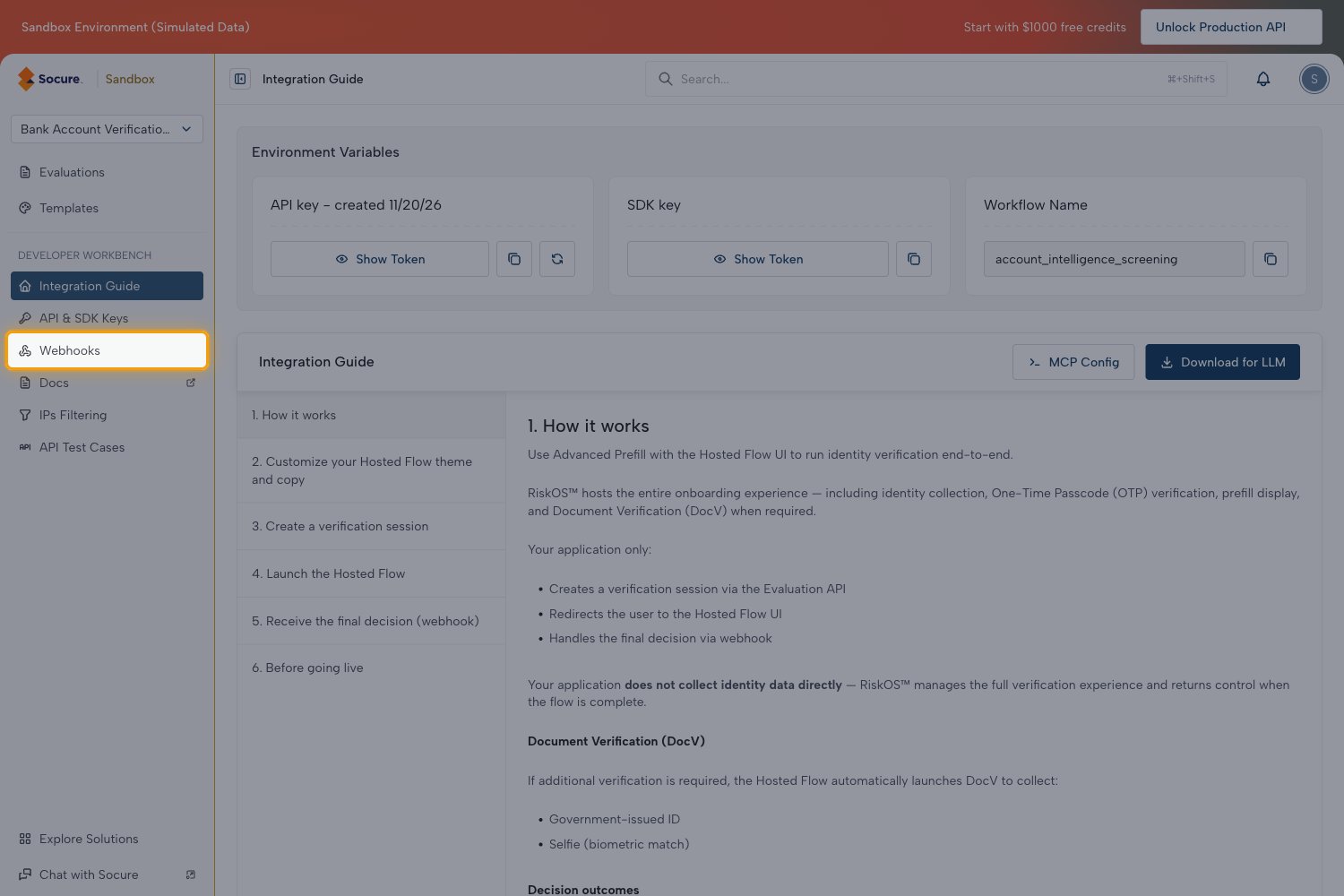
Sign in to Socure RiskOS and open Webhooks under DEVELOPER WORKBENCH in the left menu.
Start a new webhook
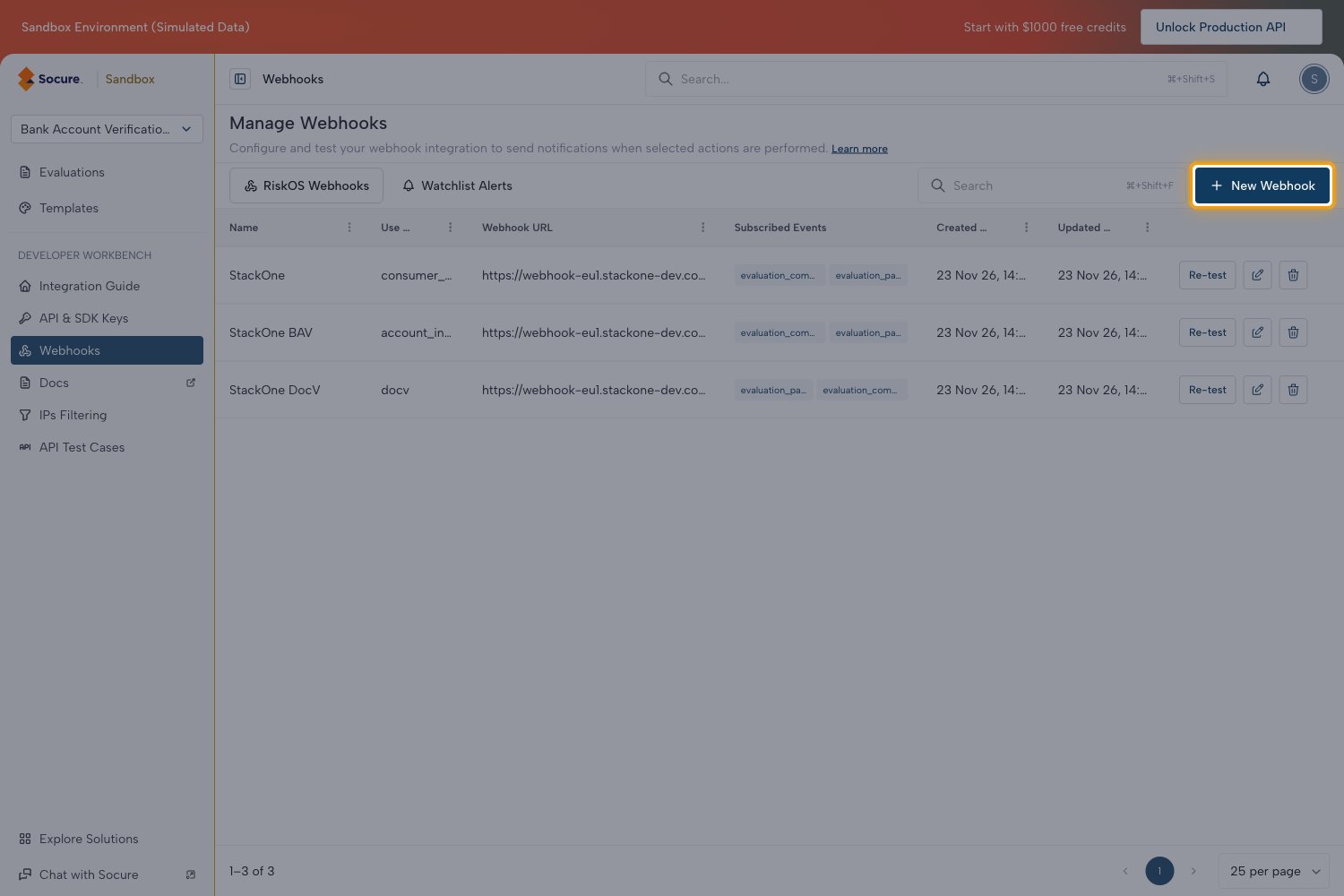
The RiskOS Webhooks tab lists the webhooks already registered for your environment.
- Click New Webhook.
Enter the name and URL
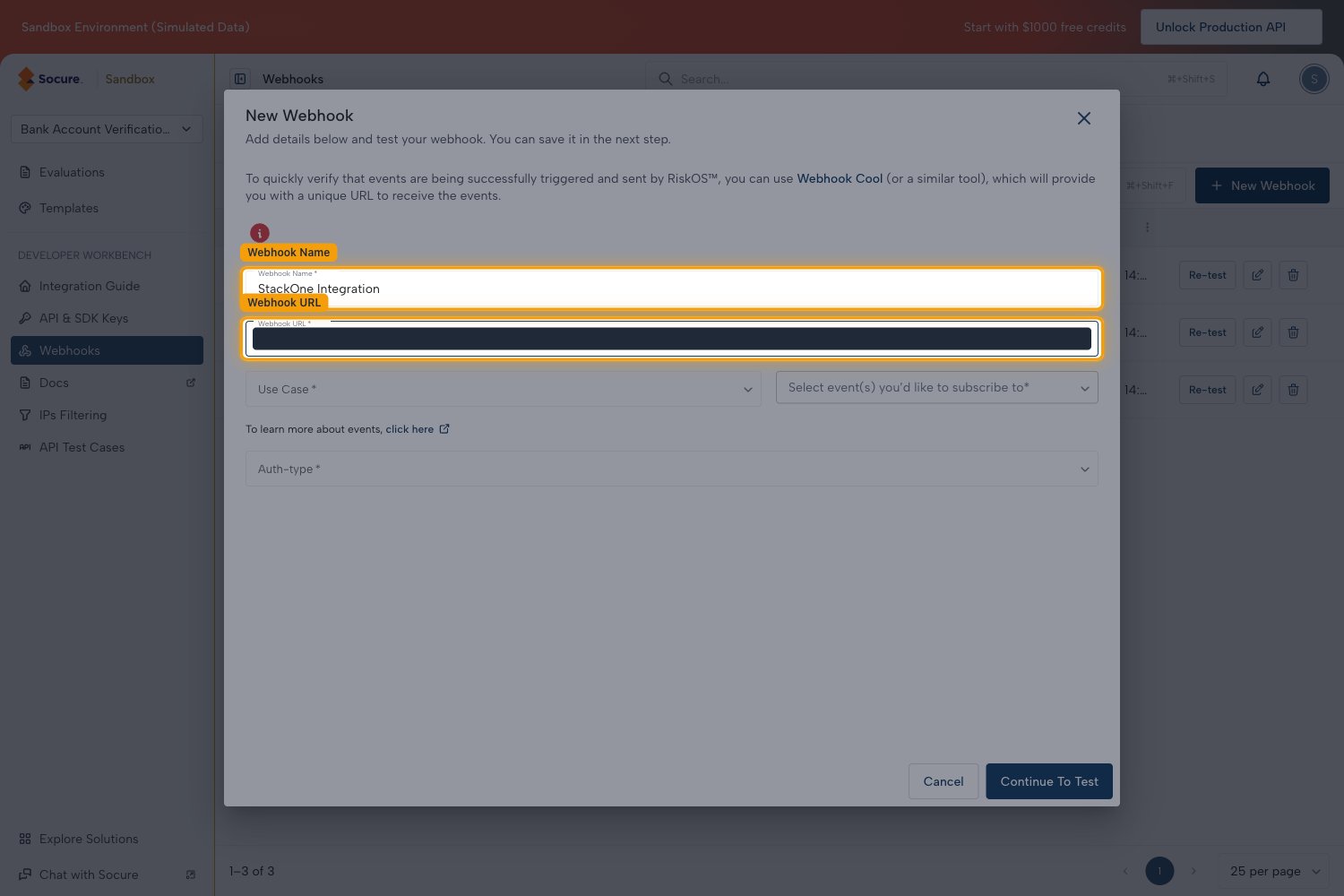
RiskOS opens the New Webhook dialog.
- Webhook Name:
StackOne Integration - Webhook URL: the Native Webhook URL you copied from the linked account
Choose the use case
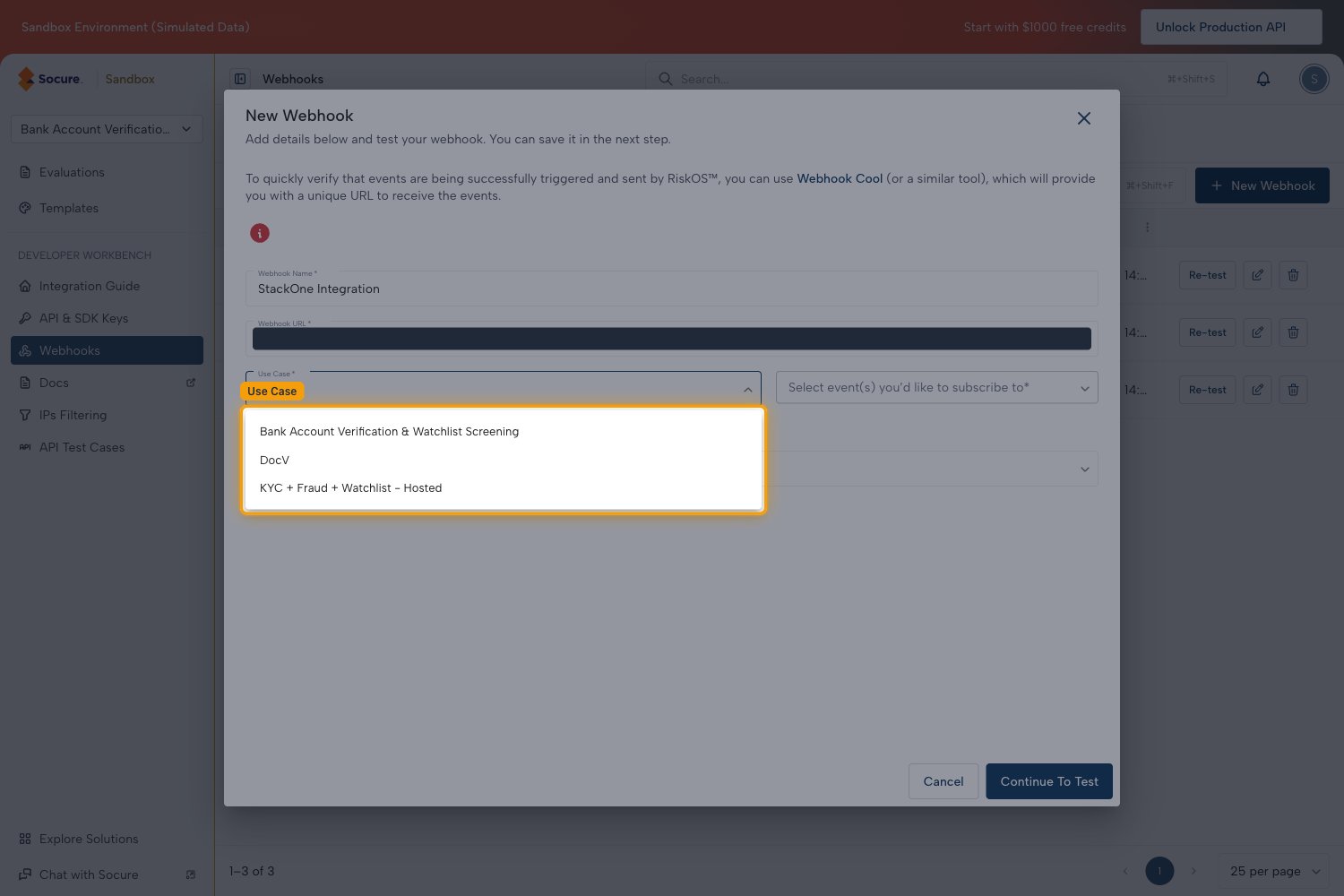
A webhook subscribes to exactly one use case, and RiskOS lists only the use cases your account is entitled to.
- Select the use case whose evaluations you want events for.
- To receive events from more than one use case, repeat this whole process once per use case, using the same Native Webhook URL each time.
Select the events
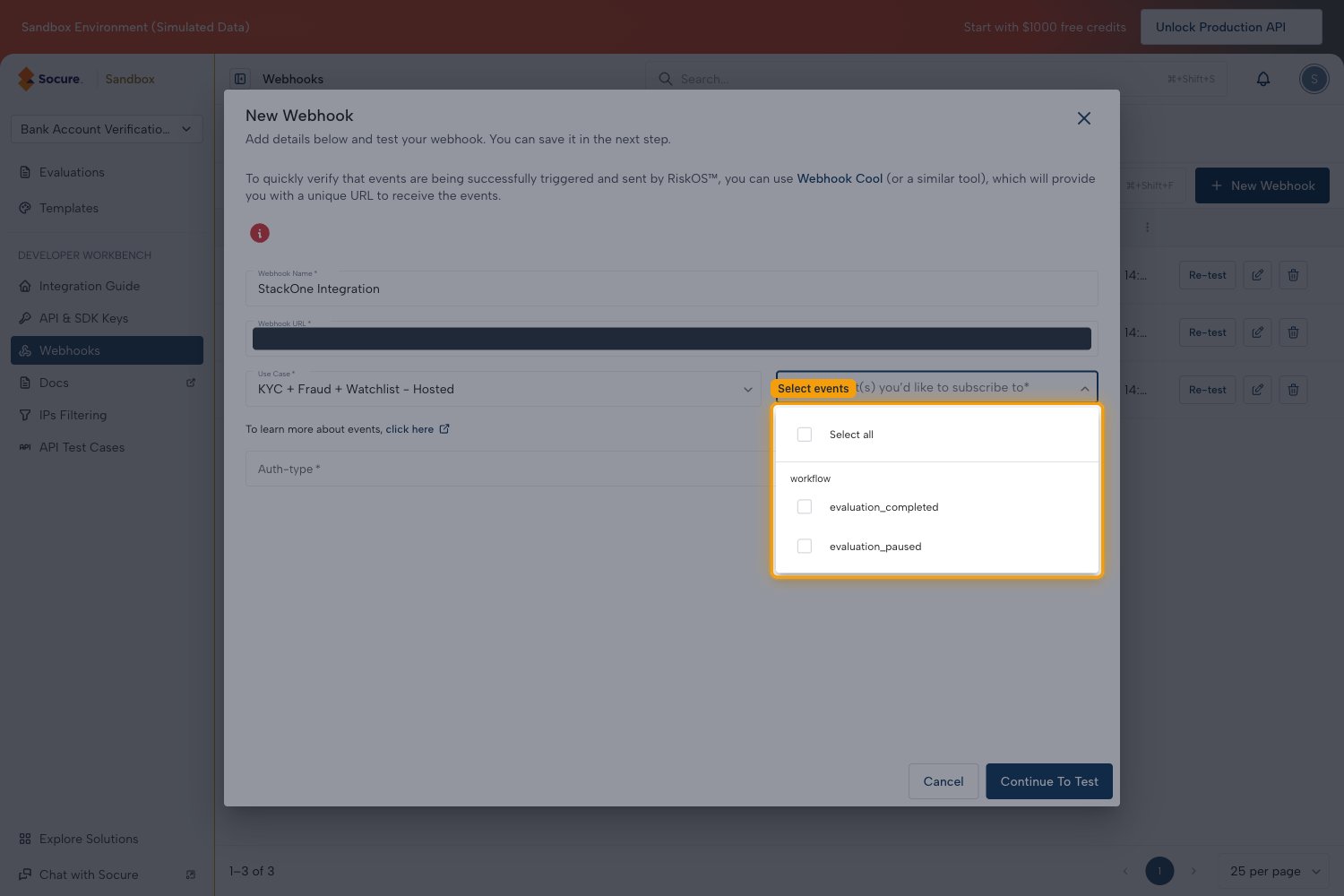
RiskOS shows only the event types your account is entitled to, so the list can be shorter than the full catalog.
- Open the event selector and select each event you want delivered.
- Click Select all to subscribe to every event offered.
Set the auth type
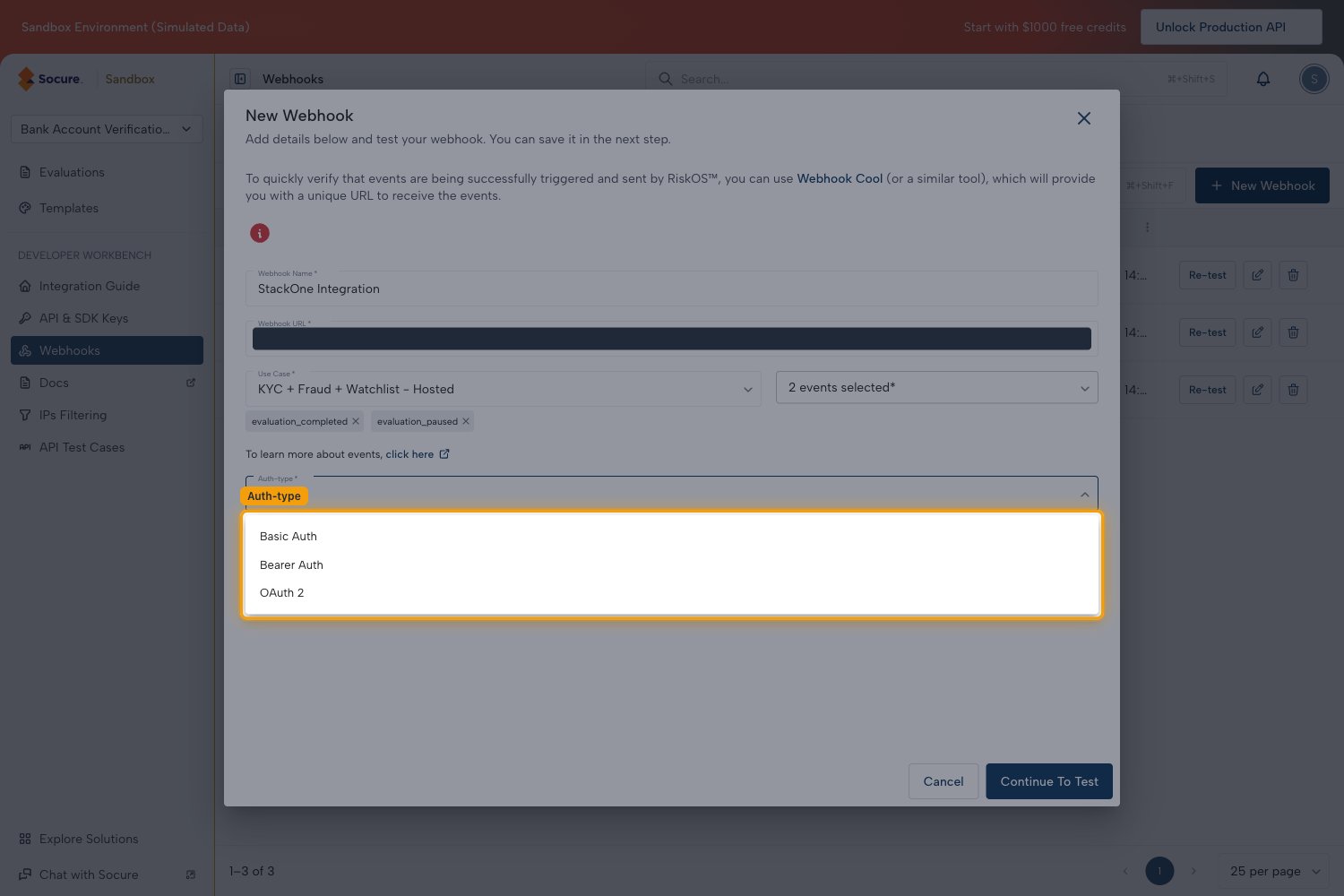
RiskOS requires an authentication method on every webhook and sends it as an Authorization header with each delivery. StackOne authenticates the delivery using the token already inside the Native Webhook URL and ignores this header, so the values you enter here are not used to authorize anything — choose Basic Auth and enter any credentials you like.
- Auth-type: Basic Auth
- Username: a value of your choosing
- Password: a value of your choosing
Test the delivery
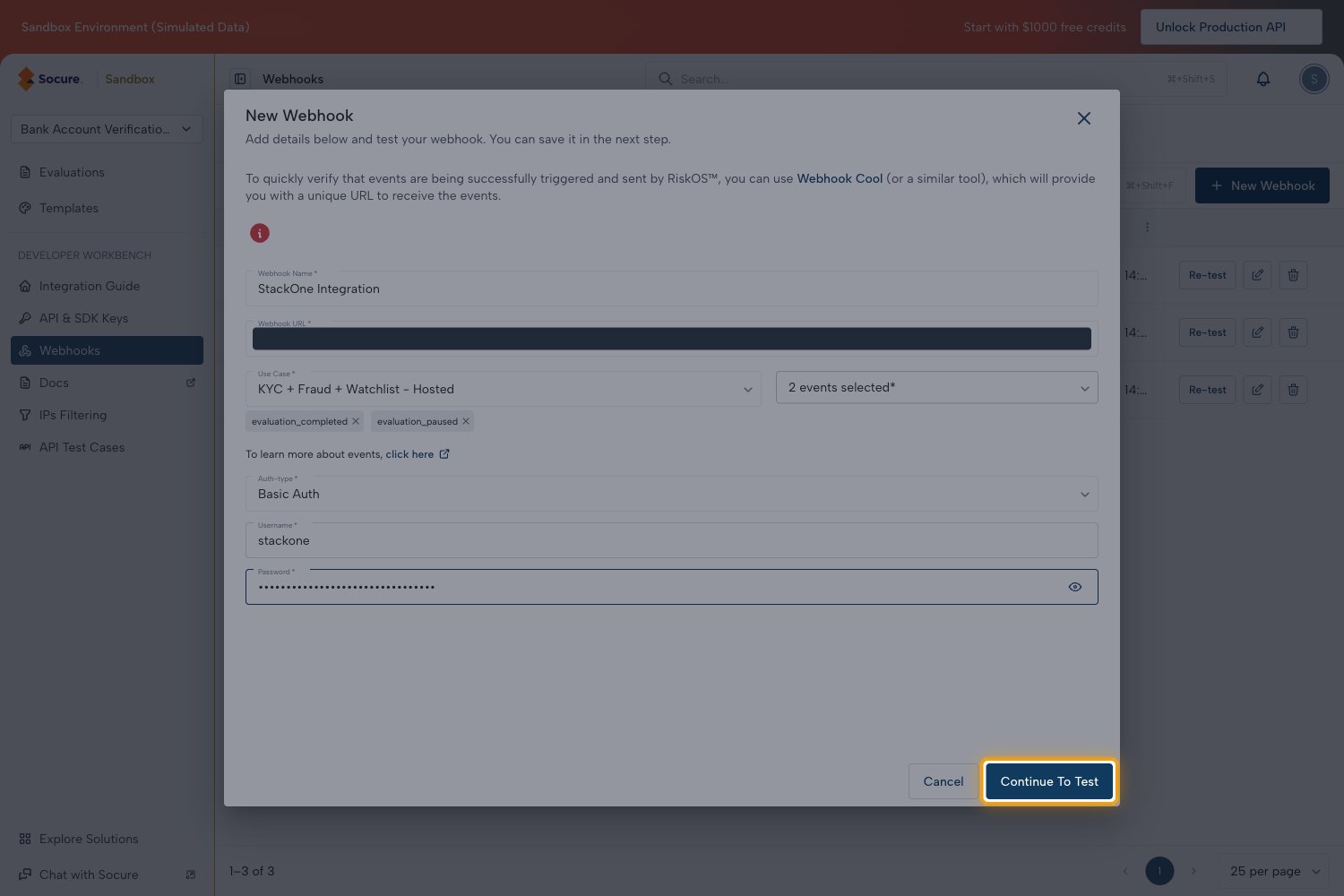
RiskOS posts one sample payload per subscribed event before it lets you save.
- Click Continue To Test.
- Confirm each event reports
200with a response of{"status":"OK"}. - This check proves only that RiskOS can reach the URL — it sends a fixed sample payload, not a real evaluation.
Save the webhook
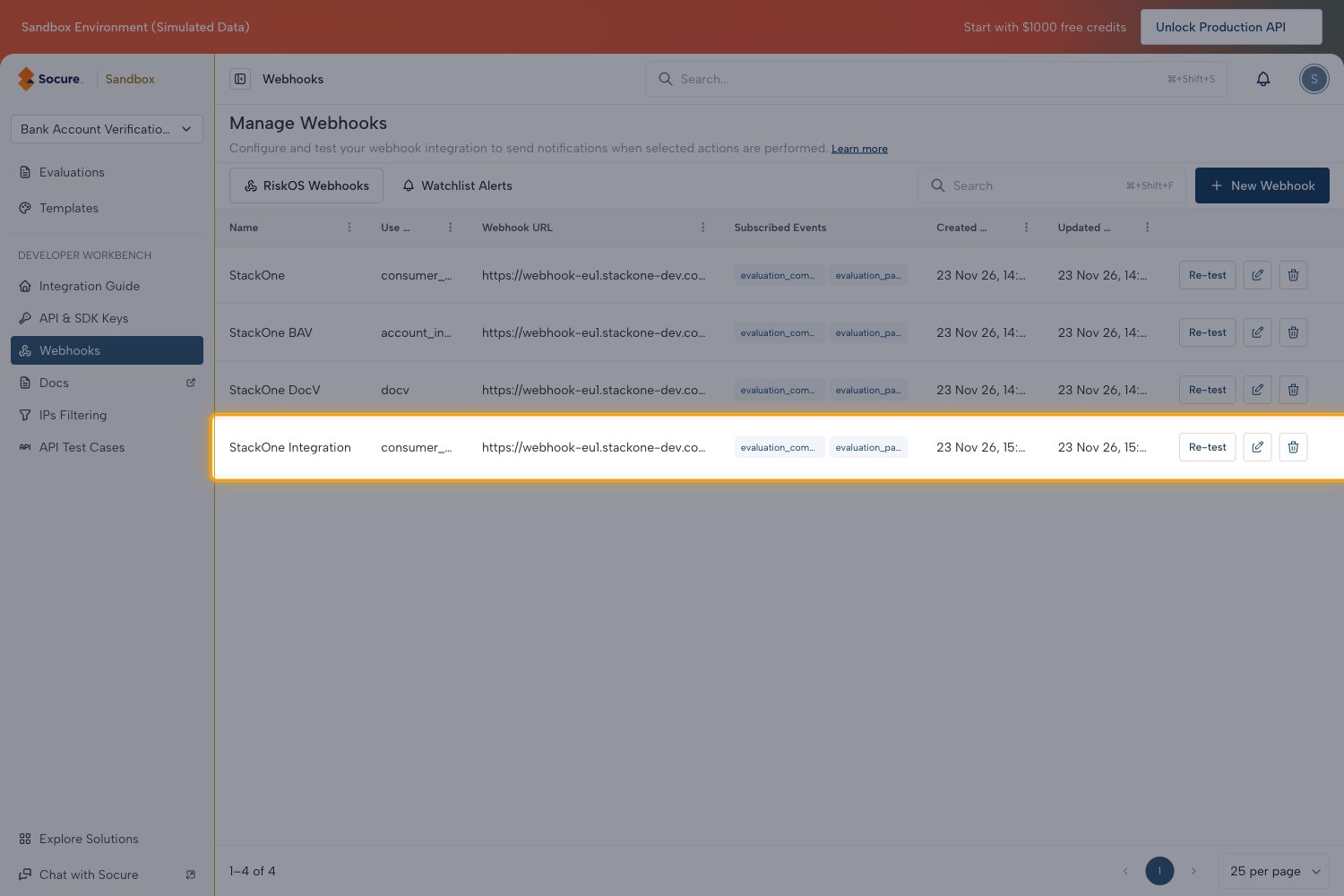
Click Save on the Test Results screen. The webhook appears in the list with its use case and subscribed events, and starts delivering immediately.
Available webhook events
The following RiskOS events can be enabled. Only events selected in StackOne are delivered, and RiskOS offers only the event types your account is entitled to — Case Management and Watchlist events need those products on your account.
Evaluation events
Events about the progress and outcome of an evaluation. These are configured on the RiskOS Webhooks tab. A rerun carries the same payload as a completed evaluation, with an eval_source of Rerun.
- Evaluation Completed (
evaluation_completed) — Fired when an evaluation finishes asynchronously and a decision is available. An evaluation that returns its decision in the API response does not fire this event - Evaluation Paused (
evaluation_paused) — Fired when an evaluation pauses to wait for more input, such as document verification or a one-time passcode - Case Reevaluated (
reevaluation) — Fired when a case is rerun from Case Management - Workflow Execution Failed (
workflow_execution_failed) — Fired when an evaluation fails to execute because of a server error or a problem with the payload
Case Management events
Events about reviewer activity on a case. These require the Case Management product on your account.
- Decision Updated (
decision_update) — Fired when a reviewer changes the decision on a case - Fraud Confirmed (
fraud_confirming) — Fired when a case is marked as fraud or non-fraud - Case Assigned (
review_case_assigned) — Fired when a case is assigned to a reviewer - Case Unassigned (
review_case_unassigned) — Fired when a case is unassigned from a reviewer - Case Status Updated (
case_status_updated) — Fired when a case status or sub-status changes - Case Notes Added (
case_notes_added) — Fired when a note is added to a case - Case Attachment Added (
case_attachment_added) — Fired when files are uploaded to a case
Watchlist events
Events about watchlist monitoring. These require the Watchlist Monitoring product, and they are registered on the Watchlist Alerts tab rather than in the New Webhook dialog.
- Watchlist Monitored Search Updated (
watchlist_notification_monitored_search_updated) — Fired when a monitored entity is added to or removed from a watchlist - Watchlist Case Closure (
case_management_notification_case_closure) — Fired when a watchlist case is approved or closed from the RiskOS Dashboard