

Prerequisites
The connector should already be set up, with a Connector Profile and a Linked Account. See Getting Started on the Shopify connector page.How Shopify webhooks reach StackOne
StackOne manages the Shopify webhook subscriptions for you. When you subscribe to events in StackOne Hub, StackOne registers the matching webhook subscriptions in Shopify automatically through the Shopify Admin API, and removes them when the account is disconnected. There is no manual webhook setup to do in the Shopify Admin for the standard flow.
Let StackOne register the subscriptions automatically
For a connected Shopify account, no action is needed in the Shopify Admin. StackOne creates one webhook subscription per event you enable in StackOne Hub and points it at its own receiver, then deletes those subscriptions when the account is disconnected.
Register the webhook manually (optional fallback)
Use this only if you need to register a subscription outside of StackOne — for example, to pre-register one before connecting. The standard flow above does not require any of these steps.
Open the Webhooks settings
In the Shopify Admin, open Settings, select Notifications, then click Webhooks (“Send XML or JSON notifications about store events to a URL”).
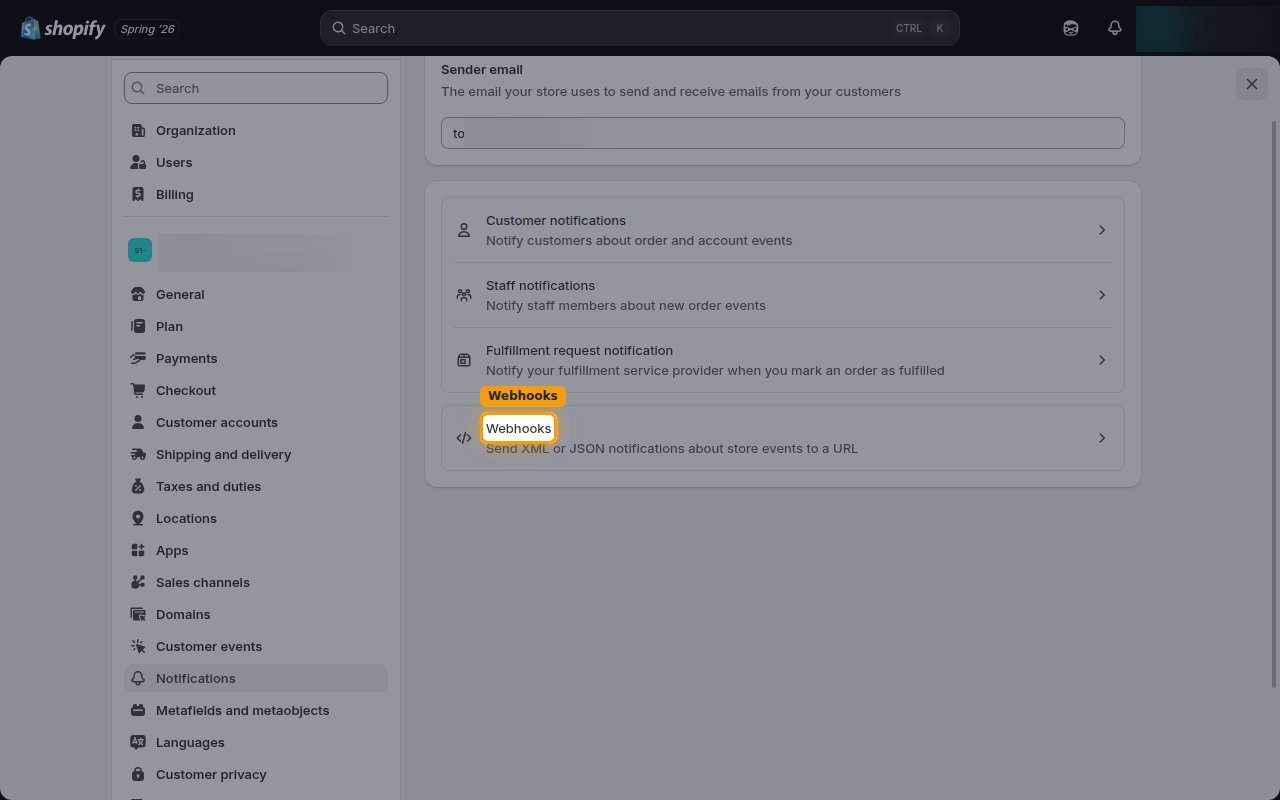
Create a webhook
On the Webhooks page, click Create webhook to open the subscription dialog.
- Note the signing secret shown under Your webhooks will be signed with on this page — Shopify uses it to sign each delivery so its authenticity can be verified.
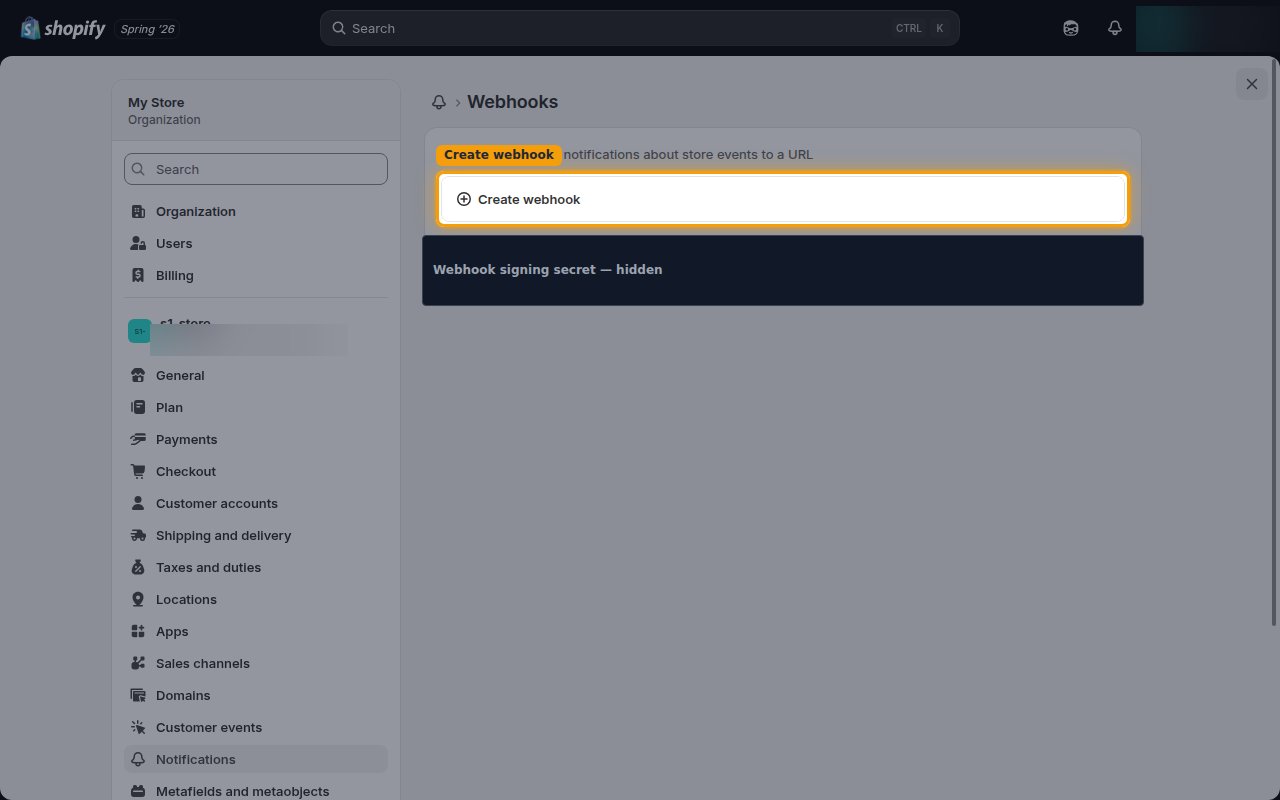
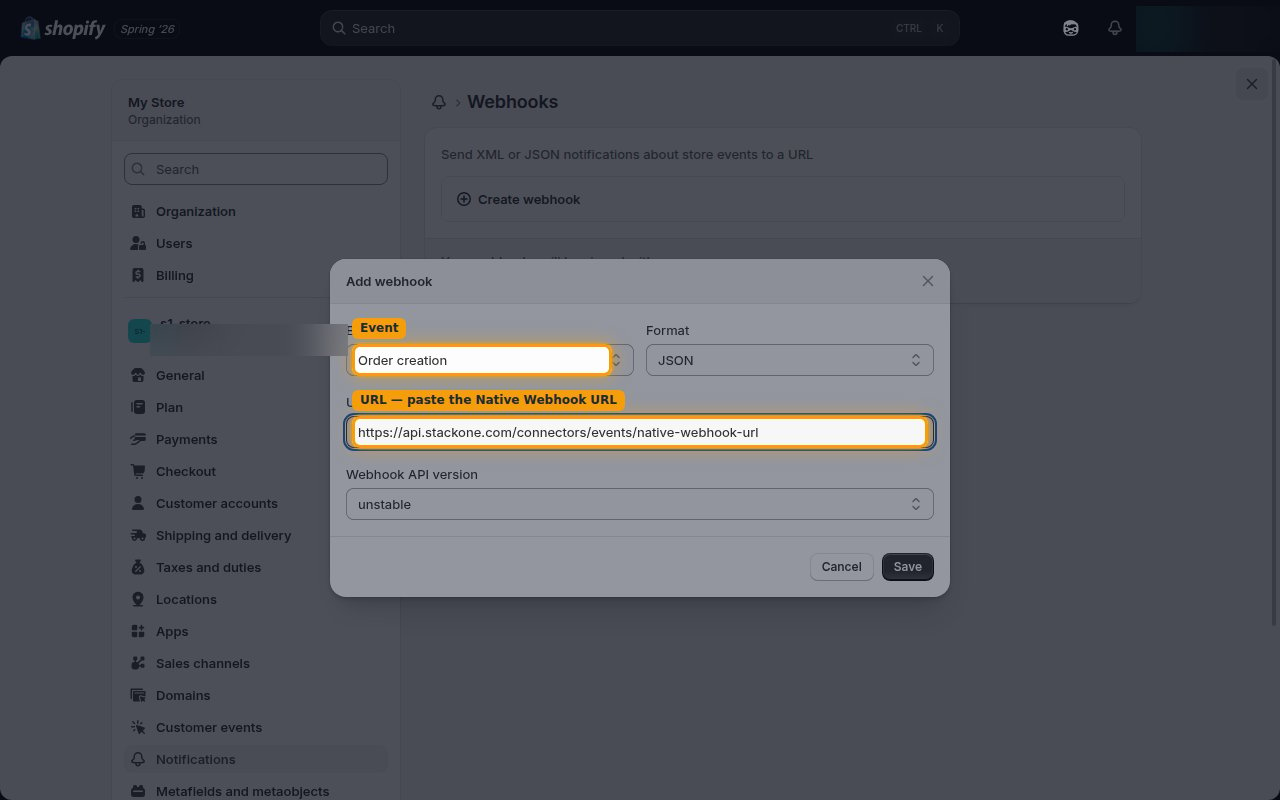
Enter the event and Native Webhook URL
In the Add webhook dialog, choose the store event under Event, leave Format as JSON, and paste the read-only Native Webhook URL (copied from the Linked account) into the URL field.
- Repeat this for each event you want delivered — Shopify creates one subscription per event.
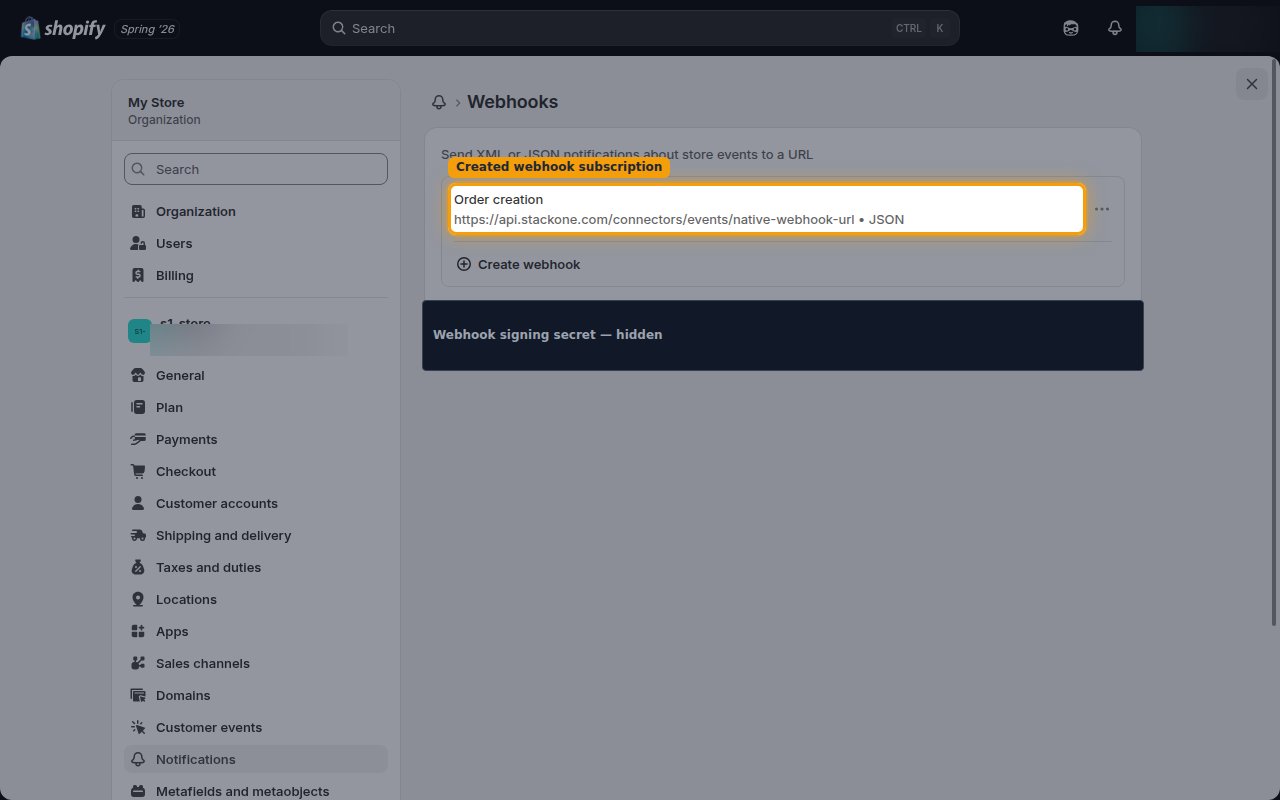
Save the webhook subscription
Click Save. The new subscription appears in the list showing the event and the destination URL, confirming Shopify will now deliver that event to StackOne.
Available webhook events
The following Shopify events can be enabled. Only events selected in StackOne are delivered — Shopify will not send events you have not subscribed to.
Order events
Events related to orders and their fulfillment and payment status.
- Order Created (
orders/create) — Fired when a new order is created in Shopify - Order Updated (
orders/updated) — Fired when an order is updated in Shopify - Order Deleted (
orders/delete) — Fired when an order is deleted in Shopify - Order Paid (
orders/paid) — Fired when an order is fully paid in Shopify - Order Cancelled (
orders/cancelled) — Fired when an order is cancelled in Shopify - Order Fulfilled (
orders/fulfilled) — Fired when an order is fully fulfilled in Shopify - Order Partially Fulfilled (
orders/partially_fulfilled) — Fired when an order is partially fulfilled in Shopify
Product events
Events related to the product catalog.
- Product Created (
products/create) — Fired when a new product is created in Shopify - Product Updated (
products/update) — Fired when a product is updated in Shopify - Product Deleted (
products/delete) — Fired when a product is deleted in Shopify
Customer events
Events related to customer records.
- Customer Created (
customers/create) — Fired when a new customer is created in Shopify - Customer Updated (
customers/update) — Fired when a customer is updated in Shopify - Customer Deleted (
customers/delete) — Fired when a customer is deleted in Shopify
Fulfillment events
Events related to fulfillments on orders.
- Fulfillment Created (
fulfillments/create) — Fired when a new fulfillment is created in Shopify - Fulfillment Updated (
fulfillments/update) — Fired when a fulfillment is updated in Shopify
Inventory events
Events related to inventory levels and inventory items across locations.
- Inventory Level Updated (
inventory_levels/update) — Fired when an inventory level changes in Shopify - Inventory Level Connected (
inventory_levels/connect) — Fired when an inventory item is connected to a location in Shopify - Inventory Item Updated (
inventory_items/update) — Fired when an inventory item is updated in Shopify
Refund events
Events related to refunds on orders.
- Refund Created (
refunds/create) — Fired when a refund is created in Shopify
Checkout events
Events related to checkouts, including abandoned checkouts.
- Checkout Created (
checkouts/create) — Fired when a checkout is created in Shopify - Checkout Updated (
checkouts/update) — Fired when a checkout is updated in Shopify
App lifecycle events
Events about the StackOne app’s own installation. Enabling App Uninstalled is recommended so StackOne can react when the app is removed from the store.
- App Uninstalled (
app/uninstalled) — Fired when the merchant uninstalls the app from their Shopify store
Delivery format
Details of how Shopify delivers events to StackOne.
One event per delivery
Shopify sends a separate HTTP request for each event — deliveries are not batched. The request body is the JSON of the changed resource (for example the full order for orders/create), while delete events carry only the resource id. StackOne routes each delivery to the matching event handler.
Identifying headers
Each delivery includes headers StackOne relies on:
X-Shopify-Topic— the event topic (for exampleorders/create), used to route the delivery to the right handler.X-Shopify-Shop-Domain— the store’s myshopify.com domain, used to match the delivery to the correct linked account.X-Shopify-Webhook-Id— a unique id per delivery, used for de-duplication.X-Shopify-Hmac-Sha256— the HMAC-SHA256 signature Shopify sends so the payload’s authenticity can be verified.
Retries and ordering
Delivery is at-least-once: if StackOne cannot be reached, Shopify retries the delivery over roughly 48 hours before giving up. Because bulk changes (such as a stock update affecting several locations) emit one event per affected inventory level, expect multiple separate deliveries for a single bulk action.