

Prerequisites
The connector should already be set up, with a Connector Profile and a Linked Account. See Getting Started on the Sentry connector page.Add the Native Webhook URL to your Custom Integration
Sentry delivers events from the Custom Internal Integration that issued your Auth Token. Paste the StackOne Native Webhook URL into that integration, then pick the resources Sentry should send.
Retrieve the StackOne Native Webhook URL
The Native Webhook URL is shown on the StackOne Hub connection form while you link the account.
- Start linking the Sentry account in StackOne Hub.
- Copy the read-only Native Webhook URL field from the connection form.
- Keep the form open — you paste this URL into Sentry before completing the connection.
Open Custom Integrations
Sign in to your Sentry account and navigate to Settings > Custom Integrations, then stay on the Internal Integration tab.
- Click the name of the integration that issued your Auth Token and skip the next step.
- If you have not created one yet, click Create New Integration.
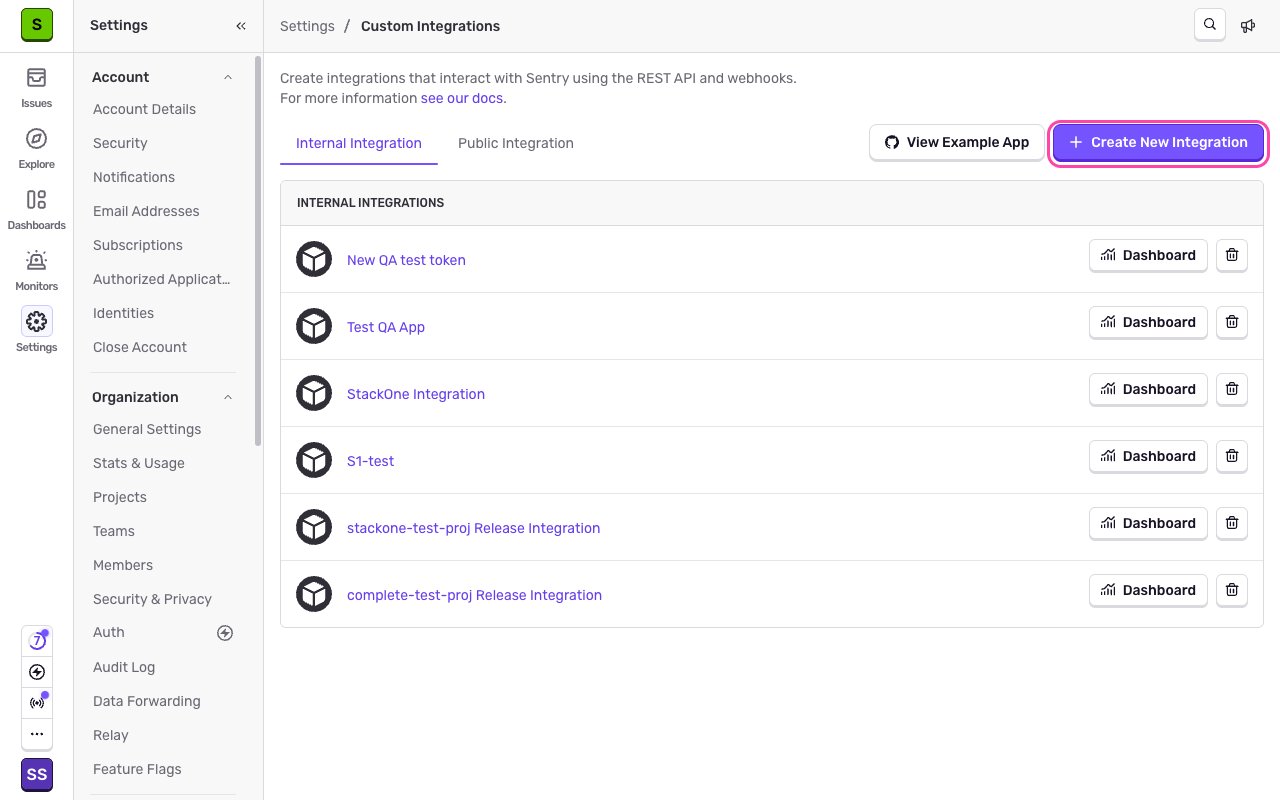
Create the internal integration
In the Choose Integration Type dialog, under Start from scratch, click Get started next to Internal Integration. Enter a descriptive Name such as StackOne Integration.
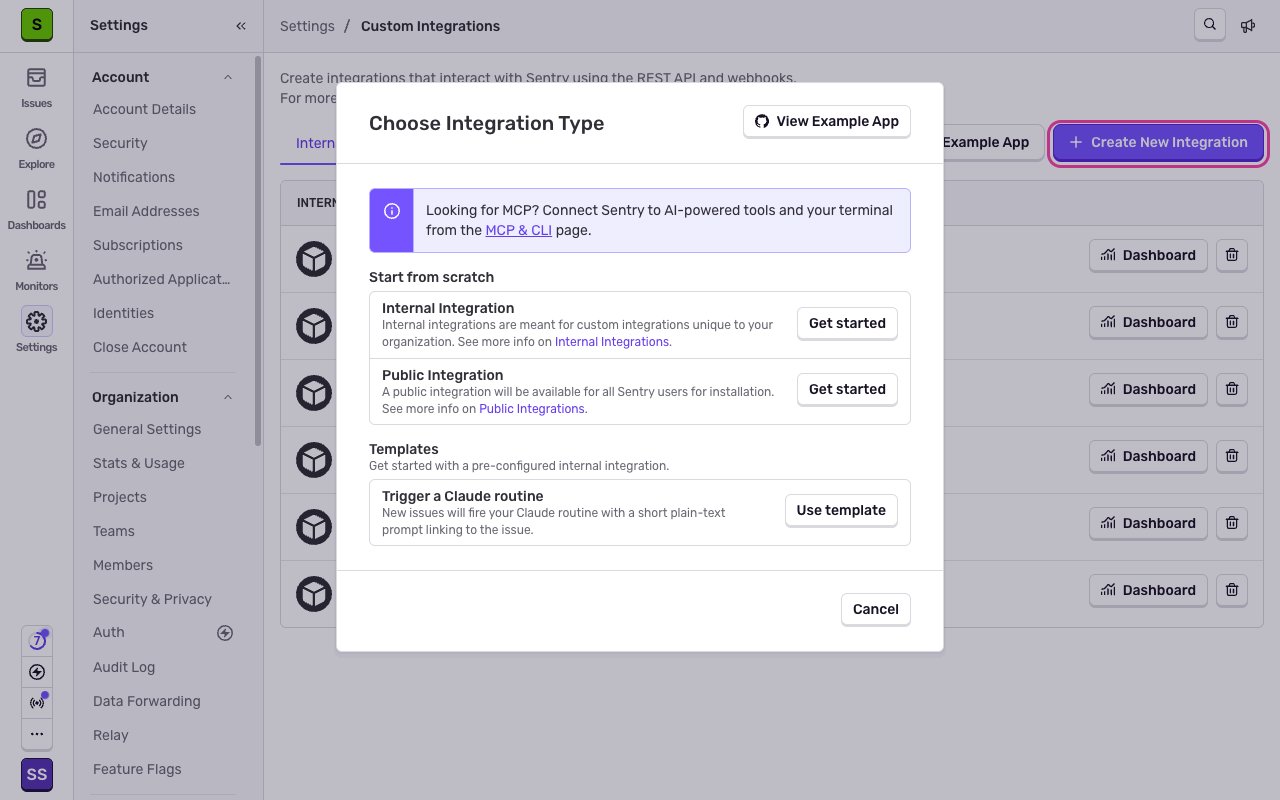
Paste the Native Webhook URL
In Webhook URL, paste the StackOne Native Webhook URL. Leave Webhook Headers empty — StackOne does not require custom headers.
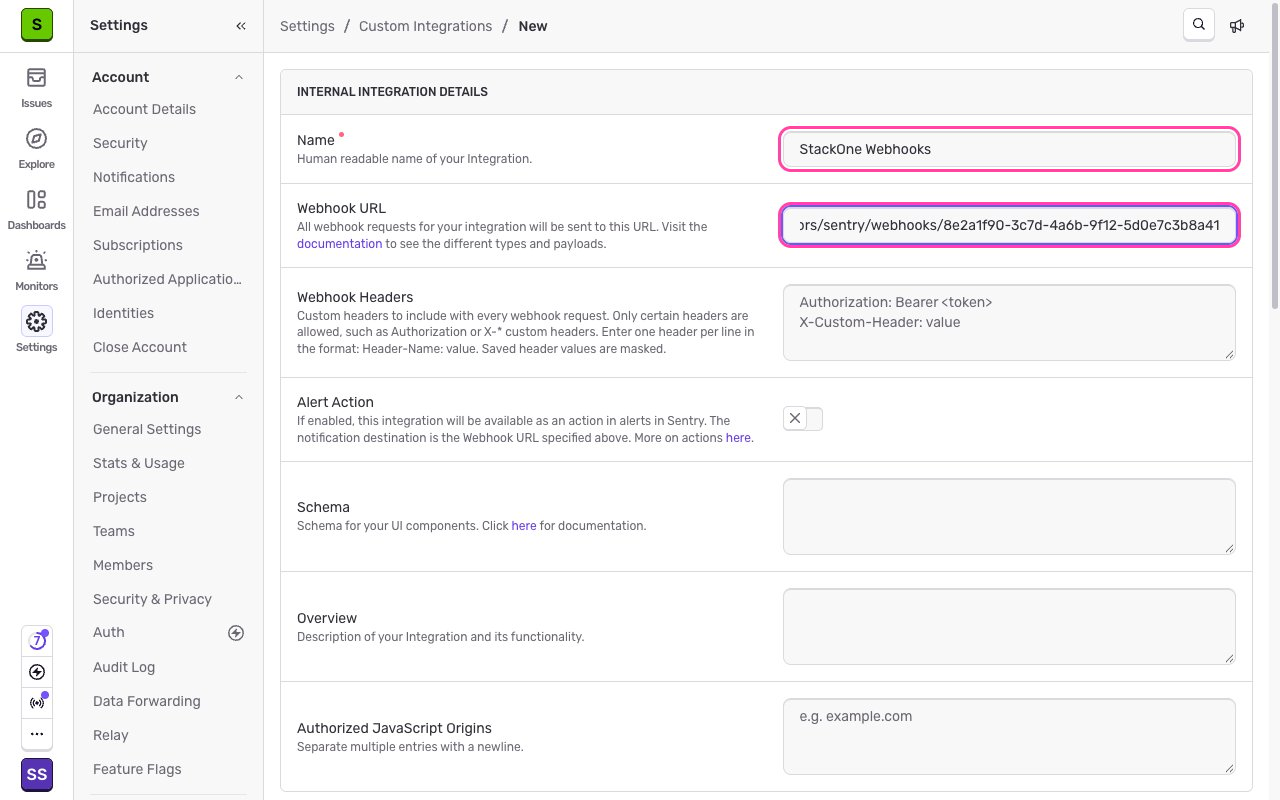
Enable Alert Action
Turn on Alert Action. This makes the integration available as an action in Sentry alerts and is required for issue alert and metric alert webhooks. The toggle stays locked until a Webhook URL is filled in.
Grant read access to issues and events
Under Permissions, set Issue & Event to at least Read. The webhook checkboxes stay greyed out until the integration has read access to the resource.
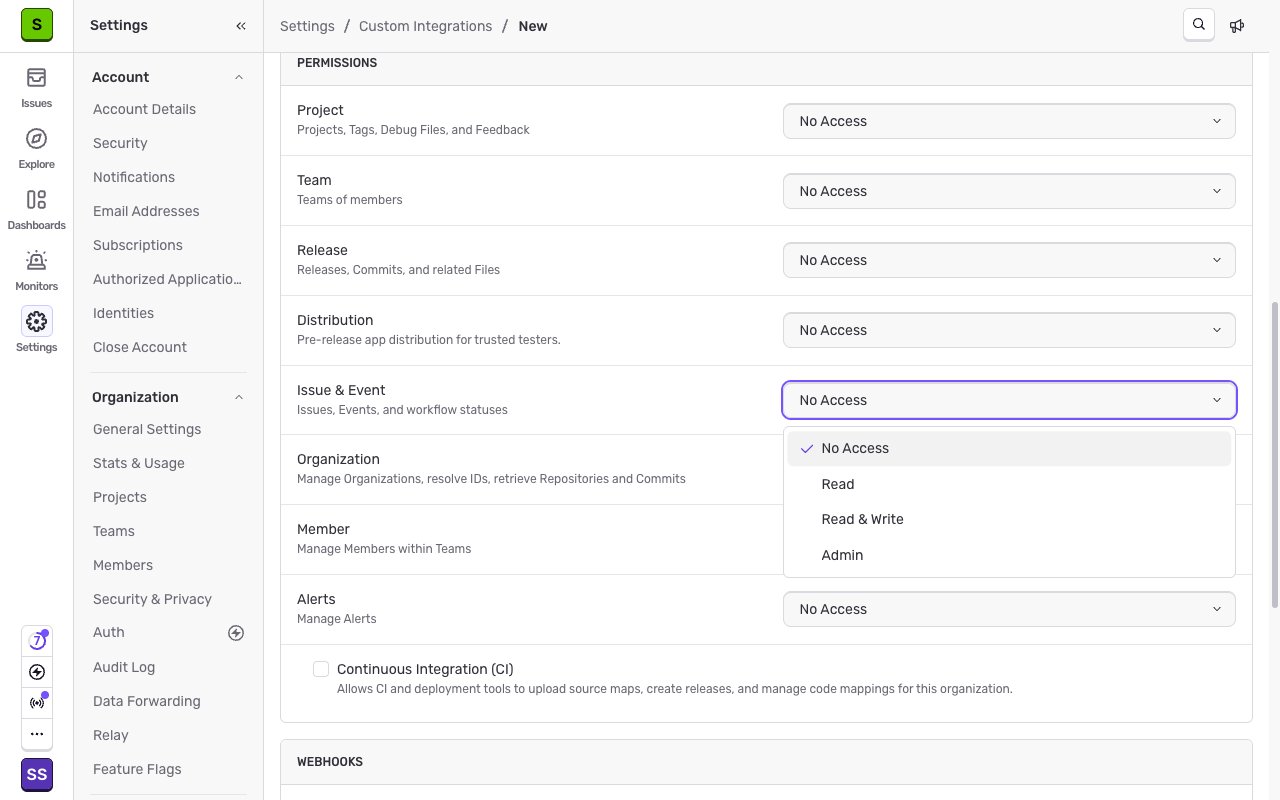
Select the webhook events
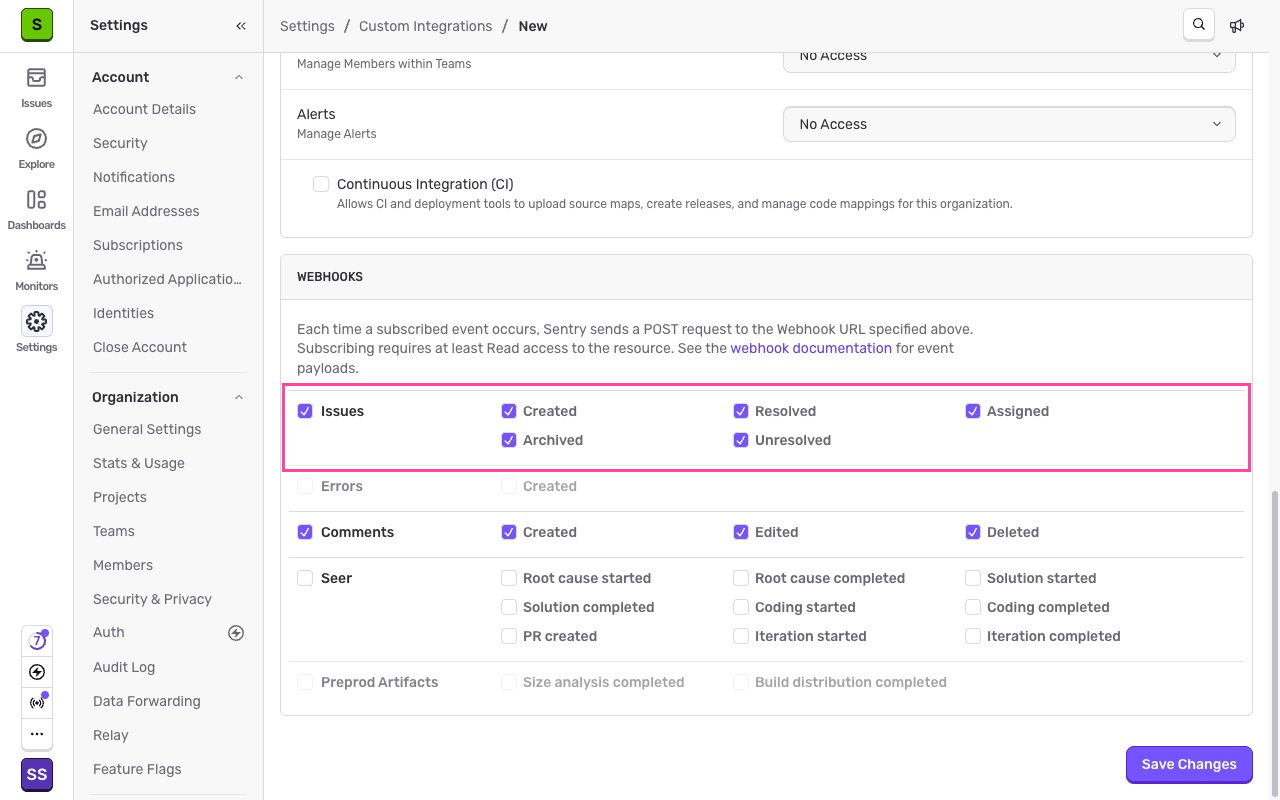
Under WEBHOOKS, tick the resources you want Sentry to send. Ticking a resource name (for example Issues) selects all of its events.
- Tick Issues for the Created, Resolved, Assigned, Archived, and Unresolved events.
- Tick Comments for the Created, Edited, and Deleted events.
- Errors is only selectable on Business and Enterprise plans. It stays greyed out on other plans.
Save the integration
Click Save Changes. Sentry confirms with a success message and sends an installation.created webhook to the URL straight away. If you created the integration in this guide, scroll to the Token table, click + New Token, and use that token as the connection’s Auth Token in StackOne Hub.
Route issue alerts and metric alerts to StackOne
The event_alert and metric_alert webhooks are not sent by the webhook checkboxes. Sentry only sends them when an alert names your integration as its action, so add that action to every alert whose triggers you want to receive.
Create or edit an alert
Navigate to Monitors > Alerts and open an existing alert, or create a new one. Under THEN perform these actions, open Select an action and choose Send a notification via an integration under OTHER INTEGRATIONS.
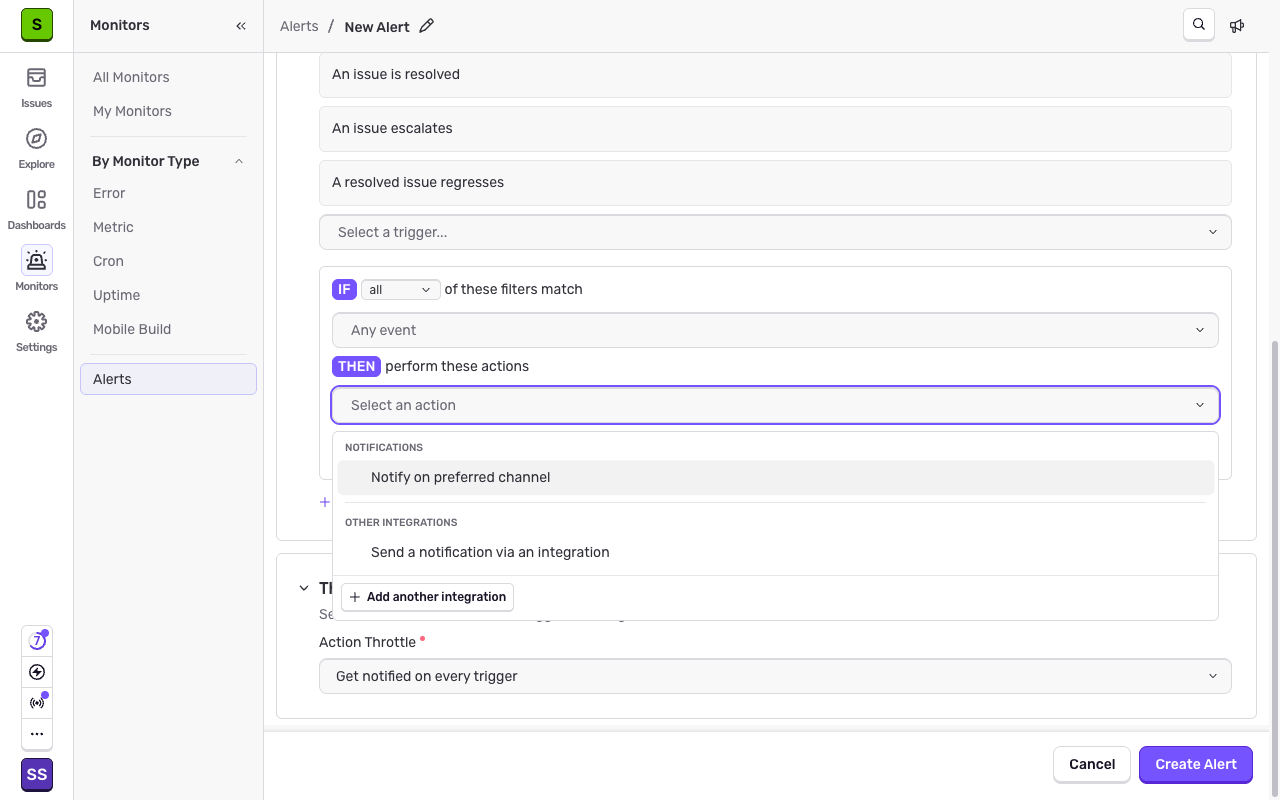
Select your integration
In the Send a notification via dropdown, select the integration that holds your Native Webhook URL, then click Create Alert. Each time this alert fires, Sentry posts an event_alert.triggered webhook to StackOne.
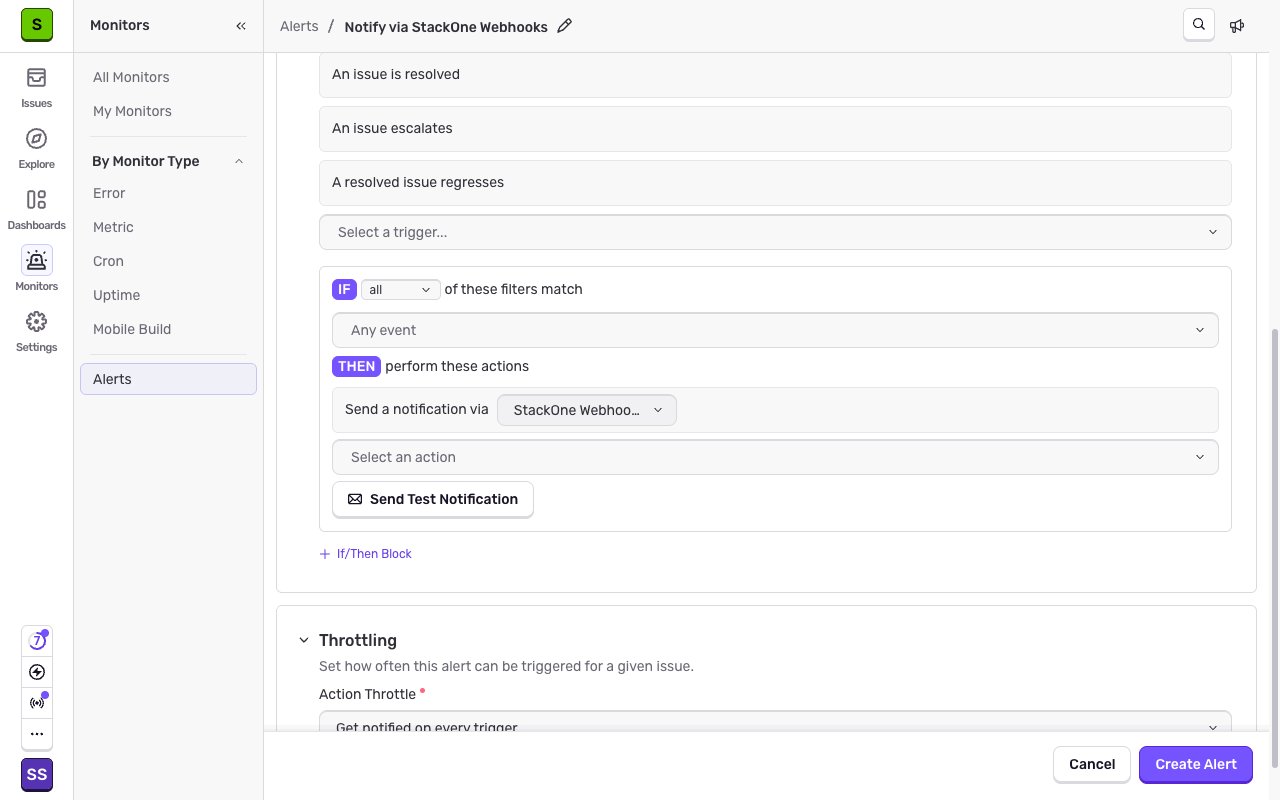
Cover metric monitors
Metric alert webhooks come from metric monitors. Open Monitors > Metric, open or create a monitor, and under Alert use Connect Existing Alerts or Create New Alert so the monitor fires an alert that notifies your integration.
Available webhook events
The events below can be enabled for this connection. Sentry only delivers the resources ticked on the integration (plus any alert that names it as an action), and StackOne only dispatches the events you enable in StackOne.
Installation events
Sent automatically once a Webhook URL is set. No checkbox controls these.
- Installation Created (
installation.created) — Fired when the integration is installed on the organization, which happens as soon as an internal integration is saved. - Installation Deleted (
installation.deleted) — Fired when the integration is removed from the organization.
Issue events
Enable the Issues resource. Requires Issue & Event read permission.
- Issue Created (
issue.created) — Fired when a new issue is created in a project. - Issue Resolved (
issue.resolved) — Fired when an issue is marked as resolved. - Issue Assigned (
issue.assigned) — Fired when an issue is assigned to a user or team. - Issue Archived (
issue.archived) — Fired when an issue is archived or ignored. - Issue Unresolved (
issue.unresolved) — Fired when an issue is reopened, either manually or because it regressed.
Comment events
Enable the Comments resource. Requires Issue & Event read permission.
- Comment Created (
comment.created) — Fired when a comment is added to an issue. - Comment Updated (
comment.updated) — Fired when an existing comment is edited. Shown as Edited in the Sentry UI. - Comment Deleted (
comment.deleted) — Fired when a comment is removed from an issue.
Error events
Enable the Errors resource. Available on Business and Enterprise plans only, and high volume because every error event is sent.
- Error Created (
error.created) — Fired for every individual error event ingested by a project, not just the first one in an issue.
Alert events
Not controlled by the webhook checkboxes. Sent only while Alert Action is on and an alert names the integration as its action.
- Issue Alert Triggered (
event_alert.triggered) — Fired when an issue alert that notifies the integration is triggered. - Metric Alert Critical (
metric_alert.critical) — Fired when a metric alert crosses its critical threshold. - Metric Alert Warning (
metric_alert.warning) — Fired when a metric alert crosses its warning threshold. - Metric Alert Resolved (
metric_alert.resolved) — Fired when a metric alert returns below its thresholds.