Select Actions to adjust the guide
Some actions may require additional configuration in the provider to be accessible. Choose the actions you need and the guide will be updated.
Action
Scope(s)
Loading actions…
Dynamic Guide URL
Scopes Selected
Separator
Admin access to your Sentry organization is required to generate auth tokens.

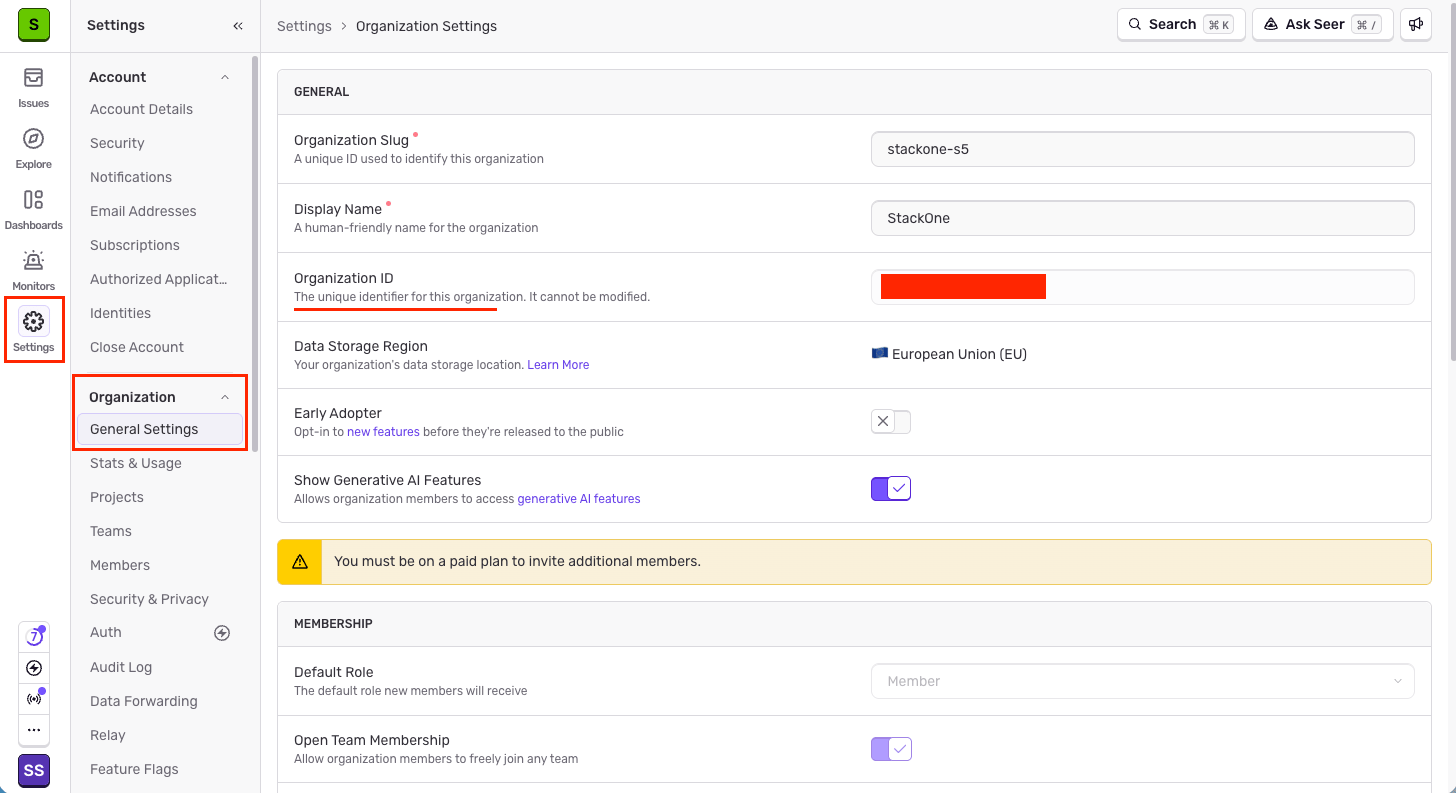
Find your Organization ID

Your Organization ID is the unique identifier for your Sentry organization.

1

Locate Organization ID

Sign in to your Sentry account.

  • Navigate to Settings > Organization > General Settings.
  • Find the Organization ID field.

Generate an Auth Token

Generate an Auth Token from your Sentry account to enable API access.

1

Sign in to Sentry

Sign in to your Sentry account.
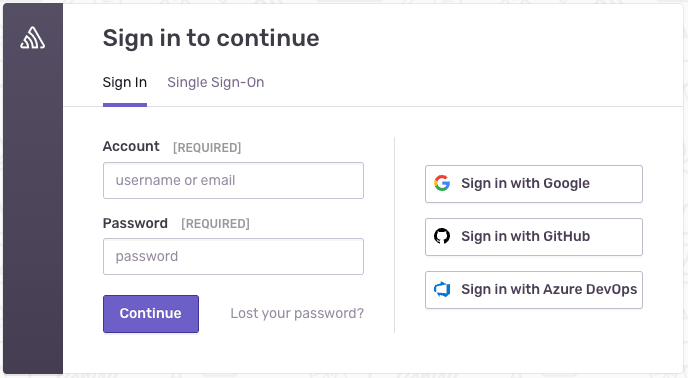
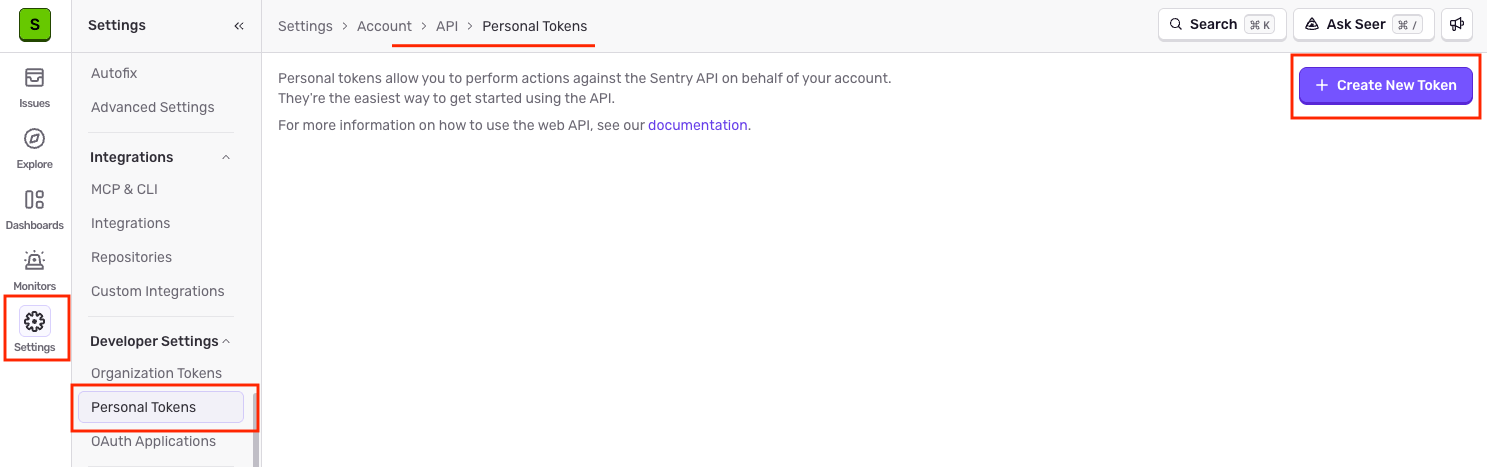
  • Navigate to Settings > Auth Tokens.
2

Create a new token

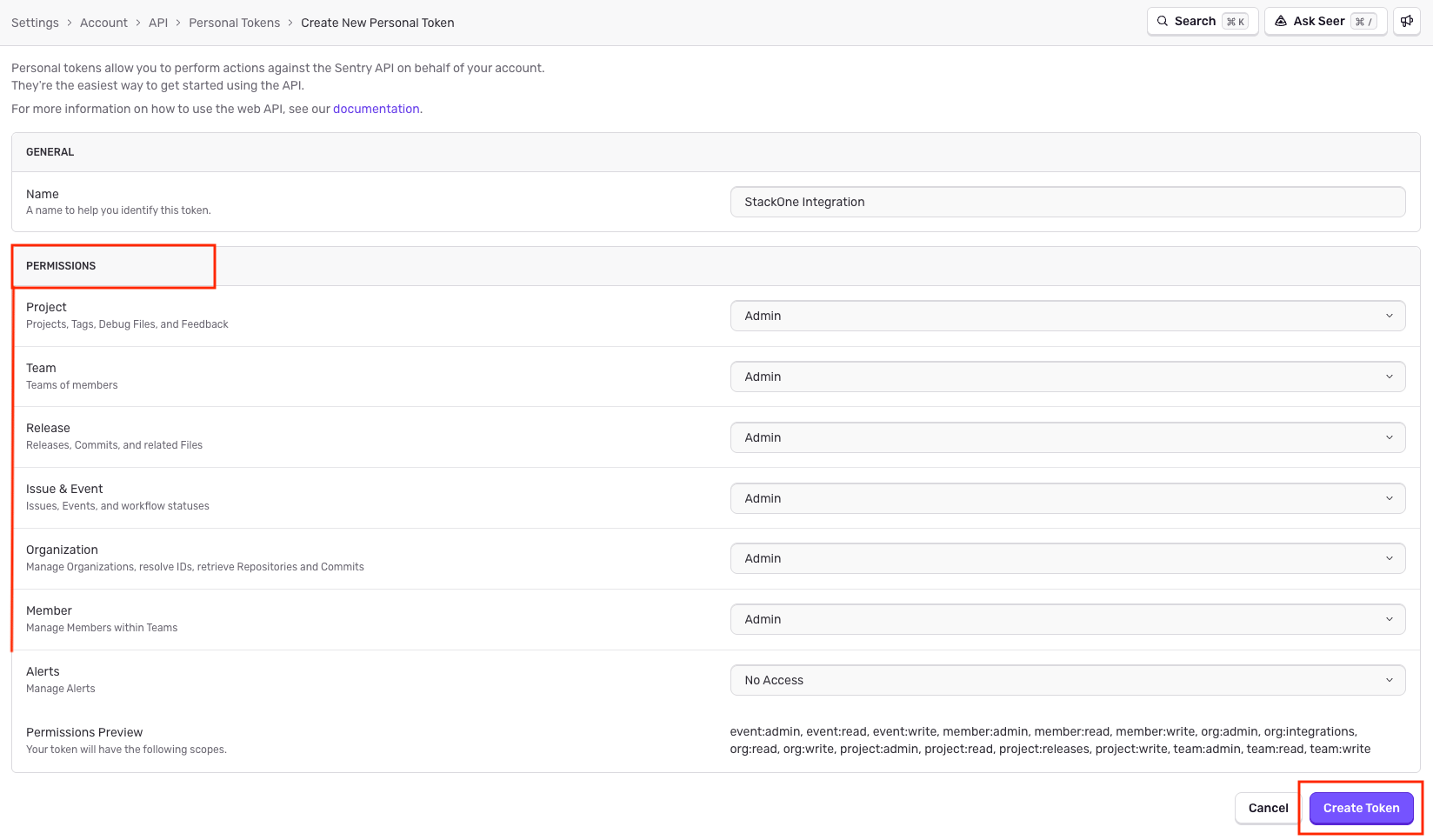
Click Create New Token and enter a descriptive name (e.g., StackOne Integration).

3

Select required scopes

Enables actions: Add A Member To An Organization, Add A Team To A Project, Add An Organization Member To A Team, Bulk Mutate A List Of Issues, Bulk Mutate An Organization’s Issues, Bulk Remove A List Of Issues, Bulk Remove An Organization’s Issues, Create A New Project, Create A New Team, Delete A Project, Delete A Replay Instance, Delete A Team, Delete A Team From A Project, Delete An Organization Member, Delete An Organization Member From A Team, Get Unified Credentials, Get Unified Group, Get Unified Organization, Get Unified Role, Get Unified User, List A Project Release’s Commits, List A Project’s Client Keys, List A Project’s Data Filters, List A Project’s Error Events, List A Project’s Issues, List A Project’s Organization Members, List A Project’s Release Files, List A Project’s Teams, List A Project’s Users, List A Release’s Deploys, List A Repository’s Commits, List A Tag’s Values, List A Tag’s Values For An Issue, List A Team’s Members, List A Team’s Projects, List A User’s Teams For An Organization, List An Issue’s Events, List An Issue’s Hashes, List An Organization Release’s Commits, List An Organization’s Issues, List An Organization’s Members, List An Organization’s Projects, List An Organization’s Release Files, List An Organization’s Releases, List An Organization’s Replays, List An Organization’s Repositories, List An Organization’s Selectors, List An Organization’s Teams, List Recording Segments, List Unified Groups, List Unified Organizations, List Unified Resource Types, List Unified Resource Users, List Unified Roles, List Unified Users, List Users Who Have Viewed A Replay, List Your Organizations, Remove An Issue, Resolve A Short ID, Resolve An Event ID, Retrieve A Project, Retrieve A Project Release’s File, Retrieve A Recording Segment, Retrieve A Replay Instance, Retrieve A Team, Retrieve An Event For A Project, Retrieve An Issue, Retrieve An Issue Event, Retrieve An Organization, Retrieve An Organization Member, Retrieve An Organization Release’s File, Retrieve An Organization’s Events Count By Project, Retrieve An Organization’s Release, Retrieve Event Counts For A Project, Retrieve Event Counts For An Organization (v2), Retrieve Files Changed In A Release’s Commits, Retrieve Ownership Configuration For A Project, Retrieve Statuses Of Release Thresholds (Alpha), Retrieve Tag Details, Update A Team, Update An Issue, Update An Organization Member’s Team Role, Update Organization, Update Organization Member Roles, Update Ownership Configuration For A Project

Select the required scopes for your integration.

4

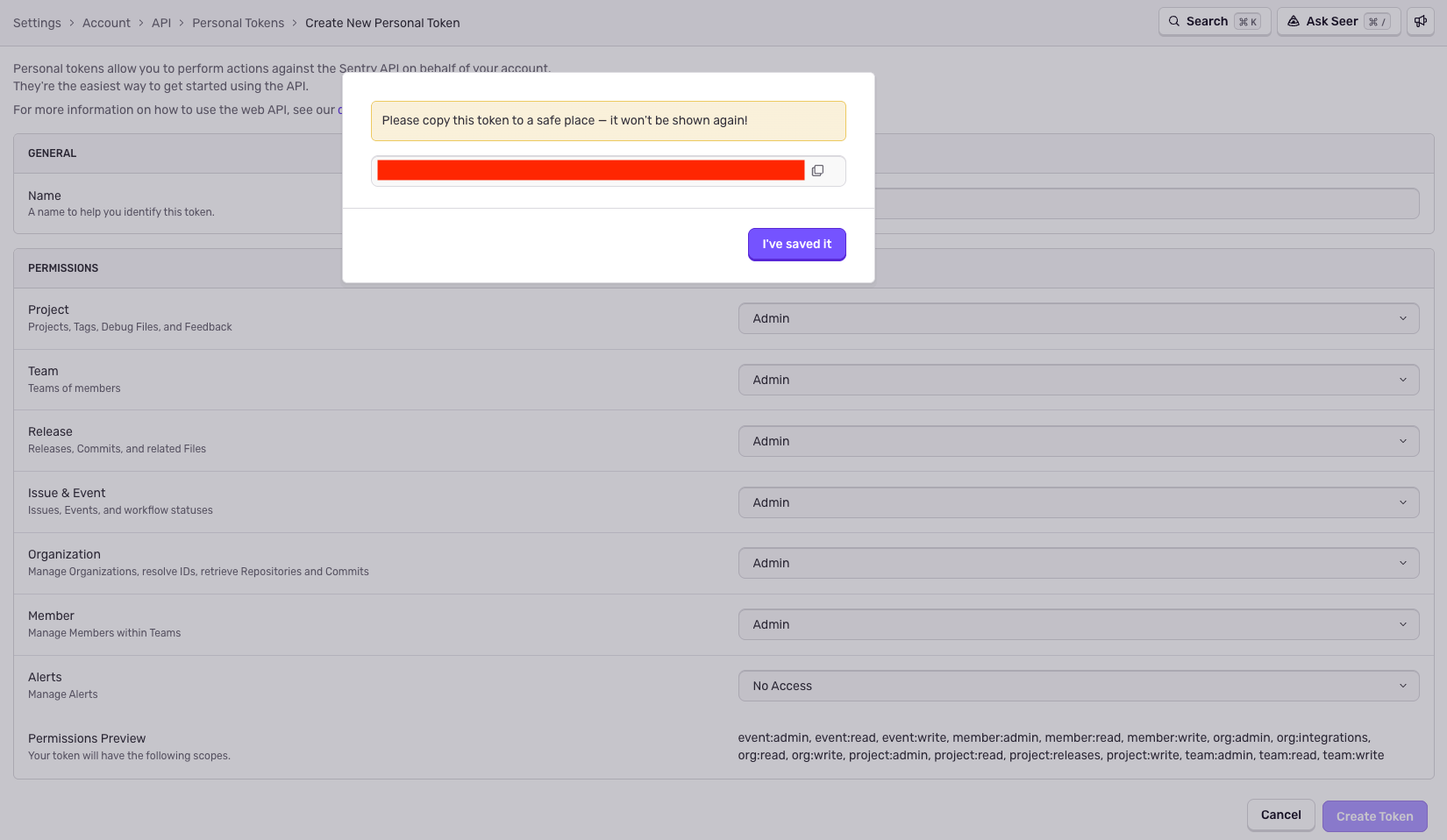
Save the token

Click Create Token.

  • Copy the token immediately as it will only be shown once. Store it securely for use later.

Generate an Internal Integration token (alternative)

For more granular control, create an Internal Integration instead of a personal auth token.

1

Sign in to Sentry

Sign in to your Sentry account.

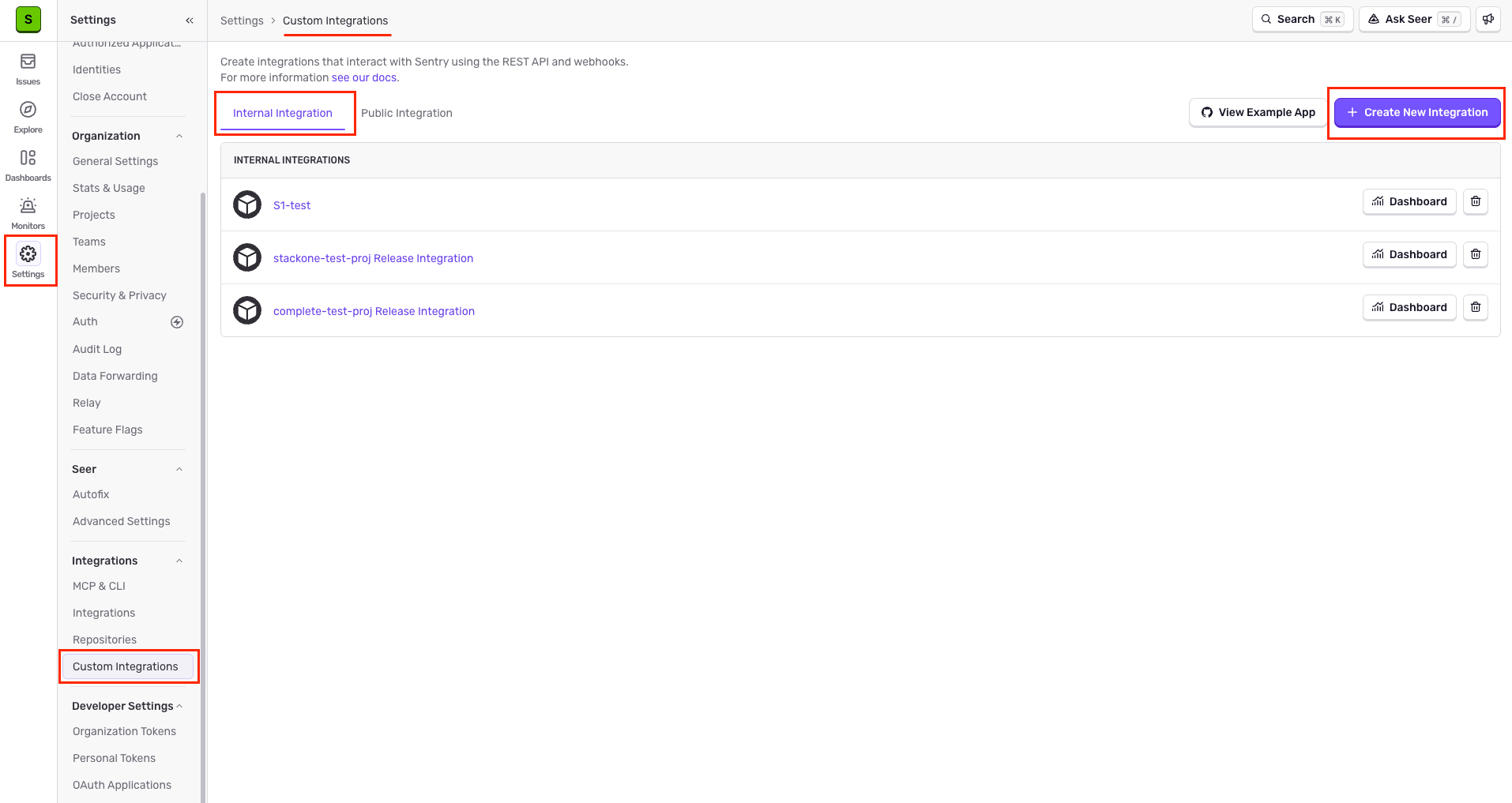
  • Navigate to Settings > Developer Settings > Custom Integrations.
2

Create an Internal Integration

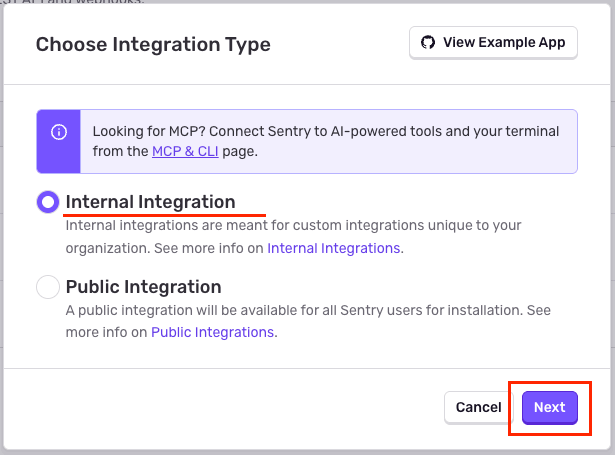
Click Create New Integration and select Internal Integration.

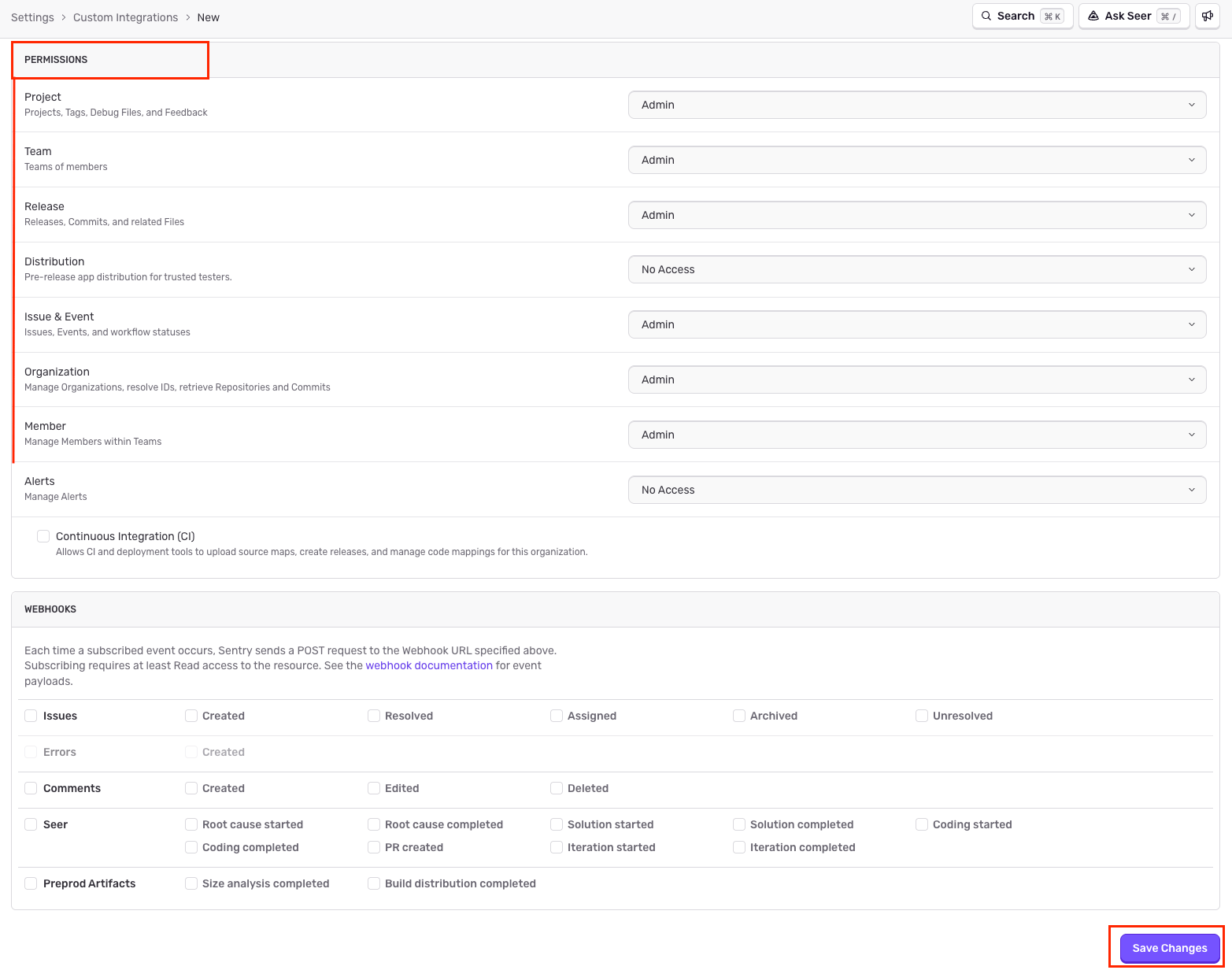
  • Enter a name and configure the required permissions.
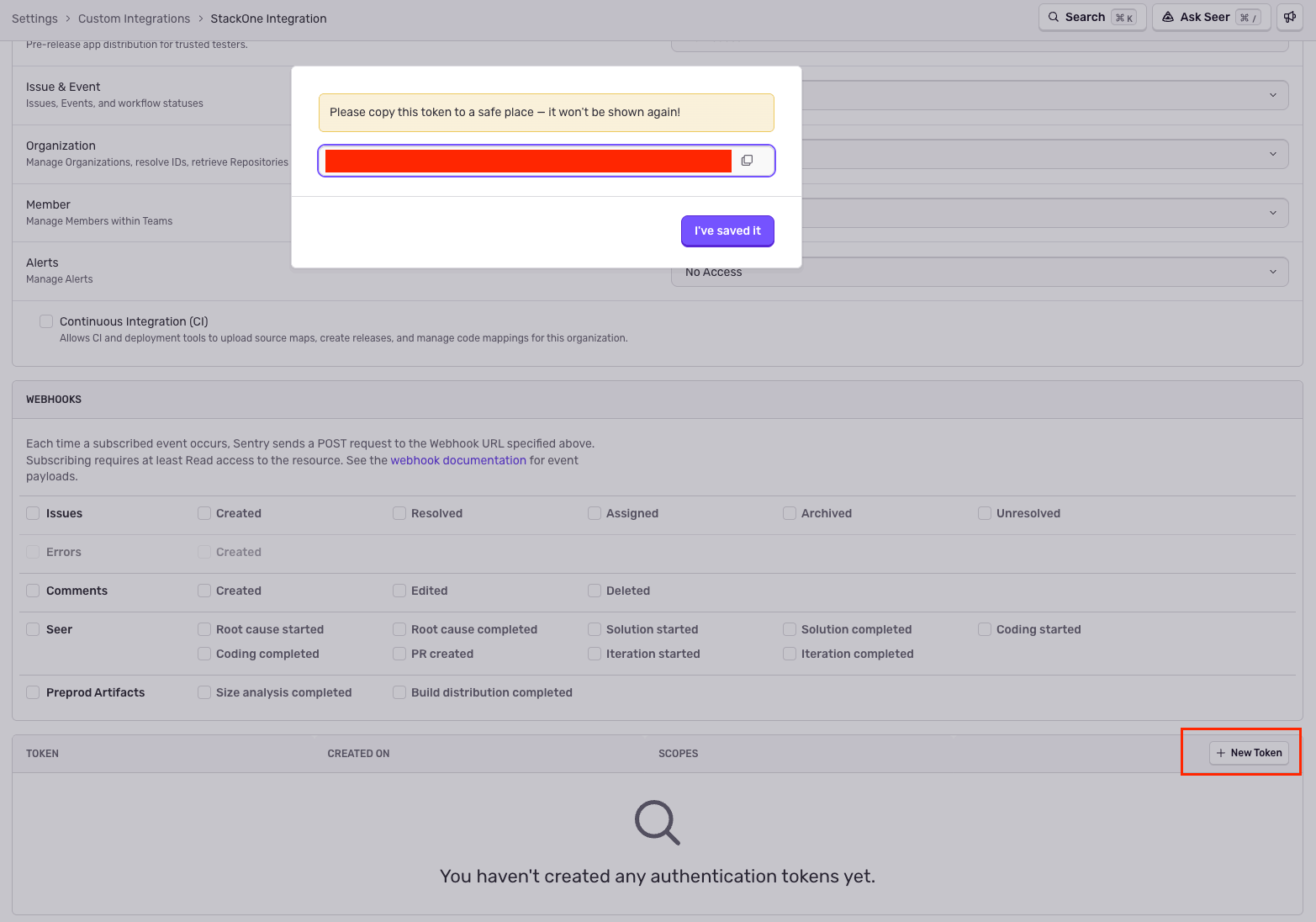
  • Click Save Changes to generate a token.
  • Copy the generated token. Store it securely for use later.

Linking the Account from the Hub

1

Navigate to the Hub

Use one of the three Linking Account Methods to access the Hub.
2

Fill out the fields

Fill out the following fields using details from your provider:
  • Organization ID
  • Auth Token
3

Connect

  • Click Connect
  • If applicable, the provider will redirect you to a sign-in or authorization page. Complete the provider’s authorization flow.
  • Once authorization is successful, you will see a confirmation popup

If the account linking is successful, you will see the newly linked account in your Accounts page.