

Generating an API key
A Scholar Sidekick API key starts with ssk_ and authenticates requests with higher rate limits than anonymous access.
1
Sign in to Scholar Sidekick
Sign in to your Scholar Sidekick account.
- Sign in with an emailed sign-in link, Google, or GitHub.
- After sign-in, the Account page opens with an API keys section.
2
Create a key
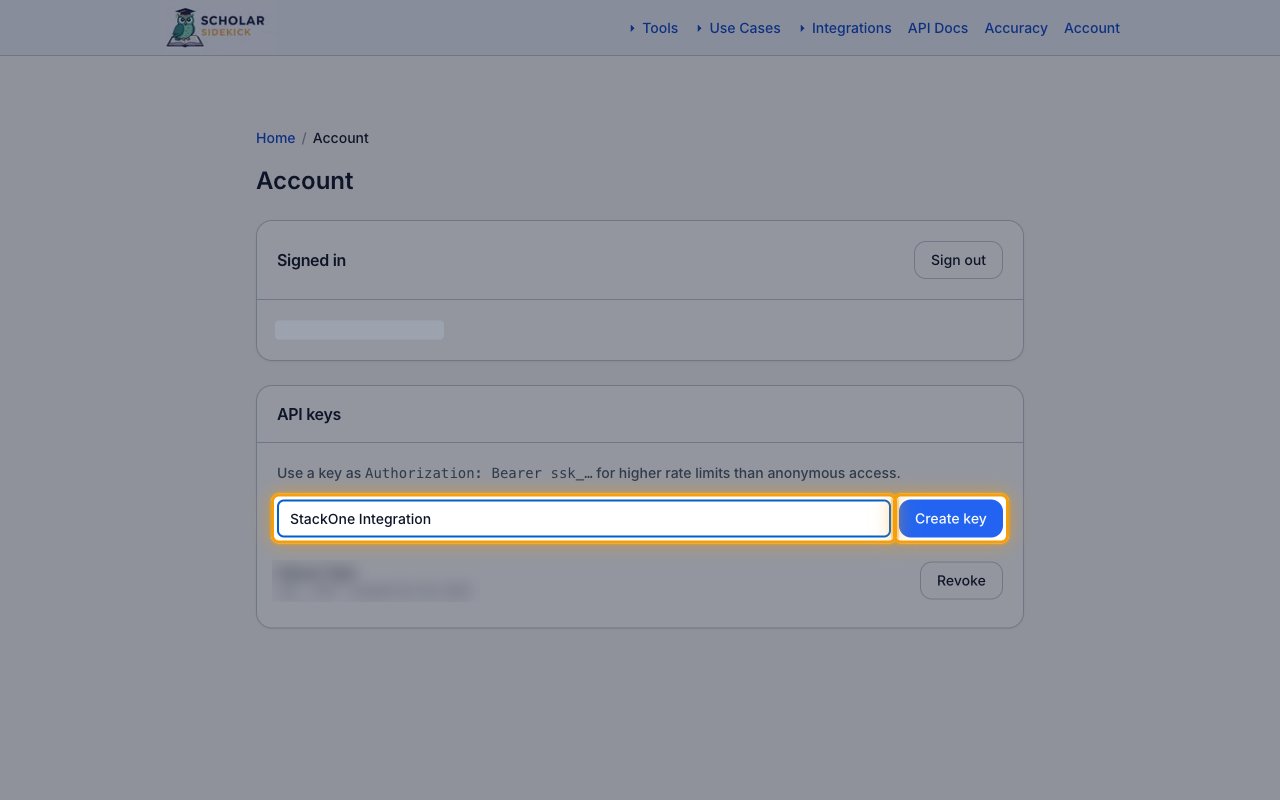
In the API keys section, enter a label for the new key.
- Key label:
StackOne Integration - Click Create key.
3
Copy the key
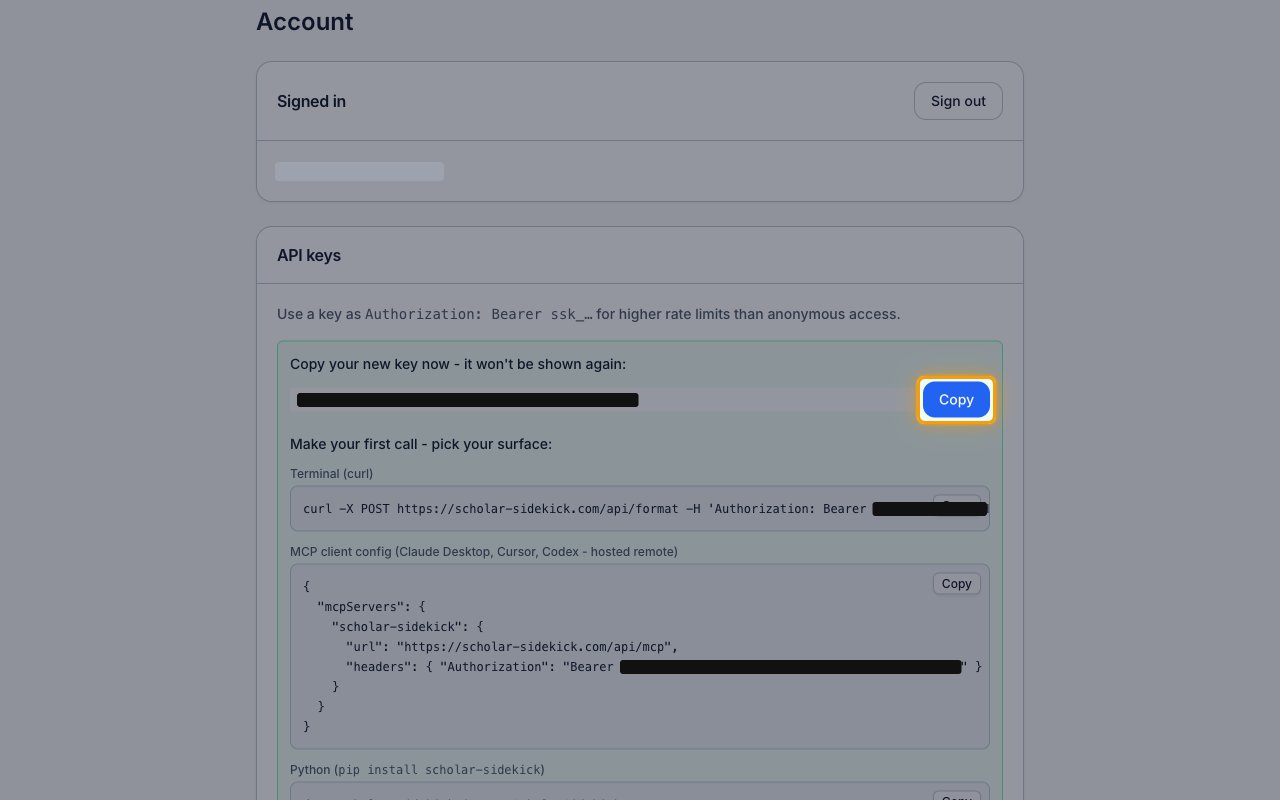
Under Copy your new key now - it won’t be shown again:, click Copy to copy the key.
- The key is only displayed once and cannot be retrieved later. Store it securely for use later.
- Paste it into the API Key field in StackOne Hub.
- Format:
ssk_followed by a string of letters, numbers, underscores and hyphens
Linking the Account from the Hub
1
Navigate to the Hub
Use one of the three Linking Account Methods to access the Hub.
2
Fill out the fields
Fill out the following fields using details from your provider:
- API Key
3
Connect
- Click Connect
- If applicable, the provider will redirect you to a sign-in or authorization page. Complete the provider’s authorization flow.
- Once authorization is successful, you will see a confirmation popup
If the account linking is successful, you will see the newly linked account on your Accounts page.